Why Is My PC Fan So Loud? Causes and Fixes
A PC fan gets loud when it spins faster to compensate for excess heat, blocked airflow, or a mechanical fault that pushes fan RPM beyond its quiet operating range.
Last updated: July 2026
Table of Contents
- Quick Answer: Why Is My PC Fan So Loud?
- Is It Normal for a PC Fan to Be Loud?
- What “Normal” Fan Noise Actually Sounds Like
- 7 Reasons Your PC Fan Is So Loud (And How to Fix Each One)
- 1. Dust Buildup Choking Airflow
- 2. High CPU or GPU Load Spiking Fan Speed
- 3. Aggressive or Misconfigured Fan Curves
- 4. Poor Airflow and Cable Obstruction
- 5. Worn or Failing Fan Bearings
- 6. Thermal Paste Degradation
- 7. Insufficient Cooling for Your Hardware
- How to Diagnose a Loud PC Fan by Sound Type
- PWM vs. DC Fan Control: Why It Matters for Noise
- How to Make Your PC Fan Quieter: Quick Fix Checklist
- How to Tell If Your PC Fan Is Dying
- Frequently Asked Questions
- Why is my PC fan so loud all of a sudden?
- Is it bad if my PC fans are loud?
- Why is my PC fan so loud when nothing is running?
- Why is my PC fan so loud when I play games?
- How do I make my PC fan quieter without sacrificing cooling?
- What You Should Do
Quick Answer: Why Is My PC Fan So Loud?
The most common reasons a PC fan runs loud are dust clogging airflow, high CPU or GPU temps triggering aggressive fan curves, misconfigured fan speed settings in BIOS, or a fan bearing starting to fail. If your fan got loud suddenly, check temperatures first using a free tool like HWiNFO64. If temps are normal but the noise is there, suspect a bearing or fan curve issue. Nine times out of ten, one of these seven causes is the culprit.
You’re sitting at your desk and your PC sounds like a small turbine. Or maybe it was quiet for years and just last week it started roaring. Either way, a loud PC fan is annoying, sometimes a warning sign, and almost always fixable. This article walks through every common cause with specific diagnostics and fixes, plus two angles no competitor covers: how to diagnose fan noise by sound type, and the difference between PWM and DC fan control and why it matters for noise.
Is It Normal for a PC Fan to Be Loud?
It depends on what your PC is doing. Fans ramping up under load is completely expected. Fans screaming at idle is not. The key is matching the noise level to what the system is actually doing at that moment.
What “Normal” Fan Noise Actually Sounds Like
At idle, a well-built PC should sit somewhere between 20 and 35 dB(A). That’s roughly the volume of a quiet library or a whisper across a room. Under gaming or rendering load, 40 to 52 dB(A) is normal. That’s closer to a normal conversation. Once you hit 55 dB(A) sustained or hear any grinding, rattling, or clicking, something’s wrong.
| PC State | Normal Fan RPM Range | Normal dB(A) Range | Action Needed? |
|---|---|---|---|
| Idle / Desktop | 600–1,200 RPM | 20–35 dB(A) | No |
| Light tasks / browsing | 1,000–1,800 RPM | 30–40 dB(A) | No |
| Gaming / rendering | 1,500–2,500 RPM | 40–52 dB(A) | Usually no |
| Full load, sustained | 2,500–3,000+ RPM | 52–60 dB(A) | Investigate temps |
| Any state + grinding | Any | Any | Yes, act now |
A pc fan running loud during a game or a video export is normal, expected behavior. A pc fan too loud at idle with nothing open is not. That distinction tells you a lot about where to look first.
One often-overlooked noise source: the power supply. PSU fans are typically a frequently missed contributor to overall PC noise. A lower-quality PSU with an always-on fan adds a constant background hum that’s easy to mistake for a case fan or CPU cooler.
7 Reasons Your PC Fan Is So Loud (And How to Fix Each One)
1. Dust Buildup Choking Airflow
Dust is the single most common reason a PC fan suddenly loud after months of quiet operation. It settles on fan blades, heatsink fins, and intake vents. As it accumulates, it insulates components and reduces the volume of air moving through the system. The result is higher temps, which triggers the fan controller to push RPMs higher to compensate. In moderate cases, dust alone can raise CPU temps by 5 to 15°C.
How often you need to clean depends on your environment. Carpeted rooms with pets? Every 3 months. Hard floors, no pets? Every 6 to 12 months. The fix is straightforward: power down, unplug, take the side panel off, and use short bursts of compressed air to blow dust off fans, heatsink fins, and intake vents. Follow up with a dry microfiber cloth on accessible surfaces. If your case has removable fan filters, rinse those under water and let them dry completely before reinstalling.
Don’t underestimate how much a clean heatsink changes temperatures. I’ve seen a Ryzen 5 5600X drop from 88°C to 71°C at load after a proper dust-out, no other changes.
2. High CPU or GPU Load Spiking Fan Speed
When your CPU climbs past 80°C or your GPU pushes past 83°C, fan curves typically command fans to run at 80 to 100% of their maximum RPM. During gaming, this is normal. The pc fan loud during a game is not a problem if temperatures are in range. The problem is when that same behavior shows up at idle or during light browsing.
To check, open Task Manager (Ctrl + Shift + Esc) and look at the Performance tab. For more detail, download HWiNFO64 (free) or GPU-Z. Both give real-time per-core CPU temps and GPU junction temperatures. If something is pegging your CPU at 70 to 80% while you have nothing open, that’s your noise source.
Common culprits: Windows Update running in the background, antivirus scans, browser extensions doing background tasks, or (in worst cases) crypto mining malware. Close the offending process and your fans should step back down within 30 to 60 seconds.
| Component | Safe Operating Temp | Fans Ramp Up At | Danger Zone |
|---|---|---|---|
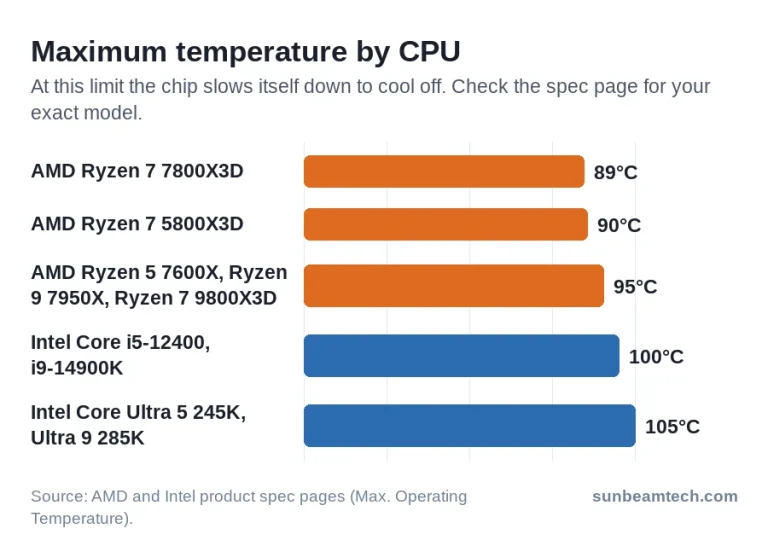
| CPU (Intel 12th–14th Gen) | Under 85°C | 80–85°C | 95°C+ |
| CPU (AMD Ryzen 5000/7000) | Under 90°C | 85–90°C | 95°C+ |
| GPU (NVIDIA RTX 30/40 series) | Under 83°C | 80–83°C | 90°C+ |
| GPU (AMD RX 6000/7000 series) | Under 85°C | 83–85°C | 90°C+ |
| NVMe SSD | Under 60°C | 60–70°C | 80°C+ |
If your CPU is consistently hitting 90°C+ even after cleaning, check out the guide on CPU overheating signs, causes, and fixes for a deeper diagnostic walkthrough.
3. Aggressive or Misconfigured Fan Curves
This one surprises a lot of people. Many motherboards ship with fan curves set to “Performance” or even “Full Speed” by default. The pc fan too loud right out of the box with a new build often traces back to this exact setting. The hardware is fine. The instructions you’ve given it are just wrong.
You can fix this in two places: your BIOS (ASUS has AI Suite, MSI has Dragon Center, Gigabyte has EasyTune) or a universal third-party tool. The best free option right now is Fan Control by Rémi Mercier, which supports PWM and DC fans from every major board manufacturer.
Here’s a starting point for a quiet-but-safe fan curve:
- 0–40°C: 30–40% PWM duty cycle
- 40–60°C: 40–60% PWM duty cycle
- 60–75°C: 60–80% PWM duty cycle
- 75°C+: 80–100% PWM duty cycle
This keeps fans near-silent at idle while still ramping aggressively enough to protect the CPU under load. Adjust based on your cooler’s capacity.
4. Poor Airflow and Cable Obstruction
A cable draped across a fan blade creates two problems at once: it partially blocks the blade (reducing airflow and forcing higher RPMs) and it creates a rhythmic ticking or buzzing as the cable makes contact with each rotation. Not great. A case with poor airflow planning has the same thermal penalty as a dusty one.
Negative pressure setups, where your case exhausts more air than it pulls in, draw unfiltered air through every seam and gap. That accelerates dust buildup and increases the volume of warm recirculated air near components. The fix is to run positive pressure: at least one more intake fan than exhaust fans. Filtered intake air comes in faster than it leaves, so there’s no vacuum pulling in unfiltered air from random gaps.
For a full breakdown of fan placement and direction, the guide on PC airflow direction, intake, and exhaust setup covers every common case configuration.
5. Worn or Failing Fan Bearings
Here’s the diagnostic that separates a heat problem from a mechanical one: if your fans are loud but temperatures are completely normal, suspect a bearing. Bearing failure doesn’t care what the CPU is doing. The noise is consistent regardless of system load. A fan that takes 10 seconds to quiet down on boot this week might take 60 seconds next month. Eventually it won’t quiet down at all.
Fan bearings are not all created equal. Their lifespan and failure modes vary significantly:
| Bearing Type | Typical Lifespan | Noise Profile When Failing |
|---|---|---|
| Sleeve bearing | 3–5 years | Whirring, rattles at low RPM |
| Ball bearing | 5–8 years | Clicking, grinding |
| Fluid dynamic (FDB) | 8–12 years | Subtle hum, very late failure |
| Magnetic levitation (Maglev) | 10+ years | Near-silent until sudden death |
The tell: manually spinning the fan (with the PC powered off) and feeling for resistance, wobble, or roughness. If the fan makes the noise and spinning it manually temporarily changes the sound, that’s a bearing on its way out. Don’t repair it. Replace it. A decent Noctua or Arctic case fan runs $10 to $30, and it’s a 10-minute swap.
This is the most common cause of a fan on pc making loud noise with no obvious temperature explanation, and the most common reason a pc making loud fan noise suddenly after years of being quiet.
6. Thermal Paste Degradation
Thermal paste doesn’t last forever. Most compounds start losing conductivity after 3 to 5 years, and when that happens, CPU temps can rise 10 to 20°C compared to a fresh application. The processor doesn’t know the paste is old. It just knows it’s hot. So it asks the fans to spin faster. That’s why a pc fan suddenly loud after years of quiet operation often points to dried-out paste rather than any hardware failure.
If your PC is more than 3 years old and you’ve never reapplied thermal compound, this is worth doing. The process takes about 20 minutes. Clean off the old compound with isopropyl alcohol (90% or higher) and a lint-free cloth, then apply a fresh pea-sized dot centered on the CPU’s IHS. Good options: Arctic MX-6 (around $8), Thermal Grizzly Kryonaut, or Noctua NT-H2. You can expect 5 to 15°C lower temps after a proper repaste, which translates directly to lower fan speeds.
For more detail on timing and compound choices, the guide on how long thermal paste lasts and when to replace it is worth reading before you start.
7. Insufficient Cooling for Your Hardware
Stock coolers are rated for a CPU’s base TDP. They are not designed for sustained boost clocks. An Intel Core i9-13900K pulling 253W at PL2 will absolutely overwhelm the box cooler, and it’ll do it loudly. Same story with a Ryzen 9 7950X at 170W TDP. The fans aren’t failing. They’re just doing what they can with what they have, which isn’t enough.
The fix is straightforward: upgrade the cooler. For mid-range CPUs (65W to 105W), a tower air cooler like the DeepCool AK620 or Noctua NH-U12S handles the job quietly. For high-TDP CPUs, step up to the Noctua NH-D15 or a 240mm to 360mm AIO. A 360mm AIO is generally the right call for anything above 125W sustained. Not cheap, but the noise difference is immediate and dramatic.
How to Diagnose a Loud PC Fan by Sound Type
Not all fan noise is the same. The specific sound your fan is making tells you where to look before you open a single menu or run a single tool. This is the fastest path to a fix.
| Noise Type | What It Sounds Like | Most Likely Cause | Urgency |
|---|---|---|---|
| Constant high-pitched whir | Wind tunnel / hair dryer | Fan curve, high load, or dust | Medium |
| Grinding or scraping | Metal-on-metal | Failing bearing or cable contact | High |
| Rattling or buzzing | Loose parts vibrating | Loose screw or cable touching blade | Medium |
| Clicking | Regular ticking sound | Bearing failure (early stage) | High |
| Intermittent loud spikes | Fans surge then drop | Aggressive auto fan curve | Low–Medium |
| Loud only at startup | Brief roar then quiet | POST fan diagnostic (normal) | None |
Grinding and clicking demand immediate attention. A grinding fan is either making blade contact with something or the bearing is shedding material. Both scenarios can escalate quickly. A wind-tunnel whir at idle usually points to dust or a misconfigured curve, both of which are easy fixes. Rattling almost always means a loose screw or an untethered cable catching a blade. Worth checking physically before assuming anything is broken.
PWM vs. DC Fan Control: Why It Matters for Noise
This is the part most guides skip. Understanding how your motherboard controls fan speed explains a lot of strange noise behavior, especially that frustrating pattern where a fan surges loud, drops quiet, then surges again for no obvious reason.
PWM (4-pin) fans are controlled by a pulsed signal from the motherboard. The fan motor runs at full voltage but receives intermittent power pulses. More pulses = faster. Fewer pulses = slower. This is precise and allows very low minimum RPMs, sometimes as low as 200 to 300 RPM, without stalling.
DC (3-pin) fans are controlled by lowering the voltage supplied to the motor. Less voltage = slower. The problem is that DC fans often stall or behave erratically below around 40% of their rated voltage, which corresponds to roughly 600 to 800 RPM. Below that threshold, the fan might stop, then spin back up suddenly as the controller detects zero RPM. That surge-and-drop cycle is exactly what many people describe when they say their pc fan suddenly loud and then quiet for no reason.
| Feature | PWM (4-pin) | DC (3-pin) |
|---|---|---|
| Speed control method | Pulse width modulation | Voltage reduction |
| Minimum stable RPM | ~200–300 RPM | ~600–800 RPM |
| Noise at low load | Very quiet | Can surge and hunt |
| Compatibility | Backward compatible with 3-pin headers | Works on PWM headers (limited control) |
| Recommended for silent build? | Yes | Not ideal |
If you have 3-pin fans on a PWM-capable header and the BIOS is set to PWM mode, you’ll get erratic behavior. Go into BIOS fan settings and switch that header to DC voltage control mode. Better long-term: upgrade to 4-pin PWM fans. For a deeper look at fan header types and speed controllers, the PC fan controller PWM guide walks through all the options.
How to Make Your PC Fan Quieter: Quick Fix Checklist
Work through these in order. Most loud PC fan problems are solved by step 3 or earlier.
- Check CPU and GPU temps with HWiNFO64 or GPU-Z. Establish a baseline before changing anything.
- Clean fans, heatsinks, and vents with compressed air. Hold fan blades still while blasting so you don’t overspin the bearings.
- Adjust fan curves in BIOS or Fan Control software. Switch from “Performance” to a custom curve using the targets in this guide.
- Check for background processes hogging CPU in Task Manager. Sort by CPU usage and kill anything you don’t recognize.
- Verify cables are not touching fan blades. Hold a flashlight up to the case and look for anything close to the blade arc.
- Re-evaluate airflow. Aim for positive pressure with at least one more intake fan than exhaust.
- Reapply thermal paste if the PC is 3 or more years old.
- Upgrade the stock cooler if you’re running a 65W or higher CPU with the box cooler it shipped with.
- Replace any fan making clicking or grinding sounds. Don’t wait on this one.
- Switch to 4-pin PWM fans on PWM headers if you’re getting surge-and-drop behavior from 3-pin fans.
How to Tell If Your PC Fan Is Dying
A dying fan doesn’t always announce itself loudly at first. Sometimes it’s subtle. Here are the specific signs to watch for, in roughly ascending order of urgency.
- Fan noise is loud and consistent regardless of CPU temperature: If temps are 45°C and the fan is screaming like it’s under full load, that’s a mechanical issue, not thermal.
- Clicking or grinding sounds: Early-stage clicking is a bearing starting to go. Grinding means it’s further along. Replace it before it seizes.
- Fan reads 0 RPM in BIOS or HWiNFO while the PC is running: The fan may have stopped entirely, which means the component it cools is now running unprotected.
- Manually stopping the fan temporarily silences the noise: This is a classic bearing failure tell. The noise is coming from the bearing, not airflow.
- PC shuts down unexpectedly under load: Thermal protection is triggering because a fan has failed and temps are spiking beyond safe limits.
- Visible wobble on the fan while it spins: The hub is off-center. That’s a bearing or mounting failure and it will get worse.
Replace immediately if you’re seeing 0 RPM readings, grinding sounds, or thermal shutdowns. If the fan is just louder than it used to be with no other symptoms, monitor it closely for a week or two. The replacement cost is low: $10 to $15 for a standard 120mm case fan, $25 to $80 for a CPU cooler fan depending on the cooler. Worth having a spare on hand for a build you rely on.
AMD’s official thermal specifications for Ryzen 7000 series processors are documented on AMD’s processor specifications page, and Intel’s thermal data for 12th through 14th Gen CPUs is available through the Intel product catalog. Cross-reference your specific CPU’s TJunction max before assuming a temperature reading is a problem.
Frequently Asked Questions
Why is my PC fan so loud all of a sudden?
Sudden loud fan noise usually points to one of four things: a failing bearing, a spike in CPU or GPU temps from background processes, new dust accumulation blocking vents, or a BIOS or driver update that changed fan curve behavior. Check temps first using HWiNFO64. If temperatures are normal at idle and the fan is still loud, a bearing failure is the most likely cause — a classic tell is when manually spinning the fan temporarily silences the noise.
Is it bad if my PC fans are loud?
Loud fans during gaming or video rendering are normal and not harmful. That’s the system working as intended. Loud fans at idle or during light browsing are a problem worth investigating, usually caused by a runaway background process or misconfigured fan curve. Any fan making grinding, clicking, or rattling sounds at any point indicates a mechanical issue that should be addressed quickly to prevent cooling failure.
Why is my PC fan so loud when nothing is running?
A background process is almost certainly consuming CPU or GPU resources without your knowledge. Open Task Manager (Ctrl + Shift + Esc) and sort by CPU usage. Common culprits: Windows Update, antivirus scans, browser extensions syncing in the background, Steam or other launchers running updates, and in rare cases, crypto mining malware. If you see an unknown process near the top of the list consuming 20% or more CPU, that’s your noise source.
Why is my PC fan so loud when I play games?
Gaming pushes both your CPU and GPU to high utilization, generating significant heat. Fans spin faster to compensate. This is expected behavior. The concern starts if your CPU is exceeding 90°C or your GPU is exceeding 88°C during gaming. If temps are within range and the fan is just loud, the first thing to try is tuning your fan curve to ramp up more gradually. If temps are too high, the fix is better cooling or, for beefy GPUs, checking whether the GPU thermal paste needs replacing.
How do I make my PC fan quieter without sacrificing cooling?
Three steps deliver the most impact. First, clean all fans and heatsinks of dust. Second, adjust fan curves to ramp gradually rather than jumping to high RPM the moment temps tick upward. Third, improve case airflow so your fans don’t have to work as hard to maintain safe temperatures. Beyond those, replacing budget sleeve-bearing fans with quality FDB or Maglev bearing fans from Noctua, Arctic, or be quiet! delivers noticeably lower noise at the same airflow output.
What You Should Do
Most loud fan problems fit into three categories: something is running hot, something is blocking airflow (dust, cables, poor fan layout), or something is mechanically failing. Start with temperatures, then clean, then tune your fan curves. If the noise is a grinding or clicking sound and temps are fine, skip straight to replacement. A $15 fan swap takes 10 minutes and it’s almost always the end of the problem. Check your thermal paste if the system is three or more years old. And if you’re on a stock cooler with a high-TDP chip, the cooler is the bottleneck. Upgrading it will make your build quieter and keep your hardware running healthier long-term.
Want our guides higher in your Google results? Add SunbeamTech as a preferred source.


Alex Rivera writes SunbeamTech’s guides on BIOS settings, motherboard headers, cooling and PC builds. Every guide starts from the manufacturer’s documentation and the questions builders actually search for, and gets checked against AMD, Intel, NVIDIA and board-vendor sources before it goes live. Spotted a mistake? Email [email protected] and it gets fixed.