What Is a Good CPU Temp? Normal Ranges by Use Case
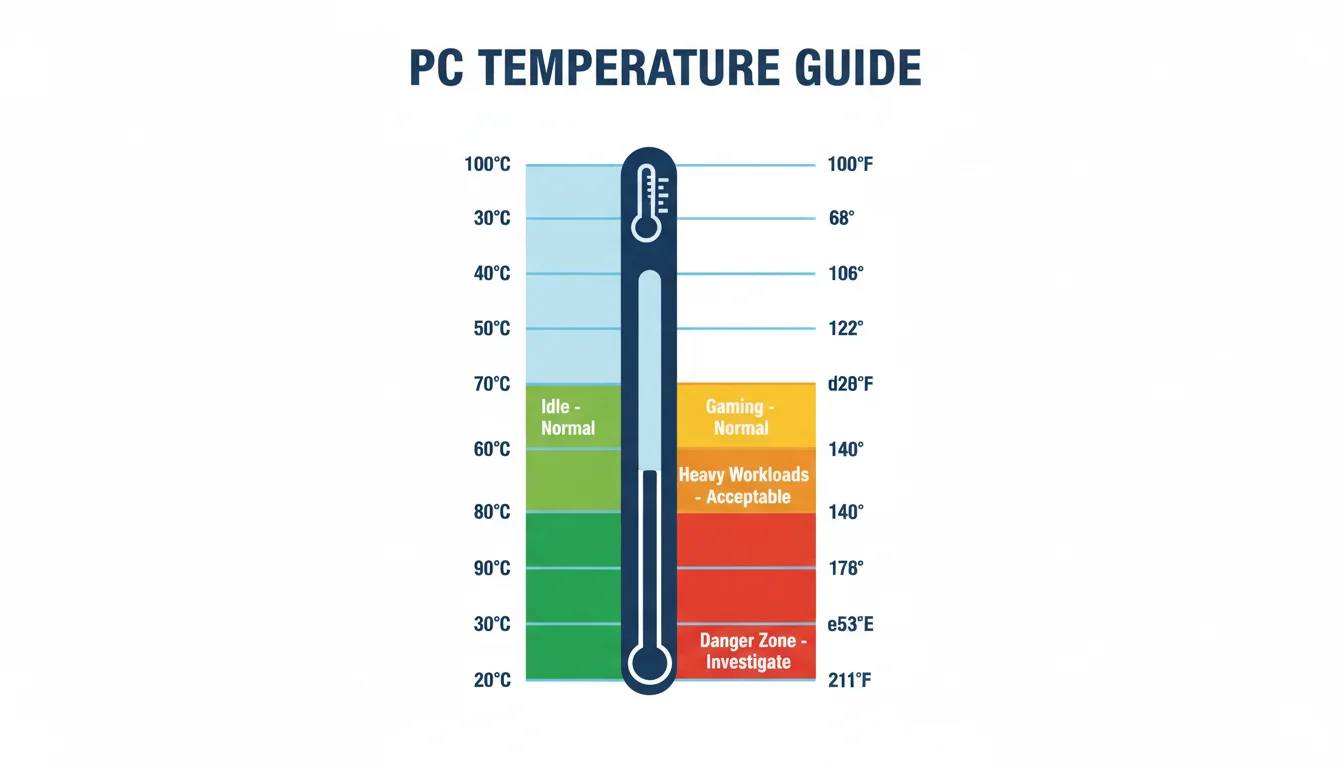
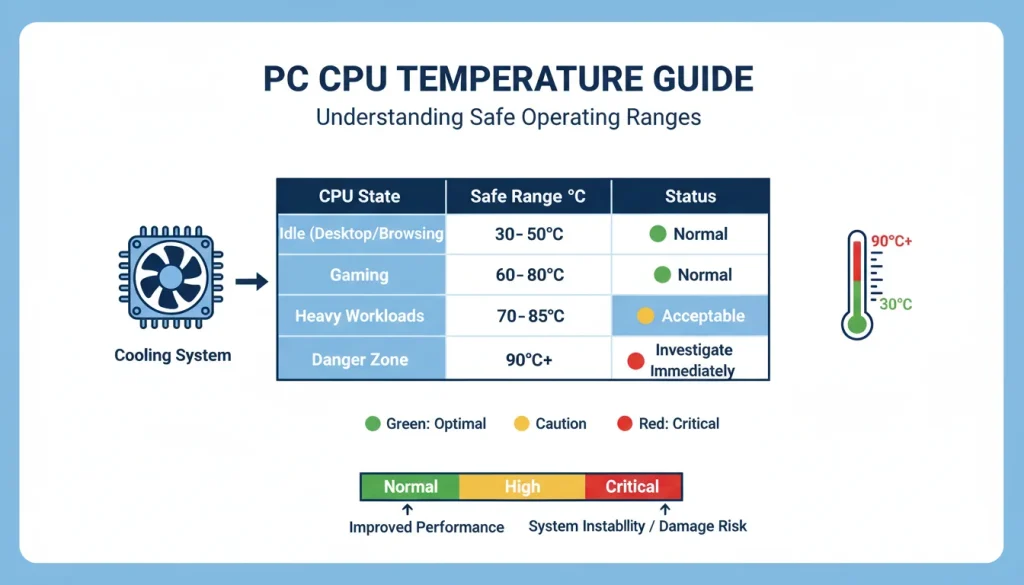
A good CPU temp is 30–50°C at idle, 60–80°C while gaming, and 70–85°C under full load, with thermal throttling risk above 90°C on most consumer CPUs.
Last updated: September 2026
Table of Contents
- Quick Answer: What Is a Good CPU Temp?
- Is X°C Hot for a CPU? Quick Lookup by Temperature
- Good CPU Temps by Scenario: Idle, Gaming, and Full Load
- What Is a Normal CPU Temp at Idle?
- What Is a Normal CPU Temp for Everyday Use (Light Load)?
- What Is a Normal CPU Temp While Gaming?
- CPU Temp at 100% Load: Rendering, Encoding, Compiling
- Normal CPU Temp While Gaming and Under Full Load: Measured Per CPU
- What CPU Temp Is Too High? Max Temp and Tj Max by Generation
- Intel CPU Temperature Ranges by Generation
- AMD Ryzen CPU Temperature Ranges by Generation
- Laptop vs. Desktop: Why Laptop Temps Run Hotter
- CPU Core Temp vs. Package Temp: What’s the Difference?
- Factors That Affect CPU Temperature
- How to Monitor Your CPU Temperature
- How to Lower Your CPU Temperature
- Frequently Asked Questions
- Is 90°C bad for a CPU?
- What is a good CPU idle temp?
- What temp should my CPU be?
- How hot is too hot for a CPU?
- What CPU temperature causes damage?
- What is a healthy CPU temp?
- Why is my CPU temp so high at idle?
- What is a normal CPU temp while gaming?
- What is the max CPU temp?
- What’s the difference between CPU core temp and CPU package temp?
- What is the maximum safe CPU temperature for gaming?
- The Bottom Line
Quick Answer: What Is a Good CPU Temp?
For a desktop PC under normal use, here’s the short version: idle should sit between 30–50°C, gaming between 60–80°C, and full sustained load between 70–85°C. Anything above 90°C consistently means your cooling needs attention, with one exception: under an all-core load, Intel 13th/14th Gen chips will sit at their 100°C Tj Max and AMD Ryzen 7000/9000 chips at their 95°C Tj Max as part of their boost algorithm. That’s by design, not a problem.
Is X°C Hot for a CPU? Quick Lookup by Temperature
Look up your reading. The verdicts assume a desktop CPU in a 20–25°C room and are based on the manufacturers’ published Tj Max values (100°C for Intel 12th–14th Gen, 105°C for Core Ultra 200, 95°C for Ryzen 7000/9000, 89°C for Ryzen 7000X3D), all linked further down. Laptop CPUs run 10–20°C hotter than these verdicts assume.
| Reading | °F | At idle (desktop) | While gaming / under load |
|---|---|---|---|
| 30°C | 86°F | Normal | Only a light load, or exceptional cooling |
| 35°C | 95°F | Normal | Light load |
| 40°C | 104°F | Normal | Cool |
| 45°C | 113°F | Normal | Cool |
| 50°C | 122°F | Upper end of normal | Cool |
| 55°C | 131°F | High for idle: check background CPU use | Normal |
| 60°C | 140°F | Too high for idle: investigate | Normal |
| 65°C | 149°F | Too high for idle: investigate | Normal |
| 70°C | 158°F | — | Normal |
| 75°C | 167°F | — | Normal |
| 80°C | 176°F | — | Normal on current chips; upper end for CPUs from before 2020 |
| 85°C | 185°F | — | Acceptable on Intel 12th–14th Gen, Core Ultra 200 and Ryzen 7000/9000; hot for older chips; 4°C under the 89°C limit of Ryzen 7000X3D |
| 90°C | 194°F | — | Tj Max on Ryzen 7/9 5000 and past it on Ryzen 7000X3D (89°C): throttling. Ryzen 7000/9000 run here by design under all-core load. Older chips: overheating |
| 95°C | 203°F | — | Tj Max on Ryzen 7000/9000 (95°C): the chip holds this on purpose under heavy load. 5°C below Intel’s limit on 12th–14th Gen |
| 100°C | 212°F | — | Tj Max on Intel 12th–14th Gen (100°C): throttling, shutdown if it cannot cool. Out of spec for every AMD desktop CPU |
| 105°C | 221°F | — | Tj Max on Intel Core Ultra 200 desktop chips (105°C). Anything else has already throttled or shut down |
Modern CPUs, especially Intel 12th, 13th, and 14th Gen (Alder Lake, Raptor Lake) and AMD Ryzen 7000 (Zen 4) and Ryzen 9000 (Zen 5), are specifically engineered to run hotter than previous generations. AMD Ryzen 7000 and 9000 chips routinely operate at 90°C+ under load; AMD explicitly states this is expected behavior due to the aggressive boost algorithm maximizing performance within the power envelope. If you upgraded from a Ryzen 3000 chip and your temps jumped, that’s largely architectural, not a problem with your cooling.
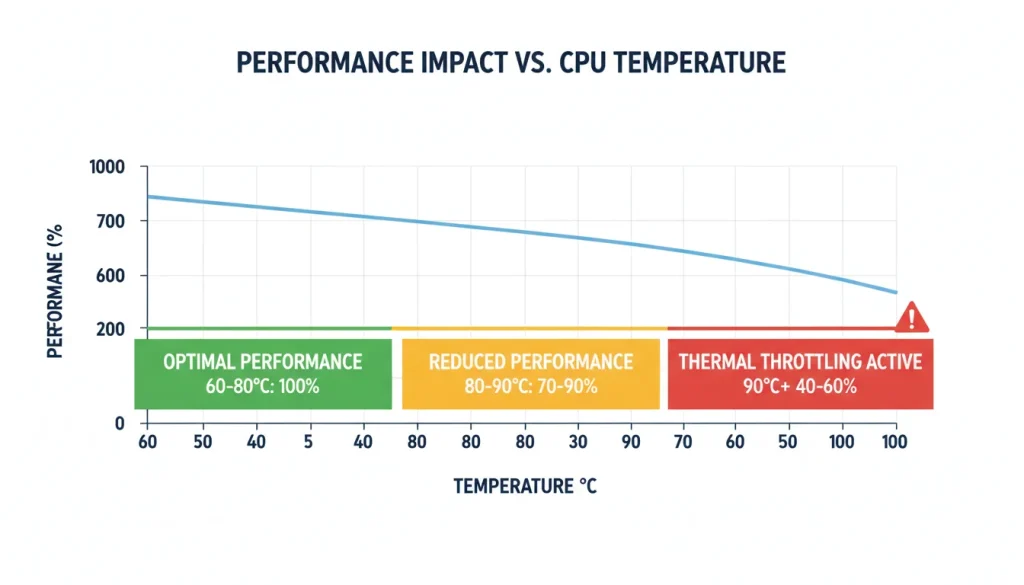
Thermal throttling in plain terms: when the CPU gets too hot, it reduces its clock speed mid-task. In a game, this shows up as sudden FPS drops. In a render, your encode time balloons. It’s the CPU sacrificing performance to survive.
One more thing worth setting expectations on: your CPU temp at idle will naturally fluctuate by 5–10°C based on ambient room temperature. A 22°C room versus a 32°C room can shift your idle readings noticeably. Always factor in your environment when benchmarking.
Good CPU Temps by Scenario: Idle, Gaming, and Full Load
What Is a Normal CPU Temp at Idle?
“Idle” has a specific meaning here, it’s not just “I’m not doing anything.” For an accurate idle reading, you want: desktop visible, no active programs beyond system processes, and you’ve waited at least 5 minutes after the last heavy task for temps to fully stabilize. Background processes like browser tabs, Discord voice processing, or a misconfigured startup app can push your “idle” temp up significantly.
For a desktop system, a healthy idle CPU temp is 30–50°C. Modern processors with good coolers often sit in the mid-30s at idle. A good idle CPU temp for gaming rigs with aftermarket coolers tends to land closer to 32–42°C in a normally cooled room.
If your idle CPU temp is consistently above 60°C on a desktop, that’s worth investigating. Common culprits:
- Something is actively using CPU in the background (check Task Manager, sort by CPU column)
- Thermal paste has dried out and lost contact with the IHS
- The cooler isn’t seated properly (uneven mounting pressure)
- Ambient temps in your case are high due to poor airflow
- Your Windows power plan is set to High Performance, keeping cores at higher idle clocks
A normal CPU temp at idle on a laptop trends higher, 40–60°C is typical due to the compressed thermal solution and chassis heat buildup. Don’t compare laptop idle temps directly to desktop expectations.
What Is a Normal CPU Temp for Everyday Use (Light Load)?
For browsing with a dozen tabs, streaming a video, or working in spreadsheets, expect your CPU to land in the 40–65°C range. This is considered light load, but don’t be surprised if you see brief spikes higher than that.
Modern CPUs with aggressive boost behavior (Ryzen 5000, Intel 12th/13th/14th Gen) can hit 70°C+ for a fraction of a second when a tab loads or a file opens, then drop immediately. That’s the boost algorithm doing its job. What matters is the sustained average, not the spike.
What Is a Normal CPU Temp While Gaming?
Gaming is sustained moderate-to-heavy CPU load, typically over long sessions. The target range is 60–80°C. If you’re running consistently in this range, your cooling is doing its job.
Let’s address the misinformation that pops up constantly in gaming forums: 70–80°C is not a warning sign. It’s normal. It’s actually the operating range most consumer coolers are designed to maintain. You don’t need to panic-buy a 360mm AIO because your i5-12600K hit 76°C in a two-hour Warzone session.
Here’s the actual threshold matrix for gaming:
- 🟢 60–80°C: You’re fine. Normal operation.
- 🟡 80–85°C: Still acceptable, especially on Intel 12th/13th/14th Gen or high-end CPUs. Monitor but don’t stress.
- 🔴 85–90°C consistently: Time to check your cooler, case airflow, and thermal paste. Gaming performance may start dropping.
- 🔴 90°C+: Active throttling on most chips. Frame rates will dip. Investigate now.
Measured gaming and full-load temperatures for specific CPUs are in the next section. Laptops are a different story, covered further down.
CPU Temp at 100% Load: Rendering, Encoding, Compiling
Under sustained 100% CPU utilization (Blender renders, Handbrake encodes, large compilation jobs), your temps will climb and stay there. An acceptable range here is 70–85°C. Some modern high-performance CPUs will push to 90°C during these tasks, which is tolerable in short bursts.
The key distinction is duration. A CPU running at 85°C for 20 minutes to encode a video is a different situation than a workstation running 24/7 render jobs at 90°C. For the latter, you need more aggressive cooling: a 240mm or 360mm AIO at minimum, or high-end air cooling like a Noctua NH-D15.
Prosumer and HEDT platforms (AMD Threadripper, Intel Xeon) have their own thermal profiles and are engineered for sustained heavy workloads with appropriate cooling solutions. The ranges above apply to mainstream consumer CPUs.
Normal CPU Temp While Gaming and Under Full Load: Measured Per CPU
Ranges tell you what is plausible; a measured number for your exact CPU tells you whether your cooling is doing its job. The table lists what each chip reached in the linked review with the cooler named in the table, next to the official Tj Max from Intel’s or AMD’s spec page. Reviews test with the CPU running flat out, so the full-load column is the worst case; a game uses fewer cores and lands lower, and where the reviewer measured gaming separately that value is listed too. Every number is taken from the linked page; nothing is estimated.
| CPU | Tj Max (official) | Full load (measured) | Gaming (measured) | Cooler in the test | Source |
|---|---|---|---|---|---|
| Intel Core i5-13600K | 100°C spec | 91°C (196°F) Blender all-core, stock limits |
72°C (162°F) Cyberpunk 2077 |
Noctua NH-U14S | TechPowerUp |
| Intel Core i7-14700K | 100°C spec | 98°C (208°F) Blender all-core, stock limits |
81°C (178°F) Cyberpunk 2077 |
Noctua NH-U14S | TechPowerUp |
| Intel Core i9-14900K | 100°C spec | 94°C (201°F) Blender all-core, stock limits |
81°C (178°F) Cyberpunk 2077 |
Noctua NH-U14S | TechPowerUp |
| Intel Core Ultra 7 265K | 105°C spec | 72°C (162°F) Blender all-core, stock limits |
49°C (120°F) Cyberpunk 2077 |
Noctua NH-D15 | TechPowerUp |
| Intel Core Ultra 9 285K | 105°C spec | 88°C (190°F) Blender all-core, stock limits |
58°C (136°F) Cyberpunk 2077 |
Noctua NH-D15 | TechPowerUp |
| Intel Core i5-12600K | 100°C spec | 66°C (151°F) Blender all-core, stock limits |
— | Noctua NH-U14S | TechPowerUp |
| AMD Ryzen 5 7600X | 95°C spec | 88°C (190°F) Blender all-core, stock limits |
70°C (158°F) Cyberpunk 2077 |
Noctua NH-U14S | TechPowerUp |
| AMD Ryzen 7 7800X3D | 89°C spec | 82°C (180°F) Blender all-core, stock limits |
65°C (149°F) Cyberpunk 2077 |
Noctua NH-U14S | TechPowerUp |
| AMD Ryzen 7 9800X3D | 95°C spec | 87°C (189°F) Blender all-core, stock limits |
61°C (142°F) Cyberpunk 2077 |
Noctua NH-D15 | TechPowerUp |
| AMD Ryzen 5 9600X | 95°C spec | 65°C (149°F) Blender all-core, stock limits |
65°C (149°F) Cyberpunk 2077 |
Noctua NH-D15 | TechPowerUp |
| AMD Ryzen 9 9950X | 95°C spec | 82°C (180°F) Blender all-core, stock limits |
71°C (160°F) Cyberpunk 2077 |
Noctua NH-D15 | TechPowerUp |
| AMD Ryzen 9 9950X3D | 95°C spec | 78°C (172°F) Blender all-core, stock limits |
68°C (154°F) Cyberpunk 2077 |
Noctua NH-D15 | TechPowerUp |
| AMD Ryzen 5 5600X | 95°C spec | 59°C (138°F) Blender all-core, stock limits |
— | Noctua NH-U14S | TechPowerUp |
About the numbers: TechPowerUp measures with a Noctua NH-U14S or NH-D15 air cooler, runs Blender until the temperature stops climbing, and normalises every result to a 25°C room. For Intel 13th/14th Gen and Core Ultra chips the reviewer also raised the BIOS temperature limit above Tj Max so the chart shows what the cooler can hold; a stock system throttles at Tj Max instead of going past it. How to use this: with a comparable cooler, your CPU should land within about 10°C of the measured value under the same kind of load. A stock or budget cooler on a 200 W-class chip will run hotter than the numbers above and hit Tj Max sooner; that is a cooler mismatch, not a faulty CPU. If you are 15°C or more above the table with a similar cooler, check the mounting pressure, the thermal paste and the case airflow before anything else.
What CPU Temp Is Too High? Max Temp and Tj Max by Generation
Every modern CPU has a specification called Tj Max (Thermal Junction Maximum), the highest temperature the processor die is rated to tolerate before the hardware automatically shuts down or throttles to protect itself. According to Intel’s official processor specifications, most of their consumer desktop CPUs have a Tj Max of 100°C. AMD’s Tj Max varies by model: 95°C on Ryzen 7000 and 9000, 90°C on the Ryzen 7 and Ryzen 9 5000 parts but 95°C on the Ryzen 5 5600X, and 89°C on the Ryzen 7000X3D chips (spec-page links in the tables below).
Here’s the important nuance: hitting Tj Max doesn’t mean your CPU immediately fries. It means the processor starts pulling back clock speeds and voltage aggressively to bring temperatures down. You lose performance before you lose hardware, that’s by design. What you want to avoid is consistently operating near Tj Max, because that sustained thermal stress degrades the chip over time.
Intel says the same thing in its processor temperature FAQ: “Being at maximum temperature while running a workload isn’t necessarily cause for concern”, and “If the processor is unable to maintain a safe operating temperature through throttling actions, it will automatically shut down to prevent permanent damage” (Intel support). The limit is a throttle point, not a damage point. The practical question is therefore not “will 95°C kill my CPU” but “how much performance am I losing by sitting there”.
The phrase “dangerous CPU temp” gets thrown around a lot in tech forums, often inaccurately. Here’s what the actual risk levels look like for modern consumer CPUs:
| Temperature | Risk Level | What Actually Happens |
|---|---|---|
| Below 80°C | 🟢 Safe | Normal operation. No risk. |
| 80–90°C | 🟢 Acceptable | Within design spec for modern chips. Older chips run hot here. |
| 90–95°C | 🟡 Caution | Approaching throttle threshold. Sustained operation degrades chip lifespan slowly. |
| 95–100°C | 🔴 Danger zone | Active thermal throttling. Performance drops. Chip protection kicks in. |
| Above 100°C | 🔴 Critical | Hard shutdown trigger on most platforms. Repeated exposure shortens chip life. |
The high CPU temp threshold where you absolutely need to take action is around 90°C sustained, with some architectural exceptions noted above. A bad CPU temp isn’t necessarily a hardware-killing temp. It’s a temp where you’re losing performance you paid for.
If your CPU temp is too high during normal use, the most common causes are dried-out thermal paste, dust-clogged heatsinks, or poor case airflow. We cover fixes in the “How to Lower Your CPU Temperature” section below. For deeper troubleshooting of overheating symptoms, see our guide on CPU overheating signs and causes.
A “safe” temperature isn’t universal. Architecture changes the equation significantly. A Ryzen 7000 chip at 90°C under load is operating exactly as AMD designed. An older Core i5 from the 8th Gen hitting 90°C gaming on a stock cooler is running hot. Here’s the breakdown by platform.
Intel CPU Temperature Ranges by Generation
| Intel Generation | Example CPUs | Tj Max | Normal Gaming Temp | Max Safe Temp |
|---|---|---|---|---|
| 6th–8th Gen (Skylake–Coffee Lake) | i5-8600K, i7-8700K | 100°C | 60–75°C | 85°C |
| 9th–10th Gen (Coffee Lake R, Comet Lake) | i9-9900K, i7-10700K | 100°C | 65–80°C | 90°C |
| 11th Gen (Rocket Lake) | i9-11900K | 100°C | 65–85°C | 90°C |
| 12th Gen (Alder Lake) | i5-12600K, i9-12900K | 100°C | 70–85°C | 95°C |
| 13th Gen (Raptor Lake) | i9-13900K, i7-13700K | 100°C | 70–90°C | 100°C* |
| 14th Gen (Raptor Lake Refresh) | i9-14900K, i7-14700K | 100°C | 70–90°C | 100°C* |
| 15th Gen (Arrow Lake / Core Ultra 200) | Core Ultra 9 285K, Ultra 7 265K | 105°C | 65–85°C | 95°C |
*13th and 14th Gen Intel CPUs are architecturally designed to run near Tj Max. Intel’s own power delivery guidelines allow this. However, there is an important caveat: Intel acknowledged a microcode and power management issue affecting high-end 13th and 14th Gen desktop CPUs that caused instability at elevated voltages. Intel released a BIOS microcode patch in mid-2024 to address this. If you own an i9-13900K or i9-14900K, make sure your motherboard firmware is fully updated. Running these chips consistently at 100°C with the pre-patch microcode was a contributing factor in degraded chips for some users.
On Intel’s hybrid architecture (12th Gen and newer), you’ll also notice temperature discrepancies between P-cores (Performance cores) and E-cores (Efficiency cores). P-cores run the heavy workloads and will typically read 10–15°C hotter than E-cores under load. Your monitoring software’s “Package” or “CPU Package” reading gives you the most useful single-number reference.
AMD Ryzen CPU Temperature Ranges by Generation
| AMD Generation | Example CPUs | Tj Max | Normal Gaming Temp | Max Safe Temp |
|---|---|---|---|---|
| Ryzen 1000 (Zen 1) | Ryzen 5 1600, R7 1700 | 95°C | 55–70°C | 85°C |
| Ryzen 2000 (Zen+) | Ryzen 5 2600X, R7 2700X | 95°C | 55–70°C | 85°C |
| Ryzen 3000 (Zen 2) | Ryzen 5 3600, R9 3900X | 95°C | 60–75°C | 90°C |
| Ryzen 5000 (Zen 3) | Ryzen 5 5600X, R9 5950X | 90°C (R7/R9), 95°C (5600X) | 60–80°C | 90°C |
| Ryzen 7000 (Zen 4) | Ryzen 5 7600X, R9 7950X | 95°C | 70–90°C | 95°C* |
| Ryzen 8000G (Zen 4 + iGPU) | Ryzen 7 8700G, R5 8600G | 95°C | 65–85°C | 95°C |
| Ryzen 9000 (Zen 5) | Ryzen 9 9950X, R7 9800X3D | 95°C | 65–85°C | 95°C* |
*AMD states that Ryzen 7000 series CPUs are designed to operate at their 95°C Tj Max under load and that this is normal and expected behavior: “Ryzen 7000 Series are designed for a lifetime at 95°C”, in AMD’s own words. The same Precision Boost behavior applies to Ryzen 9000, which carries the same Tj Max on its spec pages. Seeing 90°C on a Ryzen 7600X under load is not a red flag, it means Precision Boost is working correctly. What you’d want to worry about is if the chip is hitting 95°C at idle or light load.
One special case worth flagging: the Ryzen 7000X3D chips (7800X3D, 7900X3D, 7950X3D) carry a lower Tj Max of 89°C on AMD’s spec pages, because the 3D V-Cache die sits on top of the cores and is more sensitive to heat. The Ryzen 9000X3D generation moved the cache underneath the cores, and AMD lists the 9800X3D at 95°C again, the same as the non-X3D Ryzen 9000 parts. So a 7800X3D should be judged against 89°C, not 95°C.
Laptop vs. Desktop: Why Laptop Temps Run Hotter
If you’re gaming on a laptop, throw out the desktop ranges above and recalibrate expectations. Laptops operate in an inherently thermally constrained environment: thin chassis, small fans, compact heatsinks, and a CPU and GPU sharing that same limited cooling solution.
Normal gaming temps on a laptop CPU are 80–95°C. That’s not ideal, it’s just reality given the physical constraints. Most gaming laptop manufacturers have tuned their thermal profiles knowing this, with BIOS limits and fan curves set accordingly.
Where you should be concerned on a laptop:
- CPU hitting 100°C+ and staying there (throttling is imminent or already happening)
- System shutting down mid-game (thermal protection kicked in)
- Fan is at maximum RPM but temps keep climbing (thermal paste dried out, vents clogged with dust)
Keeping your laptop on a hard flat surface, not a blanket or pillow, makes a real difference. A cheap laptop cooling pad with active fans can drop temps by 5–10°C.
CPU Core Temp vs. Package Temp: What’s the Difference?
Open any monitoring tool and you’ll see multiple temperature readings: Core 0, Core 1, Core 2, etc., plus a separate “CPU Package” or “Tdie” value. They’re not the same thing, and the difference matters when you’re diagnosing thermal issues.
- Core temperatures (Core 0, Core 1, etc.): Individual readings from sensors on each physical CPU core. These fluctuate rapidly based on which cores are doing work at any given moment.
- Package temperature (CPU Package / Tdie / Tctl): The hottest reading from anywhere on the CPU die at that moment. On Intel CPUs, “Package” is essentially the highest of all the core temps plus any hot spots on the die.
The CPU package temp is typically what you’d want to monitor when you’re checking thermal performance overall. Individual core temps are useful when you suspect uneven thermal paste application or a cooler that’s not seated evenly.
One subtlety on AMD Ryzen: AMD reports both Tdie (the actual junction temperature) and Tctl (a control temperature with a possible offset). On Ryzen 1000 and 2000 chips, AMD added a +20°C offset to Tctl to discourage running close to actual die limits. On Ryzen 3000 and later, this offset was reduced or removed. HWiNFO64 displays both values clearly, which is one reason it’s the recommended tool for AMD systems.
Factors That Affect CPU Temperature

Understanding why your temps are what they are helps you target the right fix.
- Cooler quality: A stock Intel/AMD box cooler is adequate for non-overclocked mid-range chips but will struggle with power-hungry processors. Aftermarket air coolers and AIOs make a significant difference.
- Thermal paste: The compound between your CPU and cooler’s heatsink is a heat transfer medium, not a gap filler. Old or improperly applied paste creates an air gap that insulates rather than conducts. In my experience refreshing thermal paste on a 3-year-old build, I’ve seen idle temps drop 8–12°C from that single fix.
- Case airflow: Your cooler can only reject heat into the case. If your case has poor airflow, ambient case temps rise and your cooler’s efficiency drops. Positive or balanced pressure airflow (more intake than exhaust, or equal) with filtered front intakes outperforms cases relying on passive or single-exhaust setups.
- Ambient room temperature: As noted earlier, room temp directly shifts your readings. Expect temps to run 8–10°C higher in summer versus winter.
- Overclocking / power limits: Removing power limits in BIOS (Intel’s “Unlimited PL1/PL2”) dramatically increases temperatures. The i9-13900K, for example, can consume over 250W when motherboard manufacturers remove Intel’s power limits, resulting in temps that hit 100°C under workload.
- Dust accumulation: Clogged heatsink fins are a common culprit in systems that ran fine for two years and suddenly run hot. Compressed air and a cleaning schedule matter.
How to Monitor Your CPU Temperature
Not sure how to read the number in the first place? See how to check your CPU temp, which covers the BIOS route and the free tools.

You need reliable software before you can diagnose or track anything. Here are the tools worth using:
- HWiNFO64: The most complete free tool available. Shows per-core temps, package temps, power draw, Tj Max proximity, everything. This is the one I run on every build I test.
- Core Temp: Lightweight, focused purely on CPU temps. Clean UI, good for quick checks. Shows Tj Max distance which is useful.
- HWMonitor (CPUID): Good all-rounder that covers CPU, GPU, and motherboard sensor readings in one window.
- Ryzen Master (AMD-only): AMD’s official tool for Ryzen CPUs. Accurate readings, plus overclocking controls if needed.
- Intel Extreme Tuning Utility (Intel-only): Intel’s first-party tool, useful for monitoring and adjusting power limits on Intel systems.
For gaming specifically, MSI Afterburner’s on-screen display lets you overlay CPU and GPU temps directly in-game, invaluable for catching thermal throttling while it’s actually happening rather than after the fact.
How to Lower Your CPU Temperature
If your temps sit above the ranges in this guide, work through these in order of cost. Most systems are fixed by the first three.
- Clean the heatsink fins, fans and filters (free). On a system that is two years old or more, compressed air alone recovers 5–10°C.
- Reapply thermal paste ($5–10). Clean the old paste off with 90%+ isopropyl alcohol, apply a fresh pea-sized dot of a quality compound such as Thermal Grizzly Kryonaut or Arctic MX-6, and reseat the cooler with even pressure. One of the highest-return fixes there is.
- Fix the case airflow (free to moderate). Front-to-back, bottom-to-top, with at least as much intake as exhaust; see the airflow setup guide.
- Upgrade the CPU cooler ($30–150+). A mid-tower air cooler like the Thermalright Peerless Assassin 120 SE (around $35) handles most 65–125 W CPUs; 150 W-class chips are better served by a 240 or 360 mm AIO.
- Restore the stock power limits in BIOS. Many Z-series and X-series boards ship with the limits removed. Setting Intel’s or AMD’s recommended long-duration limit (PL1 / PPT) drops temperatures by 10–20°C with little real-world loss outside all-core rendering.
- Undervolt. Intel XTU, AMD Ryzen Master or the BIOS curve optimizer lower voltage at the same clocks. In my experience undervolting an i7-12700K, I saw a 12°C drop under sustained load with no performance regression in gaming or productivity; results vary by chip.
For the full step-by-step, including what to do when a CPU starts overheating suddenly, AIO pump problems and laptop-specific fixes, see CPU overheating: signs, causes and how to fix it.
Frequently Asked Questions
Is 90°C bad for a CPU?
It depends entirely on the CPU. For modern Intel 12th/13th/14th Gen and AMD Ryzen 7000/9000 series chips, 90°C under heavy load is within spec and expected behavior, these architectures are designed to use all available thermal headroom. For older generations (Intel 8th/9th Gen, AMD Ryzen 1000/2000/3000), consistently hitting 90°C is a sign your cooling solution is being outpaced and thermal throttling is likely. As a blanket rule: 90°C sustained under load warrants investigation unless you’ve confirmed your specific CPU’s Tj Max and operating range.
What is a good CPU idle temp?
For a desktop PC, a good idle CPU temp is between 30°C and 50°C. If you’re seeing idle temps above 60°C on a desktop with an aftermarket cooler, something is off: check for background CPU usage in Task Manager, verify your cooler is properly seated, and consider refreshing your thermal paste if the system is more than 18–24 months old. Laptops idle higher by nature, typically 40–60°C.
What temp should my CPU be?
Target ranges depend on what you’re doing. At idle: 30–50°C on a desktop. Light browsing or office work: 40–65°C. Gaming: 60–80°C. Sustained heavy load like rendering: 70–85°C. As long as you’re within these ranges, your cooling is doing its job. If you’re consistently 10°C higher than these targets, that’s the signal to investigate cooling, paste, or airflow.
How hot is too hot for a CPU?
For most consumer CPUs, anything sustained above 90°C is too hot. The chip will start thermal throttling, reducing clock speeds to protect itself, and you’ll lose performance. The architectural exceptions are Intel 13th/14th Gen and AMD Ryzen 7000/9000, which are designed to operate up to their Tj Max under boost. But “designed to” doesn’t mean “ideal to”: even on these chips, keeping sustained temps under 85°C extends chip lifespan.
What CPU temperature causes damage?
Consumer CPUs are designed with thermal protection that throttles or shuts down the system before physical damage occurs under normal operating conditions. That said, sustained operation near Tj Max over months and years does accelerate electromigration: gradual degradation of transistor pathways. The practical guideline: keep sustained load temps below 85–90°C on older platforms and below 95°C on architectures where that’s explicitly the rated ceiling. Sudden single-event overtemps (system forgot to turn on the fan, ran 100°C for 30 seconds) are unlikely to cause immediate damage, but chronic high temps shorten chip lifespan.
What is a healthy CPU temp?
A healthy CPU temp means the chip is operating well below its thermal limits with headroom for boost clocks and load spikes. For a desktop, that means under 50°C at idle, under 75°C during gaming, and under 85°C during sustained heavy workloads. If your temps fit those ranges, your cooling solution is healthy and your chip will hit its full performance potential without throttling.
Why is my CPU temp so high at idle?
High idle temps are almost always caused by one of these: a background process consuming CPU cycles (open Task Manager, sort by CPU column descending), a cooler that isn’t making proper contact (check mounting pressure, thermal paste coverage), dried-out thermal paste on an older system, or poor case airflow trapping heat. On some Intel 12th/13th Gen systems, the “idle” temp reads higher because the chip parks background tasks on P-cores rather than E-cores: check whether your power plan is set to Balanced rather than High Performance.
What is a normal CPU temp while gaming?
60–80°C (140–176°F) is normal for a desktop CPU in a demanding game, and 80–85°C is still acceptable on current Intel and AMD chips. Where reviews measured gaming separately, the chips in our per-CPU table sat between 49°C and 81°C (120–178°F). Games rarely load every core, so gaming temps sit below the full-load figures reviewers publish for the same CPU.
What is the max CPU temp?
The manufacturer’s Tj Max: 100°C on Intel 12th–14th Gen, 105°C on Core Ultra 200 desktop chips, 95°C on Ryzen 7000 and 9000, 90°C on the Ryzen 7 and 9 5000 models and 89°C on Ryzen 7000X3D, each linked in the tables above. At that temperature the CPU throttles to protect itself; it does not fail.
What’s the difference between CPU core temp and CPU package temp?
Core temps are individual readings from sensors on each physical CPU core. Package temp is the hottest reading from anywhere on the CPU die at that moment, essentially the highest core reading plus any die hot spots. For thermal monitoring purposes, the package temp is the number to watch. Individual core temps are useful when you suspect uneven cooler mounting or thermal paste application.
What is the maximum safe CPU temperature for gaming?
For most desktop CPUs, you want to stay under 85°C during sustained gaming sessions. Modern high-TDP chips (Intel i9, AMD Ryzen 9 X) can tolerate up to 90–95°C depending on the architecture. Above those thresholds, thermal throttling actively reduces clock speeds and you’ll see frame rate dips and stutters. The practical ceiling where action is definitely required: any CPU consistently above 90°C during gaming regardless of generation.
The Bottom Line
The CPU temp you should expect (30–50°C idle, 60–80°C gaming, 70–85°C under full workload) gives you a baseline, but always cross-reference against your specific CPU’s Tj Max and architecture. What looks alarming on paper is often normal behavior for modern chips designed to boost aggressively.
Start with free fixes first: clean your system, check background processes, verify your monitoring software is reading correctly. If temps are genuinely elevated, fresh thermal paste and better case airflow solve the majority of issues before you need to spend money. Still running hot? A quality aftermarket cooler will fix what’s left.

Alex has been building and tweaking custom PCs for over 12 years. From budget builds to full custom water loops, he’s assembled more than 50 systems and helped hundreds of builders troubleshoot their rigs. When he’s not benchmarking the latest hardware, you’ll find him optimizing airflow setups or stress-testing overclocks.