Normal GPU Temp: Safe Ranges While Gaming and Idle
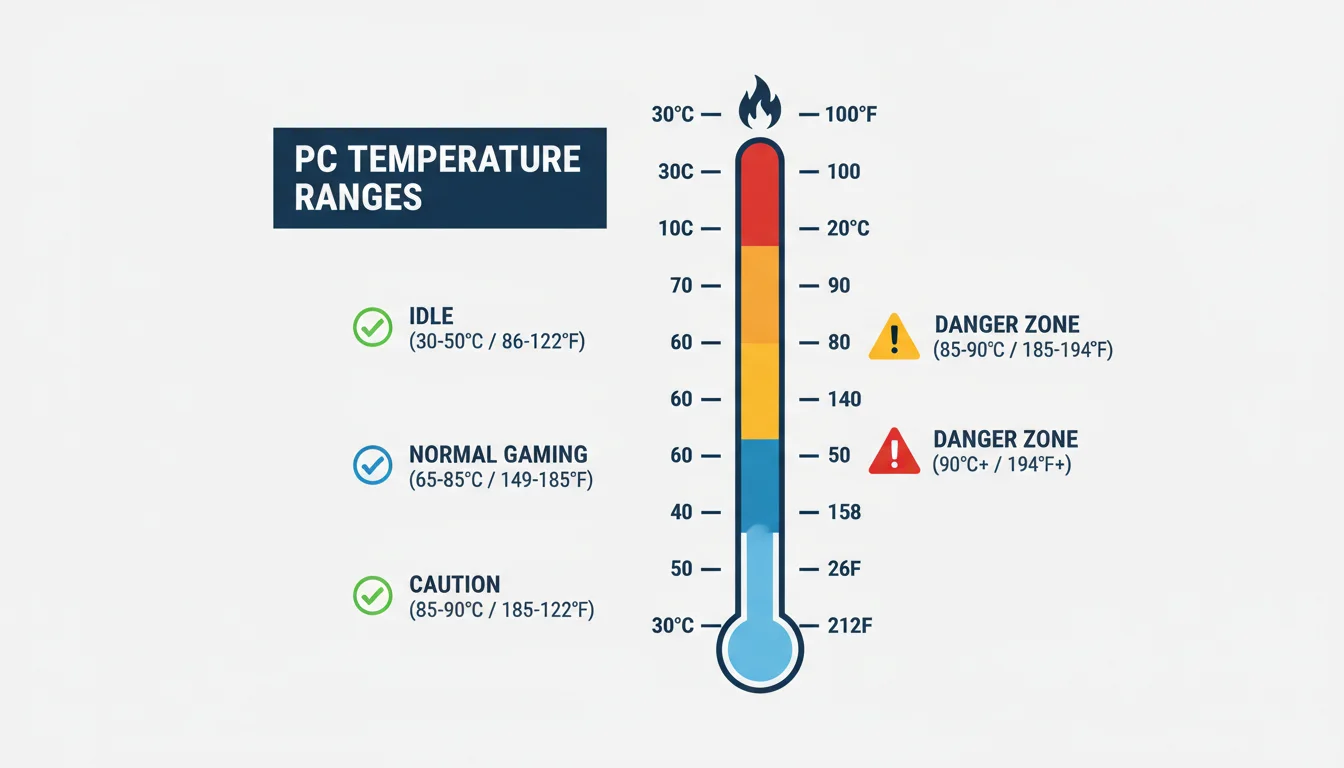
Normal GPU temperature ranges from 30-50°C idle to 65-85°C gaming. NVIDIA’s published maximum is 85–93°C depending on the card; AMD’s limit is 110°C on the junction sensor.
Last updated: September 2026
Table of Contents
- What Is a Good GPU Temp? (Quick Answer)
- Is X°C Hot for a GPU? Quick Lookup by Temperature
- Is 84 Degrees Hot for a GPU?
- Normal GPU Temp While Gaming: Measured Temps Per Card
- GPU Max Temp and Throttle Point: NVIDIA vs. AMD
- NVIDIA: Maximum GPU Temperature by Card
- AMD: 110°C Junction Is the Limit, Not the Edge Temperature
- Hotspot Temp vs Core Temp: What’s the Difference?
- Normal GPU Idle Temp (and Why Idle Runs High)
- Laptop GPU Temperatures (Why They Run Hotter)
- How to Monitor Your GPU Temperature
- How to Lower Your GPU Temperature
- Frequently Asked Questions
- How hot is too hot for a GPU?
- What is a good idle GPU temp?
- What GPU temp is too high while gaming?
- Is 80°C safe for a GPU while gaming?
- Is 70°C a good GPU temp?
- What temp does a GPU throttle at?
- What is the average GPU temp while gaming?
- What is the max GPU temp?
- Why is my GPU hotspot 20°C higher than my core temp?
- Are laptop GPU temperatures higher than desktop?
- The Bottom Line
What Is a Good GPU Temp? (Quick Answer)
A good GPU temp is 30–50°C at idle and 65–85°C while gaming. Anything up to 85°C under sustained load is inside the published limit of every current card (the lowest NVIDIA maximum is 85°C, on the RTX 5070; AMD allows 110°C on the junction sensor). The “good” range varies by card: an RTX 4090 at 78°C is fine, while the same temp on a low-power RX 7600 suggests something is wrong with cooling. As a rule of thumb, if your GPU runs below 80°C in demanding games and doesn’t throttle, you’re in healthy territory. Above 85°C is worth investigating; above 90°C consistently means action is needed.
Is X°C Hot for a GPU? Quick Lookup by Temperature
Find your reading in the table below. The verdicts assume a desktop card in a 20–25°C room; give a laptop GPU about 5°C more leeway. They are based on NVIDIA’s published maximum GPU temperatures (93°C for RTX 30 Series, 90°C for RTX 40 Series, 85–90°C for RTX 50 Series) and AMD’s 110°C junction limit, both covered in the max-temp section further down.
| Reading | °F | At idle (desktop) | While gaming / under load |
|---|---|---|---|
| 35°C | 95°F | Normal | Only under a light load, or a liquid-cooled card |
| 40°C | 104°F | Normal | Very cool |
| 45°C | 113°F | Normal (fan-stop cards idle here) | Cool |
| 50°C | 122°F | Upper end of normal | Cool |
| 55°C | 131°F | High: check background GPU load and multi-monitor setups | Cool |
| 60°C | 140°F | Too high for idle: investigate | Normal |
| 65°C | 149°F | Too high for idle: investigate | Normal |
| 70°C | 158°F | — | Normal |
| 75°C | 167°F | — | Normal |
| 80°C | 176°F | — | Normal for high-power cards; upper end for cards under 200 W |
| 85°C | 185°F | — | Acceptable, but near the ceiling: check dust and the fan curve |
| 90°C | 194°F | — | NVIDIA’s maximum for RTX 40 Series (90°C) and over the limit of most RTX 50 cards (85–90°C): throttling. AMD edge temp: too hot |
| 95°C | 203°F | — | Above NVIDIA’s maximum for every RTX card (RTX 30: 93°C); AMD edge temp: cooling failure |
| 100°C | 212°F | — | Out of spec for NVIDIA; on AMD only the junction (hotspot) reading may sit this high, up to 110°C |
Is 84 Degrees Hot for a GPU?
84°C is within the acceptable range for most modern GPUs under a full gaming load, not ideal, but not dangerous. If you’re hitting 84°C on an RTX 3070 running a demanding ray-traced game in a warm room, you’re fine. The card has 9°C of headroom before it approaches throttle territory, and as long as that temp is stable rather than climbing, there’s no emergency. That said, if you can bring it down to the 75–78°C range through better airflow or a fan curve adjustment, your card will thank you long-term. If you’re hitting 84°C at idle or in a lightweight title that shouldn’t be taxing the GPU, that absolutely warrants investigation.
⚠️ Signs Your GPU Is Running Too Hot
- FPS drops during intense scenes, sudden and correlated with high temps visible in monitoring software
- Visual artifacts, flickering pixels, strange color blocks, geometry corruption on screen
- Driver crashes, “Display driver stopped responding and has recovered” messages
- Hard system shutdowns during gaming, no BSOD, just instant power-off, typically a thermal protection trigger
- Gradually increasing temps over time, the same game that ran at 75°C two years ago now sits at 88°C (almost always dust or degraded thermal paste)
Normal GPU Temp While Gaming: Measured Temps Per Card
Generic ranges only get you so far. If you want to know whether your card is running normally, compare it with a measured value for the same model. The table lists the GPU temperature each card reached in a sustained gaming load in the linked review, plus the hotspot and memory readings where the reviewer reported them, and the manufacturer’s published limit. Every number comes from the review page linked in the last column; nothing here is estimated.
| Card (model tested) | Gaming temp | Hotspot | Memory | Max GPU temp (spec) | Source |
|---|---|---|---|---|---|
| RTX 5090 NVIDIA RTX 5090 Founders Edition |
77°C (171°F) | — | 94°C | 90°C | TechPowerUp |
| RTX 5080 NVIDIA RTX 5080 Founders Edition |
67°C (153°F) | — | 74°C | 88°C | TechPowerUp |
| RTX 5070 Ti MSI RTX 5070 Ti Ventus 3X OC (MSRP card, no FE) |
68°C (154°F) | — | 70°C | 88°C | TechPowerUp |
| RTX 5070 NVIDIA RTX 5070 Founders Edition |
77°C (171°F) | — | 78°C | 85°C | TechPowerUp |
| RTX 5060 Ti 16GB Palit RTX 5060 Ti Infinity 3 (MSRP card, no FE) |
65°C (149°F) | — | 72°C | 87°C | TechPowerUp |
| RTX 4090 NVIDIA RTX 4090 Founders Edition |
66°C (151°F) | 74°C | 72°C | 90°C | TechPowerUp |
| RTX 4080 Super NVIDIA RTX 4080 Super Founders Edition |
63°C (145°F) | 73°C | 70°C | 90°C | TechPowerUp |
| RTX 4070 Super NVIDIA RTX 4070 Super Founders Edition |
69°C (156°F) | 83°C | 74°C | 90°C | TechPowerUp |
| RTX 4070 NVIDIA RTX 4070 Founders Edition |
69°C (156°F) | 82°C | 72°C | 90°C | TechPowerUp |
| RTX 4060 Ti 8GB NVIDIA RTX 4060 Ti Founders Edition |
64°C (147°F) | 74°C | — | 90°C | TechPowerUp |
| RTX 4060 ASUS RTX 4060 Dual OC (MSRP card, no FE) |
61°C (142°F) | 71°C | — | 90°C | TechPowerUp |
| RTX 3080 10GB NVIDIA RTX 3080 Founders Edition |
78°C (172°F) | — | — | 93°C | TechPowerUp |
| RTX 3070 NVIDIA RTX 3070 Founders Edition |
74°C (165°F) | — | — | 93°C | TechPowerUp |
| RTX 3060 Ti NVIDIA RTX 3060 Ti Founders Edition |
73°C (163°F) | — | — | 93°C | TechPowerUp |
| RTX 3060 12GB EVGA RTX 3060 XC (compact dual-fan, no FE) |
70°C (158°F) | 81°C | — | 93°C | TechPowerUp |
| RTX 3050 8GB Palit RTX 3050 StormX OC (single-fan, no FE) |
69°C (156°F) | 80°C | — | 93°C | TechPowerUp |
| GTX 1660 Super ASUS GTX 1660 Super Phoenix (single-fan MSRP card) |
86°C (187°F) | — | — | 93°C | TechPowerUp |
| GTX 1650 EVGA GTX 1650 SC Ultra Black (GDDR5) |
66°C (151°F) | — | — | 92°C | TechPowerUp |
| RX 9070 XT Sapphire RX 9070 XT Pulse |
57°C (135°F) | 78°C | 88°C | 110°C junction | TechPowerUp |
| RX 9070 ASUS RX 9070 TUF OC |
47°C (117°F) | 65°C | 78°C | 110°C junction | TechPowerUp |
| RX 9060 XT 16GB Sapphire RX 9060 XT Pulse OC |
57°C (135°F) | 77°C | 68°C | 110°C junction | TechPowerUp |
| RX 7900 XTX AMD reference design |
58°C (136°F) | 73°C | — | 110°C junction | TechPowerUp |
| RX 7900 XT AMD reference design |
58°C (136°F) | 74°C | — | 110°C junction | TechPowerUp |
| RX 7800 XT AMD reference design |
75°C (167°F) | 92°C | — | 110°C junction | TechPowerUp |
| RX 7700 XT Sapphire RX 7700 XT Pulse |
61°C (142°F) | 85°C | — | 110°C junction | TechPowerUp |
| RX 7600 AMD reference design |
73°C (163°F) | 86°C | — | 110°C junction | TechPowerUp |
| RX 6800 XT AMD reference design |
77°C (171°F) | 98°C | — | 110°C junction | TechPowerUp |
| RX 6700 XT AMD reference design |
80°C (176°F) | 95°C | — | 110°C junction | TechPowerUp |
| RX 6600 PowerColor RX 6600 Fighter |
70°C (158°F) | 82°C | — | 110°C junction | TechPowerUp |
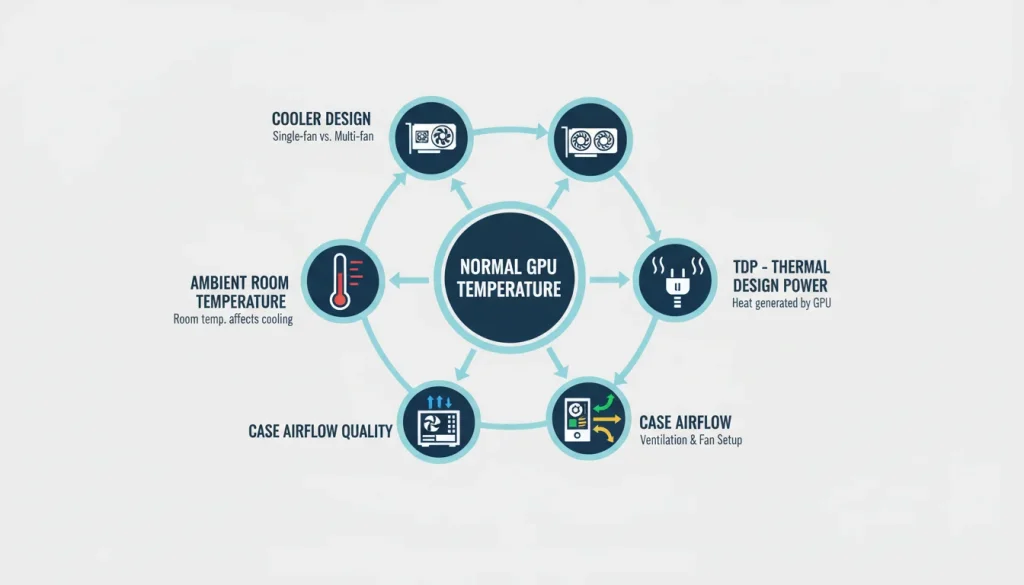
How to read this: TechPowerUp tests one specific card (Founders Edition or reference design where one exists, otherwise a launch partner card) on an open bench, reading the GPU-Z sensors after a sustained 100% gaming load, with the fans on the card’s default curve. A triple-fan partner card with a larger heatsink typically runs 5–10°C cooler than a compact reference design, and a small case, a warm room or a dusty heatsink pushes the numbers the other way. If your card sits within about 10°C of the value above under a similar load, it is behaving normally. If it sits 15°C or more above it, look at the fixes at the end of this guide.
GPU Max Temp and Throttle Point: NVIDIA vs. AMD
The number that decides whether a temperature is “too high” is the manufacturer’s limit, not a forum rule of thumb. NVIDIA prints it on every GeForce spec sheet as Maximum GPU Temperature. AMD works differently: Radeon cards report an edge temperature and a junction (hotspot) temperature, and AMD’s limit applies to the junction reading.
NVIDIA: Maximum GPU Temperature by Card
| Card | Maximum GPU temperature | Source |
|---|---|---|
| RTX 5090 | 90°C (194°F) | nvidia.com spec sheet |
| RTX 5080 | 88°C (190°F) | nvidia.com spec sheet |
| RTX 5070 Ti | 88°C (190°F) | nvidia.com spec sheet |
| RTX 5070 | 85°C (185°F) | nvidia.com spec sheet |
| RTX 5060 Ti 16GB | 87°C (189°F) | nvidia.com spec sheet |
| RTX 5060 | 89°C (192°F) | nvidia.com spec sheet |
| RTX 4090 | 90°C (194°F) | nvidia.com spec sheet |
| RTX 4080 Super | 90°C (194°F) | nvidia.com spec sheet |
| RTX 4070 Super | 90°C (194°F) | nvidia.com spec sheet |
| RTX 4070 | 90°C (194°F) | nvidia.com spec sheet |
| RTX 4060 Ti 8GB | 90°C (194°F) | nvidia.com spec sheet |
| RTX 4060 | 90°C (194°F) | nvidia.com spec sheet |
| RTX 3080 10GB | 93°C (199°F) | nvidia.com spec sheet |
| RTX 3070 | 93°C (199°F) | nvidia.com spec sheet |
| RTX 3060 Ti | 93°C (199°F) | nvidia.com spec sheet |
| RTX 3060 12GB | 93°C (199°F) | nvidia.com spec sheet |
| RTX 3050 8GB | 93°C (199°F) | nvidia.com spec sheet |
| GTX 1660 Super | 93°C (199°F) | nvidia.com spec sheet |
| GTX 1650 | 92°C (198°F) | nvidia.com spec sheet |
Reaching the maximum does not damage the card. GPU Boost lowers the clock speed as the GPU warms up, and the driver’s throttle point sits a few degrees under the printed maximum: in its review of the ASUS GTX 1660 Super Phoenix, TechPowerUp notes that at 86°C the card “reaches the thermal throttle point at which the NVIDIA driver will automatically dial down boost frequencies”, 7°C under the 93°C spec (TechPowerUp). What you lose first is performance, not hardware.
AMD: 110°C Junction Is the Limit, Not the Edge Temperature
AMD’s product spec pages for the RX 7900 XTX and RX 9070 XT list no temperature limit at all. The number comes from AMD’s own Radeon community update, written when the company introduced the junction sensor with the RX 5700 series: “Operating at up to 110C Junction Temperature during typical gaming usage is expected and within spec.” (AMD Radeon Community Update (August 2019)). The highest junction reading among the Radeon cards in the table above is 98°C, on the RX 6800 XT (AMD reference design), well inside that limit.
So on a Radeon card, an edge temperature of 75°C with a junction reading of 95°C is normal operation. Judge AMD cards by the junction number against 110°C, and by the gap between edge and junction (more on that in the hotspot section below).
For most NVIDIA consumer GPUs, sustained core temps above 90°C are in the danger zone, with thermal throttling beginning at or a few degrees under the card’s published Maximum GPU Temperature: 93°C for RTX 30 Series, 90°C for RTX 40 Series and 85–90°C depending on the card for RTX 50 Series, according to NVIDIA’s own spec sheets (table above). NVIDIA does not publish a separate hotspot limit. For AMD RDNA 2 and RDNA 3 GPUs, the junction temperature can safely reach 110°C by design, but edge temp should realistically stay below 90°C.
Thermal throttling is the GPU’s built-in self-protection mechanism. Rather than sustaining dangerous temperatures, the GPU automatically reduces its core clock speed to bring heat output down. In practice, you’ll notice this as sudden FPS drops during intense scenes, stuttering that appears out of nowhere mid-session, or benchmark scores that track below expected performance. The GPU isn’t failing, it’s protecting itself. But if it’s throttling regularly, the underlying cause needs fixing.
Sustained operation near TjMax, especially over months and years, accelerates electromigration in the silicon, causes thermal cycling fatigue on solder joints, and stresses VRM capacitors and inductors over time. There’s no single session that “cooks” a card, but a GPU that consistently runs at 88°C will have a shorter usable lifespan than one that consistently runs at 75°C. That’s not a scare tactic, it’s semiconductor physics.
Hotspot Temp vs Core Temp: What’s the Difference?
If you’ve been monitoring your GPU and noticed two different temperature readings, you’re not seeing a bug. Modern graphics cards report multiple sensors, and the two that matter most are core temp (sometimes called GPU temp or edge temp) and hotspot temp (also called junction temp on AMD cards).
Core temp is the average temperature reading from the main silicon die. It’s the number most monitoring software shows by default. Hotspot temp measures the single hottest sensor on the die or surrounding components, which can be 10–30°C higher than the core reading.
A normal hotspot delta (the gap between core and hotspot) is 8–14°C on the NVIDIA cards in the measured table above that report a hotspot, and 12–24°C on the Radeon cards, where a bigger gap is by design. So if your RTX 4070 shows 75°C core and 88°C hotspot, that’s a healthy 13°C delta. An RX 7900 XTX showing 70°C core and 95°C junction is also normal, AMD designs these cards to tolerate higher hotspots.
When should you worry? A delta above 20°C on NVIDIA cards or above 30°C on AMD usually points to one of three things: degraded thermal paste, thermal pad or paste pump-out on a card that has been in use for a year or more, or uneven heatsink mounting pressure. If your delta has crept up over time on the same card, a repaste with fresh paste or a phase-change pad such as Honeywell PTM7950 is the fix, and it usually brings the delta back into the normal range.
Normal GPU Idle Temp (and Why Idle Runs High)
A normal idle GPU temp on a desktop is 30–45°C (86–113°F) at the Windows desktop with nothing running. Up to about 50°C is still fine on cards whose fans stay off at idle. Above 55–60°C at idle, something is keeping the GPU busy or the heat is not leaving the case. The five causes below explain almost every “why is my GPU temp so high at idle” case:
- Fan-stop (zero RPM) mode. Most current cards keep their fans off until the GPU reaches roughly 50–60°C. An idle reading in the high 40s with the fans standing still is the design working as intended, not a fault. If it bothers you, set a fan curve that starts at 30–40% in MSI Afterburner or the AMD Adrenalin software.
- Multiple monitors or a high refresh rate. Driving two or three displays, or one display at 144 Hz and above, can keep the memory clock at full speed instead of letting it idle down, which raises idle power and temperature noticeably. Check the memory clock in GPU-Z at idle: if it sits at its maximum, this is the cause. Matching refresh rates across monitors or enabling adaptive sync often lets the clocks drop.
- Background GPU load. Browser hardware acceleration with a video tab open, animated wallpapers, game launchers, screen-recording tools and mining or AI software all use the GPU while you think the PC is idle. Open Task Manager, sort by the GPU column, and close anything above a few percent.
- Trapped heat in the case. At idle the case fans run at their lowest speed, so a case with poor intake and exhaust lets warm air pool around the card. If idle temps drop by 10°C with the side panel off, airflow is the problem.
- Aged thermal paste or pads. When idle and load temps both creep up over months on the same system, the interface between the GPU die and the heatsink is degrading. A repaste, covered in the fixes section, brings both back down.
One quick check before you do anything else: in HWiNFO64 or GPU-Z, look at GPU load and memory clock at idle. Load near 0% with the memory clock at its minimum means the card really is idle and the temperature you see is the cooler’s resting point. Load above a few percent, or a memory clock stuck at maximum, means it is not idle at all.
Laptop GPU Temperatures (Why They Run Hotter)
Laptop GPUs are engineered to run hotter than desktop equivalents, and this is by design rather than a flaw. Three physical constraints force this: thin chassis with limited airflow volume, cooling systems shared between CPU and GPU through a single heatpipe assembly, and small fan diameters that can’t move enough air at quiet RPMs.
A gaming laptop GPU hitting 85°C under load is completely normal. Even 88–92°C falls within tolerable range for most modern mobile GPUs, especially on thinner machines like Razer Blade, ASUS Zephyrus G14, or MSI Stealth. NVIDIA’s laptop GPU spec pages do not list a maximum GPU temperature the way the desktop spec sheets do; the throttle point on a laptop is set by the laptop maker’s firmware, so two machines with the same RTX chip can behave differently.
What’s not normal: temps consistently above 95°C, fans running at 100% non-stop, or thermal throttling causing visible FPS drops within five minutes of game launch. If you’re seeing those symptoms, three fixes typically help: elevate the laptop on a stand to improve underside airflow (15–20mm clearance is the minimum that helps), set the power profile to “Quiet” or “Balanced” if you’re running close to throttle, or repaste after 18–24 months of heavy use (factory paste on laptop GPUs degrades faster than desktops due to the higher operating temps). For more aggressive cooling, a cooling pad with active fans can drop temps 3–8°C, less than marketing suggests but still meaningful.
How to Monitor Your GPU Temperature
Need the reading first? See how to check CPU and GPU temperature for the tools and the Task Manager route.
You need reliable, real-time temperature data before you can diagnose anything. These tools give you what you need:

- HWiNFO64, The gold standard. Shows core temp, hotspot/junction temp, memory junction temp, VRM temp, fan speed, power draw, and clock speeds all in one view. This is the one serious hardware reviewers use, and the one I’d recommend for anyone troubleshooting GPU thermals.
- MSI Afterburner, Best for in-game monitoring via its on-screen display (OSD). Overlay your GPU temp, usage, clock speed, and fan RPM directly in-game so you can catch thermal throttling while it’s actually happening.
- GPU-Z (TechPowerUp), Lightweight sensor viewer that shows real-time and historical temps. Useful for quick checks but lacks in-game overlay.
- NVIDIA GeForce Experience / AMD Adrenalin, First-party tools with built-in performance overlays. Less detailed than HWiNFO but convenient if you don’t want to install third-party software.
When monitoring, log your temps over a 15–20 minute sustained gaming session, not just a quick peek. What matters is where the temperature stabilizes, not the first reading you see. If your card spikes to 82°C for two seconds and settles at 75°C, that 75°C is your real operating temp. Wondering if high utilization itself is a problem? Read is 100% GPU usage bad. The same tools also show processor temperatures; what counts as normal there is covered in what is a good CPU temp.
How to Lower Your GPU Temperature
If your GPU is running hotter than the safe ranges above, work through these solutions from simplest to most involved:
1. Clean dust from the GPU heatsink and case fans (free)
Power down, unplug, and use compressed air to blow dust out of the GPU’s heatsink fins and fan blades. On a 1–2 year old system in a dusty environment, this alone can recover 5–10°C. Don’t forget the case intake filters.
2. Improve case airflow (free to moderate)
Ensure you have adequate intake and exhaust fans. A common mistake: all exhaust and no intake creates negative pressure that pulls dust in through every gap. Positive or balanced pressure with filtered intakes is ideal. Make sure nothing is blocking the GPU’s air intake space.
3. Set a custom fan curve ($0)
Use MSI Afterburner to create a more aggressive fan curve, ramping to 70–80% fan speed at 75°C rather than the conservative default that might wait until 85°C. Louder fans beat a throttling GPU.
4. Undervolt the GPU ($0)
Open MSI Afterburner’s voltage/frequency curve editor (Ctrl+F) and reduce the voltage at your GPU’s target clock speed. A well-done undervolt can drop temps 5–15°C with identical or better performance. This is one of the single best things you can do for GPU thermals, free, reversible, and often improves stability.
5. Repaste the thermal compound ($5–10)
If the card is 2+ years old and temps have gradually climbed, the factory thermal paste may have degraded. Remove the heatsink, clean with isopropyl alcohol, apply fresh paste (Thermal Grizzly Kryonaut or similar), and reassemble. Expect a 5–15°C improvement on aged paste.
6. Add GPU-specific cooling ($15–50)
A GPU support bracket prevents sag and improves contact. Aftermarket GPU cooler shrouds or deshroud mods (replacing stock fans with case fans) can significantly improve thermals on cards with weak stock coolers. For the ultimate solution, a dedicated GPU liquid cooling setup (AIO or custom loop) can drop temps by 15–25°C compared to stock air cooling, though the cost and complexity make it a serious upgrade decision rather than a quick fix.
Frequently Asked Questions
How hot is too hot for a GPU?
For most consumer GPUs, sustained core temps above 90°C are in the danger zone. NVIDIA publishes the limit per card: 93°C maximum GPU temperature for RTX 30 Series, 90°C for RTX 40 Series and 85–90°C for RTX 50 Series, and the card throttles when it gets there. AMD RDNA 2/3/4 cards can run up to 110°C junction temp by design, but the edge temp should stay below 90°C. If you’re seeing throttling, sudden FPS drops correlated with high temps, your card needs attention regardless of the exact number.
What is a good idle GPU temp?
A good idle GPU temperature is 30°C–45°C while at the desktop or doing light browsing. Between 45°C and 55°C is acceptable, especially if your card uses “Zero RPM” fan mode below ~50°C. If your GPU idles above 55°C with fans running, investigate background processes (Chrome hardware acceleration, game launchers) or poor case airflow.
What GPU temp is too high while gaming?
While gaming, a GPU core temperature consistently above 90°C enters the warning zone. The normal range for full gaming load is 65°C–85°C for most modern graphics cards. Sustained temps above 90°C can trigger thermal throttling, driver crashes, and long-term degradation.
Is 80°C safe for a GPU while gaming?
Yes, 80°C is completely within normal operating range for most modern GPUs under a full gaming load. Both NVIDIA and AMD design their cards to operate comfortably at this temperature. The published limits sit above 80°C on every current card: the lowest NVIDIA maximum is 85°C (RTX 5070), most cards allow 90°C or more, and the AMD limit is 110°C on the junction sensor.
Is 70°C a good GPU temp?
70°C is a great GPU temperature under load. It puts you in the middle of the ideal operating range with 15–20°C of thermal headroom before throttling becomes a concern. Most well-cooled gaming systems with mid-range to high-end cards (RTX 4070, RX 7800 XT, RTX 5070) hit this range during typical AAA titles at 1440p or 4K. If you’re seeing 70°C in a demanding game and the card isn’t throttling, your cooling is doing its job.
What temp does a GPU throttle at?
NVIDIA cards throttle at, or a few degrees under, the Maximum GPU Temperature printed on their spec sheet: 93°C for RTX 30 Series, 90°C for RTX 40 Series and 85–90°C for RTX 50 Series. GPU Boost already trims the clock speed gradually as the card warms up, so performance starts slipping before that hard limit. AMD cards throttle when the junction (hotspot) temperature reaches 110°C. Throttling isn’t damage, it’s protection. But if you’re hitting it consistently, your cooling needs attention.
What is the average GPU temp while gaming?
In the reviews linked in the per-card table above, current desktop cards settle between 47°C and 86°C (117–187°F) after a sustained gaming load, and half of them between 63°C and 74°C. Where your card lands inside that band depends more on its cooler, your case airflow and the room than on the GPU chip itself.
What is the max GPU temp?
NVIDIA lists it per card as Maximum GPU Temperature: 93°C for RTX 30 Series, 90°C for RTX 40 Series and 85–90°C for RTX 50 Series, per card (full table above). AMD does not publish an edge-temperature limit; its limit is 110°C on the junction (hotspot) sensor. Both are throttle points, not damage points: the card slows down to stay at the limit.
Why is my GPU hotspot 20°C higher than my core temp?
On the cards in the measured table above, the hotspot runs 8–14°C above the core temp on NVIDIA and 12–24°C on AMD. A 20°C gap is normal on a Radeon card. On an NVIDIA card it is more than a healthy cooler shows and usually indicates degraded thermal paste, thermal pad pump-out, or uneven heatsink mounting, especially on a card that has been in use for a year or more. A repaste typically restores the normal gap. If you’re not comfortable repasting and the card is under warranty, contact the manufacturer first.
Are laptop GPU temperatures higher than desktop?
Yes, laptop GPUs typically run 5–15°C hotter than equivalent desktop cards under the same workload. This is normal and expected. The throttle point on a laptop is set by the laptop maker’s firmware rather than printed on NVIDIA’s spec sheet, and the thin chassis gives the cooler far less to work with. A gaming laptop hitting 85°C during heavy use is operating as designed.
The Bottom Line
A normal GPU temp while gaming falls between 65°C and 85°C for most modern graphics cards. At idle, expect 30°C–50°C. If your specific card is running within about 10°C of the measured value in the per-card table above, your hardware is operating as designed, even if the numbers look high on paper. Modern GPUs are engineered to run hot by design, using every degree of thermal headroom to boost clock speeds. Start worrying when temps consistently exceed 90°C under load, or when you notice throttling symptoms like FPS drops and stuttering. Clean your system first, tune your fan curves, and consider undervolting before spending money on new cooling hardware.

Alex has been building and tweaking custom PCs for over 12 years. From budget builds to full custom water loops, he’s assembled more than 50 systems and helped hundreds of builders troubleshoot their rigs. When he’s not benchmarking the latest hardware, you’ll find him optimizing airflow setups or stress-testing overclocks.