Computer Randomly Turns Off? How to Find What Shut It Down
Read Windows’ shutdown events first. An Event 1074 means a program or person turned it off; an Event 41 with zeros points to power or hardware.
Last updated: October 2026
Table of Contents
- First, Make Sure It Really Turned Off
- Read What Windows Logged
- If There’s an Event 1074, Something Asked for the Shutdown
- A Power Cut With No Error: Check the Power Supply
- What the power supply’s protections do
- Turns off only in games?
- Overheating Can Switch It Off Too
- The Motherboard’s Anti-Surge Can Cut the Power
- Laptops and Prebuilt PCs
- Still Turning Off?
- Frequently Asked Questions
- Why does my computer turn off without a blue screen?
- Can a bad power supply make a PC turn off randomly?
- Why does my PC turn off when I play games?
- Why won’t my PC turn back on after it shuts off?
- Can overheating cause a computer to shut down?
- How can I tell what turned off my computer?
- Is it bad for my PC to keep turning off like this?
- What to Write Down Before You Contact Support
Your PC was running fine, then the screen went black and the fans stopped. No blue screen, no warning. Maybe it stayed off until you pressed the power button again. Maybe it wouldn’t start at all until you flipped the switch on the back of the power supply.
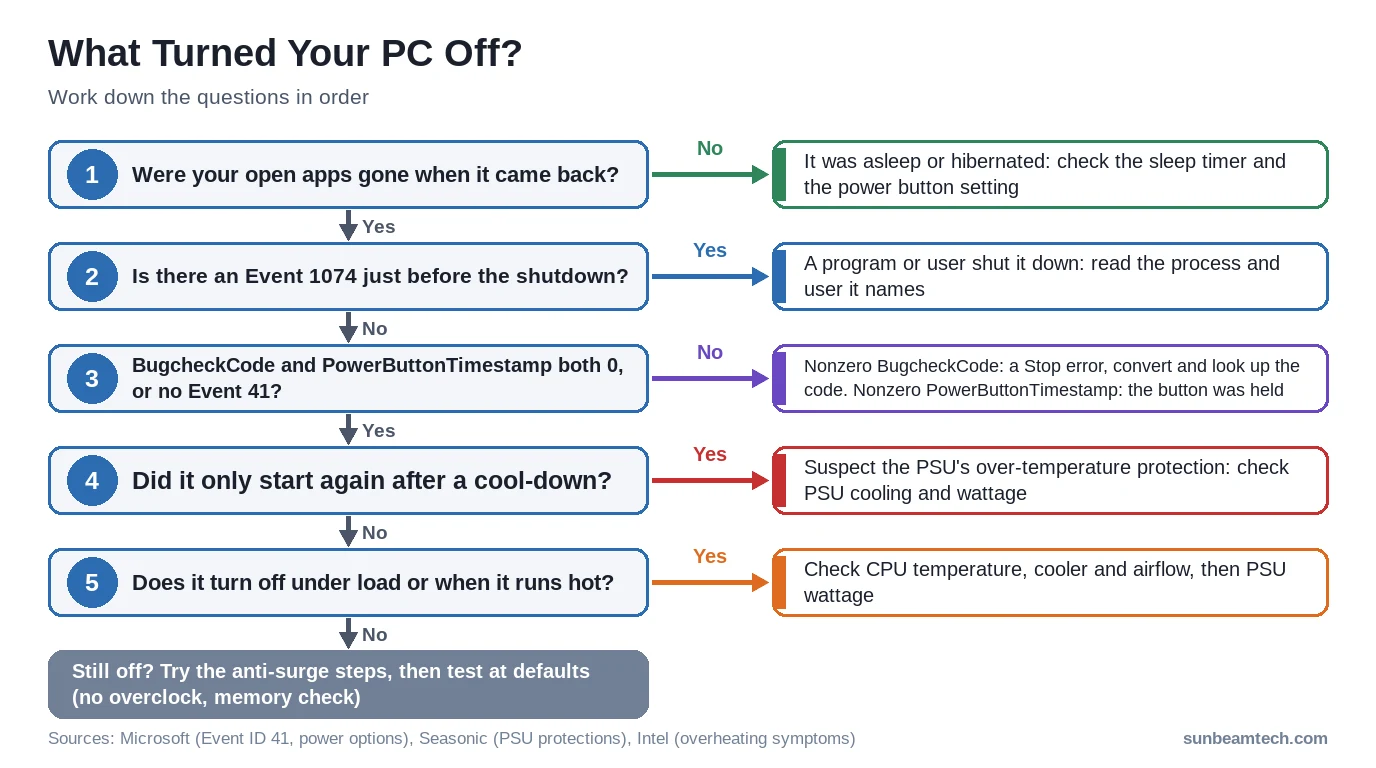
A PC that switches itself off was either shut down on request, by Windows, a program or a power setting, or it went down hard, through a crash or a loss of power, before Windows could shut down properly. You don’t have to guess which. Windows writes different events for a clean shutdown and an unexpected one, and they’re the quickest way to narrow it down.
So that’s the order here: rule out sleep, read the log, then work through the power supply, heat and the motherboard. The free checks come first.
Computer Turns Off: Quick Check
- 🟢 Make sure it really turned off and wasn’t just asleep
- 🟢 Filter the System log for Event IDs 41, 1074, 6006 and 6008
- 🟡 Only started again after a cool-down? Suspect the PSU’s over-temperature protection
- 🟡 Only in games or under heavy load? Check PSU wattage and temperatures
- 🔴 Back up your files now: repeated hard power cuts can cause data loss or corruption
First, Make Sure It Really Turned Off
Sleep can look a lot like a shutdown. The screen goes dark, the PC goes quiet, and nothing responds to the mouse. The difference shows when you wake it. After sleep you’re back where you left off, apps and all, and the same goes for hibernate. If your open apps were gone when it came back, it really turned off.
Does it only go dark after you’ve left it alone for a while? Check the timer first. In Windows 11 it’s under Settings > System > Power & battery > Screen, sleep, & hibernate timeouts. Microsoft’s power settings page lists the Windows defaults for a plugged-in PC as sleep after 15 minutes on S3 devices and after 5 minutes on modern standby devices. That’s short enough to catch you out.
Then check what the power button does. In Control Panel, go to System and Security and under Power Options select Choose what the power buttons do. On a lot of PCs, especially laptops and tablets, pressing the button or closing the lid means sleep.
One more case: if the fans and lights stay on and only the monitor goes black, move the mouse first. The screen-off timer turns the display off while the PC keeps running, by default after 5 minutes when it’s plugged in. If the screen stays black, see our guide to a PC that powers on but shows no display.
Read What Windows Logged
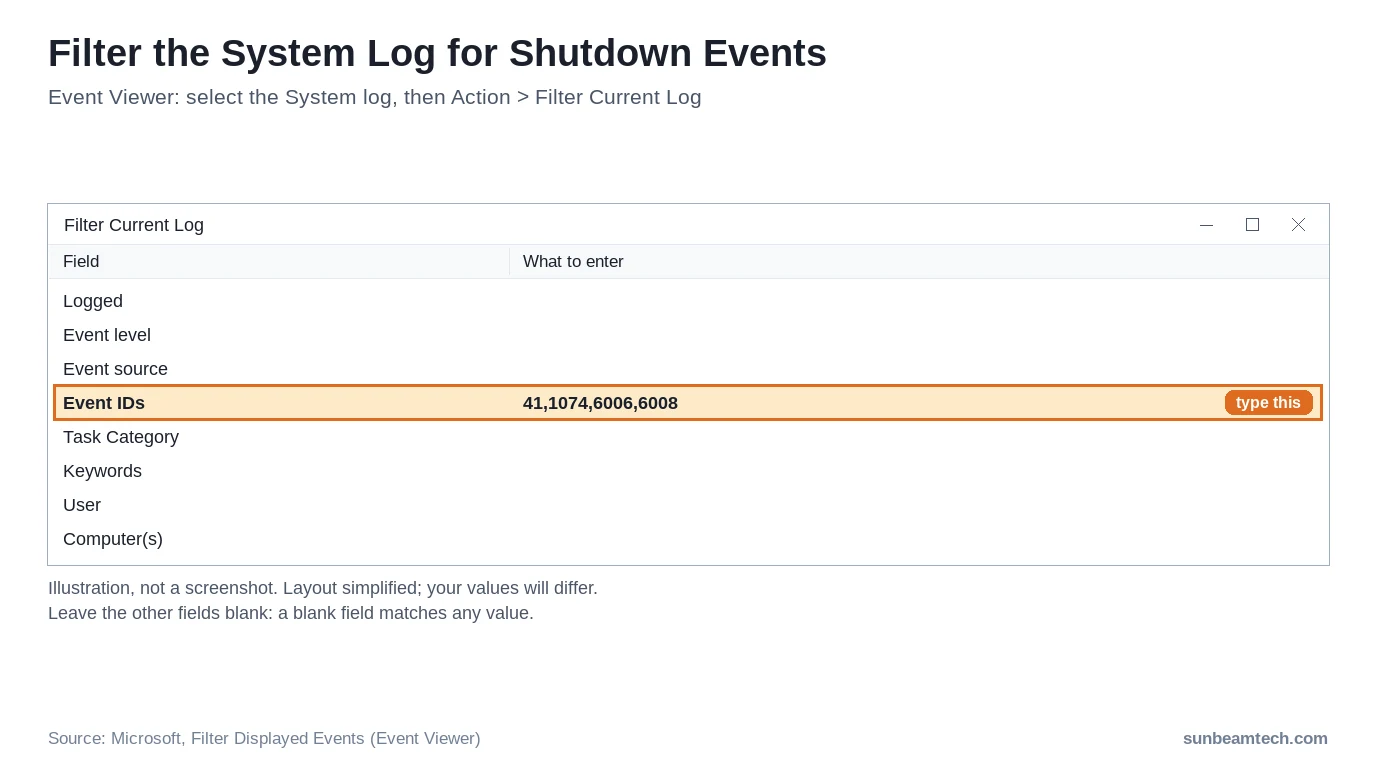
Every time Windows starts, it checks whether the last shutdown was clean. Four event IDs tell you most of the story, and one filter shows them together.
- Open Event Viewer (type it into the Start search box).
- In the console tree on the left, select the System log.
- On the Action menu, click Filter Current Log.
- In Event IDs, type
41,1074,6006,6008and click OK. Leave the other fields blank, since a blank field matches any value.
Now find the time your PC went off and read the events around it.
| Event ID | What it means | What to do next |
|---|---|---|
| 6006 | Windows was turned off properly | Look for a 1074 just before it: something asked for the shutdown |
| 1074 | An application shut down or restarted the PC, or a user did it from the Start menu or with Ctrl+Alt+Del | Open it and read which process and user it names |
| 6008 | The previous shutdown was unexpected (an improper or dirty shutdown) | Note the shutdown time it reports and check the Application and System logs just before that time |
| 41 (Kernel-Power) | Windows restarted without a complete shutdown | Open it and check BugcheckCode and PowerButtonTimestamp |
| A 6008 but no Event 41 | Windows doesn’t always log an Event 41 after an unexpected shutdown | Treat it like an Event 41 with zeros: go to the power supply checks |
| None of these at the right time | No sign that Windows shut down | It probably didn’t turn off: go back to the sleep and screen checks above |
The Event 41 details are where it gets useful. Open the event, look at the event data, and you’ll be in one of three situations:
- BugcheckCode isn’t 0. Windows hit a Stop error and recorded its code. That’s a crash, not a power loss. The code is in decimal, so convert it to hex first (Microsoft’s example: 159 is 0x0000009F), then look it up in Microsoft’s bug check code reference before you suspect the power supply.
- PowerButtonTimestamp isn’t 0. Someone held the power button down. If that was you because the PC froze, the freeze is the real problem.
- Both are 0, or there’s no Event 41 at all. Windows couldn’t record an error code, for example because the PC went down too fast. That usually points at hardware, and the power supply is one of the first things to check. One exception: if there’s also an Event 46 from volmgr saying
Crash dump initialization failed!, a Stop error may still be behind it. Check the pagefile configuration in that case.
If There’s an Event 1074, Something Asked for the Shutdown
A 1074 right before the shutdown is good news for your hardware. It means the PC was turned off on request, by a program or by a user, and the event also records the user name and the time. Don’t start swapping parts.
Open the event and read the first line. It names the process that did it, as in this example from Microsoft: The process C:\Windows\system32\winlogon.exe ... has initiated the power off of computer, followed by the user it acted for.
In that example winlogon.exe acts for the Administrator account after a normal Start menu shutdown, so a Windows process like that points at the user it names. If your event names a third-party program instead, that’s your lead: check its settings, or uninstall it if it showed up around the time the shutdowns began.
A Power Cut With No Error: Check the Power Supply
No 1074, a 6008 that reports the time it went off, and an Event 41 full of zeros or no Event 41 at all. That’s the pattern you’d expect from a power problem, so start with the cheap checks. Plug the PC straight into the wall for a while to rule out a power strip, and reseat the 24-pin and CPU power cables at the board. If the power at the wall drops out now and then, a UPS (a battery backup power supply) keeps the PC running through it.
What the power supply’s protections do
A power supply that switches off when something goes wrong is doing its job. Every PSU built to the ATX standard needs basic protection features, and when one of them trips, the unit turns off. From your chair, that looks exactly like a random shutdown. Here’s the list Seasonic gives for its own units:
| Protection | Switches the PSU off when |
|---|---|
| Over-Power (OPP) / Over-Load (OLP) | The components pull more power than the PSU’s maximum rated capacity |
| Over-Current (OCP) | The current on the +12 V, +5 V or +3.3 V rail goes over its limit |
| Over-Temperature (OTP) | Parts inside the PSU get too hot. It won’t switch back on until it has cooled down |
| Over-Voltage (OVP) / Under-Voltage (UVP) | A rail’s voltage goes above or below its set limit |
| Short-Circuit (SCP) | An output is short-circuited |
| Any other PSU | The protections vary by model. Check your unit’s manual or spec sheet for the ones it has |
One clue fits the PSU in particular: the PC won’t start for a while and then works again once it has cooled down. That fits the over-temperature protection, which keeps the unit off until it has cooled. If the PC won’t start at all after a shutdown, reset the power supply: set the switch on the back to O, wait a short while, then set it back to I.
Turns off only in games?
Look at load first. High-end graphics cards under heavy load can draw peak power above their rated TDP, and those peaks can trip the overload protection and shut the system down. ATX 3.0 and 3.1 power supplies are specified to handle brief peaks of 200% for 100 microseconds. ATX 2.4 and 2.53 have no such requirement.
Check the wattage against what’s in the case now, not what was in it when you built the PC. Added memory, a newer processor, more drives or extra external devices can need more power than the supply can deliver consistently. Our guide on how to check what power supply you have helps you find the model and wattage, and the signs of a failing power supply help you tell a small unit from a dying one.
Overheating Can Switch It Off Too
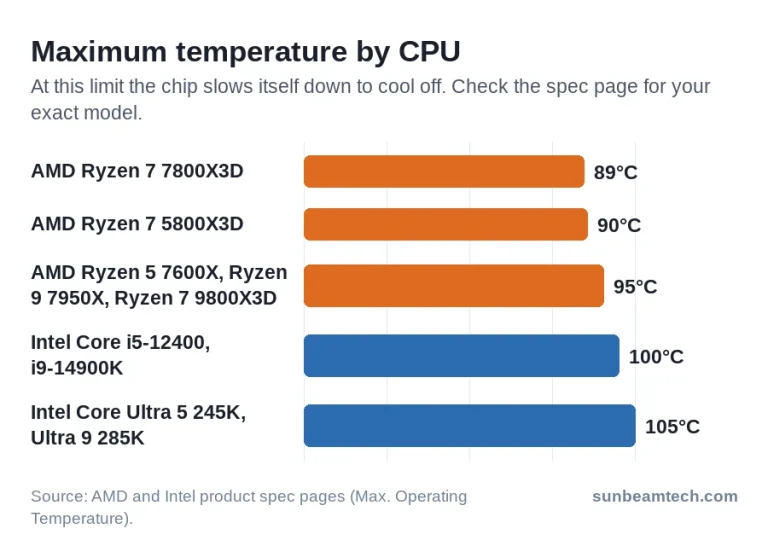
Heat can switch it off too. Intel processors have built-in thermal protection that shuts the processor down when it gets too hot, and Intel’s overheating page for its boxed processors lists the result as a symptom: the system boots up, then shuts down automatically after a short while. Throttling, general slowness and loud fans are on the same list. A PC that gets noisy and then dies fits that pattern.
Check these in order. The first three need the PC off and the case open:
- The cooler’s fan cable is properly connected, and nothing blocks the fan from spinning.
- The thermal paste hasn’t degraded and there’s the right amount of it.
- Air can move through the case. No cables in front of the fans, no clogged filters. Our guide to cleaning PC dust filters covers the last part.
- Load the BIOS defaults, or update the BIOS.
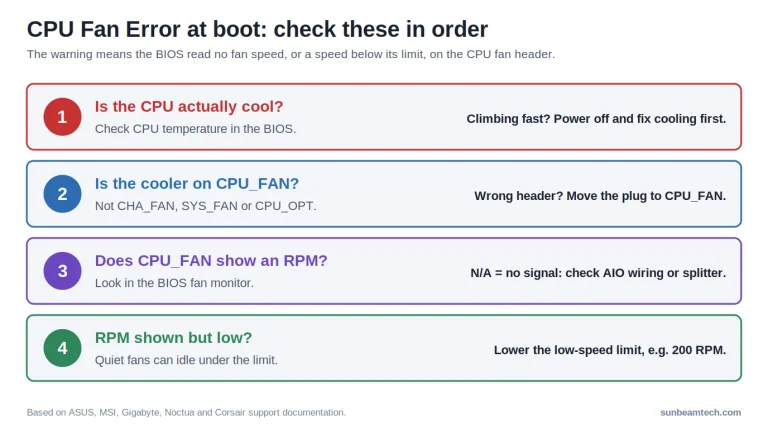
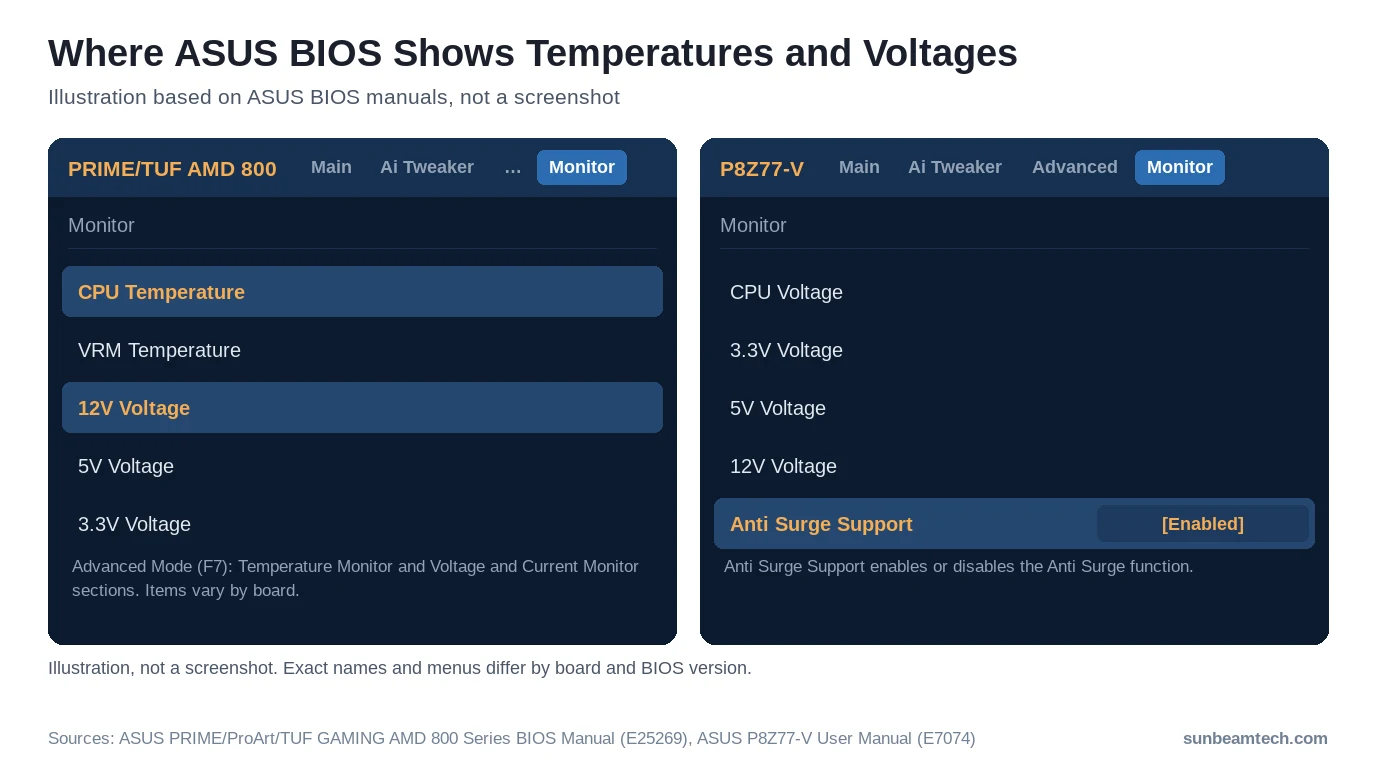
Then watch the temperatures while you use the PC. Our guide on how to check CPU temp lists the tools, and what a good CPU temp is gives you numbers to compare against. If it shuts off before Windows even loads, use the BIOS. On ASUS PRIME, ProArt and TUF GAMING AMD 800 series boards, press F7 for Advanced Mode and open Monitor. It shows CPU Temperature plus the 12V Voltage, 5V Voltage and 3.3V Voltage readings, though the items vary by board. On other boards, look up the hardware monitor page in your motherboard manual.
The Motherboard’s Anti-Surge Can Cut the Power
Some motherboards watch the power supply’s output voltages themselves and shut the PC down when they think they see a problem. That built-in anti-surge feature is known to produce false positives on some boards. One older ASUS board, the P8Z77-V, has an Anti Surge Support item in the Monitor menu, listed as [Enabled] in the manual.
If your board has a setting like that, work through it in this order:
- Update the motherboard BIOS to the latest version for your board.
- Check the 12V, 5V and 3.3V readings in the BIOS hardware monitor.
- If the readings look normal, turn the anti-surge protection off and test again.
If a BIOS setting change leaves the PC unable to boot, our guide on how to clear CMOS gets the board back to its defaults.
Laptops and Prebuilt PCs
Laptops add a few causes of their own.
- Low battery. When the battery reaches its critical level, Windows takes the critical battery action: Do Nothing, Sleep, Hibernate or Shut Down. With Hibernate your work is kept; with Shut Down it isn’t. If the battery runs out much sooner than it used to, suspect the battery itself. Lithium-ion batteries hold less charge as they age.
- A drained or removed battery. On a portable computer, that’s one of the causes behind an Event 41 with no error code.
On any PC, laptop or desktop: unplug external drives, printers, memory cards and dongles, then see whether the shutdowns stop. On ASUS devices that support it, the System Diagnosis checkup in MyASUS tests the hardware for you.
Prebuilt desktops follow the desktop checks above. Before you open the case or swap a power supply, check that it won’t affect your warranty. If the checks point at hardware, the PC maker’s support is the better route.
Still Turning Off?
If the log points at power and hardware but the PSU and temperatures look fine, take the PC back to a known state. Turn off any overclocking you’ve set up, including CPU features like PBO. Run a memory test and make sure all modules run at the same speed.
Did the shutdowns start right after a Windows update or a driver update? ASUS’s shutdown guide suggests undoing it. For a quality update, go to Update history, click Uninstall updates and remove it. For a driver, go back to the previous version.
Still happening? Set the system to its default configuration and test again. If it turns off at defaults too, the hardware checks above are where the answer is.
Frequently Asked Questions
Why does my computer turn off without a blue screen?
Usually because it lost power or went down too fast for Windows to show or record an error. Check for an Event 1074 first: if there is one, a program or user shut it down. An Event 41 with a BugcheckCode of 0, or no Event 41 at all, usually points at hardware, and the power supply is one of the first things to check.
Can a bad power supply make a PC turn off randomly?
Yes. An underpowered or faulty PSU can cut power without any error, and a healthy one switches itself off when a protection such as over-power or over-temperature trips. The power supply section above covers both.
Why does my PC turn off when I play games?
Games push the graphics card and CPU hard, so heat and power peaks both go up. Peaks above what the PSU can handle trip its overload protection. Check the PSU wattage against your current parts and watch temperatures while you play.
Why won’t my PC turn back on after it shuts off?
A power supply protection may still be active. Set the PSU switch to O, wait, then back to I. If it only starts after cooling down, suspect over-temperature protection. If it never starts, work through our PC won’t turn on checklist.
Can overheating cause a computer to shut down?
Yes. On Intel’s boxed processors, the built-in protection shuts the processor down when it gets too hot, and a system that boots and then shuts down after a short while is a listed overheating symptom. Check the cooler, thermal paste and airflow.
How can I tell what turned off my computer?
Filter the System log in Event Viewer for 41, 1074, 6006 and 6008. A 1074 names the process and user that asked for the shutdown. A 6008 with an Event 41 means the shutdown was unexpected.
Is it bad for my PC to keep turning off like this?
For your files, yes. A shutdown that skips the normal process can cause data loss or corruption and can lead to boot-up problems. Back up what matters before you start testing parts.
What to Write Down Before You Contact Support
If none of this fixes it, support will move faster with evidence. Note these before you call or open a ticket:
- The time of each shutdown from the Event 6008 entries, and whether a 1074 came before any of them.
- The BugcheckCode and PowerButtonTimestamp values from each Event 41.
- What the PC was doing: gaming, idle, asleep or running on battery.
- Whether it needed the PSU switch reset or a cool-down before it would start.
- Your power supply’s model and wattage, plus any parts you’ve added since you bought it.
If the checks point at the power supply, contact its maker, especially while it’s still under warranty. Seasonic, for one, asks owners to seek technical assistance when one of its units shuts down unexpectedly.

Alex has been building and tweaking custom PCs for over 12 years. From budget builds to full custom water loops, he’s assembled more than 50 systems and helped hundreds of builders troubleshoot their rigs. When he’s not benchmarking the latest hardware, you’ll find him optimizing airflow setups or stress-testing overclocks.