Is My CPU Overheating? Signs, Causes and How to Fix It
Your CPU is overheating when hitting its maximum temperature (89 to 105°C on desktop chips) costs you speed in normal use or shuts the PC down. Check that first.
Last updated: October 2026
Table of Contents
- What Temperature Is Too Hot for a CPU?
- How to Check Your CPU Temperature and Throttling
- Signs Your CPU Is Overheating
- Why Is My CPU Overheating? Find Your Situation
- How to Fix an Overheating CPU, Step by Step
- 1. Check What’s Using the CPU
- 2. Clean Out the Dust
- 3. Reseat the Cooler and Redo the Paste
- 4. Check the AIO Pump
- 5. Check Power Limits and Boost Settings
- 6. Match the Cooler to the CPU
- CPU Overheating on a Laptop? Here’s What’s Different
- When to Replace Rather Than Fix
- Frequently Asked Questions
- Is 120°F hot for a CPU?
- Can overheating damage my CPU?
- How often should I replace thermal paste?
- Does room temperature affect CPU temperature?
- Can Task Manager show my CPU temperature?
You open a monitoring app, see 90°C or more, and assume something is about to burn out. Often nothing is wrong: many modern CPUs are built to run that hot under load. Real overheating shows up as a CPU that slows itself down, games that start to stutter, or a PC that switches off on its own.
This guide helps you check whether your temperature is actually a problem, find the likely cause for your situation, and fix it, starting with the free fixes.
What Temperature Is Too Hot for a CPU?
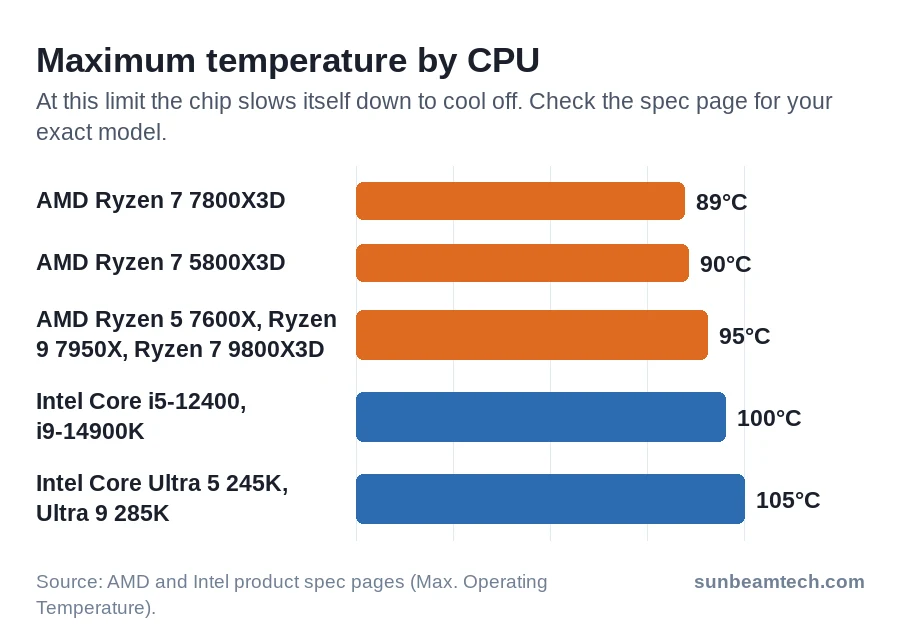
Every CPU has its own limit, called Tjmax or Max Operating Temperature on the spec sheet. When the chip reaches that limit, it lowers its speed and power to cool down. If that isn’t enough, it shuts the PC off to protect itself. Look up your exact model on AMD’s or Intel’s spec pages. These are the limits for some popular chips:
| CPU | Maximum temperature |
|---|---|
| AMD Ryzen 5 5600X, Ryzen 5 7600X, Ryzen 7 7700X, Ryzen 9 7950X | 95°C |
| AMD Ryzen 5 9600X, Ryzen 7 9800X3D, Ryzen 9 9950X | 95°C |
| AMD Ryzen 7 5800X3D | 90°C |
| AMD Ryzen 7 7800X3D | 89°C |
| Intel Core i5-12400, i5-13600K, i7-14700K, i9-14900K | 100°C |
| Intel Core Ultra 5 245K, Core Ultra 9 285K | 105°C |
Reaching that number under a heavy load isn’t automatically a fault. At the Ryzen 7000 launch, AMD told reviewers that 95°C is not running hot: the chips intentionally go to that temperature as much as possible under load, TechSpot reported. Intel chips also run up to their limit in sustained workloads, and that alone isn’t a reason to worry.
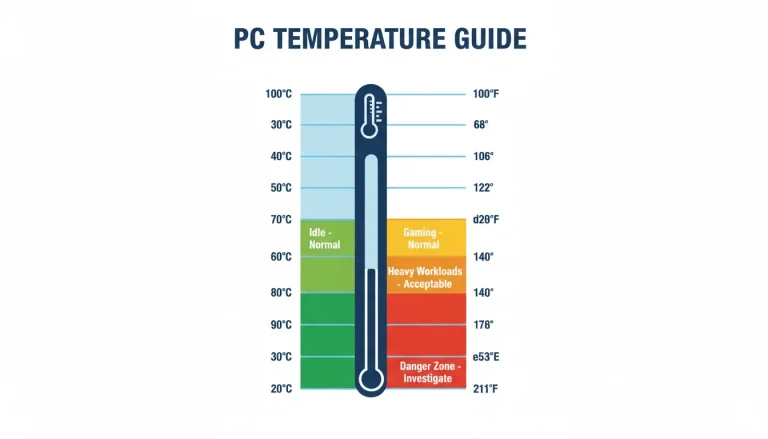
It is a problem when the limit costs you performance in normal use, when the PC shuts down, or when the CPU runs close to its limit while you’re barely doing anything. For what’s normal at idle and while gaming, see what a good CPU temperature is.
How to Check Your CPU Temperature and Throttling
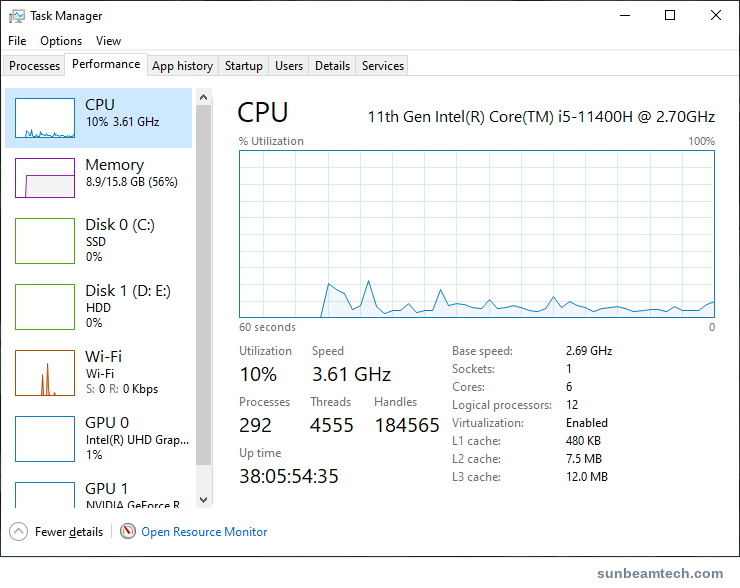
Task Manager shows CPU load and speed, but no CPU temperature. It only shows a temperature for a dedicated graphics card. For the CPU you need a monitoring tool. The free options are compared here; HWiNFO is the most complete.
- Install HWiNFO from hwinfo.com and start it in Sensors-only mode.
- Find your CPU’s section. On Intel, CPU Package is the temperature of the hottest part of the chip, and Distance to TjMAX shows how many degrees you have left before throttling starts. On AMD Ryzen, look at CPU (Tctl/Tdie) and compare it with your chip’s limit.
- Look for the throttling rows. On Intel they’re called Thermal Throttling; on AMD, HTC. “Yes” means the CPU slowed itself down because of heat.
- Leave HWiNFO open, play the game or run the task that causes your problem for 10 to 15 minutes, then check the maximum column.
HWiNFO checks the sensors every 2 seconds by default, so it can miss a very short spike. AMD’s Ryzen Master also shows temperature. Intel’s XTU does too, but only works with unlocked K and X processors.
Signs Your CPU Is Overheating
Throttling is the most common sign. The CPU drops its clock speed, so the PC feels slower and games start to stutter. You’ll often hear the fans ramp up at the same time.
If throttling isn’t enough, the CPU cuts the power. The PC switches off without a blue screen, as if someone pulled the plug. Our guide to a computer that randomly turns off helps you tell heat apart from a power supply problem.
A blue screen with WHEA_UNCORRECTABLE_ERROR can also come from heat. It’s a general hardware error, so defective memory or a failing processor can cause it too (Microsoft’s explanation).
Not every crash is heat. Intel Core 13th and 14th gen desktop chips had an instability problem, Too much voltage, mostly requested by the chip’s own microcode and sometimes allowed by motherboard settings, slowly damages a circuit in the CPU cores. Those systems can crash even when temperatures look normal. If you have one of those chips, read the power limits fix as well.
Why Is My CPU Overheating? Find Your Situation
Match your situation to a row and go to that fix. The fixes are ordered from free to paid, so you can also just work down the list.
| Your situation | Most likely cause | Go to |
|---|---|---|
| It ran fine for months, then got hot all of a sudden | A process hogging the CPU, dust, or a failing AIO pump | Background load, dust, AIO pump |
| Hot even at idle, for no reason you can see | Background load, poor cooler contact or a pump problem | Background load, mounting, AIO pump |
| Right after building, upgrading or repasting | Protective film left on, uneven mounting or a pump on the wrong header | Mounting and paste, AIO pump, power limits |
| You have an AIO liquid cooler | Pump stopped, slowed or drawing in air | AIO pump |
| Intel K chip on a Z690, Z790 or similar board | Board defaults that ignore Intel’s power limits | Power limits |
| New, faster CPU on the old cooler | Cooler too small for the chip’s power | Cooler size |
| It’s a laptop | Blocked vents, dust or a soft surface | Laptops |
How to Fix an Overheating CPU, Step by Step
1. Check What’s Using the CPU
A CPU that’s busy runs hot, even when you aren’t doing anything yourself. Press Ctrl + Shift + Esc to open Task Manager, open the Processes tab and click the CPU column header until the arrow points down. The busiest process is now at the top. A program you don’t recognize that keeps using a lot of CPU while you’re idle is worth a full scan with Windows Security.
Then check the power mode. On Windows 11, go to Settings > System > Power & battery > Power mode. The choices are Best power efficiency, Balanced and Best performance. Best performance uses more power, and on a laptop it can make the machine run warmer. If temperatures matter more to you than the last bit of speed, pick Balanced.
On a Windows 10 laptop, click the battery icon on the taskbar and drag the slider. On a desktop, or if you can’t change it, select Balanced under Control Panel > System and Security > Power Options.
2. Clean Out the Dust
Dust in the cooler fins and filters blocks the air the cooler needs. Check every fan, the cooler fins and the intake and exhaust vents.
- Shut down the PC, switch off the power supply and unplug it.
- Blow out the cooler fins, fans and filters with compressed air. Keep the can upright, so no liquid comes out.
- Hold each fan’s blades still while you blow. Letting them spin fast from the air can damage them.
- Don’t use a vacuum cleaner inside the case: it can build up static electricity.
Filters are easy to forget; here’s how to clean them. A warm room also matters: Puget Systems measured that CPU temperatures rise almost one to one with the room temperature.
3. Reseat the Cooler and Redo the Paste
If temperatures are high right after building or repasting, the cooler may not be making proper contact.
- Protective film. Many coolers ship with a plastic film or cover on the contact surface. If it’s still on, take the cooler off and remove it.
- Intel push-pin coolers. To release them, turn each pin 90 degrees counterclockwise with a flat screwdriver. Turn them back 90 degrees clockwise to reset them, then press them in using the alternating pattern shown in Intel’s guide, until each one clicks. All four must be fully seated.
- Screw-mounted coolers. Tighten them a little at a time in a cross pattern, following the cooler’s manual.
Whenever you take the cooler off, replace the paste, and never put new paste on top of old. Clean off the old paste with 90% or stronger isopropyl alcohol and a lint-free cloth, and let it evaporate completely. Then put a pea-sized dot in the center and let the cooler’s pressure spread it.
Don’t worry about the pattern. In GamersNexus’s test, the difference between application methods was less than one degree, and too much paste generally didn’t hurt. Too little does. Our guides cover applying thermal paste and installing a CPU cooler step by step.
4. Check the AIO Pump
An AIO can fail in ways an air cooler can’t. Signs of a pump problem are temperatures higher than usual, sudden shutdowns under load, grinding or clicking from the pump, or idle temperatures above 75°C.
Check the pump speed in HWiNFO or your BIOS hardware monitor. If it reads 0 or N/A, the pump isn’t getting power or has seized. A working pump shows a real number, and how high depends on the model: 800 to 2,800 rpm for Arctic’s Liquid Freezer III 360, around 3,200 rpm for NZXT’s Kraken pumps. Some coolers report pump speed only in their own software, such as NZXT CAM or Corsair iCUE, so check there too.
The pump also needs the right motherboard header and setting. Depending on the cooler, that’s AIO_PUMP, CPU_OPT or CPU_FAN: NZXT’s current Kraken Elite, Plus and 2023 models use CPU_FAN, for example. Some coolers want that header at a fixed 100% in the BIOS, others want PWM control, so check your cooler’s manual for both.
Air in the pump causes noise and poor cooling. The pump must sit below the highest point of the radiator, so don’t mount the radiator at the bottom of the case. A front-mounted radiator is fine: in Noctua’s test it gave about 3°C lower CPU temperatures than mounting it on top. If the pump has died, check the warranty first: many current AIOs from Arctic, Corsair and NZXT have five or six years. More on how these coolers work in what an AIO cooler is.
5. Check Power Limits and Boost Settings
Some motherboards let the CPU draw far more power than its maker intends, and more power means more heat. Intel found that many boards with 600 and 700 series chipsets had BIOS defaults that switched off its thermal and power safeguards. When Tom’s Hardware checked one Core i9-13900K board, its default “Auto” setting allowed 4,096 watts and 512 amps. Intel’s own Maximum Turbo Power for the i9-14900K is 253W.
Intel’s advice for Core 13th and 14th gen desktop chips is to update the BIOS to a version with microcode 0x12B or later and to use the Intel Default Settings. In the BIOS this is usually an option or profile with that name, but the menus differ per board maker. Follow the board maker’s instructions for the BIOS update and don’t switch off the PC while it runs. Read Intel’s root cause update for the background.
On AMD, Precision Boost Overdrive (PBO) lets the CPU use more power than AMD’s default limits. If you turned it on and your temperatures went up, switch it off in the BIOS. What PBO does is explained here.
6. Match the Cooler to the CPU
A cooler that’s too small can’t keep up, however clean it is. Intel’s Laminar RM1 box cooler is rated for chips up to 65W, while Intel rates a Core i9-14900K for up to 253W. The Ryzen 9 7950X and Ryzen 7 9800X3D come without a cooler, and AMD recommends liquid cooling for both. If you kept your old cooler after a CPU upgrade, this is the likely cause. Our best budget CPU coolers guide matches coolers to CPUs by power, using independent test data.
CPU Overheating on a Laptop? Here’s What’s Different
A laptop has far less room for cooling, and the laptop maker sets the power limits. What you can do:
- Use it on a hard, flat surface. A blanket, pillow or cloth can cover the fan intake.
- Blow out the vents with compressed air, with the laptop shut down and unplugged, holding the can upright.
- Try a cooling pad. In one Notebookcheck test, a pad lowered an MSI gaming laptop’s CPU from 92°C to 80°C in The Witcher 3. Results vary per laptop.
- Check the power mode. Best performance can make a laptop run warmer.
Undervolting is often not an option anymore. On Intel 12th gen and newer, Undervolt Protection is on by default. Some older laptops also had undervolting locked by BIOS updates after the Plundervolt security issue.
When to Replace Rather Than Fix
Stop troubleshooting and replace a part when:
- the AIO pump reads 0 rpm, or keeps grinding after you’ve fixed the mounting position (check the warranty first);
- the cooler is too small for your CPU’s power;
- WHEA errors or crashes continue while temperatures are normal. First switch off any overclock, including XMP or EXPO memory profiles. If the errors continue, the cause is probably memory, the CPU itself or another part. On a 13th or 14th gen Intel desktop chip, contact Intel support: Intel extended the warranty on those chips by two years.
Frequently Asked Questions
Is 120°F hot for a CPU?
No. 120°F is about 49°C, far below the 89 to 105°C limits of current desktop CPUs.
Can overheating damage my CPU?
It’s unlikely. Intel says damage from overheating is unlikely “due to the operational safeguards in place”. For Ryzen 7000 and 9000, AMD told reviewers the chips are “designed to run at TJMax 24/7 without risk of damage or deterioration.” Shutdowns and throttling are the chip protecting itself, but they still mean your cooling needs work. The exception is Intel 13th and 14th gen desktop chips, where Intel says high voltage and temperature can age a circuit in the cores; see the power limits fix.
How often should I replace thermal paste?
Only when you remove the cooler, or when temperatures clearly rise for no other reason. Noctua specifies up to 5 years of use on the CPU for its NT-H1 and NT-H2 pastes.
Does room temperature affect CPU temperature?
Yes, almost one to one: in Puget Systems’ tests, every 1°C warmer room meant about 0.95°C more on the CPU. That’s why a PC that was fine in winter can throttle in summer.
Can Task Manager show my CPU temperature?
No. It shows CPU load and speed, and a temperature only for a dedicated graphics card. Use HWiNFO, Ryzen Master or your BIOS hardware monitor for the CPU.

Alex has been building and tweaking custom PCs for over 12 years. From budget builds to full custom water loops, he’s assembled more than 50 systems and helped hundreds of builders troubleshoot their rigs. When he’s not benchmarking the latest hardware, you’ll find him optimizing airflow setups or stress-testing overclocks.