CPU Fan Error on Boot: What It Means and How to Fix It
A CPU fan error means the BIOS read no speed signal, or a speed below its minimum limit, from the CPU fan header when the PC started.
Last updated: September 2026
Table of Contents
- What the CPU Fan Error Actually Means
- Step 1: Make Sure the CPU Is Actually Being Cooled
- The Most Common Causes (and How to Fix Each)
- The cooler is plugged into the wrong header
- An AIO where nothing reports a speed on CPU_FAN
- A quiet fan that idles below the limit
- The fan stops completely at idle
- A splitter reporting the wrong fan
- A loose plug, a blocked fan or a dead fan
- The error showed up after a BIOS update
- The error only shows up on some boots
- How to Fix It in the BIOS (ASUS, MSI, Gigabyte)
- ASUS
- MSI
- Gigabyte
- Is It Safe to Set the CPU Fan Speed to Ignore?
- When the Error Is Real
- Frequently Asked Questions
- Is a CPU fan speed error serious?
- How do I skip the CPU fan error?
- Can I plug my CPU cooler into CPU_OPT instead of CPU_FAN?
- Why do I get a CPU fan error after a BIOS update?
- Why do I get a CPU fan error with liquid cooling?
- What are signs of CPU fan failure?
- Still Getting the Error?
You press the power button and instead of Windows you get “CPU Fan Error! Press F1 to Run SETUP”, or on MSI boards “CPU fan error, please check”. Your motherboard checked the CPU fan header during start-up and didn’t like the number it saw. Most of the time the fan is fine and the fix takes two minutes. Sometimes it’s a real warning. The first check below tells you which one you’re dealing with.
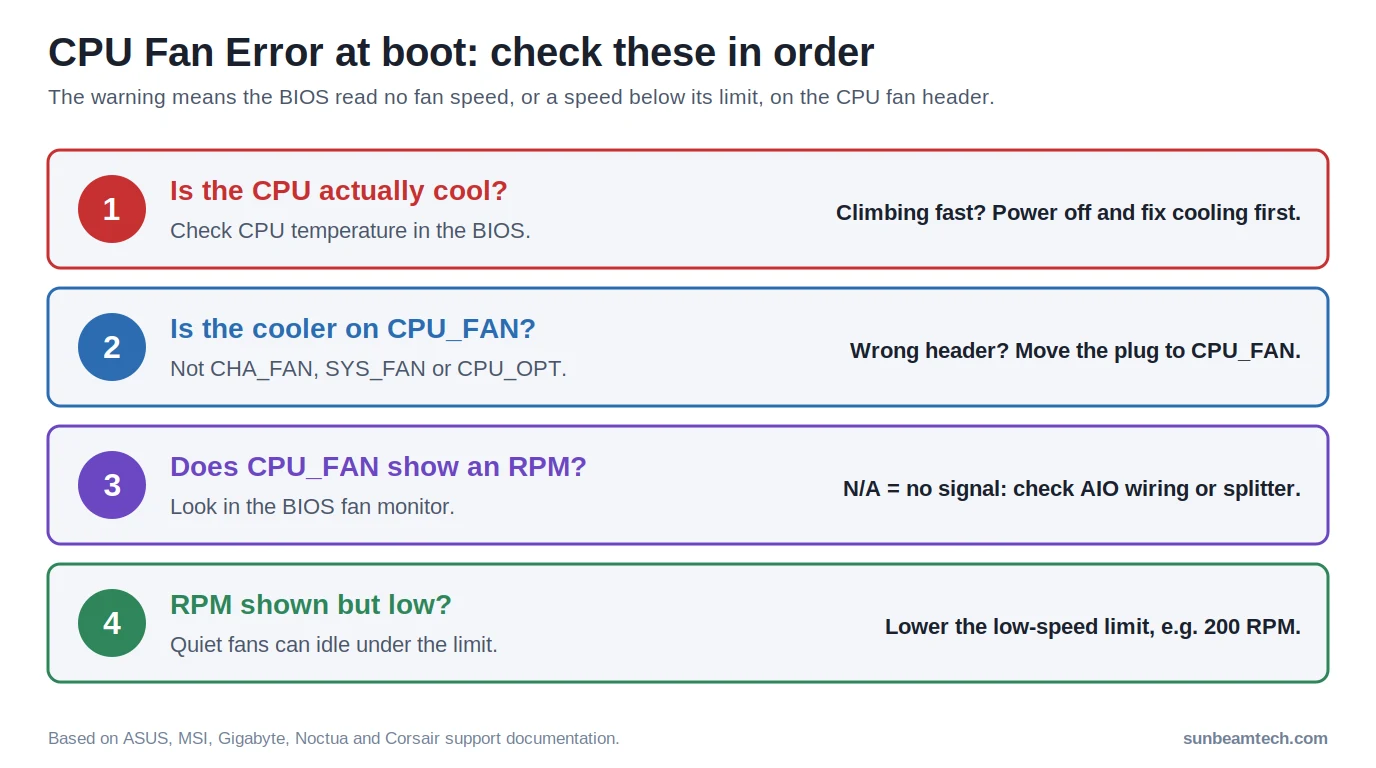
- 🔴 Check the CPU temperature in the BIOS first. Climbing fast? Power off and fix the cooling before anything else
- 🟡 Make sure the cooler is plugged into CPU_FAN, not CPU_OPT, CHA_FAN or SYS_FAN
- 🟡 AIO cooler? Something (pump, radiator fans or the tach lead) has to report a speed on CPU_FAN
- 🟢 Quiet fan idling slowly? Lower the minimum speed limit, for example to 200 RPM
- 🟢 Only set the CPU fan warning to Ignore once you’ve confirmed the cooler really works
CPU Fan Error Troubleshooter
Answer four quick questions and get the fix for your setup.
This troubleshooter needs JavaScript. The checklist and cause table in this article cover the same fixes.
1. Is the cooler running and is the CPU temperature in the BIOS normal?
2. What kind of cooler?
3. What does the BIOS show for the CPU fan speed?
4. Motherboard brand?
Menu names differ between board generations. Your manual has the exact location.
What the CPU Fan Error Actually Means
Every 3-pin and 4-pin fan has a tachometer wire that sends a speed signal back to the motherboard. During POST the BIOS reads that signal on the CPU fan header. If it sees nothing, or a speed below the limit set in the BIOS, it stops the boot and shows a warning. ASUS describes it plainly: the message means the system doesn’t detect the fan.
So the check looks at the speed reading, not at temperature, and a cooler that works fine can still trip it. It also watches one specific header. A fan spinning on the wrong one is invisible to it.
The wording differs per brand, but it’s the same check:
| Brand | What you see | BIOS setting behind it |
|---|---|---|
| ASUS | “CPU Fan Error! Press F1 to Run SETUP”, or on newer boards “CPU Fan Speed Detection Error” | CPU Fan Speed Low Limit, or CPU FAN Speed set to Ignore in the Monitor tab |
| MSI | “CPU fan error, please check!” | CPU Fan Fail Warning Control (Hardware Monitor) |
| Gigabyte | Warning beeps or an on-screen fan warning | CPU Fan Fail Warning (Smart Fan or PC Health section) |
| Prebuilts and AIO makers | “CPU fan speed error detected”, “CPU 0 fan failure” | Varies; look for a fan fail warning or minimum speed option |
Step 1: Make Sure the CPU Is Actually Being Cooled
Do this before touching any setting. Press F1 or Delete to enter the BIOS and watch the CPU temperature for a minute. Corsair’s own guidance for its coolers is simple: if the temperature heads towards 75°C and keeps climbing, hold the power button, switch off and fix the cooling. If it sits somewhere around 25 to 50°C in the BIOS, the cooler is doing its job and the error is about the reading, not the cooling.
Also look inside the case. Is the fan on the cooler spinning? Is the AIO pump humming or showing its LED? If you’re not sure what a healthy number is, our guide to what a good CPU temperature is has the ranges.
The Most Common Causes (and How to Fix Each)
| Cause | How to tell | Fix |
|---|---|---|
| Cooler on the wrong header | Fan spins, CPU_FAN reads N/A | Move the plug to CPU_FAN |
| AIO wired so nothing reports on CPU_FAN | Pump runs, CPU_FAN reads N/A | Connect the pump, a radiator fan or the tach lead to CPU_FAN |
| Quiet fan below the BIOS limit | CPU_FAN shows a low RPM at idle | Lower the minimum speed limit |
| Fan stops at idle | Fan starts, then stops while the CPU is cool | Raise the minimum fan speed or remove a low-noise adapter |
| Splitter reporting the wrong fan | Two fans on one header, reading is odd or N/A | Put the cooler fan on the branch that carries the speed wire |
| Loose plug, blocked or dead fan | Fan doesn’t spin, or only twitches | Reseat, clear cables, test with another fan |
| Reading dips at a cold boot | Error on some boots only, normal RPM in the BIOS | Lower the minimum speed limit |
| Settings reset by a BIOS update or CMOS clear | Error appeared right after the update | Set your fan limit again |
The cooler is plugged into the wrong header
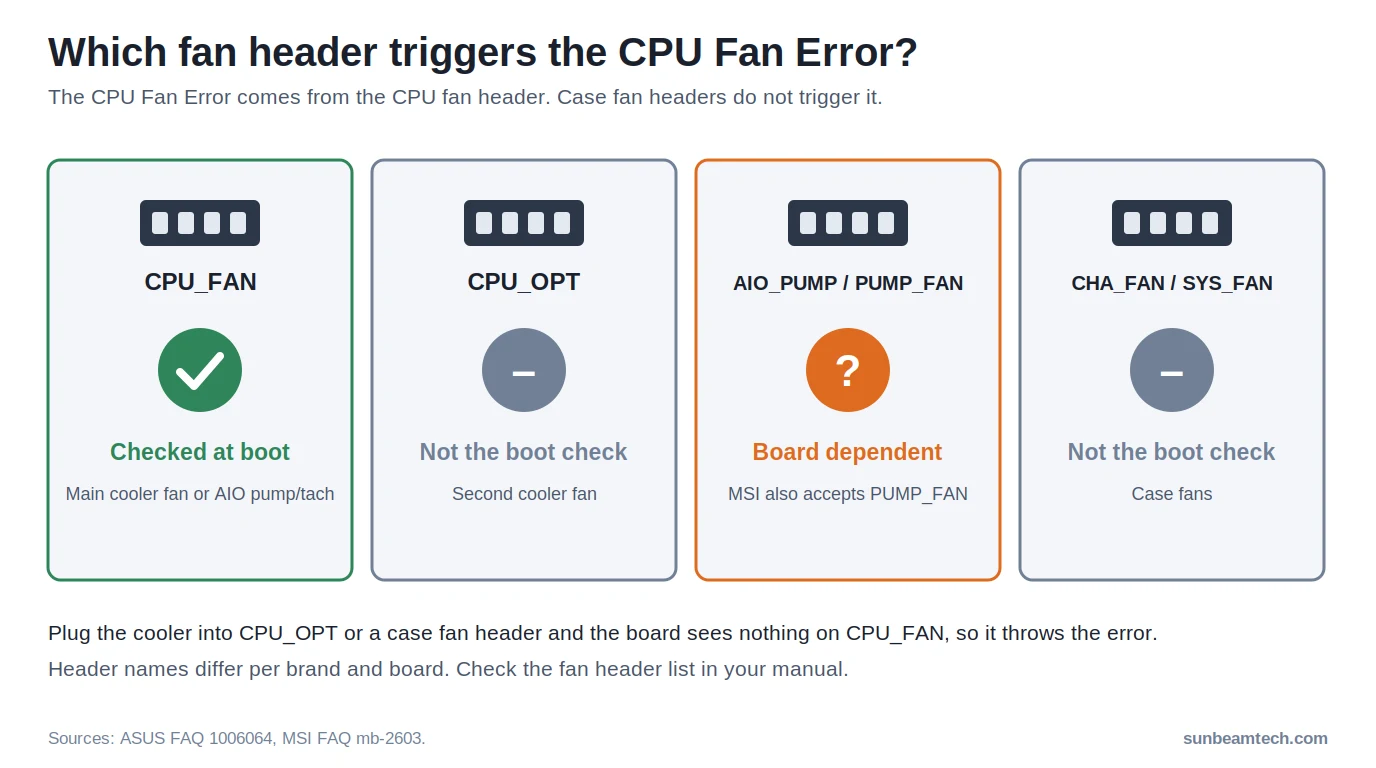
This is the classic one on a fresh build. ASUS lists it as its second check: the CPU fan cable has to go on the CPU_FAN connector, not a chassis fan header. The same goes for CPU_OPT. It sits right next to CPU_FAN and looks identical, but it’s meant for a second cooler fan and isn’t part of the boot check. If you’re unsure which is which, our guides on the CPU fan header and CPU_OPT vs CPU_FAN show where to look.
An AIO where nothing reports a speed on CPU_FAN
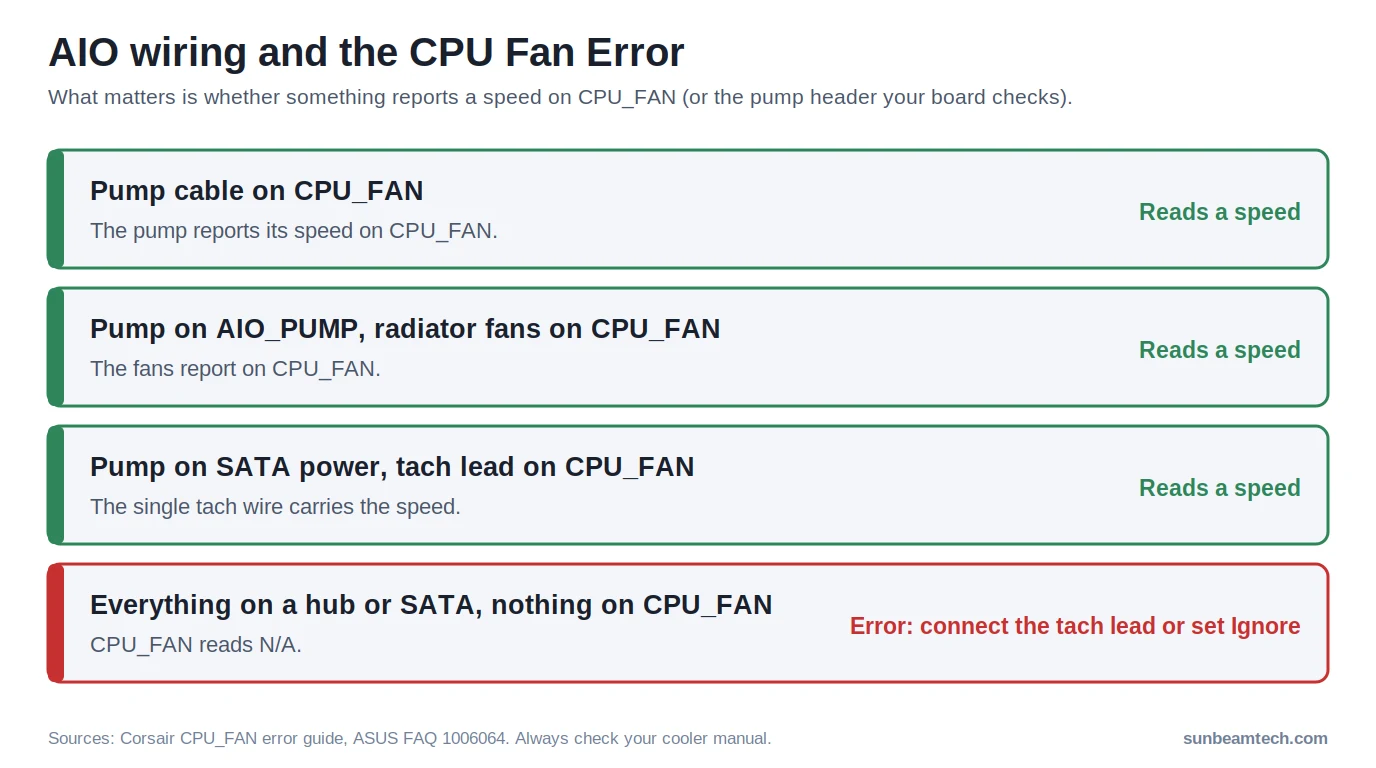
AIO coolers can be wired several ways, and not all of them put a signal on CPU_FAN. Some pumps get power from a SATA cable and send their speed back through a single tach wire. Corsair tells users to check that this 1-pin tachometer lead sits on CPU_FAN. If the pump is on an AIO_PUMP header and the radiator fans are on a hub or on SATA power, CPU_FAN reads N/A and the board complains.
MSI says its warning is meant to remind you to connect the CPU fan or the pump fan, so on MSI boards the PUMP_FAN header counts too. On other boards, check which header the manual says is monitored. For the full wiring picture, see how to install an AIO cooler.
A quiet fan that idles below the limit
This one catches people who upgrade to a quieter cooler. The BIOS has a minimum speed, and anything under it counts as “no fan”. Noctua notes that some motherboards show a CPU fan error once the speed drops below a threshold such as 900 RPM, while Noctua’s PWM fans can idle as low as 300 RPM. ASUS gives the same advice for other brands of low-speed fans: set the CPU Fan Speed Low Limit to 200 RPM.
The fan stops completely at idle
Some fan curves let the fan stop or crawl when the CPU is cold. Noctua points out that a motherboard’s automatic control may not give the fan enough voltage to start at low temperatures, especially with a low-noise adapter in line. Gigabyte’s FAQ describes the same thing from the board’s side: with Smart Fan slowing the fan, the fan fail warning can mistake it for a dead fan and start beeping. Raise the minimum duty cycle for the CPU fan, or take the low-noise adapter out. Our PWM fan control guide explains how fan curves work.
A splitter reporting the wrong fan
A standard Y-splitter only passes the speed signal from one of its branches back to the header. If that branch goes to a fan that’s slow, stopped or unplugged, the board reads that number for your whole CPU cooler. Put the main cooler fan on the branch that carries the speed wire. The fan hub and splitter guide shows how to tell which branch that is.
A loose plug, a blocked fan or a dead fan
If the fan doesn’t spin at all, reseat the plug on the header and check that no cable is touching the blades. Then swap in a different fan on CPU_FAN, or move the suspect fan to a chassis header and see whether it spins there. A fan that stays still on every header is dead and needs replacing.
The error showed up after a BIOS update
A BIOS update or a CMOS clear resets settings to their defaults. If you had lowered the fan limit or switched the warning off before, that change is gone and the old threshold is back. Set it again. ASUS also lists updating the BIOS as a fix in its own FAQ, so if you’re on an old version and nothing else works, it’s worth doing.
The error only shows up on some boots
An error that appears once every few starts, while the BIOS shows a normal fan or pump speed when you look, usually means the reading dips right at start-up. Fans and pumps spin up slowly from cold, and a speed signal that comes through a hub can arrive a moment late. A typical case on the ASUS ROG forum: an AIO whose pump reads around 2,500 RPM in the BIOS, with the tach cable coming from the cooler’s hub, still throws the error on roughly one boot in four. Lowering the minimum speed limit fixes that without switching the check off. Keep an eye on it though. A reading that sometimes drops to zero on a fan that used to be fine can be the fan starting to fail.
How to Fix It in the BIOS (ASUS, MSI, Gigabyte)
Menu names and locations change between board generations, so treat these as directions, not exact paths. Your manual has the precise location.
ASUS
- Press F7 for Advanced Mode and open the Monitor tab.
- Find CPU Fan Speed Low Limit (usually under Q-Fan Configuration) and set it to 200 RPM. ASUS notes this option only appears when CPU Q-Fan Control is set to DC Mode, PWM Mode or Auto.
- If there’s no speed signal at all (for example an AIO with the pump reporting elsewhere), ASUS allows setting CPU FAN Speed to Ignore.
- Save and exit with F10.
MSI
- Open the Hardware Monitor.
- Check that the CPU fan header shows a speed.
- CPU Fan Fail Warning Control is the setting behind the “CPU fan error, please check!” message. Turning it off removes the warning, so only do that once you’ve confirmed the cooler works.
Gigabyte
- Open the Smart Fan page or, on older boards, the PC Health Status section.
- Look for CPU Fan Fail Warning. Gigabyte’s own advice when Smart Fan slows the fan enough to trigger it is to disable the warning.
- A better first step is raising the fan’s minimum speed on the curve, so the warning stays active for a real failure.
Is It Safe to Set the CPU Fan Speed to Ignore?
Sometimes. The warning exists to stop you running a CPU with no cooling, so switching it off is only safe once you know the cooling works.
| Situation | Ignore OK? |
|---|---|
| AIO whose pump and fans report on other headers, temperatures normal | Yes. ASUS explicitly allows it for liquid cooling |
| Quiet fan that idles below the limit | Better to lower the limit to 200 RPM so the warning keeps working |
| Fan not spinning or temperatures climbing | No. Fix the cooling first |
| You don’t know why the error appears | No. Work through the causes above first |
The downside of Ignore: if the fan dies later, you won’t get a warning. Modern CPUs throttle to protect themselves, but you’d notice it as a slow PC instead of a clear message. If you do switch the check off, keep an eye on temperatures now and then. Our guide on how to check CPU temperature covers the easiest tools.
When the Error Is Real
Take it seriously if the fan doesn’t spin on any header, makes a grinding or clicking noise, or the error appears on a PC that booted fine for months with no changes. Combined with high temperatures, random shutdowns or heavy throttling, that points to a failing fan or pump. Replace the fan, or with an AIO, check the pump before it takes the CPU with it. The CPU overheating guide walks through the other signs.
Frequently Asked Questions
Is a CPU fan speed error serious?
Usually not, but check before you dismiss it. If the CPU temperature in the BIOS is normal and the cooler is running, the error is about the speed reading, for example a quiet fan below the limit or a cooler on the wrong header. If the fan isn’t spinning or temperatures climb, it’s a real cooling problem and you should power off.
How do I skip the CPU fan error?
Pressing F1 on most boards takes you into the BIOS, and from there you can continue booting. That only skips it once. To stop it for good, fix the cause: move the cooler to CPU_FAN, lower the minimum speed limit, or set the CPU fan warning to Ignore if your cooler reports its speed elsewhere.
Can I plug my CPU cooler into CPU_OPT instead of CPU_FAN?
Not on its own. CPU_OPT is meant for a second cooler fan and isn’t part of the boot check, so with nothing on CPU_FAN you’ll get the error. Put the main fan on CPU_FAN and use CPU_OPT for the second one.
Why do I get a CPU fan error after a BIOS update?
A BIOS update resets settings to defaults. If you had lowered the fan speed limit or disabled the warning before, that setting is gone. Set it again after every update.
Why do I get a CPU fan error with liquid cooling?
Because nothing reports a speed on the header your board checks. Connect the pump, a radiator fan or the cooler’s tach lead to CPU_FAN (on MSI boards the pump header also counts). If the pump reports elsewhere and temperatures are fine, setting the CPU fan warning to Ignore is acceptable.
What are signs of CPU fan failure?
A fan that doesn’t spin on any header, grinding or clicking noises, speed readings that jump around, and rising CPU temperatures with more throttling. A new error on a PC that ran fine before, with nothing changed, is a sign too.
Still Getting the Error?
If you’ve worked through the causes and the error keeps coming back, collect these before you contact the motherboard or cooler maker. It saves a lot of back-and-forth, and support will ask for most of it anyway:
- The exact message on screen (a phone photo is fine)
- The CPU fan speed the BIOS shows, and whether it’s N/A, low or normal
- Motherboard model and BIOS version, both shown on the BIOS main page
- Cooler model and where each cable goes: pump, radiator fans, tach lead, hub
- What happened when you moved the fan to another header, or tried another fan on CPU_FAN
A fan that doesn’t spin on any header, or a pump with no reading anywhere, points to faulty hardware. Check the warranty terms of your cooler before you buy a replacement.

Alex has been building and tweaking custom PCs for over 12 years. From budget builds to full custom water loops, he’s assembled more than 50 systems and helped hundreds of builders troubleshoot their rigs. When he’s not benchmarking the latest hardware, you’ll find him optimizing airflow setups or stress-testing overclocks.