PC Randomly Restarts? Find Out Why Your Computer Rebooted
A PC that restarts on its own has crashed, lost power, or been told to restart. Check Event Viewer, then turn off Automatically restart to see the next crash’s code.
Last updated: October 2026
Table of Contents
- Read What the Last Restart Left Behind
- Make the Next Restart Show Its Error
- Where Your Evidence Points
- Restarted While You Were Away? Check Windows Update
- A Stop Code: Find the Driver It Names
- No Code at All: Overclocks, Heat, Power and Memory
- Make it happen on demand
- Undo every overclock
- Watch the temperatures
- Check the power supply and its cables
- Test the memory
- Update the BIOS without new trouble
- Still restarting at stock settings
- Stuck in a Restart Loop
- It restarts before the logo
- It restarts at the Windows logo
- Laptops and Prebuilt PCs
- What to Save Before You Swap Parts or Call Support
You’re in the middle of a game or a video, the screen goes black, and a few seconds later you’re looking at the maker’s logo again. No warning, no error you had time to read. Or you left the PC on the desktop and came back to the sign-in screen.
There are three ways to get there. Windows hit a Stop error and rebooted itself. The power or the hardware dropped out too fast for Windows to save anything. Or a program, a user or Windows Update asked for the restart. Each leaves different evidence in what Windows logs after an unexpected restart.
So don’t go buying a power supply yet. Read the evidence first, then change one setting so the next crash can’t hide. Both take a few minutes and cost nothing. If your PC never reaches the desktop, skip to the restart loop section.
One restart on its own isn’t worth a weekend of testing: usually the restart clears the problem. If it keeps happening, back up anything important first. Did your PC switch off and stay off instead? See our guide to a computer that randomly turns off.
Read What the Last Restart Left Behind
Start with the quick view: type reliability in the search box and open View reliability history. A day with a failure gets a red circle with a white X. Click it to list the events, and double-click one for details. A hang that ended in a forced restart shows up as an unexpected or improper shutdown.
For the values that say why, filter Event Viewer for four events: 41 (an unplanned restart), 1074 (a restart something asked for), 6008 (an unexpected shutdown) and 46 (no crash dump file):
- Press Windows key + R, type
eventvwr.mscand press Enter. - Expand Windows Logs, right-click System and choose Filter Current Log.
- In the Event IDs box, type
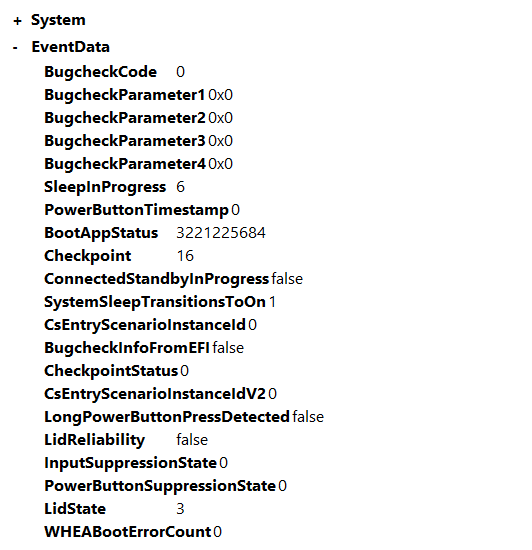
41,46,1074,6008and click OK. Only those four events are listed now. - Double-click the Critical Kernel-Power event logged right after the restart and switch to the Details tab. The values are listed under EventData.
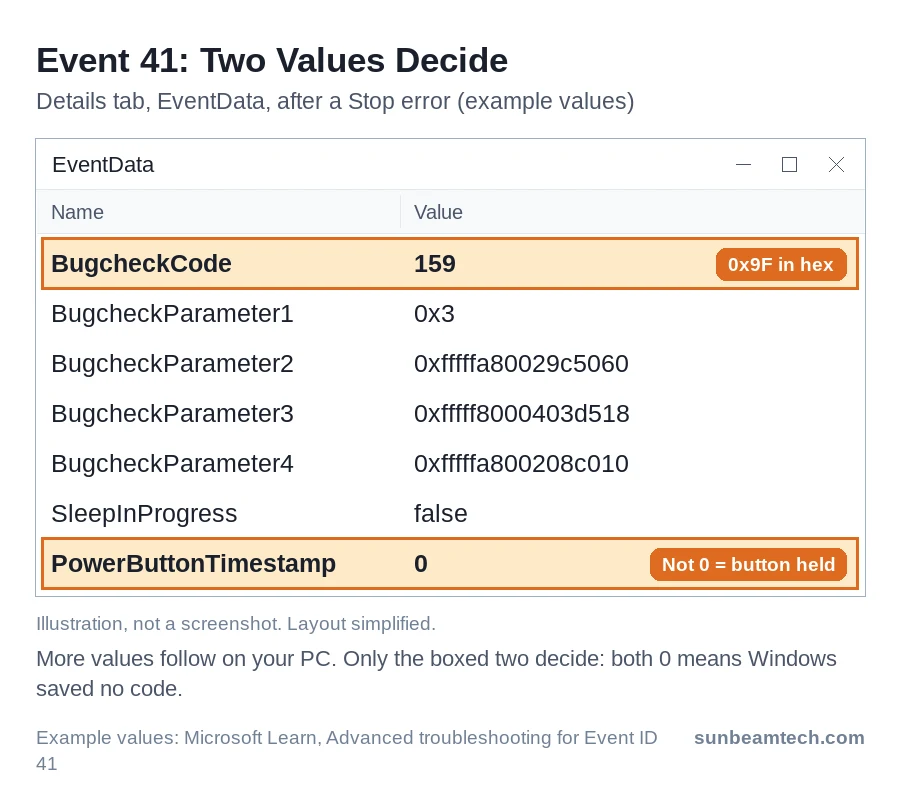
Only two of these values matter. BugcheckCode is the stop code in decimal, while most references list codes in hex. In Calculator, switch to Programmer, check that DEC is selected, type the number and select HEX: 159 becomes 9F, written 0x0000009F. A PowerButtonTimestamp other than 0 means someone held the power button. If both are 0, Windows couldn’t save an error code.
Last, look for a crash dump: C:\Windows\MEMORY.DMP and the Minidump folder there. A file whose Date modified matches the restart means Windows crashed and wrote down why. No file doesn’t rule out a crash. Windows can crash without writing one. Copy any dump elsewhere now, since the next crash can overwrite MEMORY.DMP.
Make the Next Restart Show Its Error
Windows has a setting called Automatically restart, and it’s on by default. After a Stop error, Windows logs it and reboots on its own, so unless you’re watching the screen, it looks like a random restart.
On Windows 11 you’d only briefly see a message like Your device ran into a problem and needs to restart. Don’t wait for a blue screen, either. Its color depends on your Windows 11 version, so a black stop screen is the same kind of crash.
Turn it off so the next crash stays put (you’ll need an administrator account):
- Press Windows key + R, type
sysdm.cpland press Enter. - Open the Advanced tab.
- Under Startup and Recovery, click Settings.
- Under System failure, clear Automatically restart, click OK and restart once so the change takes effect.
Leave Write an event to the system log ticked. A Stop error now stays on screen, so you can photograph the code and, when Windows knows it, the module name. Still black and rebooting with no stop screen? Windows probably never got to record an error. Go to the power and hardware checks.
Where Your Evidence Points
Match what you found to the first row that fits.
| What you found | What it means | Go to |
|---|---|---|
| Event 1074 just before the restart | A program, a user or an update asked for it | Windows Update |
| A stop code on screen, a BugcheckCode other than 0, or a dump file from that time | Windows crashed with a Stop error | The driver it names |
BugcheckCode 0 and PowerButtonTimestamp 0, plus Event 46 from volmgr: Crash dump initialization failed! |
A Stop error can still be behind it, but Windows couldn’t write it down | Fix the pagefile first |
| BugcheckCode 0 and PowerButtonTimestamp 0, or no Event 41 and no Event 1074 | Windows couldn’t record a code. Typically hardware or power | Overclocks, heat, power, memory |
| PowerButtonTimestamp other than 0 | Someone held the power button | If it froze first: the hardware checks |
Restarts only in games or under load? Go through these in order:
- A load test to bring it on and check each fix
- Intel Core 13th or 14th Gen desktop: the latest BIOS
- Overclocks, XMP and EXPO off
- Temperatures under load
- The power supply and its cables
- A clean graphics driver
Restarted While You Were Away? Check Windows Update
If it rebooted overnight or while you were out, rule out Windows Update first. An Event 1074 names the account and the reason for a requested restart. After an update, Windows tries to restart outside your active hours, 8 AM to 5 PM by default.
- In Settings > Windows Update > Update history, look for an update installed just before the restart.
- In Advanced options > Active hours on the same page, pick Manually in the Adjust active hours dropdown and set the hours you actually use the PC (up to 18), or pick Automatically.
On Windows 10, both sit under Settings > Update & Security > Windows Update, as View update history and Change active hours.
A Stop Code: Find the Driver It Names
Start with drivers: in Microsoft’s root-cause analysis of crashes, third-party driver code caused 70% and hardware 10%. Look the code up in the bug check code reference, then let the dump file name the driver:
- Install WinDbg from the Microsoft Store or with:
winget install Microsoft.WinDbg - Search for WinDbg, right-click it and choose Run as administrator.
- Select File > Start debugging > Open dump file and open the newest file in
C:\Windows\Minidump, orC:\Windows\MEMORY.DMP. Loading can take a few minutes. - Type
!analyze -vin the command box at the bottom and press Enter. - Scroll to MODULE_NAME and IMAGE_NAME, or a
Probably caused byline.
A .sys file there is a driver, and that name is your lead. ntoskrnl.exe is the Windows kernel. It often means another driver corrupted memory and the kernel caught it, so there’s no single driver to update. Run the file repair in step 5 below, then test the memory if it keeps happening.
Step 4 needs Safe Mode: go to Settings > System > Recovery (Windows 10: Update & Security > Recovery), select Restart now next to Advanced startup, then Troubleshoot > Advanced options > Startup Settings > Restart, and press 4. Do the other steps in normal Windows, in this order:
- Added or updated something recently? Remove the new hardware, or roll the driver back: in Device Manager, right-click the device, choose Properties and click Roll Back Driver on the Driver tab (greyed out: no older version).
- In Device Manager (right-click Start), update any device with an exclamation mark, and disable or uninstall it if that doesn’t help.
- Install the latest Windows updates and chipset and graphics drivers, and update the BIOS.
- Reinstall the graphics driver cleanly, especially if the restarts come in games. Download the current driver, then follow Intel’s walkthrough for Display Driver Uninstaller (DDU): in Safe Mode, run DDU, set the device type to GPU, pick your card and click Clean and restart. Then install the new driver.
- Repair Windows’ own files: search for
cmd, right-click Command Prompt, select Run as administrator and run these one at a time, DISM first; the last checks the drive for file system errors:DISM.exe /Online /Cleanup-image /Restorehealth sfc /scannow chkdsk C: /scan
Still no culprit, and your PC restarts within an hour or two of light use? If it stays up in Safe Mode, default settings and basic drivers aren’t the cause, and a clean boot finds the add-on. Skip Safe Mode if the restarts only come in games or every few days: it runs a limited set of drivers and can’t load your PC like a game, so a quiet day there proves nothing.
One code points the other way: 0x00000124, WHEA_UNCORRECTABLE_ERROR, means the hardware reported a fatal error, typically from heat, memory or a failing processor. Undo any overclock and go to the hardware checks.
No Code at All: Overclocks, Heat, Power and Memory
BugcheckCode 0 and PowerButtonTimestamp 0, or no Event 41 and no Event 1074, means Windows couldn’t save an error code before the PC went down. That’s typically hardware, and the same checks fit a PC that froze until you held the power button. Not sure it froze? Press Caps Lock next time it hangs: if the keyboard light doesn’t change, it has probably stopped responding.
One exception: with Event 46 from volmgr next to the zeros, a Stop error can still be behind the restart. Windows started without a dump file, by default the pagefile. In sysdm.cpl, on the Advanced tab, click Settings under Performance, open that window’s Advanced tab, click Change, tick Automatically manage paging file size for all drives, click OK and restart.
Then filter the System and Application logs with the Event IDs box empty and Critical and Error ticked, and read the minutes before the shutdown time Event 6008 reports. A WHEA-Logger error is a hardware error. An error naming a driver sends you to the driver steps. On a laptop or a prebuilt, run the maker’s diagnostics first.
Make it happen on demand
Change one thing at a time and note it. To see whether it helped, bring the restart on: play the game that triggers it, or run the Power test in OCCT, which loads the CPU and graphics card together and shows temperatures. The free edition stops after an hour. If the restart used to come within that hour, an hour without one is a good sign. If it came every few days, give each change longer than the longest gap you’ve seen.
Undo every overclock
Put your CPU, memory and graphics card back on stock settings, including PBO on Ryzen and memory profiles like XMP or EXPO, which run memory beyond its standard settings. Close any overclocking tool in Windows, then load the BIOS defaults:
| Board | Open the BIOS | Load defaults |
|---|---|---|
| ASUS | Delete or F2 at start-up | F5, or Load Optimized Defaults in the Exit menu |
| MSI | Delete at start-up | F6 |
| Gigabyte | Delete at start-up | Load Optimized Defaults |
| ASRock | F2 or Delete at start-up | F9, or Load UEFI BIOS Defaults on the Exit screen |
| Other boards, laptops and prebuilts | The key in the manual, or UEFI Firmware Settings (below) | The option with Defaults in its name |
From Windows, use the Advanced startup route from the Safe Mode step and pick UEFI Firmware Settings. Keys can differ by board generation. F10 saves and exits on ASUS, MSI and ASRock.
Watch the temperatures
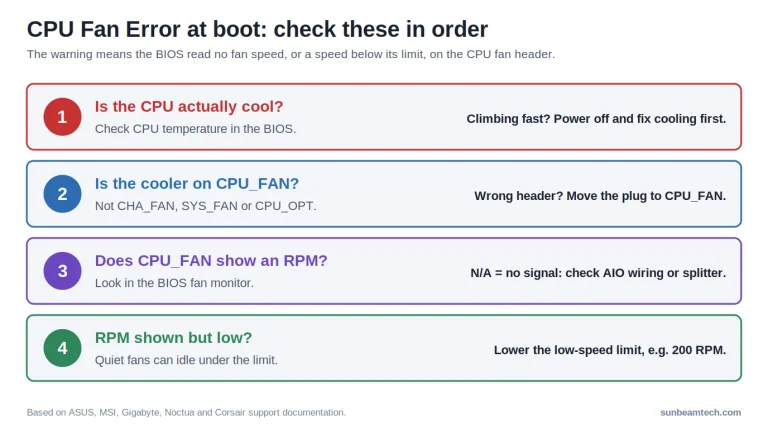
Heat can show up as stop code 0x124 or as a restart with no code. Watch CPU and GPU temperatures during the load test (our guide on how to check CPU temp has the tools) and compare them with what a good CPU temp is. Clear dust and loose cables out of the airflow, and check that the coolers work.
Check the power supply and its cables
A power supply that was fine for your original build can come up short after upgrades. Find its wattage with our guide on how to check what power supply you have and compare it with your graphics card’s minimum: NVIDIA’s own RTX 5070, for example, needs at least 650 W.
Shut down, switch your power supply off at the back and unplug it. Reseat the 24-pin and CPU power connectors (our PSU cable guide shows which is which). Give each PCIe power plug on your graphics card its own cable from the power supply, not two plugs off one cable, and push a 16-pin plug in until it sits flush. Reseat your card, test it without a riser and use a known good wall outlet.
On an AMD system, also set Power Supply Idle Control to Typical in the BIOS’s Advanced section, part of the power supply step in AMD’s stability checklist. On ASUS AMD 800-series boards the value is Typical Current Idle.
Test the memory
For the built-in test, search for Windows Tools (Administrative Tools on Windows 10), open Windows Memory Diagnostic and click Restart now and check for problems. For the result, open Event Viewer, right-click System, choose Find and search for MemoryDiagnostics-Results.
For a longer run, write PassMark’s MemTest86 to a USB stick with its ImageUSB tool, which wipes the stick, and boot it with the boot menu key: F8 on ASUS, F11 on MSI, F12 on Gigabyte. The default four passes can take two hours or more, overnight on a slow CPU with lots of RAM. PASS means no errors; a restart mid-test can’t be a Windows driver.
Any error means your memory isn’t stable as set up. Test one stick at a time, and check that the sticks sit in the slots your manual names, run at the same speed and are on the board’s qualified vendor list (QVL). Errors only with XMP or EXPO on point at the profile.
Update the BIOS without new trouble
On an Intel Core 13th or 14th Gen desktop, do this early: Intel recommends the latest BIOS and its Intel Default Settings profile against the Vmin Shift instability in those processors.
- If your drive uses BitLocker or Device encryption, suspend it first, or your PC can ask for the recovery key afterwards. Type cmd in the search box, right-click Command Prompt, choose Run as administrator and run this (protection resumes at the next Windows start):
manage-bde -protectors -disable C: - Copy the BIOS file for your exact board from the maker’s support page to a USB stick and flash it with the BIOS’s tool: ASUS EZ Flash 3 Utility in the Tool menu, M-FLASH on MSI, Q-Flash via the End key at start-up on Gigabyte, or Instant Flash in ASRock’s Tool menu.
- Don’t switch off or reset the PC while it flashes. Afterwards, load the defaults again. If Windows still asks for the recovery key, get it at
aka.ms/myrecoverykeyon another device.
Still crashing with that BIOS and Intel Default Settings? Contact the PC maker for a prebuilt, Intel Customer Support for a boxed processor or the shop for a tray one. Intel added two years to the warranty of the listed models.
Still restarting at stock settings
With everything at defaults and the restarts still coming, you’re down to a part. Before you buy anything, swap-test the power supply first, using a known working unit of equal or higher wattage, then a known working graphics card, or put your parts in a known working system. Run the load test after each swap.
Stuck in a Restart Loop
It restarts before the logo
Note which debug LED is lit, if your board has them (our EZ debug LED guide explains them). Just fitted DDR5 or changed a BIOS setting? On a small number of DDR5 systems the board trains the memory before it finishes POST: a black screen or a pause on the logo for up to 15 minutes, sometimes followed by one reboot. Leave the power on.
After a BIOS change, load the defaults with the key from the BIOS table, or clear CMOS if you can’t get in. Otherwise, work through the hardware checks, memory and power supply first.
It restarts at the Windows logo
Windows RE, the recovery environment, opens by itself after two failed starts in a row, or two restarts within two minutes of finishing boot. If it doesn’t, hold the power button to switch off as soon as the Windows logo shows, twice; the third start should bring up Automatic Repair. Choose Advanced options > Troubleshoot > Advanced options and try these in order:
- Startup Repair fixes common problems that stop Windows from starting.
- Uninstall Updates removes recent updates, if the loop began after one.
- In Startup Settings > Restart, press 9 to turn off automatic restart after a system failure, so the stop code stays on screen for the stop code section.
- Press 4 there instead for Safe Mode, to copy your files off and roll back the driver or app that started it.
Asked for the BitLocker recovery key? On another device, sign in at aka.ms/myrecoverykey with the PC’s Microsoft account and match the key ID on screen (aka.ms/aadrecoverykey for work or school accounts).
Laptops and Prebuilt PCs
On a laptop or a prebuilt desktop, run the maker’s diagnostics before you open anything. Dell’s SupportAssist full system test checks the CPU, memory, drive and more; on a Lenovo with the Vantage app, click Hardware scan and run QUICK SCAN. For other makers, look for diagnostics on your model’s support page.
On a laptop, an Event 41 with BugcheckCode 0, or none at all, can mean the battery ran flat or was taken out, so test on the charger. If the diagnostics flag a part, leave it to the maker’s support while your PC is under warranty.
What to Save Before You Swap Parts or Call Support
Support and repair shops get further with evidence, so keep these and say what you’ve ruled out:
- Copies of
MEMORY.DMPand theMinidumpfiles, which Microsoft Support may ask for after a Stop error. - The time of each restart, its BugcheckCode and PowerButtonTimestamp, and a photo of any stop screen.
- What the PC was doing each time, and what changed before it started.
- System Information (
msinfo32) and DxDiag reports, with your notes on what you tested.

Alex has been building and tweaking custom PCs for over 12 years. From budget builds to full custom water loops, he’s assembled more than 50 systems and helped hundreds of builders troubleshoot their rigs. When he’s not benchmarking the latest hardware, you’ll find him optimizing airflow setups or stress-testing overclocks.