What Is XMP? Faster RAM in One BIOS Setting
XMP (Extreme Memory Profile) is an Intel-developed BIOS standard that makes RAM automatically run at its advertised speed instead of the slower universal JEDEC default.
Last updated: June 2026
Table of Contents
- Quick Answer: What Is XMP?
- What Is XMP? The Plain-English Explanation
- The Problem XMP Solves
- What XMP Actually Stores
- XMP vs. JEDEC: What Your RAM Actually Runs at by Default
- XMP Versions Explained: 1.0, 2.0, and 3.0
- XMP 1.0 (DDR3 Era)
- XMP 2.0 (DDR4)
- XMP 3.0 (DDR5)
- What Is XMP in BIOS? How to Enable It Step by Step
- Before You Enable XMP: Quick Compatibility Check
- How to Enable XMP in BIOS: Universal Steps
- XMP on AMD: EXPO, DOCP, and What’s Different
- Why AMD Doesn’t Officially “Use” XMP
- XMP Profile 1 vs. Profile 2 on AMD Boards: Which Is Actually Better?
- Does XMP Actually Improve Performance? Real Numbers
- Gaming Performance Gains
- Productivity and Workload Gains
- When XMP Won’t Make a Difference
- Is XMP Safe? Stability, Voltage, and What Can Go Wrong
- Intel 200S Boost: XMP’s Next Evolution
- Frequently Asked Questions About XMP
- Is XMP safe to enable?
- Does XMP work on AMD motherboards?
- Should I use XMP Profile 1 or Profile 2?
- Why didn’t my RAM run at its advertised speed out of the box?
- Does XMP void my RAM warranty?
- Wrapping Up
Quick Answer: What Is XMP?
XMP is a pre-validated overclocking profile stored on your RAM’s SPD chip. Without it, a DDR4-3600 kit runs at DDR4-2133. With it enabled in your BIOS, that same kit hits its advertised 3600 MHz in about 60 seconds of work. It’s an Intel standard (hence “Intel XMP”), but AMD boards support it too under different names. If you haven’t enabled it, you’re leaving paid-for performance on the table.
If you’ve ever bought a DDR4-3600 or DDR5-6000 kit and wondered why your system reports slower speeds, this is why. Every RAM kit ships with two speed identities baked in: the JEDEC default that any board can safely use, and the XMP rated speed you actually paid for. One BIOS toggle is all that separates them. This article covers what XMP stores, how it works across DDR4 and DDR5, how to enable it, and whether it’s actually safe.

What Is XMP? The Plain-English Explanation
The Problem XMP Solves
When RAM ships from the factory, it has two identities. The first is the JEDEC default, a conservative speed that’s guaranteed to work on virtually any motherboard and CPU combination. For DDR4, that default is 2133 MHz. For DDR5, it’s 4800 MHz. Safe, universal, and slow relative to what you paid for.
The second identity is the XMP rated speed printed on the box. DDR4-3600 CL16. DDR5-6000 CL30. Without XMP enabled, your system ignores that second identity entirely and runs at JEDEC defaults. That DDR4-3600 kit? It’s running at DDR4-2133, roughly 40% below rated speed. You paid for a sports car and it’s idling in first gear.
XMP closes that gap without requiring any manual tuning. One profile selection in BIOS and you’re at rated speed.
What XMP Actually Stores
XMP profiles live on the RAM module’s SPD (Serial Presence Detect) chip, a tiny EEPROM soldered directly to the stick. Each profile is a validated bundle of three variables:
- Frequency: the target clock speed, e.g., 3600 MHz for DDR4 or 6000 MHz for DDR5
- Primary timings: the latency values the RAM runs at that frequency, e.g., CL16-18-18-38
- Voltage: the power level needed to hit those timings, e.g., 1.35V for DDR4 or 1.35V for DDR5
When you select an XMP profile, your BIOS reads all three values and applies them together. No guesswork. The memory manufacturer tested this exact combination for stability before the kit shipped. It’s not a generic overclock you’re improvising, it’s a recipe the manufacturer already validated.
XMP vs. JEDEC: What Your RAM Actually Runs at by Default
The table below shows how large the gap is between JEDEC defaults and XMP rated speeds for common kits. DDR5 gains look smaller in percentage terms, but the absolute bandwidth improvement is significant because DDR5 operates on a much wider bus.
| RAM Kit Label | JEDEC Default | XMP Rated Speed | Speed Gain |
|---|---|---|---|
| DDR4-3200 CL16 | 2133 MHz | 3200 MHz | +50% |
| DDR4-3600 CL16 | 2133 MHz | 3600 MHz | +69% |
| DDR4-4000 CL18 | 2133 MHz | 4000 MHz | +88% |
| DDR5-5600 CL36 | 4800 MHz | 5600 MHz | +17% |
| DDR5-6000 CL30 | 4800 MHz | 6000 MHz | +25% |
| DDR5-6400 CL32 | 4800 MHz | 6400 MHz | +33% |
For DDR4 users especially, running without XMP is a significant mistake. If you bought performance RAM and haven’t touched this setting, you’ve wasted real money. Not a small difference. Not worth ignoring.
XMP Versions Explained: 1.0, 2.0, and 3.0
XMP 1.0 (DDR3 Era)
XMP 1.0 shipped with DDR3 support and offered a single profile per module. Most builders today won’t encounter it. If you’re running a modern build on DDR4 or DDR5, it isn’t relevant to you, but it’s worth knowing where the standard started.
XMP 2.0 (DDR4)
XMP 2.0 is the version most current builders deal with. It supports up to two profiles per kit, which gives manufacturers some flexibility. Profile 1 is typically the maximum advertised speed with the most aggressive timings. Profile 2 is often the same frequency but with slightly relaxed timings, or the same timings at a marginally lower voltage for better stability headroom.
Maximum official frequency support under XMP 2.0 reaches DDR4-4800. Standard voltage sits at 1.35V for most kits, though enthusiast-grade DDR4 can push to 1.4V or even 1.5V while staying within Intel and AMD platform guidelines. XMP 2.0 is supported across Intel 8th through 14th Gen Core processors and corresponding Z and B series chipsets.
XMP 3.0 (DDR5)
XMP 3.0 is a significant upgrade in capability. It supports up to five profiles per module: three set by the manufacturer and two that are user-writable. That last part is new and genuinely useful. You can store your own custom timing configurations directly on the module’s SPD, so your settings survive across systems without re-entering them manually.
Officially supported frequencies extend to DDR5-6400 and beyond, with the certified module list continuously updated by Intel. You can view the Intel XMP certified module list and the Intel XMP 3.0 DDR5 Datasheet for the full technical specification. XMP 3.0 requires 12th Gen or later Intel Core processors (LGA1700 or LGA1851) or compatible AMD platforms.
| Feature | XMP 2.0 (DDR4) | XMP 3.0 (DDR5) |
|---|---|---|
| RAM Generation | DDR4 | DDR5 |
| Max Profiles | 2 | 5 (3 factory + 2 user) |
| User-Writable Slots | No | Yes (2 slots) |
| Typical Voltage Range | 1.2V to 1.45V | 1.1V to 1.4V |
| Max Certified Speed | DDR4-4800 | DDR5-8000+ (ongoing) |
| Intel Gen Support | 8th to 14th Gen | 12th Gen and newer (LGA1700/LGA1851) |

What Is XMP in BIOS? How to Enable It Step by Step
Before You Enable XMP: Quick Compatibility Check
Three things need to be in place before XMP does anything useful:
- CPU compatibility: Intel 8th Gen and newer support XMP 2.0 natively. For AMD, see the section below. Core Ultra 200S (Arrow Lake) fully supports XMP 3.0 on Z890 boards.
- Motherboard support: Z and B series Intel motherboards support XMP. For AMD, X570, B550, B650, X670, X870, and X870E boards all support XMP profiles under DOCP or EXPO branding.
- RAM with an XMP profile: Check the kit’s box for the XMP badge or verify on the manufacturer’s product page. Budget or OEM sticks sometimes lack XMP profiles entirely.
Also confirm your sticks are seated in the correct dual-channel slots. On most motherboards that’s A2 and B2, the second and fourth slots from the CPU. Running in A1 and B1 can cause instability even with XMP enabled.
How to Enable XMP in BIOS: Universal Steps
- Restart your PC and press the BIOS key at POST (typically Del, F2, or F10 depending on your board).
- In EZ Mode, look for an XMP, DOCP, or EXPO toggle on the main screen. One click enables it.
- If you’re in Advanced Mode, navigate to the OC, AI Tweaker, or Memory settings menu.
- Find “XMP Profile,” “A-XMP,” or “DOCP” and select Profile 1 (or Profile 2 to compare).
- Press F10 to save and exit.
- Confirm speed in Windows: open Task Manager, click Performance, then Memory. The speed shown should match your kit’s rated frequency.
Board-specific navigation varies, but the destination is always the same setting:
| Motherboard Brand | BIOS Menu Path to XMP Setting |
|---|---|
| ASUS | AI Tweaker → Ai Overclock Tuner → XMP |
| MSI | OC → XMP |
| Gigabyte | MIT → Memory → XMP |
| ASRock | OC Tweaker → XMP |
On ASUS boards, the ASUS BIOS documentation describes accessing this via pressing the Delete key at POST, entering EZ Mode, and pressing F7 for Advanced Mode. The process takes under two minutes start to finish.

XMP on AMD: EXPO, DOCP, and What’s Different
Why AMD Doesn’t Officially “Use” XMP
XMP is Intel’s proprietary standard. AMD CPUs use a different memory controller architecture, and on the DDR5 platform, AMD introduced its own native standard called EXPO (Extended Profiles for Overclocking), launched alongside Ryzen 7000 series. EXPO works the same way conceptually but is tuned for AMD’s Infinity Fabric and memory controller characteristics.
For DDR4 on Ryzen (think Ryzen 5000 series on B550 or X570), AMD boards use DOCP (Direct Overclock Profile). DOCP is essentially the XMP data from the RAM module re-labeled to comply with AMD’s licensing and marketing. It reads the same SPD data and applies the same frequency, timings, and voltage. Functionally identical. If you’re on a Ryzen build and searching for an XMP toggle that doesn’t exist, DOCP is what you’re looking for. For a full walkthrough of enabling these settings on AMD platforms, the DOCP and EXPO guide for AMD covers every step in detail.
A DDR5 kit labeled “XMP 3.0” will usually run fine on AMD boards like the X670E or X870E via EXPO or DOCP compatibility mode, but stability depends on your specific CPU’s memory controller and Infinity Fabric clock (FCLK). Not guaranteed. Usually fine.
XMP Profile 1 vs. Profile 2 on AMD Boards: Which Is Actually Better?
On MSI boards specifically, something interesting happens with XMP profiles. A user investigation on the MSI Forum found that even when both Profile 1 and Profile 2 report the same frequency and timings, they configure different voltages on the AMD side. Profile 2 consistently set lower vSOC, vDDG, and vDDP voltages than Profile 1 on the same kit and board combination.
Lower IOD voltages translate to lower IOD temperatures, which lets the CPU sustain higher boost clocks longer. The forum test data showed approximately 35 additional Cinebench R23 points on average across 10 runs with Profile 2 active compared to Profile 1. Small gain, but it’s free.
That said, according to the Tom’s Hardware Forum community, XMP Profile 1 remains the recommended starting point because it delivers the full advertised frequency in a stable, thoroughly tested configuration. Profile 2’s voltage behavior is board-dependent and not consistent across all vendors. The practical advice: start with Profile 1, run MemTest86 for stability, then try Profile 2 if you want to chase a bit more headroom on an MSI AMD board specifically.
Does XMP Actually Improve Performance? Real Numbers
Gaming Performance Gains
Frame rate gains from enabling XMP are real, and the size depends heavily on your resolution and whether the game is CPU-bound. At 1080p in CPU-limited titles, the gains are meaningful:
- DDR4-2133 to DDR4-3600: +8 to 15% average FPS in CPU-sensitive games like CS2, Starfield open world, and Cyberpunk 2077 at 1080p
- DDR5-4800 to DDR5-6000: +5 to 10% average FPS in CPU-sensitive titles
- Integrated graphics (Intel UHD, AMD Radeon iGPU): +20 to 40% in many titles, because iGPUs share system memory bandwidth directly
At 4K with a beefy GPU like an RTX 5080 or RX 9070 XT, the GPU becomes the bottleneck and RAM speed barely registers. The gains shrink to near zero. Where XMP matters most is 1080p competitive gaming on fast-paced titles where the CPU is constantly feeding the GPU.
Productivity and Workload Gains
Outside gaming, the numbers are more modest but still present:
- Cinebench R23 multi-core: 2 to 5% improvement
- 7-Zip file compression: 8 to 12% improvement
- Handbrake video encoding: 3 to 6% improvement
- Blender render: minimal gain, roughly 1 to 3%
- AIDA64 memory bandwidth: near-linear with frequency increase
When XMP Won’t Make a Difference
GPU-limited scenarios at 4K, storage-bottlenecked tasks, and single-threaded applications with low memory bandwidth dependency all see negligible gains. If you’re rendering 4K video on a Ryzen 9 9950X3D with an RTX 5090, XMP isn’t where your performance bottleneck lives. But if you’re gaming at 1080p or running memory-heavy workloads, it absolutely matters.
Is XMP Safe? Stability, Voltage, and What Can Go Wrong
Short answer: yes. XMP profiles are manufacturer-validated, not experimental. Running your DDR4 kit at 3600 MHz via XMP is exactly what that kit was designed and tested for.
Voltage context matters here. DDR4 XMP typically runs at 1.35V versus the JEDEC spec of 1.2V. That’s a modest step up, not an aggressive overclock. DDR5 XMP typically runs at 1.1V to 1.4V versus the JEDEC spec of 1.1V. Enthusiast DDR4 kits at 1.4V to 1.5V are still within Intel and AMD guidelines for most platforms.
Common issues and what causes them:
- Boot failure or POST loop: your CPU’s integrated memory controller (IMC) is borderline for that speed. Try Profile 2, drop to a lower XMP speed, or add a small vSOC bump on AMD boards.
- BSOD or random crash: try adding 0.05V to vSOC on AMD or System Agent/IO voltage on Intel. Confirm with MemTest86.
- Random instability that passes MemTest: run MemTest86 for at least two full passes. Zero errors means the RAM is stable at those settings.
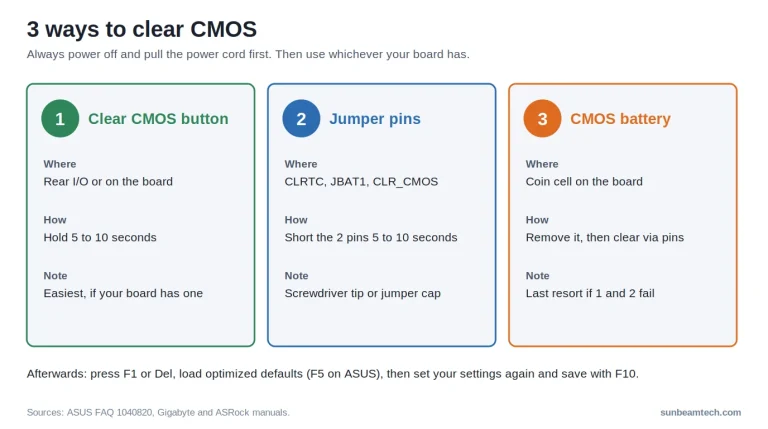
If a kit consistently fails its XMP profile, that’s usually a CPU IMC tolerance issue rather than a defective RAM module. Not every CPU hits the same memory controller lottery. A simple BIOS reset returns everything to JEDEC defaults with no permanent damage done.
Intel 200S Boost: XMP’s Next Evolution
Intel’s 200S Boost is a newer overclocking profile specifically for Core Ultra 200S processors (like the Core Ultra 7 265K and Core Ultra 9 285K) paired with Z890 motherboards. It goes beyond standard XMP by co-optimizing the CPU and RAM together rather than tuning RAM in isolation. A compatible XMP 3.0 DDR5 kit running on a Z890 board with a 200S Boost profile gets both sides of the equation tuned simultaneously.
This is the direction XMP is heading: platform-aware profiles rather than memory-only profiles. If you’re building on Arrow Lake now or planning to, 200S Boost is worth factoring into kit selection. Look for the certification badge on compatible DDR5 kits.
Frequently Asked Questions About XMP
Is XMP safe to enable?
Yes. XMP profiles are tested and validated by the memory manufacturer before the kit ships. Voltages for DDR4 XMP (typically 1.35V) and DDR5 XMP (typically 1.1V to 1.4V) are well within platform guidelines. Occasional instability does occur on some CPU and RAM combinations, but a BIOS reset returns everything to stock settings instantly with no permanent damage to any component.
Does XMP work on AMD motherboards?
XMP profiles are technically an Intel standard, but most AMD boards on B550, X570, B650, X670, X870, and X870E support them under different names. On DDR4 platforms, AMD boards call it DOCP. On DDR5 with Ryzen 7000 and newer, AMD’s native standard is EXPO, which provides better tuning for the AMD memory controller. XMP-rated DDR5 kits typically run fine on AMD via EXPO or DOCP compatibility mode.
Should I use XMP Profile 1 or Profile 2?
Profile 1 is the full advertised speed and the right starting point for most users. It’s the configuration the manufacturer tested most thoroughly. Profile 2 is sometimes the same speed with slightly different voltage behavior, which on certain AMD boards (MSI specifically) runs lower SOC voltages and can result in marginally better CPU boost temperatures. Try Profile 1 first, confirm stability with MemTest86, then experiment with Profile 2 if you want to optimize further.
Why didn’t my RAM run at its advertised speed out of the box?
All RAM ships at the JEDEC default speed for universal compatibility: DDR4 at 2133 MHz, DDR5 at 4800 MHz. The speed printed on the box is the XMP speed, and it only activates when you enable XMP in your BIOS. This is expected behavior. It isn’t a defect, a compatibility failure, or a misleading label. It’s just how the standard works.
Does XMP void my RAM warranty?
No. Enabling an XMP profile doesn’t void your RAM warranty because XMP is a manufacturer-supported feature. Running your kit at XMP speed is the intended use of that product. Manual overclocking beyond the XMP profile, especially with voltage increases above what the manufacturer specifies, may void warranty depending on the brand’s policy.
Wrapping Up
If you have performance RAM installed and XMP is still off, enabling it is the single highest-value BIOS change you can make today. Two minutes in BIOS, a confirmed speed in Task Manager, and your kit finally runs at the speed you paid for. Start with Profile 1, verify stability with MemTest86, and if you’re on an AMD system, check whether your board labels the same feature as DOCP or EXPO. Understanding the differences between DDR4 and DDR3 can also help if you’re planning a platform upgrade and wondering which memory generation makes sense for your next build. Either way, don’t leave those megahertz sitting unused.

Alex has been building and tweaking custom PCs for over 12 years. From budget builds to full custom water loops, he’s assembled more than 50 systems and helped hundreds of builders troubleshoot their rigs. When he’s not benchmarking the latest hardware, you’ll find him optimizing airflow setups or stress-testing overclocks.