What Is DOCP in BIOS? DOCP I vs II, Tweaked, XMP and EXPO
DOCP (Direct Over Clock Profile) is the ASUS BIOS option that loads your RAM kit’s XMP profile on AMD boards, so it runs at its rated speed.
Last updated: October 2026
Table of Contents
- What Is DOCP?
- DOCP Meaning and Origin
- What Does DOCP Actually Do?
- DOCP Profile Options Explained: DOCP 1, DOCP 2, Standard, and Tweaked
- DOCP 1 vs DOCP 2: Which Should You Choose?
- DOCP Standard vs DOCP Tweaked
- EXPO I, EXPO II and AEMP
- DOCP vs XMP vs EXPO: What’s the Difference?
- Is DOCP the Same as XMP?
- Is DOCP the Same as EXPO?
- How to Enable DOCP in BIOS (Step-by-Step)
- Before You Start: Prerequisites
- Step-by-Step: How to Enable DOCP in ASUS BIOS
- How to Verify DOCP Is Working
- DOCP Not Working? What to Do When the PC Won’t Boot
- Is DOCP Safe? Risks, Stability, and What to Watch For
- Voltage
- Warranty
- Stability Testing
- How Much Faster Is RAM With DOCP?
- DOCP on Non-ASUS Boards: What’s It Called on MSI, Gigabyte, and ASRock?
- Frequently Asked Questions
- Should I enable DOCP?
- Should Ai Overclock Tuner be on Auto or DOCP?
- Does DOCP work on Intel motherboards?
- Why is there no DOCP option in my BIOS?
- Can I use DOCP with four sticks of RAM?
- What is DOCP in veterinary medicine?
- What You Should Do
You built the PC, dropped in a DDR4-3600 kit, and everything boots. Then Task Manager says 2133 or 2400. A new AM5 build does the same thing: a DDR5-6000 kit often starts at 4800. Nothing’s broken. Your board starts every kit at a safe default speed and ignores the faster profile until you tell it to use it.
On an ASUS board, DOCP is one of the switches that does that, the same job XMP does on an Intel board. Already turned it on and now the PC won’t boot? Jump straight to the fixes.
Quick answer: which option to pick on an ASUS board
- Should you turn it on? Yes, if your kit is rated faster than it runs now. To turn it off, set Ai Overclock Tuner back to Auto.
- AM4 board with a DDR4 kit: D.O.C.P. (often labelled D.O.C.P. Standard), then the first profile in the list.
- AM5 board, kit with an EXPO profile: EXPO I.
- AM5 board, XMP-only kit: DOCP I (plain D.O.C.P. on early 600-series ROG BIOS). Try DOCP II if it isn’t stable.
- Any Tweaked option: only after the I profile has passed a memory test.

What Is DOCP?
DOCP Meaning and Origin
DOCP stands for Direct Over Clock Profile. It’s an ASUS name, so you’ll only find it in ASUS BIOS menus, written as DOCP or D.O.C.P. depending on the board and BIOS version.
What DOCP loads depends on the platform. The ASUS memory profile FAQ maps it like this: on AMD boards, DOCP is the option for a kit with an XMP profile, and on recent Intel boards, it’s the option for a kit with an EXPO profile. In other words, ASUS uses DOCP when the kit’s profile was written for the other platform.
What Does DOCP Actually Do?
Every memory stick carries a small SPD chip. It holds the standard JEDEC settings every board can read and, on enthusiast kits, the faster profile the kit maker tested and printed on the box. Boot without a profile and you get the JEDEC numbers. Turn DOCP on and the BIOS applies the profile’s speed, voltage and main timings in one go.
Here’s a real kit. Corsair’s spec page for the Vengeance LPX DDR4-3600 CL18 pair (CMK16GX4M2D3600C18) gives an SPD default of 2133 at CL15 and 1.2 V, and a tested speed of 3600 at CL18 and 1.35 V. On the QVL for the ASUS Pro WS X570-ACE, that kit is listed at 18-22-22-42. That’s a full set of timings you’d otherwise type in by hand, and one dropdown does it.
DOCP Profile Options Explained: DOCP 1, DOCP 2, Standard, and Tweaked
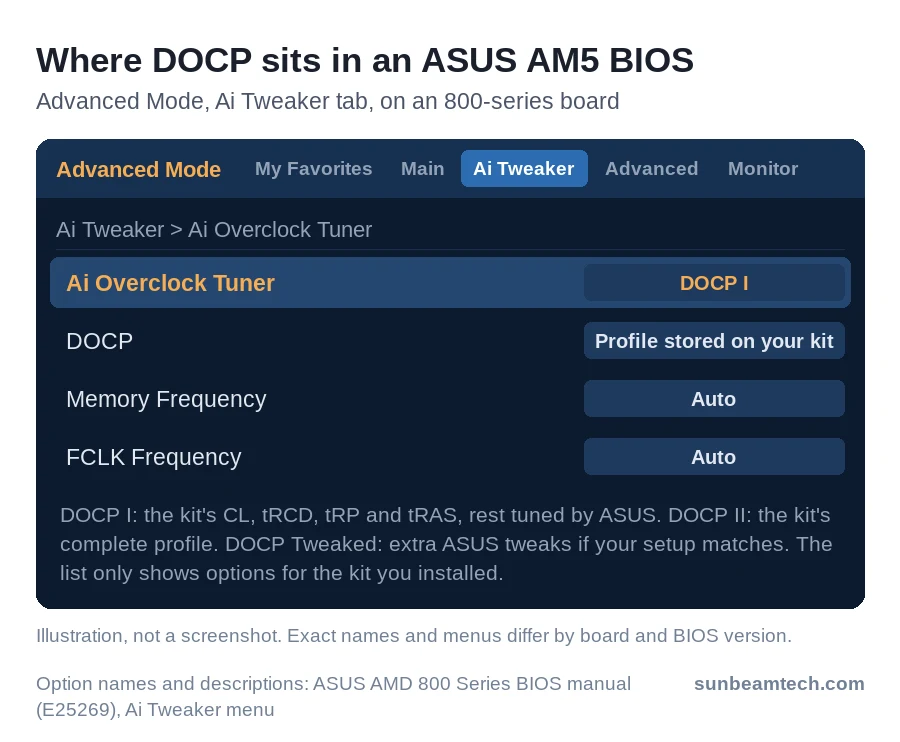
The options under Ai Overclock Tuner depend on your platform, your BIOS version and the kit you installed. This is what each one loads, per the ASUS AMD 800-series BIOS manual and the ASUS FAQ.
| Option | What it loads | Where you’ll see it |
|---|---|---|
| Auto | Default settings, so the kit runs at its JEDEC speed | Every board |
| D.O.C.P. (or D.O.C.P. Standard) | The XMP profile you pick in the list under it | AM4 boards; early BIOS on 600-series ROG AM5 boards |
| DOCP I | The kit’s CL, tRCD, tRP and tRAS, with the other memory settings tuned by ASUS | AM5 + XMP kit; recent Intel + EXPO kit |
| DOCP II | The kit’s complete profile, every setting as the kit maker wrote it | AM5 + XMP kit; recent Intel + EXPO kit |
| DOCP Tweaked | The DOCP profile plus ASUS tweaks for more performance, if your setup matches | AM5 boards with a recent BIOS; some Intel ROG boards |
| EXPO I, II, Tweaked | The same three levels for a kit with an EXPO profile | AM5 boards |
| AEMP | An ASUS-built profile for compatible DDR5 kits that have no XMP or EXPO profile | AM5 and recent Intel boards |
| Manual | Unlocks manual BCLK and memory settings | Most boards |
DOCP 1 vs DOCP 2: Which Should You Choose?
Start with DOCP I. In the ASUS memory profile guide, DOCP I is the default pick for most cases and DOCP II is the backup. I takes the kit’s four main timings and tunes the rest for your board, while II runs the kit’s full profile untouched.
If DOCP I won’t boot, crashes in games or throws errors in a memory test, switch to DOCP II before you change anything else. It can go either way: some kits run better on the board’s values, others on their own.
Don’t mix this up with the profiles in the DOCP item under it. I and II decide how much of a profile ASUS loads, while Profile 1 and 2 are separate profiles stored on the kit. On AM5 you pick both: the level in Ai Overclock Tuner, then the profile below it. Most kits carry one profile. Some carry two, like Kingston’s FURY Beast DDR4-3600 CL17 kit with a second DDR4-3000 CL15 profile. Take the first; the second is a slower fallback. On ASUS Intel boards, XMP I and II work like DOCP I and II, and you pick XMP Profile 1 or 2 separately.
DOCP Standard vs DOCP Tweaked
D.O.C.P. Standard is what many AM4 BIOS versions call the normal option, for example on the ROG Crosshair VIII Hero. It loads your kit’s XMP profile, so pick it. Some early AM4 BIOS versions, like those for the Prime B350-Plus, showed D.O.C.P. and D.O.C.P. Standard side by side. On those, Standard runs the profile at the kit’s rated speed, or one memory step lower when the platform has no matching setting.
DOCP Tweaked is DOCP plus extra ASUS timing tweaks. It’s listed on the AM5 800-series boards (X870E, X870, B850 and B840), and BIOS updates have added it to many 600-series AM5 boards too. Some Intel ROG boards offer it for EXPO kits.
Tweaked tightens the secondary timings when your configuration matches what ASUS tuned for. ASUS claims up to 10% more memory bandwidth and lower latency from its Tweaked profiles. Treat those as best-case numbers. The ASUS FAQ is blunt about the Intel version: it’s an aggressive profile, stability isn’t guaranteed, and not every board or kit supports it. Run it only after DOCP I has passed a test, then test again.
EXPO I, EXPO II and AEMP
EXPO kits get the same three levels: EXPO I with board-tuned values, EXPO II with the kit’s full profile, and EXPO Tweaked. Some 800-series BIOS versions also add EXPO on the fly, a dynamic tuning mode. Skip it unless you’re overclocking on purpose.
AEMP is for kits with no profile at all. It loads an ASUS-built profile, but only when the BIOS recognises the modules, so not every plain JEDEC kit gets it.
DOCP vs XMP vs EXPO: What’s the Difference?
Three names, two profile standards. XMP and EXPO are profiles stored on the RAM itself.
| Name | What it is | Where you’ll see it |
|---|---|---|
| XMP (Intel) | Speed profile stored on DDR3, DDR4 and DDR5 kits | Intel boards; on AMD boards through DOCP, A-XMP, X.M.P. or Load XMP Setting |
| EXPO (AMD) | Speed profile stored on DDR5 kits for Ryzen | AM5 boards; on recent ASUS Intel boards through DOCP |
| DOCP (ASUS) | BIOS option that loads a profile written for the other platform | ASUS AMD boards with XMP kits; recent ASUS Intel boards with EXPO kits |
Is DOCP the Same as XMP?
Mostly, yes. On an AMD board, DOCP reads the XMP profile on your kit, the same data an Intel board reads when you enable XMP. If someone tells you to turn on XMP and you’re on an ASUS Ryzen board, DOCP is the switch they mean.
The one difference shows up on AM5. DOCP II matches the kit’s spec sheet exactly. DOCP I keeps the kit’s main timings and lets the board set the rest, and it’s still the one to try first.
Is DOCP the Same as EXPO?
No. EXPO is AMD’s own profile standard for DDR5. It arrived with Ryzen 7000 and AM5 in 2022, AMD offers it to memory makers without royalties, and kit makers test and certify their own EXPO profiles. On an ASUS AM5 board, an EXPO kit shows up as EXPO I, EXPO II and EXPO Tweaked. DOCP only appears there for kits that carry an XMP profile.
Plenty of DDR5 kits carry both. Start with EXPO I, which AMD markets as Ryzen-optimized profiles for AM5. On many dual-profile kits the EXPO and XMP values are identical anyway, so if EXPO I isn’t stable, try EXPO II next. Our XMP vs EXPO comparison covers the two standards in more depth.
How to Enable DOCP in BIOS (Step-by-Step)
Before You Start: Prerequisites
- Know what your kit carries. The label or spec sheet says XMP, EXPO or both. In the ASUS BIOS, Tool > ASUS SPD Information lists the profiles stored on each stick.
- Update the BIOS first if your board still runs an early version. Set DOCP after the update, and check it again after later updates.
- Use the right slots. With two sticks, ASUS boards want A2 and B2, the second and fourth slots counted from the CPU. The memory table in your manual confirms it.
- Check the QVL. The memory support list for your board shows which kits were tested at which speed. A kit that isn’t on it can still work, but it’s the first suspect when a profile isn’t stable.
Step-by-Step: How to Enable DOCP in ASUS BIOS
- Restart and press Del or F2 during POST to enter the BIOS.
- If you land in EZ Mode, press F7 to switch to Advanced Mode.
- Open the Ai Tweaker tab (Extreme Tweaker on ROG Crosshair boards) and find Ai Overclock Tuner near the top.
- Pick the option for your board and kit: D.O.C.P. or D.O.C.P. Standard on AM4, DOCP I for an XMP kit on AM5, EXPO I for an EXPO kit on AM5.
- In the DOCP item that appears under it, pick the profile. Each one lists its own speed, timings and voltage.
- Press F10 and confirm to save and restart.
X570 boards also put a D.O.C.P. dropdown on the EZ Mode screen as a shortcut. The menu only lists options that match the DIMMs you’ve installed, so a kit without an XMP profile won’t show DOCP at all.
Don’t panic if the first boot takes a while. On AM5 the board has to train the memory at the new speed, and a black screen with the DRAM light on is normal on a fresh setup. On the ASUS ROG forum, a moderator estimates 5 to 15 minutes depending on capacity and configuration.
To turn DOCP off, set Ai Overclock Tuner back to Auto (or the EZ Mode D.O.C.P. switch to Disabled) and press F10. Disabled just means the kit runs at its default JEDEC speed again.
How to Verify DOCP Is Working
- Task Manager: press Ctrl+Shift+Esc, open Performance, click Memory and read Speed. Current Windows 11 builds show it in MT/s, which matches the number on the box. Microsoft started rolling out that unit change in mid-2024 updates.
- BIOS EZ Mode: the DRAM speed is on the first screen.
- CPU-Z: DRAM Frequency on the Memory tab shows half the rated number, because DDR memory transfers twice per clock. 1800 MHz there means DDR4-3600, and 3000 MHz means DDR5-6000.
DOCP Not Working? What to Do When the PC Won’t Boot
A profile that isn’t stable shows up in one of three ways. The PC won’t POST and the DRAM light stays on. It boots back into the BIOS with an Overclocking failed message. Or Windows crashes and reboots under load. Work through these in order:
- Give it time. On AM5, a black screen with the DRAM light on is often memory training. Wait 15 minutes before you touch anything.
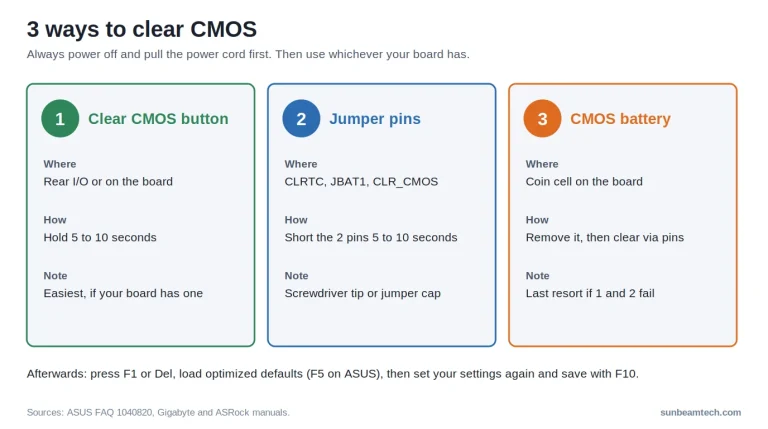
- Get back into the BIOS. Still nothing? Clear CMOS: press the Clear CMOS button on the rear I/O if your board has one, or unplug the PC and short the two CLRTC pins. On ROG boards, the Safe Boot button reboots into the BIOS on safe settings while keeping yours, so you can fix the one that failed.
- Switch profiles. On AM5, try II if you were on I, and I if you were on II. On AM4, pick the second profile in the D.O.C.P. list if your kit has one.
- Drop one speed step with the profile still selected. Set Memory Frequency (DRAM Frequency on some boards) to the next speed down, for example DDR5-5800 instead of 6000, or DDR4-3466 instead of 3600.
- Update the BIOS, then set the profile again.
- Check the kit. Use one matched kit, ideally from the QVL, and don’t mix kits or add a second kit later.
- Test one stick at a time in slot A2. A single bad module shows up quickly that way.
If the PC still restarts randomly with DOCP off, our guide to a computer that restarts randomly covers the other causes.
Is DOCP Safe? Risks, Stability, and What to Watch For
For most builds, yes, as long as you test it. DOCP runs the RAM at the speed the kit maker tested and sells it at. It’s still outside the JEDEC spec, though, and that matters in three ways.
Voltage
JEDEC DDR4 runs at 1.2 V, and the chips’ recommended operating range tops out at 1.26 V. Most DDR4-3200 and 3600 kits need 1.35 V for their profile, and some faster kits ask for more. DDR5 starts at 1.1 V, while EXPO and XMP kits commonly use 1.25 to 1.4 V, and the fastest kits 1.45 V or more. The kit maker tested those values, so they’re normal for that kit. Just don’t push past what the profile sets unless you’re overclocking on purpose.
Warranty
Per ASUS, enabling XMP, EXPO, DOCP or AEMP doesn’t void the motherboard warranty. AMD takes a stricter line for its CPUs. A footnote on the EXPO page says running memory outside AMD’s published specs voids the AMD product warranty, even when you enable it through AMD’s own technology.
Stability Testing
A system that boots isn’t automatically stable. Run MemTest86 for at least one full pass, two if you have time. Memory errors don’t always crash a PC. Sometimes they quietly corrupt data instead, which is on AMD’s own list of risks, so the test matters even when games feel fine.
How Much Faster Is RAM With DOCP?
In the tests below, faster memory added 4 to 12% to average frame rates. How much you get depends on the CPU, the game and how GPU-bound you are.
| Setup | Change | Measured gain |
|---|---|---|
| Ryzen 9 5900X, RTX 2080 Ti, 1080p games | DDR4-2133 to DDR4-3600 | +4.2% average FPS |
| Ryzen 9 5900X, application tests | DDR4-2133 to DDR4-3600 | +7.2% |
| Ryzen 7 7700X, 13 games | DDR5-5200 CL40 to DDR5-6000 CL30 | About +12% |
| Ryzen 7 7800X3D, 13 games | DDR5-5200 CL40 to DDR5-6000 CL30 | About +4% |
Test data: Tom’s Hardware Ryzen 5000 memory testing (every speed at the same 15-16-16-36 timings) and TechSpot’s DDR5 profile test (a DDR5-5200 kit against a DDR5-6000 EXPO kit). Read them as memory-speed scaling, not an exact DOCP on and off result.
X3D chips care much less about memory speed, because their large L3 cache handles more of the work. And the gap only shows when the CPU is the limit. High-refresh 1080p gaming shows it; a GPU-bound 4K game mostly won’t.
On AM4, the BIOS runs the Infinity Fabric in step with the memory by default. AMD gave DDR4-3733 as the highest speed where the two stay coupled on Ryzen 3000 and recommended DDR4-3600 CL16. Most Ryzen 5000 chips hold that 1:1 link at DDR4-3600 and often a bit higher. On AM5, DDR5-6000 is the usual sweet spot, because most Ryzen 7000 chips keep the memory controller in step with the memory up to about that speed.
DOCP on Non-ASUS Boards: What’s It Called on MSI, Gigabyte, and ASRock?
DOCP is ASUS-only. Other brands load the same profiles under their own names.
| Brand | AM4 (DDR4) | AM5 (DDR5) | Menu |
|---|---|---|---|
| ASUS | D.O.C.P. | DOCP I/II, EXPO I/II, Tweaked | Ai Tweaker |
| MSI | A-XMP | A-XMP or EXPO | OC |
| GIGABYTE | X.M.P. | XMP/EXPO Profile | Tweaker |
| ASRock | Load XMP Setting | DRAM Profile | OC Tweaker |
You’ll sometimes see EOCP named as the GIGABYTE version, but GIGABYTE’s BIOS manuals use X.M.P. and XMP/EXPO Profile, so look for those labels.
Frequently Asked Questions
Should I enable DOCP?
Yes, if your kit is rated faster than the speed it runs at right now. You paid for that speed and the kit maker tested it. Leave it off only when you can’t get it stable with any profile, or when the AMD CPU warranty matters more to you than a few percent of performance.
Should Ai Overclock Tuner be on Auto or DOCP?
Auto leaves the RAM at its safe JEDEC speed. DOCP (or EXPO, with an EXPO kit) runs it at the speed on the label. Use DOCP for everyday use once a memory test has passed, and switch back to Auto only while you hunt down a crash or before you swap memory.
Does DOCP work on Intel motherboards?
On recent ASUS Intel boards with a current BIOS, yes, but only for kits with an EXPO profile; 800-series boards label it D.O.C.P. I and II. An XMP kit on those boards uses XMP I or XMP II, since XMP is Intel’s own standard. On older Intel boards an EXPO kit has no matching option.
Why is there no DOCP option in my BIOS?
Four usual reasons. The board isn’t an ASUS (look for A-XMP, X.M.P. or DRAM Profile). The kit has no XMP profile, so there’s nothing to load. You’re on AM5 with an EXPO kit, which gets EXPO options instead. Or the BIOS is older than the kit, and a BIOS update adds support.
Can I use DOCP with four sticks of RAM?
You can, but expect less headroom. Four DIMMs put more load on the memory controller, and AMD rates chips like the Ryzen 7 5800X3D at DDR4-3200 with two modules but lower with four. If a four-stick setup won’t hold the profile, lower Memory Frequency a step rather than loosening timings at random.
What is DOCP in veterinary medicine?
Nothing to do with your PC. In veterinary medicine, DOCP is desoxycorticosterone pivalate, an injectable hormone for dogs with Addison’s disease, sold as Percorten-V and Zycortal. For that, talk to your vet.
What You Should Do
Check which profile your kit carries, update the BIOS, then pick the matching option: D.O.C.P. on AM4, DOCP I for an XMP kit on AM5, EXPO I for an EXPO kit. Save with F10, give the first boot up to 15 minutes and confirm the speed in Task Manager. Then run MemTest86 before you trust it with real work.
Once the I profile has passed, you can try DOCP Tweaked or EXPO Tweaked and test again. If it fails, switch back to I.

Alex has been building and tweaking custom PCs for over 12 years. From budget builds to full custom water loops, he’s assembled more than 50 systems and helped hundreds of builders troubleshoot their rigs. When he’s not benchmarking the latest hardware, you’ll find him optimizing airflow setups or stress-testing overclocks.