X3D Gaming Mode: What It Does and Whether to Turn It On (MSI, ASUS, GIGABYTE)
X3D Gaming Mode switches off SMT, a two-CCD Ryzen 9’s second CCD, or both, to favor games. Leave it off unless your games run better with it.
Last updated: October 2026
Table of Contents
- What X3D Gaming Mode Actually Changes
- The Name on Your Board
- Should You Turn It On? It Depends on Your CPU
- Ryzen 7 9800X3D, 9850X3D and 7800X3D
- Ryzen 9 9950X3D and 7950X3D
- Ryzen 9 9900X3D and 7900X3D
- Ryzen 9 9950X3D2
- How to Turn It On, and Off Again
- Check What It Did in Task Manager
- Test It in Your Own Games
- Doing It by Hand Instead
- Frequently Asked Questions
- Can X3D Gaming Mode damage my CPU?
- Does it do anything on a Ryzen without 3D V-Cache?
- Why did my Cinebench score drop after enabling it?
- Before You Decide
You’re in the BIOS of a new MSI board with a Ryzen X3D chip, and there’s a switch called X3D Gaming Mode on the Overclocking page. ASUS boards have Turbo Game Mode, and GIGABYTE boards have X3D Turbo Mode. All three promise more frames with one click.
The MSI and ASUS versions take hardware away from Windows. SMT goes off, so each core runs one thread instead of two, and on ASUS boards a Ryzen 9 with two chiplets loses one of them too. Some games run faster that way. Streaming, recording and anything else that uses lots of threads gets slower. GIGABYTE’s version is built around tuning: core distribution, bandwidth and power, plus an AI tuning profile in version 2.0.
Whether it’s worth it depends on your CPU and your games. Find your CPU below and jump to the advice for it.
| Your situation | Short answer | Go to |
|---|---|---|
| Ryzen 7 9800X3D, 9850X3D or 7800X3D | Worth a test if you only game | Ryzen 7 X3D |
| Ryzen 9 9950X3D or 7950X3D | Test it only if the PC is mostly for games | 16-core Ryzen 9 X3D |
| Ryzen 9 9900X3D or 7900X3D | Test it before you keep it | 12-core Ryzen 9 X3D |
| Ryzen 9 9950X3D2 | Keep it off unless a test says otherwise | 9950X3D2 |
| Already turned it on and want it off | Set it to Disabled, then check Task Manager | Turn it on and off |
What X3D Gaming Mode Actually Changes
Two things can go off. The first is simultaneous multithreading (SMT). With SMT on, each core works on two sets of instructions at once, which is great for multithreaded work. With it off, each core handles one thread, and games that don’t need many threads can run faster.
The second only applies to Ryzen 9 chips with two core complex dies (CCDs). ASUS’s version switches off the second CCD, so the chip runs on one chiplet. On the Ryzen 9 9950X3D, 9900X3D, 7950X3D and 7900X3D, only one of the two chiplets carries the 3D V-Cache. Games that stay on one chiplet don’t get split across both.
Here’s what switching SMT off does to the thread count.
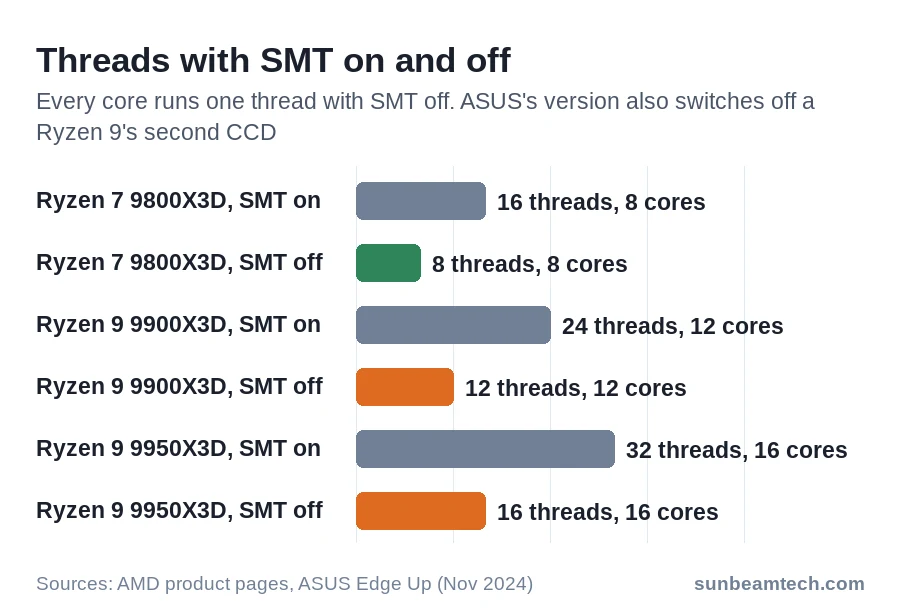
A Ryzen 7 X3D has one CCD, so SMT is all it loses. With ASUS’s version, the two Ryzen 9s also lose one of their two CCDs, so they end up with fewer cores and threads than the chart shows.
The Name on Your Board
Each brand built its own version, so the names and the exact changes differ.
| Brand | Setting | Where it is | What it changes |
|---|---|---|---|
| MSI | X3D Gaming Mode | Advanced mode (F7), Overclocking page | Core count or SMT. A warning about the core count appears when you enable it |
| ASUS | Turbo Game Mode | Advanced Mode (F7), Extreme Tweaker menu, or Search (F9) | SMT off, plus the second CCD on two-CCD chips |
| GIGABYTE | X3D Turbo Mode | The AORUS AI SNATCH app in Windows, on BIOS releases with AGESA 1.2.0.2a or newer | Core distribution, bandwidth tuning and power balancing. Version 2.0, on boards such as the X870E AORUS XTREME X3D AI TOP, is an AI tuning profile |
| ASRock and others | Name varies | Look in the CPU overclocking settings | Check with Task Manager after enabling, or set SMT by hand (see the last section) |
MSI’s mode changes the core count or SMT, so multi-core performance drops. Whatever your board calls it, Task Manager shows what it really did (see the check below).
Should You Turn It On? It Depends on Your CPU
Ryzen 7 9800X3D, 9850X3D and 7800X3D
These have one CCD, so ASUS’s version only turns off SMT. You go from 8 cores and 16 threads to 8 cores and 8 threads. In MSI’s test on a 9800X3D with an RTX 4090 at 1080p, gains ran from 2% in Metro Exodus to 20% in Far Cry 6.
That’s a best case: a top graphics card at a low resolution, where the CPU limits the frame rate. At 1440p or 4K, or if your GPU already sits at 100% load, a CPU setting has little to work with. Our guide on 100% GPU usage explains how to tell. If you only game, it’s worth a test. If you stream or record while you play, leave it off.
Ryzen 9 9950X3D and 7950X3D
Here ASUS’s version switches off one of the two CCDs and SMT, so 16 cores and 32 threads drop to the cores of one CCD, each running one thread. Two-CCD chips are where ASUS expects the biggest gains. Productivity and creative apps can slow down, though. If you bought a 16-core for work as well as play, you’ll feel it.
Ryzen 9 9900X3D and 7900X3D
Test it before you keep it. These chips have 12 cores and 24 threads spread over two CCDs, the fewest of the two-CCD X3D chips. With one CCD and SMT off, a game or app that uses many threads has much less to work with. ASUS still counts two-CCD chips among those that gain most, so only a test in your own games settles it. One owner in a Microsoft Flight Simulator forum thread reported that it made their 7900X3D worse.
Ryzen 9 9950X3D2
AMD’s 9950X3D2 Dual Edition, launched in April 2026, has 3D V-Cache on both chiplets. Switching one off throws away cache cores along with the rest, so the main reason for the mode doesn’t apply. Keep it off unless a test says otherwise.
On GIGABYTE boards, the BIOS for this chip comes with X3D Turbo Mode 2, which manages background processes and thread affinity. Test that one in your games like any other version.
How to Turn It On, and Off Again
You may need a BIOS update first. On ASUS AM5 boards, Turbo Game Mode needs the latest firmware, and GIGABYTE added X3D Turbo Mode in BIOS releases with AGESA 1.2.0.2a. Update only if the setting is missing from your BIOS, because a BIOS flash that goes wrong can make the system malfunction.
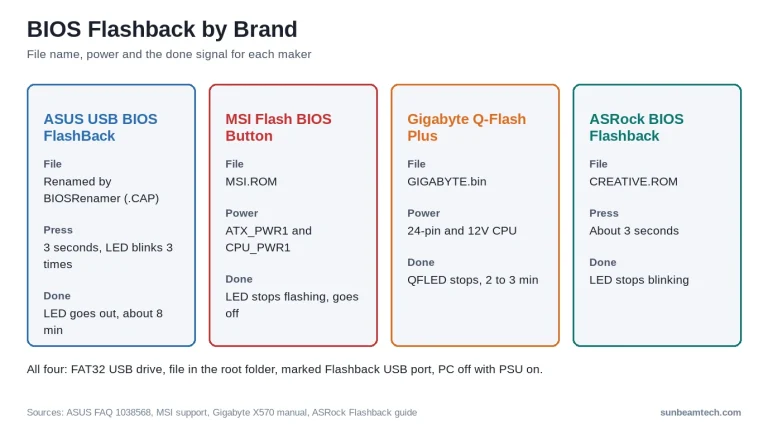
The usual way is the update tool inside the BIOS: EZ Flash 3 on ASUS, Q-Flash on GIGABYTE. If your board can’t boot with its current BIOS, our BIOS Flashback guide covers the update without a working system.
MSI:
- Restart and press Delete when the Press DEL key to enter Setup Menu message appears.
- Press F7 to switch to Advanced mode.
- Open the Overclocking page and find X3D Gaming Mode. Can’t find it? Press Ctrl+F to open the search page and type X3D.
- Set it to Enabled. A warning tells you the core count will change. Accept it.
- Press F10 and choose Yes to save and restart.
ASUS:
- Restart and press F2 or Delete during start-up.
- If you’re in EZ Mode, press F7 for Advanced Mode.
- Open the Extreme Tweaker menu. If your board has no Extreme Tweaker menu, press F9 to open Search and type Turbo Game Mode.
- Set Turbo Game Mode to Enabled.
- Press F10 to save and restart.
GIGABYTE, from Windows, with a Ryzen 9000 chip:
- Open GIGABYTE Control Center and run its live update to get the latest AORUS AI SNATCH.
- In AORUS AI SNATCH, click the flag icon in the lower-left corner.
- Click OK in the pop-up. The PC restarts with X3D Turbo Mode on. Discard cancels instead.
To undo it on MSI or ASUS, go back to the same place and set it to Disabled, then check Task Manager as below. If the thread count hasn’t come back, shut down completely and switch the power supply off for a moment before you start again. On ASUS 800-series boards, turning SMT back on needs a power cycle. Still missing? Check the SMT setting by hand, as in the last section.
On a GIGABYTE board, go back to the BIOS defaults. Press Delete during start-up, open Save & Exit, select Load Optimized Defaults and choose Yes, then press F10 to save and exit. This resets every BIOS setting, so write down the ones you changed first, like your EXPO memory profile, and set them again afterwards. Then check Task Manager, and if the threads are still missing, set SMT by hand as in the last section.
If the PC won’t boot after any BIOS change, clear CMOS to get back to defaults.
Check What It Did in Task Manager
This takes ten seconds and works whatever your board calls the setting.
- Press Ctrl + Shift + Esc to open Task Manager.
- Select Performance on the left (on Windows 10, the Performance tab at the top), then CPU.
- Find the Cores and Logical processors values in the details.
With SMT on, Logical processors is twice the Cores number: 8 and 16 on a 9800X3D. With SMT off, the two numbers match. With ASUS’s version on a Ryzen 9, the Cores number drops too, because one CCD is off. If you still see 16 logical processors on a Ryzen 7, the mode didn’t change SMT on your board.
If you use Sleep: on ASUS 800-series boards, S3 sleep isn’t supported while SMT is off. If your desktop stops sleeping properly after you enable the mode, that’s the likely reason. Set the mode back to Disabled if you need Sleep.
Test It in Your Own Games
The gain depends on the game, so test the ones you play. Plan on about 20 minutes.
- Pick two or three games you play most. Use each game’s built-in benchmark if it has one. If not, replay the same save and route for 60 seconds.
- No built-in benchmark? Turn on Windows’ own frame counter: press Windows key + G, and in the Performance widget click FPS. The first time, click Request Access and restart the PC. Pin the widget so it stays on screen while you play.
- With the mode off, run each test three times. Note the average frame rate, and the 1% low if the benchmark reports one. With the Game Bar counter, note the frame rate at the same point of your route each run.
- Turn the mode on, confirm it in Task Manager, and run the same tests at the same settings.
- Keep it only if the numbers go up in the games you care about. If you stream or record, run that too, because that’s where SMT off hurts.
A difference of a frame or two can just be run-to-run noise. If that’s all you see, leave it off and keep your threads.
Doing It by Hand Instead
If your board has no such switch, or you’d rather control SMT yourself, you can turn it off by hand. Here’s where the setting sits.
- ASUS. On PRIME, ProArt and TUF GAMING AMD 800-series boards, SMT Control is under Advanced > AMD CBS. Disable turns SMT off, and Auto brings it back.
- MSI. On MSI AM5 boards, SMT Control is under OC > Advanced CPU Configuration > AMD Overclocking.
- GIGABYTE. On X670 and B650 boards, it’s SMT Mode under Tweaker > Advanced CPU Settings.
Frequently Asked Questions
Can X3D Gaming Mode damage my CPU?
The ASUS and MSI versions work by switching cores or SMT off. GIGABYTE’s X3D Turbo Mode 2.0 is different: it tunes frequency, power and thermal behavior for each chip, so treat it like any other automatic overclock and watch your temperatures.
Does it do anything on a Ryzen without 3D V-Cache?
GIGABYTE’s X3D Turbo Mode is aimed at non-X3D Ryzen 9000 chips too, with gains of up to 18% that vary by processor and memory. On other boards, enable the mode and check Task Manager: if Logical processors drops to the Cores number, SMT went off.
Why did my Cinebench score drop after enabling it?
Because a multithreaded benchmark uses every thread you have, and the mode just took half of them away, or more. That drop is expected and doesn’t mean anything is wrong.
Before You Decide
Write down your test results with the mode off and on, plus what you use the PC for besides games. If the numbers barely move, set it back to Disabled and enjoy all your threads. If one game gains a lot and you play little else, keep it, and remember to switch it off before a long render or a stream.
While you’re testing, keep an eye on CPU temperatures, especially with GIGABYTE’s 2.0 version. For other AMD BIOS settings you’ll pass on the way, see our guides to Precision Boost Overdrive and SVM Mode. Picking a board for an X3D chip? Our X870 vs X870E comparison covers what the extra money buys.

Alex has been building and tweaking custom PCs for over 12 years. From budget builds to full custom water loops, he’s assembled more than 50 systems and helped hundreds of builders troubleshoot their rigs. When he’s not benchmarking the latest hardware, you’ll find him optimizing airflow setups or stress-testing overclocks.