CSM Support in BIOS: On or Off, and How to Disable It
CSM (Compatibility Support Module) is a UEFI firmware component that emulates Legacy BIOS so older operating systems and MBR-formatted drives can boot on modern motherboards.
Last updated: May 2026
Table of Contents
- CSM Support: On or Off?
- What Is CSM in BIOS? (Full Definition)
- CSM Full Form and Origin
- What CSM Actually Does in Your BIOS
- Launch CSM, CSM Support, Legacy Boot: One Setting, Several Names
- CSM vs. UEFI, Key Differences Explained
- Comparison Table, CSM (Legacy) vs. Pure UEFI
- Should You Enable or Disable CSM?
- Disable CSM If…
- Keep CSM Enabled If…
- How to Disable (or Enable) CSM in BIOS, By Motherboard Brand
- How to Disable CSM in MSI BIOS (Click BIOS 5)
- How to Disable CSM in ASUS BIOS
- How to Disable CSM in ASRock BIOS
- How to Disable CSM in Gigabyte / AORUS BIOS
- Other Manufacturers (Dell, Lenovo, HP)
- “Disabling CSM Boots to BIOS”, Troubleshooting and Fixes
- Why Disabling CSM Can Cause Boot Loops or a BIOS Freeze
- Step-by-Step Fix, Convert MBR to GPT Without Reinstalling
- CSM Greyed Out, Missing or Locked: Six Reasons
- CSM and Windows 11, What You Need to Know
- Windows 11’s Hard Requirements That Conflict with CSM
- Windows 11 CSM Checklist
- What You Give Up by Leaving CSM On
- Resizable BAR and Smart Access Memory Need CSM Off
- Secure Boot, and Therefore Windows 11
- Boot Time
- CSM Settings Glossary, Understanding Every Related BIOS Option
- FAQ, CSM BIOS Common Questions
- Should CSM support be on or off?
- Why is CSM greyed out in my BIOS?
- What does CSM support actually do?
- Should I disable CSM in BIOS?
- What happens if I disable CSM in BIOS?
- Does disabling CSM affect performance?
- What is “Launch CSM” in BIOS, especially on ASUS boards?
- Can I switch from CSM to UEFI without reinstalling Windows?
- The Short Version
Most people think CSM is some obscure toggle that only matters for ancient hardware. They’re wrong. It directly affects whether you can install Windows 11, enable Secure Boot, use Resizable BAR, and how fast your PC actually boots. The wrong setting here causes black screens, boot loops, and a lot of frustrated forum posts.
Here’s the short answer: if you’re on a modern build running Windows 10 or 11 on an NVMe or SATA SSD, CSM should be disabled. Full stop. Keep reading to understand exactly why, and what to do if disabling it breaks your boot.
- 🟢 Disable CSM, Windows 10/11 fresh install, GPT drive, NVMe SSD, Resizable BAR, Secure Boot, modern GPU (post-2012)
- 🟡 Check first, Upgrading existing Windows install: verify GPT before disabling (run
diskpart → list disk) - 🔴 Keep CSM Enabled, Legacy OS (Windows 7), MBR-partitioned boot drive you can’t convert, pre-2012 GPU without UEFI GOP
CSM Support: On or Off?
For almost every PC built in the last ten years the answer is off. CSM exists to boot software that predates UEFI, and on a modern system leaving it on costs you Secure Boot, Resizable BAR and a few seconds of boot time without giving anything back. The exceptions are real but narrow, and they are in the table.
| Your situation | CSM | Why |
|---|---|---|
| You are installing or upgrading to Windows 11 | Off | Microsoft requires firmware that is “UEFI, Secure Boot capable”, and its own support page calls Legacy BIOS mode “CSM” mode (Microsoft) |
| Your graphics card is a Radeon RX 9000 or newer | Off | AMD supports UEFI mode only from RDNA 4 onward; in CSM mode the card may not display at all (AMD) |
| You want Resizable BAR or Smart Access Memory | Off | NVIDIA and ASUS both list disabling CSM as a requirement, alongside Above 4G Decoding (NVIDIA, ASUS) |
| Your boot drive is larger than 2 TB | Off | A legacy boot needs an MBR disk, and MBR cannot address past roughly 2.2 TB (Microsoft) |
| Windows is already installed and the disk is MBR | Leave it on for now | Windows will not boot in UEFI mode from an MBR disk. Convert the disk first with MBR2GPT, then switch (Microsoft) |
| You are installing Windows 7, or booting a very old OS or tool | On | A legacy OS has no UEFI bootloader, so it needs the compatibility module |
| Your graphics card is older than roughly a GeForce GTX 1000 or Radeon RX 5000 | On, if you need the card to display during POST | Those cards rely on a legacy video option ROM. ASUS recommends a GTX 1000 or RX 5000 series card or newer if you want to disable CSM (ASUS) |
| You dual-boot Linux | Match whatever the first OS uses | Ubuntu’s documentation is explicit that the two installs must use the same boot mode (Ubuntu) |
The one case that catches people out is the fifth row. Turning CSM off on a machine whose Windows was installed in legacy mode does not damage anything, but the system will stop booting until you either convert the disk or switch CSM back on.
What Is CSM in BIOS? (Full Definition)
CSM Full Form and Origin
CSM stands for Compatibility Support Module. It’s part of the UEFI firmware specification, defined by the UEFI Forum since UEFI 2.0 around 2006. It shipped on virtually every consumer motherboard from roughly 2011 onward, sitting inside the firmware as a software layer that could impersonate an old-school BIOS.
It was always a transitional technology. Never meant to be permanent. The idea was to give the industry time to move from MBR/Legacy BIOS to the GPT/UEFI ecosystem without breaking everything overnight. That transition is done. Most new platforms from 2022 onward are phasing CSM out entirely.
What CSM Actually Does in Your BIOS
Without CSM, your motherboard’s UEFI firmware only recognizes EFI boot loaders on GPT-formatted disks. That’s the modern standard. With CSM enabled, the firmware emulates the legacy BIOS interrupt calls (INT 10h for video, INT 13h for disk access) that older operating systems and hardware rely on.
Specifically, CSM lets the board:
- Read MBR (Master Boot Record) partition tables on boot drives
- Load legacy Option ROMs from older GPUs, RAID cards, and network adapters
- Present itself as a “Classic BIOS” to an operating system that doesn’t understand UEFI
- Boot from devices that only have legacy boot loaders (old USB sticks, optical drives)
When CSM is off, none of that works. Your GPU needs a UEFI GOP (Graphics Output Protocol) driver. Your boot drive needs a GPT partition layout with an EFI System Partition. Your OS needs to be installed in UEFI mode. That’s actually a good thing, it’s all faster, more secure, and more capable.

One correction worth making, because it circulates widely: the CSM was never part of the UEFI specification. The UEFI Forum publishes the UEFI, ACPI, PI and Shell specifications, and none of them is a CSM specification (UEFI Forum). The module was specified by Intel, in its Platform Innovation Framework for EFI Compatibility Support Module Specification (Intel), and it is Intel that retired it: “Intel has phased out support for Legacy Boot… Moving forward, all products will only be validated as UEFI Class 3 platforms” (Intel). A UEFI Class 3 platform is defined in that same document as one that “does not implement CSM”.
Launch CSM, CSM Support, Legacy Boot: One Setting, Several Names
Every vendor labels this differently, which is why a guide that only says “disable CSM” sends people hunting through menus. ASUS calls it Launch CSM. MSI and Gigabyte call it CSM or CSM Support. The big prebuilt makers avoid the term altogether and call it Legacy Boot or Boot Mode. They all switch the same firmware module on and off.
| Brand | What it is called | Where it lives | Source |
|---|---|---|---|
| ASUS motherboards | Launch CSM | Boot → CSM (Compatibility Support Module) → Launch CSM | ASUS |
| ASUS notebooks | Launch CSM, where it still exists | ASUS states that if the option is missing, the model no longer supports it | ASUS |
| MSI | BIOS UEFI/CSM Mode, set to [CSM] or [UEFI] | Settings → Advanced → Windows OS Configuration → BIOS UEFI/CSM Mode | MSI manual |
| Gigabyte and AORUS | CSM Support, Enabled or Disabled | BIOS tab → CSM Support. The option ROM settings below it only become editable when it is enabled | Gigabyte manual |
| ASRock | CSM | Boot → CSM. If the menu is not there, set Fast Boot to Disabled first | ASRock |
| Dell | Boot sequence set to Legacy or UEFI, plus Enable Legacy Option ROMs | F2 at the logo → Boot sequence, and Advanced Boot Options | Dell |
| HP | Legacy Support | f10 → System Configuration → Boot Options → Legacy Support | HP |
| Lenovo servers | CSM Support, inside a CSM Configuration submenu | System configuration and boot management → Advanced → CSM Configuration | Lenovo |
Two of these are worth remembering. On MSI boards the visible “Boot mode select” entry is often greyed out at UEFI because the real switch sits under Windows OS Configuration. And on Dell, HP and Lenovo consumer machines the word CSM never appears at all, so search the manual for Legacy instead.
CSM vs. UEFI, Key Differences Explained
People throw around “UEFI” and “Legacy BIOS” interchangeably with CSM, and it creates confusion. Here’s the actual picture: all modern motherboards use UEFI firmware. CSM is a module inside that UEFI firmware that makes it act like Legacy BIOS. So the real choice is between running in pure UEFI mode (CSM off) or UEFI-with-legacy-emulation mode (CSM on).
Comparison Table, CSM (Legacy) vs. Pure UEFI
| Feature | CSM / Legacy Mode | Pure UEFI Mode |
|---|---|---|
| Boot disk format | MBR (max 2.19TB bootable) | GPT (no practical limit) |
| Secure Boot | ❌ Not available | ✅ Fully supported |
| POST work | Legacy option ROMs are loaded into lower memory and run in real mode | No legacy option ROMs, so POST has less to do |
| Set by this setting? | No. Firmware TPM is its own BIOS option (fTPM on AMD, PTT on Intel) | |
| Windows 11 compatible | ❌ No | ✅ Yes |
| Resizable BAR / SAM | ❌ Incompatible | ✅ Supported |
| Driver initialization | Legacy Option ROMs | UEFI GOP drivers |
| 64-bit OS required | No | Recommended |
That Resizable BAR row deserves emphasis. ReBAR (AMD’s version is called Smart Access Memory) gives your CPU unrestricted access to all VRAM instead of a 256MB window. Every vendor that documents the feature requires CSM to be off: NVIDIA lists “Disable Compatibility Support Module (CSM) in the SBIOS” among its requirements (NVIDIA), and ASUS states that “Launch CSM option must set to Disabled to support Resize BAR” (ASUS). AMD puts it the other way round: in CSM mode a card “may lose access to important and necessary features of your motherboard, such as AMD Smart Access Memory technology” (AMD). What that is worth in frame rate varies by game and card, from nothing measurable to a few percent, so treat it as a free gain rather than a transformation.
Secure Boot is a hard requirement for Windows 11, and it simply can’t coexist with CSM enabled. Microsoft enforced this at launch in October 2021 and hasn’t budged.
Should You Enable or Disable CSM?
Disable CSM If…
- You’re running Windows 10 or 11 on a modern system
- Your boot drive is formatted as GPT (the default for any Windows install from 2012 onward on UEFI systems)
- You want to upgrade to Windows 11 (CSM must be off; Secure Boot and TPM 2.0 are hard requirements)
- You’re booting from an NVMe SSD, NVMe is natively UEFI and delivers no benefit with CSM on
- You want Resizable BAR / Smart Access Memory for GPU performance gains
- Your GPU was made after roughly 2012 (it has a UEFI GOP driver built in)
- You’re on Intel 12th gen (Alder Lake) or newer, or AMD Ryzen 5000 or newer
Keep CSM Enabled If…
- You’re running a legacy operating system, Windows 7 32-bit, older Linux distributions without EFI support
- Your boot drive is MBR-partitioned and you can’t or won’t convert it right now
- You’re using a pre-2012 GPU that has no UEFI GOP driver (no video output without CSM)
- You have older PCIe add-in cards (some legacy RAID or NIC cards) that only have Legacy Option ROMs
- You have a dual-boot setup where one operating system was installed in Legacy mode
If none of those legacy scenarios apply to you, disable it. There’s no upside to running CSM on a modern build.
How to Disable (or Enable) CSM in BIOS, By Motherboard Brand
⚠️ Before you disable CSM: Confirm your Windows installation is on a GPT disk. Open Command Prompt as admin, run diskpart, then list disk. If there’s an asterisk (*) in the “GPT” column next to your boot drive, you’re good. No asterisk means MBR, convert it first (see the Troubleshooting section below). Also confirm your GPU supports UEFI GOP. Any GPU from 2012 onward should be fine. Back up your data before making changes.
How to Disable CSM in MSI BIOS (Click BIOS 5)
MSI labels the CSM control differently depending on the board revision and BIOS version, which trips people up. Two paths exist depending on your board:
- Press Delete at the POST screen to enter MSI Click BIOS 5
- Press F7 to switch to Advanced Mode
- Go to Settings → Advanced → Windows OS Configuration
- Set “Windows 10 WHQL Support” to Enabled, this automatically configures UEFI mode and disables CSM on most MSI boards
- Alternatively, go to Settings → Boot → Boot Mode Select
- Change from “LEGACY+UEFI” to “UEFI”
- CSM Support will now show as Disabled in the menu
- Press F10 to save and exit
If you can’t locate the CSM option, the MSI forum notes that BIOS structure can shift between versions, the “Windows 10 WHQL Support” toggle is the most reliable path on newer MSI boards where the standalone CSM toggle may be hidden.

How to Disable CSM in ASUS BIOS
ASUS calls the toggle “Launch CSM”, which is where the confusion starts. It’s not hidden, it’s just named differently.
- Press Delete or F2 at POST
- Press F7 to enter Advanced Mode (if you land in EZ Mode)
- Navigate to the Boot tab
- Find “CSM (Compatibility Support Module)” section
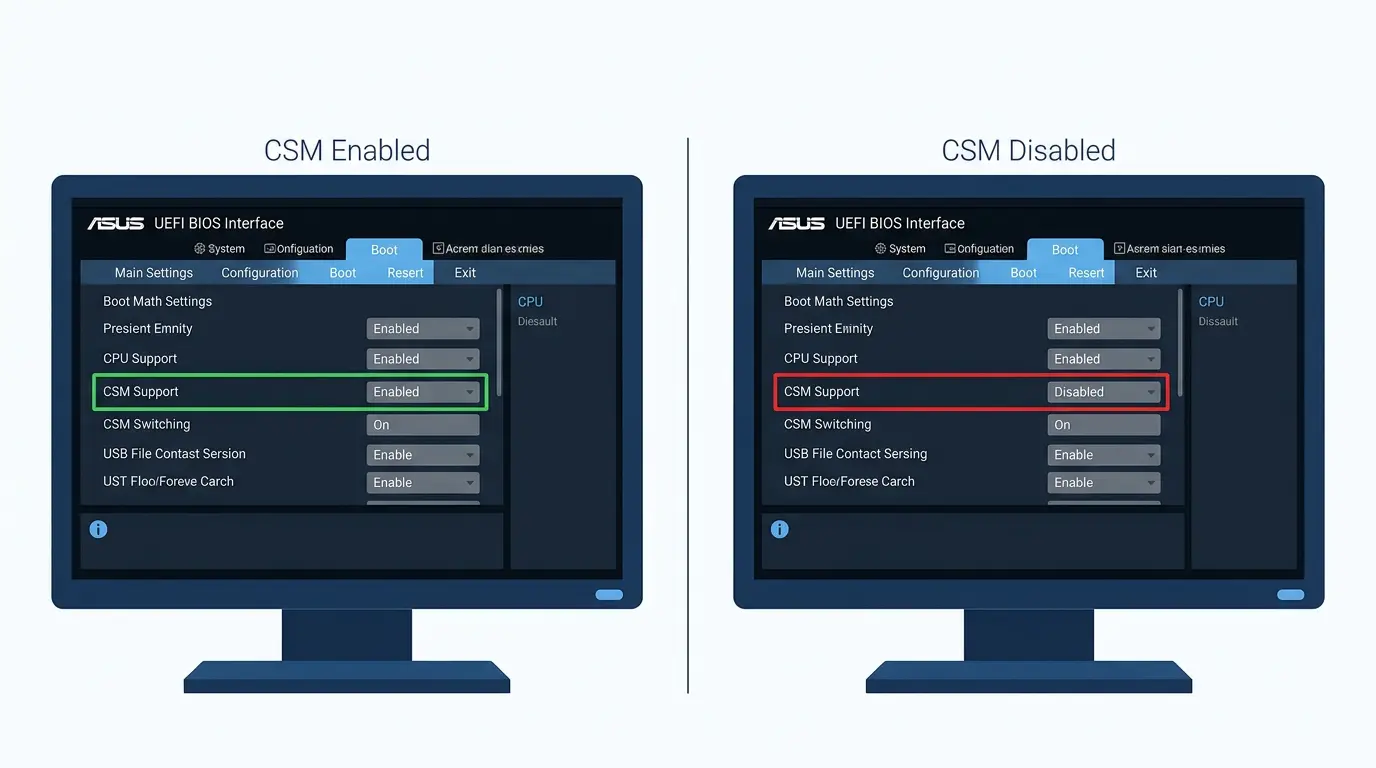
- Set “Launch CSM” to Disabled
- Sub-options like “Boot Device Control,” “Boot from Storage Devices,” and “Boot from PCIe/PCI Expansion Devices” will gray out automatically
- Press F10 to save
On some ASUS ROG and TUF boards, Secure Boot configuration may need to happen first before the CSM toggle appears. If you see no CSM option at all, check whether Secure Boot is already enabled, some boards hide the CSM setting when Secure Boot is active because the two are mutually exclusive. The board may also already be in pure UEFI mode by factory default on newer models.
How to Disable CSM in ASRock BIOS
- Press F2 or Delete at boot
- Navigate to the Boot tab
- Find “CSM” or “Launch CSM”
- Set it to Disabled
- Go to Security → Secure Boot and set it to Enabled if you’re targeting Windows 11
- Press F10 to save
ASRock boards have a known issue where disabling CSM on a system with a Legacy/MBR Windows installation causes the board to freeze at POST. The screen just hangs. It’s not bricked, re-enabling CSM in BIOS will restore boot. The fix is converting your drive to GPT using Microsoft’s mbr2gpt.exe tool before disabling CSM (detailed in the Troubleshooting section).
How to Disable CSM in Gigabyte / AORUS BIOS
- Press Delete at POST to enter the Gigabyte BIOS
- Press F2 to switch to Classic/Advanced mode if you’re in Easy Mode
- Navigate to the BIOS tab in the top menu bar
- Find “CSM Support” and set it to Disabled
- Navigate to the Security tab and enable Secure Boot if needed
- Press F10 to save
On older boards like the AX370 Gaming 5, the location is BIOS Features → CSM Support. On newer Gigabyte Z690 and B650 boards, CSM may be hidden entirely when Secure Boot is active, this is by design, not a bug. If you’re on an AM5 platform and want to know how your chipset handles these settings, the differences between X870 vs X870E motherboard chipsets explain what BIOS-level features vary between them.
Other Manufacturers (Dell, Lenovo, HP)
OEM BIOS interfaces don’t use the term “CSM” directly. They abstract it behind simpler labels:
- Dell: BIOS → Boot Sequence → Boot List Option → Change from “Legacy” to “UEFI”
- Lenovo: BIOS → Startup → UEFI/Legacy Boot → set to “UEFI Only”
- HP: BIOS → System Configuration → Boot Options → Legacy Support → Disabled
Same function, different labels. Dell and Lenovo are particularly inconsistent between product lines and BIOS versions, so if these paths don’t match exactly, search your specific model name plus “disable Legacy Boot.”
“Disabling CSM Boots to BIOS”, Troubleshooting and Fixes
Why Disabling CSM Can Cause Boot Loops or a BIOS Freeze
This is the most common thing that goes wrong. You disable CSM, save, reboot, and either the system loops back to the BIOS screen, or it freezes entirely at POST. Nothing seems to work.
The root cause is almost always the same: Windows was installed in Legacy/MBR mode. When you disable CSM, the firmware stops booting MBR records. Microsoft is explicit about why: “Windows does not support booting UEFI from MBR disks”, and “Systems that support UEFI require that boot partition must reside on a GPT disk” (Microsoft). Your installation is not gone; the firmware simply has nothing it is willing to boot.
A secondary cause: a GPU without a UEFI GOP driver. If your graphics card predates 2012 or is an older workstation card, disabling CSM means no video output at all during POST. The fix there is to use the integrated graphics output (if your CPU has one) to get into the BIOS and re-enable CSM.
Step-by-Step Fix, Convert MBR to GPT Without Reinstalling
Disabling CSM requires the system drive to use GPT partitioning. Microsoft ships a tool for exactly this: “MBR2GPT.EXE converts a disk from the Master Boot Record (MBR) to the GUID Partition Table (GPT) partition style without modifying or deleting data on the disk” (Microsoft). Microsoft also flags the order of operations: “After the disk has been converted to GPT partition style, the firmware must be reconfigured to boot in UEFI mode.” So convert first, then change the BIOS, not the other way round.
Method 1: mbr2gpt.exe (Microsoft’s official tool, Windows 10 build 1703 and later)
- Open Command Prompt as Administrator
- Run
mbr2gpt /validate /disk:0first, this checks if conversion is possible - If validation passes, run
mbr2gpt /convert /disk:0 - Reboot, go into BIOS, disable CSM, enable Secure Boot
- Windows should boot normally in UEFI mode
Validation can fail, and the prerequisites are the reason. Microsoft requires the disk to be MBR with at most three primary partitions, no extended or logical partitions, one active system partition, a boot configuration store with a default entry, and 64-bit Windows, with BitLocker suspended first (Microsoft). A machine with a recovery partition in an unusual place, or a layout created by a third-party disk tool, is the usual failure case. If validation fails, do not force it; use the clean install route below.
Method 2: Clean Install (most reliable for Windows 11)
- Back up your data
- Create a Windows 11 bootable USB using the Microsoft Media Creation Tool
- Disable CSM in BIOS first
- Boot the USB, make sure to boot it as a UEFI USB device (it will appear twice in the boot menu on CSM-enabled systems: once as “Legacy USB” and once as “UEFI USB”)
- During setup, delete all existing partitions on the target drive
- Let Windows create the partition layout automatically, it will create a GPT layout with an EFI System Partition
Clean install. No drama. Worth the extra hour.
CSM Greyed Out, Missing or Locked: Six Reasons
If the option is visible but greyed out, or gone from the menu entirely, the firmware is telling you something rather than hiding a bug. These are the causes, in the order worth checking.
- Secure Boot is on. HP puts it plainly: “If you want to enable Secure Boot, you must disable Legacy Support.” The two are mutually exclusive, so a board with Secure Boot active will refuse to let you switch CSM back on until you turn Secure Boot off. (HP)
- Fast Boot is set to Ultra Fast. On ASRock boards this hides the CSM menu entirely rather than greying it out, because ultra fast boot only works in full UEFI mode. Set Fast Boot to Disabled and the menu returns. (ASRock)
- You are looking at the wrong menu entry. On MSI boards the Boot mode select line is fixed at UEFI by design. The setting that actually changes is BIOS UEFI/CSM Mode, under Advanced and Windows OS Configuration. (MSI manual)
- Resizable BAR or Smart Access Memory is enabled. These features require the UEFI boot path, so boards that have them switched on lock CSM off. ASUS states the dependency directly: Launch CSM must be set to Disabled to support Resize BAR. (ASUS)
- Your processor or chipset has no legacy video support. ASUS documents that Intel 500 series chipsets and Rocket Lake processors onward have no VBIOS for the integrated graphics, so legacy boot is not supported at all on the iGPU. Fitting a graphics card that still carries a legacy video option ROM brings the option back. (ASUS)
- The platform dropped legacy boot entirely. Intel’s technical advisory says “Intel has phased out support for Legacy Boot” and “Starting with client platforms launching in 2020, Intel will no longer be supporting Legacy Boot Mode”, with all future products validated as UEFI Class 3. HP says newer models released after 2020 no longer support Legacy mode, and Lenovo announced the same for its 2020 products. On those machines the option is gone, not hidden. (Intel)
If none of these apply and the option is simply absent, the most likely answer is the last one: the machine is a pure UEFI platform and there is nothing to turn on. That is not a fault, and on a modern build it is the state you want anyway.
CSM and Windows 11, What You Need to Know
Windows 11’s Hard Requirements That Conflict with CSM
Windows 11 and CSM don’t coexist. Period. Microsoft’s official hardware requirements enforce three things that require CSM to be off:
- Secure Boot: Mandatory for Windows 11. Only works in pure UEFI mode (CSM off).
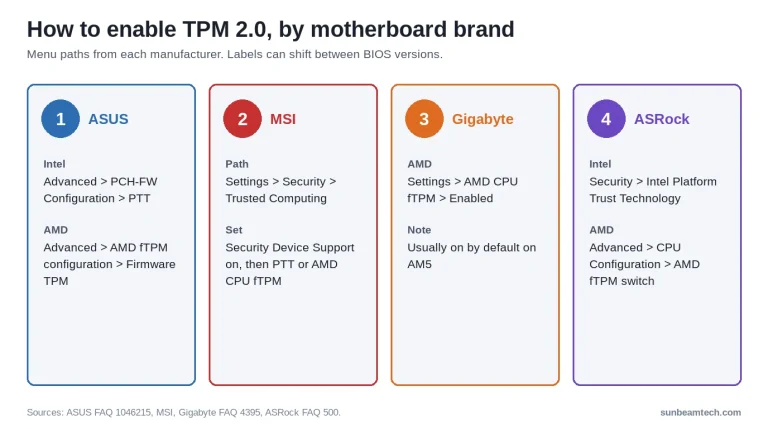
- TPM 2.0: Required, and set in the BIOS rather than by CSM. Firmware TPM is a separate setting (fTPM on AMD, PTT on Intel), so check it while you are in the BIOS rather than assuming the CSM change covers it.
- Pure UEFI boot path (UEFI Class 3, or Class 2 with CSM disabled): Windows 11 requires the system to boot in pure UEFI mode. Class 1 devices and Class 2 devices running with CSM enabled don’t qualify, even though UEFI firmware is technically present. The installer checks this via msinfo32, it must show “BIOS Mode: UEFI” not “BIOS Mode: Legacy.”
Microsoft does not use the phrase “disable CSM” in its requirements, but it says the same thing in its Secure Boot article: “you will need to switch the PC boot mode from one enabled as ‘Legacy’ BIOS (also known as ‘CSM’ Mode) to UEFI/BIOS”, and adds that where a board offers both, “you will need to choose for UEFI to be the first or only option” (Microsoft).
Windows 11 CSM Checklist
| Requirement | Status Needed | How to Verify |
|---|---|---|
| CSM | ❌ Must be OFF | BIOS Boot tab |
| Secure Boot | ✅ Required: ON | BIOS Security tab or msinfo32 |
| TPM 2.0 | ✅ Required: Active | BIOS → enable fTPM / tpm.msc |
| Windows on GPT disk | ✅ Required | diskpart → list disk (asterisk in GPT column) |
| UEFI Boot mode | ✅ Required | msinfo32 → BIOS Mode = UEFI |
Run through all five before attempting the Windows 11 upgrade. Miss one and the installer will block you. While you’re in the BIOS making these changes, other settings matter too, for example, ErP in BIOS is another setting worth understanding since it affects how your system handles power states after shutdown, and Network Stack in BIOS controls a separate boot-time feature relevant to PXE network booting and remote OS deployment.
What You Give Up by Leaving CSM On
Resizable BAR and Smart Access Memory Need CSM Off
Resizable BAR lets the CPU address the whole of the graphics card’s memory instead of a 256 MB window. Every vendor that documents the feature lists disabling CSM as a prerequisite. NVIDIA’s requirements are to boot in UEFI mode, enable Above 4G Decoding, enable Resizable BAR, “Disable Compatibility Support Module (CSM) in the SBIOS” and use a GPT partition (NVIDIA). ASUS says “Launch CSM option must set to Disabled to support Resize BAR” (ASUS), and ASRock documents the same order: CSM off, then Above 4G Decoding on, then the Resizable BAR setting appears (ASRock).
AMD describes the trade-off from the other side: CSM mode “emulates some aspects of the older BIOS standard by disabling many of the advanced performance / security / reliability features of UEFI Mode”, so a modern card “may lose access to important and necessary features of your motherboard, such as AMD Smart Access Memory technology” (AMD). How much frame rate that is worth depends entirely on the game and the card, and published tests range from nothing at all to a few percent, so treat it as a small free gain rather than a reason on its own.
Secure Boot, and Therefore Windows 11
Secure Boot and CSM cannot both be active. That matters beyond security, because Windows 11’s published requirement is firmware that is “UEFI, Secure Boot capable” (Microsoft). HP states the consequence for its machines outright: “The Windows 11 operating system does not support Legacy BIOS mode.” (HP)
Boot Time
Legacy boot also gives the firmware more work to do at POST. Intel describes legacy mode as one where “Legacy Option ROMs are loaded into lower memory and run in real address mode” (Intel), which means every legacy option ROM on your storage controller, network adapter and graphics card is loaded and executed before the operating system starts. Turning CSM off skips that work. The saving depends on how many option ROMs your hardware has, so it is worth measuring on your own machine rather than trusting a number from a guide.
CSM Settings Glossary, Understanding Every Related BIOS Option
BIOS menus are full of CSM-adjacent options with names that don’t explain themselves. Here’s what they actually mean:
| BIOS Term | What It Actually Means |
|---|---|
| Launch CSM | Master on/off toggle for the Compatibility Support Module (ASUS terminology) |
| Boot Device Control | Restricts bootable devices to UEFI-only, Legacy-only, or both |
| Boot from Storage Devices (CSM) | Controls whether storage controllers use UEFI drivers or legacy INT 13h calls |
| Boot from PCIe/PCI Devices | Controls whether PCIe cards (GPUs, NICs) use UEFI GOP or legacy Option ROMs |
| UEFI/Legacy Boot | Lenovo’s equivalent of the CSM toggle |
| Boot Mode: UEFI / Legacy / Auto | MSI and Dell terminology for CSM configuration |
| CSM/UEFI Mode | Gigabyte’s combined setting for boot mode selection |
| Windows 10 WHQL Support | MSI shortcut that enables UEFI mode, configures Secure Boot, and disables CSM simultaneously |
| Legacy Support | HP’s label for the CSM toggle in their BIOS |
Understanding these labels means you can navigate any BIOS, even if the manufacturer decided to get creative with naming. The same principles apply regardless of what it’s called on your board. If you want to go deeper on AMD-specific BIOS settings, the guide on DOCP and EXPO for AMD RAM covers another important toggle that’s easy to miss on Ryzen builds.
FAQ, CSM BIOS Common Questions
Should CSM support be on or off?
Off, on any PC built in roughly the last ten years. Off is required for Secure Boot and therefore for Windows 11, for Resizable BAR and Smart Access Memory, for booting a drive larger than 2 TB, and for AMD’s RX 9000 series cards, which support UEFI mode only. Turn it on only if you need to boot an operating system or tool that predates UEFI, or if your graphics card is old enough to need a legacy video option ROM to show the POST screen. One caution: if Windows is already installed on an MBR disk, convert the disk with Microsoft’s MBR2GPT tool before switching CSM off, or the machine will not boot.
Why is CSM greyed out in my BIOS?
Usually because another setting locks it. Secure Boot being enabled is the most common cause, since the two are mutually exclusive, and HP states that you must disable Legacy Support before you can enable Secure Boot. On ASRock boards, Fast Boot set to Ultra Fast hides the CSM menu completely. Resizable BAR being enabled locks CSM off as well. On MSI boards the greyed-out line is often the wrong one: Boot mode select is fixed, and the real control sits under Advanced and Windows OS Configuration. If none of that applies, the option may simply not exist: Intel stopped supporting legacy boot on client platforms launching from 2020, and HP and Lenovo removed it from their 2020 machines.
What does CSM support actually do?
CSM stands for Compatibility Support Module. It is the part of a UEFI firmware that emulates a traditional PC BIOS, so the machine can run legacy option ROMs and boot an operating system installed on an MBR disk. Intel, which wrote the original specification, defines it as providing “legacy BIOS compatibility in a UEFI Environment”, and defines legacy boot as a mode where option ROMs are loaded into lower memory and run in real address mode. With CSM switched off the firmware boots UEFI bootloaders only, which is what Secure Boot, Resizable BAR and Windows 11 all expect.
Should I disable CSM in BIOS?
Yes, on most modern builds you should disable CSM. If you’re running Windows 10 or 11 on a GPT-formatted drive with a GPU from 2012 or later, disabling CSM unlocks Secure Boot, enables Resizable BAR, and shortens POST. Only keep it enabled if you’re running a legacy OS, using an MBR-partitioned drive you haven’t converted, or relying on a pre-2012 GPU that lacks a UEFI GOP driver.
What happens if I disable CSM in BIOS?
If your system is configured correctly (UEFI boot mode with a GPT drive), disabling CSM enables Secure Boot, which is what Windows 11 requires, and unlocks Resizable BAR. POST also gets shorter, because the firmware no longer loads and runs legacy option ROMs, though how much shorter depends on your hardware. If Windows is installed on an MBR disk, disabling CSM will cause a boot failure, the system will loop back to the BIOS. The fix is converting your disk to GPT using mbr2gpt.exe before disabling CSM, or doing a clean Windows install in UEFI mode.
Does disabling CSM affect performance?
Not in the way the question usually means. Switching CSM off does not make the processor, memory or storage any faster, and it will not change frame rates on its own. What it does is unlock features that the UEFI boot path requires: Resizable BAR and AMD Smart Access Memory both list CSM disabled as a prerequisite, and AMD says a card in CSM mode “may lose access to important and necessary features of your motherboard, such as AMD Smart Access Memory technology” (AMD). The frame rate that Resizable BAR is worth depends on the game and the card, and published tests range from no change to a few percent. Boot time usually improves too, because legacy option ROMs are loaded and run in real mode during POST (Intel), and that work is skipped in pure UEFI mode. How much you save depends on how many option ROMs your hardware has.
What is “Launch CSM” in BIOS, especially on ASUS boards?
“Launch CSM” is ASUS’s name for the master CSM toggle, located in the Boot tab of their UEFI BIOS. Setting it to “Disabled” puts the system in pure UEFI mode. Sub-options beneath it control granular legacy compatibility for specific hardware categories: “Boot Device Control” covers what types of boot devices are recognized, “Boot from Storage Devices” handles whether storage controllers use legacy or UEFI drivers, and “Boot from PCIe/PCI Expansion Devices” governs whether GPU and add-in cards use legacy Option ROMs or UEFI GOP. All three gray out when Launch CSM is disabled.
Can I switch from CSM to UEFI without reinstalling Windows?
Yes, using Microsoft’s mbr2gpt.exe tool included in Windows 10 (build 1703 and later) and Windows 11, you can convert your boot drive from MBR to GPT without losing data. Run mbr2gpt /validate /disk:0 first to check compatibility, if it passes, run mbr2gpt /convert /disk:0. Then go into BIOS, disable CSM, and enable Secure Boot. Success isn’t guaranteed on all setups, particularly systems with non-standard partition layouts. A clean install remains the most reliable method if validation fails.
The Short Version
CSM is a legacy compatibility layer inside your UEFI firmware. It exists for one reason: to let older hardware and operating systems that don’t understand UEFI still boot on modern motherboards. On any build running Windows 10 or 11 on a modern GPU and SSD, disabling it is the right move, you get Secure Boot, reliable TPM 2.0, Resizable BAR, and faster boot times with zero downside. The only reason to leave it on is genuine legacy hardware or an unconverted MBR drive. Convert the drive, then turn CSM off.
| Scenario | CSM Setting |
|---|---|
| New Windows 11 build | 🟢 Disabled |
| New Windows 10 build (GPT drive) | 🟢 Disabled |
| Upgrading existing install to Windows 11 | 🟡 Disable after GPT conversion |
| Enabling Resizable BAR / AMD SAM | 🟢 Disabled (required) |
| Secure Boot required | 🟢 Disabled (required) |
| Legacy OS (Windows 7, old Linux) | 🔴 Enabled |
| Old GPU without UEFI GOP (pre-2012) | 🔴 Enabled |
| MBR boot drive (unconverted) | 🔴 Enabled until converted |

Alex has been building and tweaking custom PCs for over 12 years. From budget builds to full custom water loops, he’s assembled more than 50 systems and helped hundreds of builders troubleshoot their rigs. When he’s not benchmarking the latest hardware, you’ll find him optimizing airflow setups or stress-testing overclocks.