White Light on Motherboard: What It Means and How to Fix It
A white light on a motherboard is a POST status indicator signaling a VGA or GPU initialization failure during the system’s Power-On Self-Test sequence.
Last updated: April 2026
Table of Contents
- What Does the White Light on Your Motherboard Mean?
- White Light on Motherboard: The 5 Most Common Causes
- 1. GPU Not Properly Seated or Detected
- 2. Insufficient or Faulty PSU Power to the GPU
- 3. Display Cable or Monitor Issue
- 4. GPU Driver or BIOS Compatibility Issue
- 5. Faulty or Incompatible RAM Triggering a Cascade Failure
- How to Fix White Light on Motherboard: Step-by-Step
- Step 1: Reseat the GPU (Fix Rate: ~60% of Cases)
- Step 2: Reseat and Re-cable Your Display Output
- Step 3: Check PCIe Power Cables and PSU Rails
- Step 4: Clear CMOS and Reset BIOS
- Step 5: Update Motherboard BIOS
- Step 6: Test With a Known-Working GPU or Integrated Graphics
- White Light on Motherboard by Brand: ASUS, MSI, Gigabyte, and ASRock
- White Light on ASUS Motherboard (TUF, ROG, Prime)
- White Light on MSI Motherboard
- Gigabyte and ASRock Boards
- Special Scenarios: When the White Light Behaves Differently
- White Light on Motherboard But Everything Works Fine
- White Light Plus Yellow or Amber Light Simultaneously
- White Light Plus Green Light
- Solid White Light, No Display, No Boot at All
- Preventing the White VGA Light From Coming Back
- FAQ: White Light on Motherboard
- Q: Is the white light on my motherboard a boot issue?
- Q: What does the white VGA light on a motherboard mean?
- Q: Can a bad RAM stick cause a white VGA light?
- Q: Why does my white VGA light come on only during certain games?
- Q: Does a white light on the motherboard always mean the GPU is dead?
- When to Replace Hardware Instead of Troubleshooting Further
- The Short Version
Most people assume the white light on their motherboard means something is physically broken. They panic, start pulling components, and end up making things worse. In most cases, the fix takes under five minutes. A loose GPU, an unpowered monitor at boot, or a mismatched DisplayPort version can all trigger the exact same white light that makes it look like your PC is dead.
Here’s what’s actually happening, and how to fix it fast.

- 🟢 White light flashes briefly at boot, then disappears: Normal POST behavior. No action needed.
- 🟡 White light stays on for several seconds then clears: Slow GPU initialization. Monitor your system.
- 🔴 Solid white light, no display, no boot: VGA POST failure. Follow the fix steps below.
- 🔴 White light plus another LED lit simultaneously: Multiple POST failures. Diagnose each separately.
- 🟡 White light on but PC runs fine: DisplayPort handshake delay. Usually not a real fault.
What Does the White Light on Your Motherboard Mean?

Every modern motherboard from ASUS, MSI, Gigabyte, and ASRock uses a POST (Power-On Self-Test) LED system to report boot status. The system runs through four checkpoints in a fixed sequence: DRAM, CPU, VGA, BOOT. Each LED lights up as that component is being tested, then turns off if the test passes.
White light is the VGA checkpoint. It’s the fourth and final test before your system outputs a display signal.
If the white light passes through, that’s completely normal. Your board checked the GPU, it responded, and boot continued. Nothing to worry about. But if that light stays on solid and your screen stays black, the system got stuck at GPU or display initialization. That’s the problem you’re here to fix. The VGA LED on most boards indicates GPU status, and the behavior varies by brand. Some boards use green for VGA, some use white, and a handful use amber. On ASUS TUF, ROG, and Prime boards, white is the standard VGA indicator, confirmed in the ASUS TUF B550-Plus product documentation.
The key distinction to burn into your memory: a transient white light is a checkpoint, not an error. A solid white light that doesn’t clear is the actual problem.
Only if it’s stuck. A white light that flashes briefly during POST and disappears is a normal part of every boot cycle. A constant white light that prevents display output is a VGA or GPU boot failure that needs troubleshooting.
White Light on Motherboard: The 5 Most Common Causes

Before pulling your rig apart, know what you’re dealing with. These five causes account for the overwhelming majority of white VGA light reports across Tom’s Hardware forums, the ASUS ROG community, and Linus Tech Tips troubleshooting threads.
1. GPU Not Properly Seated or Detected
This is the number one cause. Full stop. A GPU that isn’t fully clicked into the PCIe x16 slot won’t pass the VGA POST check. The contact points between the card’s gold fingers and the slot need solid, even pressure across the entire length of the card. A partial seat of even 2-3mm can cause an open circuit on several PCIe lanes.
Same goes for power connectors. An 8-pin connector that looks plugged in but isn’t fully clicked causes exactly this failure. The GPU powers on partially but can’t initialize for display output.
2. Insufficient or Faulty PSU Power to the GPU
Your GPU needs consistent wattage from the PSU to pass POST. If your power supply is undersized, or if a cable or rail is failing, the GPU can’t complete initialization. The LTT forum case of an RTX 3080 Ti triggering a white VGA light specifically during No Man’s Sky is a textbook example: the GPU only failed under full load when power draw maxed out, pointing directly to a marginal PSU rail.
| GPU (Example) | TDP | Minimum System PSU | Recommended PSU |
|---|---|---|---|
| RTX 4060 | 115W | 550W | 650W |
| RTX 4070 | 200W | 650W | 750W |
| RTX 4070 Ti Super | 285W | 700W | 850W |
| RTX 4080 Super | 320W | 750W | 1000W |
| RX 7900 XTX | 355W | 800W | 1000W |
| RTX 4090 | 450W | 850W | 1000W+ |
If your PSU is below these thresholds, a solid white VGA light on your motherboard is a likely symptom under load or even at POST.
3. Display Cable or Monitor Issue
This one catches people off guard. If your monitor is turned off when you hit the power button on your PC, some boards fail the VGA output check and hold the white LED. The board sends a signal, gets no handshake back, and treats it as a VGA failure.
A Reddit user with an ASUS TUF Gaming board confirmed this exact scenario: switching from HDMI to DisplayPort on a new monitor caused a constant white light because the monitor wasn’t fully initialized at power-on. Switching back to HDMI resolved it immediately. DisplayPort version mismatches between GPU output (DP 1.4) and monitor input (DP 1.2) can also cause a handshake timeout at boot that reads as a VGA error.
4. GPU Driver or BIOS Compatibility Issue
Competitors almost never mention this one. If you’ve dropped a newer GPU into an older system, your motherboard BIOS may not recognize it. The GPU physically fits the slot and receives power, but the BIOS firmware doesn’t know how to initialize it.
A real example: ASUS TUF B550 boards required BIOS version 3000 or higher to properly support AMD RX 7000 series graphics cards. Before that update, some users saw a solid white VGA light with no display output, even though the GPU was physically fine. BIOS compatibility issues also show up with Resizable BAR and Above 4G Decoding settings conflicting with GPU initialization on older firmware.
5. Faulty or Incompatible RAM Triggering a Cascade Failure
Here’s what confuses a lot of people searching “white DRAM light on motherboard.” A DRAM failure doesn’t always park the POST LED on the DRAM indicator. On some boards, particularly ASUS models, a memory failure can cause the system to hang at the VGA LED instead, making you think the GPU is the problem when RAM is actually the culprit.
Not obvious at all. If you’ve reseated your GPU multiple times with no change, pull your RAM sticks and test them one at a time in the A2 slot. You may find the actual fault is a bad DIMM that’s been sending you on a GPU troubleshooting chase for hours.
How to Fix White Light on Motherboard: Step-by-Step
Work through these fixes in order, starting with the quickest, zero-cost steps before getting into hardware reseating and BIOS work. Most systems clear the white light by Step 2 or 3.
Step 1: Reseat the GPU (Fix Rate: ~60% of Cases)
Power off completely and unplug the PSU from the wall. Don’t just shut down. Press the PCIe retention latch at the end of the x16 slot, remove the GPU, and look at the gold contacts on the bottom edge of the card. If you see oxidation or residue, clean the contacts gently with a cotton swab dipped in 99% isopropyl alcohol. Let it dry fully.
Reinsert the card until you feel and hear a definitive click from the PCIe latch. Then check every power connector going to the GPU. Push each one in firmly, listen for the click, and give it a firm tug to confirm it’s locked. A connector that looks seated but gives under light pulling force isn’t properly locked.
If your board has two PCIe x16 slots, try the GPU in the secondary slot as a test. Some boards have a damaged primary slot that passes visual inspection but fails electrically.
Specific tip: High-end GPUs like the RTX 4090 may require up to three 8-pin connectors. Never feed more than one 8-pin from a single daisy-chain cable. Use separate cables from the PSU for each connector. A single daisy-chain cable isn’t rated for the combined amperage draw.
Step 2: Reseat and Re-cable Your Display Output
This is the fix that Tom’s Hardware forum users miss most often. Make sure your HDMI or DisplayPort cable is plugged into the GPU’s output ports, not the motherboard’s I/O panel ports. The motherboard video output goes to the integrated GPU, which is bypassed or disabled when a dedicated card is present.
Turn your monitor on before you press the PC power button. That’s not a joke. Some boards perform the VGA handshake check immediately at POST and need the monitor to be active and responding. If the monitor is in standby, the board reads no display detected and parks on white.
As a quick test, swap DisplayPort for HDMI or vice versa. A DisplayPort version mismatch triggers VGA check failures that an HDMI cable will sidestep immediately. If HDMI boots fine but DisplayPort doesn’t, your DP cable, GPU port, or monitor input is the issue, not the GPU itself.
Step 3: Check PCIe Power Cables and PSU Rails
On a modular PSU, the cables at the GPU end all look identical, but the PSU end matters. Each PCIe power cable should be plugged into a dedicated GPU/PCIe port on the PSU unit, not into a general peripheral port. Mismatched modular cables from a different PSU brand can fit physically but cause incorrect voltage delivery. This is rare but real. Use the cables that shipped with your PSU.
If you suspect the PSU itself, the paperclip test can confirm whether the unit powers on at all. Short pin 16 (green wire) to any ground pin on the 24-pin ATX connector with the PSU unplugged from the motherboard. If the PSU fan doesn’t spin, the unit is dead or severely faulted.
Step 4: Clear CMOS and Reset BIOS
A corrupted BIOS setting can lock the VGA initialization. This is especially common after a failed overclock, an interrupted BIOS update, or a hard power cut mid-boot. Clearing CMOS resets all settings to factory defaults.
Most boards have either a Clear CMOS button on the rear I/O panel or two clear CMOS pins near the coin cell battery. Unplug the power cord first in both cases. Hold the button for 5 to 10 seconds, or short the two pins with a screwdriver tip for the same time. Only older boards use a 3-pin jumper that you move from pins 1-2 to 2-3 and back.
Clearing CMOS also resets Above 4G Decoding and PCIe generation settings, both of which can conflict with GPU initialization on certain hardware combinations.
Step 5: Update Motherboard BIOS
This step matters most if you’ve installed a newer GPU in an older board. You can update BIOS without a display using manufacturer-specific tools, which means the white light problem doesn’t block you from applying the fix.
On ASUS boards, download the BIOS file from the ASUS Support page, rename it as instructed, place it on a FAT32-formatted USB drive, and use the USB BIOS Flashback button on the rear I/O panel. The LED next to the button flashes during the update and goes out when it’s done. ASUS says a light that flashes for about five seconds and then turns solid means Flashback isn’t working, usually because of the drive format or file name. No display, no GPU, no RAM required for this process.
On MSI boards, M-Flash via USB works similarly. Download from MSI’s support portal, copy to a USB root directory, and access M-Flash from the BIOS menu if you can reach it, or via the flashback button if your board has one.
Warning: Never interrupt a BIOS flash. If power cuts during the update, the board becomes unbootable. Use a UPS if you’re on an unreliable power circuit, and never run BIOS updates during a storm.
Step 6: Test With a Known-Working GPU or Integrated Graphics
This is your definitive fault isolation test. Remove the dedicated GPU entirely. Connect your display cable to the video output port on the motherboard’s I/O panel. If the system boots to desktop, the problem is the dedicated GPU: either the card is faulty or incompatible.
If it still doesn’t boot without the GPU, the problem is elsewhere, possibly RAM, PSU, or CPU.
One important caveat: not all CPUs have integrated graphics. AMD Ryzen X3D chips (7800X3D, 7950X3D) have no iGPU. Intel “F” series CPUs like the i5-13600KF and i9-13900KF also have no integrated graphics. If you’re on one of these, you won’t get display output from the motherboard port. You’ll need to borrow a known-working GPU to perform this test.
White Light on Motherboard by Brand: ASUS, MSI, Gigabyte, and ASRock

White Light on ASUS Motherboard (TUF, ROG, Prime)
ASUS uses four dedicated EZ Debug LEDs labeled DRAM, CPU, VGA, and BOOT. On most ASUS boards including the TUF B550-Plus, ROG STRIX B460-F, ROG Crosshair, and PRIME series, these LEDs are positioned near the 24-pin ATX connector on the right side of the board. White specifically indicates VGA failure on ASUS boards, confirmed in their official manual documentation.
ASUS-specific fix for a white VGA light without display: use USB BIOS Flashback. This button is on the rear I/O panel of most ROG and TUF boards and lets you flash BIOS with nothing but a USB drive and PSU power. No GPU, no RAM, no CPU required on supported models. Check your specific board’s manual to confirm Flashback support before attempting.
White Light on MSI Motherboard
MSI also calls their system EZ Debug LEDs, same four-LED layout. On MSI MAG B550, MPG Z690, and MEG Z790 boards, the LEDs are typically in the bottom-right corner of the board near the 24-pin connector. The VGA indicator on MSI boards follows the same convention: lit solid means GPU initialization failed.
For MSI, the BIOS flash-without-display tool is M-Flash via USB. The MSI BIOS also has a PCIe slot configuration page where you can manually set slot generation (PCIe Gen 3 vs Gen 4 vs Gen 5) if auto-detection is causing the VGA check to fail.
Gigabyte and ASRock Boards
Gigabyte AORUS boards use Q-Flash Plus for display-free BIOS updates. The VGA LED is typically located top-right near the I/O shield area. Gigabyte follows the same four-LED POST system as ASUS and MSI.
ASRock is slightly different. Some ASRock boards use POST LEDs like the other brands, but others use a two-digit hexadecimal POST code display instead. A two-digit code gives more specific error information than a single LED. If your ASRock board shows a code rather than LEDs, look up that specific code in your board’s manual or on the ASRock support site. The VGA failure code range is typically in the 50-60 hex range depending on firmware version.
| Brand | LED Label | LED Location | BIOS Flash Without Display |
|---|---|---|---|
| ASUS TUF/ROG | VGA (white) | Near 24-pin ATX, right side | EZ Flash / USB BIOS Flashback |
| MSI MAG/MPG/MEG | EZ Debug VGA | Bottom-right corner | M-Flash via USB |
| Gigabyte AORUS | VGA LED | Top-right near I/O | Q-Flash Plus |
| ASRock | VGA LED / POST Code | Varies by model | Instant Flash |
Special Scenarios: When the White Light Behaves Differently
White Light on Motherboard But Everything Works Fine
This is more common than you’d expect. If your PC boots fully, outputs video, and runs games without issues, the white VGA LED you’re seeing is a residual indicator from a brief POST delay, not an active fault. Some DisplayPort monitors cause a slight handshake delay at boot that makes the VGA LED linger for a second or two longer than normal.
In the Tom’s Hardware forum case referenced above, a user switched from HDMI to DisplayPort on a new monitor and saw a constant white light, but the system was otherwise running fine. The cause was a DisplayPort version negotiation delay during POST. Not a fault. The fix was either switching back to HDMI or powering the monitor on before the PC to ensure it was ready for the handshake.
If everything works and the light eventually clears, you’re fine. Keep an eye on it, but it’s not an emergency.
White Light Plus Yellow or Amber Light Simultaneously
Multiple LEDs lit at the same time means multiple POST failures. Yellow or amber typically signals a DRAM or CPU issue alongside the VGA failure. Don’t try to fix both at once. Prioritize the DRAM/CPU fault first, since a memory failure can cascade and produce false VGA errors. Reseat RAM, test one stick at a time, then re-evaluate whether the white VGA light clears on its own.
This combination is common after a failed XMP or EXPO memory profile. The board tries to run RAM at 6000 MHz, fails, and the cascade causes both DRAM and VGA indicators to fire.
White Light Plus Green Light
Green typically indicates power delivery is good, specifically that the PSU is outputting correct voltages to the board. If you see green alongside solid white, you can narrow the cause: the PSU and power rails are functioning, so the problem is specifically at the GPU or display output stage. This combination points toward GPU seating, display cabling, or BIOS compatibility rather than PSU failure.
Solid White Light, No Display, No Boot at All
Worst case scenario. The system is completely stuck. Systematic elimination is the only path forward: swap GPU, test iGPU if available, test in a different PCIe slot, and if possible, test the GPU in a different PC. If the GPU fails in another system too, it’s dead. If it works elsewhere, the fault is on your board’s PCIe slot or PSU output.
Preventing the White VGA Light From Coming Back

Once you’ve fixed the immediate problem, a few habits will keep it from recurring.
- Keep BIOS updated before installing a new GPU. Flash the update first, then install the card. Don’t install the card and then try to update.
- Use quality PCIe cables. Cheap 12VHPWR adapter cables have caused GPU failures and board damage on several high-end systems. Use the cable that came with your PSU or GPU.
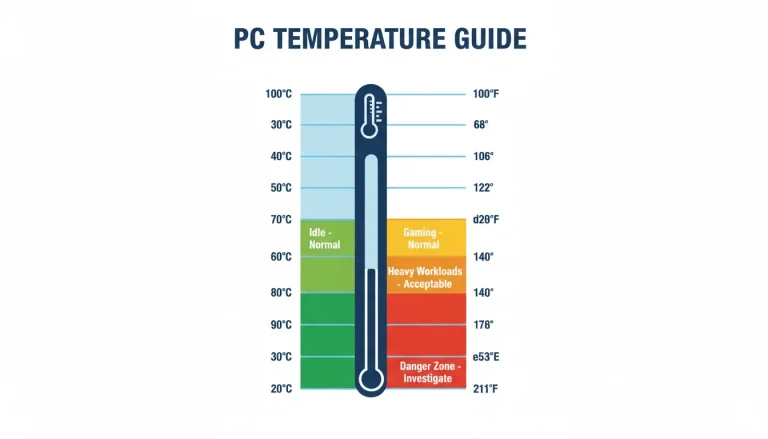
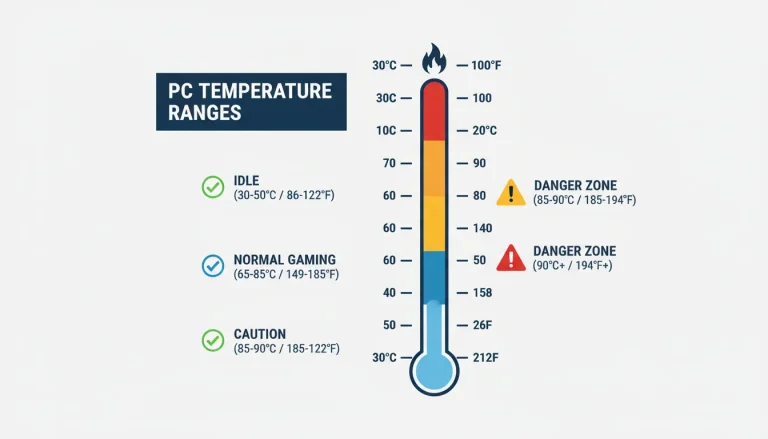
- Ensure adequate airflow in the case. Thermal throttling on a beefy GPU can cause signal dropout and trigger VGA POST failures at the next boot. Keeping your GPU within safe GPU temperature ranges prevents thermal-related instability that can look exactly like a VGA light fault.
- Use a UPS if your power is unreliable. Hard power cuts mid-boot can corrupt BIOS, which leads to POST failures on the next start.
- Always seat the GPU in the primary x16 slot (the one closest to the CPU) unless your specific motherboard manual instructs otherwise. Secondary slots often run at x4 or x1 bandwidth and may not initialize correctly for display output.
FAQ: White Light on Motherboard
Q: Is the white light on my motherboard a boot issue?
Only if it’s stuck solid. A white light that flashes briefly during POST and clears is a completely normal part of every boot cycle. Your board is checking the GPU, it passes, and the light turns off. A white light that stays on and prevents display output is a VGA or GPU boot failure. Those are two very different situations. The light itself doesn’t mean there’s a problem. Staying stuck on that light is the problem.
Q: What does the white VGA light on a motherboard mean?
It means the motherboard has either failed or is currently performing its GPU and video output diagnostic check during POST. If it stays on, the system either cannot detect the GPU, cannot initialize it, or has no valid display output to confirm. The fix depends on whether the issue is the card itself, the power supply, the display cable, or BIOS compatibility.
Q: Can a bad RAM stick cause a white VGA light?
Yes, and this trips up a lot of people. On certain boards, especially ASUS models, a DRAM failure can cause the POST sequence to hang and display the VGA LED rather than the DRAM LED. You’ll spend time reseating a perfectly good GPU when the actual fault is a bad memory module. If reseating the GPU multiple times doesn’t help, test each RAM stick individually in the A2 slot before doing anything else.
Q: Why does my white VGA light come on only during certain games?
GPU-intensive games push power draw to maximum. If your PSU is running at its limits or your GPU has a failing power delivery phase, the system may trigger a VGA error only under full load. A borderline 650W PSU paired with an RTX 4070 Ti Super may handle idle and light gaming fine, then fail when the GPU hits 285W under a demanding title. Upgrading the PSU or testing the GPU in another system will identify which component is at fault.
Q: Does a white light on the motherboard always mean the GPU is dead?
Not at all. A dead GPU is only one of several possible causes, and it isn’t even the most common one. Loose seating, unseated power connectors, a monitor that’s off at boot, a DisplayPort version mismatch, BIOS incompatibility with a new GPU, or a cascading RAM failure can all trigger the white VGA light without the GPU itself being faulty. Work through the fix steps before assuming you need a new graphics card.
When to Replace Hardware Instead of Troubleshooting Further
There’s a point where continued troubleshooting stops making sense. If the GPU fails the iGPU test (no display without it) AND fails in a second PC, the card is dead. Replace it. If a known-good GPU still triggers a white VGA light on your board, suspect PCIe slot damage or a failing PSU rail. A PSU that’s failed partially is more dangerous than one that’s fully dead, because it can deliver inconsistent voltage that damages other components. Replace it immediately.
If a BIOS update doesn’t resolve GPU incompatibility, check the manufacturer’s official CPU and GPU support list for your specific board revision. Some board revisions within the same product name have different chipset stepping that affects compatibility.
The Short Version
White light on your motherboard is the VGA POST indicator. Solid and stuck means GPU or display initialization failed. Around 80% of cases clear up after reseating the GPU, checking power connectors, and making sure the monitor is on before you boot. More persistent issues come down to BIOS compatibility with a newer GPU, a marginal PSU, or (surprisingly) a bad RAM stick causing a cascade. Work through the steps in order, test the GPU in another system if needed, and update your BIOS before installing any new graphics card. That’s the whole fix.

Alex has been building and tweaking custom PCs for over 12 years. From budget builds to full custom water loops, he’s assembled more than 50 systems and helped hundreds of builders troubleshoot their rigs. When he’s not benchmarking the latest hardware, you’ll find him optimizing airflow setups or stress-testing overclocks.