How Often Should You Replace Thermal Paste? How Long It Really Lasts
Quality thermal paste usually lasts five years or more on a desktop CPU. Replace it whenever you remove the cooler, or when temperatures climb for no other reason.
Last updated: September 2026
Table of Contents
- How Long Does Thermal Paste Last?
- 1. Heat and heat cycles
- 2. The paste itself
- 3. The device
- How Often Should You Replace Thermal Paste?
- When you always need fresh paste
- Signs Your Thermal Paste Needs Replacing
- How to Check Before You Repaste
- Does Thermal Paste Expire?
- CPU vs. GPU vs. Laptop: What’s Different?
- How to Replace Thermal Paste
- Frequently Asked Questions
- How long does thermal paste last?
- How often should you replace thermal paste on a CPU?
- Does thermal paste expire?
- How long does thermal paste last after opening?
- Do I need to replace thermal paste if I remove the cooler?
- How often should you replace thermal paste on a laptop?
- Does thermal paste dry out?
- Is 10-year-old thermal paste still OK?
- The Bottom Line
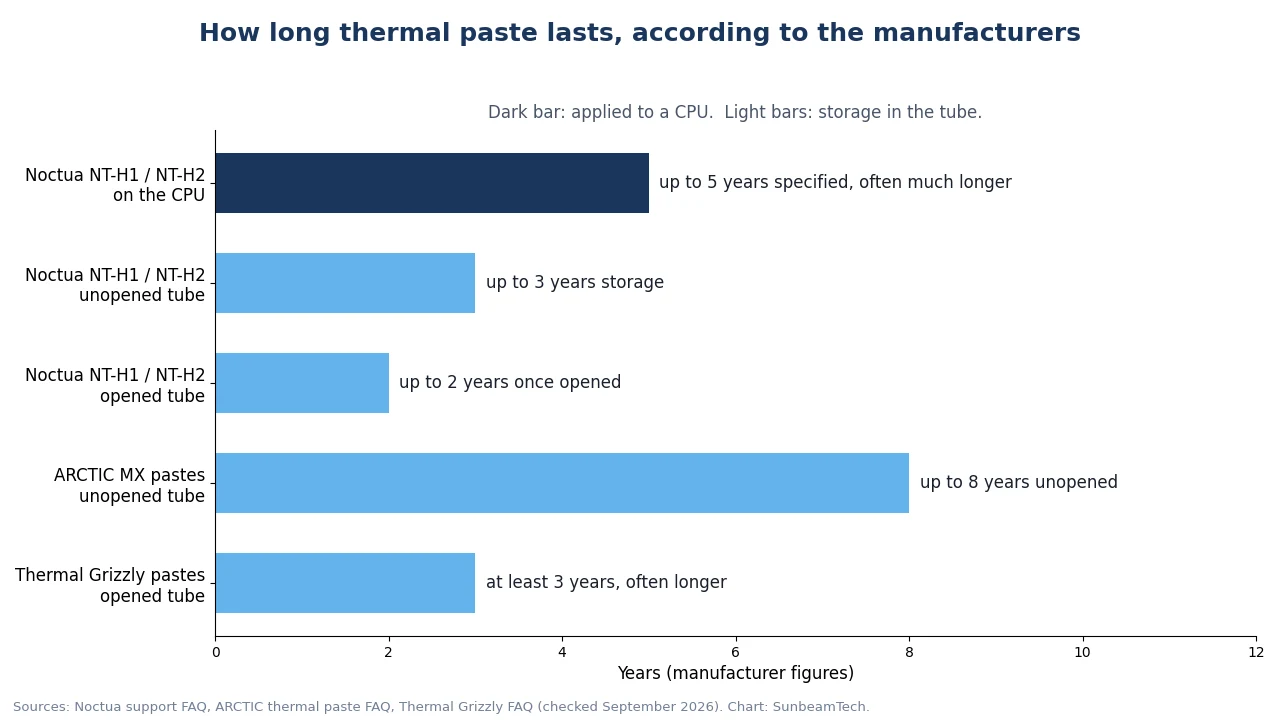
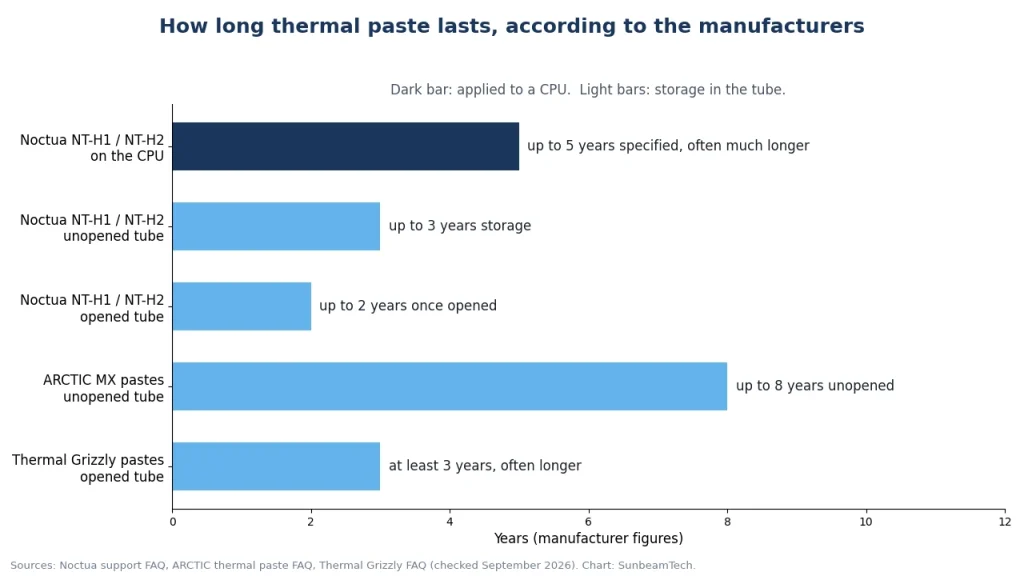
Ask ten builders how often you should replace thermal paste and you’ll get ten different schedules, from “every year” to “never”. The manufacturers are clearer than the forums. Noctua specifies its pastes for up to five years on a CPU and says they often last much longer. Corsair’s own guidance is that paste typically lasts many years and most users never need to think about it.
So for most people the right answer isn’t a calendar date. It’s a trigger: you removed the cooler, or your temperatures went up and dust isn’t the reason. This guide explains how long paste really lasts, how to tell when yours is done, and how long a tube stays usable on the shelf.
Quick answer: when to replace thermal paste
- 🔴 Always: when you remove or reseat the cooler, install a new cooler or swap the CPU
- 🟡 When temperatures rise: load temperatures clearly higher than your old baseline, after you’ve cleaned out the dust
- 🟡 Laptops: sooner than desktops, because they run hotter in cramped cooling; check first if an older laptop starts throttling
- 🟢 Desktop with normal temps: leave it alone; check temperatures now and then after about five years
- 🟢 Tube on the shelf: typically 2 to 3 years once opened, longer sealed, depending on the brand
How Long Does Thermal Paste Last?
On a desktop CPU, a quality paste typically lasts five years or more. Here’s what the manufacturers themselves say:
| Manufacturer | What they state |
|---|---|
| Noctua (NT-H1, NT-H2) | Specified for up to 5 years on the CPU, likely much longer; only reapply if temperatures clearly rise. Noctua says many customers have used NT-H1 for 10 years or more. |
| Corsair | Paste typically lasts many years; most users never need to worry about it, but always replace it when you remove the cooler. |
| ARCTIC (MX-6) | Describes MX-6 as non-drying and resistant to pump-out for consistent long-term performance. |
That doesn’t mean every paste in every PC lasts that long. How long yours lasts depends on three things.
1. Heat and heat cycles
Every time your CPU heats up and cools down, the metal surfaces expand and contract slightly. Over thousands of cycles, that movement slowly squeezes paste from the center of the chip toward the edges. This is called pump-out, and it leaves the hottest part of the processor with the thinnest layer. Hot-running chips and machines that cycle between idle and full load all day are hit hardest.
2. The paste itself
Some pastes are designed to resist drying and pump-out; others trade longevity for peak performance. Igor’s Lab, testing Thermal Grizzly Kryonaut, noted that pump-out can’t be avoided with that much silicone and that it isn’t really a long-term paste, while still performing well for everyday use. If longevity matters more to you than the last degree, pick a paste marketed for long-term stability. Our best thermal paste guide covers the options.
3. The device
A desktop with a big tower cooler runs its paste gently. A thin gaming laptop pushes its CPU and GPU to their limits in a tiny chassis, and a factory application may not have been great to begin with. That’s why laptops tend to need fresh paste sooner than desktops.
How Often Should You Replace Thermal Paste?
Replace it when something tells you to, not on a fixed schedule. Every repaste is also a chance to apply too much, too little or trap air, so there’s no benefit to doing it early on a system that’s running fine.
| Device | Practical approach |
|---|---|
| Desktop CPU | Leave it while temperatures are normal. Check temps occasionally after about five years and replace if they’ve clearly risen. |
| Desktop GPU | Only if temperatures have clearly risen compared to when the card was new. It’s a bigger job than a CPU (see below). |
| Laptop | Watch for throttling, loud fans under light load and rising temps. Laptops usually need it sooner than desktops. |
| Prebuilt PC | Same as any desktop: go by temperatures. Replace if you remove the cooler. |
| Consoles | Generally leave alone. The PS5 uses liquid metal on its processor from the factory, which is not a beginner repaste job. |
When you always need fresh paste
- You removed or reseated the cooler, even for a moment. Lifting it breaks the thin, even layer, and pressing it back on traps air.
- You’re installing a new cooler. Clean both surfaces and start fresh, or use the pre-applied paste if the cooler has it.
- You swapped or reseated the CPU.
- You delidded or modified the CPU.
Signs Your Thermal Paste Needs Replacing
The most reliable sign is a comparison against your own history, not an absolute number. Idle temperatures vary a lot between CPUs, so “50°C at idle” can be perfectly normal on one chip and a warning on another.
- Load temperatures have crept up compared to what the same PC did with the same workload, in the same room temperature, a year or two ago.
- Thermal throttling during games or long renders, meaning the CPU or GPU lowers its clock speed because it’s too hot. Tools like HWiNFO show throttling flags.
- Fans ramp up harder than they used to for the same tasks.
- Shutdowns or crashes under sustained load, after you’ve ruled out other causes.
- What you see when you remove the cooler: dry, cracked or crumbly paste, or paste pushed to the edges with a bare patch in the middle.
Rule out dust first. A heatsink or radiator clogged with dust causes exactly the same symptoms and is much quicker to fix. Clean the cooler and your dust filters (see how to clean them), then check your temperatures again. If they drop back to normal, the paste was never the problem.
For reference numbers, see what a good CPU temperature is and normal GPU temperatures. If temperatures are high and you’re not sure why, our CPU overheating guide walks through the other causes.
How to Check Before You Repaste
Noctua suggests comparing the difference between CPU temperature and room temperature at full load. That’s a good habit, because it cancels out summer versus winter:
- Install a monitoring tool such as HWiNFO.
- Run the same heavy workload each time, for example a 10-minute CPU stress test or benchmark loop.
- Note the CPU temperature at the end and the room temperature.
- Subtract room temperature from CPU temperature. That’s your delta.
- Save the number. When you test again later, compare deltas. A clear, lasting increase with a clean cooler points to the paste.
If you don’t have an old baseline, measure now. It makes the decision easy next time.
Does Thermal Paste Expire?
Yes, but slowly, and it depends on whether the tube has been opened. The main risk is the carrier drying out or separating from the heat-conducting particles.
| Brand | Unopened | After opening |
|---|---|---|
| Noctua (NT-H1, NT-H2) | Up to 3 years recommended storage | Up to 2 years |
| ARCTIC (MX series) | Up to 8 years | Resealable syringe; store capped |
| Thermal Grizzly | Store in original packaging | At least 3 years, often longer |
Signs a tube has gone bad: oily liquid separated from a stiff paste that won’t mix back together, a gritty or crumbly texture, or a dried plug at the tip. A little separation that stirs back to a smooth consistency is usually fine. If in doubt, buy a new tube; it costs less than the time you’d spend troubleshooting a bad application.
Storage tips: keep the cap on tight, store the syringe at room temperature away from sunlight and heat, and write the opening date on it with a marker.
CPU vs. GPU vs. Laptop: What’s Different?
| Desktop CPU | Desktop GPU | Laptop | |
|---|---|---|---|
| Difficulty | Easy | Moderate to hard | Varies a lot by model |
| What else is involved | Nothing | Thermal pads on memory and power components | Often full disassembly |
| Warranty | No risk | Check first; policies vary by brand and region | Check first; may affect warranty |
| Watch out for | Using too much | Using the correct pad thickness | Factory liquid metal on some models |
On a graphics card, the paste sits directly on the bare GPU die, and the memory and power components use thermal pads. If you open a card, measure the pads before replacing them, because the wrong thickness stops the cooler from making proper contact. Our GPU repasting guide covers the process.
Some laptops ship with liquid metal instead of paste. ASUS, for example, uses it on many ROG gaming laptops. Liquid metal conducts electricity, so don’t scrape it off and replace it with paste unless you know exactly what you’re doing. For the differences, see liquid metal vs. regular thermal paste.
How to Replace Thermal Paste

- Power off and unplug. Let the system cool down.
- Remove the cooler. If it’s stuck, twist it gently a few degrees to break the seal instead of pulling straight up, which can pull the CPU out of the socket with it.
- Clean both surfaces with isopropyl alcohol (90% or higher) and a lint-free cloth or coffee filter. Our guide on removing old thermal paste has the details.
- Apply new paste. A small amount in the center is enough for most CPUs. See how much thermal paste to use and how to apply thermal paste.
- Remount the cooler evenly, tightening screws a little at a time in a cross pattern.
- Check your temperatures and save them as your new baseline.
New to thermal paste in general? Start with what thermal paste is and what it does.
Frequently Asked Questions
How long does thermal paste last?
Quality thermal paste typically lasts five years or more on a desktop CPU. Noctua specifies up to five years for its pastes and says they often last much longer. Hot-running systems and laptops wear paste out faster.
How often should you replace thermal paste on a CPU?
Only when you remove the cooler or when temperatures have clearly risen and dust isn’t the cause. On a desktop running normal temperatures, there’s no need to replace it on a schedule; just check temperatures now and then after about five years.
Does thermal paste expire?
Yes, slowly. Sealed tubes last several years; ARCTIC states up to 8 years unopened and Noctua recommends up to 3 years of storage. Once opened, Noctua says up to 2 years and Thermal Grizzly at least 3 years.
How long does thermal paste last after opening?
Typically 2 to 3 years if you keep the cap on and store it at room temperature, depending on the brand. Check that it’s still smooth before using it.
Do I need to replace thermal paste if I remove the cooler?
Yes, every time. Lifting the cooler breaks the paste layer, and remounting it on the old paste traps air. Clean both surfaces and apply fresh paste.
How often should you replace thermal paste on a laptop?
Usually sooner than on a desktop, because laptops run hotter in tighter cooling systems. Replace it when the laptop starts throttling, runs its fans hard under light load, or temperatures have risen, after cleaning out dust. Check first whether your model uses liquid metal.
Does thermal paste dry out?
It can. Over time the carrier can dry out, and heat cycles can push paste toward the edges of the chip (pump-out). Both leave gaps that raise temperatures. Pastes designed for long-term stability resist this better.
Is 10-year-old thermal paste still OK?
On a working PC, maybe. Noctua says many users have run NT-H1 for ten years or more with good results. If temperatures are normal, it’s doing its job. In a tube, paste that old is best replaced.
The Bottom Line
Thermal paste isn’t a maintenance item you replace every year. Replace it every time the cooler comes off, and otherwise let your temperatures decide: measure a baseline now, clean out dust when temperatures rise, and repaste only if that doesn’t bring them back down. Laptops need attention sooner than desktops. When you do need a new tube, our best thermal paste guide will help you pick one.

Alex has been building and tweaking custom PCs for over 12 years. From budget builds to full custom water loops, he’s assembled more than 50 systems and helped hundreds of builders troubleshoot their rigs. When he’s not benchmarking the latest hardware, you’ll find him optimizing airflow setups or stress-testing overclocks.


