Case Fan Not Spinning but RGB Works? The Fix
A case fan that lights up but won’t spin has power to its RGB circuit but no signal or voltage reaching its motor, caused by a disconnected header, BIOS fan curve, or failed bearing.
Last updated: August 2026
Table of Contents
- Quick Answer: Why Is My Case Fan Not Spinning but the Light Works?
- Why Your Case Fan Has Lights but Won’t Spin (The Technical Reason)
- Quick Diagnosis: Find the Cause in 2 Minutes
- The 8 Fixes, In Order of Likelihood
- Fix 1: Check That the Fan Motor Cable Is Actually Plugged In
- Fix 2: Fan Hub Issues (PSU Connection and Hub Power)
- Fix 3: Check BIOS Fan Control Settings
- Fix 4: The Manual Spin Test (Stiction or a Stuck Bearing)
- Fix 5: Check with HWMonitor or Motherboard Software
- Fix 6: The Wireless RGB Remote Override
- Fix 7: Test the Fan Header by Swapping to a Different Port
- Fix 8: GPU Fan and PSU Fan Specific Cases
- When to Replace the Fan
- Prevent This From Happening Again
- FAQ: Case Fan Not Spinning but Light Works
- Why is my case fan lighting up but not spinning?
- Why is my fan not working but my light is?
- What is the lifespan of a PC case fan?
- How do I fix a PC fan that doesn’t spin?
- Is it normal for GPU or PSU fans to not spin at idle?
- What You Should Do
Quick Answer: Why Is My Case Fan Not Spinning but the Light Works?
Your case fan’s RGB LEDs and its motor run on completely separate power circuits. The RGB cable connects to a dedicated header or hub and stays powered independently of the fan motor. So the lights can glow all night while the motor gets absolutely nothing. The fix is almost always a disconnected fan header, a BIOS fan stop setting, a hub that isn’t getting PSU power, or a bearing that needs a manual nudge to start.
Your fans glow but sit perfectly still. Frustrating, especially when everything looks connected. The good news: this specific symptom tells you exactly where to look. It’s not a dead fan in most cases. It’s a wiring or signal problem, and you can fix it in under ten minutes. This guide walks through eight fixes in order of how often they actually solve the problem, plus specific cases for GPU fans, PSU fans, and CPU fans that each behave differently.

Why Your Case Fan Has Lights but Won’t Spin (The Technical Reason)
Modern RGB and ARGB fans are built with two completely independent electrical circuits inside the same housing. The LED circuit gets its power from a 5V ARGB header (3-pin) or a 12V RGB header (4-pin with a different pin layout). That circuit runs continuously as long as the RGB cable is connected and the system is on. It draws as little as 0.3W, sometimes less.
The motor circuit is a separate beast entirely. It requires a 3-pin DC or 4-pin PWM fan header connection, usually labeled SYS_FAN, CHA_FAN, or CPU_FAN on your motherboard. The motor pulls anywhere from 1.5W to 6W depending on the fan size and RPM. No signal to that header means no spinning. Period.
Because of this split architecture, the fan can look completely functional while the motor is getting zero input. This isn’t a broken fan. It’s a wiring or signal problem in the vast majority of cases. There are three root causes:
- Power or connection issue: the motor cable isn’t plugged in, or the hub isn’t getting PSU power
- Software or BIOS issue: the fan curve is set so low the fan stops entirely at idle temps
- Physical or mechanical failure: the bearing is stuck or worn out
This same logic applies whether you’re dealing with a case fan, a CPU fan, or a GPU fan. The separation of light and motor power is consistent across fan types and brands. Understanding it means you won’t waste time replacing a fan that’s actually fine.
According to community contributors at Tom’s Hardware Forums, BIOS fan speed settings configured too low are a frequent culprit, causing fans to stall during a cold boot and never restart. The recommended first test is setting fans to maximum speed in BIOS, then working backward from there.

Quick Diagnosis: Find the Cause in 2 Minutes
Before diving into fixes, run through this checklist. Each question points you to the right fix number below.
- Is the fan’s 3-pin or 4-pin motor cable actually plugged into a fan header (not just the RGB header)? If no: Fix 1.
- Are your fans connected through a hub or controller? If yes: Fix 2.
- Does the fan show 0 RPM in BIOS or in HWMonitor? If yes: Fix 3 and Fix 5.
- Does the fan spin freely when you give it a manual push with the PC on? If yes: Fix 4.
- Does the fan have a wireless RGB remote included in the kit? If yes: Fix 6.
- Is your fan connected to a motherboard header directly but still not spinning? If yes: Fix 7.
- Is this a GPU fan or PSU fan specifically? If yes: Fix 8.
Understanding how your motherboard fan headers work makes this diagnosis faster. Not all headers behave the same, and that matters for narrowing down which fix applies to you.
The 8 Fixes, In Order of Likelihood
Fix 1: Check That the Fan Motor Cable Is Actually Plugged In
This is the most common cause. Not great to discover after an hour of troubleshooting, but it happens constantly, especially in new builds.
Your ARGB fan has at least two cables coming out of it. The RGB cable typically has a small connector with an LED symbol or labeled “ARGB” / “RGB.” That’s not the fan header. The motor cable is a separate connector, usually 3-pin or 4-pin, sometimes with a “FAN” label. You need both plugged in for the fan to spin and light up.
Look for any open headers on your motherboard labeled SYS_FAN1, SYS_FAN2, CHA_FAN1, or CHA_FAN2. Plug the motor cable into one of those. Push it in firmly until you feel it seat. A partial connection causes exactly this symptom: lights on, motor off.
If you want a full breakdown of how ARGB fans split their connections and sync with your motherboard software, the ARGB fan connection guide covers the full picture.
Fix 2: Fan Hub Issues (PSU Connection and Hub Power)
If your fans run through a hub or controller, that hub needs its own power source from the PSU. Not just a USB header or a data cable. A dedicated SATA power connector or Molex connector from the power supply.
Check each of these:
- SATA or Molex power connected: the hub should have a power input cable that goes directly to your PSU
- Hub power LED: most hubs have an indicator light on the device itself; if it’s off, the hub isn’t getting power
- Fan connectors seated in hub ports: each fan motor cable should be pushed fully into its port on the hub
- Minimum power requirement: some hubs require at least 12V at 1A to function; underpowered or marginal PSUs can cause this
One important thing to know: fans connected through a hub will NOT appear in BIOS fan speed readings or in HWMonitor. That’s expected behavior, not a fault. The motherboard has no visibility into hub-connected fans. Don’t use a missing reading as evidence the fans are dead.
Fix 3: Check BIOS Fan Control Settings
Many motherboards ship with a “fan stop” feature enabled by default. Below a certain temperature threshold (often around 40°C), the fans are deliberately stopped. The system is cold, the fans cut off, the RGB keeps glowing. This is a feature. Feels like a bug.
To rule this out, temporarily set your fans to full speed in BIOS. Here’s where to find those settings by brand:
| Motherboard Brand | BIOS Fan Control Location | Setting to Check |
|---|---|---|
| ASUS | Monitor → Q-Fan Configuration | Set Fan Speed to “Full Speed” or raise minimum RPM above 0 |
| MSI | Hardware Monitor → Fan Control | Disable “Smart Fan” or set minimum speed to 20% or higher |
| Gigabyte | M.I.T. → Smart Fan 5 | Set curve minimum above the stop threshold point |
| ASRock | H/W Monitor → Fan Configuration | Set fan control mode to “Full On” for testing |
If the fan spins after you set it to full speed, you’ve found your problem. The stop-threshold was cutting the motor off at low temps. Set a minimum fan speed floor of 15-20% and you won’t see this again.
Fix 4: The Manual Spin Test (Stiction or a Stuck Bearing)
With the PC running and the fan getting power, give the fan blade a gentle manual push with one finger. If it catches and starts spinning on its own after that push, you’re dealing with motor stiction. The bearing is worn enough that it can’t overcome its own static friction to start, but once it’s moving, it runs fine.
Stuck bearing. Not dead yet.
This is common in fans that have been idle for months or that have light dust buildup inside the bearing sleeve. It also shows up in older sleeve bearing fans toward the end of their life. If this manual trick works, replace the fan within a few months. It will fail completely, and soon.
Fan bearing lifespans vary significantly by type. Sleeve bearings average around 30,000-40,000 hours, while ball bearing and fluid dynamic bearing (FDB) fans typically last 60,000 hours or more under ideal conditions.
Fix 5: Check with HWMonitor or Motherboard Software
Download HWMonitor from CPUID (free) and check what it shows for your fan header:
- Fan shows 0 RPM: the header is detecting the fan but the motor isn’t responding. Likely a dead motor or a bad PWM signal.
- Fan shows no reading at all: either hub-connected (expected) or the header cable is unplugged.
- Fan shows a normal RPM: the fan is actually spinning. Double-check visually that you’re looking at the right fan.
Your motherboard’s own software works too. ASUS Fan Xpert, MSI Center, Gigabyte System Information Viewer, and ASRock Polychrome all show fan speeds for header-connected fans. Argus Monitor is another solid third-party option.
Fix 6: The Wireless RGB Remote Override
This one surprises people. Some fan kits ship with a wireless remote for controlling RGB lighting. On certain kits from Enermax, Phanteks, and generic RGB brands, that same remote includes a dedicated motor on/off toggle button, separate from the LED controls.
If that button gets pressed accidentally (sitting on the remote, a kid pressing buttons, anything), it cuts motor power entirely while the RGB stays on. Exact symptom. Fans glow, nothing spins.
Fix: dig out the remote that came with your fan kit. Look for a button with a fan or motor icon. Press it. If the fans immediately start spinning, that’s your culprit. Genuinely the most surprising fix in this list, and the hardest to guess without knowing it exists.
Fix 7: Test the Fan Header by Swapping to a Different Port
Fan headers can fail. It’s more common on budget boards but happens on mid-range boards too.
Unplug the fan’s motor cable from its current header and move it to a different one on the motherboard. Try SYS_FAN2 if you were on SYS_FAN1, or any open CHA_FAN port. If the fan starts spinning, the original header is dead.
You can also test by temporarily plugging the fan into CPU_FAN. That header runs at full speed by default regardless of any fan curve, making it the best diagnostic port. If the fan spins on CPU_FAN but nowhere else, your fan is fine and your original header or fan curve is the problem. Just remember to move it back off CPU_FAN afterward.
Fix 8: GPU Fan and PSU Fan Specific Cases
These fan types follow different rules than case fans. Worth knowing before you panic.
GPU fan not spinning: This is almost always normal. Modern GPUs including the RTX 4000 and 5000 series, RX 7000 and 9000 series, and their predecessors use zero-RPM mode by default. The GPU fans stay completely off below roughly 55-60°C. At idle or while browsing, you’ll see the fans stationary. Normal. Expected. Not a fault.
To test whether your GPU fans actually work, run a GPU benchmark like Unigine Heaven or FurMark for five minutes. If the fans kick in somewhere around 55-60°C, they’re working as designed: ASUS lists 55°C for its recent RTX cards and MSI keeps Zero Frozr fans silent below 60°C. If the GPU hits 80-85°C or higher and the fans still won’t spin at all, that’s a real problem. The fan header on the GPU or the fans themselves may be failed.
PSU fan not spinning: Same story. Modern PSUs rated 80+ Gold, Platinum, or Titanium use semi-passive or hybrid fan mode. Below roughly 20-40% load, the PSU fan stays off. That’s the design. Put the system under real load (gaming, rendering, a stress test) and the PSU fan should start moving. If it doesn’t spin at all under full system load, that’s a warning sign you shouldn’t ignore. A PSU fan failure can cause overheating inside the power supply and lead to system damage or worse. Watch for other signs of a failing power supply if you suspect this is happening.
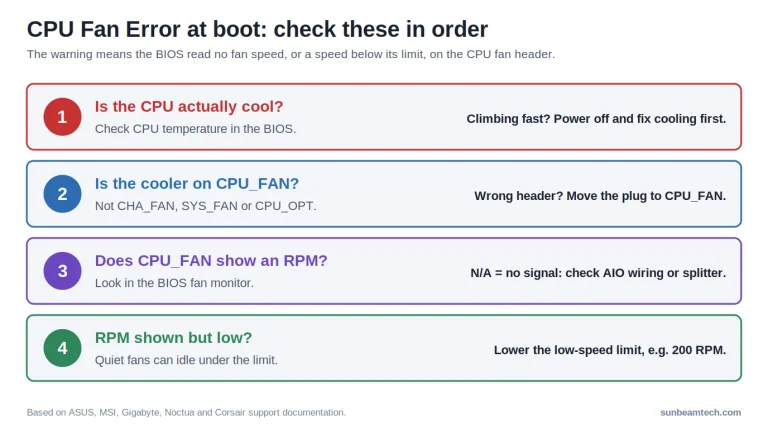
CPU fan not spinning: This one is serious. The CPU_FAN header is the highest-priority header on the motherboard. Most boards will throw a POST error at startup and refuse to boot if they detect 0 RPM on CPU_FAN. If your CPU cooler fan isn’t spinning, check that the fan connector is on the CPU_FAN header specifically (not SYS_FAN) and that the cooler is fully seated. AIO pumps sometimes use the CPU_FAN header for the pump; if your fan is instead connected to CPU_OPT or a SYS_FAN header, BIOS may not see it.

When to Replace the Fan
If your fan failed the manual spin test, makes grinding or clicking sounds, or wobbles visibly while running, replace it. Don’t wait. Those are signs of bearing failure, and a failed case fan can cost you airflow at exactly the wrong moment.
| Bearing Type | Rated Lifespan | Failure Mode |
|---|---|---|
| Sleeve Bearing | 30,000-40,000 hrs (roughly 3-5 years) | Gradual noise increase, then stops |
| Ball Bearing | 60,000-70,000 hrs (roughly 8-10 years) | Loud grinding before final failure |
| FDB (Fluid Dynamic) | 50,000+ hrs (10+ years) | Near-silent failure, harder to detect early |
| Rifle Bearing | 25,000-35,000 hrs | Similar to sleeve, slight oil leak possible |
Dust buildup and continuous high-RPM operation shorten all of these lifespans. Continuous 100% RPM operation in a hot, dusty case will kill a sleeve bearing fan in two years. Clean your fans every 3-6 months with compressed air and they’ll last much longer.
Prevent This From Happening Again
A few habits that stop this from happening after your next upgrade:
- Clean fans every 3-6 months: compressed air in short bursts while holding the blades still
- Set a minimum RPM floor in BIOS: 15-20% minimum speed prevents fans from stopping at idle and developing stiction
- Use a dedicated fan hub with SATA or Molex power: don’t daisy-chain multiple fans off a single motherboard header
- Document your build: keep a note of which fans are hub-connected vs header-connected so you know what to expect in diagnostics
- Verify both cables after any hardware change: jostling around inside the case during a GPU or RAM swap can dislodge a fan header cable
FAQ: Case Fan Not Spinning but Light Works
Why is my case fan lighting up but not spinning?
The RGB LEDs and the fan motor use entirely separate power connections. If only the RGB cable is plugged in, or if BIOS has a fan stop curve set below your current system temperature, the lights stay on while the motor gets no power or signal. Confirm that the 3-pin or 4-pin motor cable is plugged into a fan header on your motherboard or hub, then check that BIOS isn’t stopping the fan due to low temperature.
Why is my fan not working but my light is?
The light circuit and motor circuit are independent of each other inside the fan housing. The most common causes are an unplugged motor cable, a BIOS fan stop threshold being triggered at low temps, a hub that isn’t receiving PSU power, a stuck bearing, or a wireless remote accidentally toggling the motor off. Work through the fixes above in order and you’ll find it.
What is the lifespan of a PC case fan?
Most case fans last between 3 and 10 years depending on bearing type and usage. Sleeve bearing fans average around 30,000-40,000 hours before failure. Ball bearing and FDB fans last 60,000 hours or more. Continuous high-RPM operation and dust accumulation reduce those numbers significantly. If your fan is over five years old and showing symptoms, replacing it is cheaper than troubleshooting a dead bearing.
How do I fix a PC fan that doesn’t spin?
Start by confirming the motor cable (not the RGB cable) is plugged into a fan header on the motherboard or a powered hub. Then check BIOS for fan stop features and temporarily set the fan to full speed to rule that out. Download HWMonitor to see if the fan registers at 0 RPM or doesn’t appear at all. Try giving the blades a manual push while the PC is on to test for stiction. If none of that works, move the connector to a different fan header port.
Is it normal for GPU or PSU fans to not spin at idle?
Yes, completely normal. Modern GPUs from Nvidia’s RTX 30, 40, and 50 series and AMD’s RX 6000, 7000, and 9000 series all use zero-RPM mode below roughly 55-60°C. PSUs rated 80+ Gold or higher use semi-passive mode and keep the fan off below 20-40% load. Run a stress test to confirm both spin under load. If the GPU fan won’t spin above 75-80°C or the PSU fan never spins under full system load, that’s a real problem worth investigating.
What You Should Do
In most cases, the fix is simple: the fan motor cable isn’t plugged in, or BIOS is stopping the fan at idle temps. Those two causes account for the majority of this symptom. The RGB working actually helps you here since it confirms the system is powering the fan; the motor side is the isolated problem. Start at Fix 1, work down the list, and you’ll find it. If you’ve tried every fix above and the fan still won’t spin under any conditions, the motor bearing has failed and the fan needs to be swapped out. A new 120mm or 140mm case fan costs less than $20 and takes five minutes to install. Don’t let a dead fan compromise your airflow and temps.

Alex has been building and tweaking custom PCs for over 12 years. From budget builds to full custom water loops, he’s assembled more than 50 systems and helped hundreds of builders troubleshoot their rigs. When he’s not benchmarking the latest hardware, you’ll find him optimizing airflow setups or stress-testing overclocks.