GPU Not Detected? Find Where Your PC Loses the Graphics Card
If your GPU isn’t detected, first find where it drops out: the BIOS, Device Manager or the driver. Each of those points to a different fix.
Last updated: October 2026
Table of Contents
- Find out where the card goes missing
- Does the BIOS see the card?
- Point the board at the graphics card
- Hardware checks when the BIOS can’t see the card
- Update the BIOS safely
- When the BIOS sees the card but Windows doesn’t
- Show hidden devices and rescan
- Device Manager error codes on a graphics card
- Microsoft Basic Display Adapter: found, but not on its own driver
- When the installer says there’s no card
- Laptops: a GPU mode may be hiding the dedicated GPU
- CSM and older cards
- Frequently Asked Questions
- Why is my screen resolution stuck since the GPU went missing?
- Why did my motherboard’s HDMI port stop working after I fitted a graphics card?
- Why does my game run on the integrated graphics when the card is there?
- Before you RMA the card
You open Device Manager, expand Display adapters, and your graphics card isn’t there. Maybe you only see the CPU’s integrated graphics, or a single line that reads Microsoft Basic Display Adapter. Or the graphics driver installer quits because it can’t find a card to install on.
Not detected covers a few different problems. The motherboard may not see the card at all, Windows may miss a card the BIOS found, Windows may see it without a working driver, or a laptop’s GPU mode may be hiding it. Once you know which one you’ve got, you’ll know whether to reach for a screwdriver, a setting or a driver package.
On a laptop, go straight to the GPU mode check for laptops: it takes a minute and needs no tools.
Find out where the card goes missing
Match what you see to a row and jump to that section. Each check rules out a layer, so you don’t spend an evening reinstalling drivers for a card the motherboard never saw.
| What you see | What it means | Go to |
|---|---|---|
| No picture from any port, or the board’s VGA LED stays lit | You can’t reach a BIOS screen yet | The no-display checklist or the stuck VGA LED fix, then hardware checks |
| BIOS screen only on the motherboard’s port, nothing from the card | The board started on integrated graphics or didn’t find the card | BIOS check, then hardware checks |
| Card missing from Display adapters and Other devices, or faded under View > Show hidden devices | Windows can’t see the card on this boot | BIOS check, then hardware checks |
| Card listed with a yellow warning, under Display adapters or Other devices | Windows has an error code for it | Error code table |
| Microsoft Basic Display Adapter | Found, but not running its maker’s driver | Clean driver install |
| The driver installer stops and says it finds no supported hardware | The card isn’t detected, or the driver doesn’t cover it | Installer messages |
| Card drops out mid-game and is back after a restart | Windows found it at boot, then lost it | Clean driver install, then hardware checks |
| A “There is no GOP” warning, or a Radeon RX 9000 with CSM on | Card and boot mode don’t match | CSM and older cards |
| Laptop lists only Intel or AMD integrated graphics | A GPU mode may be hiding the dedicated GPU | Laptop GPU modes |
Does the BIOS see the card?
Plug the monitor into the card itself and use the monitor’s on-screen menu to select that input. Shut the PC down fully, power it on and tap the BIOS key, usually Delete or F2 (your manual lists it), until the BIOS opens. If the BIOS screen comes out of the card’s port, the firmware found the card and started on it. From there, look at Windows and the driver.
If Windows starts before you hit the key, go in from Windows: Settings > System > Recovery, select Restart now next to Advanced startup, then Troubleshoot > Advanced options > UEFI Firmware Settings. On Windows 10 the first part is Update & Security > Recovery.
No picture from the card’s port? Try its other outputs and a spare cable first. If it stays dark, move the cable back to the motherboard’s port so you can get into the BIOS. A picture there means the board didn’t find the card, or a setting makes the integrated graphics the primary. A There is no GOP warning points to an older card: see CSM and older cards.
That test needs graphics in the CPU. Intel models with an F in the suffix (F, KF) and Ryzen chips such as the 5600X or 7500F have none, so the board’s video ports stay dark by design. With one of those, skip the BIOS settings and go to the hardware checks.
Point the board at the graphics card
Each of the four big board brands has a setting that picks which graphics the firmware starts on. The names don’t match, which is half the confusion. If the BIOS opens in a simple view (EZ or Easy Mode), switch to the advanced one with F7 on ASUS and MSI, F2 on Gigabyte or F6 on ASRock, then follow the path below.
| Board | Menu path | Setting | Pick |
|---|---|---|---|
| ASUS AMD 800 series (PRIME, ProArt, TUF) | Advanced > NB Configuration | Primary Video Device | [PCIE Video] |
| ASUS Intel 600 series (PRIME, ProArt, TUF) | Advanced > System Agent (SA) Configuration > Graphics Configuration | Primary Display | [PEG Slot] |
| MSI AM5 and Intel 700 series | SETTINGS > Advanced > Integrated Graphics Configuration | Initiate Graphic Adapter | [PEG] |
| Gigabyte AMD 600 and Intel 700 series | Settings > IO Ports | Initial Display Output | PCIe 1 Slot |
| ASRock Intel 700 series | Advanced > Chipset Configuration | Primary Graphics Adapter | [PCIE1] |
| ASRock AMD 600 series | Advanced > AMD PBS | Primary Video Adaptor | [Ext Graphics (PEG)] |
| Other boards and prebuilts | See the board or PC manual | The setting that makes the card in the PCIe slot the primary display | The graphics card |
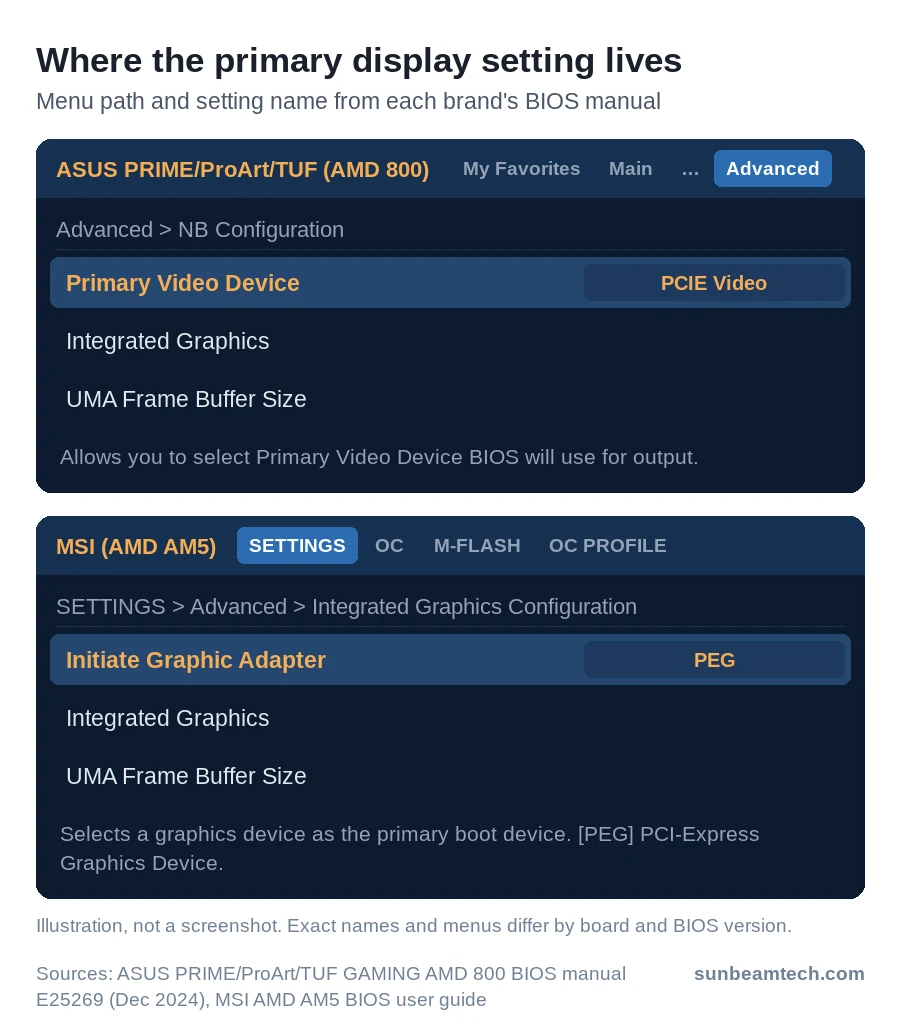
Press F10 to save and exit; it’s the same key on all four brands. Then shut down, move the monitor cable to the card and power on. A BIOS screen on the card’s port means it worked. This setting only fixes a board that was told to start on integrated graphics. If it already points at the card, go to the hardware checks.
Hardware checks when the BIOS can’t see the card
If the card never shows up in the BIOS, stay on the hardware side. Spinning fans only prove the card gets power. They don’t prove the board sees it, and fans that stand still don’t prove the card is dead: on cards with a zero-RPM mode, such as MSI’s Zero Frozr, they only start once the load rises. Start here too if the card still drops out mid-game after a clean driver install. Go in this order, cheapest first:
- Shut down, switch the power supply off at the back and unplug it. Pull the card, clean any dust out of the slot and look for damage, then seat the card again in the board’s primary PCIe slot until the latch clicks and the gold contacts sit fully in the slot. Your manual marks that slot; our GPU install steps cover the latch and bracket.
- Plug in every power connector on the card, each on its own cable straight from the power supply, not two plugs off one cable. On a card with a 16-pin plug, such as an RTX 4080 or 4090, push it in until the latch clicks and no gap shows. On the adapter that came with the card, fill every socket. If you’re unsure which plug is which, see PSU cables explained.
- Check the power supply is big enough. The card’s spec page lists a minimum, such as 500 W for a Radeon RX 6650 XT. Compare it with the wattage on your PSU’s label, or find your PSU’s wattage without opening the PC.
- Take any riser cable out of the path and test the card directly in the slot. If it works there but not through a PCIe 3.0 riser on a PCIe 4.0 board and card, set the x16 slot’s link speed from Auto to Gen 3 in the BIOS before you refit the riser.
- Load the BIOS defaults: F5 on ASUS, F6 on MSI, F9 on ASRock, or Load Optimized Defaults on Gigabyte’s Save & Exit page. If you can’t get into the BIOS, clear CMOS instead. Then set the primary display again.
- Swap test: try the card in another PC, or a known-good card in yours. If your board has a second x16 slot, try that one too.
Update the BIOS safely
If the card still isn’t in the BIOS after those checks, update the BIOS, or do it first if your board is older than the card. Use the board’s own flash tool and a USB stick:
- Note the board model and BIOS version on the BIOS main screen. Download the newest BIOS for that exact model from the board maker’s support page (on a prebuilt or laptop, the system maker’s) and copy it to a FAT32 USB stick.
- If Windows uses BitLocker, suspend it right before you restart to flash: a firmware upgrade is one of BitLocker’s recovery triggers. Use Control Panel > BitLocker Drive Encryption > Suspend protection. On Windows 11 Home with Device encryption, type
cmdin the search box, right-click Command Prompt, choose Run as administrator and runmanage-bde -protectors -disable C:. Protection comes back on after the next restart. Keep the recovery key at hand (aka.ms/myrecoverykey if it’s in your Microsoft account). - Restart into the BIOS and flash with its own tool: EZ Flash 3 under Tool on ASUS, M-FLASH on MSI, Q-Flash (F8) on Gigabyte, Instant Flash on ASRock. Don’t switch off or reset while it runs.
- After the flash, load the defaults and set the primary display again.
No picture at all? Boards with a BIOS FlashBack (ASUS), Flash BIOS (MSI), Q-Flash Plus (Gigabyte) or BIOS Flashback (ASRock) button flash from a USB stick with the PC off, no screen needed. Our BIOS Flashback guide has the steps per brand.
When the BIOS sees the card but Windows doesn’t
Type Device Manager in the Windows search bar, open it and expand Display adapters.
Show hidden devices and rescan
- Select View > Show hidden devices. A card that only appears now shows with a faded icon.
- Select Action > Scan for hardware changes and watch whether the card comes back.
A faded entry is a non-present device: Windows still has its registry entries but can’t see the hardware on this boot. That points below the driver. On a laptop, check the GPU mode first; on a desktop, go back to the hardware checks.
Device Manager error codes on a graphics card
A yellow warning means Device Manager has an error code for the card. Right-click the entry, choose Properties and read the message and code under Device status.
| Code | What Windows shows | What to do on a graphics card |
|---|---|---|
| 10 | This device cannot start. (Code 10) |
Update the driver, or do the clean install. |
| 12 | This device cannot find enough free resources that it can use. (Code 12) |
Resources tab, Conflicting device list: disable that device. Two or more cards whose drivers won’t start: enable Above 4G Decoding in the BIOS (MSI: Above 4G memory). |
| 22 | This device is disabled. (Code 22) |
It was disabled in Device Manager. Right-click it and choose Enable device. |
| 28 | The drivers for this device are not installed. (Code 28) |
No driver yet. Install the card maker’s driver, or the laptop maker’s on a laptop. |
| 31 | This device is not working properly because Windows cannot load the drivers required for this device. (Code 31) |
Driver problem. Clean install. |
| 43 | Windows has stopped this device because it has reported problems. (Code 43) |
Do the clean driver install. If the code comes back, go to the hardware checks. |
| 45 | Currently, this hardware device is not connected to the computer. (Code 45) |
The card isn’t present on this boot. Hardware checks. |
Microsoft Basic Display Adapter: found, but not on its own driver
This one looks worse than it is. Microsoft Basic Display Adapter is how Device Manager lists a graphics device running on Microsoft’s generic display driver, which ships with Windows. Windows falls back to it when the graphics maker’s driver is missing, isn’t working or is disabled.
Check which device it is first: right-click it, choose Properties, open Details and pick Hardware Ids under Property. After VEN_, 1002 means AMD and 8086 Intel. If that code names your CPU’s maker and not your card’s, the entry is the CPU’s graphics without a driver and the card is missing: start at the BIOS check. If your card and CPU come from the same maker, the code can’t tell them apart, so carry on below.
Card gone right after a Windows or driver update? Roll back with System Restore first: Control Panel > Recovery > Open System Restore, then pick a restore point from before the update. Card dropping out mid-game? Set any GPU overclock or undervolt back to default in the app you set it with. Then do the clean install:
- NVIDIA: download the driver by picking your card model by hand in NVIDIA’s driver search, not with auto-detect. Run it, choose Custom (Advanced), then tick Perform a Clean Installation. Each screen is in Dell’s walkthrough.
- AMD: run the AMD Cleanup Utility first. When it asks, click Yes to restart into safe mode, where it works best. Then install the AMD Software package for your card.
- Laptop: use the graphics driver from the laptop maker’s support page for your model.
- Restart and check Display adapters again. The card should now show by name.
Still generic, or did you swap an AMD card for NVIDIA or the other way round? Clear out the old driver with Display Driver Uninstaller (DDU) from wagnardsoft.com. Start in Safe Mode: Advanced startup as in the BIOS check, then Troubleshoot > Advanced options > Startup Settings > Restart and press 4 (have your BitLocker key ready). Run DDU, set the device type to GPU, pick the brand of the driver you’re clearing out, click Clean and restart. Then install the driver again.
When the installer says there’s no card
The AMD installer stops with Error 173 when it detects no AMD graphics hardware in the system. That’s a detection problem, not a driver one. Look for a yellow warning on it in Device Manager and check the error code table. If it isn’t there at all, go back to the BIOS check.
Error 182 is different. The installer found Radeon graphics that are embedded, legacy or customized for an OEM system. OEM-customized graphics take their driver from the PC or laptop maker. For embedded and legacy Radeon graphics, look up your exact model on AMD’s driver page. On Windows 10, Radeon HD 4000 and older cards and the earliest APUs, such as the A4, A6 and A8-3000 series, get their driver only through Windows Update.
On NVIDIA, check that the driver still supports your card. Maxwell cards (GTX 745, 750, 750 Ti and the GTX 900 series) and Pascal cards (GT 1030 and the GTX 10 series) no longer get Game Ready drivers, only security updates from the Release 580 branch. Kepler cards, such as the GTX 660, 760, 770, 780 and 780 Ti, stop at the Release 470 drivers (up to 474.xx), so newer packages don’t list them. Pick your exact card in NVIDIA’s driver search so you get a package that lists it.
Laptops: a GPU mode may be hiding the dedicated GPU
Plug in the charger first. Some GPU modes in the laptop maker’s app hide the dedicated GPU from Device Manager. On ASUS laptops in Eco Mode it doesn’t show there at all, and on ROG and TUF models Optimized mode switches to Eco on battery. Set the GPU Mode to Standard and check again.
Have your BitLocker recovery key ready before you switch (aka.ms/myrecoverykey if it’s in your Microsoft account). ASUS warns that switching the GPU Mode in Armoury Crate can trigger BitLocker recovery.
| Laptop | Where the switch is | What to pick |
|---|---|---|
| ASUS | Armoury Crate > Device > GPU Power Saving, MyASUS > Device Settings > Power & Performance, or ProArt Creator Hub > Dashboard, then GPU Mode | Standard |
| Lenovo Legion 7 and Legion Pro 7 | Lenovo Vantage, GPU working mode | Hybrid Mode |
| Other laptops | The maker’s control app | A hybrid or standard mode, restart, then check Display adapters |
Switched back from Eco and now see Microsoft Basic Display Adapter? On ASUS laptops that’s typically the driver not loading, not a dead GPU. Reinstall the graphics driver from the laptop maker’s support page for your model.
A dedicated GPU with no driver at all can also sit under Other devices with a generic name, such as 3D Video Controller with Code 28, instead of under Display adapters. The fix is the graphics driver from the laptop maker.
Last check on an ASUS laptop: hold F2 while you press the power button on the fully shut-down laptop until the BIOS appears. Press F9 to load the defaults and F10 to save. If the dedicated GPU is still missing from the BIOS screen, it’s likely hardware. Book it in for service.
CSM and older cards
CSM (Compatibility Support Module) is a BIOS mode that imitates the older BIOS standard for older hardware. Only two kinds of card need this. An older card without UEFI (GOP) support may need CSM on to start; in UEFI mode, MSI’s AM5 and Intel 700 boards warn There is no GOP (Graphics Output protocol) support detected in this graphics card. The lasting fix is a card with GOP support, or the CPU’s graphics.
A Radeon RX 9000 card is the reverse: it’s only officially supported in UEFI mode, and in CSM mode it can lose features such as Smart Access Memory. Before you switch CSM off, check that your Windows drive uses GPT. Our CSM setting guide shows the check, the conversion and where CSM sits on each brand.
Frequently Asked Questions
Why is my screen resolution stuck since the GPU went missing?
Windows is drawing the screen with its basic display driver, which on UEFI systems keeps the resolution set during boot. Once the card runs on its maker’s driver, you can pick the resolution again.
Why did my motherboard’s HDMI port stop working after I fitted a graphics card?
Your board may have switched its onboard graphics off when it found the card. On Gigabyte’s AMD 600 boards, Integrated Graphics on Auto does that depending on the card installed; on ASRock’s Intel 700 boards, IGPU Multi-Monitor on Enabled keeps them on. For both outputs at once, see motherboard HDMI not working.
Why does my game run on the integrated graphics when the card is there?
On a desktop, first check that the monitor cable is in the card, not in the motherboard. On Windows 11, open Settings > System > Display > Graphics, select the game (Add desktop app if it isn’t listed) and set its GPU preference to High performance. On Windows 10: Display > Graphics settings, add the game with Browse and Add, then Options > High performance > Save. Restart the game.
Before you RMA the card
If you’ve worked down the list and the card still isn’t there, write down what you found before you contact support.
- Where it disappears: the BIOS, Device Manager, or only as Microsoft Basic Display Adapter.
- Any Device Manager code or installer error, exactly as Windows shows it.
- Board model, BIOS version, and the slot you used.
- How the card is powered, your PSU’s wattage, and whether a riser was in the path.
- The swap test result, both ways if you could do it.
If the card also fails in a second PC, or a known-good card works in yours, the card is the suspect and that’s the case to take to support. If neither card shows up in your PC, the slot or the board is the next suspect.

Alex has been building and tweaking custom PCs for over 12 years. From budget builds to full custom water loops, he’s assembled more than 50 systems and helped hundreds of builders troubleshoot their rigs. When he’s not benchmarking the latest hardware, you’ll find him optimizing airflow setups or stress-testing overclocks.