How to Install a GPU (Step by Step)
Installing a GPU means seating a graphics card into your motherboard’s PCIe x16 slot, securing it to the case bracket, connecting PSU power cables, and installing drivers.
Last updated: October 2026
Table of Contents
- Quick Answer: How Do You Install a GPU?
- What You’ll Need Before You Start
- Tools and Materials
- Things to Verify Beforehand
- How to Prepare Your PC for GPU Installation
- Replacing an Old GPU? Start in Windows
- Power Down and Disconnect Everything
- Open Your Case
- Take Out the Old Card
- How to Install a GPU, Step by Step
- Step 1, Locate the PCIe x16 Slot
- Step 2, Remove the PCIe Slot Cover(s)
- Step 3, Seat the GPU in the PCIe Slot
- Step 4, Secure the GPU to the Case Bracket
- Step 5, Connect the PCIe Power Cables
- Step 6, Close the Case and Reconnect
- First Boot After GPU Installation
- What to Expect on First Boot
- Install GPU Drivers
- Verify the GPU Is Working
- Troubleshooting: GPU Not Working After Install
- FAQ: How to Install a GPU
- Do I need to uninstall old GPU drivers before installing a new GPU?
- Does it matter which PCIe slot I use for my GPU?
- How do I know if my PSU can handle my new GPU?
- Why is there no signal after I installed the GPU?
- How long does it take to install a GPU?
Quick Answer: How Do You Install a GPU?
Power down your PC and unplug it from the wall. Open the side panel, remove the rear bracket cover(s) aligned with the PCIe x16 slot, then press the GPU firmly into the slot until the retention clip clicks. Screw the bracket in place, connect the PCIe power cables from your PSU, close the case, and plug your monitor into the GPU’s output ports. Boot up and install the appropriate drivers. Done.
This is one of the most beginner-friendly upgrades you can do to a PC. Whether you’re dropping a card into a fresh build or swapping out an old GPU for something newer, the physical process is the same. The whole job, including driver installation, takes 30–45 minutes. This guide covers both scenarios: installing into a new build and replacing an existing card.
Quick Reference: GPU Installation Checklist
- 🟢 PSU wattage confirmed sufficient for your GPU tier
- 🟢 Case has enough physical clearance for GPU length
- 🟢 Old driver cleared with DDU when you switch brands
- 🟢 Monitor cable connected to GPU ports, not motherboard
- 🟡 Separate PCIe power cables for each connector on high-end cards, not one daisy-chained cable
- 🟡 Anti-static precautions taken before handling hardware
- 🔴 Never force the GPU into the slot or overtighten bracket screws
- 🔴 A 16-pin power plug must sit firmly and evenly in the card

What You’ll Need Before You Start
Tools and Materials
You don’t need much. Here’s what to have on hand before you start:
- Phillips-head screwdriver (#2): for bracket screws and side panel
- Anti-static wrist strap: optional but worth using if you’re on carpet or in a dry environment
- Your new GPU: keep it in the anti-static bag until you’re ready to install
- The GPU’s manual: check the required PCIe power connectors before you even open your case
Things to Verify Beforehand
Before you pull anything apart, confirm three things: your PSU can handle the card, your case can physically fit it, and your motherboard has a PCIe x16 slot. Most modern motherboards do. An x8 slot will technically work but can reduce performance in bandwidth-sensitive workloads like professional rendering.
GPU length is the compatibility issue people miss most often. Check your GPU’s listed dimensions against your case’s maximum GPU clearance spec. A 340mm flagship won’t fit in a case with 300mm clearance. Simple check, easy to overlook.
| Card | Power draw (maker’s figure) | Maker’s PSU recommendation |
|---|---|---|
| RTX 4060 | 115 W | 550 W |
| RX 9060 XT | 160 W | 450 W |
| RX 7600 | 165 W | 550 W |
| RTX 4070 | 200 W | 650 W |
| RX 9070 | 220 W | 650 W |
| RX 7700 XT | 245 W | 700 W |
| RX 9070 XT | 304 W | 750 W |
| RTX 4080 Super | 320 W | 750 W |
| RTX 5080 | 360 W | 850 W |
| RTX 4090 | 450 W | 850 W |
| RTX 5090 | 575 W | 1000 W |
Figures from NVIDIA’s spec pages (Total Graphics Power and Required System Power, for its Founders Edition or reference design) and AMD’s spec pages (Typical Board Power and Minimum PSU Recommendation, for example the RX 9070 XT). NVIDIA bases its PSU figure on a PC with a Ryzen 9 processor, and AMD’s RX 7000 pages, such as the RX 7700 XT, do the same; both say your requirements can differ by system. Partner cards can differ too, including the number of power connectors, so check your exact card’s spec page.
If you’re unsure whether your PSU is up to the task, the modular vs non-modular PSU guide covers wattage ratings, rail configurations, and what to look for when evaluating an existing unit.
How to Prepare Your PC for GPU Installation
Replacing an Old GPU? Start in Windows
Before you shut down, download the new card’s driver onto a USB drive or your local storage. You’ll want it ready after the new card is seated.
If you’re switching from NVIDIA to AMD or the other way round, or the old driver has been giving trouble, clear it now while the old card is still in. Use Display Driver Uninstaller (DDU): restart into Safe Mode (if your drive is encrypted, you’ll need your BitLocker recovery key), set the device type to GPU, pick the old card’s brand and click Clean and shutdown. That’s the option meant for changing the card: the PC switches off, you swap the hardware, and the new driver goes on afterwards.
Power Down and Disconnect Everything
Shut down completely, not sleep, not hibernate. Full shutdown. Then unplug the power cable from the wall. Press the power button once with the cable unplugged to discharge any residual electricity stored in the capacitors. Disconnect your monitor, keyboard, mouse, and any USB devices. Clean slate before you open the case.
Open Your Case
Most cases use two or three thumbscrews on the rear-left edge to secure the side panel. Others are tool-less with a latch or slide mechanism. Once the panel is off, lay the case on its side with the motherboard facing up. This makes GPU installation much easier. Ground yourself by touching a metal part of the case chassis before reaching inside.
Take Out the Old Card
Swapping cards? Unplug the old card’s PCIe power cables and remove the screws that hold its bracket to the case. Then press down the latch at the end of the PCIe slot and lift the card straight up. Don’t yank it while the latch is still locked.
How to Install a GPU, Step by Step
Step 1, Locate the PCIe x16 Slot
The primary PCIe x16 slot is the longest expansion slot on your motherboard, positioned closest to the CPU socket. That’s your target. If your board has multiple PCIe slots, ignore the shorter x1 slots and the secondary x16 slot (physically x16 but may run at x8 or x4 electrically). For gaming and everyday use, the top primary slot is always the right choice.
Step 2, Remove the PCIe Slot Cover(s)
Look at the rear of your case. You’ll see a row of metal bracket covers (sometimes called I/O slot covers) aligned with the expansion slots. You need to remove the ones that line up with your PCIe x16 slot. Most GPUs are dual-slot, so remove two. Triple-slot cards need three. Keep the screws, you’re reusing them to secure the GPU.
Some cases use snap-out brackets that don’t have screws. Flex them out. They’re single-use and won’t go back cleanly, so make sure you’re removing the right ones before you break anything off.
Step 3, Seat the GPU in the PCIe Slot
Card with a 16-pin power connector (12VHPWR, since revised as 12V-2x6)? Plug the power cable or adapter into the card before it goes in the slot, while you can still see the socket. That was NVIDIA’s advice in 2022, after about 50 reported cases of melted 16-pin connectors where the common issue was a connector that wasn’t fully plugged in. Plugging in first lets you check that it sits firmly and evenly.
Remove the GPU from its anti-static bag. Hold it by the edges, not by the fans or PCB components. Line up the gold connector edge on the bottom of the GPU with the PCIe x16 slot. Apply firm, even pressure straight down until you hear or feel the retention clip at the end of the slot click into place.
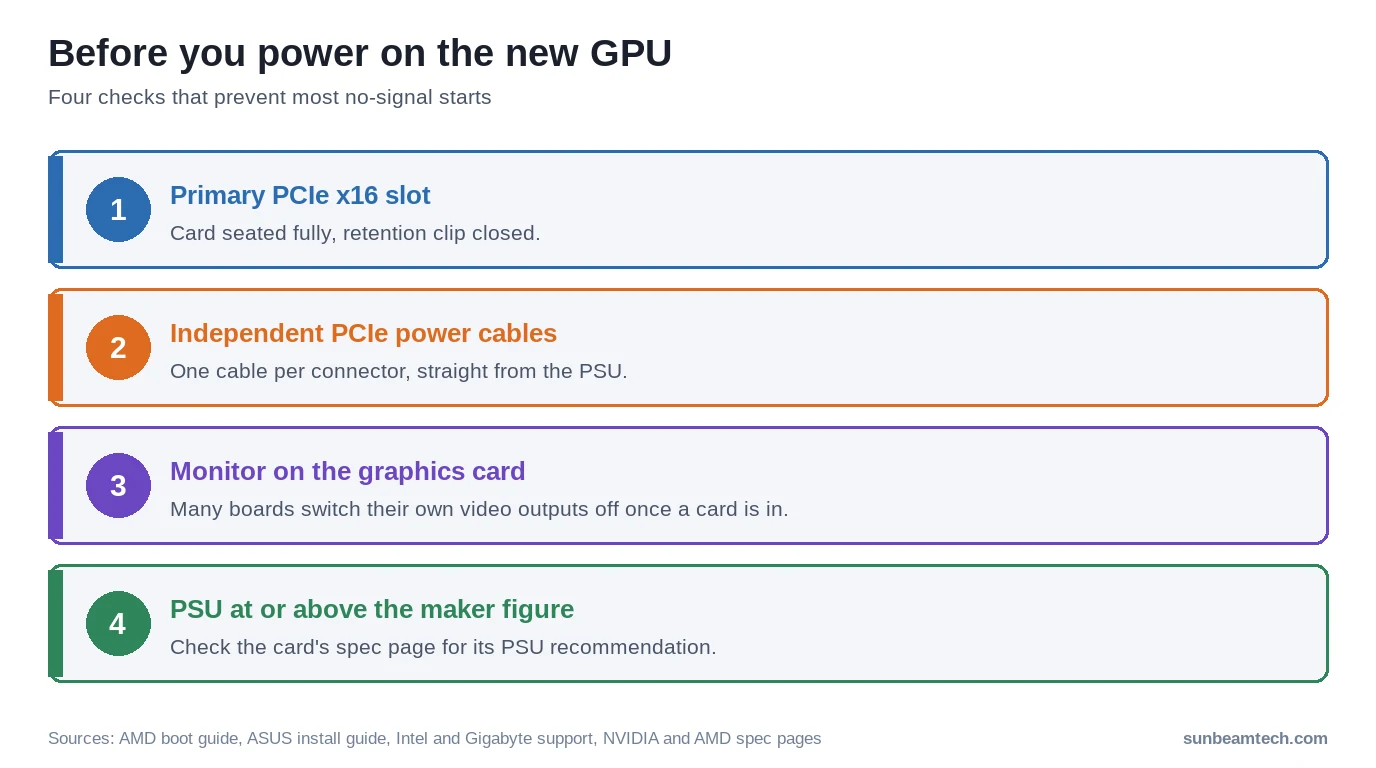
That click matters. A lot. If you don’t seat it fully, you’ll either get no display output or the system won’t POST at all. No display after install? This is the first thing to check.
If the card won’t go in, don’t lean on it. Check that the slot covers from Step 2 are out, that the slot’s latch is open, and that the card’s metal bracket drops into the gap between the motherboard and the case. It shouldn’t hit the board.
Step 4, Secure the GPU to the Case Bracket
Take the screws you removed in Step 2 and drive them into the GPU’s metal rear bracket, securing it to the case. Snug is enough. Don’t overtighten, you can crack the bracket or strip the screw holes. Two screws for most GPUs, sometimes one on very compact cards.
For large three-slot flagship cards, GPU sag is a real concern over time. A GPU sag bracket supports the card from below and prevents stress on the PCIe slot. Not critical on day one, but worth adding if you’re running something heavy like an RTX 5090.
Step 5, Connect the PCIe Power Cables
Your card’s spec page or manual lists the power connectors it needs; the table above only covers wattage. Plug in the PCIe power cables from your PSU. On a modular PSU, grab the cables labeled PCIe or VGA. On a non-modular unit, they’re already attached.
If your PSU doesn’t have the plug your card needs, use the adapter from the box, if the card came with one. Each 8-pin plug on that adapter needs its own cable from the PSU: for the RTX 5090, NVIDIA lists four PCIe 8-pin cables to the adapter, or one 600 W PCIe Gen 5 cable. On a 16-pin card, check that the plug is still fully in once the cable is routed.
On cards with more than one 8-pin connector, run a separate PCIe cable from the PSU to each connector instead of using both plugs on one daisy-chained cable. AMD’s boot troubleshooting guide asks for the graphics card to be connected “using independent cables directly from the power supply.”
Step 6, Close the Case and Reconnect
Route your cables away from fans before replacing the side panel. A little cable management now saves airflow problems later, if you want to go deeper on this, the PC cable management guide covers routing techniques for GPU power cables specifically.
Replace the side panel and reconnect your monitor. This is where beginners trip up: plug the monitor cable into the GPU’s output ports on the rear of the case, not the motherboard’s display outputs. On many systems the motherboard outputs go dark once a graphics card is in. It’s the default on Intel UHD Graphics 630 systems, and Gigabyte’s B550 Aorus Elite AX, for one, does it with Integrated Graphics set to Auto. If you get no signal, this is the first thing to check.
First Boot After GPU Installation
What to Expect on First Boot
Your system will likely boot at low resolution with a generic display driver. That’s normal. Windows detects new hardware and loads a basic driver automatically. Before installing GPU-specific drivers, it’s worth going into BIOS first to confirm the card is recognized under PCIe or display settings.
If you were previously using integrated graphics (iGPU) from a CPU like a Ryzen 8000G or Intel Core Ultra 200 with integrated graphics, head into BIOS and set Primary Display to PCIe or PEG. Some boards will automatically prioritize the discrete GPU, but not all do.
Install GPU Drivers
Download and install the driver package for your card:
- NVIDIA: GeForce Game Ready or Studio Driver from nvidia.com/drivers
- AMD: Adrenalin Software from amd.com/support
- Intel Arc: Intel Graphics Software, installed with the Intel graphics driver. Intel’s Graphics Software FAQ says Arc Control is end of life and new updates only come through Intel Graphics Software.
In the NVIDIA installer, choose Custom (Advanced) and tick Perform a clean installation. That resets NVIDIA’s driver settings and profiles; it isn’t a full clean-out like DDU. AMD’s installer has Factory Reset under Additional Options: it removes every earlier version of AMD Software first, and you can’t roll back to the old driver afterwards. Restart when the install is done.
Verify the GPU Is Working
Open Device Manager (right-click Start, select Device Manager), expand Display Adapters, and confirm your GPU is listed by name without a yellow warning triangle. If it shows as “Microsoft Basic Display Adapter,” Windows is running the card on its own basic driver. Install the driver from the card’s maker again, and if that keeps failing, clear the old one with DDU first.
For a deeper check, download GPU-Z (free). Its Bus Interface field shows the PCIe link as two values, for example PCIe x16 4.0 @ x16 4.0. The first is what the card supports, the second what it’s using right now. Click the ? next to that field to start a render test, so you read the link the card uses in a game rather than at idle.
Fewer lanes in the second value than in the first (x4 on an x16 card, say) means the card is held back. Nixxes lists three causes for a slow link: the wrong slot, a PCIe speed setting in the BIOS, or M.2 drives sharing lanes with the slot. Some cards only have eight lanes to begin with, like the RTX 4060 and RX 7600, so x8 is normal on those.
Run a game or a quick benchmark to confirm real-world performance is where it should be. Keeping an eye on temperatures after the install is smart too, knowing your normal GPU temperature ranges while gaming helps you catch any cooling issues early.
Troubleshooting: GPU Not Working After Install
| Problem | Likely cause | Fix |
|---|---|---|
| No display output | Monitor plugged into motherboard port | Move cable to GPU output ports |
| No display output | GPU not fully seated in slot | Reseat GPU, confirm retention clip clicked |
| System won’t POST | PCIe power missing, or the card isn’t fully in the slot | Give each power connector its own cable from the PSU and reseat the card; then compare your PSU with the maker’s figure above |
| GPU not in Device Manager | Windows doesn’t see the new card | Reseat the card and its power cables, and check that the BIOS sees it. Faded entries under View > Show hidden devices are old hardware |
| Listed as Microsoft Basic Display Adapter | No driver from the card’s maker loaded | Install the NVIDIA, AMD or Intel driver for the card |
| Low FPS, GPU-Z shows a slower link than the card supports | Wrong slot, a BIOS PCIe setting or M.2 drives sharing lanes | Use the primary x16 slot, check the PCIe setting in the BIOS and the board manual’s lane sharing table |
| GPU fans not spinning at idle | Normal semi-passive cooling behavior | Fans spin up under load, no action needed |
FAQ: How to Install a GPU
Do I need to uninstall old GPU drivers before installing a new GPU?
Not always. DDU’s maker built it for cases where a normal uninstall fails or the old driver has to go completely. Switching brands (NVIDIA to AMD or back) is where a full clean-out makes the most sense, because the old maker’s driver does nothing for the new card. If you do it, run DDU in Safe Mode with the old card still in, choose Clean and shutdown, then swap the card and install the new driver.
Does it matter which PCIe slot I use for my GPU?
Yes. Always install your GPU in the primary PCIe x16 slot, which is the longest slot positioned closest to the CPU. Secondary slots typically run at x8 or x4 bandwidth, which can reduce performance in GPU-heavy tasks. The only reason to use a secondary slot is if your primary slot is physically blocked by a large CPU cooler or other component.
How do I know if my PSU can handle my new GPU?
Start with the card maker’s figure: NVIDIA lists a Required System Power and AMD a Minimum PSU Recommendation on every card’s spec page. NVIDIA lists 850W for the RTX 5080 and RTX 4090 and 1000W for the RTX 5090; AMD lists 750W for the RX 9070 XT. NVIDIA bases its figure on a PC with a Ryzen 9 processor and says power requirements can differ by system configuration, so check your exact card’s spec page as well.
Why is there no signal after I installed the GPU?
Check the monitor cable first: it belongs in one of the GPU’s ports, not the motherboard’s video output, because on many systems those outputs go dark once a graphics card is installed. Make sure the monitor is set to the input you plugged into. Then check that the GPU is fully seated and the retention clip has clicked, and that each power connector has its own cable from the PSU.
How long does it take to install a GPU?
The physical installation takes 10–20 minutes for most people. Add another 15–20 minutes for driver download, installation, and restarting, and you’re looking at 30–45 minutes total from start to gaming. If you’re also running DDU to remove old drivers first, budget 45–60 minutes to be comfortable.

Alex has been building and tweaking custom PCs for over 12 years. From budget builds to full custom water loops, he’s assembled more than 50 systems and helped hundreds of builders troubleshoot their rigs. When he’s not benchmarking the latest hardware, you’ll find him optimizing airflow setups or stress-testing overclocks.