USB Header Splitters and Adapters: Add More Ports
A USB header splitter turns one motherboard header into more sockets. A plain Y-cable just doubles the wires; only one with a hub chip adds working data ports.
Last updated: October 2026
Table of Contents
- Quick Answer: What Is a USB Header Splitter?
- What Is a USB Header Splitter (And How Does It Work)?
- The Physical Connection Explained
- Passive vs. Active Splitters: What’s the Difference?
- USB Header Types and Compatibility: Know Before You Buy
- USB 2.0 Headers (9-Pin)
- USB 3.2 Gen 1 Headers (19-Pin)
- USB 3.2 Gen 2 Headers (20-Pin, Type-C Variant)
- USB Header Adapter Types: Bridging the Generation Gap
- USB 2.0 to USB 3.2 Gen 1 Header Adapters
- USB 3.2 Gen 1 to USB 3.2 Gen 2 Header Adapters
- Can You Split a USB Header? Bandwidth and Power Limits Explained
- Yes, But There Are Hard Limits
- Bandwidth Sharing Math
- Power Budget: The Number Most Guides Skip
- When to Skip the Splitter: Better Alternatives
- PCIe USB Expansion Cards
- USB-A Hub via Rear I/O
- Upgrading the Motherboard
- Top USB Header Splitter Picks by Use Case
- How to Install a USB Header Splitter
- Step-by-Step Installation
- FAQ: USB Header Splitters
- Can I split a USB header?
- How many times can you split a USB header?
- Will a USB header splitter slow down my devices?
- Is a USB 2.0 to USB 3.2 Gen 1 header adapter worth buying?
- Do USB header splitters work with all motherboards?
- What You Should Do
Quick Answer: What Is a USB Header Splitter?
A USB header splitter plugs into one of your motherboard’s internal USB headers (either a 9-pin USB 2.0 or 19-pin USB 3.2 Gen 1 connector) and outputs two or more identical sockets. The idea is to connect more front-panel ports or internal controllers without extra headers on the board. Whether that works depends on what’s inside.
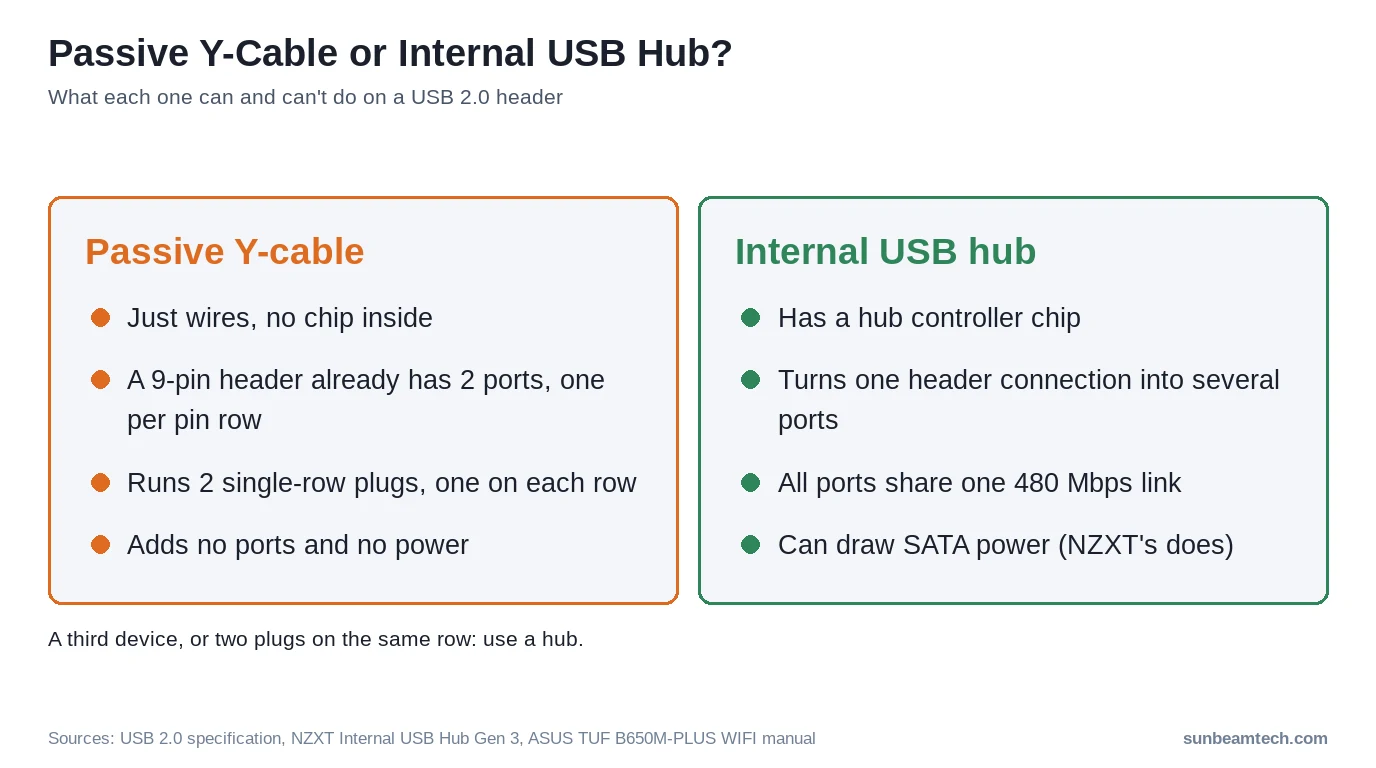
A passive Y-cable has no chip, so its sockets sit on the same two USB ports the header already had: they share power, but USB data links are point-to-point, so each port still runs one device. An internal hub with a controller chip is what really turns one header into more data ports, with every device behind it sharing the header’s bandwidth.
You just finished wiring up your new mid-tower and you’re already one USB header short. The front panel has a USB 3.0 cable, an RGB controller cable, and a fan hub cable, but your motherboard only has two USB 2.0 headers and one Gen 1 header. It’s a frustrating and increasingly common situation. Modern cases ship with two or three internal USB connections, but even current mid-range boards from AMD and Intel often don’t have enough headers to match. This guide covers every type of splitter and adapter available, what the bandwidth and power limits actually mean in practice, and when buying a splitter is the wrong call entirely.
What Is a USB Header Splitter (And How Does It Work)?
The Physical Connection Explained
USB headers on motherboards come in two main physical formats. The USB 2.0 header uses a 9-pin layout (a 2×5 grid with one pin position left empty as a key to prevent reversed insertion). Each 9-pin header supports two USB ports. The USB 3.2 Gen 1 header uses a 19-pin layout (a 2×10 block with one position removed as a key) and also supports two ports but at much higher speeds. USB 3.2 Gen 2 for front-panel USB-C uses an entirely different 20-pin Type-E connector that is not physically interchangeable with the Gen 1 header. That last detail matters a lot, and we’ll get to why in a later section.
A splitter cable takes the male plug that fits one of those headers and adds a second (or third) female socket on the output end. You connect the splitter to the motherboard header, then plug your devices into the splitter outputs. No driver installation, no configuration. Just hardware.
Passive vs. Active Splitters: What’s the Difference?
Most cheap splitters you’ll find online are passive. There’s no controller chip inside, just wires: every output socket connects to the same pins on the header. That’s fine for sharing the 5V line, but USB data doesn’t work that way. The USB 2.0 specification describes each wire segment as “a point-to-point connection” and says “only hubs have the ability to provide additional USB attachment points.” Two devices on the same port’s data lines isn’t something USB supports, so don’t count on more than one of them working.
One exception is built into the header itself. A 9-pin USB 2.0 header already carries two ports, one per pin row, so a Y-cable can run two devices that each use a single-row plug (common on RGB controllers and AIO pumps), as long as they land on different rows. A third device, or two on the same row, won’t work.
An active splitter is really an internal USB hub with a controller chip. NZXT’s Internal USB Hub, for example, has “4 internal USB 2.0 ports and 1 port for connection to motherboard” and runs off a SATA power cable.
| Feature | Passive Splitter | Active Hub Splitter |
|---|---|---|
| Onboard controller chip | No | Yes (USB hub controller) |
| SATA power required | No | Depends on the model |
| Bandwidth sharing | None: extra sockets sit on the same port | Devices share the hub’s upstream link |
| Max devices recommended | One data device per header port | As many as the hub has ports |
| Typical price range | $5–$10 | $11–$25 |
| Best use case | Two single-row devices on one 9-pin header, one per row; no extra ports | Several internal USB devices |
The key distinction: a passive splitter adds sockets, not ports. Your header still has the same two USB ports it started with. A hub adds real ports, and every device behind it shares the bandwidth of the single connection it plugs into. Worth knowing before you buy.
USB Header Types and Compatibility: Know Before You Buy
Understanding which header type you’re working with determines which splitter or adapter will actually work in your system. For a deeper look at how these headers are wired and what each pin does, the guide on USB 2.0 vs 3.0 vs 3.2 headers covers the full electrical differences.
USB 2.0 Headers (9-Pin)
- Transfer speed: Up to 480 Mbps theoretical; real-world throughput is roughly 40 MB/s
- Power per port: Up to 500 mA (0.5A) per the USB 2.0 specification; the header’s total shared budget is typically 1A
- Common use cases: RGB hub controllers, internal Bluetooth adapters, front-panel USB-A ports for keyboards and mice
- Pin layout: VCC, D−, D+, GND (two sets for two ports) plus one keyed (missing) pin
USB 3.2 Gen 1 Headers (19-Pin)
- Transfer speed: Up to 5 Gbps
- Power per port: Up to 900 mA per the USB 3.2 specification
- Backward compatibility: Accepts USB 3.0 and USB 2.0 devices without issue
- Pin layout: 2×10 block with one position removed as a key, 19 populated pins
USB 3.2 Gen 2 Headers (20-Pin, Type-C Variant)
- Transfer speed: Up to 10 Gbps
- Physical footprint: A distinct 20-pin Type-E connector, different in shape and keying from the Gen 1 19-pin header, not a simple pin-for-pin match
- Primary use case: Front-panel USB-C ports on modern cases
That last bullet is the expensive mistake builders make. A Gen 1 header and a Gen 2 Type-C header use different, non-interchangeable connectors, not a same-size swap. A dedicated 20-pin to 19-pin header adapter can bridge them, but it doesn’t upgrade anything. You get Gen 1 speeds at best, or a non-functional port at worst. Not great.
USB Header Adapter Types: Bridging the Generation Gap
USB 2.0 to USB 3.2 Gen 1 Header Adapters
This adapter solves a specific problem: your case came with a USB 3.0 (Gen 1) front-panel cable using a 19-pin connector, but your motherboard only has USB 2.0 9-pin headers available. The adapter is a bridge cable that physically converts the 19-pin plug to a 9-pin connection.
There’s a hard caveat here. The adapter doesn’t upgrade the signal. Your front-panel USB-A port will operate at USB 2.0 speeds, capped at 480 Mbps. That’s fine for flash drives, input devices, and controllers. It’s not acceptable for an external SSD or anything else that benefits from Gen 1’s 5 Gbps. Brands like Sintech and NFHK make reliable versions in the $6–$14 range.
When is it acceptable? Connecting a keyboard, mouse, or USB headset through a front panel port running at USB 2.0 speeds is completely invisible in real-world use. You won’t notice. Connecting a high-speed storage drive? You will notice immediately.
USB 3.2 Gen 1 to USB 3.2 Gen 2 Header Adapters
This is the scenario that trips up even experienced builders. You have a new case with a USB 3.2 Gen 2 front-panel USB-C cable, and your motherboard only has a Gen 1 header. A dedicated 20-pin to 19-pin header adapter (20-pin to 19-pin, not a generic same-pin-count cable) will physically fit, but your USB-C port will run at Gen 1 speeds (5 Gbps, not 10 Gbps).
A USB 3.x port is rated for up to 900 mA at 5V, which makes power delivery the secondary concern when chaining adapters. Speed is the primary one. To get true 10 Gbps on a front-panel USB-C port when your motherboard lacks a Gen 2 header, you need a PCIe add-in card with a dedicated Gen 2 header. No passive adapter will change that.
| Adapter Direction | Physical Fit | Actual Speed | Recommended? |
|---|---|---|---|
| USB 2.0 header → Gen 1 cable | Yes (with adapter) | 480 Mbps | Only for low-speed devices |
| Gen 1 header → Gen 2 cable | Yes (with adapter) | 5 Gbps max | Acceptable with caveats |
| Gen 2 header → Gen 1 cable | Yes (with adapter) | 5 Gbps (no downside) | Yes |
| No header → PCIe expansion card | N/A | Up to 10+ Gbps | Best for full speed |
Can You Split a USB Header? Bandwidth and Power Limits Explained
Yes, But There Are Hard Limits
Yes, but only a hub really splits it. A passive Y-cable gives you extra sockets, not extra data ports, so each port on the header still runs one USB device. An internal hub gives you as many ports as it has (four on NZXT’s), and from there bandwidth and power are the real constraints.
Bandwidth Sharing Math
Think of it like a pipe. The pipe doesn’t get wider when you add a hub. Every device behind an internal hub shares the one link that hub has to the motherboard. A passive splitter doesn’t even get you a second pipe. It just puts two taps on the same one, and USB doesn’t support two devices on one port.
- USB 2.0 header, passive splitter: still two ports at up to 480 Mbps each, one device per port
- USB 2.0 header, internal hub: every device behind the hub shares one 480 Mbps upstream link
- USB 3.2 Gen 1 header, passive splitter: still two ports at up to 5 Gbps each, one device per port
- USB 3.2 Gen 1 header, USB 3.x hub: every device behind the hub shares one 5 Gbps upstream link
In practice, internal devices like RGB controllers and Bluetooth adapters move very little data. Sharing only matters when you’re transferring files through several front-panel ports at the same time.
Power Budget: The Number Most Guides Skip
Bandwidth gets most of the attention. Power is the limit people forget.
- USB 2.0 header per-port power: Up to 500 mA per port (five 100 mA unit loads in the USB 2.0 specification), so 1A across the header’s two ports
- USB 3.2 Gen 1 header per-port power: Up to 900 mA (six 150 mA unit loads) per the USB 3.2 specification published by USB-IF
- Hubs with SATA power: The hub has its own power feed from the PSU, so you’re not relying on the header alone
The rule of thumb: a passive splitter adds no power. Each device still draws from one of the header’s two ports, rated 500 mA each on USB 2.0 or 900 mA on USB 3.x. If you’re connecting anything that charges a phone or powers a device, use a hub with SATA power. Not worth gambling on.
When to Skip the Splitter: Better Alternatives
PCIe USB Expansion Cards
A PCIe x1 USB expansion card adds dedicated internal headers that pull bandwidth directly from the PCIe bus. No shared allocation from existing motherboard headers. Cards using a chipset like the ASMedia ASM3142 provide genuine Gen 2 headers at 10 Gbps (VIA’s VL805/VL806 controllers are USB 3.0/Gen 1 parts, capped at 5 Gbps, so check the chipset before buying if you need the full 10 Gbps). Prices run $20–$45, which sounds expensive until you consider you’re getting multiple new headers with full, unshared bandwidth. If you need more than two additional header connections, or need true Gen 2 speeds, this is the right answer. Full stop.
USB-A Hub via Rear I/O
For external peripherals like keyboards, mice, game controllers, and headsets: a powered USB hub plugged into your rear I/O panel is cleaner and more reliable than splitting internal headers. The rear I/O ports have their own direct controller connections. You free up internal headers for front-panel ports and internal controllers where having a physical cable run to the back of the PC isn’t practical.
Upgrading the Motherboard
If your build needs two or more additional USB 3.2 Gen 2 or USB4 headers, you’re better off shopping for a new motherboard. Stacking adapters and splitters to approximate hardware you don’t have is both unreliable and more expensive in aggregate than a mid-cycle motherboard upgrade on the same platform. Understanding what’s actually on your board before you buy is half the battle. The guide on USB headers on a motherboard breaks down exactly what to look for in your board’s spec sheet.
Top USB Header Splitter Picks by Use Case
| Use Case | Product Type | Connector Type | Power Source | Approx. Price |
|---|---|---|---|---|
| Adding a second RGB or fan hub | Passive Y-cable if the header’s second port is free, otherwise an internal USB 2.0 hub | 9-pin USB 2.0 in | Header (hub: SATA + header) | Varies by model |
| Connecting 4 USB 2.0 devices internally | Active 4-port USB 2.0 hub with SATA power | 9-pin USB 2.0 in | SATA + header | $11–$16 |
| Case with USB 3.0 cable, no Gen 1 header | USB 2.0 to USB 3.2 Gen 1 adapter | 9-pin → 19-pin | Header only | $6–$14 |
| Adding front USB-C without Gen 2 header | Gen 1-to-Gen 2 passive adapter | 19-pin → 20-pin | Header only | $8–$15 |
| Maximum ports, full speed | PCIe USB expansion card | PCIe x1 | PCIe slot | $20–$45 |
One practical note on the “Adding front USB-C” row: the passive Gen 1-to-Gen 2 adapter gets the cable connected, but the port runs at 5 Gbps. If that’s acceptable for your use case, the $8–$15 adapter is fine. If you actually need 10 Gbps throughput on that front USB-C port, budget for the PCIe card instead.
How to Install a USB Header Splitter
Step-by-Step Installation
- Power down your PC completely and unplug the power cable from the wall.
- Open your motherboard manual and locate the USB header you’re targeting. Headers are labeled on the PCB itself and in the manual (common labels: USB2_1, USB2_2, USB3_1).
- For a 9-pin USB 2.0 header: identify the keyed position (the one missing pin in the 2×5 grid). For a 19-pin Gen 1 header: locate the notch on the plastic shroud of the connector.
- Align the splitter’s male plug with the key or notch and press firmly and evenly until the connector seats fully. You’ll feel a slight resistance, then a solid stop. Don’t force it at an angle.
- Connect your devices (fan controller, front-panel cable, RGB hub) to the female outputs on the splitter.
- If you’re using an active hub that requires SATA power, route the SATA cable from a spare connector on your PSU and plug it in before you power on.
- Boot the system. Passive splitters need no driver installation. Active hubs may trigger a brief Windows hardware detection, after which they install automatically.
One hard warning: reversing a USB 2.0 header connector doesn’t just cause the port to not work. It can damage connected devices or the motherboard controller. The keyed pin exists precisely to prevent this. If your splitter plug doesn’t have a key pin hole (some cheaper cables omit it), double-check pin 1 orientation against your motherboard manual before pressing down. Motherboard manuals from Intel, AMD, and their board partners mark pin 1 clearly on header diagrams.
For keeping the splitter and its associated cables tidy inside your case, the approach outlined in a solid PC cable management guide applies here too. A short splitter cable that’s zip-tied and routed neatly along the motherboard tray looks far better than a loose cable flopping across your components.
FAQ: USB Header Splitters
Can I split a USB header?
Yes, but a passive Y-cable only splits the wiring. Its sockets sit on the same two USB ports the header already had, and USB data links are point-to-point, so each port still runs one device. To get more working devices from one header, use an internal USB hub. NZXT’s, for example, turns one motherboard connection into four USB 2.0 ports and runs off SATA power.
How many times can you split a USB header?
With a passive splitter, not in the way that counts: you get more sockets, but still one data device per header port (two on a 9-pin USB 2.0 header, one per row). With an internal hub you get as many ports as the hub has, and total bandwidth stays capped at the link it plugs into (480 Mbps for USB 2.0, 5 Gbps for USB 3.2 Gen 1). Power is the other cap. A port is rated for 500 mA (USB 2.0) or 900 mA (USB 3.x), so for several devices pick a hub with SATA power.
Will a USB header splitter slow down my devices?
A hub can, when devices are busy at the same time: everything behind it shares one upstream link, 480 Mbps on USB 2.0. For keyboards, mice, or RGB controllers you won’t notice. For storage devices doing sustained transfers at the same time, you will. A passive splitter is a different problem. It doesn’t slow a second device down, it just can’t give it its own data connection on a port that’s already in use.
Is a USB 2.0 to USB 3.2 Gen 1 header adapter worth buying?
Only if you need to connect a USB 3.0 front-panel cable and have no Gen 1 header available on your board. The port will work, but it’ll operate at USB 2.0 speeds (480 Mbps). For low-speed peripherals, that’s perfectly acceptable. For anything that benefits from 5 Gbps throughput, a PCIe USB expansion card is a better long-term solution.
Do USB header splitters work with all motherboards?
They’ll fit, as long as the connector type matches. USB 2.0 9-pin splitters are physically compatible with virtually all ATX, mATX, and ITX boards from both Intel and AMD platforms going back to the early 2000s. USB 3.2 Gen 1 19-pin splitters fit modern motherboards from all major manufacturers. The only compatibility issue arises when confusing the Gen 1 19-pin header with the Gen 2 Type-C 20-pin header, which use different connectors despite the similar naming.
What You Should Do
Start with the simplest solution that fits your situation. Adding a second RGB controller or fan hub that needs a USB data connection? If both use a single-row plug and the header’s second port is free, a passive Y-cable does it; otherwise use an internal USB hub. Connecting several internal devices or anything that draws power? Go with a hub that has SATA power.
Got a Gen 1/Gen 2 generation mismatch between your case and motherboard? Use the appropriate adapter with realistic speed expectations. Need full 10 Gbps throughput on a front-panel USB-C port and your board doesn’t have a Gen 2 header? Skip the adapter stack and budget $20–$45 for a PCIe expansion card. Matching the right solution to the actual problem saves you from buying adapters twice.

Alex has been building and tweaking custom PCs for over 12 years. From budget builds to full custom water loops, he’s assembled more than 50 systems and helped hundreds of builders troubleshoot their rigs. When he’s not benchmarking the latest hardware, you’ll find him optimizing airflow setups or stress-testing overclocks.