RGB Header on Motherboard: Types Pinouts and How to Connect
An RGB header on a motherboard is a dedicated connector that powers and controls LED lighting on PC components, available as a 4-pin 12V standard RGB header or a 3-pin 5V ARGB addressable header.
Last updated: October 2026
Table of Contents
- What Is an RGB Header on a Motherboard?
- The Basic Function
- Where to Find the RGB Header on Your Motherboard
- The Two Types of RGB Headers Explained
- 4-Pin 12V RGB Header (Standard RGB)
- 3-Pin 5V ARGB Header (Addressable RGB)
- ARGB vs RGB: Side-by-Side Comparison
- Brand-Specific RGB Header Names (ASUS, MSI, Gigabyte, ASRock)
- RGB Headers vs Fan Headers: Key Differences
- 3-Pin Fan Connector vs 3-Pin ARGB Header
- 4-Pin Fan Connector vs 4-Pin RGB Header
- How to Connect RGB to Your Motherboard (Step-by-Step)
- Before You Start: What You’ll Need
- Step 1: Identify Your Component’s Connector Type
- Step 2: Locate the Correct Header on the Motherboard
- Step 3: Connect the RGB Cable
- Step 4: Configure in Software
- Expanding Your RGB Headers: Splitters, Hubs, and Daisy-Chaining
- RGB and ARGB Splitter Cables
- RGB and ARGB Controller Hubs
- What to Do If Your Motherboard Has No RGB Header
- Troubleshooting RGB Header Problems
- RGB LEDs Not Lighting Up At All
- RGB LEDs Showing Wrong Colors
- RGB Works But Won’t Sync With Software
- RGB Header Physically Damaged or Missing
- FAQ: RGB Headers on Motherboards
- What is the RGB header on the motherboard for?
- How do I find the RGB header on my motherboard?
- Which header do I use for RGB fans?
- Can I plug an ARGB device into an RGB header?
- What if I have more RGB devices than headers?
- Final Thoughts
Two connectors. One wrong plug. That’s all it takes to fry the LEDs on a brand-new fan or strip. Motherboard RGB headers look deceptively similar to each other and to fan headers, and that’s exactly where most builders run into trouble. The 4-pin 12V RGB header and the 3-pin 5V ARGB header carry different voltages and speak completely different electrical languages. Plug the wrong thing into the wrong header and the strip can be damaged for good.
This guide covers every RGB header type you’ll find on a modern motherboard, exact pinouts, brand-specific label names (because ASUS, MSI, Gigabyte, and ASRock all call them something different), how to connect your rgb cable correctly step by step, and what to do when your setup has more RGB devices than headers.
- 🟢 4-pin 12V RGB into 12V RGB header, safe
- 🟢 3-pin 5V ARGB into 5V ARGB header, safe
- 🟡 Using a splitter on one header for two devices, safe if total current is within spec
- 🟡 Budget boards may only have one header type, check before buying components
- 🔴 5V ARGB device into a 12V RGB header, permanent LED damage
- 🔴 12V RGB plug the wrong way round: the header has no key, so line up the arrow on the plug with the 12V mark
- 🔴 RGB/ARGB connector into a fan header, wrong voltage, wrong signal
- 🔴 Forcing a connector that doesn’t seat easily, always re-check orientation first
What Is an RGB Header on a Motherboard?
The Basic Function
An RGB header isn’t just a power connector. It does two things at once: it supplies voltage to your LED components and carries a control signal that tells those LEDs what color or pattern to display. That’s what separates it from a generic power header. The control side is what lets your motherboard software sync lighting across fans, strips, and coolers from a single interface.
Where to Find the RGB Header on Your Motherboard
On most ATX boards, RGB and ARGB headers sit along the bottom edge or right edge of the PCB, grouped near the front panel headers and USB internal connectors. That said, placement varies. The fastest way to find them is the motherboard manual’s board layout diagram. Every manual has a numbered component map. Search for “RGB” or “LED” in the PDF to jump straight to the relevant section.
The secondary method is the silkscreen text on the PCB itself. Look for small white text printed next to the header, such as JRGB1, LED_C1 or ADD_GEN2. The manual is always the definitive source.
The Two Types of RGB Headers Explained
4-Pin 12V RGB Header (Standard RGB)
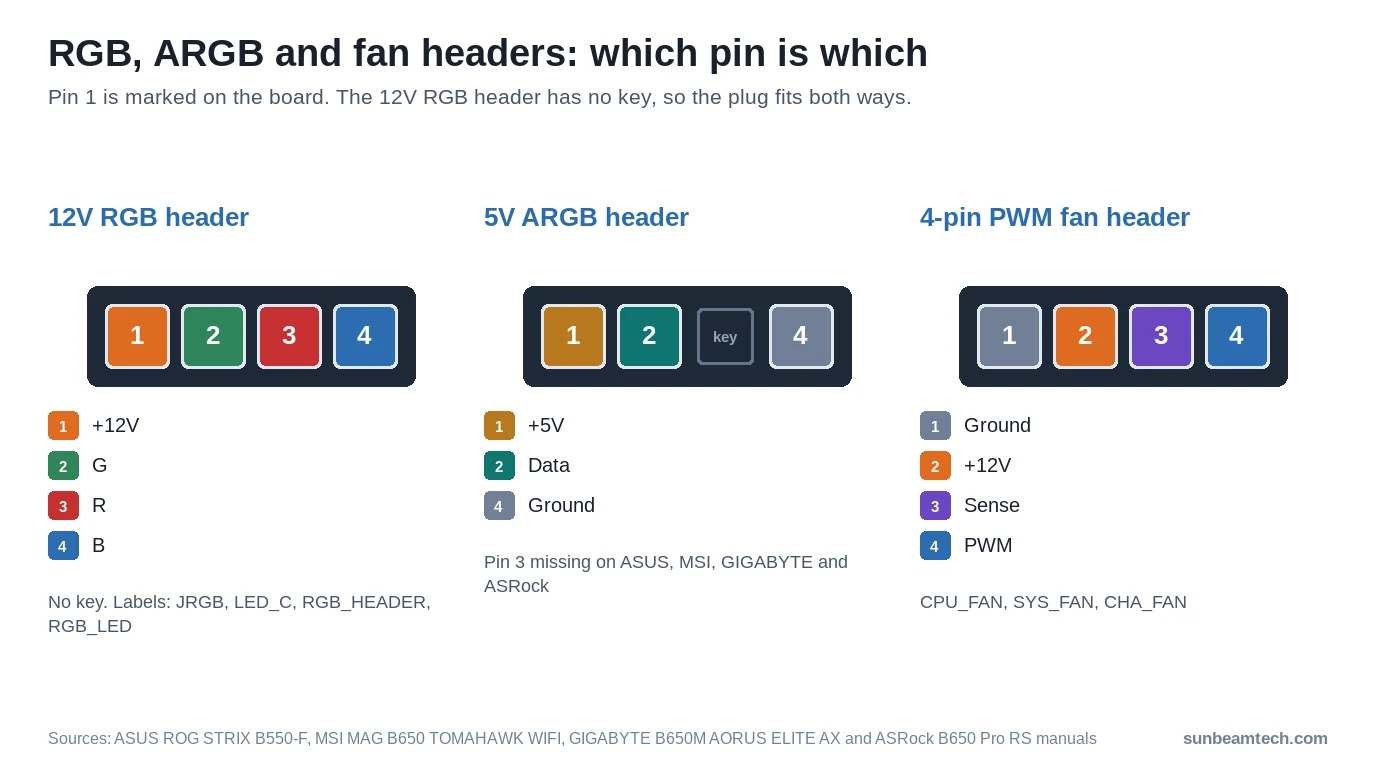
This is the older standard. The pinout goes: Pin 1 = +12V, Pin 2 = Green (G), Pin 3 = Red (R), Pin 4 = Blue (B). ASUS, MSI, GIGABYTE and ASRock all use that order in their manuals. The +12V line feeds every LED, and the board controls the G, R and B lines to mix colors, similar to how a dimmable light fixture works.
The result: every LED connected to this header changes together. Same color, same brightness, same effect across the entire chain. You can’t tell one LED to go red while another goes blue. That’s the fundamental limitation of standard RGB.
Operating voltage is 12V DC. ASUS, MSI and ASRock rate their 12V RGB headers at 3A, GIGABYTE at 2A, which works out to 24 to 36W per header. MSI, GIGABYTE and ASRock also cap the strip at 2 meters per header. Check your strip’s spec sheet before daisy-chaining.
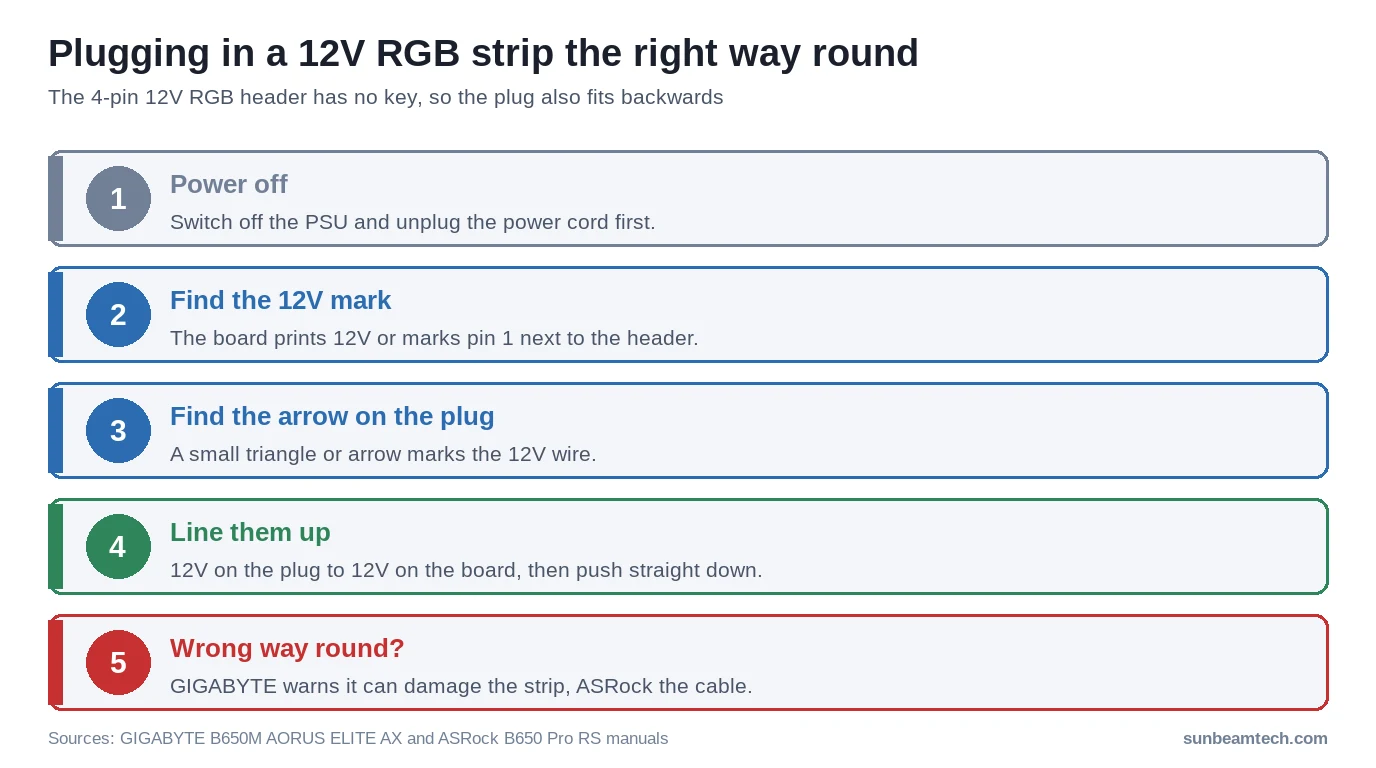
Physical keying: there isn’t any. The 12V RGB header is four bare pins with no blocked position, so the plug fits both ways round. Turned around, the strip’s 12V wire lands on the blue pin, and GIGABYTE warns that a wrong orientation can damage the strip, ASRock that it can damage the cable. The plug has a small arrow or triangle on the 12V wire: line it up with the “12V” or pin 1 mark next to the header.
3-Pin 5V ARGB Header (Addressable RGB)
This is the current standard for modern builds. It uses three wires: 5V, Data and Ground. On ASUS, MSI, GIGABYTE and ASRock boards the header is four positions wide with pin 3 missing (pin 1 = 5V, pin 2 = Data, pin 4 = Ground), even where the manual calls it a 3-pin header. There’s no separate R, G, B channel. Instead, a single data wire carries a serial digital signal that individually addresses every LED in the chain.
The LED ICs used in ARGB components are most commonly WS2812B or SK6812. Each of these LEDs has a small driver chip built into the package that latches its own color data and passes the rest down the chain. The data signal tells each chip exactly what red, green, and blue intensity to display at any given moment. That’s how you get a rainbow wave across a fan ring where every LED is a different color simultaneously.
Operating voltage is 5V DC. ASUS and MSI rate each ARGB header at 3A (15W) and GIGABYTE at 5A; ASRock’s B650 Pro RS allows 3A (15W) in total across its three ARGB headers. The LED limit varies a lot by board: 60 on an ASUS ROG STRIX X570-I, 75 on MSI’s older JRAINBOW headers, 120 on several ASUS X570 boards, 240 on MSI’s JARGB_V2, 500 combined on an ASUS ROG STRIX B550-F and 1,000 on GIGABYTE’s D_LED headers. Your manual gives the number for your board.
Corsair’s ARGB vs RGB explainer sums up the difference: ARGB components carry an IC that gives full programmable control, and every LED can be addressed individually. Standard RGB can’t do that.
The gap sits at pin 3, so the plug only fits one way on a four-wide ARGB header. Don’t treat the fit as proof you’ve got the right header, though. MSI’s manual warns that a 5V ARGB strip connected to its 12V RGB header gets damaged, so read the label before you plug in.
ARGB vs RGB: Side-by-Side Comparison
| Feature | 4-Pin 12V RGB | 3-Pin 5V ARGB |
|---|---|---|
| Voltage | 12V | 5V |
| Pin Count | 4 (no key) | 3 (pin 3 empty on most boards) |
| LED Addressing | Synchronized (all same color) | Individual per LED |
| Color Control Method | 3-channel analog (R, G, B) | Single-wire digital data signal |
| Max Colors Per LED | One color at a time for all LEDs | 16.8M per individual LED |
| Effects Support | Limited (static, slow cycle) | Full dynamic (rainbow, reactive, music) |
| LED IC Standard | No IC (common-anode 5050 LEDs) | WS2812B / SK6812 |
| Max Recommended LEDs | 2 to 3A at 12V, strips up to 2 m (3 m on some ASUS boards) | 60 to 1,000 LEDs, per manual |
| Compatibility Risk | 5V device in 12V header = destroyed | 12V device in 5V header = no function / damage |
| Typical Use | Older strips, budget fans | Modern fans, cases, cooler heads |
| Component Cost | Lower | Higher |
Brand-Specific RGB Header Names (ASUS, MSI, Gigabyte, ASRock)
This is where forum threads go sideways. Someone buys an MSI board and goes looking for the “ARGB header,” then can’t find it because older MSI boards call it JRAINBOW. Voltages and pin order match across brands, but current ratings, LED limits and the label printed on the PCB are up to the manufacturer. Here’s what each brand actually calls these headers:
| Motherboard Brand | 12V RGB Header Label | 5V ARGB Header Label |
|---|---|---|
| ASUS | RGB_HEADER | ADD_HEADER (older) or ADD_GEN2 |
| MSI | JRGB1 / JRGB2 | JRAINBOW1 / JRAINBOW2 (older), JARGB_V2 (newer) |
| Gigabyte | LED_C1 / LED_C2 | D_LED1 / D_LED2 |
| ASRock | RGB_LED | ADDR_LED |
Regardless of what the silkscreen says, the rule never changes: four wires means 12V RGB, three wires means 5V ARGB. The MSI MAG B650 TOMAHAWK WIFI manual shows both side by side: JRGB as +12V, G, R, B and JARGB_V2 as +5V, Data, no pin, Ground.
One thing to watch: budget boards from the B450, H410, and H510 era sometimes shipped with only one type of header. A board might have two JRGB (12V) headers and zero JRAINBOW (5V) ports, or vice versa. Always pull up the full spec sheet for your specific board model before purchasing RGB components. Don’t assume both types are present.
RGB Headers vs Fan Headers: Key Differences
This is the most common mistake new builders make. The headers look almost identical. A 3 pin fan connector and a 3-pin ARGB header are both small, three-pin connectors. A 4 pin fan connector and a 4-pin RGB header could pass for twins at a glance. They are not the same thing. Not even close in function.
3-Pin Fan Connector vs 3-Pin ARGB Header
A 3 pin fan connector carries three signals: 12V power for the fan motor, ground, and a tachometer signal that reports fan RPM back to the motherboard. The voltage is 12V and the header is labeled SYS_FAN, CHA_FAN, or similar.
A 3-pin ARGB header carries 5V power, a digital data signal, and ground. It has nothing to do with motor control. On most boards it’s four positions wide with pin 3 missing, while a fan header has no gap. The order matters too: a fan header puts +12V on pin 2, exactly where an ARGB plug expects its data line. You can also tell them apart by looking at the adjacent silkscreen, but in a dark case with a flashlight that’s not always easy.
Plugging a fan into an ARGB header won’t spin the fan. Plugging an ARGB component into a fan header risks incorrect voltage and signal damage. Neither direction is safe.
4-Pin Fan Connector vs 4-Pin RGB Header
A 4 pin fan connector (PWM) carries 12V, ground, a tachometer signal, and a PWM control signal for variable speed. These headers are labeled CPU_FAN, CPU_OPT, SYS_FAN, or CHA_FAN.
A 4-pin RGB header carries 12V plus the Green, Red, and Blue channel lines. No speed control. No tach. Completely different electrical purpose.
Both carry 12V, but on different pins: pin 1 on the RGB header, pin 2 on the fan header (Ground, +12V, Sense, PWM). And the RGB header has no key, so nothing physically stops a wrong plug. When in doubt, check the manual. Always.
One more thing worth knowing: most RGB fans have two separate connectors (single-cable systems such as Corsair iCUE LINK are the exception). A fan with RGB LEDs will have a 3-pin or 4-pin connector for the motor (goes to a fan header) AND a separate 3-pin ARGB or 4-pin RGB connector for the LEDs (goes to an RGB header). Both must be plugged in. Miss one and either the fan doesn’t spin or the lights don’t work.
How to Connect RGB to Your Motherboard (Step-by-Step)
Before You Start: What You’ll Need
- Your motherboard manual (download the PDF from the manufacturer’s support page if you don’t have the physical copy)
- The component you’re installing (fan, light strip, pump head, etc.)
- The product page or spec sheet for your RGB component confirming whether it’s 5V ARGB or 12V RGB
- System powered off, PSU switch set to off, and power cable unplugged
Anti-static precautions apply here the same as anywhere else in a build. Touch a metal part of the case before handling anything.
Step 1: Identify Your Component’s Connector Type
Count the wires going into the plug: three mean ARGB (5V), four mean standard RGB (12V). An ARGB plug is often four positions wide with one hole blocked, so count wires, not holes. Then cross-reference with the product documentation. If the spec sheet says 5V, it’s ARGB. If it says 12V, it’s standard RGB. Don’t guess.
Step 2: Locate the Correct Header on the Motherboard
Open the motherboard manual to the board layout page. Find the numbered component map and cross-reference it with the header name list. Using the brand name table from earlier, identify which header on your board matches the type your component needs.
Physically locate that header on the PCB. On most ATX boards you’ll find one set along the bottom edge and another in the top-right corner near the memory slots. On some boards, especially ITX, it may be on the right edge.
Step 3: Connect the RGB Cable
Find the small arrow or triangle on the rgb cable connector: it marks the power wire. For 12V RGB, that wire goes to the pin marked “12V” or pin 1 on the board. The header has no key, so the plug also fits the wrong way round; check twice. For 5V ARGB, the arrow goes to “5V”, and on a four-wide header the blocked hole in the plug lines up with the missing pin 3.
Press the connector straight down onto the header pins. It should seat with light, even pressure. Fully seated. If it’s resisting, stop. Re-check orientation. Don’t force it. Bent pins on a motherboard header are a painful problem to fix.
Step 4: Configure in Software
After booting into Windows, install your board’s RGB control software:
- ASUS: Aura Sync (in Armoury Crate)
- MSI: Mystic Light (in MSI Center)
- Gigabyte: RGB Fusion (in GIGABYTE Control Center)
- ASRock: Polychrome RGB (Polychrome SYNC)
Depending on the board, the LEDs light up as soon as the PC is on or only once Windows has loaded; ASUS manuals list both behaviours for different boards. If nothing lights up after Windows has loaded, troubleshoot the connection before blaming the software.
If your components aren’t from the same brand as your motherboard, or if you want unified control across mixed brands, OpenRGB is a free, open-source controller with broad hardware support. It replaces proprietary software and can drive the ARGB headers on supported boards, though you have to enter the LED count for each ARGB output yourself.
Expanding Your RGB Headers: Splitters, Hubs, and Daisy-Chaining
Most mid-range boards ship with one or two RGB headers and one or two ARGB headers. A premium Z790 or X670E board usually adds ARGB headers; the ASUS ROG MAXIMUS Z790 HERO has three ARGB headers and one 12V RGB header. Still not enough for a fully loaded build with six fans, a CPU cooler, and two light strips. Here’s how to expand.
RGB and ARGB Splitter Cables
A splitter Y-cable takes one header and branches it into two outputs. Both devices run on the same channel. Same pattern, same color, no independent control. That limitation is fine for most builds where you want uniform lighting anyway.
Current limits matter here. Most ARGB headers are rated at 3A at 5V (15W total), and everything on the splitter shares that. Two devices with equal draw get 7.5W each at most. Before splitting, add up the rated current and LED count of both devices and compare them with the header’s limits in your manual.
For 12V RGB headers, the budget is 2 to 3A at 12V (24 to 36W), and MSI, GIGABYTE and ASRock cap the strip length at 2 meters per header. Worth calculating before chaining several strips.
RGB and ARGB Controller Hubs
A hub connects to a single header on your motherboard but breaks out into several ports. Every device plugged into the hub syncs through motherboard software the same as if it were directly connected. Popular options include the Phanteks PH-CTHUB_DRGB.
Hubs are also the right solution when you have no native RGB header at all. Some hubs connect via a USB 2.0 internal header instead of an RGB header, giving you software-controlled lighting even on older boards with no LED headers whatsoever. Worth considering if your board is header-limited.
What to Do If Your Motherboard Has No RGB Header
Common problem on budget B450, H410, H510, and older Z370-era boards. Not a dead end. Four workable options:
- Standalone ARGB controller: Products like the Corsair Lighting Node Core connect via an internal USB 2.0 header (plus SATA power) and run a chain of up to six Corsair RGB fans through iCUE software. No native RGB header required.
- Self-contained RGB components: Many fans and strips come with a bundled remote control and inline controller. No motherboard connection needed at all. No sync with system software either, but it works.
- USB-connected RGB hubs: These connect via USB 2.0 internal header and provide multiple ARGB/RGB ports. Some support partial software sync with workarounds.
- Upgrade the motherboard: If RGB sync matters to you and you’re on an older platform, factor native header support into your next board purchase. The spec sheet lists which LED headers a board has.
Note that certain ecosystems like Corsair iCUE entirely bypass native motherboard headers and use USB connectivity for all lighting control. If you’re buying into a single-brand lighting ecosystem, check whether it even needs your board’s RGB header at all.
Troubleshooting RGB Header Problems
RGB LEDs Not Lighting Up At All
Start simple. Is the system fully booted? Many boards light the LEDs as soon as the PC is on, but some hold lighting until Windows loads or until board software initializes. Wait for a full boot before concluding nothing works.
Then check:
- Is the connector fully seated? Press it down until it clicks or sits flush.
- Does the component require its own power connector from the PSU? Some larger RGB installations have a supplemental power cable that feeds the LED controller directly. Missing that means no lights regardless of header connection.
- Is the correct header type being used? A 5V ARGB component connected to a 12V header won’t light up, and MSI warns that the strip will be damaged.
- Test with a known-working component on the same header to rule out a dead header.
RGB LEDs Showing Wrong Colors
Wrong colors on a 12V RGB strip point to one channel that isn’t making contact: a loose plug or a broken wire. A plug that’s turned around normally leaves the strip dark instead. Power off before you touch it: GIGABYTE warns that a wrong connection can damage the strip. Unplug, re-align carefully, and reseat. Confirm Pin 1 matches the board’s marked position.
Also check that the cable itself isn’t damaged. A broken conductor in an rgb cable causes one channel to drop out, turning what should be white into yellow or cyan.
RGB Works But Won’t Sync With Software
The hardware is fine. The software side needs attention:
- Ensure manufacturer RGB software is installed and up to date.
- Fans and strips on a 5V ARGB or 12V RGB header need no extra plugin; devices with their own USB controller run through that brand’s software instead.
- Try OpenRGB as a fallback. It handles mixed-brand setups better than any single manufacturer’s software.
- Check the BIOS. Some boards have a “Stealth Mode” setting or an LED disable option that overrides software control. Search for “LED” in your BIOS settings and make sure lighting isn’t disabled at the firmware level.
RGB Header Physically Damaged or Missing
Bent pins happen. Power off and unplug the system. Use a fine-point tool (a pin, a toothpick, or a mechanical pencil tip with no lead) to nudge the bent pin back into line while keeping the PCB still. Small movements only, and don’t lever against the board.
If the header is absent entirely because the board doesn’t have one, that takes you back to the controller and hub options covered in the previous section.
FAQ: RGB Headers on Motherboards
What is the RGB header on the motherboard for?
An RGB header powers and controls the LED lighting on compatible PC components like fans, light strips, and coolers. It supplies voltage to the LEDs and carries the control signal that lets motherboard software change colors and lighting effects. It is not a power or fan header and serves no other function.
How do I find the RGB header on my motherboard?
Check your motherboard manual’s board layout diagram and search for headers labeled RGB, ARGB, JRGB, JRAINBOW, JARGB_V2, ADD_HEADER, ADD_GEN2, LED_C, D_LED, RGB_LED, or ADDR_LED depending on your board’s brand. Physically, these headers are typically along the bottom or right edge of the PCB. The silkscreen label printed next to the header on the board itself also identifies it.
Which header do I use for RGB fans?
Most RGB fans have two separate connectors and both need to be connected. The 3-pin or 4-pin fan connector (for motor power and speed control) plugs into a SYS_FAN or CHA_FAN header. The RGB or ARGB lighting connector plugs into the matching RGB or ARGB header. Connect both, or the fan either won’t spin or won’t light up.
Can I plug an ARGB device into an RGB header?
No. A 5V ARGB device connected to a 12V RGB header receives more than twice its rated voltage, and MSI’s manual warns that this damages the strip. Don’t count on the plug to stop you; always confirm the voltage of your component and the header label before connecting it.
What if I have more RGB devices than headers?
Use an RGB or ARGB splitter cable to run two devices from one header, keeping in mind both devices will show the same color output. For more devices than ports, an ARGB hub (such as the Phanteks PH-CTHUB_DRGB) splits one header into several ports; like a splitter, every port shows the same effect. For independent zones, use more headers or a USB-connected controller. For boards with no native RGB header, a USB 2.0 internal header-connected controller handles lighting without any dedicated RGB header at all.
Final Thoughts
The rule is straightforward: 4-pin 12V for standard RGB, 3-pin 5V for ARGB. Never mix the two, and on a 12V header the arrow on the plug goes to 12V. Every other decision, from brand-specific header names to splitters and hubs, flows from understanding that one distinction. Before you connect anything, pull up the manual. Confirm the header type. Confirm your component’s voltage. The 30 seconds that takes is a lot cheaper than replacing a dead fan or light strip.

Alex has been building and tweaking custom PCs for over 12 years. From budget builds to full custom water loops, he’s assembled more than 50 systems and helped hundreds of builders troubleshoot their rigs. When he’s not benchmarking the latest hardware, you’ll find him optimizing airflow setups or stress-testing overclocks.