How Many USB Ports Does My Motherboard Have? How to Count Them
Find your board model in System Information, then open its spec page. Count the rear USB ports, then add two per 9-pin or 19-pin header and one per USB-C header.
Last updated: October 2026
Table of Contents
- Step 1: Find Your Exact Board Model
- Step 2: Read the USB Lines on the Spec Page
- Step 3: Turn Headers Into Front Ports
- What Windows Can Show You
- Which Ports Are Fast: 5Gbps, Gen 1 and Gen 2
- Laptops and Prebuilt PCs
- Not Enough Ports? What to Try
- Frequently Asked Questions
- Does the chipset decide how many USB ports a board has?
- Do the rear USB ports come from the CPU or the chipset?
- Do the colors of the ports mean anything?
- Before You Buy a Hub or a New Case
You’re about to plug in a VR headset, a capture card or a USB mic, and the back of your PC already looks full. Or you’re eyeing a case with four front USB ports and a USB-C port, and you want to know if your board can run them all.
Your motherboard has two kinds of USB. There are the ports on the rear panel, and there are headers inside the case that feed the front-panel ports. Both count, and the spec page for your exact model lists both. So the real job is finding that model and reading the page the right way.
On a laptop or a Dell, HP or Lenovo desktop, the route is a little different: skip to laptops and prebuilt PCs.
Step 1: Find Your Exact Board Model
The model name is all you need, and Windows already knows it. You don’t have to open the case for this part.
- Press Windows key + R, type
msinfo32and click OK. You can also typemsinfo32in the search box on the taskbar and open System Information. - It opens on System Summary. In the list on the right, find BaseBoard Manufacturer and BaseBoard Product.
- Write both down exactly, including any code in brackets after the product name, like X470 GAMING M7 AC (MS-7B77). An MSI board shows up as Micro-Star International.
Search that maker and product name, and open the product page on the maker’s own site. You want its specifications page, or the specifications chapter in the board’s manual.
If BaseBoard Product doesn’t turn up a retail board, you’re probably on a brand-name PC. Use the System Model line instead, as described in the laptop and prebuilt section.
Step 2: Read the USB Lines on the Spec Page
The big brands list the same kinds of ports, but they word them differently. One layout makes it easy to count the same ports twice.
| Brand | How the USB lines look | What to count |
|---|---|---|
| ASUS | A Rear USB block and a Front USB block, each with a total, such as Rear USB (Total 8 ports) | Add the two totals |
| MSI | One USB row sorted by speed, with (Rear) or (Front) after each line, such as 4x USB 5Gbps Type A (Rear) | Add the Rear lines, then the Front lines |
| GIGABYTE | A USB section grouped by chip (CPU, Chipset, hubs), plus separate Back Panel Connectors and Internal Connectors lists | Count the Back Panel Connectors list, then the headers. The USB section already includes the header ports, so don’t add it on top |
| ASRock and others | Look for a rear or back panel list and an internal connectors list | The rear list, plus the ports each header runs (next step) |
Front ports on a spec page are the ports the board can run through its headers. Whether you can plug anything into them depends on your case, which is the next step.
Step 3: Turn Headers Into Front Ports
A header is a block of pins on the board. The cable from your case’s front panel plugs into it, and each kind of header feeds a fixed number of ports.
| Header | What it looks like | Ports it runs | Printed label, for example |
|---|---|---|---|
| USB 2.0 | 9 pins in two rows, pin 9 missing | 2 | F_USB1 (GIGABYTE), JUSB3 (MSI) |
| USB 3.2 Gen 1 (5Gbps) | 19 pins in two rows, pin 20 missing | 2 | F_U32 (GIGABYTE), JUSB2 (MSI) |
| USB-C | Small 20-pin connector | 1 USB-C | F_U320G (GIGABYTE), JUSB1 (MSI) |
Why two ports from one header? Open the header’s pin list in your manual. A USB 2.0 header carries two separate data pairs, labeled USB0 and USB1 in MSI’s manual and DX and DY in GIGABYTE’s. Each pair is one port. The 19-pin header works the same way, with two numbered sets of signals.
A header only gives you ports if something plugs into it: your case’s front panel, or a bracket. A spare USB 2.0 header can run two ports on an optional USB bracket.
Here’s how it adds up on a real board. The GIGABYTE B650M AORUS ELITE AX has 12 USB ports on the back: one USB-C, two red USB 3.2 Gen 2 Type-A, five USB 3.2 Gen 1 and four USB 2.0. Inside, it has one USB-C header, one USB 3.2 Gen 1 header and two USB 2.0 headers. That’s 1 + 2 + 4 = 7 front ports, and 19 in total.
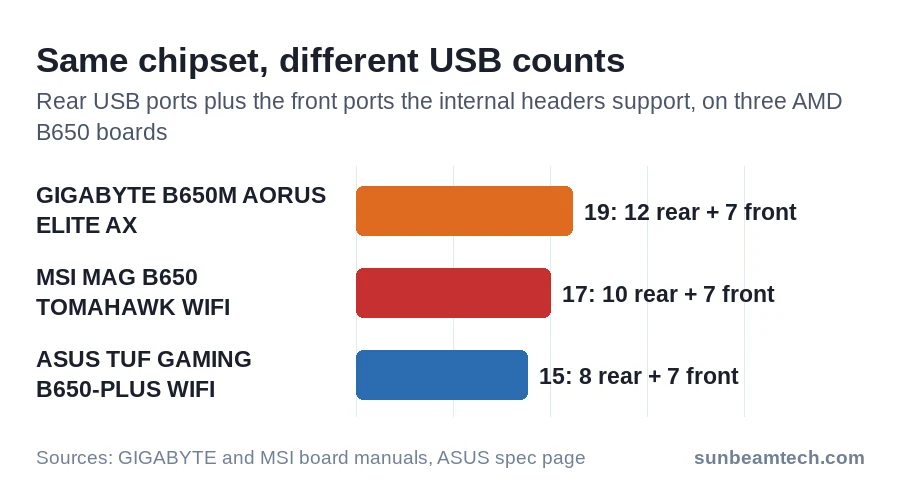
All three boards use AMD’s B650 chipset, and the rear panels still range from 8 to 12 ports. The GIGABYTE board runs four of its rear USB 2.0 ports and four of its USB 3.2 Gen 1 ports through extra hub chips. Makers make those choices board by board, so a typical number won’t tell you much. Count your own board.
To see which headers your case already uses, or if you have no spec page to go by, look at the board itself. Shut down, unplug the power cord, then open the side panel. Before you reach in, touch a metal object to get rid of static.
The layout page near the front of your manual, titled something like Motherboard Layout or Overview of Components, shows where each header sits. A header with no cable in it is free.
The label printed next to each pin block, like F_USB1 or JUSB2, tells you what it is, and counting the pins settles it when the label is hard to read. When you connect a front-panel cable, line it up the right way: the power and ground pins must match, or you risk damage. Our guide to USB 2.0, 3.0 and 3.2 headers shows each connector up close.
What Windows Can Show You
Windows shows which USB controllers and hubs it has found and what’s plugged into them. It doesn’t count sockets: for that, go back to the spec page.
- Press Windows key + R, type
devmgmt.mscand press Enter. Device Manager opens. - Expand Universal Serial Bus controllers. You’ll see your USB host controllers and hubs.
- To include devices that aren’t active right now, click View > Show hidden devices.
Want a map of which device sits on which controller and hub? Microsoft’s USBView shows a tree of every USB host controller, hub and attached device. It comes with the Windows SDK, which you download from a link on that USBView page. During setup, select only Debugging Tools for Windows, then run usbview.exe from C:\Program Files (x86)\Windows Kits\10\Debuggers\x64. It’s an older app, so it may not show newer USB details.
Which Ports Are Fast: 5Gbps, Gen 1 and Gen 2
Counting is half the job. If you’re adding an external SSD or a capture card, you also want to know which ports are fast. Brands use two naming systems, sometimes for the same port.
| Speed name | Same thing, older names | Connector |
|---|---|---|
| USB 5Gbps | USB 3.2 Gen 1, USB 3.1 Gen 1, USB 3.0 | Type-A or USB-C |
| USB 10Gbps | USB 3.2 Gen 2, USB 3.1 Gen 2 | Type-A or USB-C |
| USB 20Gbps | USB 3.2 Gen 2×2 | USB-C |
On an MSI spec page you’ll see the plain USB speed names, like USB 10Gbps. ASUS and GIGABYTE pages use Gen names, like USB 3.2 Gen 2. If a case or an older board uses one of the names in the middle column, read it as the speed on the left.
Newer AMD boards add USB4. It’s standard on X870 and X870E and optional on B850. A USB4 port is a USB port too, so count it with the rest.
Front ports run at their header’s speed, which can differ from the rear panel’s. On the MSI MAG B650 TOMAHAWK WIFI, the rear USB-C port is 20Gbps, while the front one its header runs is 10Gbps. For what the speed difference means for a drive or a webcam, see USB 2.0 vs 3.0.
Laptops and Prebuilt PCs
On a laptop, the ports on the chassis are the ones you have. To find out which are fast, look up the exact model: open System Information and read the System Model line, then search it on the maker’s support site.
On a Dell, go to the Dell Support site and enter the Service Tag, or let the site detect your PC. Then select Product Specifications to see the full spec list.
On an HP, Lenovo or other brand-name desktop, start with BaseBoard Product as in step 1. If it doesn’t lead to a retail board, search the System Model on the PC maker’s support site instead.
Not Enough Ports? What to Try
- Use a spare header first. If the spec page lists a USB 2.0 header and nothing is plugged into it on the board (see how to check), an optional USB bracket turns it into two ports.
- Out of headers for internal gear? An RGB controller or a cooler that needs USB can share a header through a splitter. Our USB header splitter guide covers what you give up in bandwidth and power.
- Desk devices? A powered USB hub on a fast rear port handles keyboards, mice and dongles. Plug an external SSD straight into a rear port instead: everything on a hub shares its bandwidth.
- Free PCIe slot? A PCIe USB card adds ports with its own controller. Read the card’s requirements before you buy: StarTech’s 2-port USB 3.0 card, for example, needs a free PCI Express slot and a 15-pin SATA power connector from your power supply.
- Buying a case with front USB-C? Check that your board lists a USB-C header first. That header is where the case’s USB-C cable plugs in, and without one the cable has nowhere to go.
Frequently Asked Questions
Does the chipset decide how many USB ports a board has?
It sets a limit for the ports it drives itself. A B850 chipset, for example, drives at most one 20Gbps, six 10Gbps and one 5Gbps port. Boards also run ports from the CPU and from extra hub chips, so the total on the spec page can be well above the chipset’s own list.
Do the rear USB ports come from the CPU or the chipset?
Both. On the MSI MAG B650 TOMAHAWK WIFI, the three 10Gbps Type-A ports come from the CPU and the rest from the B650 chipset. The back panel list in your board’s manual says which is which.
Do the colors of the ports mean anything?
They’re a hint, not a rule. On the GIGABYTE B650M AORUS ELITE AX, red marks the USB 3.2 Gen 2 Type-A ports, and one of them is the Q-Flash Plus port for updating the BIOS with the PC switched off. Check the back panel legend in your own manual.
Before You Buy a Hub or a New Case
Write down four things: the board model, the rear ports by speed, which headers you’ve already used, and what your case’s front panel needs. Then match the case’s front-panel list to your headers: two USB 3 Type-A ports take one 19-pin header, two USB 2.0 ports take one 9-pin header, and a USB-C port takes the USB-C header. If every front port has a header, all of them will work; if not, a hub may be the cheaper fix.
The same spec page answers a lot of other upgrade questions, like how many SSDs your PC can take. If you’re opening the case to wire front ports anyway, our front panel header guide covers the power and reset cables. And if the upgrade is a power-hungry one, check what power supply you have before you buy.

Alex has been building and tweaking custom PCs for over 12 years. From budget builds to full custom water loops, he’s assembled more than 50 systems and helped hundreds of builders troubleshoot their rigs. When he’s not benchmarking the latest hardware, you’ll find him optimizing airflow setups or stress-testing overclocks.


