How Much RAM Do You Need for Gaming in 2026? 8GB, 16GB, 32GB and 64GB
16 GB covers most PC games in 2026. Choose 32 GB if you stream, mod or keep a lot open while you play. 8 GB is a stopgap.
Last updated: November 2026
Table of Contents
- How Much RAM You Need, Tier by Tier
- Is 8 GB of RAM enough for gaming?
- Is 16 GB of RAM enough for gaming?
- Is 32 GB of RAM worth it?
- When does 64 GB make sense?
- What Big Games Ask For
- Check What’s in Your PC Right Now
- Check the Speed: XMP, EXPO and DOCP
- One Stick or Two: Dual Channel and Slots
- Browser Games and Light Gaming
- Streaming, Mods and Multitasking
- Laptops
- RAM Isn’t VRAM, and It Isn’t the Processor
- What to Buy and Do Next
RAM holds everything your PC is working on at that moment: the game, Windows, your browser, the launcher, the voice chat. So the right amount depends on what runs next to the game as much as on the game itself. Buy too little and you’ll be swapping sticks within a year. Buy too much and that money should have gone into a better graphics card.
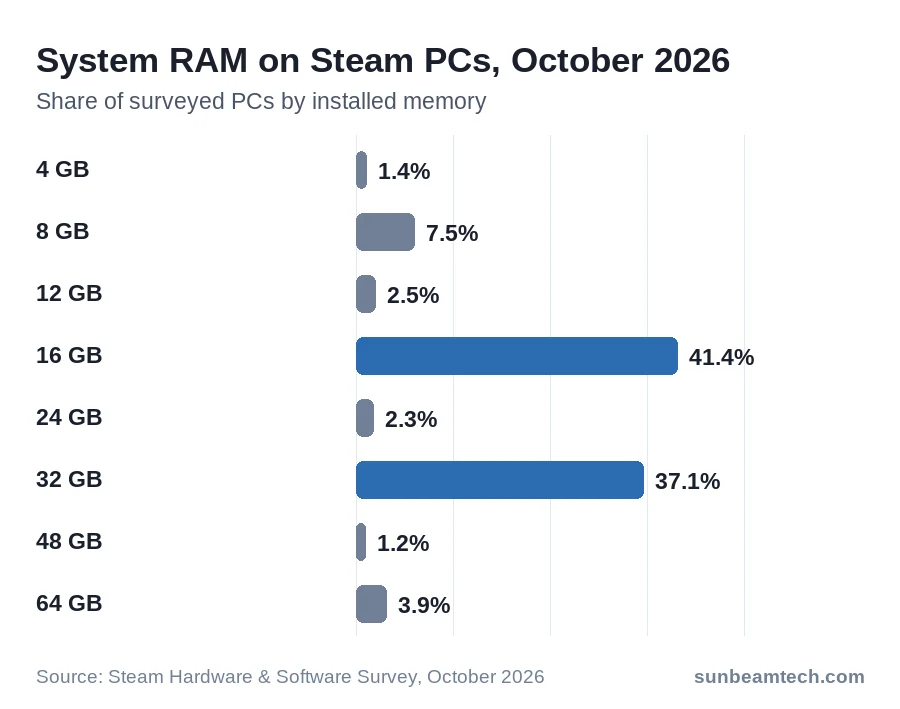
Steam’s numbers show where most players landed. In the October 2026 hardware survey, 16 GB is the most common amount at 41.4% of PCs, with 32 GB close behind at 37.1%. Those two tiers cover about 78% of surveyed machines. Only 3.9% run 64 GB, and 7.5% are still on 8 GB.
On a laptop, start with the laptop section, because the sticks are a different size there.
How Much RAM You Need, Tier by Tier
| Capacity | Steam share | Fits | Falls short |
|---|---|---|---|
| 8 GB | 7.5% | Esports and older games | Most big new releases |
| 16 GB | 41.4% | Nearly every game, played on its own | Streaming, mods and many tabs at once |
| 32 GB | 37.1% | Games plus streaming, mods and a busy browser | No game in the list below asks for more |
| 64 GB | 3.9% | Video editing and virtual machines on the same PC | Not needed for games alone |
Is 8 GB of RAM enough for gaming?
For a few games, yes. Counter-Strike 2 and Baldur’s Gate 3 both list 8 GB as their minimum. But six of the eight games in the next table list 12 or 16 GB as their minimum, so 8 GB sits under the floor for most big releases. Those figures are what the game needs to run, not what you want free for Windows, a browser and Discord on top. If you’re on 8 GB and a new game won’t start or stutters, this is the upgrade to price first.
Is 16 GB of RAM enough for gaming?
Yes, for nearly every game you can buy today. Of the seven games in the next table that list a recommended spec, six recommend 16 GB. It’s also the amount more Steam users have than any other.
The case for stepping up has nothing to do with the game. It’s what you run beside it: a stream, a heavily modded install, a browser with two dozen tabs, a launcher and a chat app. If you play one game at a time and close the rest, 16 GB does the job.
Is 32 GB of RAM worth it?
If you stream, mod or hate closing tabs, yes. It also saves you from buying twice. Microsoft Flight Simulator 2024 is the one game in the next table that lists 32 GB as its recommended amount, and 37.1% of Steam users already run that much.
When does 64 GB make sense?
No game in the table asks for more than 32 GB. Go to 64 GB only if other work on the same PC needs it, such as video editing, virtual machines or very large projects.
What Big Games Ask For
These are the memory figures listed on each game’s Steam store page in November 2026.
| Game | Minimum | Recommended |
|---|---|---|
| Counter-Strike 2 | 8 GB | Not listed |
| Baldur’s Gate 3 | 8 GB | 16 GB |
| Elden Ring | 12 GB | 16 GB |
| Cyberpunk 2077 | 12 GB | 16 GB |
| Starfield | 16 GB | 16 GB |
| Hogwarts Legacy | 16 GB | 16 GB |
| Monster Hunter Wilds | 16 GB | 16 GB |
| Microsoft Flight Simulator 2024 | 16 GB | 32 GB |
Read these as floors, not targets. Four of the eight games already list 16 GB as the minimum, so a 16 GB PC has no spare memory on paper before Windows and your other apps take their share. That’s the practical argument for 32 GB if you buy new and plan to keep the PC for years.
Check What’s in Your PC Right Now
Before you buy anything, find out what you have. It takes under a minute.
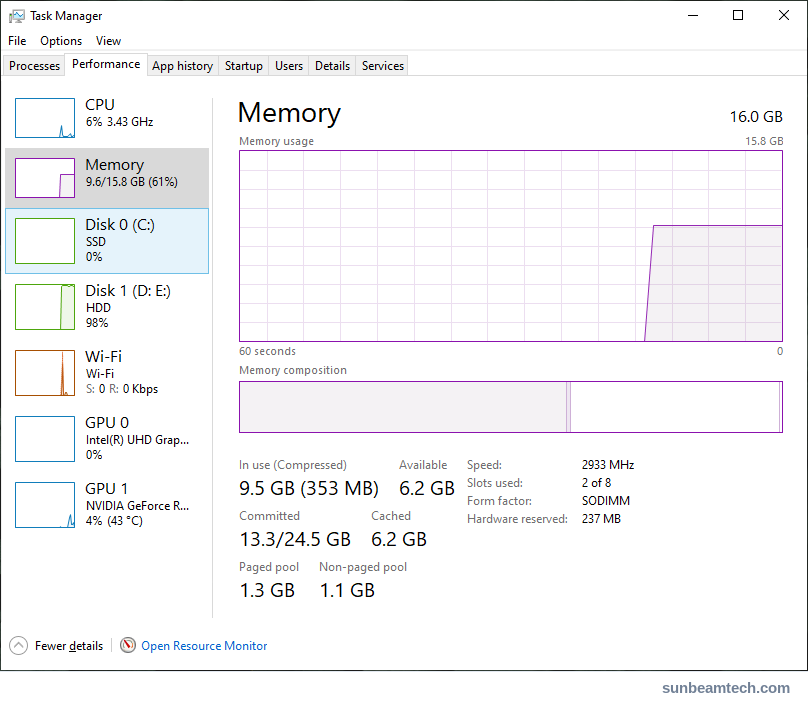
- Open the Start menu, search for Task Manager and open it. If you only see a short list of apps, click More details.
- Click the Performance tab, then Memory in the left column.
- Read the total amount of RAM at the top of the view. That’s your tier.
- Below the graph, read Speed, Slots used and Form factor.
Speed is how fast your RAM runs right now. Slots used shows how many of the board’s slots hold a stick, so you can see whether there’s a free one. Form factor tells you which kind of stick to buy: it usually reads DIMM on desktops and SODIMM on laptops and compact PCs.
Check the Speed: XMP, EXPO and DOCP
A kit doesn’t run at its rated speed on its own. It boots at a safe default, and you switch to the faster profile in the BIOS. Compare the Speed value in Task Manager with the number on your sticks’ label. If Task Manager shows less, the profile is probably still off.
On Intel boards the profile is called XMP. AMD boards call it EXPO, and ASUS names its version DOCP. The clicks are in how to enable XMP in BIOS, and XMP vs EXPO explains which one your kit carries. On an ASUS board with a Ryzen chip, what DOCP does is the page to read. Want to know what it does for frame rates before you bother? See does XMP actually make RAM faster.
One Stick or Two: Dual Channel and Slots
How the RAM is installed can matter more than the next capacity tier. Modern consumer CPUs support dual-channel memory and work best with both channels filled. A single stick leaves one channel empty, and gaming is one of the jobs where that shows up.
- Buy a two-stick kit. For 16 GB that’s 2 x 8 GB, for 32 GB it’s 2 x 16 GB.
- Look at your board’s four slots. Some boards label them A1, A2, B1 and B2, where the letter is the channel.
- With two sticks, use A2 and B2, usually the second and fourth slots. Put in the wrong pair and two sticks may not give you dual channel. See which RAM slots to use for the layout, and let your motherboard manual overrule it if the labels differ.
- With a four-stick kit, fill all four slots.
- If you only have one stick today, run it in A2 until you replace it with a two-stick kit.
Afterwards, open Task Manager again. Slots used should match what you installed and the total should match the box.
Browser Games and Light Gaming
Plenty of play never touches a launcher. Puzzle sites, card games, a retro emulator in a tab or a UK casino online all run inside your browser. For these, the question isn’t which RAM tier you need. It’s how many other tabs sit open next to the game.
Chrome shows you what each tab costs. On Windows, open Settings, choose Appearance and turn on Show tab memory usage. Hover over any tab and its memory use appears on the preview card. To open Chrome’s own Task Manager instead, press Shift + Esc.
Chrome can also put idle tabs to sleep. Go to Settings > Performance and turn on Memory Saver: Chrome deactivates tabs you aren’t using and reloads them when you click back. If a game in a tab shouldn’t be put to sleep, add its site to Always keep these sites active in the same menu.
If browser play is most of what you do, you don’t need a gaming-grade amount of RAM. You need enough that Chrome plus everything else you keep open fits. Check the Memory view in Task Manager with your usual tabs open, and buy for that number.
Streaming, Mods and Multitasking
This is where 32 GB earns its price. Capture software, a chat app, a guide open in the browser and a modded game all want memory at the same time. Play for a while, press Alt + Tab, open Task Manager and look at the usage graph in the Memory view. If it sits near the top of the scale, the next tier up is worth it. If there’s plenty of headroom, leave it alone.
Laptops
Laptop memory uses smaller sticks. In Task Manager’s Memory view, Form factor usually reads SODIMM on a laptop and DIMM on a desktop, so never buy desktop sticks for a laptop. Slots used tells you whether a slot is free. If every slot is filled, you replace sticks instead of adding one. Check your laptop maker’s spec page or manual for the memory your model supports before you order anything.
RAM Isn’t VRAM, and It Isn’t the Processor
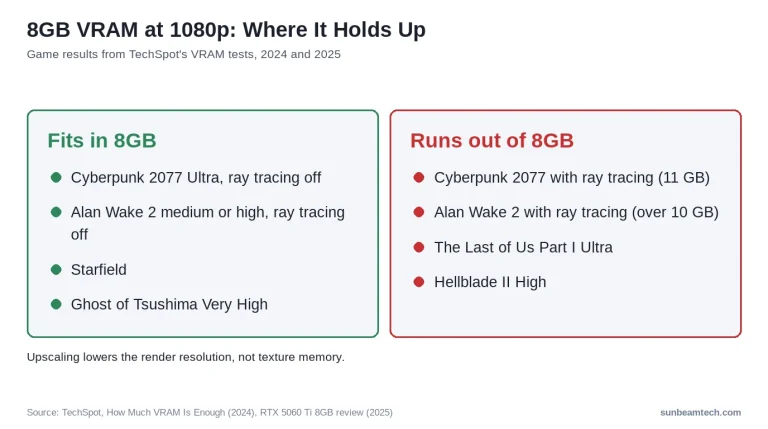
Not every stutter is a RAM problem. System RAM is separate from the video memory on your graphics card, so going from 16 GB to 32 GB won’t help a card that runs out of VRAM. Whether 8 GB of VRAM is enough at 1080p covers that side.
If one CPU core sits near its limit while the GPU idles, the processor is the limit, and the list of CPU-intensive games shows which titles do that. If the graphics card is struggling instead, the most graphically demanding PC games shows where even flagship cards run out of room.
What to Buy and Do Next
- Check your total, speed, slots and form factor in Task Manager.
- Pick the tier: 16 GB if you play one game at a time, 32 GB if you stream, mod or keep a lot open.
- Buy a two-stick kit that matches your form factor. On an older DDR3 system, read DDR4 vs DDR3 first to see whether a new platform makes more sense.
- Install the sticks in A2 and B2, or the slots your manual names.
- Enter the BIOS and switch on XMP, EXPO or DOCP.
- Open Task Manager again and check that the total, the speed and the slot count match what you bought.
Pricing a whole build around this? What it costs to build a gaming PC puts RAM next to the other parts.
Want our guides higher in your Google results? Add SunbeamTech as a preferred source.


Alex Rivera writes SunbeamTech’s guides on BIOS settings, motherboard headers, cooling and PC builds. Every guide starts from the manufacturer’s documentation and the questions builders actually search for, and gets checked against AMD, Intel, NVIDIA and board-vendor sources before it goes live. Spotted a mistake? Email [email protected] and it gets fixed.