How Long Does Thermal Paste Last (and When to Replace)
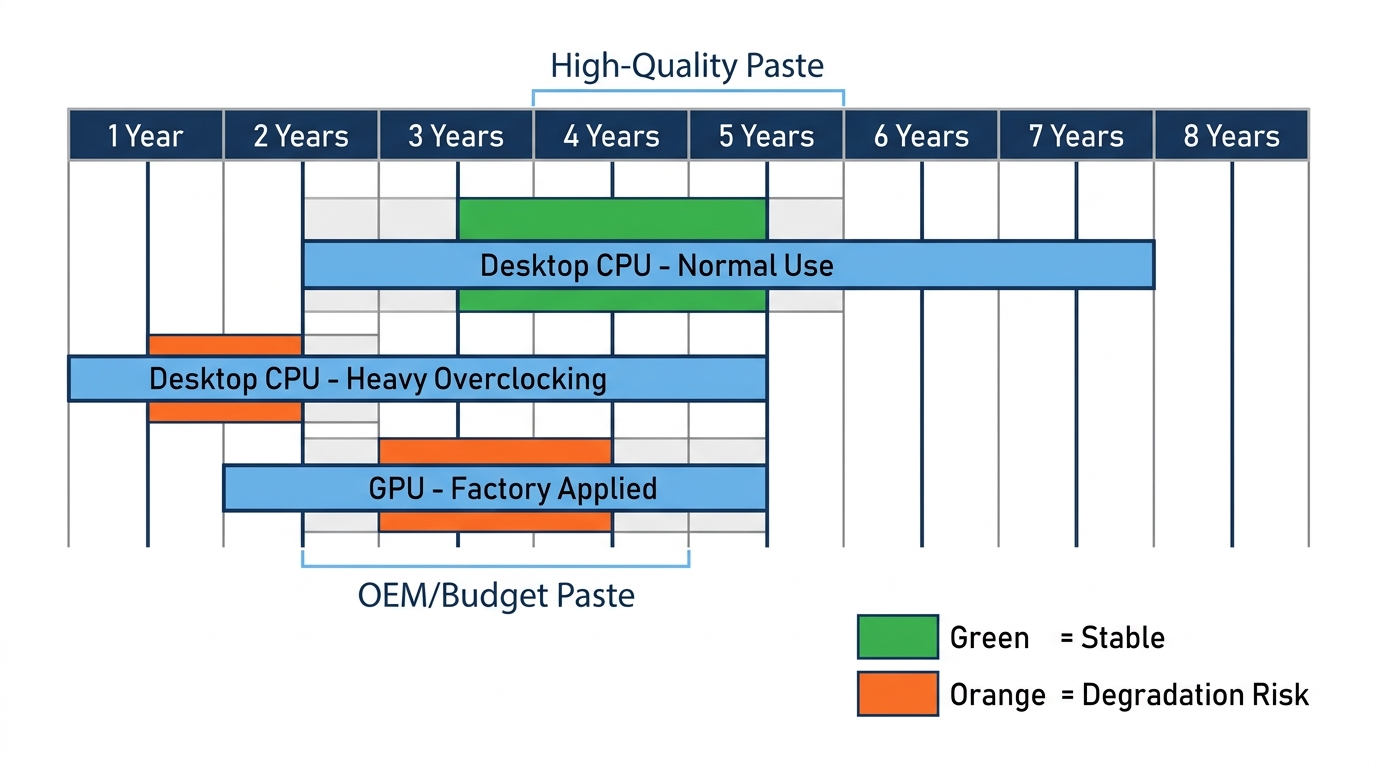
Thermal paste typically lasts 3–5 years on a desktop CPU, though high-quality compounds can last up to 8 years while cheap OEM pastes may degrade in as little as 1–2 years.
Last updated: June 2026
Table of Contents
- Quick Answer: How Long Does Thermal Paste Last?
- How Long Does Thermal Paste Last? (Applied to Hardware)
- On a Desktop CPU
- On a GPU
- On a Laptop CPU and GPU
- Does Thermal Paste Expire? Shelf Life in the Tube
- Unopened Thermal Paste
- Opened Thermal Paste
- How Do I Know If My CPU Thermal Paste Is Bad?
- Temperature Red Flags
- Physical Warning Signs
- Performance Warning Signs
- When Should You Actually Replace Thermal Paste?
- Mandatory Replacement Scenarios
- Recommended Replacement Scenarios
- Probably Not Worth Replacing Yet
- How to Replace Thermal Paste (Quick Overview)
- What You’ll Need
- Step-by-Step Summary
- Best Thermal Paste to Use When You Replace It
- FAQ, Thermal Paste Lifespan and Replacement
- How do I know if my CPU thermal paste is bad?
- How long does thermal paste last after opening the syringe?
- How long does thermal paste last on a GPU?
- How long does thermal paste last in a laptop?
- Does thermal paste expire if it’s never been opened?
- Summary: Thermal Paste Lifespan at a Glance
Quick Answer: How Long Does Thermal Paste Last?
For most desktop users running normal workloads, thermal paste lasts 3–5 years before any meaningful degradation. High-end carbon-based compounds like Arctic MX-6 are rated for up to 8 years. Cheap silicone pastes from stock coolers, gaming laptops under heavy load, and overclocked rigs all fall on the shorter end of that range, closer to 1–3 years. If your temps are stable and you haven’t removed your cooler, you probably don’t need to touch it.
Your PC ran cool for years. Now idle temps are 10°C higher than they used to be, and you haven’t changed a thing. Thermal paste degradation is one of the most overlooked causes of creeping CPU temperatures, yet most guides either wave it off completely or scare you into reapplying every six months. Neither extreme is right. Here’s what actually determines how long your paste lasts, when you genuinely need to replace it, and how to do it without making things worse.
How Long Does Thermal Paste Last? (Applied to Hardware)
On a Desktop CPU
Under normal desktop workloads, quality thermal paste holds up for 3–5 years. Light-use machines (web browsing, office work, occasional gaming) sometimes go 7 years without any measurable temp increase. Heavy overclocking can cut that to 1–2 years.
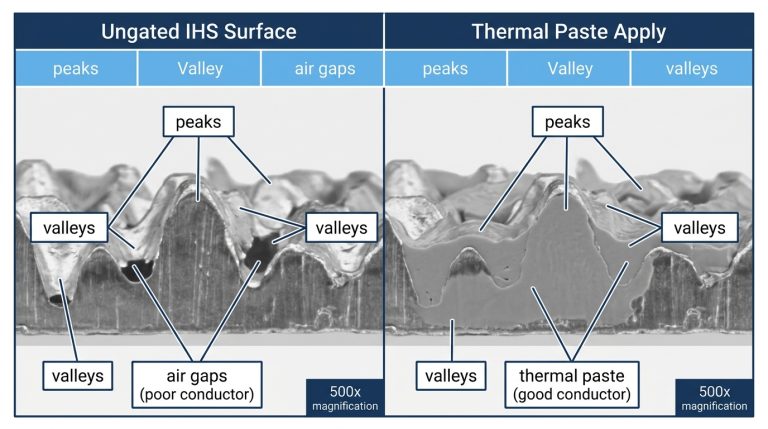
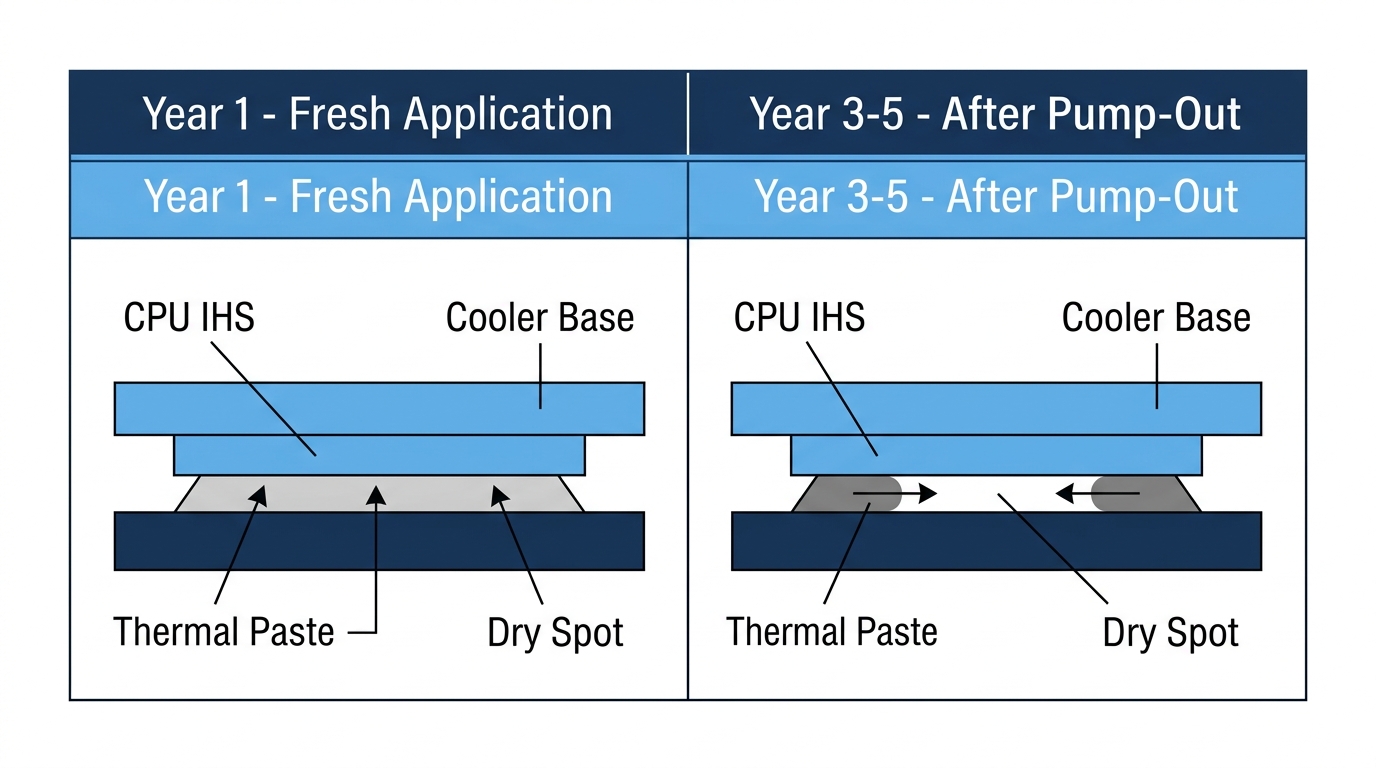
The main culprit is thermal cycling. Every time your CPU heats up and cools down, the paste expands and contracts. Over hundreds of cycles, this causes the “pump-out effect,” where paste slowly migrates outward from the center of the IHS, leaving a dry spot right where you need coverage most. None of the top results on this topic mention pump-out at all, which is a gap worth filling because it’s the primary mechanical reason paste fails even when it hasn’t technically dried out.
Cheap gray OEM pastes pre-applied to stock coolers (the kind that ships with a Ryzen boxed cooler or a cheap third-party tower) tend to dry and separate faster. Not great. Quality carbon-based or zinc oxide compounds resist pump-out significantly better.
According to contributors at the Tom’s Hardware Forum, paste longevity is a genuinely debated topic among builders. Some contributors say Arctic Silver 5 can last a decade without drying, while others point to a heat-cycle-limited lifespan closer to a year under heavy use. The general takeaway leans toward “if it ain’t broke, don’t fix it” rather than a fixed replacement interval.
On a GPU
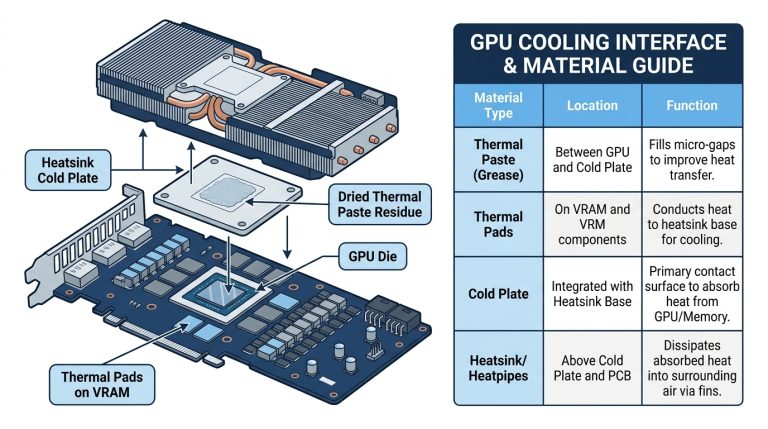
Factory GPU thermal paste lasts roughly 2–4 years before temps creep up noticeably. GPUs degrade faster than CPUs for a few reasons: sustained gaming loads push GPU temperatures higher and longer than typical CPU workloads, factory-applied compounds are often lower quality than what you’d choose yourself, and the application layer is thinner on GPU dies.
For desktop GPUs, repasting is a real option and can drop temps by 10–20°C on older cards. You’ll need to partially disassemble the card, which voids any remaining warranty, so weigh that before touching a GPU under 2 years old.
If you want to know what safe GPU temperatures look like before and after a repaste, reviewing normal GPU temp ranges gives you solid baseline numbers to compare against.
On a Laptop CPU and GPU
Laptops are the worst-case scenario. Smaller cooling systems, higher sustained temperatures, and often lower-quality factory paste combine to push paste degradation timelines down to 2–3 years for gaming laptops running at 90°C+ regularly. Light-use laptops might get 4–5 years, but performance-focused machines should get a repaste at the 2-year mark if temps are climbing.
Laptop repasting is doable but model-dependent. Some require nearly full disassembly. If your gaming laptop is thermal throttling and it’s over 18 months old, paste is one of the first things to check.
Does Thermal Paste Expire? Shelf Life in the Tube
Unopened Thermal Paste
Yes, thermal paste expires even if you’ve never opened it. Most manufacturers rate unopened compounds at 3–5 years from the production date, with premium carbon-based pastes like Arctic MX-6 rated up to 8 years. Metal-based liquid metal compounds (like Thermal Grizzly Conductonaut) can separate if stored improperly, even in the tube.
Store unopened syringes somewhere cool and dry, away from direct sunlight and temperature swings. A desk drawer works. A car glove box in summer does not.
Opened Thermal Paste
Once you crack the cap and expose paste to air, most compounds stay usable for 12–24 months if stored properly. Cap it tight, keep it upright or flat at room temperature, and it’ll be fine for your next build or repaste.
Warning signs of paste that’s gone off in the tube: separation into liquid and solid layers, a grainy or gritty texture, unusual smell, or a dried plug at the tip. Pro tip: write the date you opened it on the syringe with a Sharpie. Simple and you’ll thank yourself later.
| Thermal Paste Brand | Type | Applied Lifespan | Shelf Life (Unopened) | Shelf Life (Opened) |
|---|---|---|---|---|
| Arctic MX-6 | Carbon-based | Up to 8 years | 8 years | 2–3 years |
| Arctic MX-4 | Carbon-based | Up to 8 years | 8 years | 2 years |
| Thermal Grizzly Kryonaut | Nano-Aluminum + Zinc Oxide | 3–5 years | 8 years | 12–18 months |
| Noctua NT-H1 | Hybrid | 5 years | 3 years | ~2 years |
| Cooler Master MasterGel | Silicone | 3–5 years | 3 years | 12–18 months |
| Generic / OEM Stock | Silicone | 1–2 years | 2 years | 6–12 months |
Lifespan figures based on manufacturer specifications and published product data. Actual results vary with workload, ambient temperature, and application quality.
How Do I Know If My CPU Thermal Paste Is Bad?
Temperature Red Flags
The clearest signal is temperatures that are noticeably higher than they used to be with no other explanation. For reference, typical idle ranges by platform:
- Intel 13th/14th Gen (stock): 35–50°C at idle
- AMD Ryzen 7000 series (stock): 40–55°C at idle
- Under gaming load (concerning threshold): sustained above 90°C
A jump of 10–15°C above your previous baseline, with the same workloads and ambient temperature, is a strong indicator your paste has degraded. Before you assume it’s the paste, rule out dust accumulation in the heatsink first. Clogged fins account for a surprising number of “paste went bad” calls.
Use HWiNFO64 or Core Temp to get accurate, real-time temperature readings. For a full breakdown of what numbers are actually normal for your specific CPU, the guide on what a good CPU temp looks like covers every major platform with specific thresholds.
- 35°C = 95°F
- 50°C = 122°F
- 60°C = 140°F
- 70°C = 158°F
- 80°C = 176°F
- 85°C = 185°F
- 90°C = 194°F
- 95°C = 203°F
- 100°C = 212°F
Formula: °F = (°C × 1.8) + 32.
Physical Warning Signs
When you remove the cooler (for any reason), take a look before wiping anything off:
- Dry or cracked paste: chalky, flaking texture instead of smooth spread
- Pump-out: paste pushed entirely to the edges of the IHS, center is dry
- Discoloration: yellowing or brown tint on silicone-based pastes
- Grainy texture: paste has separated; the base compound and carrier fluid are no longer homogeneous
Performance Warning Signs
- Throttling under load: your CPU drops its clock speed to manage heat, causing stuttering or reduced framerates
- System instability: random shutdowns, BSODs, or crashes that correlate with sustained CPU load
- Fans running hard constantly: your cooling system working overtime for tasks that used to be quiet
If you’re seeing throttling specifically, that’s where paste degradation crosses from “cosmetic temp issue” into actual performance loss. Worth addressing immediately at that point. For a deeper look at overheating causes and fixes beyond just paste, the CPU overheating guide walks through the full diagnostic process.
When Should You Actually Replace Thermal Paste?
Mandatory Replacement Scenarios
No debate here. Certain situations require fresh paste, full stop:
- Any time you remove the CPU cooler, even briefly. Air gaps get introduced the moment you break the seal.
- Installing a new cooler. Always clean off the old paste from both the IHS and cooler base before mounting.
- After a thermal throttling event or thermal shutdown caused by high temps.
- After any CPU delid or relid procedure.
Recommended Replacement Scenarios
- Every 3–5 years as routine maintenance, even if temps look fine, for peace of mind.
- After upgrading to a high-TDP CPU like an Intel Core i9 or AMD Ryzen 9, where heat output accelerates paste wear.
- If your PC has been moved frequently; physical shock can crack dried paste and break its contact seal.
- After 2–3 years on a gaming laptop run at high loads daily.
Probably Not Worth Replacing Yet
This is the section most guides skip. Sometimes you should leave it alone.
- Desktop, light use, under 3 years, temps normal: don’t touch it. You’re more likely to introduce a bad application than fix anything.
- Pre-built under 2 years old: rarely needed unless temps are actively problematic.
- Post-clean temps dropped: if dusting out the heatsink fixed your temp issue, paste wasn’t the problem.
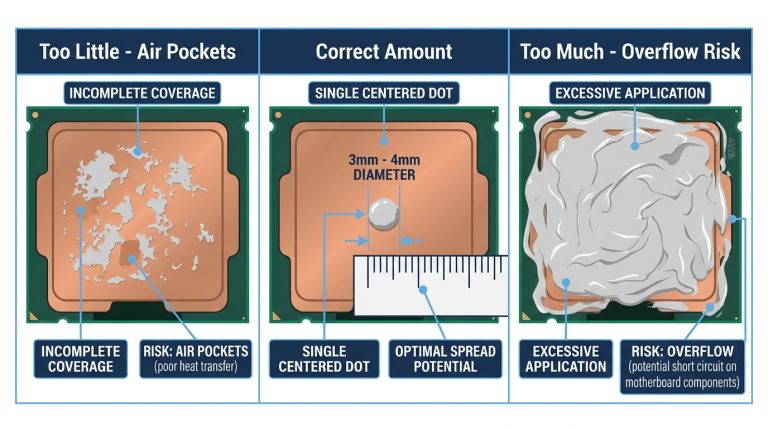
Every unnecessary reapplication is a chance to apply too much, too little, or with trapped air bubbles. If it ain’t broke, don’t fix it.
How to Replace Thermal Paste (Quick Overview)
What You’ll Need
- Isopropyl alcohol (90%+ concentration): lower concentrations leave too much water residue
- Lint-free cloth or coffee filter: paper towels leave fibers behind
- New thermal paste: see recommendations below
- Anti-static precautions: wrist strap or touch a grounded metal surface before handling the CPU
Step-by-Step Summary
- Power down fully and unplug from the wall. Not just sleep mode. Off.
- Remove the cooler carefully. Twist it slightly (quarter-turn) to break the paste seal before lifting, rather than pulling straight up, which can lift the CPU out of an unlocked socket.
- Clean old paste from the CPU IHS and cooler base with IPA. Do it in two passes: a dissolve pass to loosen the old compound, then a dry wipe to remove residue. Let it fully evaporate before applying new paste.
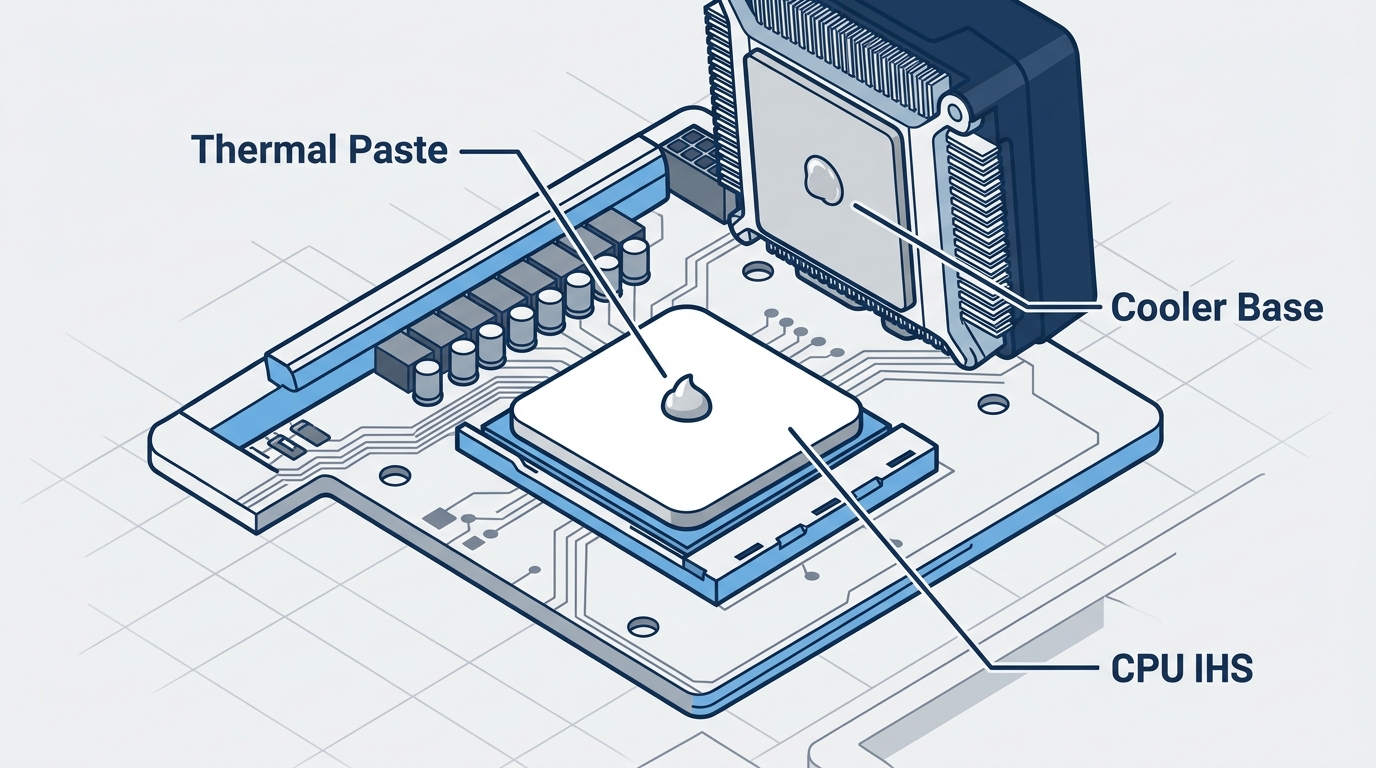
- Apply new paste using the appropriate method for your platform (see table below).
- Remount the cooler, making sure to seat it evenly. Monitor temps for 24–48 hours. Paste “settles” slightly over the first few heat cycles, so don’t panic if temps are slightly elevated on day one.
| CPU Platform | Recommended Method | Reason |
|---|---|---|
| Intel LGA1700 | Vertical line | Rectangular IHS shape distributes paste more evenly under pressure with a line |
| Intel LGA1200 / 115x | Pea dot | Square-ish IHS; a centered dot spreads evenly when the cooler is pressed down |
| AMD AM4 / AM5 | Pea dot or X | Square to near-square IHS; both methods work well |
| Laptop CPU | Thin manual spread | Smaller die requires less paste; overcooking it causes overflow |
Best Thermal Paste to Use When You Replace It
You don’t need to spend $30 on paste. You also don’t want to reuse the gray blob that came on your stock cooler. Three options cover almost every use case:
- Arctic MX-6: best everyday pick for most builders. Non-electrically-conductive, 8-year rated, easy to apply, and well priced at around $8–10 per syringe. Hard to beat for a daily driver desktop or laptop repaste.
- Thermal Grizzly Kryonaut: best for high-end and overclocking builds where you want every degree back. Excellent thermal performance out of the box, though it carries a price premium over the Arctic compounds. The full Thermal Grizzly Kryonaut review breaks down exactly where it beats the competition and where it falls short.
- Noctua NT-H1: best all-around value. Forgiving application, long shelf life, performs well on both air and AIO coolers. A solid default if you’re unsure.
FAQ, Thermal Paste Lifespan and Replacement
How do I know if my CPU thermal paste is bad?
The clearest sign is a temperature increase of 10°C or more above your previous baseline with no other changes to your system, like new components, higher ambient temps, or added workloads. If you remove your cooler for any reason and the paste looks cracked, powdery, or dried out, that’s physical confirmation. System instability and CPU throttling under normal loads can also point to paste failure, though dust buildup is worth ruling out first.
How long does thermal paste last after opening the syringe?
Most quality compounds stay usable for 12–24 months after opening if stored properly. Cap the syringe tightly, keep it at room temperature, and store it away from sunlight. Carbon-based pastes like Arctic MX-6 tend to last on the longer end of that range. Write the opening date on the tube so you’re not guessing six months later.
How long does thermal paste last on a GPU?
Expect 2–4 years from factory-applied GPU paste under normal gaming use. Cards that run consistently hot (80°C+ sustained for hours daily) may need repasting closer to the 2-year mark. Budget GPUs with lower-quality factory paste can start showing degradation even sooner. A repaste on a desktop GPU can recover 10–20°C in some cases on older cards.
How long does thermal paste last in a laptop?
Gaming laptops under heavy daily use should be evaluated at 2–3 years. The constrained cooling systems in laptops mean they’re more sensitive to paste degradation than desktops, and the smaller thermal headroom means even a modest temp increase can trigger throttling. Light-use laptops running cool workloads can stretch to 4–5 years without issues.
Does thermal paste expire if it’s never been opened?
Yes. Most compounds have a shelf life of 3–5 years even sealed in the syringe, with some premium carbon-based pastes rated up to 8 years. Check the manufacturer’s packaging for an expiry date. Signs of expired paste in a sealed tube include separation when you open it, off-color compound, or a grainy texture when you apply it. When in doubt with an old tube, just buy a fresh syringe since they’re inexpensive.
Summary: Thermal Paste Lifespan at a Glance
| Use Case | Expected Lifespan | Replacement Priority |
|---|---|---|
| Desktop CPU, light use | 5–7 years | Low |
| Desktop CPU, gaming or overclocking | 2–4 years | Medium |
| Desktop GPU | 2–4 years | Medium |
| Laptop, light use | 3–5 years | Low to Medium |
| Laptop, gaming or heavy workload | 1.5–3 years | High |
| Opened tube or syringe | 12–24 months | Replace if separated or grainy |
| Unopened tube | 3–8 years | Check manufacturer date |
If your temps are stable and you haven’t removed your cooler, there’s a good chance you don’t need to do anything right now. Start with HWiNFO64 and get a clear temperature baseline. If the numbers are climbing without explanation, that’s when it’s time to act. Knowing your baseline is half the battle; without it, you’re guessing.

Alex has been building and tweaking custom PCs for over 12 years. From budget builds to full custom water loops, he’s assembled more than 50 systems and helped hundreds of builders troubleshoot their rigs. When he’s not benchmarking the latest hardware, you’ll find him optimizing airflow setups or stress-testing overclocks.