Case Fan Screws: Sizes and Where to Get Them
Case fan screws are self-tapping M5 screws, usually about 10mm long, that cut their own thread into the unthreaded corner holes of a PC case fan’s plastic frame.
Last updated: October 2026
Table of Contents
- Quick Answer: What Size Screws Do Case Fans Use?
- What Are Case Fan Screws?
- Case Fan Screw Sizes: The Exact Specs You Need
- Standard M5 Self-Tapping Fan Screws
- 6-32 and M3 Screws (Not for Fans)
- Rubber Anti-Vibration Fan Mounts (The Screw Alternative)
- How Many Screws Does a Case Fan Need?
- How to Install Case Fan Screws (Step-by-Step)
- Tools You’ll Need
- Step-by-Step Installation
- Why Are Case Fan Screws So Tight?
- Where to Buy Case Fan Screws
- Online Retailers (Best Selection)
- Big Box and Local Stores
- 3D Printing Fan Mounts and Adapters
- What to Look for When Buying Case Fan Screws
- FAQ: Case Fan Screws
- What size screws do case fans use?
- Are case fan screws the same as motherboard screws?
- Is 2 screws enough for a case fan?
- Why are case fan screws so hard to tighten?
- Can I use rubber mounts instead of screws for case fans?
- The Short Version
Quick Answer: What Size Screws Do Case Fans Use?
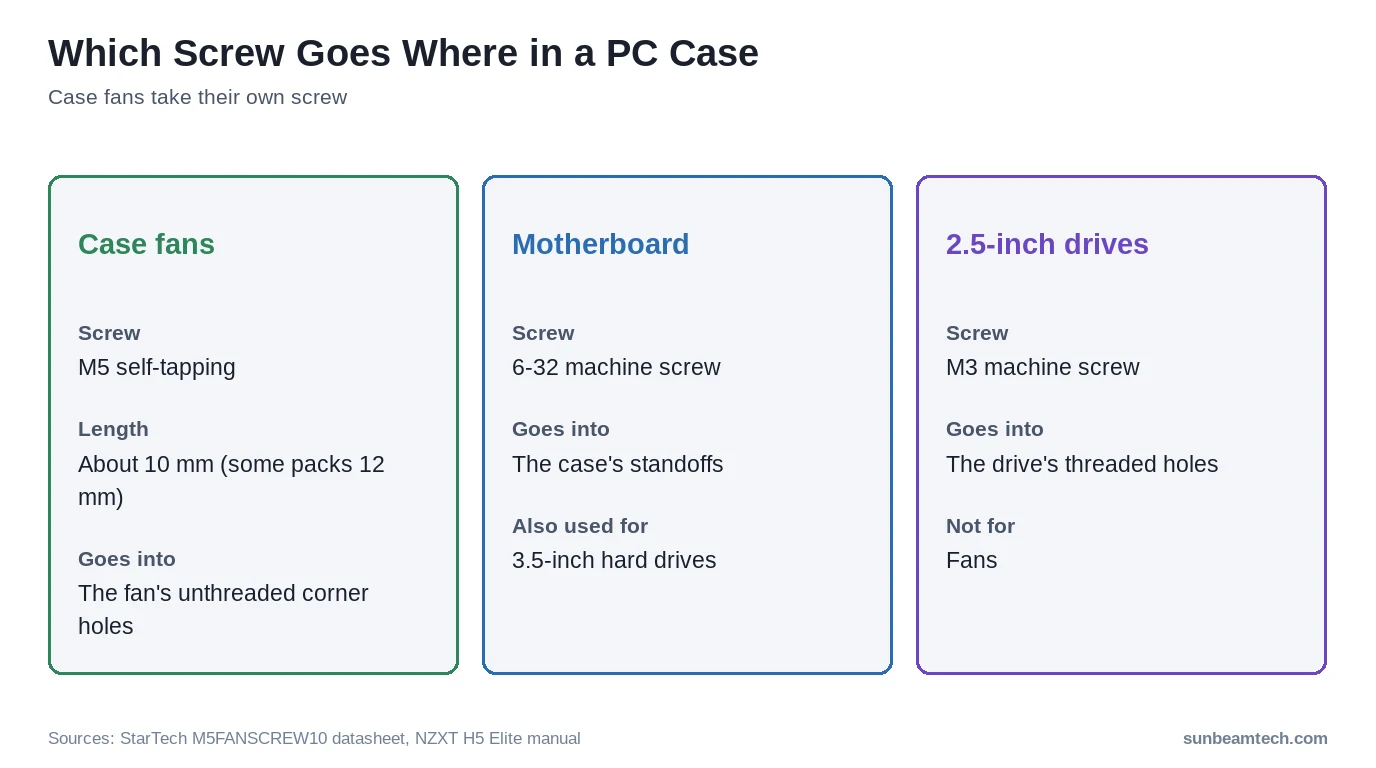
Most PC case fans mount with M5 self-tapping screws, about 10mm long (some packs run 12mm). The corner holes in the fan frame have no thread, so the screw cuts its own as you drive it in. The same screw fits 120mm and 140mm fans. The 6-32 and M3 screws in your case’s accessory bag look similar, but they’re machine screws for the motherboard and drives. Grab the wrong bag and the fan won’t sit tight.
This guide covers the exact spec, the screws you shouldn’t confuse it with, how many screws you actually need, where to buy them without overpaying, and what to look for so you don’t end up with a bag of useless mixed hardware.
🔧 Case Fan Screw Quick Reference
- 🟢 M5 self-tapping, about 10mm: The standard case fan screw (some packs are 12mm)
- 🟡 Rubber push-pin mounts: Fit the same corner holes, reduce vibration, slightly less secure
- 🔴 6-32 machine screws: For the motherboard and 3.5″ drives, not for fans
- 🔴 M3 machine screws: For 2.5″ drives, not for fans
- 🔴 Hardware-store 6-32 machine screws: Wrong screw for a plastic fan frame, avoid
What Are Case Fan Screws?
Case fan screws are a specific fastener type, and they’re different from every other screw in your build. Your motherboard sits on motherboard standoffs and is held down with 6-32 machine screws. M.2 SSDs use tiny M2×3mm screws. Fan screws are entirely their own standard, and confusing them causes real damage.
The key distinction is that case fan screws are self-tapping. There are no pre-cut threads in a fan’s plastic mounting boss. The screw cuts its own threads on the way in. The screw is carving into virgin plastic. Reinstall the same screw into the same hole and it drops in smoothly because the threads are already there.
You’ll also see these called “fan mounting screws,” “chassis fan screws,” or “M5 fan screws” on product listings, and M5 is correct. StarTech’s M5FANSCREW10 pack is an M5 thread, 10mm long and self-tapping into threadless holes, and the Micro Connectors 50-pack (SCW-50FANC) is sold as M5 self-tapping too. The 6-32 thread belongs to your motherboard screws, not your fans. Whatever the label says, check for M5 self-tapping before buying.
Case Fan Screw Sizes: The Exact Specs You Need
There are two screw standards and one screw alternative worth knowing. Here’s what each actually means in practice.
Standard M5 Self-Tapping Fan Screws
M5 means a metric screw with a 5mm nominal diameter. Fan screws in that size are self-tapping: the fan’s corner hole has no thread, so the screw forms one as it goes in. The common length is 10mm. That’s what StarTech’s M5FANSCREW10 uses, and it’s the KB5 x 10mm screw listed for fan installation in the NZXT H5 Elite accessory box. StarTech’s plain FANSCREW pack runs a little longer at 12mm.
Expect a flat Phillips head and plated steel. Material is rarely where things go wrong. Thread type is, and a fan screw that looks right but turns out to be a 6-32 machine screw won’t hold the way it should.
One thing that surprises new builders: 120mm and 140mm fan sizes take the same screw. On Arctic’s P12 Pro mounting drawing the corner hole is 4.3mm, and it’s 4.3mm on the P14 Pro too. That’s a bit smaller than the 5mm screw, which is exactly why the screw bites.
6-32 and M3 Screws (Not for Fans)
Your case’s accessory bag holds more than fan screws, and that’s where mix-ups start. In the NZXT H5 Elite box, the 6-32 x 5mm screws are for the motherboard and 3.5-inch drives, and the M3 x 5mm screws are for 2.5-inch drives. Fractal’s North accessory box also lists 6-32 and M3 mounting screws as separate items. These are machine screws with a cut thread, made to go into a threaded hole like a brass standoff or a drive’s mounting points.
None of them belong in a fan. An M3 screw is 3mm across, so it won’t even grip a 4.3mm fan hole, and a 6-32 machine screw is made for a threaded hole, not bare plastic. Going the other way, don’t force a fan screw into a standoff.
If you’re not sure which screw is which, check the accessory list in your case manual. It names each screw and what it’s for. Sort them before you start, and don’t drive anything that fights you.
Rubber Anti-Vibration Fan Mounts (The Screw Alternative)
Silicone push-pin mounts fit the same corner holes and require no tools at all. You push the pin through the fan hole and case mounting point, and the head locks it in place.
The noise reduction benefit is real but conditional. Rubber mounts isolate the fan frame from the case metal, which cuts down on resonance vibration traveling into the chassis. For high-RPM fans (1,500 RPM or above) in thin-walled steel cases, that matters. For a 900 RPM 140mm fan in a thick-panel case, you likely won’t notice a difference. They provide slightly less mechanical security than screws, which becomes relevant on side-mounted or angled fan positions where gravity works against the mount. For help dialing in your overall airflow strategy alongside your mounting choice, the guide on PC airflow direction and intake/exhaust setup covers fan orientation in detail.
| Spec | M5 Self-Tapping (Fan Screw) | 6-32 Machine Screw (Motherboard) | Rubber Mount |
|---|---|---|---|
| Thread Type | M5, self-tapping | 6-32 UNC, machine thread | N/A |
| Standard Length | About 10mm (some packs 12mm) | 5mm (NZXT H5 Elite) | Varies by brand |
| Goes Into | Unthreaded fan frame holes | Threaded motherboard standoffs | Fan corner holes |
| Needs Nut? | No (self-tapping) | No (standoff is threaded) | No |
| Material | Plated steel | Steel | Silicone |
| Vibration Dampening | None | N/A | Excellent |
| Tool Required | Phillips #2 | Phillips #2 | No |
How Many Screws Does a Case Fan Need?
Four. That’s the manufacturer-intended answer and it’s correct. Every standard fan has four mounting holes, one at each corner, and using all four distributes load evenly across the frame.
Two screws will hold a fan in place. Functionally, a low-RPM 120mm intake fan running at 800 RPM is not going anywhere with two screws. But the trade-offs are real. Uneven frame stress is the first issue: the two un-screwed corners flex slightly under airflow turbulence, which fatigues the plastic over time. The second issue is resonance. An unbalanced mount creates a vibration path the fan manufacturer didn’t design for, and in a thin-panel case that can mean more audible buzz. Not great.
For intake fans pushing positive pressure, use all four. For high-RPM fans above 1,500 RPM, use all four. Two screws is acceptable only for a temporary install or an exhaust fan in a very tight spot where the fourth hole is blocked by a cable or bracket.
Radiator-mounted fans are a completely different situation. When you’re mounting a fan to an AIO radiator, the screws have to pass through both the fan frame and the radiator fin stack. Standard 10mm fan screws are too short for this. You need the longer screws that come with most AIO kits, and standard fan screw packs don’t include them. If you’re mounting fans on a radiator and only have regular fan screws on hand, they won’t reach. Buy the right length before you start that build.
Thinking about fan count alongside screw quantities? The guide covering how many case fans your build actually needs will help you plan before you buy hardware.
How to Install Case Fan Screws (Step-by-Step)
Most people just drive screws in and hope for the best. That approach strips plastic and introduces vibration. Here’s how to do it right.
Tools You’ll Need
- Phillips #2 screwdriver: The correct tip size for standard fan screws. A #1 tip will cam out immediately.
- Magnetic tip screwdriver: Optional but worth it. Dropping a screw into a built system costs you 10 minutes minimum.
- Loctite Blue threadlocker: Optional and only for permanent builds. Never use Red on fan screws.
Step-by-Step Installation
- Orient the fan for correct airflow before mounting. Check the label arrows on the fan frame: one points in the direction of airflow, one shows blade rotation direction.
- Align all four mounting holes with the case fan bracket holes. Hold the fan flat against the mounting surface.
- Start all four screws by hand, threading each one just enough to catch, before tightening any of them.
- Tighten in a cross pattern: top-left, then bottom-right, then top-right, then bottom-left. The same logic as lug nuts. This prevents the frame from warping under uneven tension.
- Stop when the screw is snug. Not cranked down. Snug.
- Spin the fan blade by hand after all four screws are in. It should spin freely with no dragging or binding. If it doesn’t, loosen the screws slightly and retighten more evenly.
Why Are Case Fan Screws So Tight?
Self-tapping threads create high friction by design. The screw is literally cutting into plastic, which is why driving it feels like it might snap something. It won’t, if you’re using the right screw. But overtightening absolutely will crack the plastic mounting boss surrounding the hole.
“Finger tight plus a quarter turn” is a reliable rule for plastic fan frames. If a screw feels excessively stiff before it’s even seated, stop. Either the holes aren’t aligned, the screw has cross-threaded, or you’re using the wrong screw type. Backing out and restarting is faster than buying a replacement fan because you cracked the frame.
Where to Buy Case Fan Screws
Retail fans include screws in the box. That solves most situations. But screws get lost, cases arrive without them, or you’re doing a multi-fan build from scratch. Here’s every buying option, ranked honestly.
Online Retailers (Best Selection)
Amazon has the widest selection. Search “M5 fan screws” or “self-tapping fan screws.” Packs of 50 to 100 run $5–$10 and will last you through multiple builds. Read the spec listing carefully: some sellers describe the same screw six different ways.
Newegg has better-filtered search categories for PC hardware. StarTech’s 50-packs (FANSCREW and M5FANSCREW10) and the Micro Connectors 50-pack (listed there as SCW-50FANC, around $7.99) are all listed there. Newegg’s product pages typically list thread spec explicitly, which saves guesswork.
GigaParts stocks the Micro Connectors 50-pack and is a solid option for system builders ordering component packs together. That pack is sold as M5 self-tapping and made for plastic-framed case fans.
eBay is useful for bulk lots if you’re building multiple systems. Search for “M5 case fan screws” to filter out irrelevant results. Prices range $3–$15 depending on quantity. Quality is inconsistent from third-party sellers, so check reviews before ordering.
Big Box and Local Stores
Don’t bother with Home Depot for fan screws. They stock #6-32 machine screws, but that’s the motherboard thread, not the M5 self-tapping type a fan frame needs. A machine screw is made for a threaded hole, and a fan’s corner hole has none. Wrong tool for the job.
Best Buy occasionally stocks Startech and similar accessory packs, but selection varies wildly by location and availability changes without notice. Don’t count on it for a time-sensitive build.
Micro Center is the best physical retail option in North America if you have one nearby. Their PC hardware accessory section consistently stocks fan screws in small and bulk packs, and the staff can confirm thread type on the spot. If you’re searching “PC fan screws near me,” call any local Micro Center or independent PC repair shop before driving anywhere. Hardware stores rarely carry the self-tapping variant.
3D Printing Fan Mounts and Adapters
You can’t print a functional metal screw. But you can print fan mounting brackets and adapters, and this solves problems screws alone can’t. Need to mount an 80mm fan in a 120mm slot? There are parametric fan adapter files on Thingiverse and Printables for exactly that. Custom duct panels for directing airflow are another common use case.
For material choice: PETG handles heat better than PLA and is the right call for anything near an exhaust fan or in a warm case interior. PLA is acceptable for intake-only positions where temperatures stay below 60°C (140°F). ABS and ASA work too but are harder to print reliably without an enclosure.
| Retailer | Pack Size | Approx. Price | In-Store? | Ships Fast? | Notes |
|---|---|---|---|---|---|
| Amazon | 50–100 | $5–$10 | No | Yes (Prime) | Best value; verify thread spec before buying |
| Newegg | 50 | $7–$12 | No | Yes | Good spec filtering; reliable brands |
| GigaParts | 50 | ~$9.99 | No | Yes | Micro Connectors 50-pack; M5 self-tapping |
| Micro Center | 10–50 | $4–$9 | Yes | N/A | Best local option; PC-specific stock |
| Home Depot | N/A | N/A | Sort of | N/A | Wrong thread type, machine screws only |
| Best Buy | Varies | $8–$15 | Rarely | Yes (online) | Unreliable in-store; order online instead |
| eBay | 10–200 | $3–$15 | No | Varies | Good for bulk; check seller ratings |
What to Look for When Buying Case Fan Screws
Thread type is the only spec that really matters. Get that wrong and nothing else is relevant. Look for M5 self-tapping in the listing before you add anything to a cart. A pack labeled 6-32 or M3 is motherboard or drive hardware.
Pack size depends on what you’re doing. A single build with two to four fans needs 8–16 screws. Buy a 10-pack and you’re fine. If you build systems regularly, a 50 or 100-pack runs less than $10 and lasts years. The per-screw cost difference is meaningless. The convenience difference is significant.
Material quality separates a good screw from a frustrating one. Heat-treated steel resists cam-out (driver tip slipping under torque) far better than soft zinc. Cheap screws from generic “computer screw kits” that mix M2, M3, and #6-32 in one unlabeled bag are a reliable source of cross-threading mistakes. Avoid them.
Head type matters for thin fan frames. Truss heads have a wider, flatter underside that distributes clamping force across a larger area of the plastic boss. Pan heads concentrate force in a smaller ring, which can deform thin or cheap fan frames over time. For fans you’re moving between builds, truss head is the better choice.
Finish is cosmetic. Silver zinc and black oxide both work. Black-oxide coated screws are common in all-black or tempered glass builds where the fan mounting edges are visible. No functional difference. If you’re building a 120mm fan setup where aesthetics matter alongside airflow performance, matching hardware is a small touch that costs nothing extra.
FAQ: Case Fan Screws
What size screws do case fans use?
Most PC case fans use M5 self-tapping screws, about 10mm long (some packs are 12mm). The corner holes in the fan frame have no thread, 4.3mm across on Arctic’s P12 Pro and P14 Pro, so the screw cuts its own. The 6-32 and M3 screws in your case’s bag are machine screws for the motherboard and drives, not fans.
Are case fan screws the same as motherboard screws?
No. Motherboards are held down with 6-32 machine screws that thread into standoffs, and 2.5-inch drives usually take M3. Case fan screws are M5 self-tapping. They sit in the same accessory bag and look alike, which is what causes the confusion, but forcing the wrong screw can damage the fan frame or the standoff. Always identify the type before driving anything in.
Is 2 screws enough for a case fan?
Functionally yes for a low-RPM fan, but 4 screws is always the right answer. Two-screw installs put uneven stress on the fan frame and create a resonance path that can increase audible vibration noise noticeably. For high-RPM fans (1,500 RPM or above), radiator mounts, or any fan in a side-panel or angled position, all four screws are non-negotiable.
Why are case fan screws so hard to tighten?
They’re self-tapping, meaning the screw cuts its own threads into the plastic fan frame as you drive it. That creates significant friction by design. The first time a screw goes into a fan hole it’s always the hardest: you’re carving threads from scratch. The fix is simple. Go finger tight plus a quarter turn. Stop there. Overtightening cracks the plastic mounting boss around the hole, and a cracked boss means the screw won’t hold tension at all.
Can I use rubber mounts instead of screws for case fans?
Yes. Silicone push-pin anti-vibration mounts fit the same corner holes and require no tools. They’re a good choice for high-RPM fans where vibration resonance is a real noise issue. The trade-off is slightly reduced mechanical security, which matters most for side-mounted fans and positions where the fan hangs rather than rests flat against a panel. For those positions, screws are the better choice. For standard front or rear flat mounts, rubber pins work well.
The Short Version
M5 self-tapping, about 10mm long. That’s the screw for standard 120mm and 140mm case fans. The 6-32 and M3 screws in your case’s bag are for the motherboard and drives. Don’t mix them up. Buy a 50-pack from Newegg or Amazon for under $10 and you won’t think about this again for years. Use all four mounting points, tighten in a cross pattern, stop when snug. That’s genuinely all there is to it. If you want to go further and optimize how those fans perform once they’re mounted, the complete guide on setting up intake and exhaust airflow is the logical next step.

Alex has been building and tweaking custom PCs for over 12 years. From budget builds to full custom water loops, he’s assembled more than 50 systems and helped hundreds of builders troubleshoot their rigs. When he’s not benchmarking the latest hardware, you’ll find him optimizing airflow setups or stress-testing overclocks.


