What Is GPU Sag? Causes and Warning Signs
GPU sag is the downward drooping of a graphics card caused by its weight exceeding what the PCIe slot and rear bracket can adequately support.
Last updated: June 2026
Table of Contents
- Quick Answer: What Is GPU Sag?
- What Is GPU Sag?
- The Basic Physics Behind It
- What Does GPU Sag Look Like?
- What Causes GPU Sag?
- GPU Weight, The Primary Cause
- Card Length
- Case Orientation and Mounting Angle
- PCIe Slot Wear Over Time
- Warning Signs of Bad GPU Sag
- Visual Warning Signs
- Performance and Stability Warning Signs
- Physical Damage Warning Signs
- Is GPU Sag Normal? Should You Be Worried?
- How Does GPU Sag Affect Performance?
- How to Fix GPU Sag
- Frequently Asked Questions About GPU Sag
- How do you fix GPU sag?
- How much GPU sag is too much?
- Can GPU sag damage your PC?
- Does GPU sag affect FPS or gaming performance?
- Is slight GPU sag normal?
- The Short Version
Quick Answer: What Is GPU Sag?
GPU sag happens when a graphics card’s weight pulls it downward, bending away from the horizontal plane it should maintain inside the case. Modern flagship GPUs like the RTX 4090 and RX 7900 XTX can weigh 1.8–2.2 kg and are held in place by only two contact points: the PCIe x16 slot and a single rear bracket screw. That’s not much support for a card the size of a hardback book. Slight sag is nearly universal with heavy cards. Severe sag is a real mechanical problem that gets worse over time.
Most people think GPU sag is just a cosmetic issue. It isn’t. Mild sag won’t hurt anything short-term, but ignoring it means gradual, cumulative stress on one of the most important connectors on your motherboard. Here’s what’s actually happening inside your case, what bad sag looks like, and how to know when you need to act.
- 🟢 0–4mm drop: Normal. Monitor only, no action needed.
- 🟡 5–9mm drop: Moderate. Fix recommended, especially on long or heavy cards.
- 🔴 10mm+ drop: Severe. Fix immediately. PCIe connector stress is real at this level.
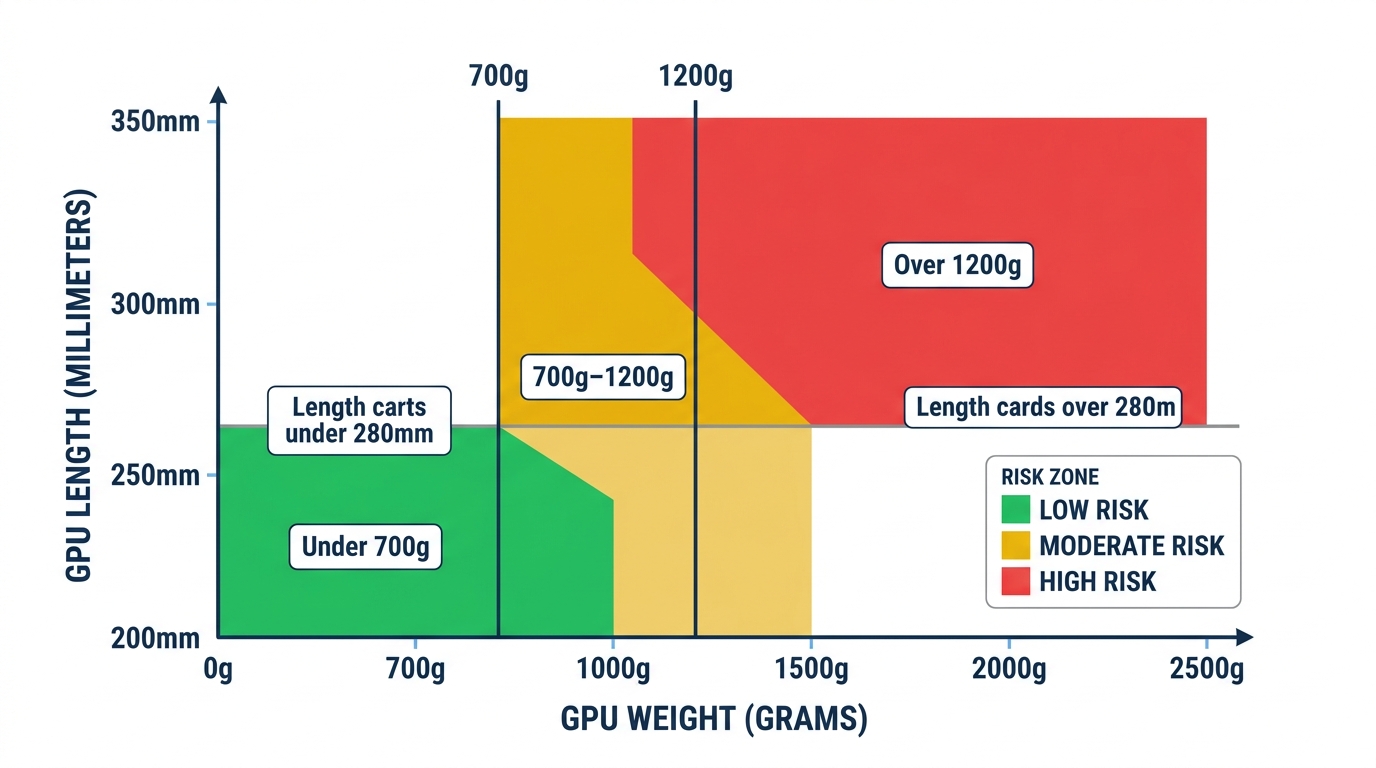
- 🟢 GPU under 700g: Low sag risk in most standard cases.
- 🟡 GPU 700g–1,200g: Moderate risk, especially on cards over 280mm long.
- 🔴 GPU over 1,200g: High risk. A support bracket is not optional at this weight.
What Is GPU Sag?
The Basic Physics Behind It
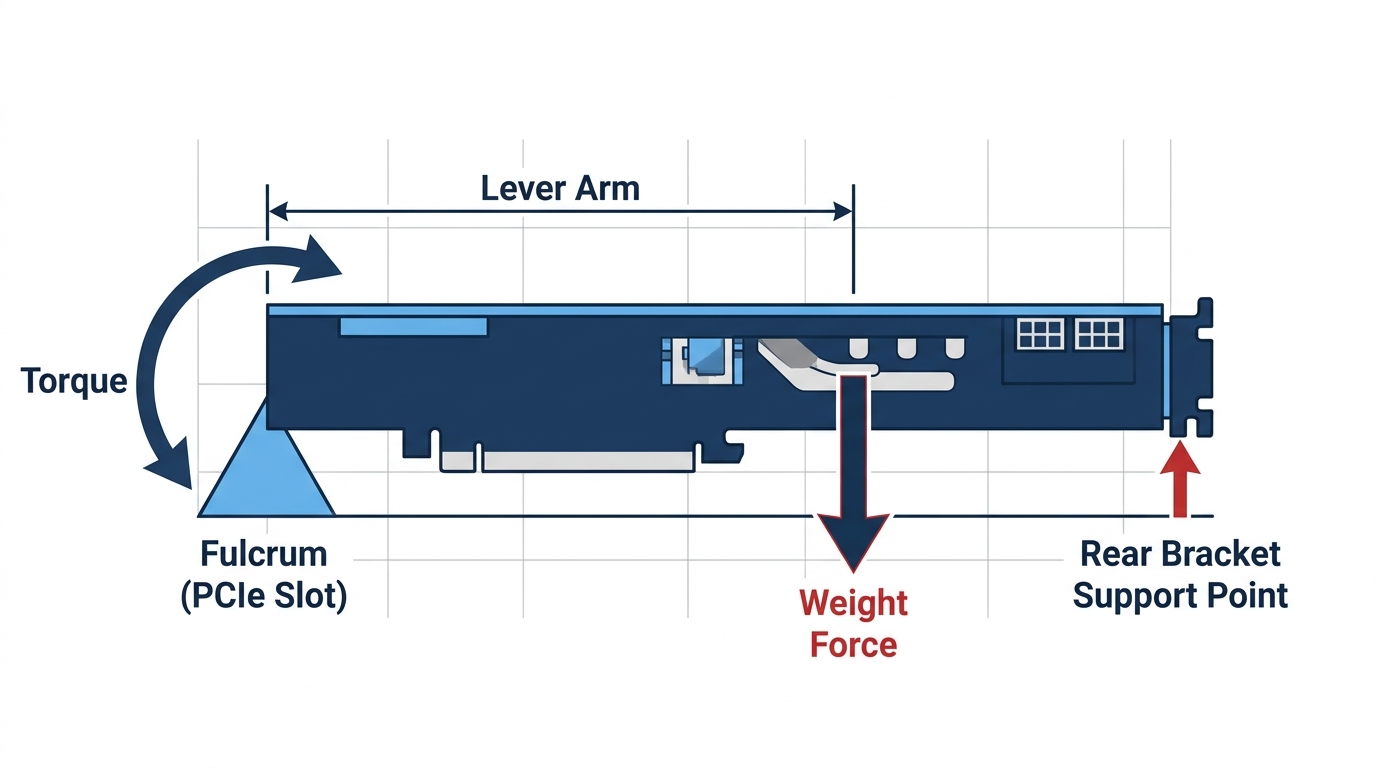
A GPU is held in place by exactly two contact points: the PCIe x16 slot on the motherboard and the single screw at the rear I/O bracket. That’s it. Unlike RAM, which slots in symmetrically and gets support along its full length, or an M.2 SSD that’s screwed down at its far end, a GPU is essentially cantilevered. The PCIe slot acts as the pivot point, and the rest of the card extends outward with nothing holding it up.
This creates a lever arm. The longer and heavier the card, the more rotational torque gets applied at the PCIe connector. Think of holding a heavy textbook pinched between two fingers at one edge. The other end drops. The same principle applies here, except the “fingers” in this case are a plastic retention clip and a small M3 screw doing their best against 2+ kilograms of heatsink and metal backplate.
What Does GPU Sag Look Like?
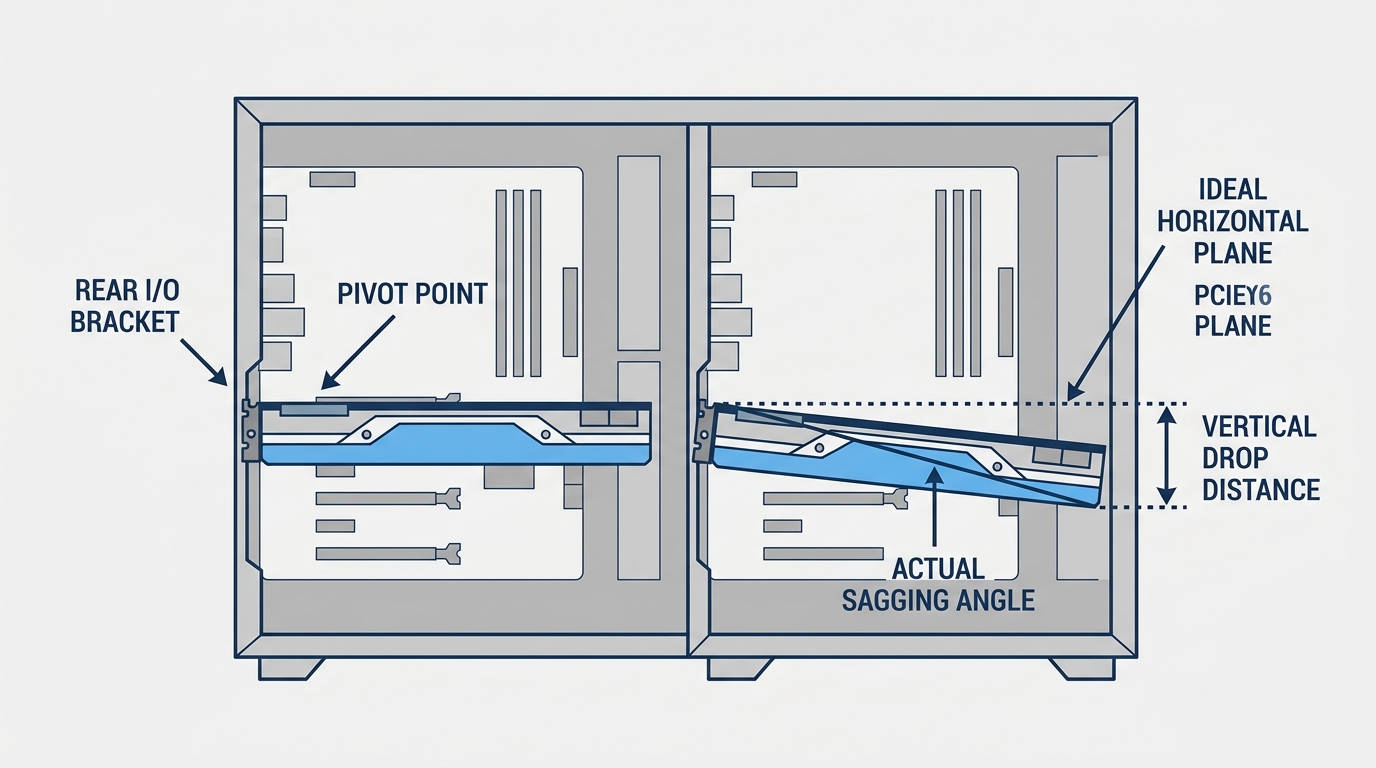
The most obvious sign is a visible downward angle when you look through the side panel. The rear I/O bracket end of the card sits level with the motherboard, but the front end droops. In mild cases you’d only notice it if you were looking for it. In severe cases the card looks almost diagonal.
Here’s how to put actual numbers to it: measure the vertical drop at the far end of the GPU from where it would sit perfectly level.
| Sag Level | Drop at Card’s Far End | Visual Appearance | Risk Level |
|---|---|---|---|
| None | 0–1mm | Perfectly level | None |
| Slight | 2–4mm | Nearly invisible | Low, monitor only |
| Moderate | 5–9mm | Noticeable through side panel | Medium, fix recommended |
| Severe (bad) | 10mm+ | Obviously diagonal | High, fix immediately |
Anything above 5mm is worth addressing. Anything above 10mm is considered bad GPU sag by most hardware engineers, and at that point the PCIe connector is under continuous mechanical stress every time the card heats up and expands.
What Causes GPU Sag?
GPU Weight, The Primary Cause
GPUs have gotten dramatically heavier over the last decade. The GTX 970 from 2014 weighed around 350g. The RTX 5090 Founders Edition tips the scales at approximately 1.8 kg. That’s more than five times the weight on the same PCIe slot design. The mass increase comes from triple-fan coolers, larger heatsink fins, full metal backplates, reinforced shrouds, and on some cards, integrated liquid cooling headers.
Any card over 1,000g should be treated as at-risk without additional support. Cards over 1,500g need a bracket. Not optional.
| GPU Model | Launch Year | Approx. Card Weight | Sag Risk |
|---|---|---|---|
| NVIDIA GTX 1060 6GB | 2016 | ~369g | Low |
| NVIDIA RTX 2080 Ti (FE) | 2018 | ~1,030g | Moderate |
| NVIDIA RTX 3080 (FE) | 2020 | ~1,355g | High |
| AMD RX 6700 XT | 2021 | ~789g | Low–Moderate |
| NVIDIA RTX 4090 (FE) | 2022 | ~2,186g | Very High |
| AMD RX 7900 XTX | 2022 | ~1,809g | Very High |
| AMD RX 9070 XT | 2025 | ~1,200g (est.) | Moderate–High |
| NVIDIA RTX 5090 (FE) | 2025 | ~1,826g | Very High |
| NVIDIA RTX 5080 (FE) | 2025 | ~1,750g (est.) | High |
Card Length
Weight is the dominant factor, but card length multiplies the effect. A longer card means a longer moment arm, which means more torque at the PCIe connector even at the same weight. Most high-sag cards measure 300–336mm or longer. NVIDIA’s RTX 4090 Founders Edition specs list a card length of 336mm. The ATX specification technically supports cards up to 313mm in a standard configuration, and many cases go longer, but there’s no additional physical support at the far end. The PCIe slot is carrying all of it.
Case Orientation and Mounting Angle
This is where most guides stop short. Case orientation matters more than people realize.
Standard vertical motherboard mounting is the worst-case scenario for sag. Gravity pulls the card straight down, applying maximum force at the PCIe connector. That’s how 99% of mid-tower and full-tower cases work.
Inverted ATX cases (where the motherboard is flipped so the GPU faces up toward a top-mounted window) actually reduce sag slightly because the card’s weight has less rotational use in that orientation. Not eliminated. Just reduced.
Horizontal case orientations, like some home theater PC cases or open-air test benches, eliminate sag entirely because gravity now pushes the card toward the motherboard rather than pulling it away. If you’re running a open-air PC case or test bench, GPU sag isn’t something you need to think about at all.
One often-overlooked factor: a poorly seated rear I/O bracket screw. If that screw isn’t fully tightened, the bracket can flex, and even a small amount of play there dramatically increases effective sag. Always torque it down fully.
PCIe Slot Wear Over Time
The PCIe slot itself degrades. Repeated GPU removals and re-installs loosen the retention clip over time. Thermal cycling, the expansion and contraction of the connector from hundreds or thousands of heat-up and cool-down cycles, can microscopically loosen the fit between the GPU’s edge connector and the slot. Older PCIe 3.0 slots on boards from 2018–2020 tend to have less retention force than PCIe 4.0 and 5.0 slots on modern Z790, X670E, and X870E boards. The combination of a worn slot and a heavy card is where real damage happens.
Warning Signs of Bad GPU Sag
Visual Warning Signs
The obvious one: open your side panel and look. If the card visibly droops downward rather than sitting level, you have at least moderate sag. Specific things to look for:
- Widening gap: the gap between the GPU cooler shroud’s top edge and the PCIe slot widens as you move from the rear bracket toward the front of the card.
- Bowing bracket: the rear I/O bracket appears to be pulling slightly away from the case’s expansion slot panel, or bowing outward at the top.
- Diagonal card: in severe cases, the card’s front edge has dropped so much it’s visibly angled when viewed straight-on through the side panel.
Performance and Stability Warning Signs
This is where things go from cosmetic to functional. If sag is stressing the PCIe connector enough to affect contact, you’ll see it in behavior before you see physical damage.
- Random game crashes or graphical artifacts: GPU losing partial PCIe contact under load, especially when the card heats up and thermally expands.
- GPU not detected at POST: intermittent “no display” on boot is a classic sign of a compromised PCIe connection.
- PCIe link speed downgrade: open GPU-Z and check the Bus Interface field. A card that should show “PCIe x16 4.0” but instead shows “PCIe x8” or “PCIe x16 1.1” has a contact problem worth investigating.
- Device Manager errors on Windows or dmesg errors on Linux: PCIe AER (Advanced Error Reporting) will log correctable and uncorrectable errors that often trace back to physical connection issues.
That GPU-Z check is a genuinely useful diagnostic step. Takes 30 seconds. If you see your bus interface running at x8 when it should be x16, and you haven’t deliberately split lanes, that’s a red flag worth chasing down.
Physical Damage Warning Signs
These mean you’ve waited too long. Not great.
- Bent PCIe slot tabs: the retention clip or the plastic surrounding the slot shows visible deformation.
- Cracking near the slot: hairline cracks around the PCIe slot retention clip on the motherboard PCB.
- Scuffed gold fingers: the edge connector pins on the GPU itself show scraping or oxidation from micro-movement inside the slot.
- Bowed backplate: the GPU’s metal backplate shows visible bowing along its length, indicating the card’s PCB itself is under flex stress.
Is GPU Sag Normal? Should You Be Worried?
Slight sag under 5mm is essentially universal with modern high-end cards. The PCIe slot was designed in an era when GPUs weighed a fraction of what they do today, and the spec never anticipated 2+ kg cards hanging off it. So yes, if your RTX 4080 or RX 7900 GRE has a gentle droop, that’s not a manufacturing defect or an installation error. It’s physics.
That said, the risk is cumulative. Two millimeters of sag over five years does more mechanical damage than the same 2mm over six months. The connector experiences repeated micro-stress with every thermal cycle, every vibration from fans or nearby foot traffic, and every time the system is moved. Builders using their GPU for 24/7 workloads like AI inference, 3D rendering, or video encoding are at higher risk because the card almost never fully cools down, meaning thermal cycling is reduced but constant heat-induced expansion keeps the connector under persistent load.
According to GamersNexus’s GPU sag thermal and frequency benchmark, a severely sagging card showed only minimal thermal impact—around 0.6°C warmer in single-GPU testing, within measurement error—and no significant effect on clock frequency during sustained operation. That’s a real, documented effect—sag does produce a physical change at the heatsink contact point—though at this scale it won’t affect gaming performance in typical builds.
A mild sag won’t kill your GPU overnight. But it’s a slow, mechanical failure mode that most builders ignore until something breaks.
How Does GPU Sag Affect Performance?
In most mild to moderate cases: zero measurable FPS impact. The PCIe electrical connection is maintained, bandwidth is unaffected, and the GPU performs identically to a perfectly level card. This is the honest answer, and it’s why plenty of builders shrug at sag reports.
Where it gets complicated is when sag causes partial PCIe contact loss. If the link drops from x16 to x8, the bandwidth cut is roughly 50% in raw throughput terms, but in gaming workloads the real-world FPS delta is typically only 1–2%. For professional GPU compute, video encoding, or AI inference, that bandwidth loss is more meaningful and worth caring about.
In extreme cases with actual connection failure: full GPU dropout, system crashes, and instability that looks identical to driver errors or power supply problems. Builders spend hours troubleshooting software issues that turn out to be a mechanical failure at the PCIe slot. Worth knowing before you reinstall Windows chasing a ghost.
The bottom line: sag itself doesn’t hurt performance. The damage sag causes over time does. Monitoring safe GPU temperature ranges is useful, but a GPU running within normal thermal limits can still be accumulating mechanical damage from sag you haven’t addressed.
How to Fix GPU Sag
There are several approaches, ranging from free DIY fixes to purpose-built hardware solutions. Here’s a quick overview of what works.
- GPU support bracket: the most effective and cleanest solution. A metal arm mounts to the case floor or PCIe slot covers and supports the card from below. Many come with RGB lighting if that’s your thing.
- GPU sag brace: similar to a support bracket but often clips onto the slot cover plate itself and extends an arm under the card’s far end.
- Fishing line or thin wire: attach a line from the card’s far end or power connector loop to the case’s top panel or a case fan mount. Free, invisible from most angles, and genuinely effective.
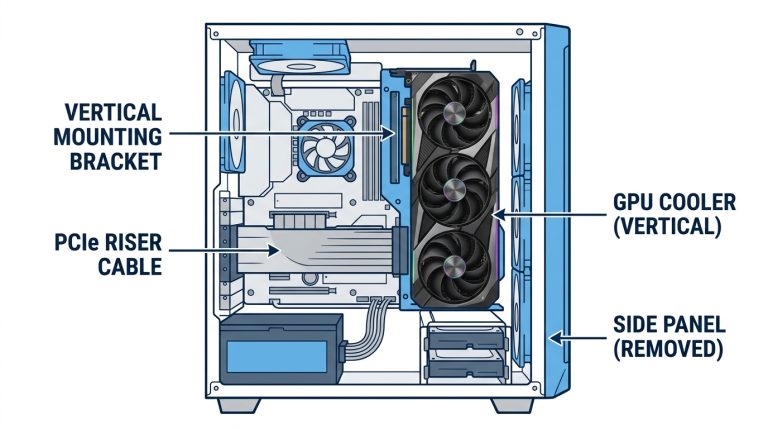
- Vertical GPU mounting with a riser cable: mounts the card parallel to the side panel instead of horizontal. Eliminates sag entirely since the card now hangs vertically, distributing its weight differently. Requires a PCIe riser cable and a case that supports vertical GPU mounting.
- 3D-printed support: if you have access to a printer, custom supports can be designed for a perfect fit.
For a full breakdown of each method with pros, cons, and recommendations, check out our complete GPU support bracket guide.
Frequently Asked Questions About GPU Sag
How do you fix GPU sag?
The most reliable fix is a GPU support bracket, a metal arm that mounts inside the case and supports the card from below. Other options include a fishing line or wire tied from the card to the case top panel, vertical GPU mounting using a PCIe riser cable, or a 3D-printed custom support. All of these work. The bracket is the cleanest permanent solution for most builds.
How much GPU sag is too much?
Any measured drop at the far end of the card exceeding 5mm is worth addressing. Below 5mm is considered normal for heavy modern cards. Above 10mm is bad GPU sag by any practical definition and should be fixed immediately. At that level, the PCIe connector is under real mechanical stress during every thermal cycle, and physical damage to the slot is a matter of when, not if.
Can GPU sag damage your PC?
Yes, over time. Severe sag applies continuous mechanical stress to the PCIe x16 slot on the motherboard and to the gold-finger edge connector on the GPU itself. This can cause partial contact loss, PCIe link speed degradation, random crashes, intermittent display failures, and in the worst cases, physical deformation of the PCIe slot or bowing of the GPU’s PCB. It doesn’t happen overnight, but untreated bad sag is a real failure mode.
Does GPU sag affect FPS or gaming performance?
Not directly in most cases. Mild to moderate sag with an intact PCIe connection has no measurable FPS impact in gaming workloads. Performance only degrades if sag damage has caused the PCIe link to drop below x16 speeds, which in gaming typically costs 1–2% FPS at most. The bigger concern is professional compute workloads where PCIe bandwidth utilization is much higher. The real performance risk from sag is long-term physical damage, not short-term frame rate loss.
Is slight GPU sag normal?
Yes. Cards over 600–700g will almost always show some sag due to the single-point support design of PCIe slots. This is a limitation of a connector standard designed decades ago, not a defect in your specific build. Slight sag under 5mm is cosmetic and not dangerous short-term. Sag between 5–9mm should be monitored and ideally fixed. Anything over 10mm needs immediate attention.
The Short Version
GPU sag is a real mechanical issue driven by modern cards getting heavier every generation while the PCIe slot design has stayed the same. Slight droop is nearly unavoidable with cards over 700g. Severe sag, especially over 10mm, causes cumulative stress on your motherboard’s PCIe slot and the GPU’s edge connector that compounds over years of use. Run the GPU-Z bus interface check, do a visual measurement through your side panel, and if your card is drooping noticeably, pick up a support bracket or rig a wire support before the problem turns into a hardware failure you didn’t see coming.

Alex has been building and tweaking custom PCs for over 12 years. From budget builds to full custom water loops, he’s assembled more than 50 systems and helped hundreds of builders troubleshoot their rigs. When he’s not benchmarking the latest hardware, you’ll find him optimizing airflow setups or stress-testing overclocks.