What Is an AIO Cooler? Liquid Cooling Explained
An AIO cooler is a self-contained, pre-filled liquid cooling system that circulates coolant between a CPU pump block and a case-mounted radiator to reduce processor temperatures.
Last updated: June 2026
Table of Contents
- Quick Answer: What Is an AIO Cooler?
- What Does AIO Stand For? (AIO Cooler Meaning)
- How Does an AIO Cooler Work?
- The Pump Head (CPU Block)
- The Tubing
- The Radiator
- The Fans
- AIO Cooler Sizes Explained: 120mm, 240mm, 280mm, 360mm, 420mm
- AIO Cooler vs. Air Cooler: Key Differences
- AIO CPU Cooler Compatibility: What You Need to Know Before Buying
- CPU Socket Support
- Case Radiator Clearance
- RAM Clearance (Pump Head Overhang)
- The Hidden Costs of AIO Ownership: What Nobody Tells You
- AIO Coolers With Screens and RGB: Performance Impact vs. Aesthetics
- AIO Cooler Real-World Thermal Benchmarks by CPU Generation
- Is an AIO Cooler Worth It? Who Should and Shouldn’t Buy One
- FAQ: AIO Cooler Questions Answered
- What is an AIO cooler?
- How long do AIO coolers last?
- Do AIO coolers need maintenance?
- What size AIO cooler do I need?
- Can an AIO cooler leak and damage my PC?
- Wrapping Up
Quick Answer: What Is an AIO Cooler?
AIO stands for All-In-One. An AIO cooler combines a pump, coolant reservoir, tubing, radiator, and fans into a single pre-assembled unit that bolts directly onto your CPU and mounts to your case. You don’t mix fluids, source custom fittings, or bleed air from the loop. It arrives ready to install and handles CPU cooling without ongoing maintenance.
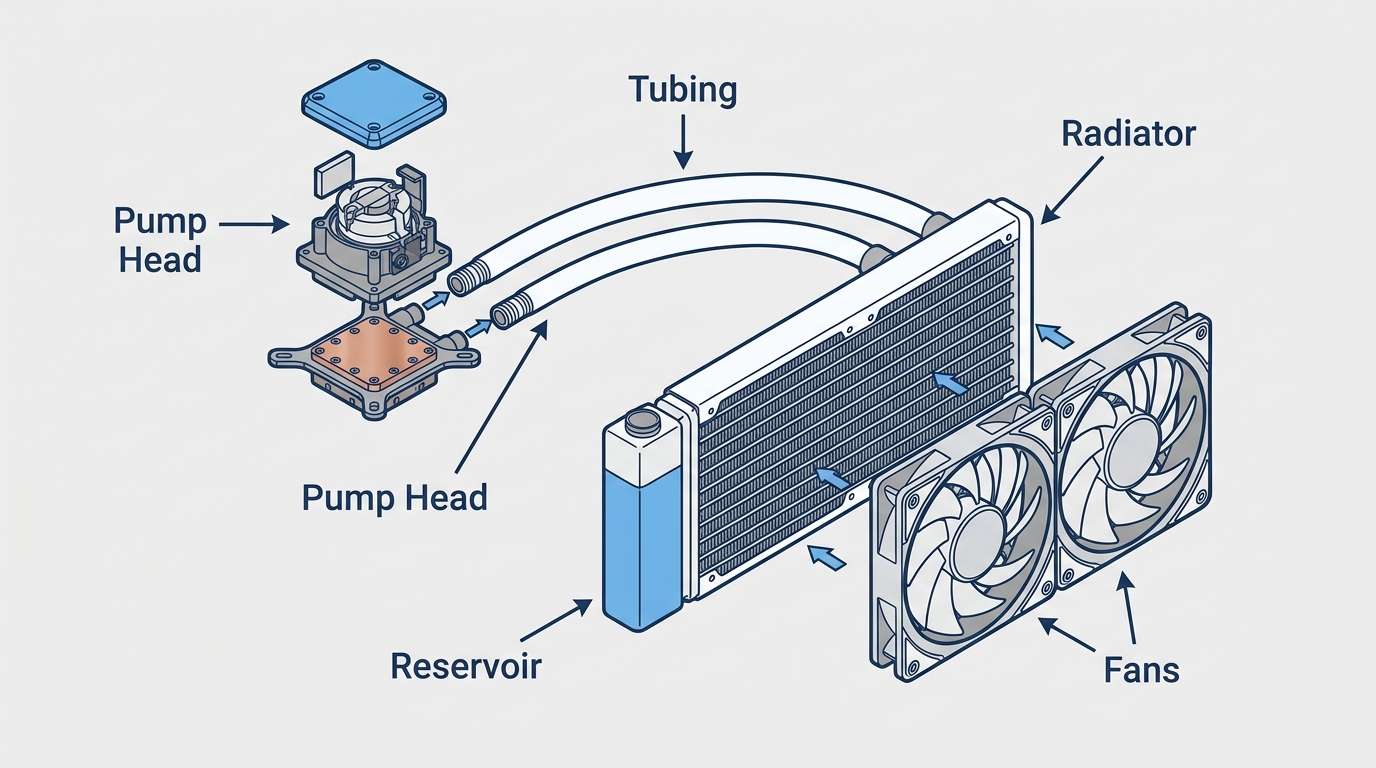
This guide covers everything you need before buying one: how the cooling loop actually works, which radiator size fits your CPU’s power draw, how AIO liquid coolers stack up against tower air coolers, and the long-term ownership details most product pages skip entirely. Whether you’re planning your first build or upgrading from a stock cooler, this is the information you need.
What Does AIO Stand For? (AIO Cooler Meaning)
All-In-One. The name describes exactly what you’re buying: every component of a liquid cooling system pre-assembled and pre-filled at the factory. That means the pump, coolant reservoir, radiator, tubing, and fans are already connected when the box arrives at your door.
The contrast is with a custom open loop, where you select and purchase each component separately: a CPU water block, a separate pump, a reservoir, a radiator, fittings, and tubing. Custom loops offer more flexibility and higher peak performance, but they require hours of research, careful assembly, leak testing, and periodic maintenance. An AIO water cooler trades some of that ceiling for dramatically lower complexity.
You’ll also see AIOs called CLCs (Closed Loop Coolers) in some marketing material, particularly from older Corsair and Antec product lines. Same thing, different label. “AIO liquid cooler” and “AIO water cooler” are also used interchangeably across brands and forums, referring to the same closed-loop design.
If you’re curious how a full custom water cooling setup compares to an AIO, our PC water cooling beginner’s guide walks through both approaches in depth.
How Does an AIO Cooler Work?
Heat moves from your CPU through a copper baseplate into coolant, which the pump circulates to the radiator where case fans blow that heat out. The cooled liquid then returns to the pump head. That loop repeats continuously while your system is running.
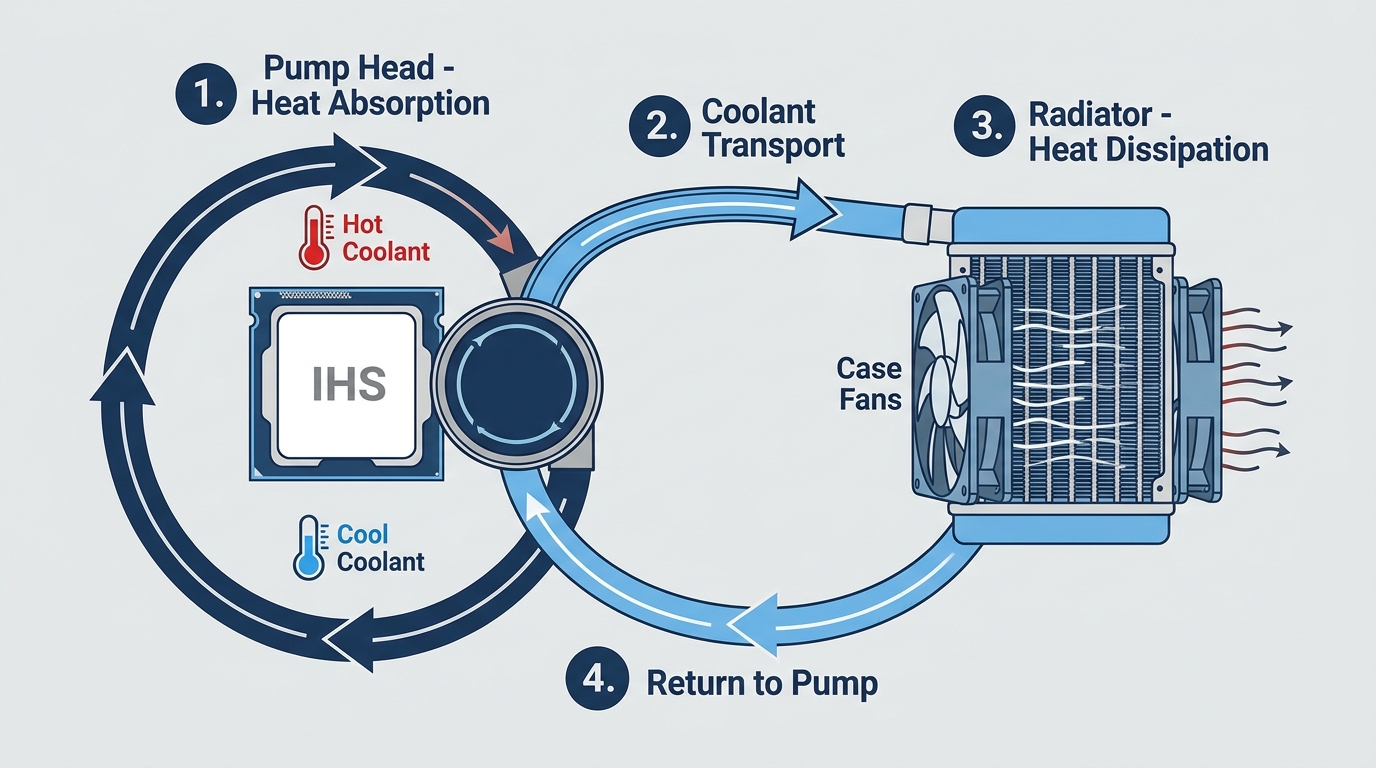
Each component in that loop has specific specs that determine how well the whole system performs.
The Pump Head (CPU Block)
The pump head sits directly on your CPU’s IHS (Integrated Heat Spreader). Inside, a micro-channel copper or aluminum baseplate maximizes contact surface area with the CPU. Heat transfers from the IHS through thermal interface material (TIM) into that baseplate, then into the circulating coolant.
The pump itself is either housed inside the head or in an inline unit along the tubing, depending on the brand. Pump speeds typically range from 800 to 3,600 RPM and are controlled via a PWM signal from your motherboard’s pump header or a fan header set to DC mode. Higher pump speeds move coolant faster, but add noise. Most AIOs default to a middle range around 2,000 RPM under load.
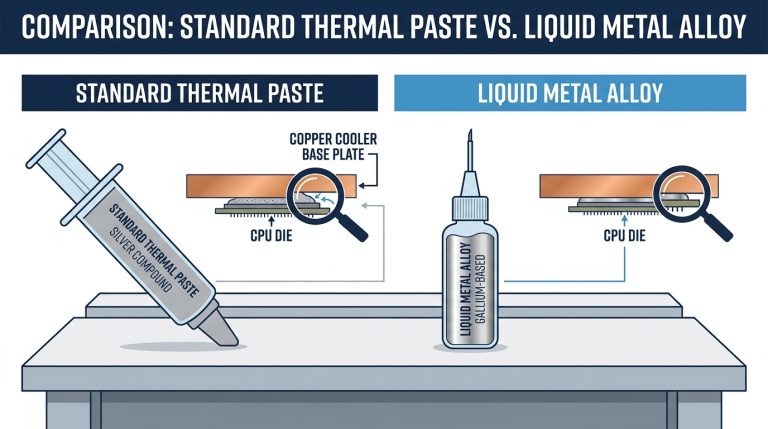
TIM quality between the CPU and pump head matters. A poor thermal paste job adds several degrees to your temps before coolant even enters the loop. Most AIOs ship with pre-applied paste, which is adequate but not always optimal. Replacing the pre-applied paste with a quality compound like Thermal Grizzly Kryonaut can drop temps by 3-5°C on higher-TDP CPUs.
The Tubing
Flexible tubing connects the pump head to the radiator and back. Most modern AIOs use FEP (Fluorinated Ethylene Propylene) inner lining, which is significantly more resistant to coolant permeation than older rubber designs. With FEP tubing, coolant volume loss over five years typically stays below 5%.
Standard tubing lengths run 300mm to 450mm depending on radiator size and brand. Budget AIOs sometimes use thinner-walled rubber tubing that degrades faster and allows more air infiltration over time. That’s one area where the price difference between a $60 and a $120 AIO becomes real after year three.
The Radiator
The radiator is the primary heat exchanger. Coolant flows through internal channels while case fans push or pull air through aluminum fins, carrying heat out of the loop and out of the case.
Radiator thickness comes in three common profiles: 27mm slim, 38mm standard, and 54mm high-performance. Fin density is measured in FPI (Fins Per Inch), typically 16 to 22 FPI on consumer AIOs. Higher FPI improves heat dissipation but requires fans with better static pressure to push air effectively through tighter fin spacing.
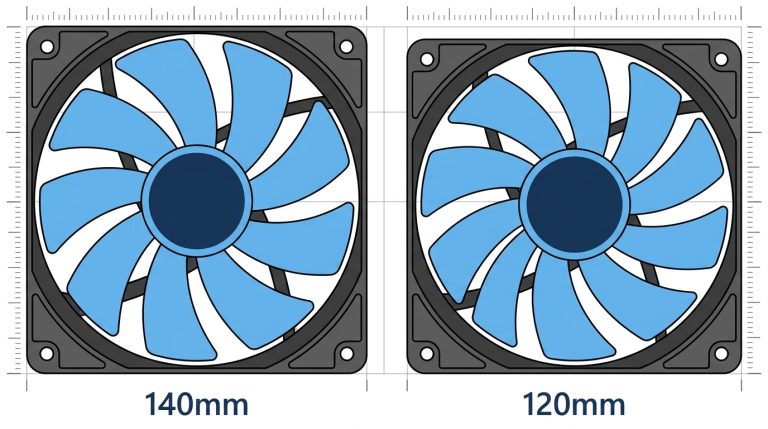
Radiator size directly determines how much CPU heat your AIO can shed. Common sizes: 120mm, 240mm, 280mm, 360mm, and 420mm. The number refers to the total fan-mounting length. A 360mm radiator mounts three 120mm fans. A 420mm mounts three 140mm fans.
The Fans
The fans are what actually move heat out of the radiator and out of your case. They’re not generic case fans. Radiator fans need high static pressure to force air through dense fin arrays, not just high airflow numbers.
Typical specs per fan: 50 to 120 CFM airflow and 1.5 to 4.0 mmH₂O static pressure. High-static-pressure fans like the Noctua NF-A12x25 or Arctic P-series outperform stock AIO fans significantly in head-to-head testing, and swapping them is one of the best upgrades you can make to a mid-range AIO.
PWM fans offer precise speed control via a 4-pin header and let your motherboard or AIO controller set custom fan curves. DC fans use voltage control and are less precise. Most modern AIOs ship with PWM fans. For help figuring out how many fans your case needs overall, see our guide on how many case fans you need.
AIO Cooler Sizes Explained: 120mm, 240mm, 280mm, 360mm, 420mm
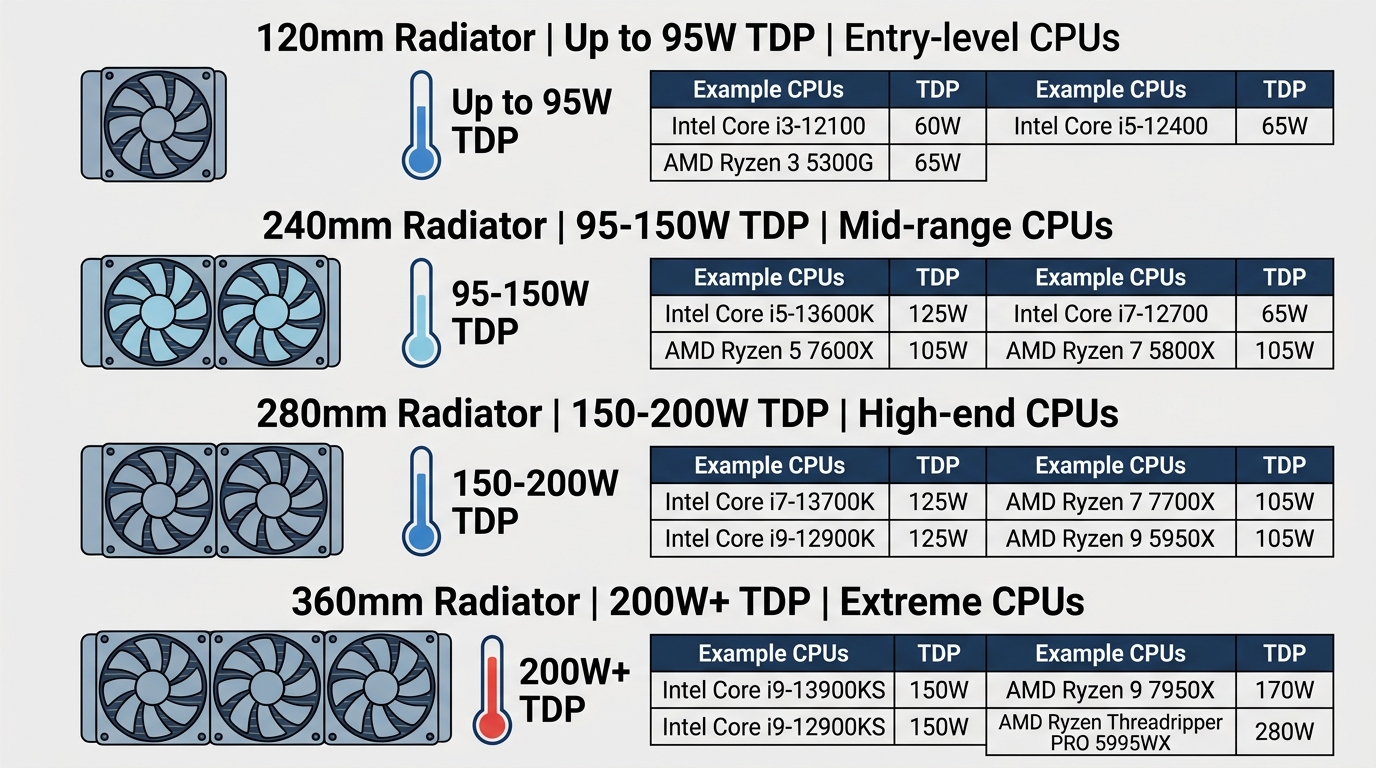
Radiator size is the single biggest factor in AIO thermal performance. More radiator surface means more area to shed heat, which translates directly to lower CPU temps under sustained load. The table below maps radiator sizes to real-world use cases and expected temperature deltas over a 25°C ambient room temperature.
| Radiator Size | Fan Config | Ideal TDP Range | Avg. CPU Delta T (Over Ambient) | Best For |
|---|---|---|---|---|
| 120mm | 1x 120mm | Up to 65W | ~35–40°C | Budget builds, low-TDP CPUs |
| 240mm | 2x 120mm | 65W–125W | ~28–34°C | Mid-range CPUs (Ryzen 5, Core i5) |
| 280mm | 2x 140mm | 95W–150W | ~25–31°C | Mid-high CPUs, better static pressure |
| 360mm | 3x 120mm | 125W–250W+ | ~22–28°C | High-end CPUs (Ryzen 9, Core i9) |
| 420mm | 3x 140mm | 150W–350W+ | ~20–25°C | Extreme overclocking, flagship CPUs |
Delta T figures based on aggregate benchmark data collected via HWiNFO community testing at approximately 25°C ambient.
- 25°C = 77°F (typical ambient room temperature)
- 60°C = 140°F (light gaming, idle load)
- 70°C = 158°F (normal gaming load)
- 80°C = 176°F (heavy all-core workload)
- 85°C = 185°F (acceptable maximum for most CPUs)
- 90°C = 194°F (thermal throttling territory for many Intel CPUs)
- 95°C = 203°F (throttling for most AMD Ryzen CPUs)
- 100°C = 212°F (critical threshold, expect performance loss)
Formula: °F = (°C × 1.8) + 32.
Rule of thumb: match your radiator’s TDP capacity to at least 1.5x your CPU’s rated TDP to give yourself headroom during sustained all-core loads. A Ryzen 9 7950X with a 170W TDP can spike well past 200W during Cinebench runs. A 240mm AIO simply can’t dissipate that heat fast enough without throttling.
AIO Cooler vs. Air Cooler: Key Differences
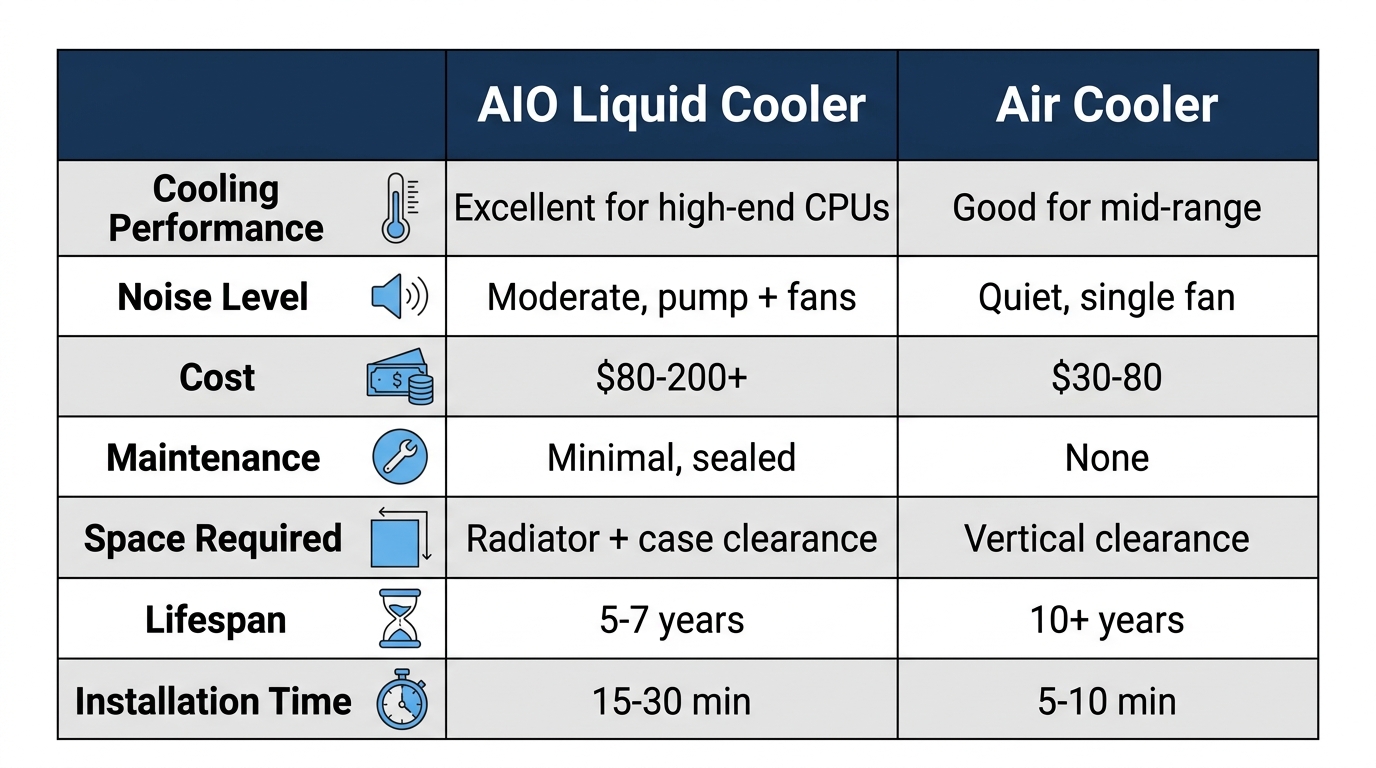
The honest answer: a high-quality tower air cooler at $80 beats a budget AIO at $70 in most real-world scenarios. The performance gap between AIOs and air coolers only becomes meaningful at the high end, where a 360mm or 420mm AIO pulls ahead of even the best tower coolers under sustained full-core loads.
| Factor | AIO Liquid Cooler | Air Cooler (Tower) |
|---|---|---|
| Cooling Performance | Higher (especially 360mm+) | Very competitive at mid-range |
| Noise Level | Low to moderate (fan + pump) | Low (fan only, no pump noise) |
| Average Lifespan | 5–7 years (pump MTBF ~50,000 hrs) | 10+ years (no moving parts except fan) |
| Price Range | $60–$250+ | $30–$100 |
| RAM Clearance | Not an issue (pump head is compact) | Can conflict on some ITX and mATX boards |
| Case Compatibility | Requires radiator mount space | Requires CPU socket clearance and height |
| Risk of Failure | Pump failure / leak risk (low but real) | Near zero mechanical failure risk |
Popular AIO picks from Corsair (iCUE series), NZXT (Kraken), and Arctic (Liquid Freezer III) demonstrate the high end of what closed-loop cooling achieves. On the air side, Noctua’s NH-D15 and the be quiet! Dark Rock Pro 4 compete surprisingly well with 240mm AIOs on CPUs in the 65W–125W TDP range. The jump to a 360mm AIO delivers consistent gains on CPUs like the Core i9-14900K or Ryzen 9 7950X where a big air cooler starts running out of headroom.
Pump noise is the one area where air coolers win outright. A tower cooler at low fan speeds is almost silent. An AIO always has a pump running, which typically adds a faint hum at 1,500–2,000 RPM. Not annoying, but not zero.
AIO CPU Cooler Compatibility: What You Need to Know Before Buying
Compatibility issues are the number one reason for return headaches with AIO purchases. Check these three things before ordering.
CPU Socket Support
Most current AIOs ship with universal mounting kits covering Intel LGA1700, LGA1851 (Arrow Lake / Core Ultra 200 series), AMD AM4, and AM5. Older units sitting in retailer warehouses sometimes ship without AM5 brackets. Always verify socket support in the product specs, not just the listing title. Some manufacturers sell updated mounting kits separately for AIOs originally designed before AM5 launched.
Current major sockets as of 2026:
- Intel: LGA1700 (12th–14th Gen), LGA1851 (Core Ultra 200 / Arrow Lake)
- AMD: AM4 (Ryzen 5000), AM5 (Ryzen 7000, 7000X3D, 8000G, 9000, 9000X3D)
Case Radiator Clearance
Your case spec sheet lists maximum supported radiator sizes for top, front, and side mounts. Don’t assume. A 360mm radiator is 397mm long. It won’t fit in every mid-tower.
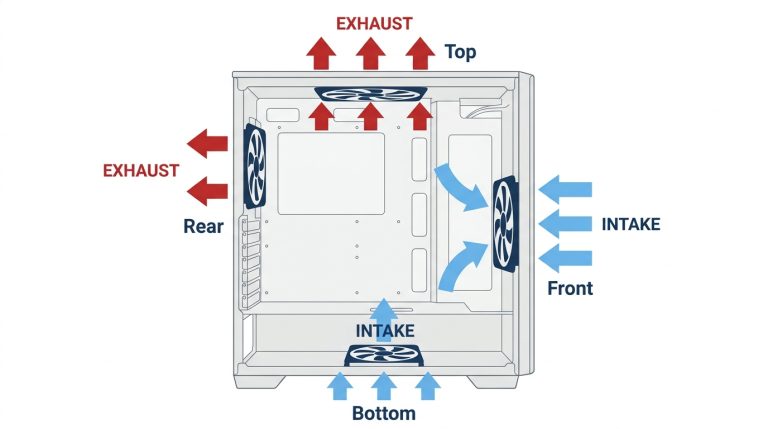
Thickness math matters too. A standard 38mm radiator plus a 25mm fan equals 63mm of total depth. That assembly needs to clear your motherboard’s VRM heatsinks when top-mounted, and needs to clear the front intake bay when front-mounted. Measure before buying, especially in compact cases.
RAM Clearance (Pump Head Overhang)
Some pump head designs extend slightly over the first or second DIMM slot. On full ATX boards with standard-height RAM this is usually fine. On Mini-ITX boards where the DIMM slots sit close to the socket, and with tall RGB RAM heatspreaders, it can become a problem. Arctic and Fractal Design are known for compact pump head designs that minimize overhang. Check the pump head dimensions against your motherboard’s DIMM-to-socket distance if you’re building SFF.
The Hidden Costs of AIO Ownership: What Nobody Tells You
The “set it and forget it” reputation for AIOs is mostly accurate, but with some qualifications that budget marketing copy never mentions.
Pump lifespan reality: Manufacturer MTBF ratings hover around 50,000 hours, which works out to roughly 5.7 years of continuous 24/7 operation. In practice, according to the Tom’s Hardware Forum community, most AIOs last 4 to 5 years, with some failing earlier as air gradually accumulates inside the system when tubing material degrades. Units running at higher static pressure or in warmer environments tend to reach that point sooner.
Coolant evaporation: Even with FEP tubing, some coolant permeation occurs. Budget AIOs with lower-quality inner linings show measurable coolant reduction after years 3 to 4. You can’t top off a closed loop. Once coolant volume drops enough to introduce air pockets near the pump, noise and efficiency both suffer.
Warranty periods vary significantly:
- Arctic Liquid Freezer III: 6-year warranty
- NZXT Kraken: 6-year warranty
- Corsair iCUE: 5-year warranty
- Thermaltake: 3-year warranty
- Budget/Generic AIOs: 1–2 year warranty
Software overhead: If you buy an AIO with RGB or an LCD display, you’ll likely install the brand’s control software. Corsair’s iCUE, NZXT’s CAM, and ASUS Armoury Crate all add background processes. None of them are required for basic cooling operation, but RGB and display features won’t function without them. On a gaming PC that’s fine. On a workstation where every background process matters, it’s worth factoring in.
A quality AIO from Arctic, NZXT, or Corsair with a 5-plus-year warranty is genuinely low-maintenance. Budget AIOs under $50 have measurably higher pump failure rates based on community reports aggregated from builders on r/buildapc and similar forums. The $30–40 premium for a reputable brand is real insurance.
AIO Coolers With Screens and RGB: Performance Impact vs. Aesthetics
LCD and OLED pump heads have become a major product category. Units like the NZXT Kraken Elite, Corsair iCUE ELITE LCD, and ASUS ROG Ryujin II put a small display directly on the pump head, showing custom images, animated GIFs, CPU temperatures, GPU load, or clock speeds.
The performance impact of the display itself: essentially zero. The thermal design of the pump head doesn’t change. You’re paying $30 to $80 more for the screen, and what you get is aesthetics, not cooling.
A few practical notes if you’re considering a screen AIO:
- Head height: Display pump heads are typically 20–35mm taller than standard heads, which can reduce clearance between the pump head and adjacent components or case panels.
- Power draw: LCD heads draw an additional 2–5W via a USB header connection. Minor, but on tight power budgets.
- Software dependency: The display requires manufacturer software to push custom images or sensor data. If the software is discontinued (it happens), the screen defaults to basic mode.
If you’re building a showcase rig or want a temperature readout visible through a glass panel without opening monitoring software, a screen AIO earns its cost. If your case is closed or you’re focused purely on thermals per dollar, skip it. Not worth it.
AIO Cooler Real-World Thermal Benchmarks by CPU Generation
The temperature ranges below represent what you can realistically expect during all-core sustained workloads (Cinebench R23 multi-core, approximately 25°C ambient). Data is aggregated from published reviews at Tom’s Hardware and Gamers Nexus. These aren’t cherry-picked best-case results; they’re what an average well-installed AIO produces in a mid-tower with reasonable airflow.
| CPU | TDP / PL2 | 240mm AIO | 360mm AIO | Premium 360mm AIO |
|---|---|---|---|---|
| AMD Ryzen 5 7600X | 105W / 142W | ~72–78°C | ~65–70°C | ~62–67°C |
| AMD Ryzen 9 7950X | 170W / 230W | ~92–98°C (throttle risk) | ~78–85°C | ~72–78°C |
| AMD Ryzen 9 9950X | 170W / 230W | ~88–94°C (throttle risk) | ~76–83°C | ~70–76°C |
| Intel Core i5-14600K | 125W / 181W | ~78–84°C | ~70–76°C | ~67–72°C |
| Intel Core i9-14900K | 125W / 253W | ~95°C+ (throttle) | ~82–90°C | ~76–84°C |
| Intel Core Ultra 9 285K | 125W / 250W | ~88–94°C | ~79–85°C | ~74–80°C |
These ranges are approximations. Actual results vary based on TIM quality, pump speed settings, fan curve configuration, and case airflow. A restrictive case with no front intake fans can add 5–8°C across the board.
The pattern is consistent: Intel 12th through 14th Gen CPUs run hot because motherboard power limit defaults allow PL2 (short-boost power) to run uncapped for extended periods. A Core i9-14900K pulling 250W sustained makes a 240mm AIO genuinely inadequate. A 360mm is the minimum recommendation for i9 and Ryzen 9 class processors. The Arctic Liquid Freezer III 360, in particular, showed results around 49.7°C over ambient in 200W heat load testing when noise-normalized, which is among the best results from any 360mm cooler in published benchmark data.
If your CPU keeps hitting thermal limits despite a quality AIO, the problem might not be the cooler itself. Our guide on CPU overheating signs and fixes covers how to diagnose whether the issue is the cooler, the TIM application, case airflow, or power limits in BIOS.
Is an AIO Cooler Worth It? Who Should and Shouldn’t Buy One
Short answer: yes for high-TDP builds, overkill for budget ones.
Buy an AIO if you’re:
- Running a CPU with 125W+ TDP, especially anything i9 or Ryzen 9 class
- Overclocking and need sustained thermal headroom, not just peak burst capacity
- Building in a case where a 165mm tall tower cooler won’t fit or blocks airflow
- Prioritizing a clean build aesthetic with routing cables away from the CPU area
- Comfortable spending $100–$150 for a quality unit with a 5-plus-year warranty
Skip an AIO if you’re:
- On a tight budget under $80 total for cooling, where a $70 Noctua or Thermalright air cooler wins on value
- Building in a Mini-ITX case with no top mount and limited front radiator clearance
- Running a 65W TDP CPU that a $40 tower cooler handles without breaking a sweat
- Concerned about pump failure risk in a mission-critical system that can’t go down
The $100 AIO vs. $80 tower cooler comparison is genuinely close at mid-range CPU TDPs. A Ryzen 5 7600X paired with a Thermalright Peerless Assassin 120 stays well within safe temperature ranges during gaming loads. You’d need to push into all-core sustained workloads, like video rendering or code compilation, to see meaningful separation between a 240mm AIO and a quality tower.
For help interpreting what “good” actually looks like on a temperature readout, our breakdown of what a good CPU temp looks like by workload puts specific numbers to each use case.
FAQ: AIO Cooler Questions Answered
What is an AIO cooler?
An AIO cooler, short for All-In-One cooler, is a closed-loop liquid cooling system for CPUs. It integrates a pump, radiator, fans, and pre-filled tubing into a single pre-assembled unit. No custom configuration is required, and there’s no fluid to add or change during normal use. You mount the pump head to the CPU, attach the radiator to the case, connect the cables, and you’re done.
How long do AIO coolers last?
Most quality AIOs from reputable brands last 5 to 7 years under typical use. Pump MTBF ratings hover around 50,000 hours, which is roughly 5.7 years of continuous operation. In practice, as the Tom’s Hardware forum community notes, real-world lifespan is often 4 to 5 years, with earlier failures occurring when tubing degrades and allows air to enter the loop. Brands with the best longevity track records include Arctic and NZXT (both offer 6-year warranties) and Corsair (5-year). Signs of pump failure include a sudden rise in CPU temps without a workload change, and audible grinding or rattling from the pump head area.
Do AIO coolers need maintenance?
Virtually none. Pre-filled closed loops don’t require coolant top-offs or fluid changes. The practical maintenance checklist is minimal: dust the radiator fans every 3 to 6 months with compressed air, check pump RPM readings annually via HWiNFO or your AIO’s software to confirm the pump is still spinning at expected speeds, and inspect tubing annually for kinks, discoloration, or unusual softness that might indicate material degradation. That’s it. The thermal paste between the pump head and CPU is the one component that may need attention over time; quality TIM typically holds its properties for 3 to 5 years before performance starts to drop. For more detail on paste longevity, see our guide on how often to replace thermal paste.
What size AIO cooler do I need?
Match radiator size to CPU power draw. A 240mm AIO handles most CPUs up to roughly 125W TDP, covering mid-range chips like the Ryzen 5 7600X and Core i5-14600K during gaming. A 360mm AIO is the right pick for CPUs in the 125W to 250W range, including the Ryzen 9 7950X, 9950X, Core i9-14900K, and Core Ultra 9 285K. A 420mm unit is for extreme overclockers or flagship CPUs running sustained all-core workloads above 250W. If your case only fits a 280mm radiator, two 140mm fans deliver better static pressure than two 120mm fans and can close part of the gap. Don’t buy a 120mm AIO for a modern high-end CPU; it won’t keep up.
Can an AIO cooler leak and damage my PC?
Leaks are rare. Industry failure rates under normal operating conditions are below 1% for major brands. When leaks do happen, they’re almost always caused by physical damage to tubing (a sharp edge or pinch point during installation), improper fitting tightness, or a manufacturing defect in a unit that should have been caught by QA. The practical steps to minimize risk: inspect all fittings and tubing before first boot, route tubing away from any sharp case edges or fan blades, don’t overtighten mounting hardware on the pump head, and register your warranty the day the unit arrives. Modern AIO tubing and fittings are robust. Not something to lose sleep over.
Wrapping Up
AIO liquid coolers hit the right balance for most mid-to-high-end builds: significantly better sustained thermal performance than all but the top-tier tower air coolers, clean installation, and minimal ongoing upkeep. A 240mm covers the majority of gaming CPUs without issue. A 360mm is the responsible choice for anything in the Ryzen 9 or Core i9 bracket. Buy from a brand with at least a 5-year warranty, match the radiator size to your CPU’s actual power draw, and skip the LCD display unless aesthetics genuinely matter to your build. That’s the complete picture for making the right call on cooling.

Alex has been building and tweaking custom PCs for over 12 years. From budget builds to full custom water loops, he’s assembled more than 50 systems and helped hundreds of builders troubleshoot their rigs. When he’s not benchmarking the latest hardware, you’ll find him optimizing airflow setups or stress-testing overclocks.