GPU Fans Not Spinning? How to Tell Fan Stop From a Real Fault
If your screen works and the card is cool, stopped GPU fans are probably fan stop at work. It’s a fault when they stay stopped as the GPU heats up.
Last updated: November 2026
Table of Contents
- Why Your GPU Fans Stop on Purpose
- When the Fans Should Start: Real Numbers
- Check the GPU Temperature First
- Make the Fans Spin to Test Them
- GPU Fans Not Spinning and No Display
- Fans Stay Still While the GPU Heats Up
- Only one GPU fan is not spinning
- Frequently Asked Questions
- Is it normal for GPU fans not to spin at idle?
- At what temperature do GPU fans start spinning?
- How do I force my GPU fans to spin?
- Should I turn fan stop off permanently?
- Why are my GPU fans not spinning while gaming?
- Can I keep using a graphics card with a broken fan?
- Before You Contact Support
You’ve got the side panel off or you’re peering through the glass, the PC is running, and the fans on your graphics card aren’t moving. Maybe it’s a new card. Maybe you only just noticed.
ASUS, MSI, Gigabyte and Zotac all sell cards with a fan-stop mode, and AMD’s own software has one for Radeon cards. A card with it watches its own temperature and load and only switches the fans on when it needs them. So a still fan on the desktop isn’t a fault by itself.
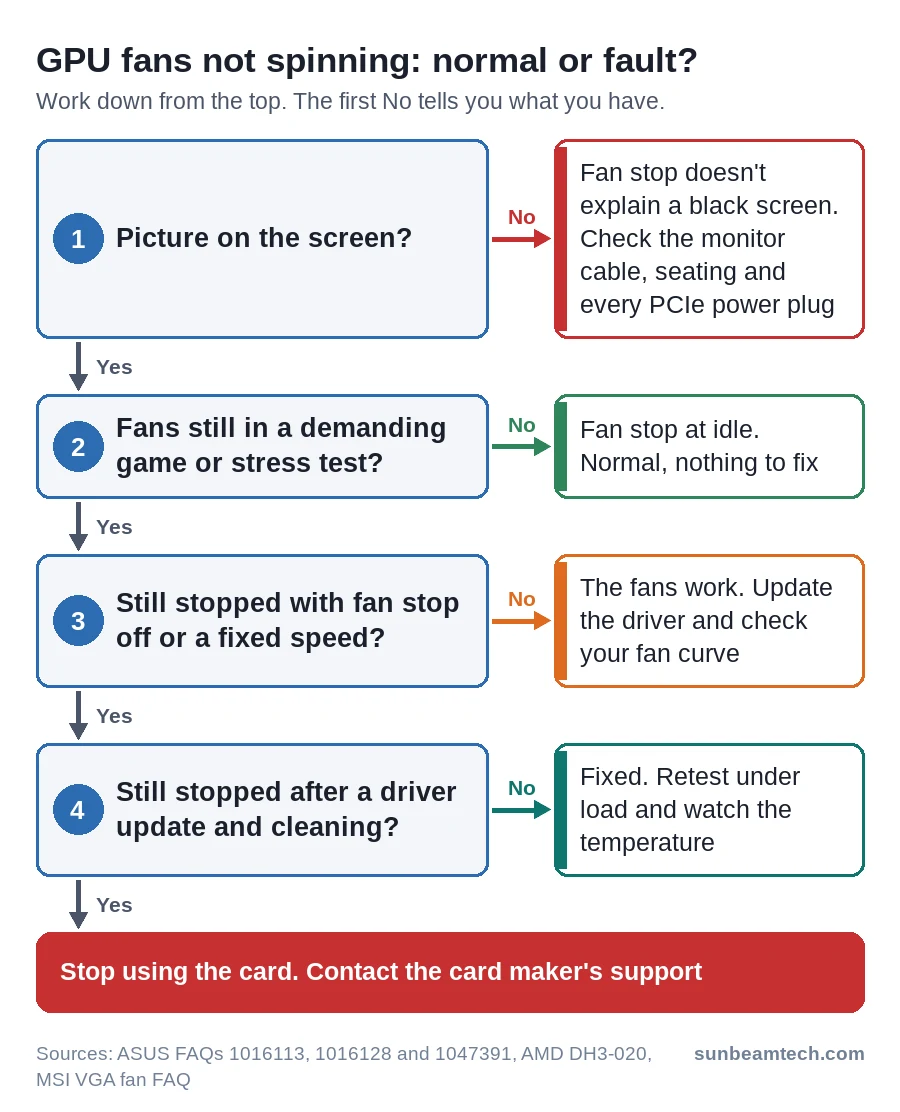
What you need to know is which of three situations you’re in: fans still with a normal picture at idle, fans still with no picture at all, or fans still while the GPU is getting hot. On a card with fan stop, the first is normal. The other two aren’t. Start by checking what’s on your screen and what temperature the GPU is at.
Why Your GPU Fans Stop on Purpose
Graphics cards with a fan-stop mode keep the fans off at idle and light load, then spin them up once the GPU warms up or the load rises. On ASUS cards with 0dB technology the fans stop when the core temperature meets the card’s conditions and start again when it rises. The point is silence when you’re browsing or doing light work.
The big brands each give the feature their own name, which is half the confusion. Here’s what it’s called on your card, where to check for it, and where to switch it off for a test.
| Brand | Name of the feature | Where to check | Where to switch it off |
|---|---|---|---|
| ASUS | 0dB | 0dB is a fan mode in GPU Tweak III, and it only works in Auto mode | GPU Tweak III: switch the fan to Custom mode and set a fixed speed |
| MSI | Zero Frozr | Zero Frozr icon in the FEATURES section of the card’s datasheet (model page, Specification, DATASHEET) | MSI Center, Cooling Wizard module, turn off Zero Frozr AI Cooling |
| Gigabyte | 3D Active Fan | Listed as a feature on the card’s product page | Easiest test: load the card (see below). On current cards, GIGABYTE Control Center has fan mode controls; some older cards used AORUS Engine |
| Zotac | FREEZE fan stop | FREEZE badge on the box, product page or brochure (only some models) | FireStorm |
| AMD Radeon | Zero RPM | Shown under Fan Tuning in AMD Software, on by default | AMD Software: Performance Tuning, GPU, Custom, Fan Tuning, Zero RPM off |
| NVIDIA Founders Edition, Palit, PNY and other brands | Differs per brand and model | Spec sheet or product page for your exact card (look for fan stop, 0dB or zero RPM) | Easiest test: load the card (see below), or set your own fan curve in MSI Afterburner, which works with every brand |
Don’t assume your card has it just because the brand uses it. FREEZE, for example, is only on certain Zotac models, so check the box or the product page for your exact card. And Gigabyte’s 3D Active Fan doesn’t just stop the fans on the Windows desktop. The fans can stay off in a low-power game too.
When the Fans Should Start: Real Numbers
ASUS publishes exact start and stop points for a set of its RTX 30, 40 and 50 series cards in a start and stop table. On MSI cards, Zero Frozr starts the fans once the load reaches a certain level.
| ASUS card | Fans start when | Fans stop when (all must be true) |
|---|---|---|
| RTX 4070, 4070 Ti, 4080, 4090 and 50 series | Above 55 °C or over 100 W | Below 50 °C, under 50 W, 0dB mode on |
| RTX 3090 and 3080 | Above 55 °C or over 100 W | Below 50 °C, under 50 W, 0dB mode on |
| RTX 3070 | Above 55 °C or over 100 W | Below 50 °C, under 40 W, 0dB mode on |
| RTX 3060 Ti | Above 52 °C or over 100 W | Below 48 °C, under 40 W, 0dB mode on |
Either limit is enough to start the fans: the temperature or the power draw. Stopping them takes all three at the same time: the temperature under its limit, the power draw under its limit and 0dB mode switched on.
Reading the table, anything that pulls more than 100 W starts the fans, even while the GPU is still cool. And at idle between the stop and start points (50 to 55 °C on most of these cards, 48 to 52 °C on the RTX 3060 Ti) neither rule applies, so the fans should keep doing whatever they were doing. That would explain seeing them turn at 51 °C right after a game and stand still at 51 °C after a cold boot. Same card, same rule.
Treat these as a guide, not a promise. The real temperature and wattage can vary with the card, how you use it and your power settings, and other brands’ cards may use different points.
Check the GPU Temperature First
You don’t need to install anything for this. Press Ctrl+Shift+Esc to open Task Manager, go to the Performance tab and click your GPU. Windows shows the temperature of a dedicated graphics card there.
No temperature? It only appears for a dedicated card, and the driver has to support WDDM 2.4 or later, so make sure you clicked the graphics card rather than integrated graphics, then update the driver. Our guide on checking CPU and GPU temperature in Windows 11 covers the tools that read more sensors.
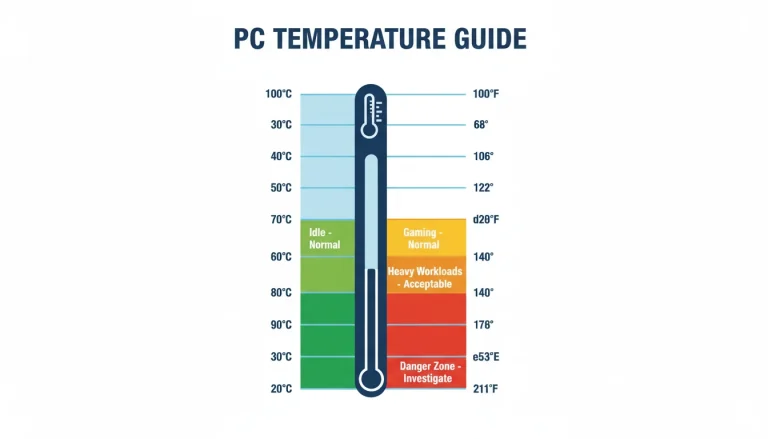
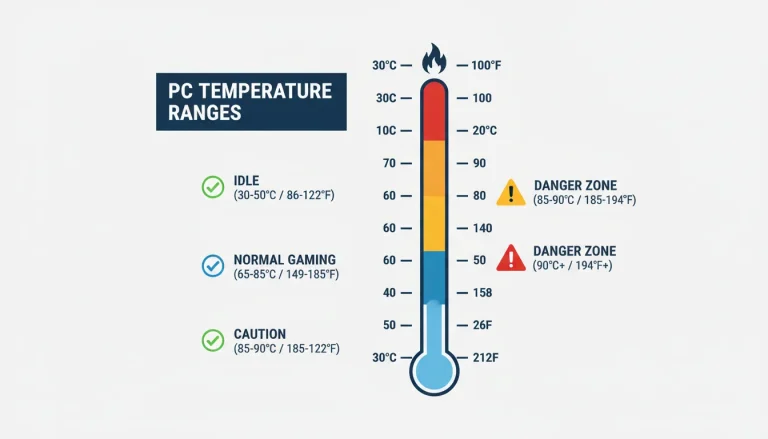
Now compare. If the GPU is under its stop point on the desktop (below 50 °C on the ASUS RTX 40 and 50 series cards in the table above) and the fans are still, that’s fan stop doing its job. If it’s well past the start point of your card and still climbing with no fan movement, something’s wrong. For what counts as a healthy reading, see our breakdown of normal GPU temperatures at idle and while gaming.
Make the Fans Spin to Test Them
This is the quickest way to settle it. If the fans turn when you force them, the motors and wiring are fine and you’re looking at fan stop, a setting or the driver.
- Note the GPU temperature in Task Manager so you can compare afterwards.
- Open your card’s tool and switch fan stop off. In AMD Software, search for Tuning, open Performance Tuning, pick Custom under GPU, enable Fan Tuning and turn Zero RPM off. With ASUS GPU Tweak III, switch to Custom mode and give the fans a fixed speed. MSI cards need Zero Frozr AI Cooling turned off in the Cooling Wizard, and Zotac cards use FireStorm.
- Watch the fans. They should start turning.
- Put the setting back afterwards, unless you’d rather have the fans running all the time.
No tool for your brand? MSI Afterburner is free, works with graphics cards from all brands and has its own fan speed control, so you can set the fans yourself from there.
Or skip the software and load the card. Start a demanding game, or on a Radeon card run the Stress Test in AMD Software’s tuning page, and keep Task Manager open on a second screen if you have one. On the ASUS cards in the table above, the fans should move once the GPU passes its start point.
AMD’s tuning controls need the full install of AMD Software: Adrenalin Edition, so a driver-only install won’t have them. And if you run two tuning tools at once, close one. You don’t want two programs fighting over the same fans while you test.
GPU Fans Not Spinning and No Display
Fan stop doesn’t explain a black screen: a card that has parked its fans still sends a picture. So chase the missing picture first, starting with the cable and then seating and power.
- Check the monitor cable before you open the case. It has to run from the outputs on the graphics card itself (not the video outputs on the motherboard), sit firmly at both ends, and the monitor has to be set to that input.
- Shut down, switch the power supply off and pull the power cord before you touch anything.
- Reseat the card. Push it straight down into the PCIe slot until it clicks and the slot latch locks. Our step-by-step on how to install a GPU shows what properly seated looks like.
- Check every power connector on the card. If it has auxiliary power sockets, each one needs a PCIe power plug from the PSU, pushed fully home with all pins lined up.
- Use a separate PCIe cable from the power supply for each socket. Don’t run one connector into two sockets. Our guide to PSU cables explains the 6-pin, 8-pin and 16-pin types.
- If your card has an LED at the power connector and it stays red while the PC is running, swap the power cable and check again.
- Check that your power supply meets the recommended wattage the card maker lists for your card on its website.
On MSI cards there’s one more clue. MSI tells owners to contact its customer service if the fan doesn’t spin even at the moment the PC boots. Still nothing after all that? Work through the full PC powers on but no display checklist, and if the build is older, rule out the signs of a failing power supply.
Fans Stay Still While the GPU Heats Up
This is the case that matters. If Task Manager shows the GPU past its start point and rising while the fans stay still, stop gaming on that card. ASUS warns that running a card with a malfunctioning fan may damage it, and says to stop using it once you notice. Then work through these in order:
- Update the graphics driver. A bad driver can stop the fans from responding even when the start condition is met.
- Check your fan curve. If you’ve ever set a custom curve in a tuning tool, make sure it doesn’t hold the fans at 0% up to a high temperature. Going back to the default or Auto mode rules it out.
- Clean the fans. Turn the PC off, unplug it, take the card out and brush the dust off the blades with a small brush. Dust can be enough to stop a fan.
- If a fan is seriously stuck and won’t turn, contact the card maker’s support. Don’t keep using it.
Only one GPU fan is not spinning
If one fan sits still under load while its neighbours spin, treat it as a fault until you’ve ruled it out. Clean that fan first, check that nothing is touching its blades, then contact support if it still won’t move. If it’s actually a case fan or the CPU cooler that’s stopped, see our fix for a case fan that won’t spin or the CPU fan error guide.
Frequently Asked Questions
Is it normal for GPU fans not to spin at idle?
Yes, on cards with a fan-stop mode, which goes by names like 0dB, Zero Frozr, 3D Active Fan, FREEZE or Zero RPM. AMD’s Zero RPM and Zotac’s FREEZE are both switched on out of the box, so a still fan on the desktop is the default behavior on those cards.
At what temperature do GPU fans start spinning?
It depends on the card. ASUS publishes 55 °C or 100 W for its RTX 3090, 3080, 3070 and the RTX 40 and 50 series cards it lists, and 52 °C for the RTX 3060 Ti. On another brand, check the GPU temperature in Task Manager while you game and note when the fans start.
How do I force my GPU fans to spin?
Switch fan stop off or set a fixed fan speed in your card’s software: Zero RPM under Fan Tuning in AMD Software, Custom mode in ASUS GPU Tweak III, Zero Frozr AI Cooling in MSI’s Cooling Wizard, or FireStorm on Zotac cards. On other brands, MSI Afterburner works with any graphics card and has its own fan speed control.
Should I turn fan stop off permanently?
There’s no need if the fans start when the card gets warm. Fan stop exists to keep the PC quiet at light load. If you’d still rather have fans that never stop, AMD lets you disable Zero RPM and Zotac’s FireStorm can keep the fans spinning at all times.
Why are my GPU fans not spinning while gaming?
A light or older game may not push the card past its start point, and Gigabyte’s 3D Active Fan can keep the fans off in a low-power game. Check the temperature. If the GPU is well past its start point and the fans still don’t move, treat it as a fault.
Can I keep using a graphics card with a broken fan?
No. ASUS’s advice is to stop using a card as soon as you find its fan isn’t working properly, because running it that way may damage it. Clean it, test it with the fans forced on, and contact the card maker if a fan still won’t turn.
Before You Contact Support
If you end up sending the card back, a clear report saves a round of emails. Write down these before you contact the card maker:
- The exact card model and its serial number.
- The GPU temperature at idle and under load from Task Manager, and whether the fans moved at either point.
- Whether the fans turn for a moment when the PC powers on.
- What happened with fan stop off or a fixed fan speed.
- What you’ve already done: driver update, cleaning, reseating, different power cables.
- Your power supply model and which cables feed the card.
If the card is still under warranty, contact support before you take anything apart. Brushing the dust off is fine. Taking the cooler off is another matter: on ASUS cards, improper disassembly can void the warranty, so ask support first.

Alex has been building and tweaking custom PCs for over 12 years. From budget builds to full custom water loops, he’s assembled more than 50 systems and helped hundreds of builders troubleshoot their rigs. When he’s not benchmarking the latest hardware, you’ll find him optimizing airflow setups or stress-testing overclocks.