Is GPU Sag Bad? How Much Is Too Much
GPU sag is the downward drooping of a graphics card caused by its weight exceeding what the PCIe x16 slot can support without additional hardware.
Last updated: August 2026
Table of Contents
- Quick Answer: Is GPU Sag Bad?
- What Is GPU Sag?
- Is GPU Sag Normal?
- Yes, and It’s More Common Than Ever
- Which GPUs Are Most Prone to Sag?
- Is GPU Sag Actually Bad? The Real Risks Explained
- The “It’s Fine” Camp: When Sag Is Purely Cosmetic
- When GPU Sag Becomes a Real Problem
- The Exact Threshold: How Much GPU Sag Is Too Much?
- What Causes GPU Sag?
- Is GPU Anti-Sag Necessary?
- How to Fix GPU Sag: 5 Methods Ranked
- Method 1: GPU Support Bracket (Best Overall)
- Method 2: Vertical GPU Mounting
- Method 3: Reinforced PCIe Slot Motherboards
- Method 4: DIY Solutions
- Method 5: Horizontal Case Build
- Does GPU Sag Affect Performance or Temperatures?
- GPU Sag and Your Warranty
- GPU Sag in Pre-Built PCs vs. Custom Builds
- Frequently Asked Questions
- Is it normal for a GPU to sag?
- How much GPU sag is too much?
- Is GPU anti-sag necessary?
- Is a tiny amount of GPU sag okay?
- Can GPU sag damage my motherboard?
- The Short Version
Quick Answer: Is GPU Sag Bad?
Minor GPU sag under 10 mm is cosmetically annoying but functionally harmless for the vast majority of builds. GPU PCBs and PCIe slots are engineered to tolerate minor flex without any measurable performance or reliability impact. Sag becomes a genuine concern at 15–20 mm, where sustained mechanical leverage can stress a motherboard’s PCIe slot solder joints over months. Anything beyond 20 mm needs a fix immediately. For most modern triple-fan GPUs, some visible sag without extra support is essentially unavoidable.
Most builders see a sagging GPU and assume something is wrong. They’re not entirely right, and they’re not entirely wrong. Mild sag is nearly universal with current-generation flagship cards, and 90% of the time it’s nothing more than an aesthetic issue. But “mild” has a specific, measurable meaning here. Past a certain point, sag stops being cosmetic and starts applying real mechanical stress to hardware worth hundreds of dollars. Knowing exactly where that threshold is means you can stop worrying if your card looks fine, or act fast if it doesn’t.
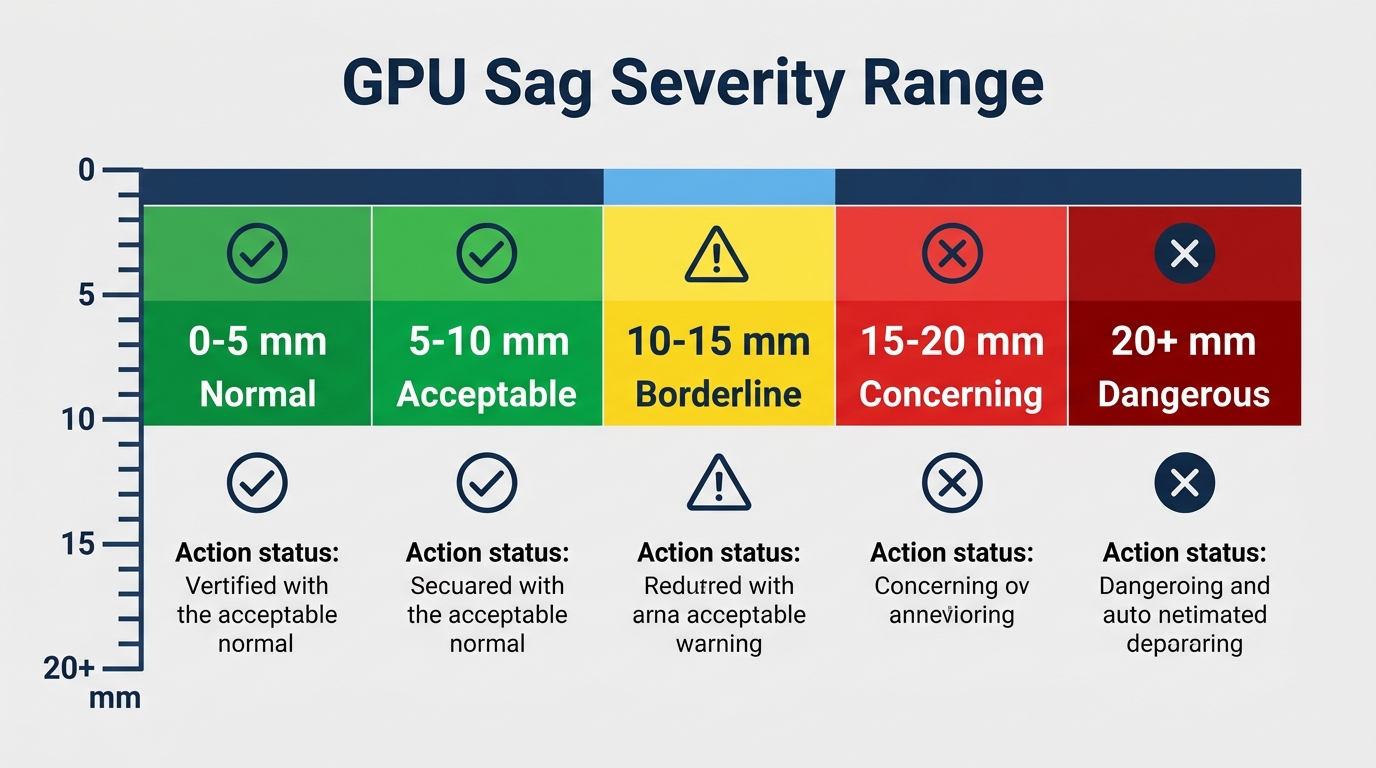
- 🟢 0–5 mm: Normal. No action needed.
- 🟢 5–10 mm: Acceptable. Monitor over time.
- 🟡 10–15 mm: Borderline. Add a support bracket.
- 🔴 15–20 mm: Concerning. Fix immediately.
- 🔴 20 mm+: Dangerous. Fix now and inspect your PCIe slot.
What Is GPU Sag?
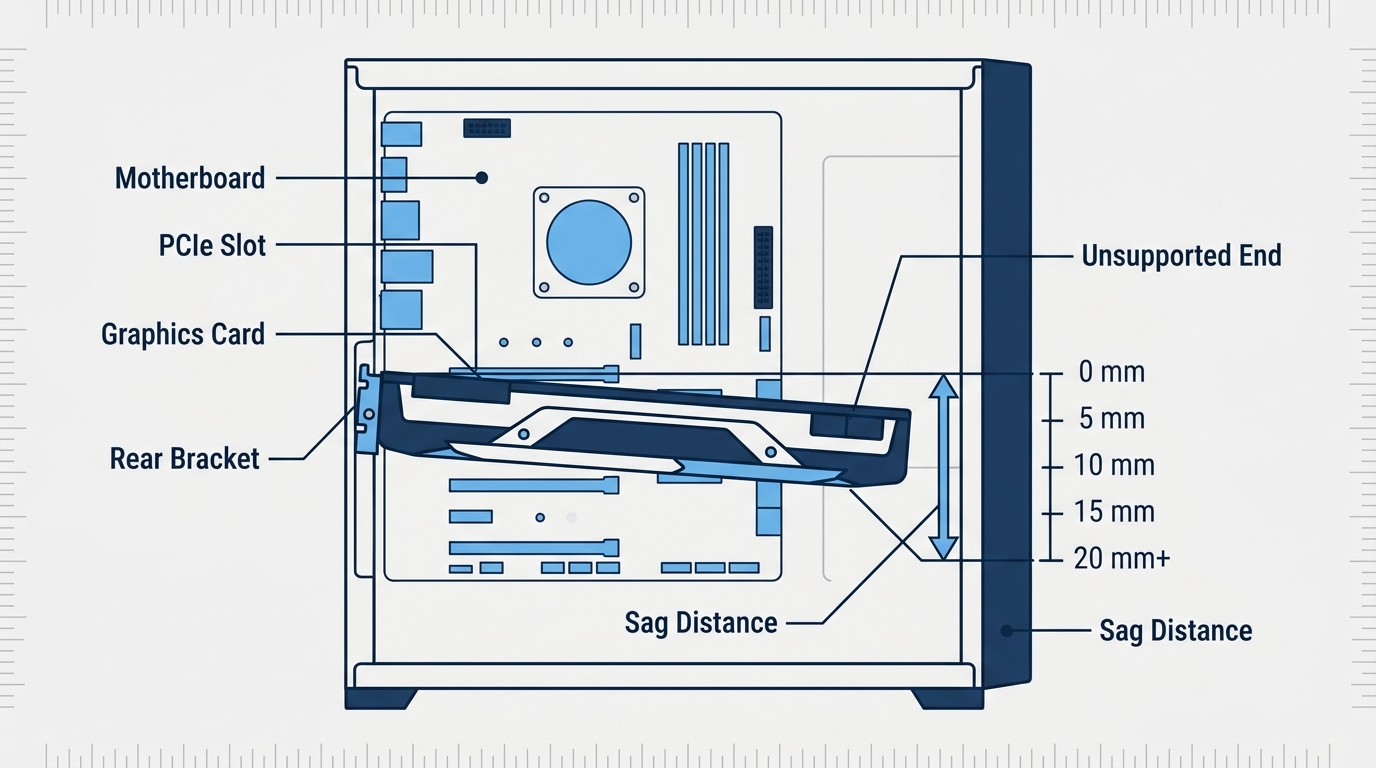
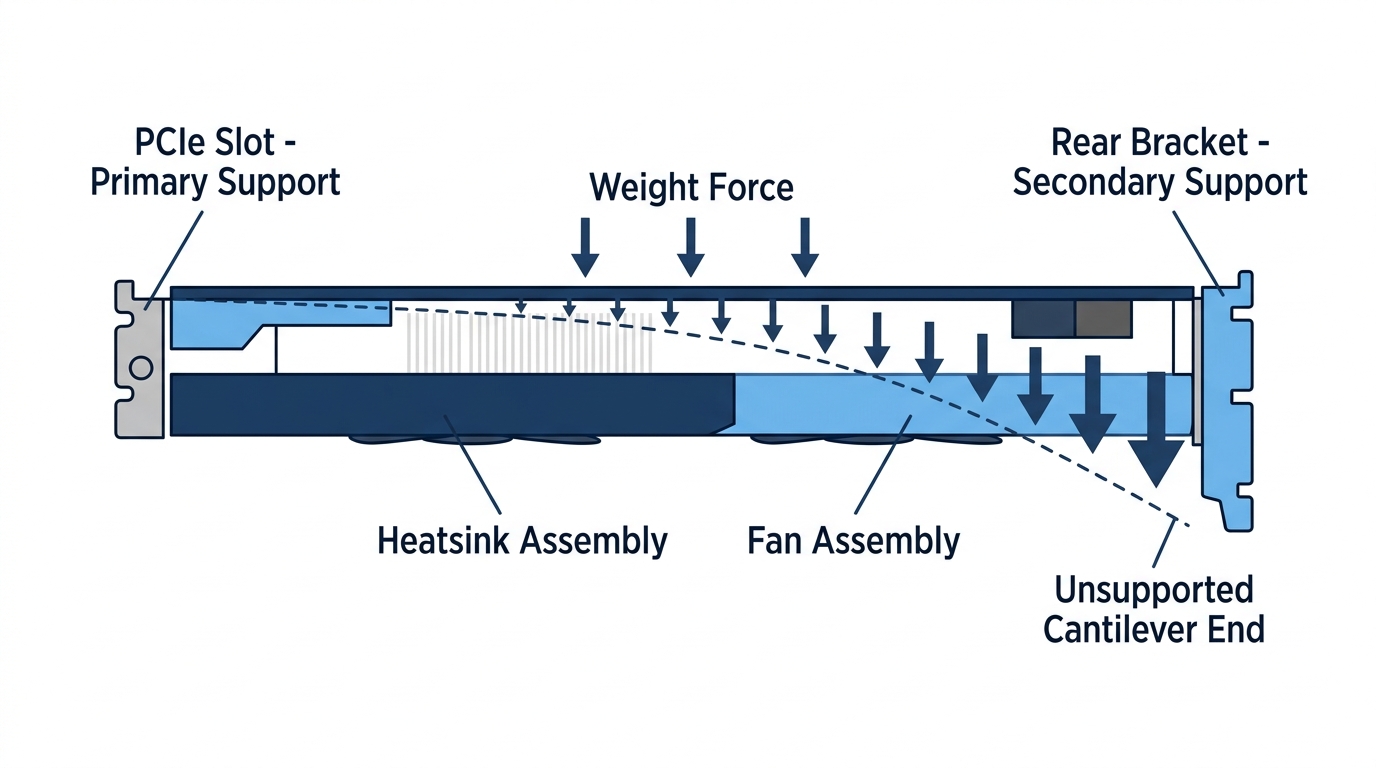
A graphics card mounts to your system in two places: the PCIe x16 slot on the motherboard, and the rear bracket of your PC case. The PCIe slot handles the electrical connection and acts as the primary structural anchor. The rear bracket handles one end. The far end of the card, where the heatsink and fan assembly extends across the motherboard, has no support at all by default.
That’s basic cantilever physics. The longer and heavier the card, the more it droops at the unsupported end. Modern flagship GPUs have made this dramatically worse. Compare the weight of a GTX 970-era card, typically around 600g, to what’s shipping today. The NVIDIA RTX 4090 Founders Edition weighs approximately 2.2 kg, and many AIB triple-fan versions from ASUS ROG, MSI, and Gigabyte push that even higher. The AMD RX 7900 XTX comes in at roughly 1.9 kg per independent GPU review data; AMD’s own product specifications page does not list a weight figure for this card. That’s nearly four times the mass of a mid-range card from a decade ago, hanging off the same single PCIe slot anchor point.
Post-2018 GPU generations, especially RTX 30-series, 40-series, 50-series, and RX 7000/9000-series cards, have made GPU sag a routine reality rather than an exception. If your card has more than one fan, expect some droop.
Is GPU Sag Normal?
Yes, and It’s More Common Than Ever
Virtually every dual-fan or triple-fan GPU will show some measurable sag when installed in a standard ATX case without a support bracket. Community data from hardware forums consistently shows that 70–80% of builders report visible sag with cards weighing over 1 kg. That’s not a defect. It’s a consequence of modern GPU cooling designs outgrowing what a PCIe slot alone was ever intended to support structurally.
Manufacturers know this. GPU PCBs are fabricated with some flex tolerance built in, and the PCIe slot itself is designed to maintain electrical contact under moderate angular displacement. A tiny amount of sag won’t trip any warning lights in your system. It won’t show up in benchmarks. Worth knowing.
Which GPUs Are Most Prone to Sag?
Heavier AIB cards from ASUS ROG, MSI Gaming X Trio, and Gigabyte Aorus are consistently heavier than Founders Edition or reference designs, often by 200–400g. Here’s where current-generation cards typically land:
| GPU Model | Approx. Weight | Typical Sag (Unsupported) | Risk Level |
|---|---|---|---|
| RTX 5090 (AIB triple-fan) | 2.5–3.0 kg | 20–30 mm | Very High |
| RTX 4090 (AIB triple-fan) | 2.2–2.6 kg | 15–25 mm | High |
| RTX 4080 Super | 1.8–2.1 kg | 10–18 mm | Medium-High |
| RTX 4070 Ti | 1.4–1.7 kg | 7–12 mm | Medium |
| RX 9070 XT (AIB) | 1.6–2.0 kg | 10–16 mm | Medium-High |
| RX 7900 XTX | 1.9–2.3 kg | 12–20 mm | High |
| RTX 4060 | ~0.6 kg | 2–5 mm | Low |
| GTX 1660 Super | ~0.7 kg | 1–3 mm | Very Low |
Is GPU Sag Actually Bad? The Real Risks Explained
The “It’s Fine” Camp: When Sag Is Purely Cosmetic
For the majority of builds, mild GPU sag is genuinely harmless. GPU PCBs are multi-layer fiberglass laminates designed to handle minor flex without trace damage or delamination. PCIe slots, particularly reinforced steel designs found on premium motherboards, maintain solid electrical contact even under slight angular displacement.
According to forum consensus at Tom’s Hardware, GPU sag is generally not a significant issue for stationary desktop systems. All GPUs of substantial size will experience some degree of sag depending on how well the slot supports them, and for most users sitting at a desk this is considered a non-issue. The sag only becomes a concern if the system is moved around frequently, which can amplify mechanical stress on the connection over time.
Below 5–8 mm of vertical displacement, there is no measurable electrical, thermal, or performance impact. The PCIe Gen 4 and Gen 5 specifications maintain signal integrity with locking retention mechanisms that keep contact surfaces engaged even under moderate angular load. Not great looking. But harmless.
When GPU Sag Becomes a Real Problem
Past 15 mm, the physics shift from cosmetic to mechanical. A heavy GPU hanging at the far end of its PCB creates a lever-arm effect, with the PCIe slot as the fulcrum. Over 12–24 months of sustained stress, this can crack the solder joints connecting the PCIe slot to your motherboard’s PCB. Replacing a motherboard because of sag damage is an entirely avoidable expense.
Cards sagging 20 mm or more can develop hairline micro-fractures near the slot bracket area, particularly in cards over 2 kg. This is most common in builds that are occasionally transported or where the system sits on surfaces with regular vibration. The failure mode is gradual and can be hard to diagnose until it produces intermittent GPU detection errors, driver crashes, or display artifacting.
There’s also a minor thermal consideration. Extreme sag slightly alters the airflow geometry below the card. In practice, community-measured temperature deltas are under 1–2°C even at 20 mm of sag, so thermal damage isn’t a realistic risk from sag alone. The mechanical stress on the PCIe slot is the real issue.
The Exact Threshold: How Much GPU Sag Is Too Much?
Use a ruler or digital caliper. Measure from the rear exhaust bracket as your baseline down to the far end of the card at its lowest point. That vertical drop is your sag measurement. A quick photo with a level app overlaid gives you a shareable reference if you want a second opinion from a forum.
| Sag Amount | Assessment | Action Needed? |
|---|---|---|
| 0–5 mm | Normal / Cosmetic | No |
| 5–10 mm | Acceptable | Monitor; consider a support |
| 10–15 mm | Noticeable / Borderline | Use a support bracket |
| 15–20 mm | Concerning | Fix immediately |
| 20 mm+ | Dangerous | Fix immediately; inspect slot |
What Causes GPU Sag?
The root cause is simple: a very heavy object anchored at one end with nothing supporting the other. Every GPU installation is a cantilever by default, and modern cards have pushed that lever further than anyone anticipated when ATX case design was standardized.
Several factors compound the baseline physics:
- Triple-slot, triple-fan coolers: These add significant mass and extend the card’s unsupported length further from the slot.
- Large VRAM heatspreaders: 24GB cards carry more memory modules with additional spreading hardware attached to the PCB.
- Liquid-cooled backplates: Full-cover water blocks with backplates can add 400–600g to an already-heavy card.
- Non-reinforced PCIe slots: Budget motherboard slots have less structural rigidity at the retention point.
- Motherboard slot position: Lower PCIe slots on E-ATX boards can have less chassis rail support directly behind them.
- Case orientation: Standard vertical tower builds maximize sag. Horizontal cases eliminate it entirely by changing the gravity axis.
Understanding what causes GPU sag and what the early warning signs look like helps you catch the problem before it reaches the concerning range.
Is GPU Anti-Sag Necessary?
Not always. But the cost-benefit math strongly favors prevention for heavier cards.
A quality GPU support bracket runs $15–$30. A PCIe slot repair or full motherboard replacement on a modern Z890 or X870E platform costs $150–$400 or more, and that’s before factoring in the labor of rebuilding. For any card over 1.5 kg, spending $20 on a bracket is one of the highest-return investments in a long-term build.
| Scenario | Anti-Sag Needed? |
|---|---|
| Budget or mid GPU under 1 kg | Optional |
| High-end dual-fan GPU, 1–1.5 kg | Recommended |
| Triple-fan flagship over 1.5 kg | Strongly Recommended |
| Liquid-cooled GPU with full water block | Essential |
| Horizontal case orientation | Not needed |
How to Fix GPU Sag: 5 Methods Ranked
Method 1: GPU Support Bracket (Best Overall)
A support bracket mounts to your case and props up the far end of the GPU from below. Adjustable models let you dial in the exact height so you’re supporting the card without pushing it upward and stressing the PCIe slot in the opposite direction. Fixed brackets work fine for standard-sized cases where the GPU sits at a predictable height.
Look for brackets with non-scratch rubber or silicone padding on the contact surface, tool-free height adjustment, and compatibility with your case’s standoff pattern. Specific options worth considering: the Corsair GPU Anti-Sag Bracket, Lian Li GPU Holder, and the Cooler Master MasterAccessory GPU Support Bracket. Price range: $15–$30. For a full breakdown of how to pick and install one, the GPU sag bracket buying and installation guide covers every size and case type.
Effectiveness: ⭐⭐⭐⭐⭐
Method 2: Vertical GPU Mounting
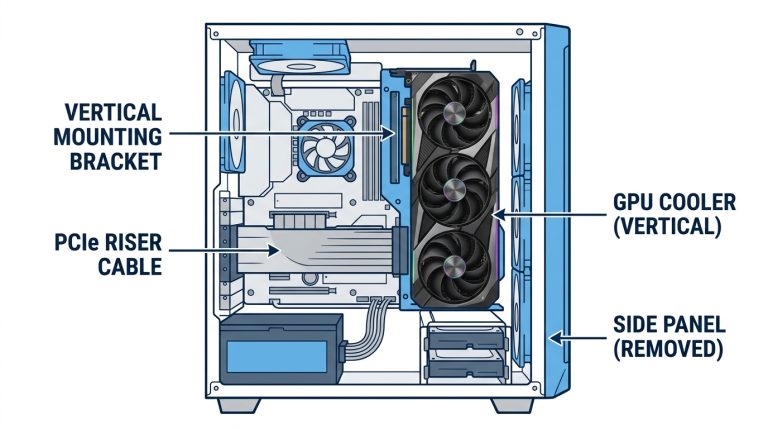
Repositioning the GPU to a vertical orientation via a PCIe riser cable completely eliminates sag. With the card vertical, gravity pulls perpendicular to the PCB rather than along its length. Nothing droops.
The trade-offs are real. You need a compatible case (Corsair 5000D, 4000D, Lian Li Lancool III, and Fractal Torrent all support this natively), a riser cable adds $20–$60 to the build cost, and GPU thermals can rise 2–8°C depending on your case’s airflow path. One important technical note: RTX 40-series, RTX 50-series, and RX 7000/9000-series GPUs run a PCIe 4.0 interface, and independent testing (GamersNexus’s RTX 4090 PCIe scaling benchmarks, TechSpot’s PCIe 3.0 vs 4.0 GPU testing) shows a PCIe 3.0 riser typically costs only a low single-digit percentage of real-world gaming performance. A Gen4-rated riser is still the safer choice: it avoids the rare case of a cable that fails to train reliably at higher speeds, which can cause a much larger performance drop than the bandwidth difference alone. The full pros, cons, and compatible case list are covered in the vertical GPU mount guide.
Effectiveness: ⭐⭐⭐⭐⭐ (eliminates sag completely)
Method 3: Reinforced PCIe Slot Motherboards
Some premium motherboards ship with steel-reinforced PCIe slots rated to handle heavier loads without deforming. The ASUS ROG Maximus series, MSI MEG Z790 ACE, MSI MEG Z890 ACE, and Gigabyte Aorus Xtreme boards all include reinforced slots.
Important distinction: reinforced slots reduce the risk of slot-side damage but don’t stop the card itself from sagging. The GPU PCB still droops. You’re protecting the motherboard’s connection point, not leveling the card. Partial solution. Still useful.
Effectiveness: ⭐⭐⭐
Method 4: DIY Solutions
Free 3D-printable bracket files are available on Thingiverse and Printables. The LEGO brick column method, where you stack LEGO bricks from the case floor to contact the underside of the GPU, is a surprisingly popular community hack that actually works. Foam padding and zip-tie rigs can serve as temporary fixes during testing.
One firm rule with any DIY support: use only non-conductive materials. Bare metal, foil, or anything electrically conductive touching the underside of a GPU is a short-circuit risk. Don’t skip this.
Effectiveness: ⭐⭐⭐
Method 5: Horizontal Case Build
In a horizontal case or open-air test bench, gravity acts straight down through the GPU rather than pulling the far end of the card downward. Sag becomes physically impossible. Period.
Best suited for enthusiast showcase setups and open-air test rigs. Cases like the Thermaltake Core P3 and various open-air test bench frames support this orientation. Not practical for most standard builds, but worth considering if you’re planning a showcase or workstation-style setup.
Effectiveness: ⭐⭐⭐⭐⭐ (eliminates sag completely)
Does GPU Sag Affect Performance or Temperatures?
This is the question competitors either skip or answer vaguely. Let’s be specific.
GPU coolers are self-contained thermal systems. The fans pull air through the heatsink fins regardless of the card’s angular orientation. A few degrees of downward tilt at the far end doesn’t meaningfully alter how air moves across the fin stack. Community-measured temperature deltas at 20 mm of sag consistently land at 0–2°C compared to a perfectly level card. That’s within normal measurement variance. Negligible.
Performance impact is zero. PCIe electrical signal integrity is maintained well within the sag thresholds discussed above. No GPU benchmark database, including TechPowerUp’s GPU database, documents sag-related performance degradation under normal sag conditions. The PCIe protocol operates with error correction at the transport layer, so minor angular misalignment at the connector doesn’t translate into data loss or frame drops.
The one exception worth flagging: cards with open-air coolers in very tight cases where sag pushes the bottom fan into contact with the case floor or a cable bundle. That blocks airflow physically. It’s not the sag causing the thermal problem; it’s the obstruction. Check that your GPU’s bottom fan has clear clearance even when the card droops at its natural angle.
GPU Sag and Your Warranty
This is the part nobody talks about. If sag causes PCB damage or PCIe slot failure, your RMA claim may be denied.
NVIDIA, AMD, ASUS, MSI, and Gigabyte all include warranty language excluding physical damage resulting from improper installation or lack of adequate support. A cracked solder joint or PCB fracture caused by sustained mechanical stress from severe sag falls into that category. Manufacturers rarely enforce this aggressively, and most RMA processes don’t involve detailed physical inspection. But it’s a real risk if the damage is obvious.
Practical advice: photograph your completed build showing the GPU support in place before you close the case. Keep receipts for any brackets you buy. If you ever need to RMA a card, having documentation that the build was properly supported removes any ambiguity. Low effort. Worth it.
GPU Sag in Pre-Built PCs vs. Custom Builds
Builders with custom rigs are most exposed to sag, but pre-built owners aren’t immune. Dell, HP, and Lenovo often include proprietary internal GPU retention clips, bottom-mounted PSU shelves, or case geometry that naturally prevents sag on the OEM GPU. These are designed specifically around the weight of the card that ships with the system.
The problem comes when you upgrade. You swap a 900g OEM card for a 2.1 kg AIB triple-fan RTX 4080 Super, and the original retention clip can no longer handle the load. If you’re seeing unexpected sag after upgrading the GPU in a pre-built, check the manufacturer’s support documentation for GPU retention hardware. In most cases, adding an aftermarket support bracket is the straightforward fix, and most universal brackets will fit even proprietary case designs.
Frequently Asked Questions
Is it normal for a GPU to sag?
Yes. Nearly all modern GPUs weighing over 1 kg will show some visible sag when installed in a standard ATX case without additional support. It’s extremely common and expected with current-generation flagship cards from NVIDIA and AMD. If your GPU has two or three fans, some degree of droop is essentially the default state without a bracket.
How much GPU sag is too much?
GPU sag becomes a concern at approximately 15–20 mm of vertical displacement, measured from the rear bracket baseline to the lowest point of the card’s far end. Below 10 mm is generally safe for most builds. A rough real-world gauge: if your GPU is drooping more than the combined thickness of two stacked coins (roughly 5 mm each), a support bracket is the right call. Beyond 20 mm, fix it immediately and inspect the PCIe slot for any signs of stress.
Is GPU anti-sag necessary?
Not strictly required for lightweight cards under 1 kg, but strongly recommended for any triple-fan flagship GPU. The cost of a quality bracket ($15–$30) is significantly lower than the cost of PCIe slot damage, motherboard replacement, or a denied RMA on a card that cracked its PCB. For cards over 1.5 kg, treat a support bracket as standard equipment.
Is a tiny amount of GPU sag okay?
Yes. 1–5 mm of sag is functionally identical to zero sag. GPU PCBs and PCIe slots are engineered to tolerate minor flex without performance, thermal, or long-term reliability impact. Don’t let small amounts of droop stress you out. Measure it, confirm it’s under 5 mm, and move on.
Can GPU sag damage my motherboard?
In severe cases, yes. Sustained sag over 20 mm creates a lever-arm effect that stresses the PCIe slot’s solder joints on the motherboard. Over 12–24 months, this can crack those joints, leading to intermittent GPU detection failures or a permanently dead slot. It’s the primary structural risk of ignoring serious sag, and it’s entirely preventable with a $20 bracket.
The Short Version
Minor GPU sag is normal, extremely common, and harmless for the vast majority of builds. The numbers that matter: under 10 mm is fine, 10–15 mm warrants a bracket, and anything over 20 mm needs fixing now. Cards under 1 kg can probably skip the bracket. Any triple-fan flagship from the RTX 40, RTX 50, or RX 7000/9000 generation should have one. The cost of prevention is a fraction of the cost of PCIe slot damage. Measure your sag, compare it to the thresholds above, and make the call with actual data rather than guesswork.

Alex has been building and tweaking custom PCs for over 12 years. From budget builds to full custom water loops, he’s assembled more than 50 systems and helped hundreds of builders troubleshoot their rigs. When he’s not benchmarking the latest hardware, you’ll find him optimizing airflow setups or stress-testing overclocks.