M.2 SSD Form Factors: 2280, 2242, 2230 Explained
An M.2 2280 SSD is a solid-state drive measuring 22mm wide and 80mm long, representing the most common M.2 form factor used in modern desktops and laptops, available in both NVMe and SATA interfaces.
Last updated: June 2026
Table of Contents
- Quick Answer: What Is an M.2 2280 SSD?
- What Do M.2 Form Factor Numbers Actually Mean?
- Breaking Down the Naming Convention
- Why Length Matters More Than You Think
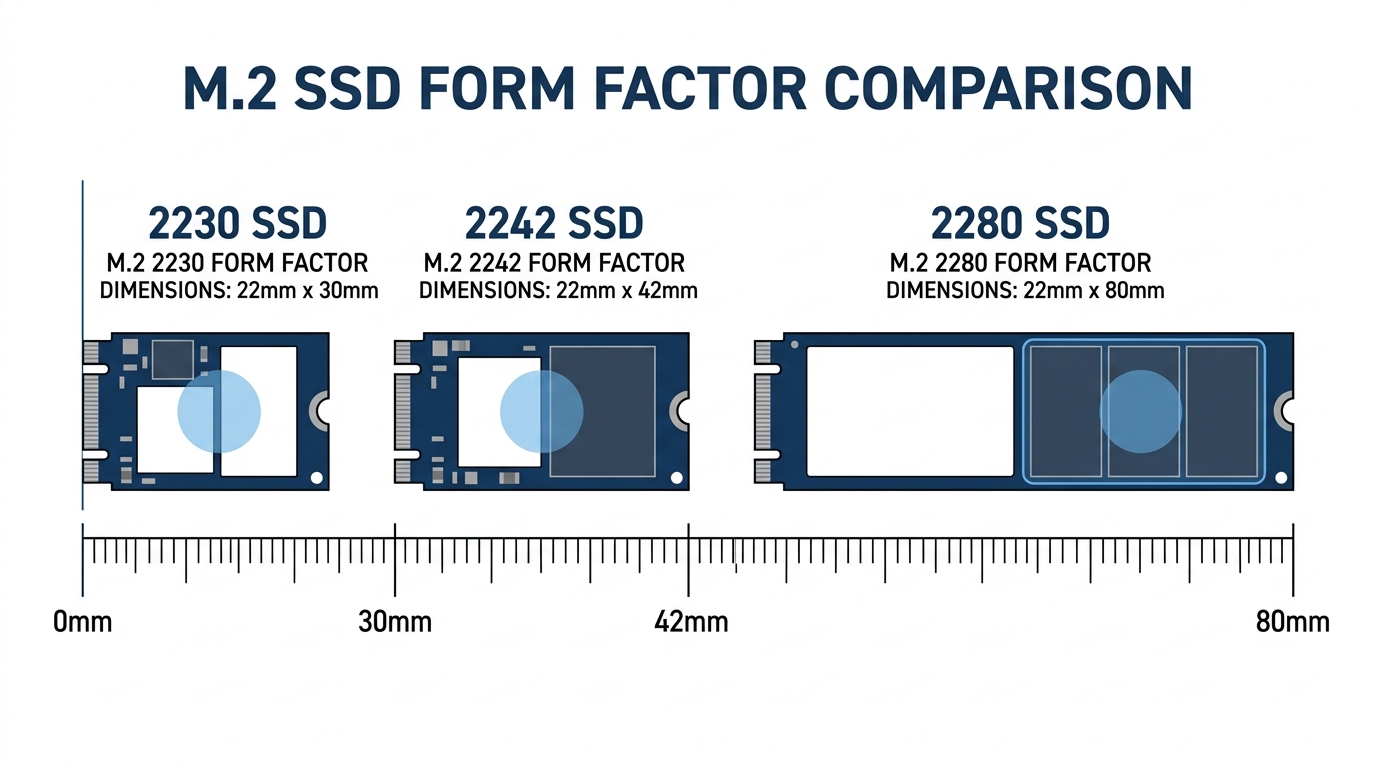
- The Three Main M.2 Form Factors Compared
- M.2 2280, The Desktop Standard
- M.2 2242, The Forgotten Middle Child
- M.2 2230, The Compact Comeback
- M.2 2280 SSD Deep Dive, Capacities, Generations, and Real-World Speeds
- Capacity Tiers and What They Cost in 2025
- PCIe Generation Breakdown, Gen 3 vs. Gen 4 vs. Gen 5
- Is an M.2 SSD 1TB or 2TB Right for You?
- Motherboard Compatibility, Which Form Factor Fits Your Slot?
- How to Read Your Motherboard’s M.2 Slot Support
- Chipset Compatibility Matrix
- Thermal Behavior by Form Factor and Generation
- Why M.2 SSDs Throttle, and When It Matters
- Temperatures by Generation
- Heatsink Recommendations by Scenario
- How to Install an M.2 2280 SSD
- FAQ, M.2 SSD Form Factors and Compatibility
- Which is better, NVMe or M.2?
- Will an M.2 2230 or 2242 drive work in a 2280 slot?
- How much storage do I actually need, 1TB or 2TB?
- Is M.2 2280 compatible with laptops?
- What’s the largest M.2 2280 SSD available right now?
- What You Should Do
Quick Answer: What Is an M.2 2280 SSD?
The M.2 2280 is the standard form factor for M.2 solid-state drives in consumer PCs. It measures 22mm wide by 80mm long, fits virtually every desktop motherboard M.2 slot made in the last decade, and comes in capacities ranging from 256GB up to 8TB. It supports both NVMe (PCIe Gen 3, 4, and 5) and SATA protocols depending on the specific model. If you’re buying an SSD for a desktop build, 2280 is almost certainly what you need.
You pulled up your new motherboard’s spec sheet and saw a list of M.2 slot options: 2280, 2242, 2230. Maybe your laptop manual listed a different code than what you have installed. Or you’re buying a replacement SSD and aren’t sure whether the size on the product page matches what your board supports. It’s a common point of confusion, and the answer is simpler than it looks once you understand the naming system.
What Do M.2 Form Factor Numbers Actually Mean?
Breaking Down the Naming Convention
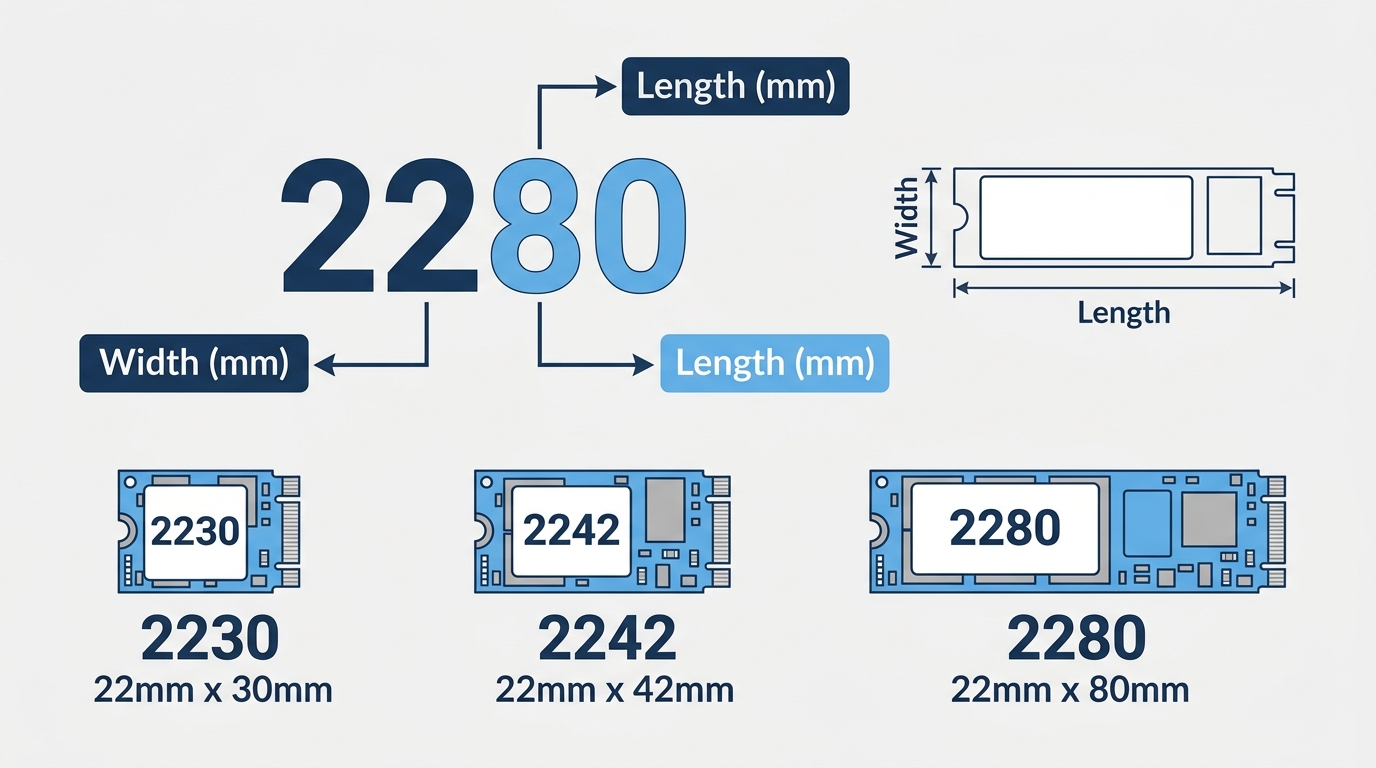
The number attached to any M.2 drive is a direct description of its physical size. Nothing more. The first two digits are the width in millimeters, and the remaining digits are the length in millimeters.
- 2280: 22mm wide, 80mm long
- 2242: 22mm wide, 42mm long
- 2230: 22mm wide, 30mm long
- 2260: 22mm wide, 60mm long (exists, but increasingly rare in 2025)
Width is almost always 22mm across consumer drives. The number that actually matters when you’re buying or installing is the length. All three common sizes use the same M-key connector, so the electrical interface is the same. What changes is how long the PCB is and how many NAND flash packages it can fit.
Why Length Matters More Than You Think
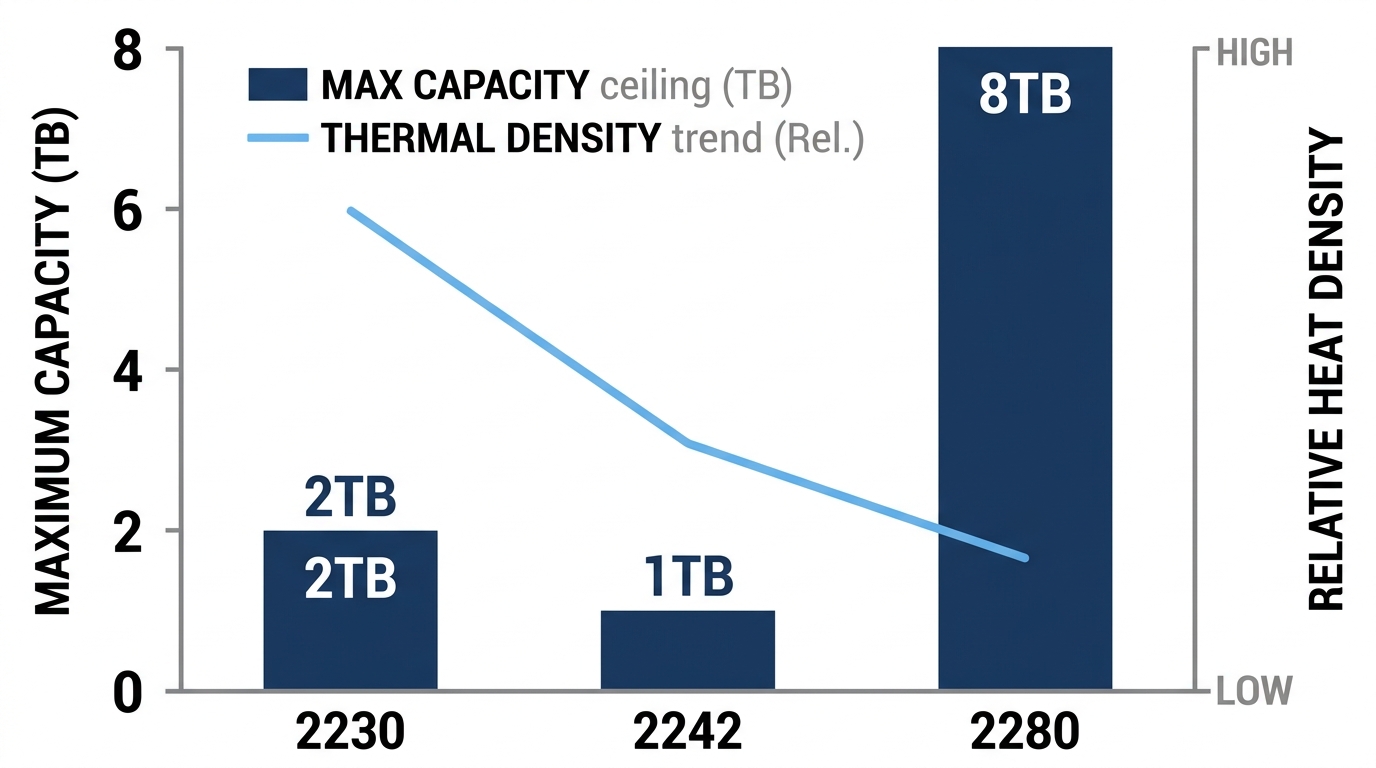
Longer drives have more physical space for NAND chips. More NAND packages means higher capacity ceilings. An 8TB M.2 SSD only exists in 2280 format for exactly this reason. Shorter drives like the 2230 are physically limited to fewer chips, which caps their maximum capacities (currently 2TB in consumer 2230 format).
There’s also a thermal angle here. A longer drive spreads heat across more surface area, which helps with passive dissipation under light workloads. Shorter drives run hotter per unit area under the same conditions. More on that in the thermal section below.
One important thing to understand: the form factor number tells you absolutely nothing about speed or protocol. A 2280 drive can be a poky 550 MB/s SATA unit or a 14,900 MB/s PCIe Gen 5 monster. Same physical size. Completely different performance.
The Three Main M.2 Form Factors Compared
| Form Factor | Dimensions | Typical Use Case | Max Consumer Capacity | Common Interfaces |
|---|---|---|---|---|
| M.2 2280 | 22mm x 80mm | Desktops, mainstream laptops | 8TB (Sabrent Rocket 4 Plus) | NVMe PCIe Gen 3/4/5, SATA |
| M.2 2242 | 22mm x 42mm | Slim laptops, industrial, select mini-PCs | 1TB (limited availability) | NVMe PCIe Gen 3, SATA |
| M.2 2230 | 22mm x 30mm | Ultrabooks, Steam Deck, Surface devices, handheld PCs | 2TB (WD SN740) | NVMe PCIe Gen 3/4 |
M.2 2280, The Desktop Standard
Every ATX, mATX, and Mini-ITX motherboard for mainstream desktop platforms defaults to 2280 as the primary M.2 slot size. The selection at this size is unmatched: you can find 2280 drives from Samsung, WD, Seagate, Crucial, Kingston, Sabrent, and a dozen other brands across every price tier. PCIe Gen 5 drives, including the Crucial T705 and Seagate FireCuda 540, are almost exclusively 2280 format. Sequential read speeds range from roughly 550 MB/s on SATA models up to 14,900 MB/s on the fastest Gen 5 units. For anyone building or upgrading a desktop, this is the default right answer.
M.2 2242, The Forgotten Middle Child
The 2242 format shows up in older Lenovo ThinkPads, select HP business laptops, and some Intel NUC systems. Not great for general consumers. Capacity tops out at around 1TB in 2025, and Gen 4 options are extremely limited. Most 2242 slots are SATA-only, which caps sequential reads at 550 MB/s. If you need one, verify whether your slot supports NVMe before buying, because many do not.
M.2 2230, The Compact Comeback
The 2230 had a quiet decade and then got very popular very fast. The Steam Deck, ASUS ROG Ally, and Microsoft Surface Pro all use 2230 slots. The WD SN740 in 2TB PCIe Gen 4 configuration has become the benchmark upgrade for Steam Deck owners, hitting sequential reads around 5,100 MB/s. The physical constraint is real though: fitting more than 2TB of NAND into a 30mm PCB is difficult, and 4TB 2230 options are nearly nonexistent in 2025.
M.2 2280 SSD Deep Dive, Capacities, Generations, and Real-World Speeds
Capacity Tiers and What They Cost in 2025
| Capacity | Approx. Price Range | Best For | Example Drives |
|---|---|---|---|
| 512GB | $35–$55 | OS drive, budget builds | Crucial P3, Kingston NV3 |
| 1TB | $55–$100 | Gaming + OS, most users’ sweet spot | Samsung 980 Pro, WD Black SN850X, Crucial P5 Plus |
| 2TB | $100–$175 | Content creation, large game libraries | Samsung 990 Pro 2TB, Seagate FireCuda 530 |
| 4TB | $220–$400 | Video editing, large media storage | WD Black SN850X 4TB, Samsung 990 Pro 4TB |
| 8TB | $500–$900+ | NAS-adjacent workloads, prosumer | Sabrent Rocket 4 Plus 8TB |
Prices here will shift over time. SSD pricing dropped roughly 40% between 2022 and 2024, and that trend has made 2TB the new mainstream sweet spot from a price-per-GB standpoint. Keep that in mind if you’re on the fence between 1TB and 2TB.
PCIe Generation Breakdown, Gen 3 vs. Gen 4 vs. Gen 5
- Gen 3 NVMe (PCIe 3.0 x4): Sequential reads top out around 3,500 MB/s. Still plenty fast for gaming and productivity. Compatible with virtually every motherboard made since 2017, including B550 and Z490 platforms.
- Gen 4 NVMe (PCIe 4.0 x4): Sequential reads between 7,000 and 7,400 MB/s. Requires AMD Ryzen 3000 series or newer (X570, B550, B650, X670, X870), or Intel 11th Gen or newer. This is the best value performance tier right now for both M.2 SSD 1TB and M.2 SSD 2TB buyers.
- Gen 5 NVMe (PCIe 5.0 x4): Sequential reads between 12,000 and 14,900 MB/s. Requires Intel 12th Gen or newer (Z690, Z790, Z890) or AMD Ryzen 7000 or newer (X670E, X870E). Runs significantly hotter than Gen 4. Benefits are most visible in sustained large-file transfers, not gaming load times.
- SATA M.2 2280: Caps at roughly 550 MB/s sequential read. Same performance as a 2.5-inch SATA SSD, just in a different physical package. Fine for secondary storage, not ideal for primary OS drives in 2025. when running multiple M.2 2280 drives on a single board, some platforms share PCIe lanes between M.2 slots and SATA controllers, which can result in disabled SATA ports or reduced bandwidth on secondary slots. Always check your motherboard manual before populating a second M.2 slot. You can read more about those tradeoffs at the Tom’s Hardware community thread on dual M.2 configurations.
Is an M.2 SSD 1TB or 2TB Right for You?
For most PC gamers and everyday users, 1TB covers the basics: Windows 11 takes up roughly 30GB installed, and modern AAA games average 50 to 100GB each. That leaves room for 10 to 15 installed games alongside your applications before you start managing space. It’s the price-per-GB sweet spot and a solid default for anyone building a mid-range gaming rig.
The 2TB argument is simple: you’ll probably fill 1TB faster than you expect. If you produce video, keep large RAW photo archives, or install a rotating library of games, buy the 2TB. The price difference between a 1TB and 2TB Gen 4 drive has narrowed to $40 to $70 in most cases. That’s worth it to avoid storage management headaches a year from now.
Buy one tier larger than you think you need. You won’t regret it.
Motherboard Compatibility, Which Form Factor Fits Your Slot?
How to Read Your Motherboard’s M.2 Slot Support
Motherboards support multiple M.2 form factors by providing standoff screw holes at different length positions on the PCB. The connector itself is the same for all sizes; what changes is where you screw down the far end of the drive to hold it flat against the board. Most ATX and mATX boards include standoff positions at 2242, 2260, and 2280 lengths, sometimes also 22110. Some also include a 2230 position, but not all do.
Mini-ITX boards often only support one M.2 slot, and that slot typically tops out at 2280. Check your manual’s M.2 slot diagram and look for the labeled screw hole positions before buying a non-standard length drive. It’s a five-minute check that saves a return shipment.
For a detailed breakdown of the screws and standoff hardware involved, the M.2 screw sizes and standoff types guide covers exactly what’s in the box and what to do when it’s missing.
Chipset Compatibility Matrix
| Platform / Chipset | M.2 Slots (typical) | Max PCIe Gen | Supported Form Factors |
|---|---|---|---|
| Intel Z890 / Z790 / Z690 | 3–5 | Gen 5 (1 slot), Gen 4/3 (others) | 2242, 2260, 2280 |
| Intel B860 / B760 / H770 | 2–3 | Gen 4 (1 slot), Gen 3 (others) | 2242, 2260, 2280 |
| Intel H610 | 1 | Gen 3 | 2280 (typically) |
| AMD X870E / X870 / X670E / X670 | 3–5 | Gen 5 (select slots), Gen 4 | 2242, 2260, 2280 |
| AMD B850 / B650 | 2–3 | Gen 4 | 2242, 2260, 2280 |
| AMD B550 / X570 | 1–2 | Gen 4 (X570 CPU slot), Gen 3 (others) | 2242, 2260, 2280 |
If you’re deciding between AMD chipsets for a new build and want to understand the differences between X870 and X870E slot configurations, the X870 vs X870E chipset comparison breaks down how the two platforms differ in terms of M.2 lane allocation and bandwidth.
One thing the table above doesn’t show: 2230 drives. They’ll physically fit in any 2280 slot because the connector is the same. The problem is the standoff screw. If your board doesn’t have a screw position at 30mm, the drive will be unsecured and can work loose over time. Third-party adapter brackets exist for around $5 to $10 and solve this cleanly.
Similarly, 2242 drives only work in 2280 slots if the board has a 2242 standoff position. Don’t assume. Check the manual first.
Thermal Behavior by Form Factor and Generation
Why M.2 SSDs Throttle, and When It Matters
Every NVMe SSD has a thermal throttle point built into the firmware. When the NAND or controller hits a threshold (usually between 70°C and 80°C), the drive drops its operating speed to protect itself from heat damage. The speed drop is significant: 30 to 60 percent reduction in sequential write performance during sustained workloads is common.
For casual gaming, this almost never triggers. Loading a game from an SSD is a short burst read, not a sustained operation. Where throttling hurts is during large file transfers, video rendering output, or copying hundreds of gigabytes between drives. That’s when sustained sequential write performance matters, and that’s where drive temperature becomes your enemy.
Temperatures by Generation
- Gen 3 NVMe (no heatsink): Idle 35–45°C, load 55–65°C. Rarely throttles in typical desktop use with case airflow.
- Gen 4 NVMe (no heatsink): Idle 40–50°C, load 65–75°C. Throttling under sustained sequential writes is common without a heatsink, particularly on drives like the WD Black SN850X.
- Gen 5 NVMe (no heatsink): Idle 45–55°C, load 80–95°C. Nearly guaranteed to throttle during sustained workloads. A heatsink isn’t optional here. It’s required.
- M.2 2230 (Gen 4, enclosed laptop): Smaller surface area means less passive dissipation. Gen 4 2230 drives in thin laptops regularly hit 70°C or above under sustained load.
Kingston’s technical documentation on NVMe SSD thermal management confirms that sustained workloads are the primary throttle trigger, not peak speeds during short bursts.
Heatsink Recommendations by Scenario
- Desktop with decent airflow: Use the heatsink that came with your motherboard. Most current boards include one. If yours didn’t, an aftermarket M.2 heatsink runs $8 to $20 and makes a real difference on Gen 4 and Gen 5 drives.
- Laptop: Most thin-and-light laptops use a thermal pad between the drive and the chassis shield. Replacing a degraded pad with fresh thermal pad material is often enough to bring temperatures down 5 to 10°C.
- Gen 5 desktop builds: Go with a dedicated heatsink that has copper heat pipes. Options from EKWB and Thermalright in the $20 to $35 range are designed specifically for the heat output of Gen 5 drives.
How to Install an M.2 2280 SSD
- Power off the PC and disconnect the power cable. Ground yourself by touching the unpainted metal case frame.
- Locate the M.2 slot on your motherboard. The primary slot (labeled M2_1 or similar) sits closest to the CPU socket on most boards.
- Remove the heatsink cover if one is installed. Usually one or two Phillips screws.
- Angle the drive at approximately 30 degrees and slide the gold contacts into the M-key slot until firmly seated. You’ll feel a slight click when it’s fully in.
- Lower the drive flat against the board and secure it with the standoff screw. Don’t overtighten. Snug is enough.
- Reinstall the heatsink cover and reconnect power.
- Boot to BIOS (usually Delete or F2 at POST) and confirm the drive appears under the NVMe or storage configuration section.
- If this is a new drive, initialize it in Windows Disk Management (right-click Start, select Disk Management) before it’ll appear in File Explorer.
The standoff screw used in step 5 is an M2 machine screw, and it’s frequently missing from motherboard accessory bags. If yours isn’t there, check the M.2 screw sizes and types guide for the correct spec to source a replacement.
For drives with sequential read speeds above 7,000 MB/s, Samsung’s 990 Pro product documentation includes thermal guidance specific to high-performance 2280 NVMe installation that’s worth reading before you close the case.
FAQ, M.2 SSD Form Factors and Compatibility
Which is better, NVMe or M.2?
These aren’t directly comparable terms. M.2 is a physical form factor describing the shape and connector of the drive. NVMe is a communication protocol describing how the drive talks to your system. An M.2 slot can host both NVMe drives (using PCIe lanes) and SATA drives (using the SATA protocol). When people ask “M.2 vs. NVMe,” they usually mean M.2 SATA versus M.2 NVMe. In that case, NVMe wins on speed by a wide margin: 3,500 to 14,900 MB/s for NVMe versus roughly 550 MB/s for SATA. They look identical physically, so always check the product listing for “NVMe” or “PCIe” in the interface spec.
Will an M.2 2230 or 2242 drive work in a 2280 slot?
Yes, electrically. The M-key connector is the same on all three sizes, so the drive will work. The problem is physical retention. Without a standoff screw position at the shorter length, the drive isn’t secured and can work loose over time, causing intermittent contact issues. Check whether your motherboard has a 2230 or 2242 standoff hole. If it doesn’t, a third-party M.2 adapter bracket (typically $5 to $10) adds the required screw point and secures the drive properly.
How much storage do I actually need, 1TB or 2TB?
A 1TB M.2 SSD works for most gaming and everyday PC builds. It fits Windows 11 (about 30GB) plus 10 to 15 large AAA games. If your library stays manageable and you don’t work with large files, 1TB is fine. But if you do any 4K video work, keep large photo libraries, or hate rotating games in and out, 2TB is the smarter call. The price gap between 1TB and 2TB Gen 4 drives has narrowed significantly, making 2TB increasingly hard to argue against for most builders in 2025.
Is M.2 2280 compatible with laptops?
Most mainstream 15-inch and larger laptops use M.2 2280 slots. Thin-and-light laptops in the 13-inch and 14-inch range more commonly use 2242 or 2230 slots to fit a thinner chassis. Always verify by checking your laptop’s service manual or using Crucial’s System Scanner tool before purchasing. Installing a 2280 drive in a slot designed for 2242 physically won’t fit, and vice versa.
What’s the largest M.2 2280 SSD available right now?
As of 2025, the largest commercially available M.2 2280 SSD is 8TB, from Sabrent’s Rocket 4 Plus line. Expect to pay between $500 and $900 depending on when you’re shopping. For most users, the 4TB tier from Samsung (990 Pro), WD (SN850X), and Seagate (FireCuda 530) offers the best balance of capacity, performance, and price. The 8TB option is real, but it’s priced for prosumer and specialty workloads rather than typical gaming or content creation builds.
What You Should Do
Pick your form factor based on your device, not what’s on sale. Building or upgrading a desktop? Go 2280, pick Gen 4 for the best value, and grab a 1TB or 2TB depending on your storage habits. Upgrading a thin laptop or business machine? Check the service manual first; you may need 2242, and the slot may be SATA-only. Swapping the drive in a Steam Deck, ROG Ally, or Surface? You need 2230, and the WD SN740 2TB is the go-to pick. The drives are cheap enough now that buying the right one is less about price and more about knowing exactly what your slot accepts before you order.

Alex has been building and tweaking custom PCs for over 12 years. From budget builds to full custom water loops, he’s assembled more than 50 systems and helped hundreds of builders troubleshoot their rigs. When he’s not benchmarking the latest hardware, you’ll find him optimizing airflow setups or stress-testing overclocks.