SATA Hot Plug in BIOS: What It Does and When to Enable It
SATA hot plug is a BIOS feature that lets you connect and disconnect SATA drives while the system is powered on without causing a crash or data loss.
Last updated: May 2026
Table of Contents
- What Is SATA Hot Plug? (Plain-English Definition)
- Where to Find the SATA Hot Plug Setting in Your BIOS
- APU SATA vs. Chipset SATA Hot Plug on AMD Platforms
- How SATA Hot Plug Actually Works (Under the Hood)
- SATA Hot Plug Enabled vs. Disabled: What Changes?
- When Should You Enable SATA Hot Plug?
- Drive Docks and Hot-Swap Bays
- RAID 5 and RAID 6 Arrays
- Always-On Home Servers and NAS-Style Builds
- Linux Users with Software RAID (mdadm)
- Who Should Not Enable It
- Requirements Checklist Before Enabling SATA Hot Plug
- Can You Hot Plug a SATA SSD? (HDDs vs. SSDs vs. Optical Drives)
- Is SATA Hot Plug Safe? Risks and Best Practices
- What Can Go Wrong
- Best Practices
- SATA Hot Plug on Specific Platforms (X570, B550, Intel Z-Series)
- AMD X570 and B550
- AMD B450 and X470
- Intel Z790, Z690, and B660
- Troubleshooting: SATA Hot Plug Not Working
- Drive not detected after insertion
- System freezes on removal
- Linux not detecting hot-plugged drive
- BSOD on removal in Windows despite hot plug being enabled
- Molex-to-SATA adapter in use
- FAQ: SATA Hot Plug Questions Answered
- What does hot-plug SATA mean?
- Is SATA hot-plug safe to use?
- Can I hot-plug a SATA SSD?
- What does SATA hot-plug disabled mean in BIOS?
- Should SATA hot plug be enabled or disabled for a normal desktop?
- The Short Version
Most people who land on this page saw the option sitting in their BIOS and had no idea whether to touch it. That’s fair. The label is cryptic, the default is always disabled, and the motherboard manual usually gives you one vague sentence about it. What you’ll find here is exactly what the setting does, how the underlying technology works, when you should actually turn it on, and when you should leave it alone.
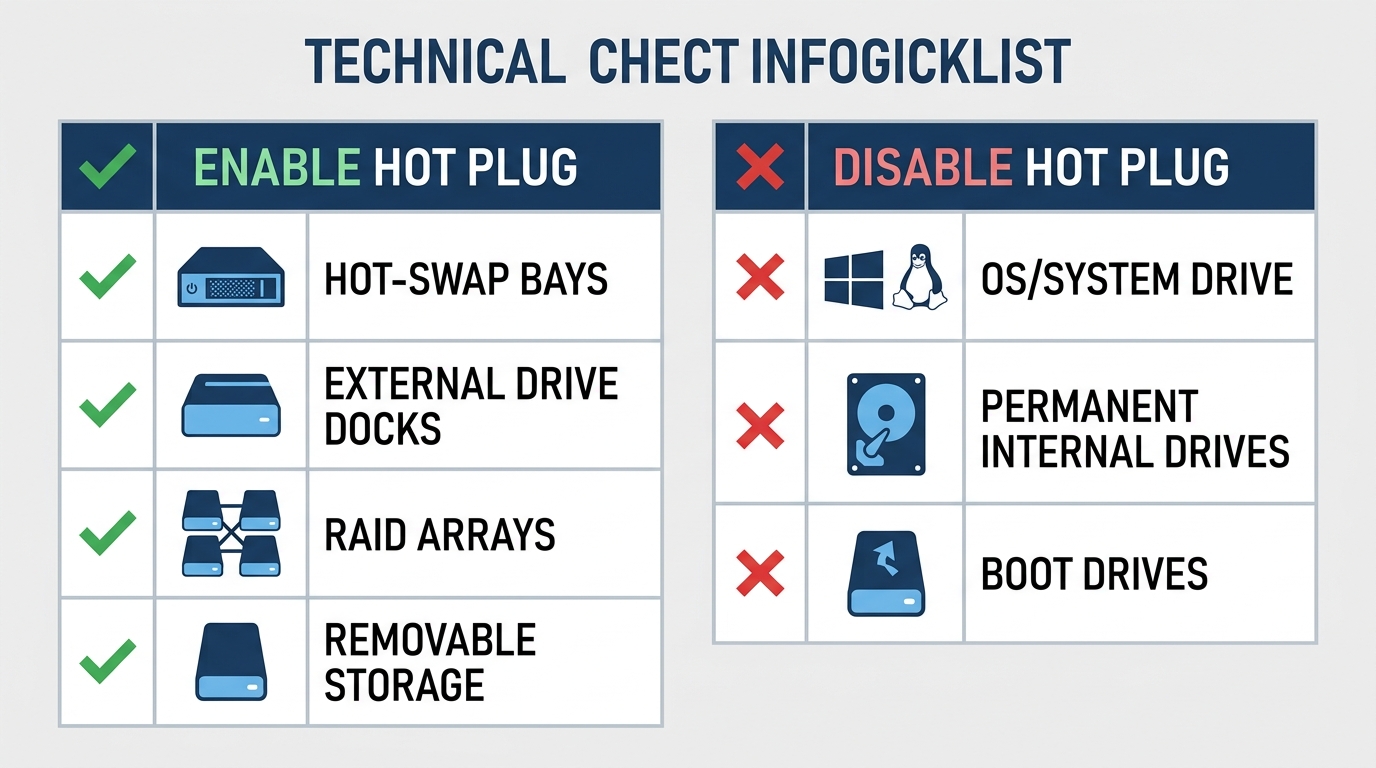
- 🟢 Enable it on ports connected to hot-swap bays, drive docks, or RAID arrays
- 🟡 Requires AHCI mode, IDE mode won’t support hot plug at all
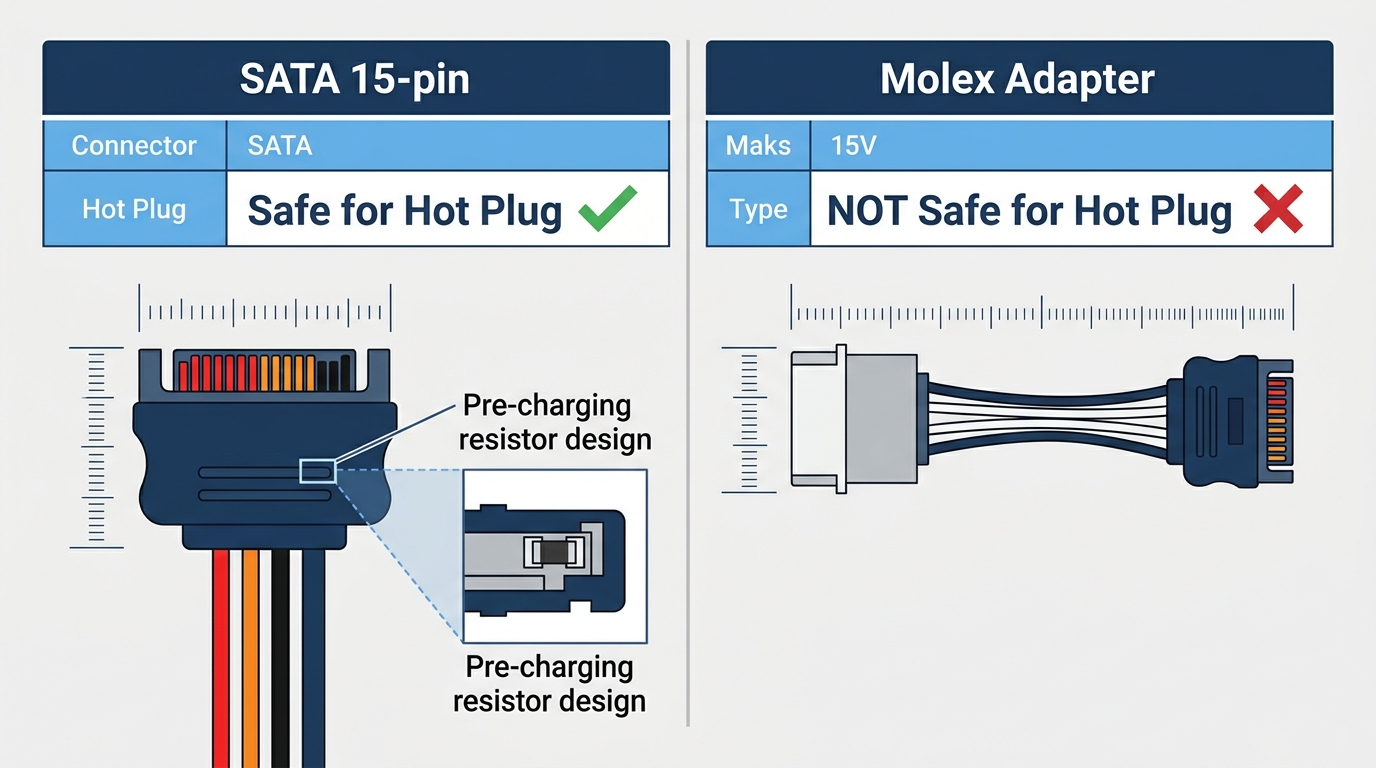
- 🟡 SATA 15-pin power only, Molex-to-SATA adapters are not safe for hot plug
- 🔴 Don’t enable it on ports with your OS drive or permanent internal drives
- 🔴 Always eject first, even with hot plug on, pulling a drive without ejecting can corrupt data
What Is SATA Hot Plug? (Plain-English Definition)
Normally, your motherboard’s SATA controller expects a drive to be present at boot and stay there. It scans the ports during POST, identifies what’s connected, hands that information to the OS, and then moves on. From that point forward, the controller assumes nothing changes. Pull a drive while the system is running and you’ll likely get a system freeze, a BSOD on Windows, or a kernel panic on Linux. The controller wasn’t built to handle that event gracefully.
SATA hot plug changes that assumption at the port level. When you enable it on a specific port, the SATA controller starts actively monitoring that port for device changes. It listens for insertion and removal events, signals the OS driver when something happens, and lets the OS respond cleanly instead of panicking.
The term itself breaks down simply: “hot” means the system is powered and running, “plug” means a physical connection event. Hot plug equals live connection or disconnection.
Here’s the important technical angle that most explanations skip: the SATA specification itself supports hot plug natively. As Western Digital’s own documentation notes, every SATA-compliant device already includes the building blocks for hot plug by definition of the standard. Those include pre-charging resistors to limit inrush current and OOB (Out-of-Band) signaling for device detection. The BIOS toggle doesn’t add new hardware capability. It unlocks what the controller already knows how to do.
Not a hardware upgrade. A software permission switch.
Where to Find the SATA Hot Plug Setting in Your BIOS
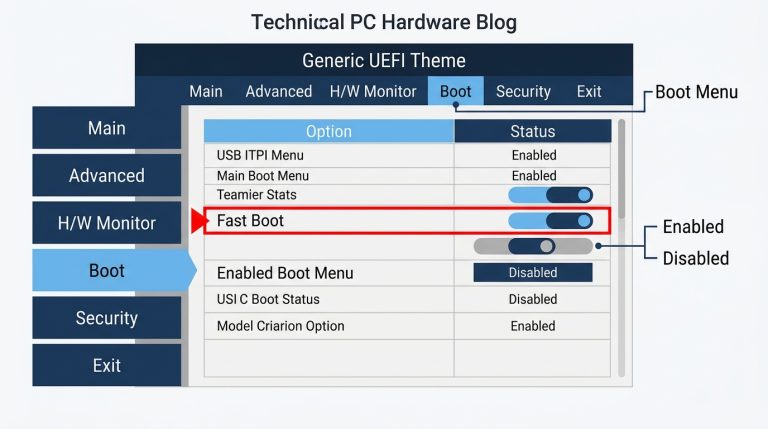
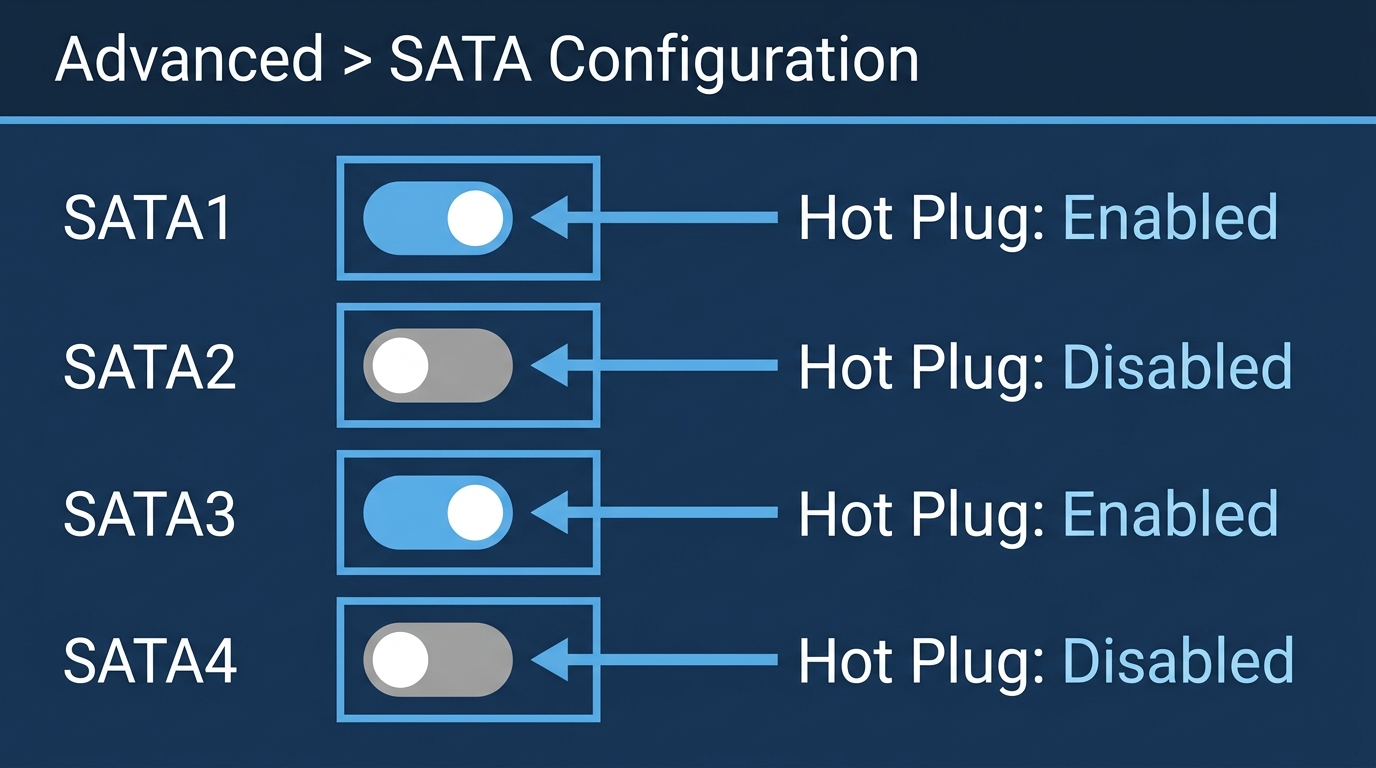
Every major BIOS vendor puts this setting in a slightly different place, but the pattern is consistent: it’s buried inside a SATA Configuration submenu, and it’s a per-port toggle rather than a global switch. You turn it on for specific ports, not everything at once.
| BIOS Vendor | Navigation Path | Per-Port Toggle? | Label Used |
|---|---|---|---|
| ASUS (AMI UEFI) | Advanced > SATA Configuration > SATA[x] Hot Plug | Yes | Hot Plug |
| Gigabyte | Settings > IO Ports > SATA Configuration > Port X Hot Plug | Yes | Hot Plug |
| MSI | Settings > Advanced > Integrated Peripherals > SATA [x] Hot Plug | Yes | Hot Plug |
| ASRock | Advanced > Storage Configuration > SATA[x] Hot Plug | Yes | Hot Plug |
The labels “SATA 1 Hot Plug” or “SATA 6G Hot Plug” that you’ll see in some BIOS menus aren’t special variants. They just refer to the port number and the generation speed (SATA 6G means SATA III, which runs at 6 Gbps). The underlying hot plug function is identical.
APU SATA vs. Chipset SATA Hot Plug on AMD Platforms
On some AMD X570 and B550 boards, notably certain Gigabyte models, you’ll see SATA ports split into two groups in BIOS. The Ryzen 3000/5000 CPU itself has no dedicated SATA controller, but it does provide flexible PCIe lanes that some board manufacturers route as additional SATA ports through a PCIe-to-SATA bridge. Where this exists, those ports are typically labeled “APU SATA” or “ASATA” in BIOS, separate from the regular chipset-controlled SATA ports. Both groups support hot plug independently.
This is not universal across X570 and B550 boards. Most ASUS and MSI implementations use chipset SATA only and don’t have this split. If your BIOS only shows one SATA group, that’s normal. If you see both labels, you can enable hot plug independently on each. This is why so many Gigabyte X570 users hit Reddit asking what “APU SATA Hot Plug” means, the label is genuinely confusing if you don’t know how the platform’s lane allocation works.
How SATA Hot Plug Actually Works (Under the Hood)
When you insert a drive into a hot-plug-enabled port, a specific electrical handshake kicks off. The drive asserts a signal called COMINIT to announce its presence. The host responds with COMRESET, which is electrically the same signal sent in the opposite direction and used to reset the link. Both sides then exchange COMWAKE bursts to bring the link up, followed by ALIGN primitives that negotiate the operating speed. This whole sequence is called OOB (Out-of-Band) signaling, and it’s part of the SATA physical layer specification.
Once OOB completes, the AHCI driver generates a hardware interrupt. The OS receives a device-present notification, enumerates the drive, and mounts it just like it would at boot. The whole process takes a couple of seconds and happens without you doing anything else.
According to a discussion on Tom’s Hardware Forums, AHCI mode is a hard requirement for this to work. IDE (legacy) mode doesn’t support the interrupt-driven port monitoring that hot plug depends on. If your SATA ports are in IDE mode, the BIOS toggle does nothing useful.
There’s also important connector physics involved here. The SATA 15-pin power connector uses a three-stage mating sequence with staggered pin lengths. On a proper hot-swap backplane, ground pins P4 and P12 are the longest and make contact first to establish a reference voltage. Pins 3, 7, and 13, the pre-charge pins (one from each voltage group: 3.3V, 5V, and 12V), are the next-longest and connect second through current-limiting resistors, charging the drive’s bypass capacitors gradually. Finally, the remaining power and signal pins make contact last, bypassing the pre-charge resistors and providing a low-impedance source. This staggered design limits inrush current and prevents arcing during insertion.
Molex-to-SATA power adapters completely bypass this protection. Molex connectors don’t have staggered pins. When you hot-insert a drive powered by a Molex adapter, all pins connect simultaneously, causing a current spike that can damage the drive’s controller board. Non-negotiable rule: never use Molex-to-SATA adapters on hot-plug ports.
SATA Hot Plug Enabled vs. Disabled: What Changes?
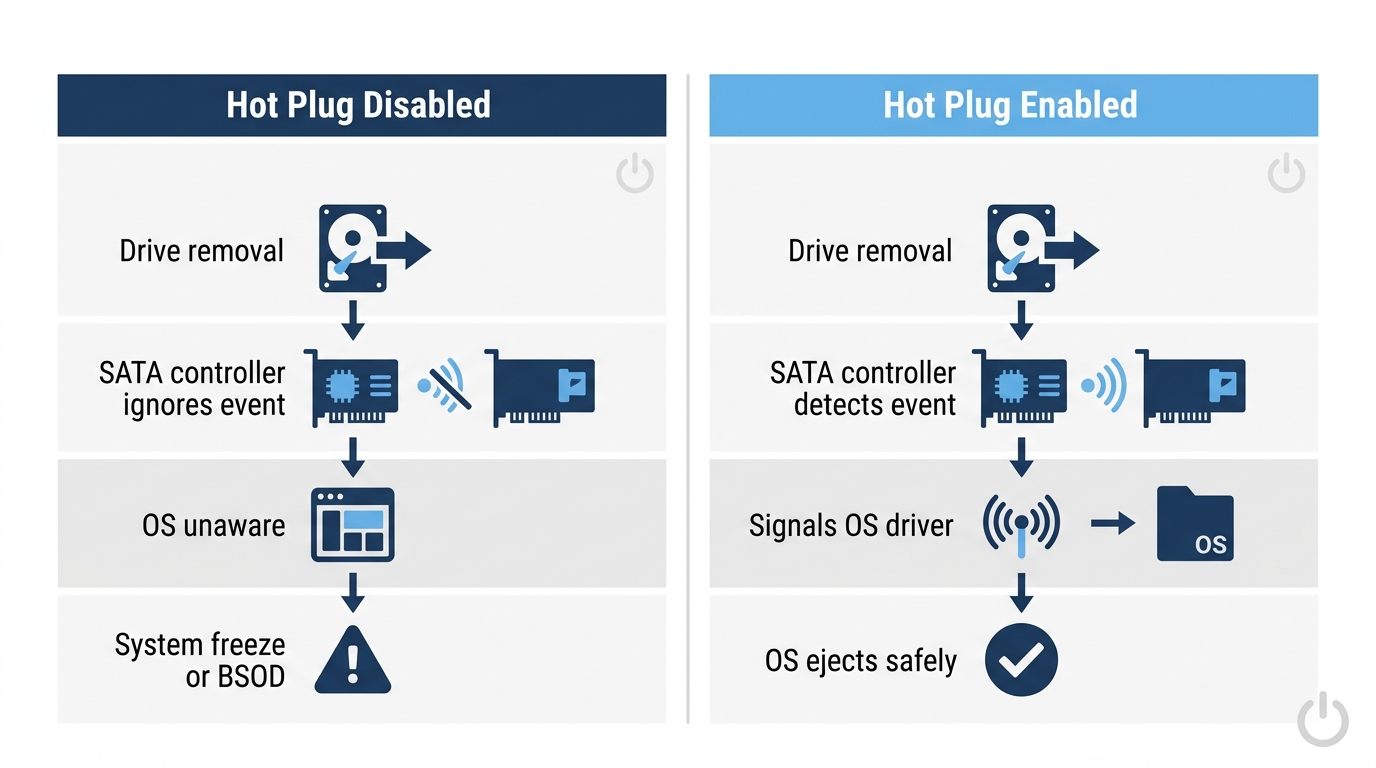
With hot plug disabled (the default on every board you’ll encounter), the SATA controller treats the port as static. There’s no interrupt monitoring, no port polling, and no graceful handling of removal events. Pull a drive mid-session and the controller has no framework for responding. Windows typically responds with a BSOD, Linux throws a kernel panic, and either way you’re looking at a forced reboot and potential filesystem damage on the drive you just yanked.
With hot plug enabled, the controller actively watches for port state changes. When you remove a drive, the OS gets a device-removal notification, marks the drive as unmounted, and handles the event cleanly. No crash. The system keeps running and the port becomes available for re-use.
Why is disabled the default? A few reasons:
- The vast majority of desktop users have permanently installed drives that never move. There’s no benefit to monitoring a port that will never change state.
- Active port monitoring consumes marginal CPU interrupt resources. Small overhead, but why add it unnecessarily?
- Some older drives behave inconsistently when the controller sends active port signals. Keeping it off is the safe default.
- Accidental removal is a real concern for typical users. A BSOD is an effective, if harsh, deterrent against careless cable yanking.
| Setting | Drive Behavior on Removal | OS Response | Risk Level | Best For |
|---|---|---|---|---|
| Disabled | System freeze or BSOD possible | None | High if removed | Internal permanent drives |
| Enabled | Graceful unmount (with proper ejection) | Device removal event triggered | Low if ejected properly | Dock users, RAID, external bays |
When Should You Enable SATA Hot Plug?
There are specific setups where enabling this makes genuine sense. And then there’s everyone else, who should leave it alone.
Drive Docks and Hot-Swap Bays
This is the most common consumer use case. If you have a front-panel drive bay or a desktop dock where you regularly swap SATA drives, hot plug is exactly what you need. Enable it only on the ports those bays connect to, not on every port in your system.
RAID 5 and RAID 6 Arrays
Hot plug is the standard in enterprise RAID environments precisely because failed drives need to be swapped without taking the array offline. If you’re running RAID 5 or RAID 6 with drive redundancy, hot plug lets you pull a failed disk and slot in a replacement while the array keeps serving data. This is the scenario the feature was designed for.
Always-On Home Servers and NAS-Style Builds
If you’re running a system 24/7 and want to add or remove storage without scheduling downtime, hot plug gives you that flexibility. Common setup for Plex servers, file servers, and homelab machines.
Linux Users with Software RAID (mdadm)
Hot plug is frequently required in mdadm setups for clean drive management without rebooting. Linux handles hot plug events through udev, and the kernel’s libata module manages port detection natively. This is an angle most competitors completely ignore.
Who Should Not Enable It
- Standard desktop users with drives that never come out
- Anyone still running IDE mode in BIOS (it won’t function anyway)
- Anyone using Molex-to-SATA power adapters on the relevant drives
- Users whose drives host the OS partition or Windows pagefile
Requirements Checklist Before Enabling SATA Hot Plug
ASRock’s FAQ from 2003 covers the basics, but here’s a complete checklist with the technical context behind each requirement.
- BIOS must have a per-port hot plug toggle. Any modern motherboard from roughly 2010 onward will have this. If you’re on something older, check the manual.
- SATA mode must be set to AHCI, not IDE. This is non-negotiable. IDE mode does not implement the interrupt-driven port monitoring that hot plug requires. If you’re unsure what mode you’re using, check Advanced > SATA Configuration in your BIOS and look for the SATA Mode or SATA Controller Mode setting.
- Drive must use a SATA 15-pin power connector. Not a Molex-to-SATA adapter. The staggered pin design of the native SATA power connector is part of what makes safe hot insertion possible. Using a Molex adapter bypasses inrush current protection and risks hardware damage.
- The enclosure or dock must be hot-swap capable. A physical locking mechanism isn’t enough on its own. The dock needs proper power sequencing behavior to safely handle insertion events.
- Your OS must support hot plug events. Windows 10 and 11: yes, natively. Linux: yes, through udev and libata. macOS via Boot Camp: limited and not officially supported by Apple.
- Always eject before physically removing. Even with hot plug enabled, the OS write cache may still have pending data. Use “Safely Remove Hardware” in Windows or run
udisksctl power-off -b /dev/sdXin Linux before pulling any drive.
Also worth verifying with your drive manufacturer: most modern Western Digital, Seagate, and Samsung SATA drives support hot plug, but ASRock’s own documentation explicitly recommends confirming hot plug support with your dealer or the drive’s user manual, especially for older drives. A drive that doesn’t support hot plug can be damaged by the insertion event.
Can You Hot Plug a SATA SSD? (HDDs vs. SSDs vs. Optical Drives)
Short answer: it depends on the drive type. This is a question competitors don’t touch clearly, so here’s the breakdown.
| Drive Type | Hot Plug Supported? | Notes |
|---|---|---|
| SATA HDD (3.5″ or 2.5″) | ✅ Yes | Primary use case; use native SATA 15-pin power |
| SATA SSD (2.5″) | ✅ Yes | Same rules as HDD; needs proper SATA power connector |
| M.2 SATA SSD | ⚠️ Technically yes | M.2 slots aren’t physically designed for repeated insertion; not recommended |
| SATA Optical Drive | ❌ Not recommended | Unpredictable spin-up behavior causes detection problems |
| NVMe M.2 (PCIe) | ❌ Not SATA | Completely different standard; consumer boards don’t support NVMe hot plug |
The NVMe clarification is important. NVMe drives connect through PCIe lanes, not SATA. The SATA hot plug BIOS setting has absolutely no effect on NVMe slots. Consumer motherboards don’t implement PCIe hot plug at the M.2 slot level. If someone told you to enable SATA hot plug for your NVMe SSD, that’s wrong information.
For M.2 SATA drives specifically: the SATA protocol itself would support it, but the M.2 slot’s physical design isn’t built for repeated insertions under power. The connector wear risk and lack of mechanical protection make it impractical. Stick to 2.5″ SATA drives for hot plug use cases.
Is SATA Hot Plug Safe? Risks and Best Practices
Used correctly, yes. Used carelessly, no. Here’s what can actually go wrong and how to avoid it.
What Can Go Wrong
- Data corruption: Removing a drive without flushing the OS write cache. The OS may have pending writes that never reach the drive.
- Connector wear: The SATA data connector is rated for approximately 50 insertion cycles per the SATA-IO specification. Frequent hot swapping accelerates mechanical wear on both the drive and cable connectors.
- Power spike damage: Using non-compliant power adapters. Already covered, but worth repeating.
- Driver crashes in Windows: If the drive being removed hosts a pagefile, a locked system file, or has active file handles open, removal can cause driver instability even with graceful unmounting.
Best Practices
- Always use “Safely Remove Hardware” in Windows or
udisksctl power-offin Linux before physically pulling any drive - Enable hot plug only on ports where a hot-swap enclosure is actually installed, not on every port “just in case”
- Use native SATA 15-pin power cables only on hot-plug ports
- Don’t hot-plug drives containing your OS partition, Windows pagefile, or any file with open handles
- Check drive specs before assuming support, particularly for drives older than 2015
SATA Hot Plug on Specific Platforms (X570, B550, Intel Z-Series)
Platform-specific details matter here, especially on AMD boards with split SATA architectures.
AMD X570 and B550
On most X570 and B550 boards, SATA ports are provided entirely by the chipset, typically four to six ports depending on the model. Some boards (especially certain Gigabyte models) route a portion of the CPU’s flexible PCIe lanes as additional SATA ports through a PCIe-to-SATA bridge, labeling them “APU SATA” or “ASATA” in BIOS. If your BIOS shows two separate SATA groups, both support hot plug independently and you enable it only on whichever ports your hot-swap hardware is physically connected to. If you only see one group, that’s normal too. This is why so many X570 users end up on Reddit asking what “APU SATA” means in the context of hot plug. It’s not a different type of hot plug, it’s just labeling which silicon controls that port group. If you’re also configuring other AMD-specific BIOS options, our guide on DOCP and EXPO for AMD RAM settings covers the broader BIOS configuration context for Ryzen platforms.
AMD B450 and X470
Single chipset SATA controller, simpler setup. No APU/chipset split to worry about. Hot plug is available per port in the same SATA Configuration menu.
Intel Z790, Z690, and B660
Intel’s platform uses a single integrated SATA controller. The Z790 PCH officially supports up to 8 native SATA 6Gb/s ports, but most retail Z790 boards ship with only 4 to 6 physical ports because motherboard manufacturers reallocate the chipset’s flex I/O lanes to M.2 NVMe slots instead. Per-port hot plug toggles are in the SATA Configuration section of UEFI, same as AMD. No APU labeling to confuse things. Budget Intel boards like H610 have fewer SATA ports but the same hot plug functionality on the ports that exist.
Across all platforms, as NVMe has replaced most SATA storage in high-end builds, the remaining SATA ports still implement hot plug identically. Fewer ports, same behavior.
Troubleshooting: SATA Hot Plug Not Working
If you’ve enabled the setting and things aren’t behaving as expected, here are the common failure points.
Drive not detected after insertion
First check: is AHCI mode actually enabled? Second check: is the hot plug toggle enabled for that specific port, not a different one? Third: try re-seating the data cable. In Linux, if udev isn’t picking up the drive automatically, force a rescan with echo "- - -" > /sys/class/scsi_host/host[X]/scan (replace X with the correct host number from lsscsi output).
System freezes on removal
Almost always caused by removing the drive before the OS write cache was flushed. You skipped the safe eject step. Even with hot plug enabled, the OS needs to be told to finish what it’s doing before you pull the drive.
Linux not detecting hot-plugged drive
Verify the libata module is loaded (lsmod | grep libata). Check udev rules aren’t blocking SCSI device events. Use dmesg to watch for kernel messages during insertion. The force-rescan command above is often the fastest fix.
BSOD on removal in Windows despite hot plug being enabled
Check whether the drive contains the Windows pagefile. Open System Properties > Advanced > Performance Settings > Advanced > Virtual Memory and verify pagefile location. Any drive hosting pagefile or OS files is not safe to hot remove regardless of BIOS settings.
Molex-to-SATA adapter in use
Replace it. There’s no workaround here. Switch to a native SATA power cable from your PSU’s modular connections or use a SATA power splitter. Molex adapters are incompatible with safe hot plug operation. Full stop.
FAQ: SATA Hot Plug Questions Answered
What does hot-plug SATA mean?
Hot-plug SATA means the ability to connect or disconnect a SATA drive while the computer is powered on and running. The BIOS setting enables port-level signaling so the controller and OS can respond to insertion and removal events without crashing. The feature is defined in the SATA specification itself, the BIOS toggle just unlocks it at the controller level.
Is SATA hot-plug safe to use?
Yes, when you follow the requirements: AHCI mode enabled, native SATA 15-pin power connector in use, and always eject the drive in the OS before physically removing it. The main risks are data corruption from skipping the eject step, and hardware damage from using Molex-to-SATA power adapters, which bypass the inrush current protection built into the native SATA power connector. Get those two things right and hot plug is reliable in day-to-day use.
Can I hot-plug a SATA SSD?
Yes. A 2.5″ SATA SSD follows the same rules as a SATA HDD, it’s SATA-compliant, the same OOB signaling handshake applies, and the same requirements (AHCI mode, native power connector, safe eject) govern it. M.2 SATA drives technically use the SATA protocol too, but M.2 slots aren’t physically designed for repeated live insertions, so it’s not a practical option. NVMe M.2 drives are not SATA and can’t be hot-plugged on consumer boards at all.
What does SATA hot-plug disabled mean in BIOS?
It means the SATA controller treats that port as static. There’s no interrupt monitoring, no port polling, and no graceful handling if a drive is removed mid-session. This is the default state on virtually all motherboards. For internal drives that never move, disabled is the correct setting. Removing a drive from a disabled hot-plug port while the system is running will almost certainly cause a system freeze or BSOD.
Should SATA hot plug be enabled or disabled for a normal desktop?
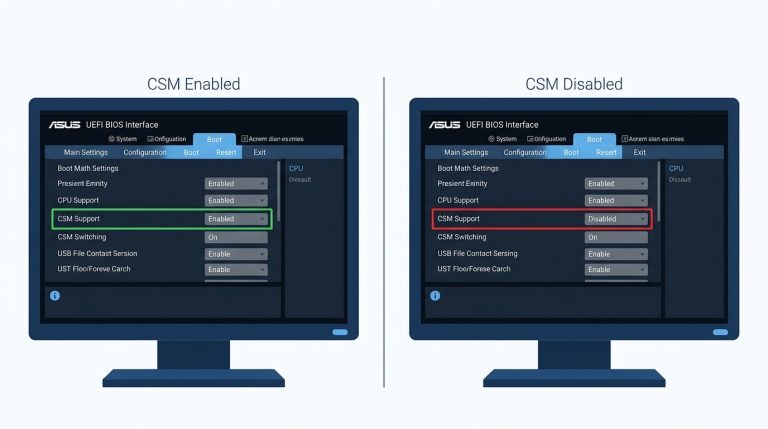
Disabled, for a standard desktop with permanently installed internal drives. There’s no benefit to enabling it on ports where nothing will ever be swapped, and the marginal overhead of active port monitoring adds nothing useful. Enable it selectively, only on ports connected to hot-swap bays, drive docks, or RAID arrays where live drive swaps are actually part of your workflow. If you want to review other BIOS settings that are similarly misunderstood, both the ErP BIOS setting and the CSM compatibility module are commonly confused options worth understanding.
The Short Version
SATA hot plug is a legitimate, well-supported feature, but it’s built for specific use cases. Drive docks, hot-swap bays, and RAID arrays are where it belongs. For everyone else with standard internal drives, disabled is correct and should stay that way. Before you enable it: confirm AHCI mode is active, confirm you’re using a native SATA 15-pin power connector, and enable the toggle only on the ports that actually need it. Do those three things and hot plug works exactly as intended. Skip any of them and you’re adding risk with no benefit.

Alex has been building and tweaking custom PCs for over 12 years. From budget builds to full custom water loops, he’s assembled more than 50 systems and helped hundreds of builders troubleshoot their rigs. When he’s not benchmarking the latest hardware, you’ll find him optimizing airflow setups or stress-testing overclocks.