Above 4G Decoding: What It Does and When to Enable It
Above 4G Decoding lets 64-bit PCIe devices use address space above 4 GB. Enable it for Resizable BAR, or when the drivers for several graphics cards won’t load.
Last updated: November 2026
Table of Contents
- What Is Above 4G Decoding?
- Why graphics cards care about the 4 GB line
- Above 4G Decoding vs Resizable BAR
- Should Above 4G Decoding Be On or Off?
- Before You Change It
- How to Turn It On
- ASUS
- MSI
- GIGABYTE
- ASRock
- Prebuilt PCs, laptops and workstations
- Check That It Worked
- Something Went Wrong After Changing It?
- Frequently Asked Questions
- Should Above 4G Decoding be on or off?
- Should you turn on Above 4G Decoding and ReBAR together?
- Where is Above 4G Decoding in the ASUS BIOS?
- Should I enable Above 4G for crypto mining?
- Why can’t I find Above 4G Decoding in my BIOS?
- Is Above 4G Decoding the same as Resizable BAR?
Above 4G Decoding has a name that explains almost nothing, and it sits right next to settings you do care about. It lets the BIOS place PCIe devices, such as your graphics card, in address space above the 4 GB mark. On a gaming PC you need it for one reason: Resizable BAR depends on it. On a machine with several graphics cards, it can decide whether their drivers load at all.
On a gaming PC with a card that supports Resizable BAR, the answer is simple: turn it on together with Re-Size BAR Support, with CSM off. Below is what it does, what to check before you touch CSM, where ASUS, MSI, GIGABYTE and ASRock put it, and how to confirm it worked.
What Is Above 4G Decoding?
A PCIe card such as your graphics card gets a slice of the system’s address space, so the processor can reach the card’s memory. The “4G” is the 4 GB line where 32-bit addressing runs out. With Above 4G Decoding enabled, 64-bit capable devices can have their slice placed above that line. The option only appears on boards that support 64-bit PCI decoding.
Why graphics cards care about the 4 GB line
To stay compatible with 32-bit operating systems, a graphics card usually claims a 256 MB window for its frame buffer. That fits below 4 GB without trouble. Resizable BAR grows the window until it exposes the card’s entire VRAM, and on a 16 GB card that can’t fit below the 4 GB line. That’s where address space above 4 GB comes in.
Above 4G Decoding vs Resizable BAR
Two settings, one job. Above 4G Decoding lets the BIOS map 64-bit devices high up in the address space. Resizable BAR lets the graphics card ask for a much bigger window once that room exists. On a single-GPU gaming PC, the speed gain comes from Resizable BAR, and Resizable BAR won’t work without Above 4G Decoding.
| Above 4G Decoding | Resizable BAR | |
|---|---|---|
| What it controls | Whether 64-bit devices can be mapped above the 4 GB line | Whether the graphics card can open a window as big as its VRAM |
| Other names | Above 4G memory/ Crypto Currency mining (MSI) | Re-Size BAR, Smart Access Memory, Clever Access Memory (C.A.M.) |
| Needs | A board that supports 64-bit PCI decoding | Above 4G Decoding on, CSM off, UEFI boot |
| Speed gain | Only through Resizable BAR | On GeForce RTX 30 cards: a few percent up to 12% in some games, a loss in others |
You can see the dependency in the menus. On ASUS boards, Re-Size BAR Support doesn’t appear until Above 4G Decoding is Enabled, and ASRock Intel boards do the same with C.A.M. On MSI boards, Re-Size BAR Support is only available on systems with 64-bit PCI/PCIe decoding. And Intel’s Resizable BAR steps switch both on together.
Should Above 4G Decoding Be On or Off?
Turn it on if one of these is you:
- You want Resizable BAR, Smart Access Memory or C.A.M. It’s one of the settings to enable for Resizable BAR, and on ASUS and ASRock Intel boards the Resizable BAR option stays hidden until it’s on.
- You’ve got several graphics cards and their drivers won’t start. If more than one advanced graphics card is installed and the drivers can’t launch because of the limited 4 GB address space, set it to Enabled.
- You run a lot of GPUs. On MSI boards the Enabled state lets you use more than four GPUs, which is why the label mentions crypto mining.
What it won’t do: make your games faster on its own. Your graphics card keeps its usual 256 MB window until Resizable BAR is on too. The gains belong to Resizable BAR, which needs Above 4G Decoding underneath it.
My take: on a gaming PC with a card that supports Resizable BAR, turn Above 4G Decoding on together with Re-Size BAR Support and be done with it. On an older single-GPU system that doesn’t support Resizable BAR and runs fine, there’s no reason to touch it. Leave it at whatever your board ships with.
Before You Change It
Two things can stop the PC from starting or lock you out of Windows. Both take a minute to check.
- Check how Windows boots. Resizable BAR needs CSM (or Legacy Mode) off and UEFI boot on. With CSM off the board only boots in UEFI mode, and UEFI boot needs a GPT disk. Type msinfo32 in the search box, press Enter and look at BIOS Mode on the System Summary page. UEFI means Windows already starts in UEFI mode from a GPT disk. Legacy means it sits on an MBR disk: read our CSM guide before you change anything. Newer AMD cards add a reason to switch: from the RDNA 4 generation (the Radeon RX 9000 series), only UEFI mode is officially supported.
- Suspend BitLocker. A BIOS update to get the option, or converting the boot disk from MBR to GPT, can trigger BitLocker recovery. Firmware upgrades and changes to the disk’s partition table are both on the list of triggers. A normal suspend ends at the next restart, and this job takes several. So type powershell in the search box, right-click Windows PowerShell, choose Run as administrator and run:
Suspend-BitLocker -MountPoint "C:" -RebootCount 0
That keeps protection off across restarts. When you’re done, turn it back on with:
Resume-BitLocker -MountPoint "C:"
Our BIOS Flashback guide covers updating from a USB stick.
- Do CSM on its own first. Flip Above 4G Decoding, Re-Size BAR and CSM in one go, and if the PC won’t start, you won’t know which change did it. Turn CSM off, boot into Windows once, then switch on the other two together.
How to Turn It On
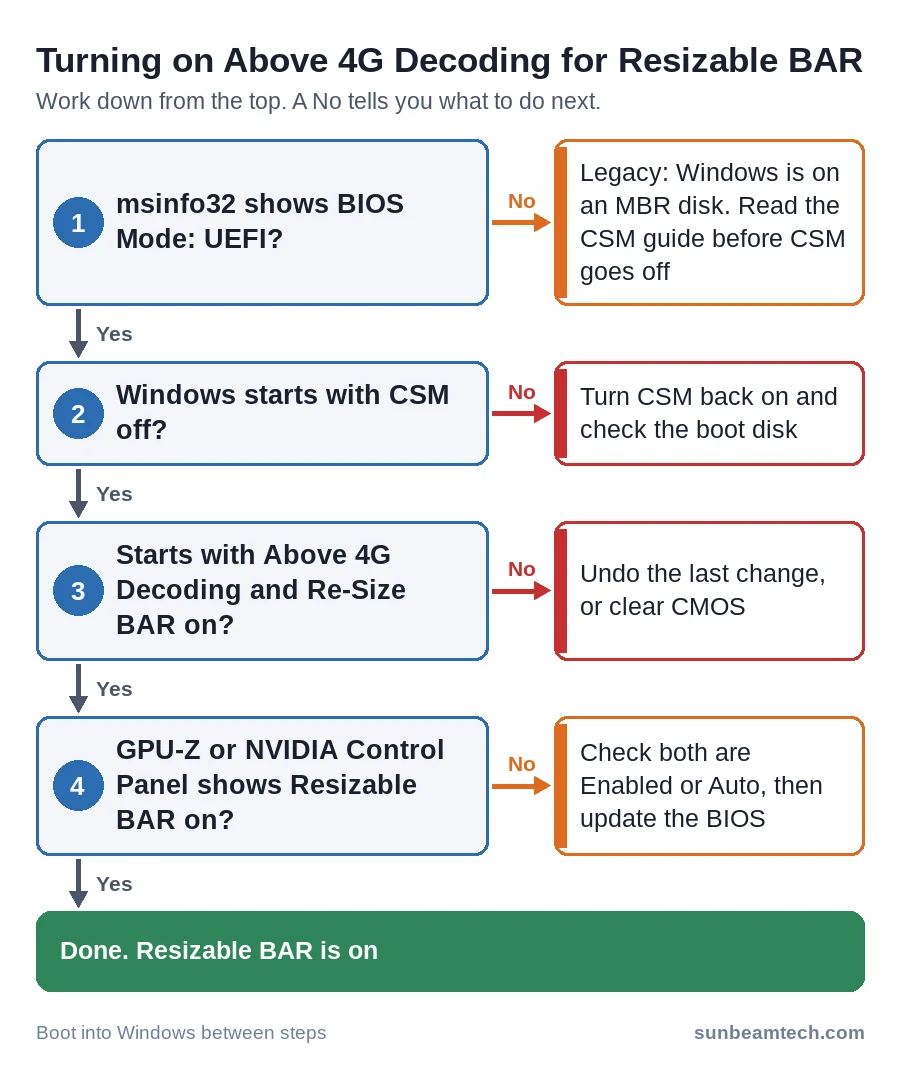
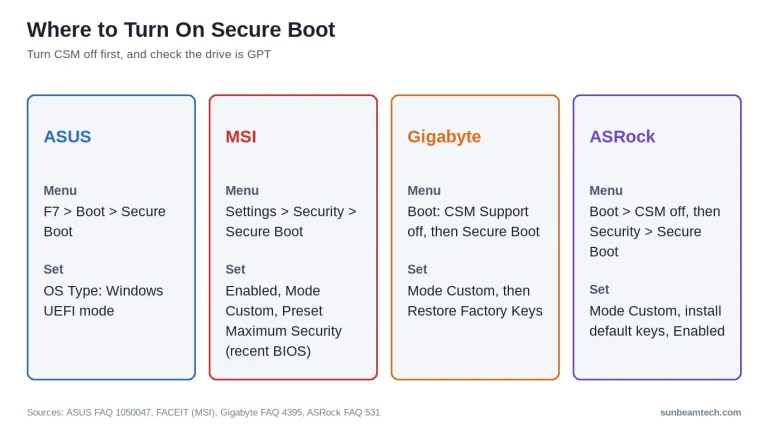
Press Delete while the PC starts to open the BIOS. That key works on ASUS, MSI, GIGABYTE and ASRock boards. Make the change for your brand below, press F10 to save and restart, and let Windows start once before the next change.
ASUS
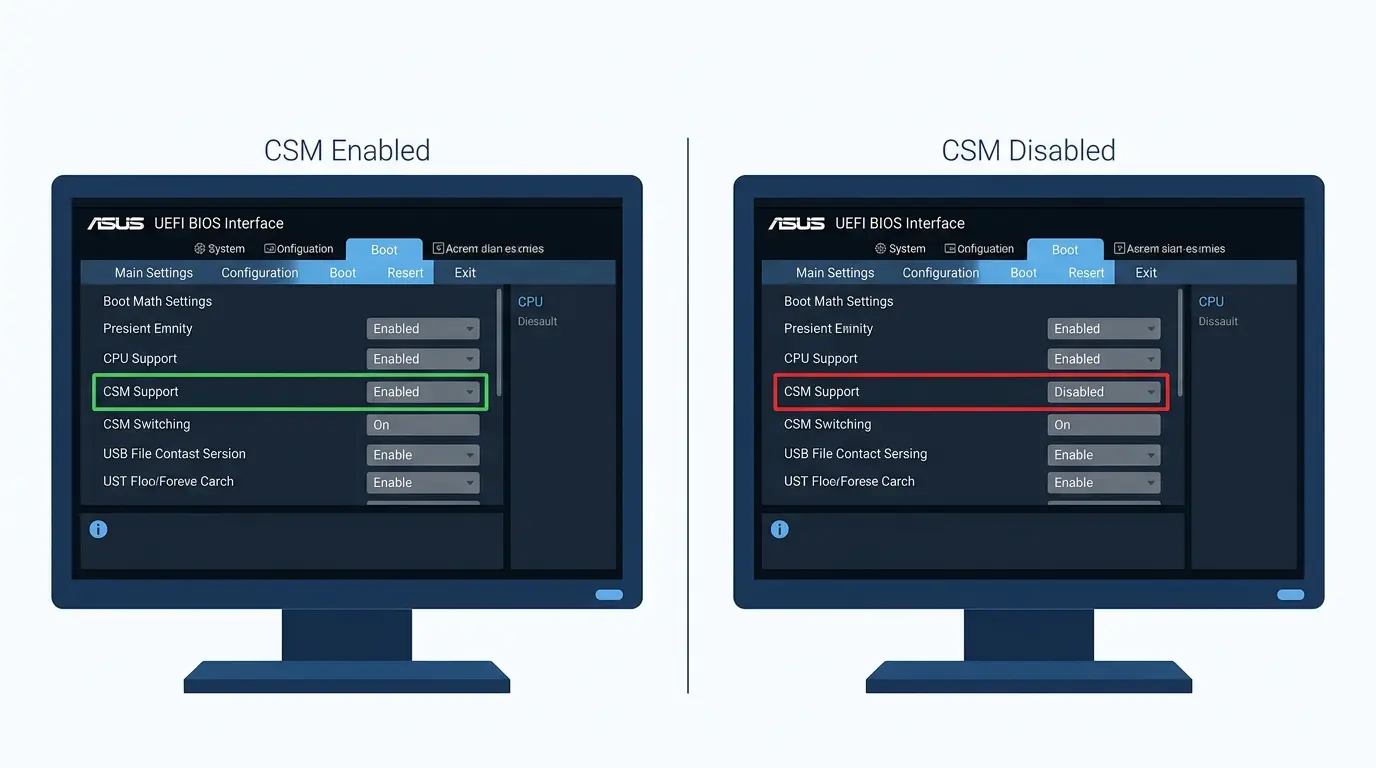
Press F7 if the BIOS opens in EZ Mode. On the Advanced tab, open PCI Subsystem Settings and set Above 4G Decoding to Enabled. Re-Size BAR Support then shows up in the same submenu: set it to Auto or Enabled, whichever your BIOS lists. CSM is on the Boot tab: CSM (Compatibility Support Module) > Launch CSM, set to Disabled. ASUS walks through the same steps on its Edge Up blog.
Some ASUS boards have a shortcut: a ReSize BAR button in EZ Mode. Setting it to On also disables CSM, so do the BIOS Mode check above first.
MSI
Go to SETTINGS > Advanced > PCIe/PCI Sub-system Settings. The item is called Above 4G memory/ Crypto Currency mining. Yes, that’s the one, even if you’ve never mined anything. Re-Size BAR Support sits right next to it: the item below on Intel boards, the item above on AMD boards. For CSM, set BIOS CSM/UEFI Mode in the Advanced section to UEFI. On AMD boards that item is called BIOS UEFI/ CSM Mode.
MSI’s 800-series boards have a newer BIOS layout. There, Advanced is a menu of its own, and Re-Size BAR Support is under Advanced > PCIe Sub-system Settings.
GIGABYTE
On X670 and B650 boards, Above 4G Decoding is in Settings > IO Ports, with Re-Size BAR Support right after it. CSM lives somewhere else: set CSM Support in the Boot menu to Disabled.
ASRock
Disable CSM first in Boot > CSM. If that menu is missing, set Fast Boot on the same Boot screen to Disabled first (more on what Fast Boot does). On Intel boards, go to Advanced > Chipset Configuration and set Above 4G Decoding to Enabled. The C.A.M. option then appears below it; set that to Enabled too. On AMD boards, both switches are in Advanced > PCI Configuration: turn on Above 4G Decoding and Re-Size BAR Support.
Prebuilt PCs, laptops and workstations
Prebuilt PCs, laptops and workstations often don’t match the retail-board menus above. Check the support page for your exact model, and run the latest firmware that supports Resizable BAR. Workstation boards can also have extra switches around the setting; the PCIe resource error below is an example.
Check That It Worked
The quickest check is Resizable BAR, which only comes on when Above 4G Decoding is on too.
- GPU-Z: the main screen shows the Resizable BAR status. Click it to open a detailed report in the Advanced panel.
- NVIDIA: open NVIDIA Control Panel, click System Information at the bottom left and look for Resizable BAR. Yes means it’s on.
- Intel Arc: run the Intel Driver and Support Assistant (Intel DSA), which confirms whether Resizable BAR is enabled.
Still off? Check that Above 4G Decoding and Re-Size BAR are both Enabled (or Auto), that CSM is off, and that you’re on the latest BIOS for your board.
Something Went Wrong After Changing It?
- C.A.M. or Re-Size BAR still doesn’t show. On ASUS boards and ASRock Intel boards, that option only appears once Above 4G Decoding is set to Enabled, so double-check that first. On MSI boards, Re-Size BAR Support needs 64-bit PCI/PCIe decoding support. Still missing? Look for a newer BIOS for your board.
- PCIe resource error with multiple GPUs. On a Supermicro X10DAi workstation board, two GPUs threw a “PCIe Out Of Resource” warning even with Above 4G Decoding on. The cause was a separate per-slot setting that excluded those slots from above-4G decoding. Some boards have extras like this, so read the menu items around Above 4G Decoding.
- No display or no boot. Undo your last change. If you can’t get into the BIOS, clear CMOS to go back to defaults, then work through our no-display checklist if the screen stays black.
- Windows won’t start after turning CSM off. That points at the boot disk, not Above 4G Decoding. Turn CSM back on, then do the BIOS Mode check from “Before You Change It”.
Frequently Asked Questions
Should Above 4G Decoding be on or off?
On for Resizable BAR or Smart Access Memory, and on a PC with several graphics cards whose drivers won’t load. On an older single-GPU PC without Resizable BAR support, you can leave the default.
Should you turn on Above 4G Decoding and ReBAR together?
Yes, if your board, graphics card and BIOS support Resizable BAR. Switch CSM off first and confirm Windows still starts, then enable both in one visit.
Where is Above 4G Decoding in the ASUS BIOS?
In Advanced Mode (F7), on the Advanced tab under PCI Subsystem Settings. Re-Size BAR Support shows up in that submenu once Above 4G Decoding is Enabled.
Should I enable Above 4G for crypto mining?
Yes, on a rig with several graphics cards. That’s the setup the MSI label refers to, and on MSI boards Enabled is the state that allows more than four GPUs.
Why can’t I find Above 4G Decoding in my BIOS?
Check other names and menus first: MSI calls it Above 4G memory, GIGABYTE puts it under IO Ports, and ASRock uses Chipset Configuration on Intel boards and PCI Configuration on AMD boards. It only shows up on boards that support 64-bit PCI decoding, so if it’s still missing, look for a newer BIOS for your board.
Is Above 4G Decoding the same as Resizable BAR?
No. Above 4G Decoding lets devices be mapped above 4 GB; Resizable BAR lets the graphics card open a bigger window into its memory. They’re two separate switches, and Resizable BAR needs both.
Asking your board maker for help? Include the motherboard model and BIOS version, which graphics cards are installed and in which slots, the state of Above 4G Decoding, Re-Size BAR and CSM, and any message you see during startup. That answers the first round of questions before they’re asked.
Want our guides higher in your Google results? Add SunbeamTech as a preferred source.


Alex Rivera writes SunbeamTech’s guides on BIOS settings, motherboard headers, cooling and PC builds. Every guide starts from the manufacturer’s documentation and the questions builders actually search for, and gets checked against AMD, Intel, NVIDIA and board-vendor sources before it goes live. Spotted a mistake? Email [email protected] and it gets fixed.