How to Apply Thermal Paste the Right Way
Thermal paste is a thermally conductive compound applied between a CPU’s integrated heat spreader and a cooler’s cold plate to eliminate air gaps that impede heat transfer.
Last updated: October 2026
Table of Contents
- Quick Answer: How Do You Apply Thermal Paste?
- What Is Thermal Paste and Why Does It Actually Matter?
- The Science Behind Heat Transfer (Simplified)
- When Do You Need to Apply Thermal Paste?
- What You’ll Need Before You Start
- Tools and Materials Checklist
- How to Prepare the CPU Surface
- How Much Thermal Paste to Apply
- How to Tell If You Used Enough
- The 5 Thermal Paste Application Methods Compared
- Method 1: Center Dot (Pea Method)
- Method 2: Thin Spread (Manual or Stencil)
- Method 3: X Pattern
- Method 4: Two Vertical Lines
- Method 5: Stencil Application
- Step-by-Step: How to Apply Thermal Paste to a CPU
- Platform-Specific Thermal Paste Tips
- AMD AM5 (Ryzen 7000 / 9000 Series)
- Intel LGA1700 / LGA1851 (12th–14th Gen / Core Ultra 200S)
- Laptops
- GPUs
- The Biggest Thermal Paste Mistakes (And How to Avoid Them)
- When to Replace Thermal Paste
- Signs Your Thermal Paste Has Degraded
- A Note on Liquid Metal and Premium Pastes
- Frequently Asked Questions
- Can I apply thermal paste myself?
- What is a common mistake when applying thermal paste?
- How often should you reapply thermal paste?
- Does thermal paste brand really matter?
- Is pre-applied thermal paste on stock coolers good enough?
- The Bottom Line
Quick Answer: How Do You Apply Thermal Paste?
Clean both the CPU IHS and cooler cold plate with 90%+ isopropyl alcohol, let them dry fully, then place a pea-sized dot in the center of the CPU. Mount the cooler straight down without sliding, and tighten the mounting screws diagonally in an X pattern. The cooler’s clamping pressure spreads the paste across the surface automatically. That’s the whole process for most builds.
For which paste to apply rather than how, see the best thermal paste guide.
The goal is simple: cover the heatspreader with a thin layer and no air gaps. When Gamers Nexus tested application methods and amounts, the full range of results from best to worst was less than one degree, and its conclusion was that “the biggest goal is not doing too little.” This guide covers every application method, the mistakes that actually matter, and platform-specific tips for AM5, Intel LGA1851, and more.
- 🟢 Correct amount: pea-sized dot, center of IHS
- 🟢 Surface prep: 90–99% IPA, lint-free wipe, 30–60 sec dry time
- 🟢 Mounting: straight down, no sliding, tighten screws diagonally
- 🟡 Too much paste: messy; in Gamers Nexus’ test it generally didn’t hurt temperatures, but Intel advises cleaning it off and starting again
- 🔴 Old paste left on surface: always clean it off before reapplying
- 🔴 Sliding the cooler on mount: creates air pockets; ruins spread pattern
What Is Thermal Paste and Why Does It Actually Matter?
The Science Behind Heat Transfer (Simplified)
Both a CPU’s integrated heat spreader (IHS) and a cooler’s cold plate look perfectly flat. They’re not. At the microscopic level, both surfaces have peaks and valleys that trap air when they’re pressed together. Air has a thermal conductivity of roughly 0.025 W/m·K. A quality thermal paste reaches 4–14 W/m·K depending on the formula. That’s a 160x to 560x difference in how efficiently heat moves across the interface.
When Do You Need to Apply Thermal Paste?
You need fresh thermal paste any time a cooler is removed or installed. Specific situations include:
- Installing an aftermarket cooler: always apply fresh paste; don’t trust the pre-applied TIM on aftermarket coolers that have been stored or shipped
- Replacing a stock cooler: remove the factory TIM completely and apply fresh paste
- Re-seating a cooler: even a brief removal counts; the spread pattern is disrupted and air is reintroduced
- Paste has degraded: typically every 3–5 years depending on paste chemistry (more on this later)
Stock Intel and AMD coolers ship with pre-applied TIM, which is fine for running within rated TDP. GPU repasting is a separate project outside the scope of this guide, but uses the same surface prep and application principles.
What You’ll Need Before You Start
Tools and Materials Checklist
- Thermal paste: your chosen compound (zinc oxide, silver, carbon, or liquid metal for advanced users)
- Isopropyl alcohol: 90% concentration minimum; lower percentages leave water residue on the IHS
- Lint-free cloth or coffee filters: not paper towels, which shed fibers that contaminate the surface
- Nitrile gloves: optional but smart; finger oils on the IHS degrade thermal contact
- Plastic spreader or applicator card: needed only if you’re using the thin spread method
- Good lighting: you want to see what you’re doing clearly
How to Prepare the CPU Surface
This step gets skipped too often. Residue from old paste, especially hardened, cracked TIM, acts as an insulator, not a conductor. Don’t skip cleaning even if the surface looks clear.
- Apply a small amount of IPA to a lint-free cloth or coffee filter. Not directly onto the CPU.
- Wipe the IHS in one direction, not circular. Circular wiping redistributes contamination.
- Let it dry fully. 30–60 seconds. IPA evaporates fast but not instantly.
- Do the same on the cooler cold plate.
- Don’t touch either surface after cleaning.
If old paste is dry and powdery, it may take two or three passes to fully remove. Stubborn residue responds well to letting the IPA soak for a few seconds before wiping. You can read more about paste degradation and when replacement becomes necessary in our guide on how often you should replace thermal paste.
How Much Thermal Paste to Apply
Less is more. This is the rule that beginners consistently get backwards. Adding more paste doesn’t improve conductivity once the gap is filled. It just creates overflow risk and can trap air bubbles if the layer is too thick.
Platform-appropriate amounts:
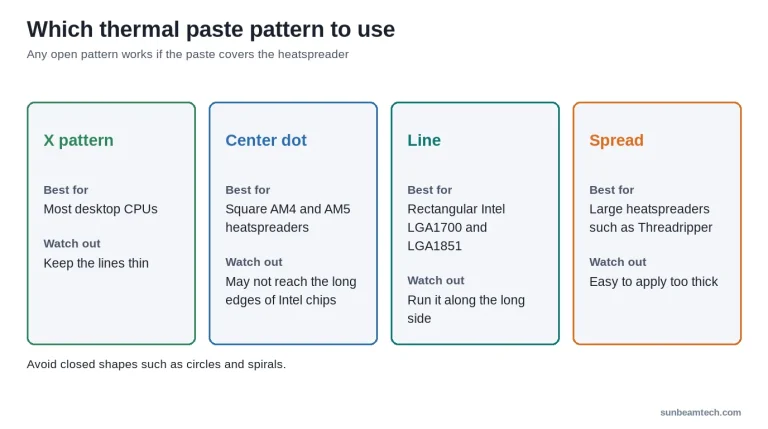
- Standard desktop IHS (AM4, AM5, Intel LGA1700/1851): a dot “roughly the size of a pea or a grain of rice”, as Intel’s guide puts it
- Large/HEDT IHS (Threadripper, Intel LGA2066): small X pattern or thin spread; single dot won’t reach corners
- Laptop CPUs (exposed die, no IHS): grain-of-rice dot; the die is small and pressure distribution is different
Too much paste and you’ll get squeeze-out around the edges. Intel warns that too much “reduces the efficacy of the paste” and can spill onto the motherboard, while Gamers Nexus measured that excess generally doesn’t hurt temperatures because tightening the cooler squeezes it out. Either way, it’s messy and harder to clean, and with standard non-conductive paste it isn’t a safety issue. Too little is the bigger problem: incomplete coverage leaves hot spots. Use a pea-sized amount and let mounting pressure do the work.
How to Tell If You Used Enough
The cooler’s imprint tells you. If you lift the cooler straight up after mounting, the paste should cover the heatspreader in a thin, even layer. Bare patches mean too little paste; reapply a slightly larger dot. Paste squeezing out past the edges means too much: wipe the excess away before it reaches the socket, and with conductive paste such as liquid metal, clean it off completely before powering on. Either way, clean both surfaces and apply fresh paste before you mount the cooler again.
The 5 Thermal Paste Application Methods Compared
Cooler mounting pressure is what actually spreads the paste. Your job before mounting is to set up the right starting point so pressure distributes paste evenly across the IHS. Different IHS shapes benefit from different starting patterns. In practice the differences between sensible patterns are small, as the test results below show.
Method 1: Center Dot (Pea Method)
The most used method. One pea-sized dot dead center of the IHS. Mounting pressure spreads it outward in a roughly circular pattern. Works well for most square and near-square desktop CPUs (AMD AM4, AM5, Intel LGA1700, LGA1851). Corners may be thin on rectangular IHS designs, but the corners run cooler than the center anyway. Beginner-friendly. Low overflow risk. This is the recommended starting method for anyone new to PC building.
Method 2: Thin Spread (Manual or Stencil)
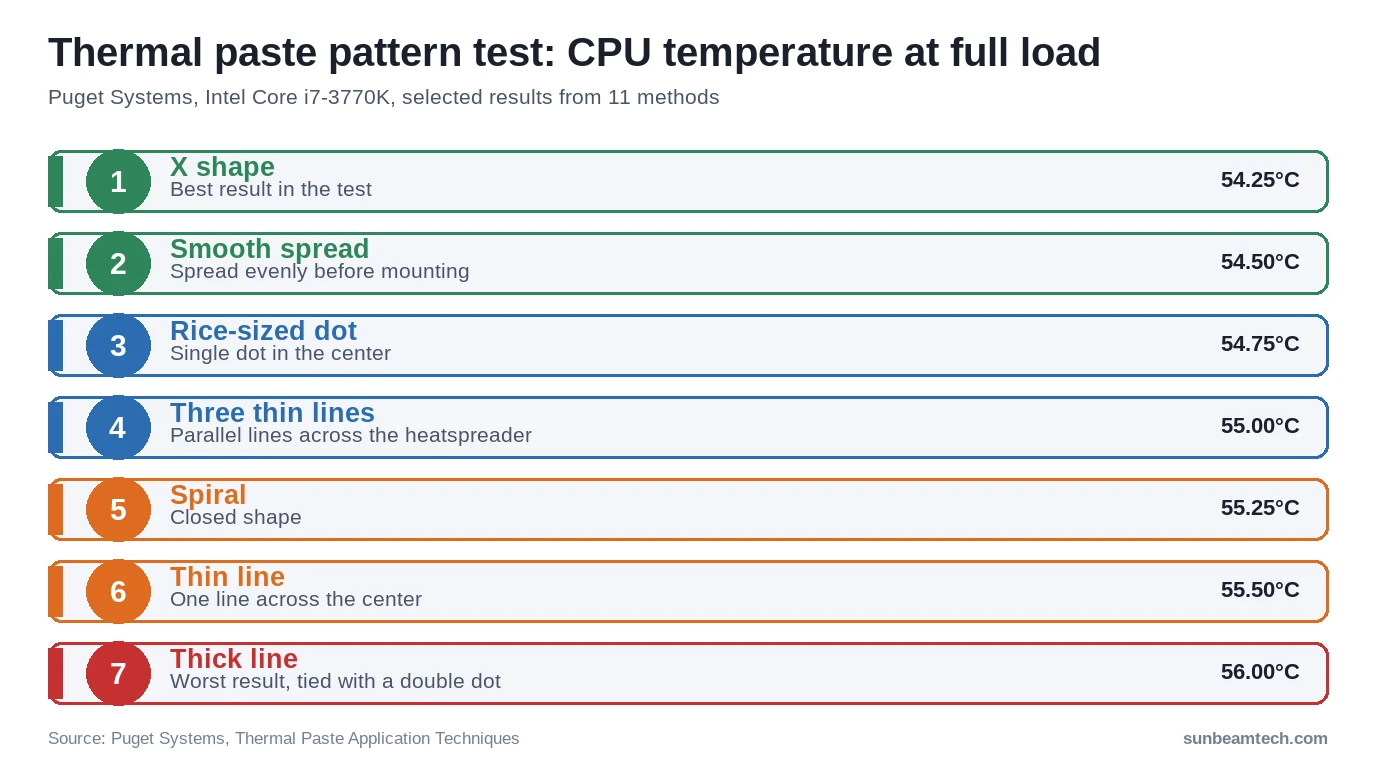
Use a plastic spreader card to create a thin, even layer across the full IHS before mounting. Most consistent coverage across the entire surface. Best method for large or rectangular IHS designs. The downside: it’s easy to apply too thick a layer, which actually increases thermal resistance rather than reducing it. Takes more care than the dot method. In Puget Systems’ test on a Core i7-3770K, a smooth spread (54.50°C) landed between the X shape (54.25°C) and a rice-sized dot (54.75°C).
Method 3: X Pattern
Draw an X across the IHS from corner to corner. Better corner coverage than the center dot. More paste used overall, and thickness is uneven between the lines and the gaps. Good for Intel’s rectangular Alder Lake, Raptor Lake, and Arrow Lake IHS designs. Not required, but a reasonable middle ground if you want more coverage without a spreader.
Method 4: Two Vertical Lines
Two parallel lines running the length of the IHS. Suited to elongated IHS designs from older platforms. Still leaves corners thin. This is largely a legacy method. Not wrong, but not optimal for any modern socket geometry. Stick with dot or X on current-gen hardware.
Method 5: Stencil Application
The most precise approach. Corsair’s XTM70 kit, for example, includes triangular stencils that create a controlled coverage pattern before mounting. The result is a thin, even layer with minimal overflow and complete IHS coverage. Best suited to enthusiast builds, custom loop setups, and high-TDP CPUs where every degree matters. Slightly more setup time. Excellent results.
| Method | Best For | Coverage Quality | Skill Level | Overflow Risk | Puget Systems result (full load) |
|---|---|---|---|---|---|
| Center Dot | Most desktop CPUs | Good | Beginner | Low | 54.75°C (rice-sized dot) |
| Thin Spread | Large / rectangular IHS | Excellent | Intermediate | Medium | 54.50°C (smooth spread) |
| X Pattern | Intel LGA1700 / LGA1851 | Good to Very Good | Beginner | Medium | 54.25°C |
| Two Vertical Lines | Elongated IHS (legacy) | Fair | Beginner | Low | 55.00°C (three thin lines) |
| Stencil | Enthusiast / High-TDP builds | Excellent | Intermediate | Low | Not tested |
Results from Puget Systems’ application test on an Intel Core i7-3770K. Across all eleven methods it tried, the spread was 54.25°C to 56.00°C. Gamers Nexus found an even smaller gap in its own test: less than one degree from best to worst. Your cooler, CPU and paste will give different absolute numbers.
Step-by-Step: How to Apply Thermal Paste to a CPU
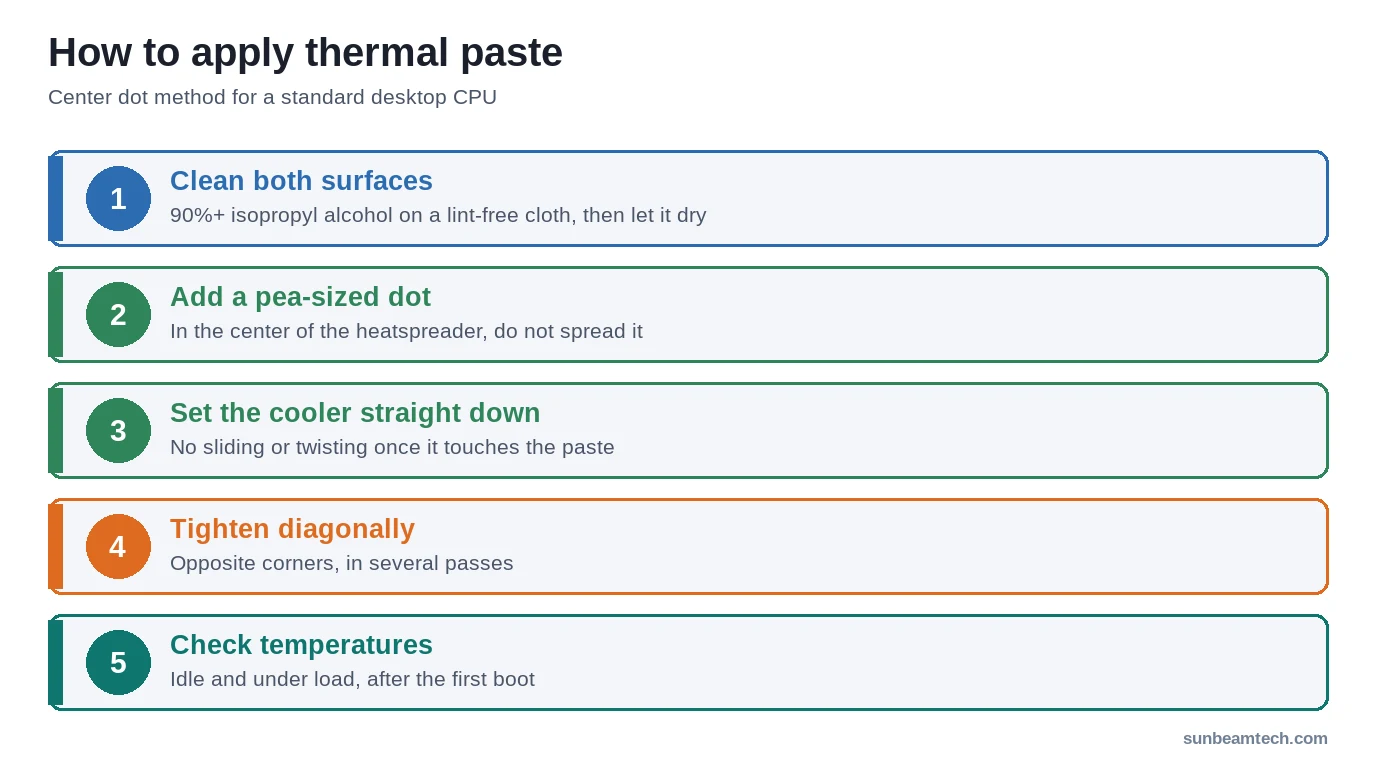
These steps use the center dot method. It’s the right starting point for most builders and most platforms. Follow these in order and don’t skip surface prep.
- Power down and ground yourself: shut down the PC completely, unplug the power cable. Touch a metal part of the case or use an anti-static wrist strap before handling components.
- Remove the old cooler: twist it slightly to break the paste seal, then lift straight up. Never pry sideways. Pulling a stuck cooler without breaking the seal can lift the CPU out of an LGA socket.
- Clean both surfaces: CPU IHS and cooler cold plate, both cleaned with 90%+ IPA on a lint-free cloth. Wipe in one direction. Let both dry for 30–60 seconds before proceeding.
- Apply paste to the CPU IHS center: place a pea-sized dot directly in the center of the IHS. Don’t spread it.
- Mount the cooler right away: so no dust or fibers land on the paste.
- Apply even downward pressure: set the cooler straight down, aligned with its mounting holes. Do not slide it around. Sliding disrupts the spread and introduces air.
- Tighten mounting hardware in an X pattern: alternate diagonally across the screws or bolts in 3–4 passes until hand-tight. Never crank one side down fully before the opposite side. Uneven pressure tilts the cold plate and creates hot spots.
- Boot and verify temperatures: check with HWMonitor or HWiNFO64. Compare idle and load temperatures with what’s normal for your CPU and cooler.
- 40°C = 104°F (typical idle, well-cooled system)
- 50°C = 122°F (idle, warmer ambient or modest cooler)
- 65°C = 149°F (light gaming / sustained light load)
- 75°C = 167°F (normal gaming load)
- 85°C = 185°F (heavy all-core load, acceptable for most CPUs)
- 90°C = 194°F (approaching thermal limit for most consumer CPUs)
- 100°C = 212°F (thermal throttle territory; investigate immediately)
Formula: °F = (°C × 1.8) + 32.
Platform-Specific Thermal Paste Tips
AMD AM5 (Ryzen 7000 / 9000 Series)
AM5 uses the same cooler mounting as AM4, according to Corsair, and the same methods work: a center dot, or an X pattern if you want extra corner coverage on high-TDP parts. The Ryzen 9 9950X has a 170W TDP, so prioritize paste with thermal conductivity at or above 8 W/m·K. The 9900X sits at 120W TDP and is less demanding on paste selection.
The Ryzen 7 9800X3D needs no special treatment. On this generation AMD moved the extra cache below the processor die, which, in AMD’s words, “puts the core complex die (CCD) closer to the cooling solution.” Apply paste the same way as on any other AM5 chip.
AM5 uses LGA on the socket side (pins on the motherboard, not the CPU), so overflow onto the CPU itself isn’t a pin-damage risk. Still keep overflow minimal. It’s messy and difficult to fully clean from socket surroundings.
Intel LGA1700 / LGA1851 (12th–14th Gen / Core Ultra 200S)
Intel’s rectangular IHS is noticeably wider than it is tall (Intel lists a 45 x 37.5 mm package for both the i9-14900K and the Core Ultra 9 285K). A center dot leaves the long-edge corners thin after spread. X pattern or thin spread is the better call here, especially on the i9 tier.
The Core i9-14900K and i9-13900K can hit 253W PL2 under sustained all-core loads. At those power levels, paste quality matters more and standard pastes approach their limits faster. High-conductivity pastes (8 W/m·K or higher) are worth the extra cost on these chips.
Arrow Lake isn’t a low-power platform either. Intel lists the Core Ultra 9 285K at 125 W Processor Base Power and 250 W Maximum Turbo Power, against 253 W for the i9-14900K, so treat it the same way: full coverage and a cooler rated for the wattage.
Laptops
Most laptop CPUs don’t have an IHS. The die is exposed, which means a grain-of-rice dot only. The die area is small and paste spreads quickly under minimal pressure. Too much and it squeezes onto the motherboard. Clean the copper heat pipe contact surface carefully; old paste bakes onto copper and takes more IPA passes to remove fully. This is a more involved process than desktop repasting, and the cleanup standard is higher.
GPUs
Modern GPUs use a combination of thermal pads on VRMs and VRAM, plus paste on the GPU die itself. Replacing GPU thermal paste is a repasting project that involves disassembling the GPU shroud. Same surface prep applies: IPA cleaning on the die and heatsink contact point, center dot or thin spread on the GPU die. Do not apply paste where thermal pads belong. Thermal pads and thermal paste are not interchangeable.
The Biggest Thermal Paste Mistakes (And How to Avoid Them)
- Using too much paste: the excess can’t improve conductivity, makes a mess and can reach the socket. Intel advises cleaning it off and starting again.
- Spreading paste with your finger: skin oils contaminate the interface and degrade thermal transfer. Use a plastic spreader if you’re spreading at all.
- Not cleaning old paste off first: dried, hardened TIM acts as an insulator. Clean it off completely before applying fresh paste.
- Sliding the cooler during mounting: this disrupts the spread pattern and introduces air pockets. Always set straight down.
- Uneven screw tightening: tightening one corner fully before the others tilts the cold plate. One side of the CPU runs hot, the other runs cold. Always tighten diagonally in multiple passes.
- Using IPA below 90%: the extra water content doesn’t fully evaporate, leaving residue on the IHS that degrades contact. 90–99% IPA only.
- Re-using old paste after cooler removal: once a cooler comes off, the spread pattern is ruined. Always apply a fresh dot. Every time. No exceptions.
Not every mistake costs the same. Too much paste is mostly a cleanup problem. Too little paste, leftover old paste and uneven mounting pressure are the ones that leave gaps, so prioritize surface prep and even mounting pressure above everything else.
When to Replace Thermal Paste
Signs Your Thermal Paste Has Degraded
Paste doesn’t fail overnight. It dries out gradually over years of heating and cooling cycles. Signs it’s time to replace:
- Temps have climbed from your baseline: if you recorded temps at build time and they’ve crept up significantly, paste degradation is a likely cause
- Paste appears dry, cracked, or powdery: visible when the cooler is removed; healthy paste is still viscous
- Thermal throttling under familiar loads: if your CPU is suddenly throttling during tasks it handled fine before, paste degradation combined with higher ambient temps is a common culprit
- More than 3–5 years since last application: varies by paste chemistry, but this is a reasonable general schedule
For a full breakdown of what normal and abnormal CPU temperature ranges look like before and after repasting, our guide on what constitutes a good CPU temperature covers the numbers by use case.
A Note on Liquid Metal and Premium Pastes
Thermal Grizzly Kryonaut is one of the most tested pastes in the enthusiast space. If you want a deeper look at how it performs in practice, our Thermal Grizzly Kryonaut review covers real-world temperatures and application characteristics. Liquid metal sits in its own category. Excellent performance and longevity, but electrically conductive, which means a spill onto a motherboard or GPU PCB is a real risk. It also reacts with bare aluminum. Leave it alone unless you know exactly what you’re working with and have nickel-plated surfaces confirmed.
You can also find a detailed replacement interval breakdown by paste chemistry and use case in our guide on how often to replace thermal paste.
Frequently Asked Questions
Can I apply thermal paste myself?
Yes, without any special skills or tools. The center dot method requires nothing more than the paste itself, some IPA, and a lint-free cloth. Standard thermal paste isn’t electrically conductive, so minor overflow onto the IHS surround won’t damage anything. It’s one of the most forgiving steps in a PC build, and the stakes of doing it wrong are a few extra degrees at load, not a dead CPU.
What is a common mistake when applying thermal paste?
Using too little paste and skipping the cleaning step before reapplication. Gamers Nexus calls not doing too little “the biggest goal”, and old, dried paste left on the surface sits between the new paste and the IHS. Too much paste is mostly a mess: Intel advises cleaning it off and starting again.
How often should you reapply thermal paste?
Every 3–5 years under typical desktop use, depending on paste type. Any time a cooler is removed for any reason, fresh paste is required regardless of how recently it was last applied. Systems under constant heavy load, like home servers or always-on workstations, may benefit from checking paste condition annually after the 3-year mark.
Does thermal paste brand really matter?
Within a range, yes, but application matters too: surface prep, full coverage and even mounting pressure come first. Buy a reputable paste (Noctua NT-H1, Thermal Grizzly Kryonaut, Arctic MX-6 are all solid), apply it right, and you’ll get better results than someone using a premium paste sloppily.
Is pre-applied thermal paste on stock coolers good enough?
For a first install, yes: it’s applied for that cooler and spreads under mounting pressure like any other paste. If you’re overclocking, running a high-TDP chip, or just want the headroom, remove the pre-applied TIM and apply fresh paste. If you’re upgrading to an aftermarket cooler, always strip the cooler’s pre-applied TIM too and start clean regardless of what the instructions say.
The Bottom Line
Three things determine whether your CPU runs cool: surface prep, correct paste amount, and even cooler mounting pressure. Get those right and the specific application method is secondary. A correctly applied center dot will outperform a badly applied stencil job every time.
Clean both surfaces with 90%+ IPA. Apply a pea-sized amount to the center of the IHS. Mount the cooler straight down, tighten diagonally, verify temps with HWMonitor or HWiNFO64 after boot. That’s it. If you’re on a high-TDP platform like the Ryzen 9 9950X, Core i9-14900K, or Core Ultra 9 285K, bump up to a high-conductivity paste and confirm your cooler is rated for the wattage. Everything else is optimization around those fundamentals. Check your temps, write them down at build time, and revisit in 3–5 years to decide if a repaste makes sense.

Alex has been building and tweaking custom PCs for over 12 years. From budget builds to full custom water loops, he’s assembled more than 50 systems and helped hundreds of builders troubleshoot their rigs. When he’s not benchmarking the latest hardware, you’ll find him optimizing airflow setups or stress-testing overclocks.