SVM Mode in BIOS: What It Is and Should You Enable It?
SVM Mode (Secure Virtual Machine Mode) is an AMD BIOS setting that enables hardware-assisted virtualization on AMD processors, letting one physical machine run multiple isolated operating systems simultaneously.
Last updated: May 2026
Table of Contents
- What Is SVM Mode in BIOS?
- The Full Form and Technical Definition
- SVM Mode vs. Intel VT-x, What’s the Difference?
- What Does SVM Mode Actually Do?
- How Hardware-Assisted Virtualization Works (Plain English)
- What SVM Mode Enables on Your PC
- Should You Enable SVM Mode in BIOS?
- Enable It If You Use Any of These
- Is It Safe to Leave SVM Enabled If You Don’t Use VMs?
- Does Enabling SVM Reduce Performance?
- How to Enable SVM Mode in BIOS, By Motherboard Brand
- How to Enable SVM Mode on ASUS BIOS
- How to Enable SVM Mode on MSI BIOS
- How to Enable SVM Mode on Gigabyte / AORUS BIOS
- How to Confirm SVM / Virtualization Is Active in Windows
- What Is SVM Lock in BIOS?
- Common SVM Mode Problems and Fixes
- SVM Mode Won’t Save After Reboot
- SVM Greyed Out or Missing in BIOS
- VM Still Won’t Run After Enabling SVM
- Frequently Asked Questions About SVM Mode in BIOS
- Is SVM Mode the same as AMD-V?
- Should I enable SVM mode if I’m just a gamer?
- Is it okay to enable virtualization in BIOS?
- Does enabling SVM reduce performance?
- Does SVM Mode work on Intel CPUs?
- The Bottom Line
If you’ve spotted SVM Mode while poking around your BIOS and had no idea what it does, you’re not alone. It sounds technical, but the answer is actually straightforward: it’s AMD’s hardware virtualization switch. Flip it on and your CPU can efficiently run virtual machines, WSL2, Docker, and Android emulators. Leave it off and those tools either won’t work or will crawl. Here’s everything you need to know to make the right call for your build.
- 🟢 Enable SVM if you use VMware, VirtualBox, Docker Desktop, WSL2, or Android emulators
- 🟢 Safe to enable preemptively on any Ryzen build, zero performance penalty on Zen 2+
- 🟡 Optional for pure gamers, no measurable FPS impact either way
- 🟡 Check SVM Lock if the setting won’t save or appears greyed out
- 🔴 Don’t skip this if WSL2, Hyper-V, or BlueStacks refuse to launch, SVM is likely the fix
- 🔴 Intel users: SVM is AMD-only. Look for Intel Virtualization Technology (VT-x) instead
What Is SVM Mode in BIOS?
The Full Form and Technical Definition
SVM stands for Secure Virtual Machine. It’s not a standalone product, it’s the CPU-level feature name for AMD’s hardware virtualization technology, officially branded as AMD-V (AMD Virtualization). AMD introduced it in 2006 alongside the launch of the AM2 socket, initially shipping with Athlon 64 and Athlon 64 X2 processors (developed under the code name ‘Pacifica’), and it’s been a standard feature on Ryzen, EPYC, and modern Athlon processors ever since.
The key thing to understand is that SVM Mode is controlled by a dedicated hardware register in the CPU itself, not by software. When you toggle it in BIOS, you’re flipping a hardware flag that either permits or blocks hypervisor access to CPU virtualization features. It’s a one-bit decision with real consequences for a lot of software.
AMD-V is actually a bundle of several technologies working together. The first-generation feature set shipped in 2006 covered CPU-level instruction virtualization. The second generation added MMU virtualization in 2007 with the K10 Barcelona Opteron:
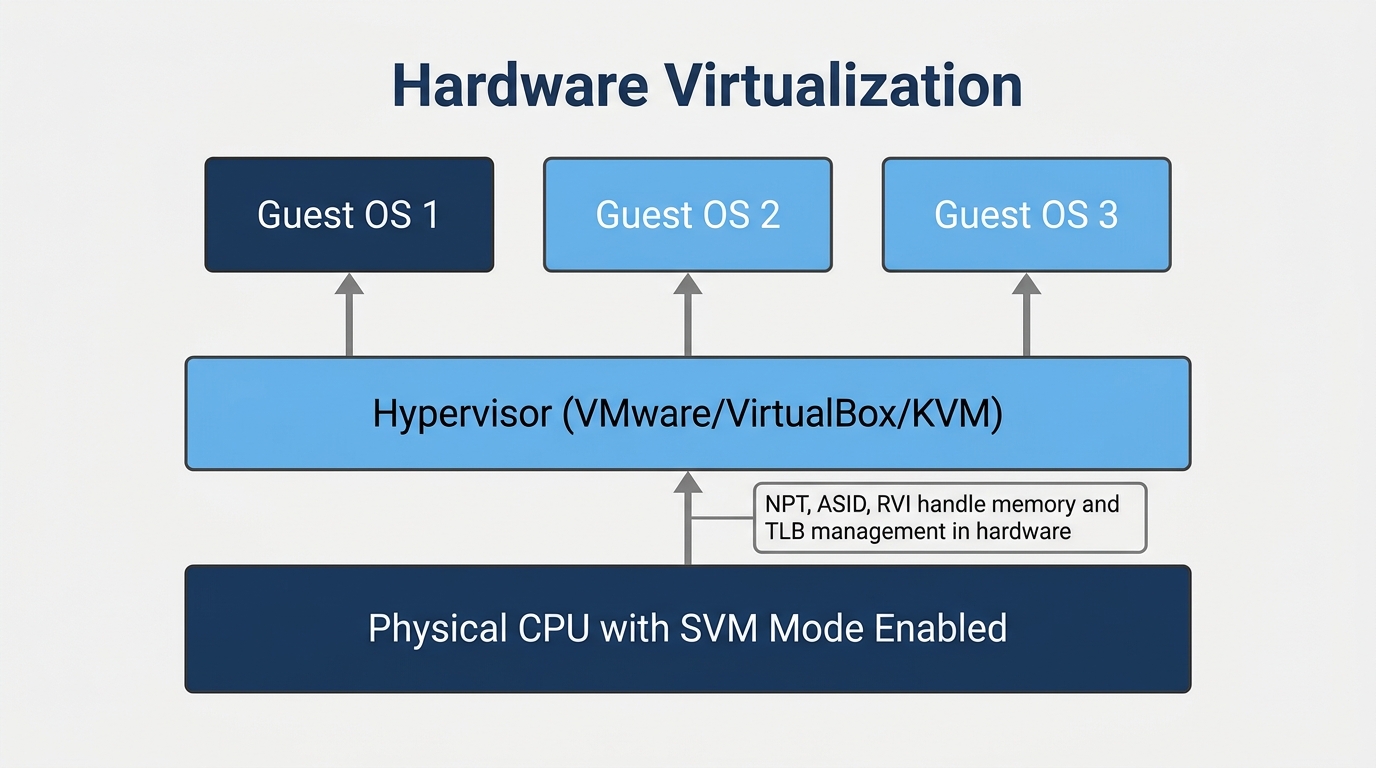
- NPT / RVI (Nested Page Tables, later renamed Rapid Virtualization Indexing): Handles memory address translation for guest VMs in hardware, eliminating the software shadow page table bottleneck. Originally documented as NPT in AMD’s spec, later marketed by AMD as RVI; the two names refer to the same feature. The Intel equivalent is EPT (Extended Page Tables).
- Tagged TLB with ASID (Address Space Identifier): Tags every TLB entry with a VM identifier so the CPU can distinguish host and guest entries. This avoids wiping the entire translation lookaside buffer on every host↔guest context switch, which is one of the biggest hidden costs in software-only virtualization.
The practical result of all of this: a guest operating system running inside a VM can execute at near-native CPU speed instead of being bottlenecked by software emulation.
SVM Mode vs. Intel VT-x, What’s the Difference?
If you’re on an Intel platform, you won’t see SVM Mode. Intel calls its equivalent Intel Virtualization Technology (VT-x), listed in BIOS as “Intel Virtualization Technology.” Same concept, different branding. According to the community at Tom’s Hardware Forum, SVM mode enables virtualization at the hardware level on AMD processors, providing the same category of capabilities that VT-x delivers on Intel systems.
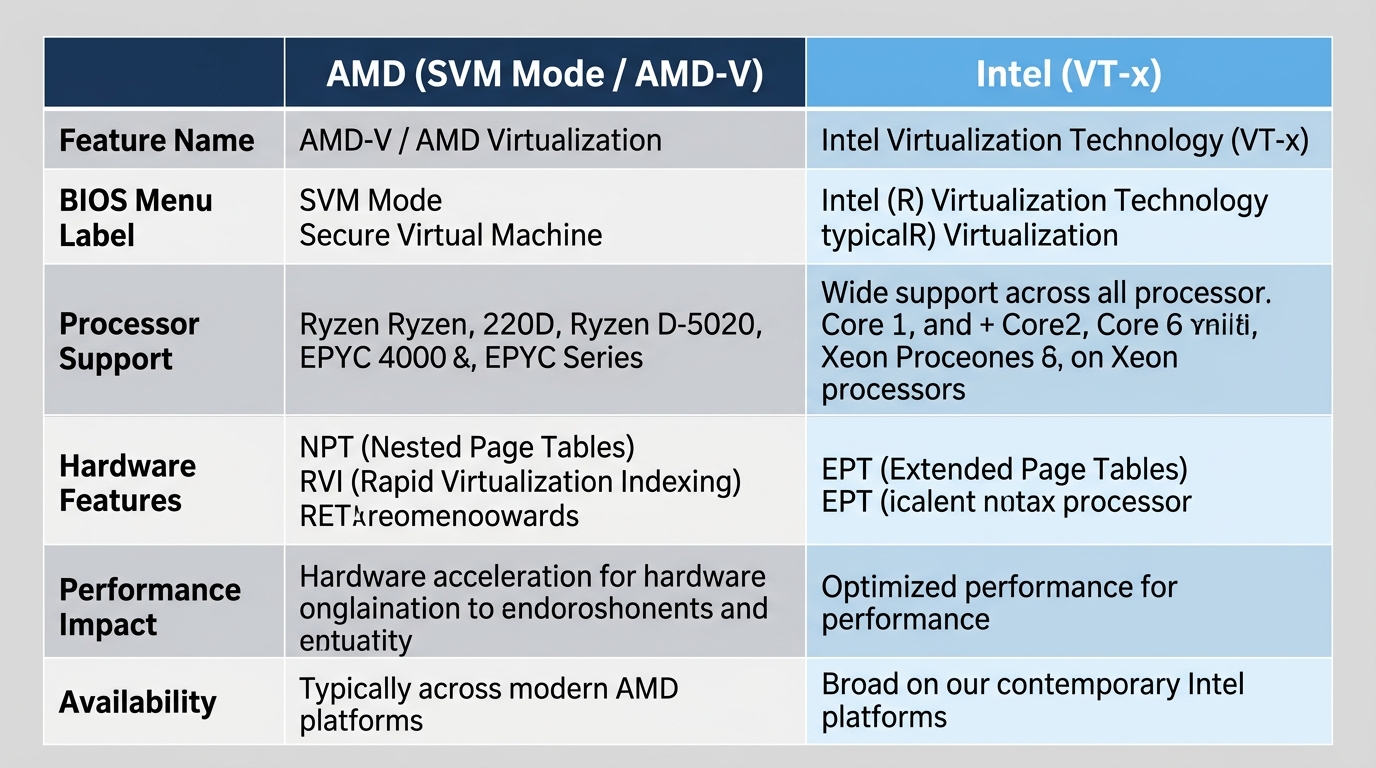
Here’s a direct comparison:
| Feature | AMD SVM Mode | Intel VT-x |
|---|---|---|
| Full Name | Secure Virtual Machine | Virtualization Technology |
| Technology Suite | AMD-V | Intel VT |
| Nested Paging | NPT (Nested Page Tables) | EPT (Extended Page Tables) |
| Found In | Ryzen, EPYC, Athlon CPUs | Core i3/i5/i7/i9, Xeon |
| BIOS Label | SVM Mode | Intel Virtualization Technology |
| Without Hardware Virtualization | Most modern hypervisors won’t run at all | Most modern hypervisors won’t run at all |
| Required for WSL2 | Yes | Yes |
Without hardware virtualization enabled, hypervisors like VMware fall back to binary translation, essentially emulating CPU instructions in software. Per VMware’s performance documentation, this software emulation path adds significant overhead compared to hardware-assisted execution.
What Does SVM Mode Actually Do?
How Hardware-Assisted Virtualization Works (Plain English)
Think of it this way. Without SVM, virtualization software has to act as a translator between your guest OS and the actual CPU hardware. Every time the virtual machine tries to do something privileged, access memory, manage I/O, switch CPU modes, the hypervisor has to catch that instruction, translate it, and feed it back. That’s expensive in processing time.
With SVM enabled, the CPU handles this directly. AMD-V introduces two CPU execution modes that don’t exist without it:
- Host mode: Where the hypervisor (VMware, Hyper-V, KVM) runs
- Guest mode: Where the guest operating system runs
The guest OS thinks it’s running on real hardware because, functionally, it is. Context switches between host and guest happen at the hardware level. Memory isolation is managed by NPT, not software. The result is a guest OS that runs at near-native speed instead of crawling through an emulation layer.
What SVM Mode Enables on Your PC
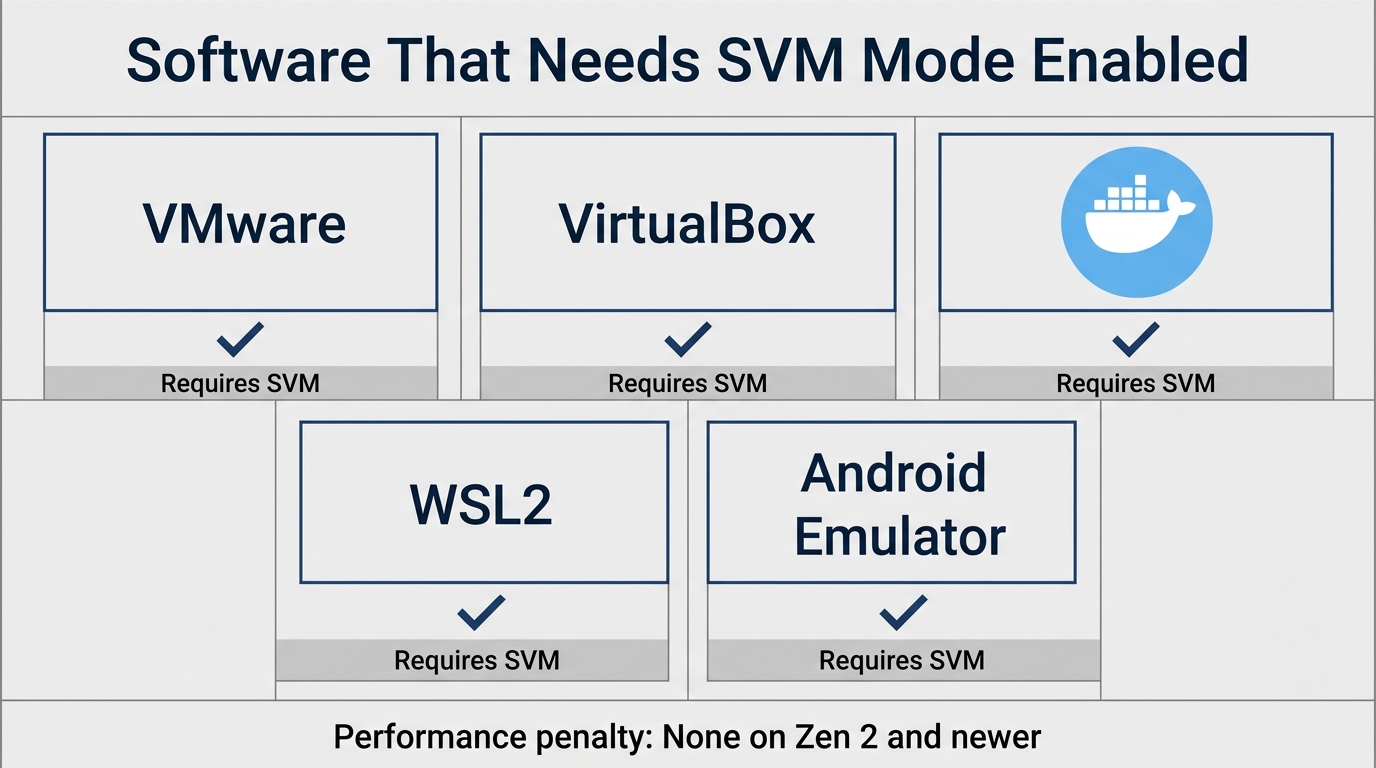
Enabling SVM unlocks a surprisingly wide range of software. Not just traditional virtual machines, a lot of modern developer tools depend on hardware virtualization under the hood.
- VMware Workstation / Pro: Runs with hardware acceleration only when SVM is active
- VirtualBox with hardware acceleration: Without SVM, VirtualBox defaults to slow software virtualization
- WSL2 (Windows Subsystem for Linux 2): Uses a lightweight Hyper-V VM, requires SVM
- Docker Desktop on Windows: Both the Hyper-V backend and WSL2 backend require SVM to function
- Hyper-V: The built-in Windows 10/11 Pro hypervisor won’t initialize without hardware virtualization enabled
- Android Studio AVD (Android Virtual Device): Relies on hardware acceleration for emulator speed
- BlueStacks 5: Runs significantly faster with SVM enabled. BlueStacks support docs strongly recommend enabling virtualization for the 64-bit Pie and Nougat instances; the legacy Nougat 32-bit fallback can run without it but is noticeably slower.
- LDPlayer: Same dependency as BlueStacks, hardware virtualization is required for smooth gameplay
- QEMU/KVM on Linux: KVM (Kernel-based Virtual Machine) requires AMD-V to function at all
If you’ve ever tried to spin up a Docker container on Windows and hit a cryptic error about Hyper-V, or launched BlueStacks and had it run like a slideshow, disabled SVM was probably the reason.
Should You Enable SVM Mode in BIOS?
Enable It If You Use Any of These
The list is longer than most people expect. Enable SVM if you run:
- Virtual machines of any kind (VMware, VirtualBox, Hyper-V, QEMU)
- WSL2 for Linux development on a Windows machine
- Docker Desktop on Windows
- Android emulators, BlueStacks, LDPlayer, Android Studio AVD
- IT or sysadmin environments where you test, sandbox, or take VM snapshots
- Cybersecurity research: malware sandboxing, penetration testing VMs, isolated environments
- Legacy software or old operating systems you need to run alongside your main install
Is It Safe to Leave SVM Enabled If You Don’t Use VMs?
Yes. Full stop. SVM Mode has no effect on the host operating system when no hypervisor is actively running. The CPU virtualization hardware sits dormant until something requests it.
The security angle is worth addressing briefly. In some high-security enterprise environments, hardware virtualization is considered a risk vector, but that threat model doesn’t apply to home or gaming PCs. There’s no realistic attack scenario for a home user here.
In fact, Windows 11 features like Virtualization-Based Security (VBS) and Windows Credential Guard actively rely on SVM/VT-x. Enabling SVM on a Windows 11 machine can actually improve your system’s security posture by allowing these features to function properly. One caveat worth knowing: VBS itself, which runs on top of SVM, has been measured to reduce gaming performance by roughly 5–15% on some systems per testing from Tom’s Hardware. The hit shows up most in CPU-bound titles, so on a pure gaming build you may want to leave VBS disabled even with SVM on. Leaving SVM on if you’re not using VMs is still safe and lets you opt in to VBS later if you want it.
Does Enabling SVM Reduce Performance?
No. Not on modern Ryzen CPUs. This is the most persistent myth around SVM Mode and it needs a direct answer with actual data.
On Ryzen 3000 series (Zen 2) and newer, benchmarks show zero meaningful performance regression with SVM enabled. We’re talking sub-0.5% variance, within the margin of measurement noise. Gaming FPS, Cinebench R23 scores, Handbrake encoding times, and AIDA64 memory bandwidth all come out essentially identical whether SVM is on or off.
Where did the myth come from? On older AMD CPUs (pre-Zen architecture), there were reports of a 1–3% regression in memory-intensive workloads with SVM enabled. AMD addressed this in AGESA firmware updates, and it’s not a factor on any CPU you’d be building with today. The other source of confusion is that enabling SVM in Windows can pull Hyper-V and VBS into the boot path automatically, and those features can cost a few percent in CPU-bound gaming. The performance hit people blame on SVM itself is almost always Hyper-V or Memory Integrity running on top of it.
| Workload | SVM Enabled Impact |
|---|---|
| PC Gaming (FPS) | No measurable change (<0.5%) |
| Cinebench R23 (Multi-core) | No measurable change |
| Video Encoding (Handbrake) | No measurable change |
| Virtual Machine Performance | Up to 42% faster on MMU-intensive workloads, with microbenchmark gains as high as 500% per VMware RVI testing |
| Memory Bandwidth (AIDA64) | No measurable change (Zen 2+) |
The verdict: enable it without hesitation on any Ryzen build. You gain everything if you ever touch virtualization, and you lose nothing if you don’t.
How to Enable SVM Mode in BIOS, By Motherboard Brand
The option exists on every AMD motherboard with a modern Ryzen CPU, from older B450 boards right through to the latest X870 and X870E chipsets, but the menu path varies depending on who made your board. Here are the exact navigation steps for the three most common brands.
How to Enable SVM Mode on ASUS BIOS
This applies to ROG, TUF Gaming, Prime, and ProArt series boards. ASUS boards launched in 2024 and 2025 with ASUS AI Overclocking may auto-enable SVM in some configurations, but it’s worth verifying manually. When exploring AMD-specific settings in ASUS BIOS, you’ll find other useful options like DOCP/EXPO for RAM speed, if you haven’t set that up yet, our guide on DOCP and EXPO for faster AMD RAM walks through the process.
- Restart your PC and press Delete or F2 to enter BIOS
- Press F7 to switch to Advanced Mode if you land in EZ Mode
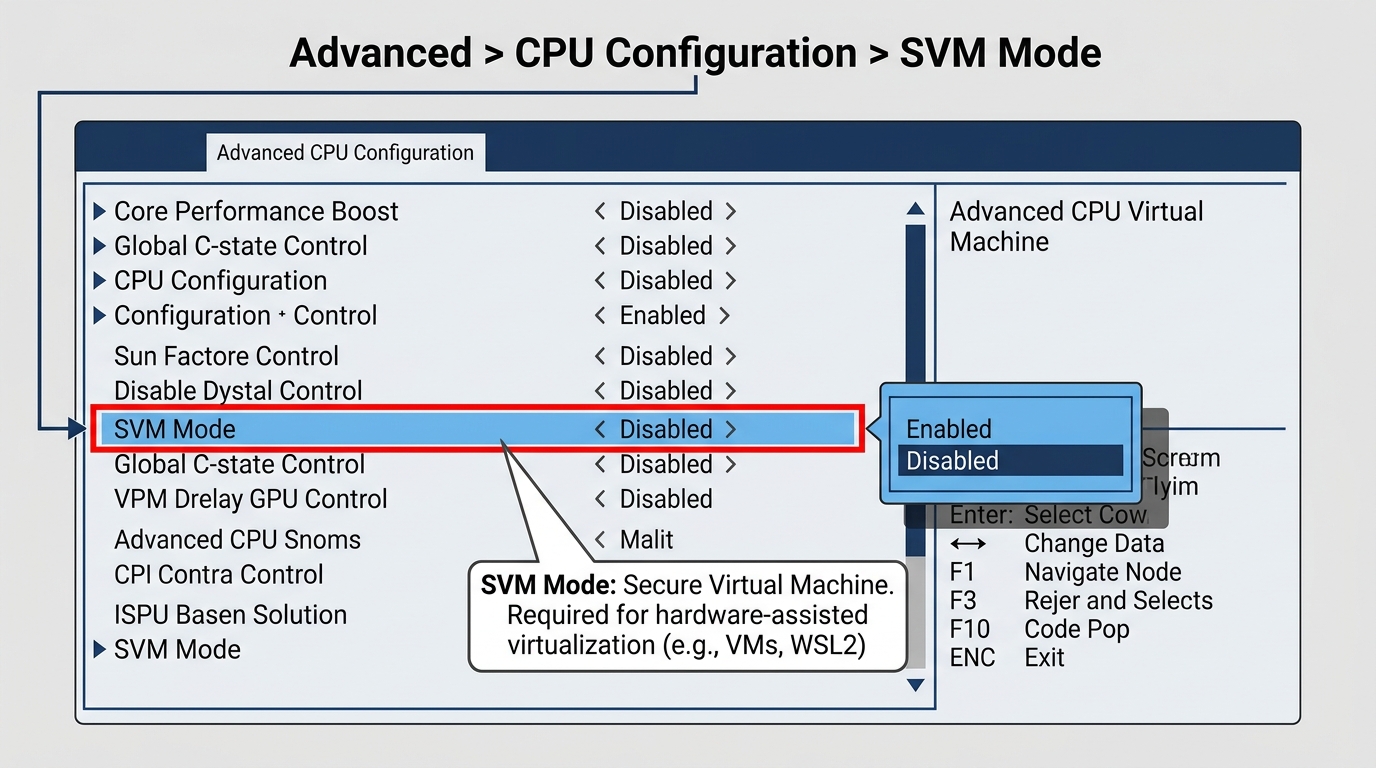
- Navigate to: Advanced → CPU Configuration
- Find SVM Mode and set it to Enabled
- Press F10 to Save and Exit
How to Enable SVM Mode on MSI BIOS
These steps are confirmed on MSI B450, B550, X570, and B650 boards running Click BIOS 5 or 6. The exact menu label can vary slightly by firmware version, but it’s always in the CPU-related section.
- Restart and press Delete to enter MSI Click BIOS
- Switch to Advanced Mode using F7
- Navigate to: OC → CPU Features (on some boards: Advanced → CPU Configuration)
- Find SVM Mode or AMD SVM and set it to Enabled
- Press F10, confirm save, and reboot
How to Enable SVM Mode on Gigabyte / AORUS BIOS
Paths verified on AORUS X570 Elite, B550 AORUS Pro, and B650 AORUS boards. Some Gigabyte boards bury SVM under Settings → AMD CBS instead of the Tweaker menu, if you don’t find it in the first path, check there.
- Restart and press Delete to open the UEFI BIOS
- Press F2 to switch to Classic/Advanced view
- Navigate to: Tweaker → Advanced CPU Settings (some boards: MIT → Advanced CPU Core Settings)
- Find SVM Mode and toggle it to Enabled
- Press F10 and confirm the save
How to Confirm SVM / Virtualization Is Active in Windows
After saving your BIOS change and booting into Windows, verify it took effect using one of these methods:
- Task Manager method: Open Task Manager, go to the Performance tab, click CPU, and look for “Virtualization: Enabled” in the right-side panel
- Command Prompt method: Run
systeminfoand look for the line “Hyper-V Requirements: Virtualization Enabled In Firmware: Yes” - CPU-Z method: Open CPU-Z and check the Instructions field on the CPU tab, you should see AMD-V listed
Not seeing it? Double-check that you saved the BIOS setting correctly and that SVM Lock isn’t enabled (covered below).
What Is SVM Lock in BIOS?
This is an option you almost never see covered anywhere, but it’s worth knowing about. SVM Lock works through two bits in the VM_CR MSR (Model-Specific Register C001_0114h) of the CPU. The SVMDIS bit (bit 4) is the actual disable flag: when it’s set, any attempt to enable SVM through the EFER.SVME bit raises a #GP fault, so software can’t turn virtualization on at runtime. The LOCK bit (bit 3) then freezes SVMDIS so even privileged software can’t clear it without a reboot. Together they hand control of SVM entirely to firmware: only a BIOS reboot can change the state.
In practice, SVM Lock is used in enterprise environments, managed corporate PCs, and some OEM-locked systems where an IT policy needs to prevent users from enabling or disabling virtualization at runtime. You’ll almost never encounter this on a consumer or gaming build.
The one time it matters for home users: if you enable SVM in BIOS, save, and reboot, but virtualization still shows as disabled in Windows, check whether SVM Lock is enabled. Disable it in BIOS, save again, and reboot. That should resolve it.
Common SVM Mode Problems and Fixes
Most people enable SVM and never think about it again. But a few edge cases come up often enough to address directly.
SVM Mode Won’t Save After Reboot
If you enable SVM, save with F10, and find it’s disabled again after reboot, the first suspect is your CMOS battery. A dying coin cell battery can cause BIOS settings to revert on every power cycle. Pull the battery, wait 30 seconds, reinstall it, and re-enter your settings. Also make sure you’re using the proper shutdown sequence, don’t pull power mid-save.
Outdated BIOS firmware can also cause save failures on certain settings. Use your board’s built-in flash utility (ASUS EZ Flash, MSI M-Flash, Gigabyte Q-Flash) to update to the latest firmware version, then retry.
SVM Greyed Out or Missing in BIOS
Two common causes. First: your CPU genuinely doesn’t support AMD-V. This is rare with any modern Ryzen chip but can happen with very old budget APUs or certain mobile-class processors. Check your CPU’s official AMD product specifications page and look for “AMD Virtualization (AMD-V) Technology” in the feature list. If it’s not there, SVM won’t appear.
Second: outdated BIOS firmware. Some older firmware versions hide or lock SVM. Flashing to a current version almost always resolves this.
VM Still Won’t Run After Enabling SVM
This one catches people. You enable SVM, verify it in Task Manager, launch VirtualBox, and it still fails. The culprit is often a hypervisor conflict. Hyper-V (used by WSL2 and Docker) and VirtualBox run at different hypervisor privilege levels and can’t coexist without configuration.
To disable Hyper-V for VirtualBox, open an elevated Command Prompt and run:
bcdedit /set hypervisorlaunchtype off
Then reboot. To re-enable Hyper-V later, run the same command with auto instead of off.
Windows Core Isolation (Memory Integrity) can also interfere with some older VM setups. You’ll find that toggle in Windows Security → Device Security → Core Isolation. Disabling Memory Integrity and rebooting resolves conflicts for VirtualBox on some systems, though it’s a security trade-off worth considering. It’s the same principle as other power and security settings you’d adjust in BIOS, if you’re curious how other low-level BIOS flags affect your system, the explanations of ErP mode, the CSM compatibility setting, and the Network Stack option are other good examples of settings that sound obscure but have clear real-world effects.
Frequently Asked Questions About SVM Mode in BIOS
Is SVM Mode the same as AMD-V?
Yes, they refer to the same underlying capability. SVM (Secure Virtual Machine) is the CPU-level feature name, the actual hardware instruction set and register controls built into AMD processors. AMD-V is the marketing and documentation name AMD uses for the entire hardware virtualization technology suite. When you enable SVM Mode in BIOS, you’re activating AMD-V. The terms are used interchangeably in most documentation, though AMD’s official specifications use AMD-V as the umbrella term.
Should I enable SVM mode if I’m just a gamer?
If you’re a pure gamer with no interest in virtual machines, Docker, or Linux development tools, leaving SVM disabled is completely fine. Your gaming performance won’t change either way. That said, enabling it on a Ryzen 3000 or newer system has zero downside, no performance penalty, no stability risk. A lot of builders just enable it by default so it’s ready if they ever need it later. Totally your call.
Is it okay to enable virtualization in BIOS?
Yes, it’s completely safe. Enabling SVM Mode won’t destabilize your system, cause crashes, or reduce gaming performance on modern Ryzen hardware. The feature simply sits inactive until a hypervisor requests it. Windows 11 actually uses the hardware virtualization framework for its own Virtualization-Based Security features, so on that platform, having SVM enabled is actively beneficial.
Does enabling SVM reduce performance?
No, not on Ryzen 3000 (Zen 2) or newer. Extensive benchmarking across gaming, rendering, and productivity workloads shows less than 0.5% variance with SVM on versus off, that’s indistinguishable from normal run-to-run variation. The performance regression that existed on pre-Zen AMD CPUs was addressed in AGESA firmware updates years ago. On any current Ryzen build, there is no measurable host OS performance cost for enabling SVM.
Does SVM Mode work on Intel CPUs?
No. SVM Mode is an AMD-exclusive BIOS option tied to AMD’s processor architecture. If you’re on an Intel platform, look for Intel Virtualization Technology (sometimes labeled as VT-x) in your BIOS instead. It serves the same purpose, enabling hardware-assisted virtualization, but uses Intel’s implementation. You’ll typically find it under Advanced → CPU Configuration on Intel boards, same general neighborhood as SVM on AMD boards.
The Bottom Line
SVM Mode is one of those BIOS settings that sounds intimidating but actually has a clear, binary use case. You need it on if you use virtual machines, WSL2, Docker Desktop, or Android emulators. You don’t technically need it if you’re a pure gamer who never touches any of that. But since enabling it costs you nothing on modern Ryzen hardware, no performance hit, no instability, no security risk, the practical recommendation for any AMD build is to just turn it on. It’s a one-time BIOS toggle with real upside and zero downside. If WSL2 won’t start, BlueStacks is slow, or Docker is complaining about Hyper-V, the first place to look is always this setting.

Alex has been building and tweaking custom PCs for over 12 years. From budget builds to full custom water loops, he’s assembled more than 50 systems and helped hundreds of builders troubleshoot their rigs. When he’s not benchmarking the latest hardware, you’ll find him optimizing airflow setups or stress-testing overclocks.