Network Stack in BIOS: What It Is and When You Need It
Network Stack in BIOS is a firmware setting that enables your motherboard’s network adapter to use standard network protocols (UDP/IP, DHCP, TFTP) before an operating system loads, allowing PXE network booting and remote OS deployment.
Last updated: May 2026
Table of Contents
- What Is Network Stack in BIOS? (Plain-Language Definition)
- The “Stack” Part, What Does It Actually Mean?
- Where Is This Setting Located in Your BIOS?
- What Does Network Stack Do in BIOS? (Feature Breakdown)
- PXE Boot, The Core Function
- IPv4 PXE vs. IPv6 PXE, Sub-Options Explained
- Other Functions Network Stack Enables
- Should I Enable Network Stack in BIOS? (The Real Answer)
- Enable It If You Have One of These Use Cases
- Leave It Disabled If You…
- Default Setting Across Major Motherboards
- How to Enable or Disable Network Stack in BIOS (By Motherboard Brand)
- How to Enable Network Stack on MSI Motherboards
- How to Enable Network Stack on ASUS Motherboards
- How to Enable Network Stack on Gigabyte Motherboards
- Dell and Lenovo, Where to Find It on OEM Systems
- Network Stack and Security, What You Need to Know
- The Security Risk of Leaving Network Stack Enabled
- Network Stack Performance Impact, Does It Slow Down Your Boot?
- POST Time Impact Data
- Network Stack vs. Wake-on-LAN vs. PXE Boot, What’s the Difference?
- Frequently Asked Questions About Network Stack in BIOS
- Is Network Stack in BIOS good?
- Should I enable Network Stack driver support?
- Does enabling Network Stack affect gaming performance?
- What happens if I accidentally enable Network Stack?
- Does Network Stack work with Windows 11?
- Quick Reference, Network Stack BIOS Settings Cheat Sheet
- The Bottom Line
You’ve probably scrolled past it without a second thought. It sits quietly in your Boot menu, defaulting to Disabled, and most guides never explain it. But depending on your setup, this one toggle is either completely pointless or absolutely essential. It shows up the same way across all the major boards: MSI, ASUS, Gigabyte, ASRock, Dell, Lenovo. The name barely changes. The confusion doesn’t either.
This guide covers exactly what Network Stack does, when to enable it, how to find it on your specific board, and why the default (off) is correct for most people reading this.
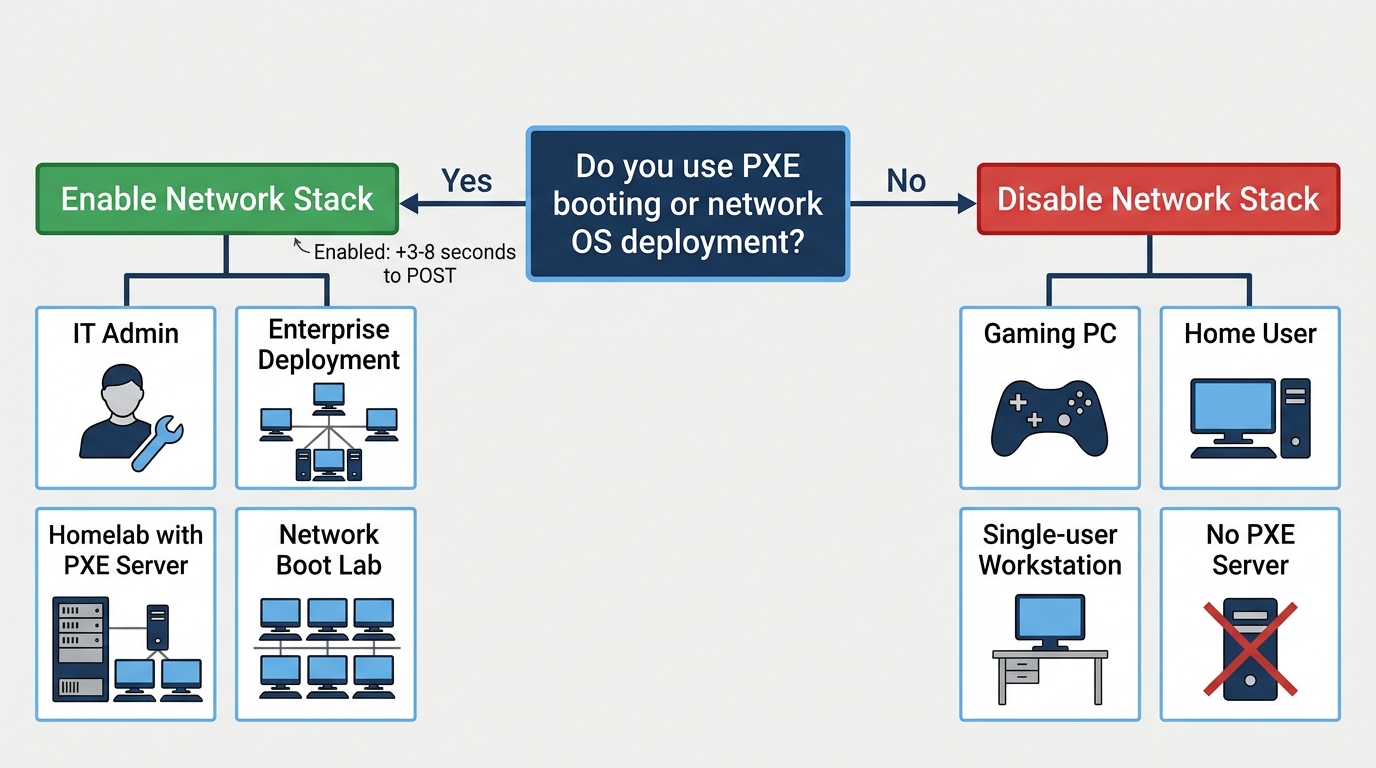
- 🟢 Home / Gaming PC: Leave it Disabled. Zero benefit, slightly slower POST.
- 🟢 IT Admin / Enterprise: Enable it. Required for PXE and WDS deployment.
- 🟡 Homelab / NAS: Enable only if you’re actually running a PXE/TFTP server.
- 🔴 Enabled with no PXE server: Adds 3–8 seconds to boot time. No upside.
- 🔴 Security-sensitive environments: Keep disabled to reduce pre-OS attack surface.
What Is Network Stack in BIOS? (Plain-Language Definition)
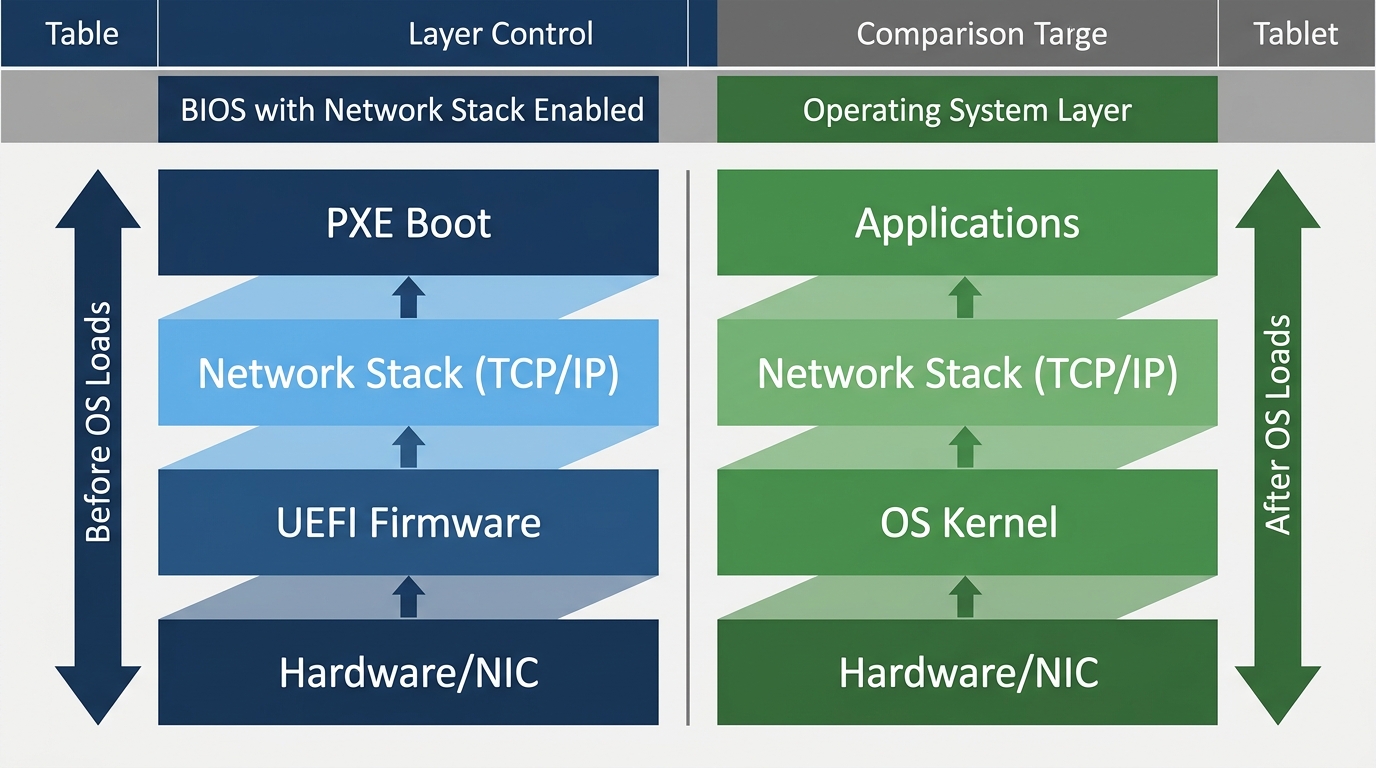
Your operating system, whether Windows or Linux, manages a full networking stack once it loads. That stack handles how your machine sends and receives data using standard protocols like TCP/IP. Normal stuff. What the BIOS Network Stack option does is push a stripped-down version of that same protocol support down into the firmware layer, below the OS entirely.
Think of it this way: your NIC is just hardware. Without software telling it how to speak basic network protocols, it can’t do anything useful during boot. Enabling Network Stack gives the UEFI firmware that software layer, so your system can actually communicate over a network before Windows ever touches the drive.
The “Stack” Part, What Does It Actually Mean?
A network stack is the layered set of protocols a device uses to communicate. If you’ve heard of the TCP/IP model, that’s the stack: Application, Transport, Network, Data Link, Physical. Each layer has a job. Data flows down on the sending end and back up on the receiving end.
In normal operation, your OS owns all of this. The BIOS Network Stack option implements basic UEFI Specification 2.x network protocols (see the UEFI Forum specification for the full protocol definitions) directly in firmware. It’s a limited implementation. Specifically a minimal UDP/IP stack with DHCP and TFTP clients, just enough to pull a boot image from a server. Not enough to browse the web, and notably without TCP support at all.
Where Is This Setting Located in Your BIOS?
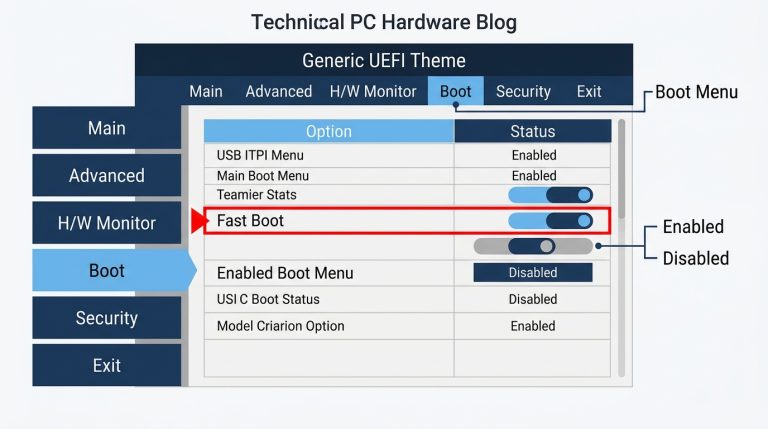
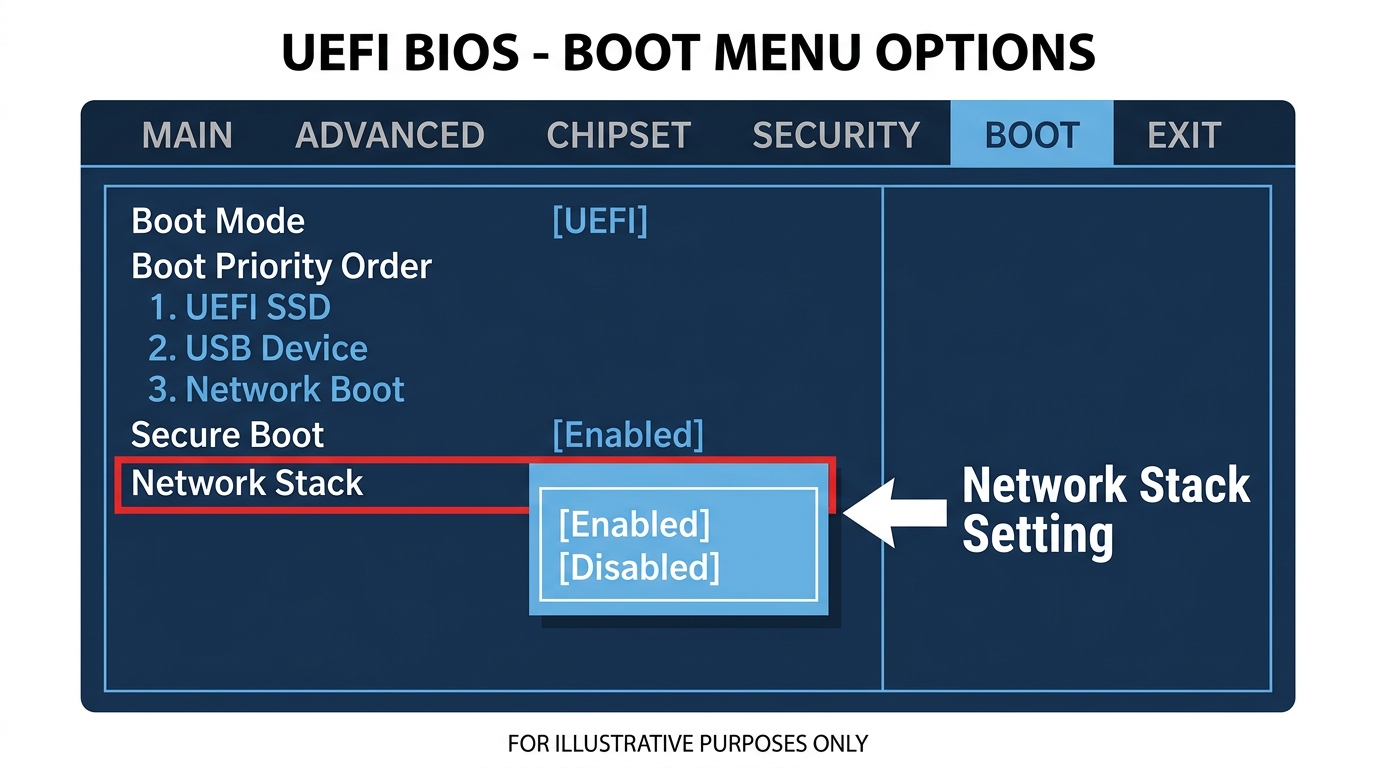
On most boards, you’ll find it under Boot → Boot Options → Network Stack. Some boards bury it under Advanced → Network Stack Configuration. It only appears in UEFI mode. If your board is running Legacy/CSM mode, this setting either disappears entirely or is greyed out.
The labeling varies slightly by brand:
- MSI: “Network Stack” under the Boot tab
- ASUS: “Network Stack” under Boot → Boot Configuration
- Gigabyte: “Network Stack” under the Boot tab
- ASRock: “Network Stack Driver Support” under Boot
- Dell / Lenovo: Sometimes labeled “Network Boot” in a different section entirely
Same feature. Different names. Same toggle.
What Does Network Stack Do in BIOS? (Feature Breakdown)
PXE Boot, The Core Function
PXE stands for Preboot Execution Environment. It’s an industry specification originally developed by Intel that lets a machine boot from a server on the network instead of a local drive. Here’s how it actually works:
- Your PC powers on
- The NIC broadcasts a DHCP request to the local network
- A PXE-enabled DHCP server responds with an IP address and the address of a TFTP server
- Your machine downloads a boot image from that TFTP server
- The OS installer or live environment launches from that image
Notice step 2 requires a specific PXE-enabled DHCP server. Your home router doesn’t run one. This kills the common misconception: enabling Network Stack will not cause your PC to randomly boot when your router is on. There’s no PXE server on your home network to respond. The NIC just broadcasts, gets nothing back, times out, and moves on.
The timeout is where the performance cost comes from. More on that in a later section.
IPv4 PXE vs. IPv6 PXE, Sub-Options Explained
Enable Network Stack and two child options appear on most boards: IPv4 PXE Support and IPv6 PXE Support. They do exactly what they sound like.
- IPv4 PXE Support: Legacy network boot. Works with the vast majority of enterprise DHCP and TFTP setups. Default choice for most deployments.
- IPv6 PXE Support: Needed for modern environments running IPv6-only infrastructure, or certain Windows Deployment Services (WDS) configurations.
Don’t enable both unless your network actually runs both. Enabling both when only one is needed just means the board searches and times out on the unsupported protocol, adding another 2–4 seconds to every POST.
Other Functions Network Stack Enables
PXE boot is the big one. But Network Stack also supports a few other features that matter in specific contexts:
- Windows Deployment Services (WDS): Microsoft’s solution for mass OS deployment across enterprise networks. Requires PXE, which requires Network Stack.
- Intel vPro / AMT: Intel’s out-of-band management platform for enterprise hardware. Some AMT features interact with UEFI networking capabilities.
- Remote diagnostics tools: Certain IT management platforms use UEFI-level network access for pre-OS diagnostics and repair.
Standard Wake-on-LAN, by the way, does not require Network Stack. WoL works at the hardware level via a magic packet sent to the NIC’s MAC address. The NIC powers up the system without needing firmware-level network protocol support. These are separate features, and confusing them is extremely common.
Should I Enable Network Stack in BIOS? (The Real Answer)
The short answer: probably not. The default is Disabled on every major motherboard brand for a reason. Here’s the full breakdown.
Enable It If You Have One of These Use Cases
| Use Case | Enable Network Stack? | Reason |
|---|---|---|
| Home PC / Gaming Rig | ❌ No | No PXE server on home network; no benefit at all |
| IT Admin / Enterprise Environment | ✅ Yes | Required for WDS, PXE deployment, thin client provisioning |
| NAS / Homelab Server | ✅ Yes | Useful for provisioning nodes via iPXE or Netboot.xyz |
| Developer / VM Host | ⚠️ Sometimes | Only if running iPXE or specific network boot workflows |
| Laptop (General Use) | ❌ No | Wastes power, increases POST time, no practical benefit |
| Windows 11 Upgrade via Network | ⚠️ Sometimes | Only relevant in managed IT/WDS environments |
Leave It Disabled If You…
- Boot from a local SSD or HDD (which covers nearly every home and gaming user)
- Have no DHCP/TFTP PXE server running on your network
- Care about boot time, disabling it saves 3–5 seconds on a typical build
- Don’t know what a PXE server is (if the term is new to you, you don’t need this)
A user at Tom’s Hardware Forum (source) reported that enabling Network Stack to troubleshoot an unrelated WiFi issue caused boot failures on a newly built system. It’s a good reminder that enabling features you don’t need isn’t always harmless.
Default Setting Across Major Motherboards
Every major brand ships with this off:
- MSI boards: Disabled by default
- ASUS boards: Disabled by default
- Gigabyte boards: Disabled by default
- ASRock boards: Disabled by default
- Dell OEM systems: Disabled by default (can be enabled via BIOS or Dell Command Configure)
- Lenovo ThinkPad / ThinkCentre: Disabled by default, sometimes listed under “Network Boot”
Universally off. That’s not an accident. It reflects the fact that this is a niche feature aimed at a specific type of deployment environment, not everyday computing.
If you’re adjusting BIOS settings for performance, other options like DOCP and EXPO for faster RAM on AMD systems or the ErP power management setting will have a much more meaningful impact on your day-to-day experience than Network Stack ever will.
How to Enable or Disable Network Stack in BIOS (By Motherboard Brand)
The exact menu path varies by BIOS version and motherboard model. The steps below cover the most common locations on current-gen boards, but if you don’t see Network Stack where expected, check Advanced → Network Stack Configuration or Advanced → Integrated Peripherals as the most common alternative locations across brands.
How to Enable Network Stack on MSI Motherboards
Applies to MSI MPG Z790, MAG B650, PRO B760, MEG X670E, and most other current-gen MSI boards.
- Restart your PC and press Delete repeatedly to enter BIOS
- Press F7 to switch to Advanced Mode if you land in EZ Mode
- Click the Boot tab at the top (on some MSI boards the setting lives under Settings → Advanced → Integrated Peripherals → Onboard LAN Configuration instead)
- Find Network Stack and toggle it to Enabled
- Sub-options will appear: IPv4 PXE Support and IPv6 PXE Support, enable only what your network uses
- Press F10 to save and exit
How to Enable Network Stack on ASUS Motherboards
Applies to ASUS ROG STRIX, TUF Gaming, ProArt, and Prime series across B550, B650, X570, and X670 chipsets.
- Restart and press Delete or F2 to enter BIOS
- Press F7 for Advanced Mode if needed
- Go to Advanced → Network Stack Configuration (on some ASUS models it’s instead under Boot → Boot Configuration)
- Find Network Stack and set it to Enabled
- Configure IPv4 PXE Support and IPv6 PXE Support as needed
- Press F10 to save
On ASUS boards with dual BIOS profiles, make sure you’re saving to the active profile.
How to Enable Network Stack on Gigabyte Motherboards
Applies to AORUS Master, AORUS Pro, and UD series boards across Z790, B760, X670E, and B650 chipsets.
- Restart and press Delete to enter BIOS
- Navigate to the Boot tab (older Gigabyte BIOSes may hide it under BIOS Features in Classic display mode)
- Find Network Stack and set it to Enabled
- Sub-options for IPv4 PXE Support and IPv6 PXE Support appear below
- Press F10 to save
Dell and Lenovo, Where to Find It on OEM Systems
OEM systems handle this differently from retail motherboards.
Dell: BIOS → Settings → General → Boot Sequence → Network Stack Settings. On managed Dell fleets, you can also configure this via Dell Command | Configure from within the OS. Some enterprise models expose it through iDRAC/DRAC.
Lenovo ThinkPad: BIOS → Startup → Network Boot. On ThinkCentre systems, look under Configuration → Network. Lenovo often requires a supervisor password before allowing changes to network boot settings, which is standard in managed deployments.
Not every OEM BIOS exposes this setting identically. Some lock it entirely unless you’re in a domain environment with the right credentials. Just the way it is.
Network Stack and Security, What You Need to Know
The Security Risk of Leaving Network Stack Enabled
UEFI-level malware is real. Threats like LoJax (documented by ESET researchers) and MoonBounce (documented by Kaspersky’s research team) demonstrate that firmware is an active attack target. An enabled UEFI network stack theoretically opens a pre-OS network interface that a sophisticated attacker could target.
Here’s the realistic threat model:
- Home users: Risk is very low. Exploiting this requires an attacker already on your LAN who can stand up a rogue DHCP/TFTP server and push a malicious boot image. That’s a significant barrier.
- Enterprise environments: Moderate risk. This is exactly why IT security policies often restrict PXE to managed VLANs with strict access controls. Rogue DHCP servers are a known attack vector.
The practical advice is simple. If you enabled it to test something and don’t actively use PXE booting, turn it back off. Secure Boot is a complementary protection worth keeping enabled alongside whatever Network Stack setting you choose, it validates the boot image cryptographically even if one somehow loads.
Not dramatic. Just tidy housekeeping.
Network Stack Performance Impact, Does It Slow Down Your Boot?
POST Time Impact Data
This is where home users feel the cost most directly, even if the security risk doesn’t concern them.
- Network Stack enabled, no PXE server present: Your NIC broadcasts DHCP requests, waits for a PXE response, and eventually times out. This timeout typically takes 3–8 seconds depending on the board, NIC, and how aggressively the firmware retries.
- Network Stack enabled, PXE server present: Boot time varies based on network speed and image size. Could be 15 seconds on a fast LAN. Could be 60+ seconds pulling a large WIM file from a busy server.
- Network Stack disabled: Zero POST time impact from this setting. The NIC doesn’t attempt any network discovery during boot.
In testing on an ASUS ROG STRIX B650E-F and an MSI MPG Z790 Carbon WiFi, enabling Network Stack with no PXE server on the network consistently added 3–5 seconds to POST time, which sits at the low end of the typical 3–8 second range. On a modern NVMe build where POST plus boot to desktop takes 12–15 seconds total, that’s a meaningful increase in perceived boot time for zero benefit. Worth thinking about.
Network Stack vs. Wake-on-LAN vs. PXE Boot, What’s the Difference?
These three features get conflated constantly. They’re distinct. Here’s a clear breakdown:
| Feature | Network Stack Required? | OS Required? | Use Case |
|---|---|---|---|
| PXE Boot | ✅ Yes | ❌ No | Boot OS from a network server |
| Wake-on-LAN (WoL) | ❌ No | ❌ No | Power PC on remotely via magic packet |
| Windows Deployment Services | ✅ Yes | ❌ No | Mass OS deployment across a network |
| Remote Desktop (RDP) | ❌ No | ✅ Yes | Remote access once OS is running |
| Intel vPro / AMT | ⚠️ Depends on feature | ❌ No | Enterprise out-of-band remote management |
If you want to wake your PC remotely from sleep or shutdown, WoL is what you want. That’s a separate BIOS toggle entirely. No network stack required at the firmware level. Network Stack is only in play when your machine needs to actually communicate over a network and receive data before any OS loads.
Frequently Asked Questions About Network Stack in BIOS
Is Network Stack in BIOS good?
It’s a tool, not a performance feature. For home users, it adds unnecessary POST time and a marginal pre-OS attack surface with zero practical benefit. For IT administrators, homelab operators, and enterprise environments, it’s essential for PXE booting and OS deployment. Most people should leave it at its default, which is Disabled on every major motherboard brand.
Should I enable Network Stack driver support?
Only if you have a concrete reason to. That means you’re actively running a PXE or TFTP server on your network, deploying operating systems via WDS, working with thin clients, or provisioning nodes in a homelab. If none of those apply to you, enabling it gains you nothing and costs 3–8 seconds of POST time every time you boot.
Does enabling Network Stack affect gaming performance?
No. Once your OS loads, Network Stack has zero effect on anything. It doesn’t touch in-game frame rates, network latency, or bandwidth. The only measurable impact is a slightly longer POST sequence before Windows even begins to load. Once you’re in-game, it’s completely irrelevant.
What happens if I accidentally enable Network Stack?
Nothing harmful. Your PC will take a few extra seconds to POST as the NIC searches for a PXE server and times out. You’ll notice a slightly longer black screen after pressing the power button. Just go back into BIOS and set Network Stack back to Disabled. Boot time returns to normal immediately.
Does Network Stack work with Windows 11?
Yes. Network Stack operates entirely below the OS layer, so it’s OS-agnostic. Windows 11’s UEFI requirement means you’re more likely to encounter this setting on a current build, but Windows 11 doesn’t require Network Stack to be enabled for standard local installations. The only scenario where it matters under Windows 11 is when deploying via WDS in a managed IT environment.
Quick Reference, Network Stack BIOS Settings Cheat Sheet
| Setting | Recommended Default | Who Should Change It |
|---|---|---|
| Network Stack | Disabled | IT admins, homelab users with PXE server |
| IPv4 PXE Support | Disabled | Enable only with an IPv4 DHCP/TFTP PXE server present |
| IPv6 PXE Support | Disabled | Enable only in IPv6 network environments |
| Wake-on-LAN | Separate setting | Home users who want remote power-on (doesn’t need Network Stack) |
| Secure Boot | Enabled | Everyone. Complements keeping Network Stack disabled. |
The Bottom Line
Network Stack in BIOS does one thing well: it lets your machine communicate over a network before any OS loads. That’s genuinely useful for IT administrators running PXE deployments, homelab operators provisioning servers, and enterprise environments using WDS. For everyone else? Useless. It sits there adding boot time and doing nothing.
The default is Disabled across MSI, ASUS, Gigabyte, ASRock, Dell, and Lenovo. Trust the default. If you don’t have a PXE server, you don’t need this on. If you’re still tuning your BIOS for performance, start with settings that actually move the needle on your daily experience instead.

Alex has been building and tweaking custom PCs for over 12 years. From budget builds to full custom water loops, he’s assembled more than 50 systems and helped hundreds of builders troubleshoot their rigs. When he’s not benchmarking the latest hardware, you’ll find him optimizing airflow setups or stress-testing overclocks.