PCIe Riser Cable Guide: What It Is How to Use It and Best Picks
A PCIe riser cable is a flexible flat ribbon cable that extends the PCIe x16 slot connection between a motherboard and GPU, allowing vertical or repositioned graphics card mounting inside a PC case.
Last updated: April 2026
Table of Contents
- What Is a Riser Cable?
- The Simple Version
- What Does a Riser Cable Do in a PC?
- PCIe Riser Cable Generations: 3.0 vs 4.0 vs 5.0
- PCIe Generation Bandwidth Breakdown
- Do You Really Need a PCIe 5.0 Riser Cable?
- Types of PCIe Riser Cables and Form Factors
- By Connector Angle
- By Lane Count
- By Length
- By Color and Aesthetic
- How to Use a PCIe Riser Cable (Step-by-Step Installation)
- What You’ll Need Before You Start
- Step-by-Step Installation Guide
- Common Installation Mistakes to Avoid
- Does a Riser Cable Affect GPU Performance?
- Riser Cable vs. Direct Slot: Real-World Performance Data
- EMI Shielding and Why It Matters
- Riser Cable Length vs. Signal Quality
- PCIe Riser Cable Compatibility Guide by Case
- Best PCIe Riser Cables in 2025
- Best PCIe 5.0 Riser Cables
- Best PCIe 4.0 Riser Cables
- Best White PCIe Riser Cables
- Best Budget Riser Cable
- Riser Cable Buying Guide: What to Look For
- FAQ
- What is a riser cable / riser wire?
- Do riser cables affect GPU performance?
- What’s the difference between a PCIe 4.0 and PCIe 5.0 riser cable? Do I need Gen 5?
- What’s the difference between a “riser cable” in networking vs. a PC riser cable?
- Is the Hyte Y70 riser cable good enough for a Gen 5 GPU?
- What You Should Do
You just picked up a gorgeous tempered glass case, maybe a Hyte Y70, maybe a Lian Li build, and the whole point is to show off that beefy GPU through the side panel. But your GPU is sitting horizontally, facing the wrong direction, completely hidden. That’s exactly the problem a riser cable solves.
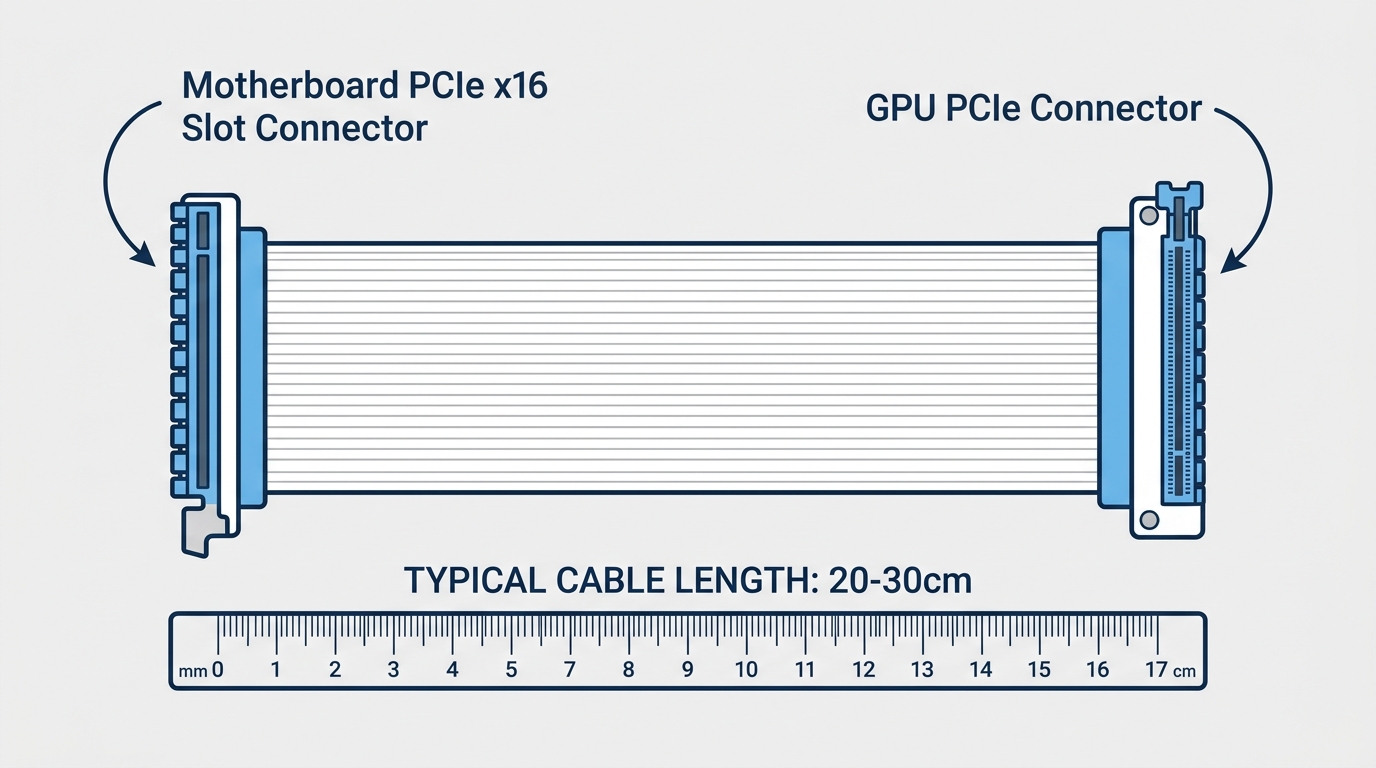
A PCIe riser cable (also called a GPU riser cable or PCIe extension cable) is a flexible flat ribbon cable that extends the PCIe x16 slot connection between your motherboard and your graphics card. It lets you mount the GPU vertically so it faces the glass. The cable handles every data lane, every signal, exactly as if the GPU were plugged directly into the board. The catch: not all riser cables are equal. PCIe generation (3.0, 4.0, or 5.0) matters, and using the wrong one will hurt your build. This guide covers everything, what a riser cable is, how to install one, which cases need what, and the best picks for 2025.
What Is a Riser Cable?
The Simple Version
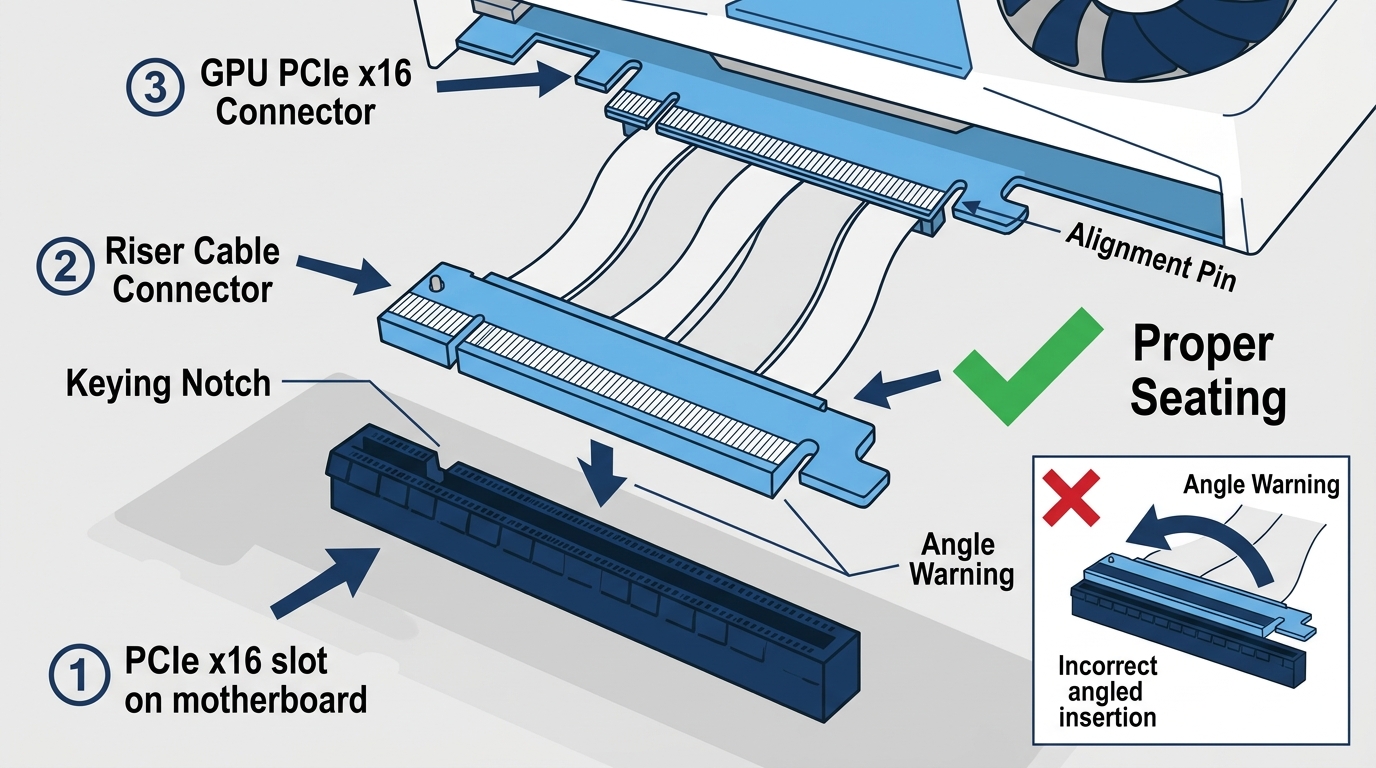
Think of a PCIe riser cable as an extension cord for your GPU’s data connection. Your motherboard has a PCIe x16 slot. Your GPU plugs into that slot. A riser cable sits between them, one end plugs into the motherboard slot, the other end plugs into the GPU’s PCIe connector. The GPU then sits wherever the cable allows it to go, which is usually a vertical bracket mounted to your case’s side frame.
The word “riser” comes from data center and networking terminology, where it describes cables routed vertically between building floors. That’s a completely different product. In networking, a riser-rated cable (CMR, or Communications Multipurpose Cable Riser-rated) is a fire-rated category for Ethernet or fiber runs in vertical building shafts. A fiber riser cable in that context has nothing to do with your GPU. Don’t confuse them.
Callout: Don’t confuse PC riser cables with CMR (Communications Multipurpose Cable, Riser-rated) network cables. They share a name but are completely different products for completely different applications.
What Does a Riser Cable Do in a PC?
The main job is physical relocation. Without a riser cable, your GPU sits horizontally in the motherboard slot, with its fans and cooler facing down toward the bottom of the case. With a riser cable and a vertical bracket, the GPU rotates 90 degrees so the cooler faces outward through your tempered glass panel. That’s the aesthetic the riser cable enables.
Beyond aesthetics, riser cables enable non-standard case layouts. Small form factor (SFF) and ITX cases like the FormD T1 and LOUQE Ghost S1 physically can’t fit a GPU next to the motherboard in a normal horizontal orientation. The riser cable is what makes those compact builds possible at all.
There’s also the crypto mining use case: a PCIe x1 to x16 riser card extender cable (the PCI-E Express 1x to 16x riser card extender cable style) lets miners attach multiple GPUs to a single motherboard using x1 slots, spreading the cards out across a mining rig frame. That’s a completely different application from vertical mounting, but the underlying concept is the same, extending a PCIe connection with a cable.
One critical point: a riser cable passes all PCIe data lanes. It’s not a splitter. It’s not a converter. You get the same x16 connection, just at a distance. Performance impact from a quality, generation-matched riser cable is minimal, more on that in the benchmarks section below.
PCIe Riser Cable Generations: 3.0 vs 4.0 vs 5.0
PCIe Generation Bandwidth Breakdown
PCIe generation defines the bandwidth available per lane. A riser cable is rated for a specific generation, and it will limit the connection to that speed. Here’s what that means in real numbers:
| Generation | Speed Per Lane | x16 Total Bandwidth (Bidirectional) | GPU Examples | Notes |
|---|---|---|---|---|
| PCIe 3.0 | 8 GT/s (~1 GB/s) | ~16 GB/s | RTX 20 series, RX 5000 series | Still usable for older GPUs; limit for new cards |
| PCIe 4.0 | 16 GT/s (~2 GB/s) | ~32 GB/s | RTX 30/40 series, RX 6000/7000 series | Current mainstream standard for riser cables |
| PCIe 5.0 | 32 GT/s (~4 GB/s) | ~64 GB/s | RTX 5080/5090, RX 9070 XT and above | Required for top-tier new GPUs; harder to manufacture |
PCIe is backward compatible. A Gen 5 GPU in a Gen 4 riser cable will still work, but it’ll run at Gen 4 speeds. For most GPUs right now, that’s fine. The concern is when bandwidth actually matters at the link level, which is increasingly true for Gen 5 cards with massive memory bandwidth requirements.
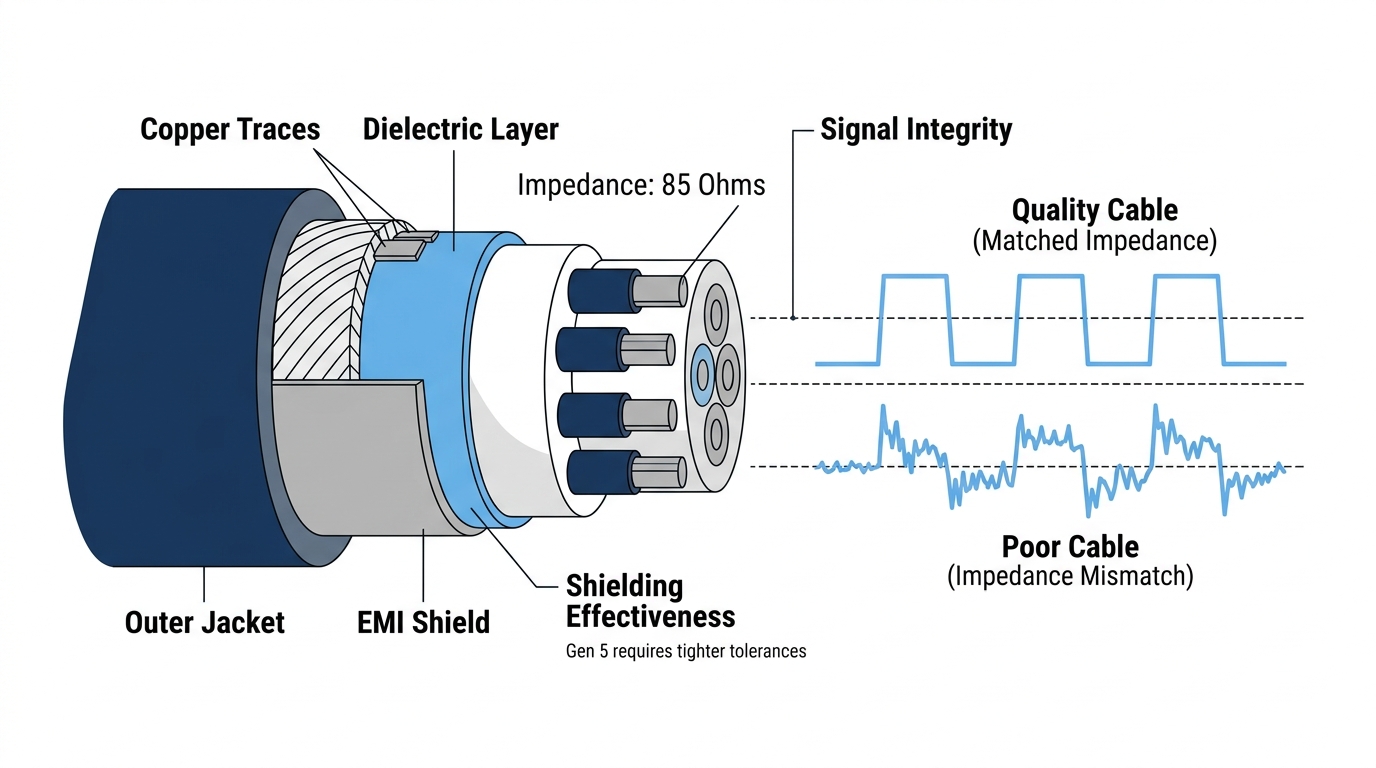
The reason Gen 5 riser cables are harder to make is physics. At 32 GT/s per lane, signal integrity tolerances get extremely tight. The cable traces need precise impedance matching, better EMI shielding, and shorter maximum lengths. A budget Gen 5 riser cable isn’t just a minor risk, it can cause your PCIe link to downgrade automatically, running your RTX 5090 at Gen 3 x8 speeds. Not great.
For a deep look at what PCIe generation means for the full system, the PCI-SIG official specification pages are the definitive reference.
Do You Really Need a PCIe 5.0 Riser Cable?
Short answer: only if your GPU uses a Gen 5 PCIe interface. The RTX 5080 and RTX 5090 are Gen 5 cards. The AMD RX 9070 XT operates on a Gen 5 interface. If you’re running any current RTX 40 series, RX 7000 series, or anything older, a quality PCIe 4.0 riser cable is all you need.
PCIe 5.0 riser cable availability is still limited as of 2025. The brands that have released or announced Gen 5 options include Hyte, Lian Li, Linkup (their AVA5 model), Corsair, NZXT, Phanteks, and Cooler Master. White PCIe 5.0 riser cable options are extremely scarce, a handful of brands offer them, but stock is inconsistent. If you’re doing a white build with a Gen 5 GPU, plan ahead and check availability before committing to a case.
Types of PCIe Riser Cables and Form Factors
By Connector Angle
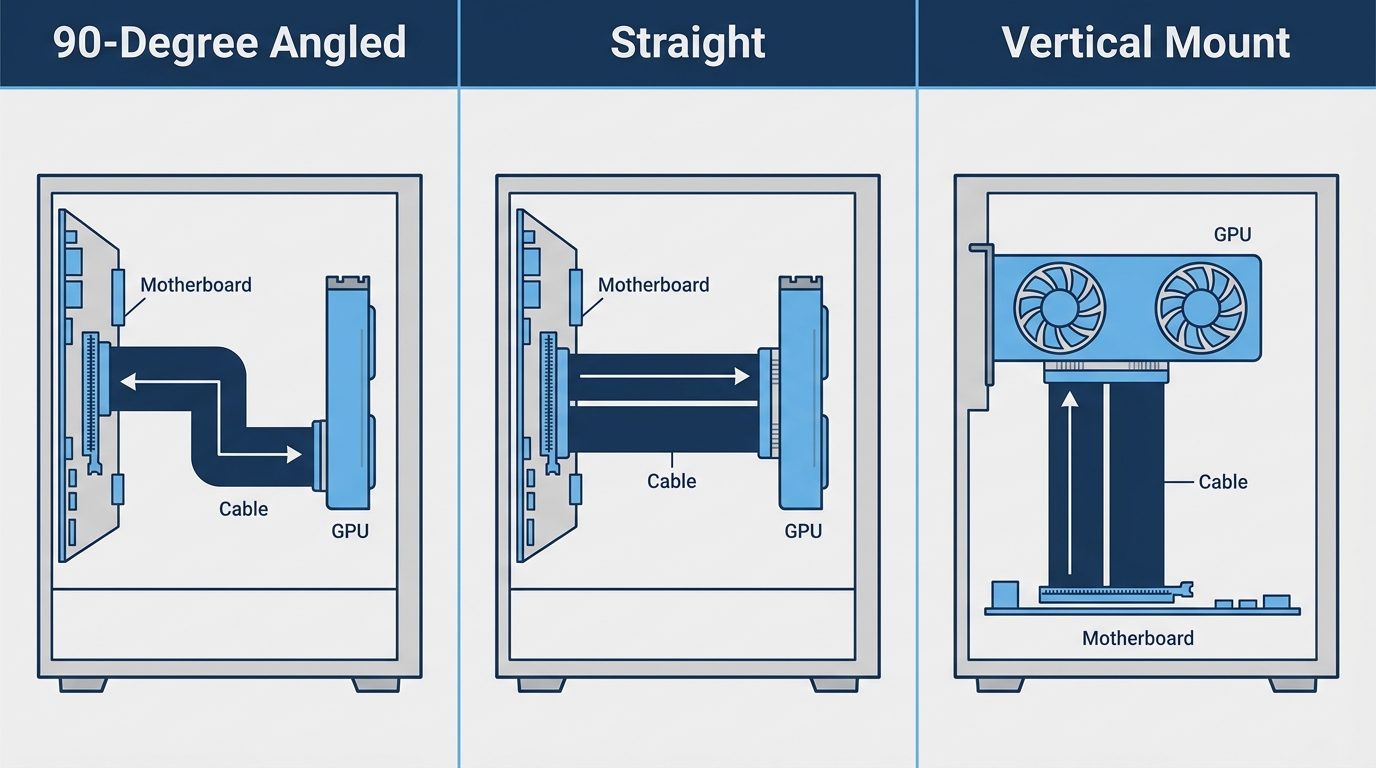
The standard riser cable is a flat ribbon with straight connectors on both ends. It works in most mid-tower and full-tower cases with vertical GPU brackets. The other option is a 90-degree riser cable, where one or both connectors are angled perpendicular to the cable body.
The Thermaltake PCIe 4.0 Dual 90-Degree Riser Cable 130mm uses this design specifically. The dual 90-degree connectors allow the cable to lay flat, reducing the space the cable occupies between the motherboard and GPU. In a compact case where every millimeter matters, this can make the difference between a clean install and a cable that’s fighting your cooler for space. Connector angle also affects airflow: a cable that sticks out horizontally can block a side intake fan, while a flat-lying cable stays out of the way.
By Lane Count
The overwhelming majority of GPU riser cables are PCIe x16, full-bandwidth, all 16 data lanes. That’s what you want for a graphics card.
- PCIe x16 riser cable: GPU use, full bandwidth. The standard choice.
- PCIe x4 riser cable: Capture cards, NVMe adapters, some storage use cases.
- PCIe x1 riser cable: Crypto mining rigs. The PCI-E Express 1x to 16x riser card extender cable type lets miners attach GPUs to x1 slots, which can’t run a GPU directly but work for mining workloads with enough bandwidth for that purpose.
By Length
Length affects both installation flexibility and signal integrity. Shorter is better, especially for Gen 5.
- 100mm–130mm: Compact SFF and ITX cases. Minimizes signal path. Recommended whenever your case allows it.
- 200mm: The standard for mid-tower vertical GPU mounts. Most riser cable products target this length.
- 300mm and beyond: Needed for unusual case layouts but carries higher signal degradation risk, especially at Gen 5 speeds. Linkup specifically tests and rates their cables by stable maximum length, their AVA5 5.0 V2 targets 200mm as the safe ceiling for Gen 5.
By Color and Aesthetic
Black is standard. White GPU riser cables exist for both Gen 4 and Gen 5, though white PCIe 5.0 riser cable options are genuinely rare. Lian Li and Hyte both offer white variants for their respective ecosystems. RGB riser cables exist too, they’re mostly a novelty, and the RGB element doesn’t affect signal performance either way. Worth knowing they exist, but don’t make it your primary buying criteria.
How to Use a PCIe Riser Cable (Step-by-Step Installation)
What You’ll Need Before You Start
- A PCIe riser cable matched to your GPU’s generation (Gen 4 or Gen 5)
- A case with a vertical GPU bracket, or a standalone vertical mount kit
- Enough clearance between your GPU and the case’s side panel (typically 20–40mm)
- A Phillips screwdriver
- GPU-Z installed on your system (free, from TechPowerUp) to verify the PCIe link after install
Some cases include a riser cable in the box, Hyte Y70, Y60, and Y40 all ship with one. Others, like the LOUQE Ghost S1 and FormD T1, require you to source your own. Check your case specs before ordering.
Step-by-Step Installation Guide
- Power down your PC fully and unplug it from the wall.
- Remove your GPU from the horizontal PCIe x16 slot on the motherboard.
- Attach the GPU to your vertical bracket or mount. Most brackets use standard PCIe slot screws.
- Connect the riser cable’s female end to the motherboard’s PCIe x16 slot. It seats the same way as a GPU would.
- Connect the male end of the riser cable to the GPU’s PCIe connector.
- Secure the vertical GPU bracket to the case standoffs. Don’t skip this, an unsecured GPU puts stress on the riser cable connector and can cause intermittent connection issues.
- Route the cable to avoid sharp bends. Most Gen 4 cables have a minimum bend radius around 35mm. Kinking the cable is a guaranteed way to introduce signal problems.
- Power on, boot into Windows, open GPU-Z, and check the “Bus Interface” field. It should read the correct generation and x16 width (e.g., “PCIe x16 4.0 @ x16 4.0”).
If your system posts but shows a white LED on your motherboard’s status indicator, that’s typically a GPU initialization issue, which can happen if the riser cable connection isn’t fully seated. You can learn more about what a white light on your motherboard means and how to fix it if you run into that during installation.
Common Installation Mistakes to Avoid
- Wrong PCIe generation cable: A Gen 3 riser with a Gen 5 GPU will bottleneck performance. No exception.
- Sharp cable bends: Causes physical damage to traces and signal loss. Route carefully.
- Unsecured GPU bracket: Gravity does damage over time. GPU sag with a riser puts stress on the connector itself.
- Using a 300mm cable when a 200mm cable fits: Longer cable, longer signal path, more opportunity for noise pickup. Use the shortest cable that works in your case.
- Not verifying the PCIe link speed: Always check GPU-Z after installation. A bad cable can silently downgrade your link speed.
Does a Riser Cable Affect GPU Performance?
Riser Cable vs. Direct Slot: Real-World Performance Data
In testing with quality Gen 4 riser cables, the performance difference versus a direct slot connection is under 1% in real gaming benchmarks. A Linkup PCIe 4.0 riser cable review on r/sffpc found that in gaming benchmarks, the riser in 3.0 mode actually outperformed direct connect 3.0 by a small margin (roughly 2%), likely due to measurement variance. The practical conclusion: a quality riser cable at the right generation loses nothing meaningful.
Gen 5 is where it gets tricky. According to a contributor discussion on the Tom’s Hardware Forum on PCIe riser cable performance, direct connections are always the optimal signal path, and any additional connection like a riser cable introduces potential degradation. For PCIe 4.0 risers specifically, cable length shouldn’t exceed about 6 inches to avoid measurable performance issues. That aligns with manufacturer guidance across the board.
EZDIY-FAB ran a series of 3DMark benchmarks on their PCIe 5.0 riser cable comparing results with the GPU connected directly versus through the riser. With a quality Gen 5 cable, the results were within margin of error. With a cheap unrated cable claiming Gen 5 support, the PCIe link dropped to Gen 3 speeds and performance fell significantly. The cable quality difference is real and measurable at Gen 5.
EMI Shielding and Why It Matters
At PCIe 4.0 and especially 5.0 speeds, electromagnetic interference becomes a legitimate problem. The high-frequency signals in the cable can radiate outward (affecting nearby components) or pick up interference from nearby sources (power cables, fans, other data cables).
Quality riser cables address this with layered shielding: foil shielding against the cable body, braided outer shielding for mechanical protection and additional EMI rejection, and proper impedance-matched traces inside the cable itself. Thermaltake’s dual 90-degree design specifically calls out its EMI shielding cover, it guards against both incoming and outgoing electromagnetic disturbance, which matters in the cramped interior of a PC case where power and data cables run parallel to each other.
Cheap unshielded cables, particularly no-name Gen 5 cables, skip this. The result can be GPU artifacts, system instability, random crashes, or silent PCIe link downgrades that you won’t notice unless you check GPU-Z.
Riser Cable Length vs. Signal Quality
The relationship is simple: longer cable, more signal degradation risk. Gen 3 is tolerant of longer runs up to 300mm and beyond without issues. Gen 4 starts to become sensitive past 200mm. Gen 5 manufacturers recommend keeping cables at or under 200mm, and some SFF-focused cables (like the Linkup AVA5 5.0 V2 at 190mm) are engineered to hit that specific length target for signal reliability.
PCIe Riser Cable Compatibility Guide by Case
This is where most buying guides fall short. Here’s a case-by-case breakdown of what ships in the box and what your upgrade options are.
| Case | Included Riser Cable | Gen | Length | Upgrade Path | Notes |
|---|---|---|---|---|---|
| Hyte Y70 | Yes | 4.0 | ~200mm | Hyte PCIe 5.0 riser cable sold separately | Gen 5 upgrade available; some Gen 5 GPU compatibility issues reported by users |
| Hyte Y60 | Yes | 4.0 | ~200mm | Hyte PCIe 5.0 riser cable | Some Y60 riser cable issues with certain GPU cooler configurations |
| Hyte Y40 | Yes | 4.0 | ~175mm | Limited third-party | Compact variant; less upgrade flexibility |
| Fractal Terra | Yes | 4.0 | ~130mm | Third-party short cable | Tight clearance; cable length is critical here |
| LOUQE Ghost S1 | No | , | , | Third-party aftermarket | Requires a short, high-quality riser; measure carefully |
| NZXT H1 (original) | Yes | 3.0 | , | NZXT H1 riser cable replacement (4.0) | Original H1 riser cable was subject to a fire hazard recall, critical safety note |
| NZXT H1 V2 | Yes | 4.0 | , | NZXT PCIe riser cable | Redesigned post-recall; significantly safer design |
| FormD T1 | No | , | , | Third-party (100mm max) | Extremely tight interior; longer cables physically won’t fit |
| Lian Li PC-O11D | No (optional) | , | , | Lian Li PCIe 4.0 / 5.0 riser cable | Vertical bracket sold separately; ecosystem riser cables available |
If you own an original NZXT H1, do not use the original riser cable that shipped with it. NZXT issued a recall due to a fire risk from the original cable design. The NZXT H1 riser cable replacement (Gen 4 rated) is the correct fix. If you’re unsure whether your unit was updated, contact NZXT directly.
Best PCIe Riser Cables in 2025
Best PCIe 5.0 Riser Cables
| Product | Gen | Length | Connector | Price (MSRP) | Best For |
|---|---|---|---|---|---|
| Linkup AVA5 PCIe 5.0 Riser Cable | 5.0 | 190–200mm | Straight / 90° | ~$89–$99 | Best overall Gen 5 |
| Lian Li PCIe 5.0 Riser Cable | 5.0 | 200mm | Straight | ~$79 | Best for Lian Li cases |
| Hyte PCIe 5.0 Riser Cable | 5.0 | 200mm | Straight | ~$79 | Best for Hyte Y70 / Y60 |
| Corsair PCIe 5.0 Riser Cable | 5.0 | 200mm | Straight | ~$79 | Best brand recognition / ecosystem |
| Cooler Master PCIe 5.0 Riser Cable | 5.0 | 200mm | Straight | ~$69 | Best value Gen 5 |
| NZXT PCIe 5.0 Riser Cable | 5.0 | 200mm | Straight | ~$69 | Best for NZXT cases |
| Phanteks PCIe 5.0 Riser Cable | 5.0 | 200mm | Straight | ~$69 | Budget Gen 5 option |
Linkup AVA5 PCIe 5.0: The most thoroughly validated Gen 5 riser cable on the market right now. Linkup tests each cable at rated speeds and publishes their methodology, which is more than most competitors bother to do. The AVA5 holds a stable PCIe 5.0 x16 link at 200mm with an RTX 5090 and has become the go-to recommendation in r/sffpc threads whenever someone asks about Gen 5 riser options. It’s also available in a 90-degree variant for compact builds. Worth the premium.
Lian Li PCIe 5. Their Gen 5 follow-up builds on that same engineering foundation. If your build is already in a Lian Li ecosystem, their cable is the most plug-and-play option without worrying about physical fit in the bracket.
Hyte PCIe 5.0: Designed specifically to replace the included Gen 4 cable in the Y70 and Y60. Hyte’s bracket geometry is proprietary enough that an off-brand cable occasionally has connector clearance issues. The Hyte cable is guaranteed to fit. If you’re running an RTX 5090 in a Hyte Y70, this is the right answer.
White PCIe 5.0 riser cable options remain extremely limited in 2025. Availability is inconsistent. Budget extra time to find one if your build requires it.
Best PCIe 4.0 Riser Cables
| Product | Gen | Length | Angle | Price | Best For |
|---|---|---|---|---|---|
| Linkup Ultra PCIe 4.0 x16 Riser Cable | 4.0 | 19cm / 30cm | Straight | ~$49–$59 | Best overall Gen 4 |
| Hyte PCIe40 4.0 Luxury Riser Cable | 4.0 | 200mm | Straight | ~$49 | Best for Hyte cases |
| Thermaltake PCIe 4.0 Dual 90° 130mm | 4.0 | 130mm | Dual 90° | $59.99 | Best for compact builds |
| ASUS ROG Strix Riser Cable (RS200) | 3.0 | 240mm | Straight | ~$59 | Best premium aesthetic |
| Be Quiet! Riser Cable | 4.0 | 200mm | Straight | ~$39 | Best budget Gen 4 |
| Lian Li PCIe 4.0 Riser Cable | 4.0 | 200mm | Straight | ~$39 | Best value overall |
Linkup Ultra PCIe 4.0: The Gen 4 equivalent of the AVA5’s reputation. Available in 19cm and 30cm lengths, independently tested for signal integrity, and has years of positive community feedback. The 19cm version is ideal for SFF builds; the 30cm for standard vertical mounts. Solid pick at every level.
Thermaltake Dual 90-Degree 130mm: The dual 90-degree connector design is genuinely useful in tight cases where a standard straight cable creates clearance problems. The 130mm length is short enough to minimize signal path while the flat-lying cable body avoids interfering with side-panel fans or glass. The EMI shielding cover is real, not marketing, it matters at Gen 4 speeds. That Gen 3 rating makes it less suitable for Gen 4 GPUs if you want to guarantee full-speed operation. It looks excellent, but match it only to Gen 3 systems.
Best White PCIe Riser Cables
Your options here are narrow. Lian Li offers a white variant of their Gen 4 cable for white builds. Hyte has a white version for the Y70 ecosystem. At Gen 5, white options are almost non-existent in steady supply. If you’re building an all-white system with a Gen 5 GPU, check stock regularly, availability is genuinely limited and often sells out quickly.
Best Budget Riser Cable
The Be Quiet! and Lian Li Gen 4 options at around $39 are the floor you should stay above. Don’t go cheaper than this for Gen 4 or Gen 5 cables, the shielding quality and trace impedance matching in no-name cables are genuinely risky at these speeds. A $15 “PCIe 5.0” cable from an unknown brand is not a deal. It’s a bottleneck waiting to happen, and possibly a stability problem. Spend the $40.
Riser Cable Buying Guide: What to Look For
Before you click buy, run through this checklist.
- PCIe Generation Match: Match the cable to your GPU and motherboard generation. The full chain runs at its slowest rated component.
- Cable Length: Measure your case clearance. Use the shortest cable that reaches comfortably without strain.
- Connector Angle: Straight or 90-degree based on your specific case layout and GPU cooler clearance.
- EMI Shielding: Look for foil plus braided shielding on any Gen 4 or Gen 5 cable. Non-negotiable at Gen 5.
- Brand and Certification: Stick to brands that publish their testing specs. For Gen 5, Linkup and Lian Li both publish validation methodology.
- Aesthetic Fit: Black, white, or RGB, decide before you order. Returning a riser cable because the color is wrong is annoying.
- Price Range: Gen 4 cables typically run $35–$60. Gen 5 runs $69–$99. Below those ranges, start asking why it’s cheap.
For normal GPU temperature ranges while gaming, note that vertical GPU mounting can affect airflow depending on your case layout. Some builds run slightly warmer with a vertical GPU because the cooler faces the glass panel rather than pulling fresh air from a case fan. Check temps after your riser cable installation and not just the PCIe link speed.
Where to buy: Check Micro Center for in-store stock if you have one nearby, they typically carry Lian Li, Thermaltake, and Linkup options. Online, Newegg, and the brand’s own storefronts (Lian Li, Hyte, NZXT, Linkup) carry the widest selection. Amazon has listings but quality varies widely; stick to brand-sold listings rather than third-party marketplace sellers for anything Gen 5.
FAQ
What is a riser cable / riser wire?
A PCIe riser cable is a flexible flat ribbon cable that extends the PCIe x16 connection between your motherboard and GPU, allowing the graphics card to be mounted vertically or repositioned within your PC case. The term “riser wire” refers to the same product. In a networking or building context, a riser cable (CMR-rated) is a completely different product used for vertical cable runs between floors, don’t confuse the two.
Do riser cables affect GPU performance?
A high-quality, generation-matched riser cable causes less than 1% performance impact in most real-world gaming tests. However, a mismatched or low-quality cable, especially with Gen 5 GPUs, can cause the PCIe link to automatically downgrade, resulting in measurable performance loss. Always verify your PCIe link speed and width using GPU-Z from TechPowerUp after installation.
What’s the difference between a PCIe 4.0 and PCIe 5.0 riser cable? Do I need Gen 5?
PCIe 5.0 doubles Gen 4’s bandwidth (64 GB/s vs. 32 GB/s bidirectional on x16). You only need a PCIe 5.0 riser cable if your GPU uses a Gen 5 PCIe interface, currently the RTX 5080, RTX 5090, and AMD RX 9070 series. For all current RTX 40 series and RX 7000 series GPUs, a PCIe 4.0 riser cable is sufficient and noticeably cheaper.
What’s the difference between a “riser cable” in networking vs. a PC riser cable?
In networking and building infrastructure, “riser cable” (CMR-rated) refers to cables certified for vertical runs between building floors, fire rating is the key characteristic. In PC building, a riser cable is a PCIe x16 extension for GPU mounting. Same name, completely unrelated products. If you search for riser cable and find fire-rated Ethernet or fiber results, that’s the networking definition bleeding through.
Is the Hyte Y70 riser cable good enough for a Gen 5 GPU?
No. The Hyte Y70 ships with a PCIe 4.0 riser cable, which isn’t rated for Gen 5 operation. If you’re installing an RTX 5090 or another Gen 5 GPU in a Y70, you need to purchase the Hyte PCIe 5.0 riser cable separately. Hyte sells this specifically for Y70 and Y60 owners making the Gen 5 upgrade. Some users have also reported compatibility issues even with third-party Gen 5 cables in the Y70’s bracket geometry, the Hyte-branded cable fits correctly by design.
What You Should Do
Pick the cable that matches your GPU generation and your case dimensions. For Gen 4 GPUs (RTX 30/40, RX 6000/7000), the Linkup Ultra or Lian Li Gen 4 at 200mm covers the vast majority of builds well. For Gen 5 GPUs, the Linkup AVA5 is the best-validated option available right now. For compact cases under 150mm, Thermaltake’s dual 90-degree design solves the space problem cleanly.
After installation, always open GPU-Z and confirm your PCIe link reads the correct generation and x16 width before you close the case back up. That one check saves you hours of troubleshooting later.

Alex has been building and tweaking custom PCs for over 12 years. From budget builds to full custom water loops, he’s assembled more than 50 systems and helped hundreds of builders troubleshoot their rigs. When he’s not benchmarking the latest hardware, you’ll find him optimizing airflow setups or stress-testing overclocks.