GPU Liquid Cooling: AIO vs Custom Loop Guide
A GPU liquid cooler is a cooling solution that circulates liquid through a metal water block mounted on a graphics card’s die, transferring heat to a radiator where it is dissipated, available as self-contained AIO units or custom open-loop systems.
Last updated: May 2026
Table of Contents
- Why GPU Temperatures Matter More Than Ever
- Modern GPU Power Draw Is at an All-Time High
- What Happens When a GPU Overheats
- What Is a GPU Liquid Cooler? Types Explained
- The Water Block, Heart of Any GPU Liquid Cooling Setup
- AIO GPU Liquid Coolers (All-in-One)
- Custom Loop GPU Water Cooling
- AIO GPU Cooler vs. Custom Loop, Head-to-Head Comparison
- Performance Comparison
- Noise Levels
- Installation Complexity
- Full Comparison Table
- How to Choose the Right GPU Water Cooling Solution
- Step 1, Verify Compatibility Before Anything Else
- Step 2, Assess Your Use Case
- Step 3, Plan Your Case and Radiator Space
- Step 4, Budget Planning
- Popular GPU Water Blocks by Card, Compatibility Reference
- NVIDIA RTX 50 Series Water Blocks
- NVIDIA RTX 40 Series Water Blocks
- AMD RX 9000 / 7000 Series Water Blocks
- Universal GPU Water Blocks, When They Work and When They Don’t
- Is GPU Liquid Cooling Worth It? Honest Assessment
- When GPU Liquid Cooling Is Absolutely Worth It
- When Air Cooling Is Sufficient
- The Noise Argument, The Real Reason Most People Switch
- How to Install a GPU Water Block, Overview
- Tools and Supplies You’ll Need
- AIO GPU Cooler Installation, Step-by-Step Summary
- Leak Testing, Don’t Skip This Step
- GPU Liquid Cooling Kit Recommendations, What to Buy in 2026
- Best AIO GPU Liquid Coolers
- Best Custom Loop GPU Water Blocks
- Complete Custom Loop Starter Kit, Estimated Budget
- Maintaining Your GPU Liquid Cooler
- AIO GPU Cooler Maintenance
- Custom Loop Maintenance Schedule
- FAQ, GPU Liquid Cooling Questions Answered
- Is liquid cooling necessary for GPUs?
- Is there a liquid-cooled GPU?
- Is GPU water cooling worth it in 2026?
- Are GPU water blocks universal?
- How much does GPU liquid cooling cost?
- Wrapping Up
GPU temperatures are no longer a minor concern. With flagship cards now pulling 450–575W, the stock air cooler strapped to your graphics card is working harder than ever, and in many builds, it’s losing the battle. A liquid gpu cooler solves this by moving heat out of the GPU and into a radiator where fans can deal with it efficiently, quietly, and with far more thermal headroom than any heatsink-and-fan combo can match.

Why GPU Temperatures Matter More Than Ever
Modern GPU Power Draw Is at an All-Time High
The numbers tell the story. The GTX 1080 Ti launched in 2017 with a 250W TDP. That felt like a lot at the time. Fast-forward to today:
- RTX 5090: 575W TDP
- RTX 4090: 450W TDP
- RX 7900 XTX: 355W TDP
- RX 9070 XT: approximately 304W TDP
That’s a roughly 130% increase in flagship GPU power draw over less than a decade. Every watt of power consumed becomes a watt of heat that needs to go somewhere. When you cram a 575W heater into a mid-tower case with a blower-style or even a triple-fan air cooler, you’re asking a lot from physics.
The relationship is direct: higher wattage means higher junction temperatures. Higher junction temperatures mean your GPU’s thermal protection kicks in and starts pulling back clock speeds to protect the silicon. That’s thermal throttling, and it costs you real-world performance.
What Happens When a GPU Overheats
Most modern GPUs start throttling somewhere between 83°C and 90°C junction temperature. It’s not a cliff-edge drop, it’s a gradual pull-back. Performance loss when sustained throttling kicks in typically runs 5–15% in fps, depending on how hard the card is being pushed and how far above the throttle threshold it sits.
The “temperature” your GPU monitoring software shows isn’t the whole picture. The reported average die temp can be 10–20°C lower than the actual hotspot temperature on the die. Your card might read 80°C average while the hotspot is sitting at 98°C. Not great for long-term silicon health.
Sustained operation above 85°C hotspot temperature accelerates electromigration in the die and degrades solder joints over years of use. It’s not going to kill your GPU this week, but it does matter for longevity if you plan on keeping a $600–$2,000 graphics card for four or five years.
If you want to understand what normal and safe ranges look like, the full breakdown of normal GPU temp safe ranges is worth reviewing before deciding whether your card actually needs liquid cooling.

What Is a GPU Liquid Cooler? Types Explained
The Water Block, Heart of Any GPU Liquid Cooling Setup
Every GPU liquid cooling solution starts with a water block. This is a precision-machined block, typically nickel-plated copper or full copper, that mounts directly over the GPU die, VRAM chips, and VRM phases. Liquid flows through internal channels in the block, absorbing heat before being pumped out to a radiator.
The most important distinction to understand upfront: full-cover vs. universal water blocks.
- Full-cover blocks are designed for a specific GPU PCB. They cover the GPU die, all VRAM modules, and the VRM phases. This is what you want on any high-TDP card.
- Universal blocks only cover the GPU die. VRAM and VRMs are left to ambient airflow. Acceptable for lower-wattage mid-range cards. A poor choice for anything above 250W.
Some full-cover water blocks also integrate a backplate with thermal pads that make contact with VRAM on the rear of the PCB, providing additional cooling on cards with rear-mounted memory.
AIO GPU Liquid Coolers (All-in-One)
An AIO GPU cooler is a self-contained unit. Pump, water block, radiator, tubing, and coolant come pre-assembled and pre-filled. You remove the stock air cooler from your GPU, mount the AIO water block in its place, then mount the radiator in your case. No filling, no bleeding, no custom tubing runs.
Many AIO GPU coolers are “hybrid” designs, the water block handles the GPU die, while a small fan (retained or added) continues to cool the VRAM and VRM areas. This is an important distinction. It means the AIO doesn’t fully replace the air cooling on the card; it supplements it for the highest heat-producing component.
Current examples include the Corsair iCUE LINK XG3 RGB HYBRID (~$129–$160 depending on GPU variant) and options from Arctic. Price range generally runs $130–$220 all-in for cooler plus accessories.
Custom Loop GPU Water Cooling
A custom open loop is a different animal entirely. You’re building a system from individual components:
- GPU water block (full-cover, card-specific)
- Reservoir
- Pump (or combo pump/reservoir unit)
- Radiator(s)
- Tubing (soft or hard line)
- Fittings
- Coolant
Full-cover water blocks replace the entire stock cooler assembly. The result is dramatically lower temperatures across the entire card, not just the die. Entry cost for a GPU-only custom loop runs $350–$630, with a full CPU-and-GPU loop hitting $700–$1,500+ depending on radiator size, tubing style, and brand choices.
Popular block brands: EK-Quantum Vector series, Corsair Hydro X XG7/XG5, Bykski, and Alphacool Eisblock. Each has its own ecosystem of fittings, coolant, and reservoir options.
AIO GPU Cooler vs. Custom Loop, Head-to-Head Comparison
Performance Comparison
The temperature differences between cooling solutions are significant and measurable. AIO hybrid kits and full custom loops both deliver substantial improvements over stock air, with reported reductions ranging from 12–25°C on AIO setups and 25–40°C on well-built custom loops with adequately sized radiators.
Custom loops with large 360mm or 480mm radiators in cool ambient conditions can produce remarkably low GPU die temperatures under sustained load, often well below 50°C, results no air cooler comes close to producing.
Delta T improvement over air: AIO = 15–25°C cooler. Custom Loop = 25–40°C cooler. Those aren’t trivial numbers when your card throttles at 83°C.
Noise Levels
Noise is often the real motivator, more than raw temps.
- Stock air cooler (RTX 4090 under load): ~45–50 dB(A)
- AIO hybrid under load: ~30–38 dB(A)
- Custom loop under load: ~25–35 dB(A)
Dropping from 48 dB(A) to 32 dB(A) is roughly a 75% reduction in perceived loudness. That’s the difference between a clearly audible fan spinning up and a build you can have a conversation next to. Custom loops with large 360mm radiators and low-RPM 140mm fans can get genuinely near-silent at gaming loads.
Installation Complexity
Be honest with yourself here. AIO installation is a 3–4/10 difficulty. You remove the stock cooler, mount the water block, run the radiator to a case mount, and plug in the pump header. An experienced builder does it in 90 minutes. A first-timer with good instructions does it in an afternoon.
Custom loop is an 8–9/10 difficulty. You’re planning tubing runs, cutting hard lines or routing soft tubing, pressure testing the loop before power-on, and troubleshooting fittings. It rewards patience and planning. It punishes rushing.
Full Comparison Table
| Factor | Stock Air Cooler | AIO GPU Cooler | Custom Loop |
|---|---|---|---|
| Avg. Load Temp (RTX 4090) | 83–93°C | 65–75°C | 45–62°C |
| Noise Level (Load) | 45–50 dB(A) | 30–38 dB(A) | 25–35 dB(A) |
| Entry Cost | Included | $130–$220 | $400–$1,500+ |
| Installation Difficulty | 1/10 | 4/10 | 9/10 |
| VRAM/VRM Coverage | Full | Partial (hybrid) | Full (full-cover block) |
| Overclocking Headroom | Low | Moderate | High |
| Maintenance Required | None | Minimal | Annual flush/refill |
| Aesthetics (RGB options) | Varies | Good | Excellent |
How to Choose the Right GPU Water Cooling Solution
Step 1, Verify Compatibility Before Anything Else
This is where most people make expensive mistakes. GPU water blocks are not universal for full-cover designs. The same GPU die can ship on completely different PCBs depending on the board partner. An RTX 4080 SUPRIM X from MSI has a different PCB layout than the RTX 4080 Founders Edition. Different screw hole locations, different VRAM placement, different VRM configuration. A block designed for one won’t fit the other.
Always verify compatibility using the manufacturer’s configurator tools before purchasing:
- Corsair GPU Water Block Configurator
- EK Quantum Configurator
- Bykski and Alphacool both list compatible GPU models in their product pages
If you’re shopping for an RX 9070 XT water block or an RTX 4070 water block, verify whether you have the reference layout or an AIB partner board before adding anything to your cart. New GPU generations often see a 4–8 week lag before full-cover water blocks become available after launch date.
Step 2, Assess Your Use Case
| Use Case | Recommended Solution |
|---|---|
| Light overclocker, budget-conscious | AIO Hybrid Cooler |
| Competitive overclocking, max performance | Custom Loop (Full-Cover Block) |
| Noise reduction only | Either option works |
| Workstation / multi-GPU setup | Custom Loop |
| First-time builder | AIO Hybrid |
| Showcase or hardline build | Custom Loop |
Step 3, Plan Your Case and Radiator Space
AIO GPU coolers typically ship with a 120mm or 240mm radiator. That’s manageable in most mid-tower cases. The complication is that you’re often also mounting a CPU AIO, so radiator real estate gets competitive fast.
For custom loops, a common rule of thumb: plan for 120mm of radiator surface area per 150W of combined TDP. Run the math on an RTX 5090 at 575W: you need roughly 360mm+ of radiator space for the GPU alone, before accounting for the CPU. That means a 480mm or dual-360mm setup for a full CPU-and-GPU loop. Your case needs to support it. Not every case does.
Check: top mount clearance, front radiator depth, and whether the case has dedicated reservoir mounting points or requires custom brackets.
Step 4, Budget Planning
- AIO GPU cooler (all-in): $130–$220
- Custom loop, GPU only: $350–$630
- Custom loop, CPU + GPU: $700–$1,500+
- Annual maintenance (custom loop coolant flush): ~$20–$40/year
The AIO is the straightforward value proposition. You spend roughly $160, you drop your GPU temp by 15–25°C, and you stop hearing it across the room. Custom loops cost more upfront and require ongoing maintenance, but they deliver performance no AIO can match.
Popular GPU Water Blocks by Card, Compatibility Reference
NVIDIA RTX 50 Series Water Blocks
The RTX 50 series is the current generation, and block availability is still catching up on some models. For the RTX 5090, current full-cover custom loop options include the EK-Quantum Vector² FE, the Corsair Hydro X XG5 RGB 5090 ASTRAL ($344.99), and Alphacool Eisblock variants. The 5090’s 575W TDP makes liquid cooling practically mandatory if you’re overclocking or running it in a smaller chassis.
For aftermarket AIO options, the LYNK+ Modular AIO launched in late 2025 (around $380 for the kit) is a notable recent entrant, with US availability planned through early 2026. Factory liquid-cooled cards like the ZOTAC GeForce RTX 5090 ARCTICSTORM AIO ship with a 360mm AIO pre-installed for buyers who want to skip aftermarket assembly entirely.
For the RTX 5080, 5070 Ti, and 5070, the Corsair iCUE LINK XG3 RGB HYBRID ($159.99) is a solid AIO hybrid option. EK-Quantum Vector² blocks are available for Founders Edition variants. If you’re buying at launch, expect some AIB partner board blocks to lag 4–8 weeks behind availability.
NVIDIA RTX 40 Series Water Blocks
The RTX 40 series has mature block support across all major brands. For the RTX 4090: EK-Quantum Vector² FE, Bykski N-GV4090FE-X, and Corsair XG7 RGB are all proven options. For the RTX 4080 and 4080 Super, block selection depends heavily on which partner board you own, the MSI SUPRIM X, GAMING TRIO, and FE variants each need their own specific block. The Corsair iCUE LINK XG7 RGB 40-SERIES runs $224.99–$229.99 depending on variant.
For the RTX 4070 and 4070 Ti, the Alphacool Eisblock and EK Vector² series both offer full-cover options. Bykski is worth considering here, with pricing typically running 30–40% below comparable EK products based on consistent community feedback across enthusiast forums and builder communities, with comparable thermal performance reported in user testing.
AMD RX 9000 / 7000 Series Water Blocks
For the RX 9070 XT, availability is limited but growing. EK and Alphacool are shipping blocks for the reference layout. Check stock frequently; these tend to sell out quickly for new AMD launches.
The RX 7900 XTX has excellent block support. The Corsair iCUE LINK XG3 RGB ($129.99) for the 7900 XT/X is one of the better-priced AIO hybrid options available. EK-Quantum Vector² RX 7900 and Bykski variants cover the custom loop crowd well.
Universal GPU Water Blocks, When They Work and When They Don’t
Universal blocks have a narrow use case. They work fine for GTX 10 series, GTX 16 series, and mid-range cards drawing under 200W. They cover the GPU die only, leaving VRAM and VRM phases to ambient airflow inside the case.
Avoid universal blocks on anything RTX 4080 and above, or RX 7900-class and above. At those TDP levels, VRAM can still hit 90°C+ without dedicated cooling channels, and VRM temperatures can cause instability under sustained load. The money you save on the block gets offset by the performance you leave on the table.
Is GPU Liquid Cooling Worth It? Honest Assessment
When GPU Liquid Cooling Is Absolutely Worth It
Some situations where the investment makes clear sense:
- Running a 350W+ GPU in a small or mid-tower case with limited airflow. The card has nowhere to push heat, and liquid cooling removes that bottleneck entirely.
- Overclocking goals. Liquid cooling provides roughly 10–20% more overclocking headroom by keeping the die cool enough to sustain higher clocks without triggering thermal limits.
- Noise-sensitive environments. Home studio, bedroom build, office PC. Dropping from 48 dB(A) to 32 dB(A) is a night-and-day difference in daily usability.
- Aesthetic priority. A hardline custom loop is genuinely one of the most visually striking things you can put in a windowed case. If that matters to you, it’s worth factoring in.
When Air Cooling Is Sufficient
Don’t let anyone pressure you into liquid cooling if your situation doesn’t warrant it.
- Mid-range GPUs under 200W (RTX 4070, RX 7800 XT) with quality stock triple-fan coolers perform perfectly well on air in a ventilated case.
- Well-built mesh cases with positive pressure airflow keep ambient temps low enough that stock coolers rarely break 80°C on mid-range cards.
- Budget builds where $150–$200 is better spent on a faster GPU or more RAM.
The Reddit community consensus on this is consistent: a well-ventilated case with good airflow doesn’t need water cooling on mid-range hardware. That’s a reasonable position. It’s also the case that TDPs have been climbing fast enough that “mid-range” cards from three years ago are increasingly replaced by cards pulling 300W, which changes the math.
The Noise Argument, The Real Reason Most People Switch
Ask custom loop owners why they made the jump, and the most common answer isn’t fps. It’s noise. The performance improvement is measurable but often marginal in games that are GPU-limited by other factors. The noise reduction is immediately and constantly perceptible. Going from a triple-fan GPU spinning at 80% under load to a radiator running quiet 120mm fans at 600 RPM is a genuinely different living experience.
That said, liquid cooling is not a dying niche. With flagship TDPs climbing toward 600W, the relevance of liquid cooling for GPUs is higher now than at any point in PC building history.
How to Install a GPU Water Block, Overview
Important: Disassembling your GPU to install a water block voids the warranty on most cards. Verify your GPU’s warranty terms before proceeding.
Tools and Supplies You’ll Need
- High-quality thermal paste, Thermal Grizzly Kryonaut is a reliable choice for GPU applications (you can read a full breakdown of its performance in our Thermal Grizzly Kryonaut review)
- 99% isopropyl alcohol for cleaning the die, VRAM, and VRM surfaces
- Anti-static wrist strap
- Phillips and JIS screwdriver set (many GPU screws are JIS, not Phillips)
- Thermal pads (check your water block’s specifications for required thickness, typically 1.0mm, 1.5mm, or 2.0mm)
- Torque screwdriver (optional but useful for hitting block mounting specs without over-tightening)
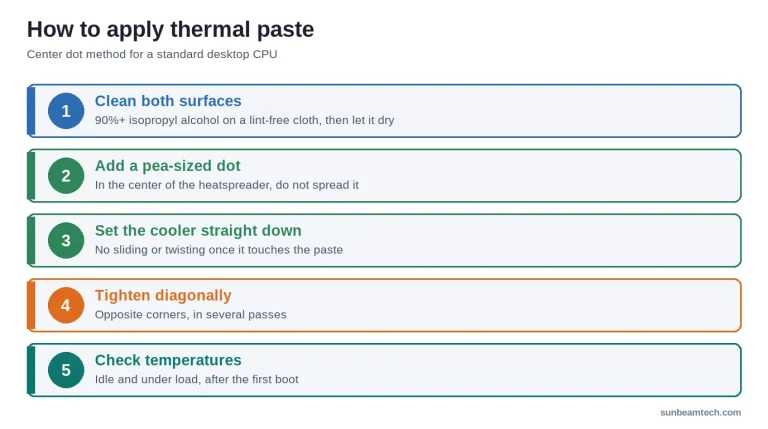
AIO GPU Cooler Installation, Step-by-Step Summary
- Remove the GPU from the PCIe slot and place it on an anti-static surface.
- Document the stock cooler screw positions with a photo before disassembly.
- Remove the stock cooler assembly and set it aside.
- Clean the GPU die, VRAM pads, and VRM surfaces with isopropyl alcohol. Let dry completely.
- Apply thermal pads to VRAM and VRM contact areas per the water block installation guide, pad thickness matters here, don’t guess.
- Apply a small amount of thermal paste to the GPU die (rice grain size or a thin spread, depending on die size).
- Mount the water block, tightening screws in an X-pattern to the torque spec listed in the block instructions.
- Mount the radiator in your case, connect the tubing, and plug the pump into the appropriate header. The pump typically connects to the CPU_FAN or a dedicated pump header on your motherboard, if you’re unsure of the difference between CPU OPT vs CPU FAN headers, check that before plugging in.
- Perform a leak test before powering on the system.
Leak Testing, Don’t Skip This Step
For AIO units, leak testing is minimal, the loop is sealed. Run the pump for a few minutes with the system off and check for any seepage around fittings.
For custom loops, this step is non-negotiable. Fill the loop, power the pump via a PSU tester or paperclip jump with the system otherwise off, and let it run for at least 30 minutes with the system horizontal. Lay paper towels under every fitting and the radiator connections. Check for any dampness. Tighten fittings as needed. A dedicated pressure tester tool lets you check for slow leaks before any liquid is even in the system.
Skipping leak testing and powering a wet GPU is a very fast way to turn a $600 graphics card into a paperweight.
GPU Liquid Cooling Kit Recommendations, What to Buy in 2026
Best AIO GPU Liquid Coolers
- Budget Pick: Corsair iCUE LINK XG3 RGB HYBRID (RTX 5080/5070 Ti/5070), $159.99. Solid AIO hybrid for NVIDIA’s current mid-to-high tier, integrates cleanly with iCUE software.
- Best for AMD: Corsair iCUE LINK XG3 RGB HYBRID (7900 XT/X), $129.99. The most accessible price point for AMD liquid gpu cooler options right now.
- For RTX 5090 specifically: Standalone aftermarket AIO options for the 5090 are limited. The LYNK+ Modular AIO ($380 kit, US availability rolling out in early 2026) is the most prominent recent entrant. Alternatively, factory-cooled cards like the ZOTAC GeForce RTX 5090 ARCTICSTORM AIO ship with a pre-installed 360mm AIO. Most 5090 owners chasing maximum thermal performance go with a custom loop using the XG5 ASTRAL or EK Vector² block instead.
Best Custom Loop GPU Water Blocks
- Best Overall: EK-Quantum Vector² FE series. Wide compatibility across multiple GPU generations, excellent build quality, large community support for installation guidance.
- Best Value: Bykski GPU water blocks. Typically priced 30–40% below comparable EK products with competitive thermal performance. A legitimate alternative for budget-conscious custom loop builders.
- Best Ecosystem Integration: Corsair Hydro X XG7 Series. Integrates fully with iCUE for unified fan, pump, and RGB control from a single interface.
- Best for Enthusiasts: Alphacool Eisblock Aurora. Full nickel plating, acrylic or plexi top options, and a reputation for aggressive pricing on high-end configurations.
- Premium 5090 Block: Corsair Hydro X XG5 RGB 5090 ASTRAL ($344.99). Built for the 575W flagship in custom loop builds where AIO options aren’t sufficient.
Complete Custom Loop Starter Kit, Estimated Budget
| Component | Example Options | Approx. Cost |
|---|---|---|
| GPU Water Block | EK Vector², Bykski, Alphacool | $150–$250 |
| Pump/Reservoir Combo | EK-Quantum Kinetic, Alphacool Eisstation | $80–$150 |
| Radiator (360mm) | Alphacool NexXxoS, HardwareLabs GTS | $60–$120 |
| Tubing + Fittings | EK, Corsair Hydro X, Bykski | $40–$80 |
| Coolant | EK CryoFuel, Mayhems Pastel | $20–$30 |
| Estimated Total | $350–$630 |
Maintaining Your GPU Liquid Cooler
AIO GPU Cooler Maintenance
Easy. Sealed systems don’t need coolant flushing. Your ongoing maintenance checklist is minimal:
- Annual visual inspection: check tubing for kinks or discoloration, verify radiator fan is spinning freely
- Keep radiator fins clear of dust buildup, a soft brush or compressed air once or twice a year
- Average AIO pump lifespan before degradation: 5–7 years under normal use
When an AIO starts failing, you’ll usually hear it first, pump noise increases noticeably, and temperatures start creeping up as pump speed drops.
Custom Loop Maintenance Schedule
Custom loops need real attention. Build a schedule and stick to it:
- Every 6 months: inspect all fittings for micro-seepage, check tubing for cloudiness or discoloration
- Every 12 months: full drain, loop flush with distilled water, refill with fresh coolant
- Every 2–3 years: replace pump impeller on high-uptime systems
Coolant type affects flush frequency. Clear/transparent coolants (EK CryoFuel Clear, Mayhems X1) can go 12 months comfortably. Pastel and opaque coolants settle and degrade faster, flush at 6–9 months for those. Using pastel coolant and skipping the maintenance schedule is a reliable way to end up with clogged waterblock channels.
FAQ, GPU Liquid Cooling Questions Answered
Is liquid cooling necessary for GPUs?
No, it isn’t strictly necessary. For GPUs with 350W+ TDP, or in thermally constrained cases, liquid cooling delivers meaningful temperature reductions of 15–40°C and significant noise reduction. Mid-range GPUs under 250W with quality stock coolers typically perform well with good case airflow and no water cooling required.
Is there a liquid-cooled GPU?
Yes. GPU AIO liquid coolers are self-contained solutions like the Corsair XG3 Hybrid series that replace the stock cooler. Custom loop water blocks from EK, Corsair, Bykski, and Alphacool go a step further with full-cover designs. Some pre-built workstations and factory-cooled consumer cards like the ZOTAC ARCTICSTORM AIO ship with a liquid-cooled GPU as well.
Is GPU water cooling worth it in 2026?
For flagship cards, yes. RTX 5090 TDPs hitting 575W make liquid cooling increasingly practical rather than purely enthusiast territory. You get 20–40°C lower temperatures, 10–20% more overclocking headroom, and a noticeably quieter build. For mid-range cards under $500, the cost-benefit is weaker, spend the $150 on more GPU first.
Are GPU water blocks universal?
Full-cover GPU water blocks are not universal. They’re designed around specific GPU PCB layouts, and a block for one AIB partner card won’t fit another even if they use the same GPU die. Universal water blocks exist but only cool the GPU die, leaving VRAM and VRMs unprotected. For any card above 300W TDP, a full-cover block is the correct choice.
How much does GPU liquid cooling cost?
An AIO liquid cooler for a GPU runs $130–$220 all-in. An entry custom loop for GPU-only costs $350–$630 in parts. A full CPU-and-GPU custom loop runs $700–$1,500+ depending on radiator size, tubing style, and brand. Annual maintenance on a custom loop costs roughly $20–$40/year for coolant replacement. AIO units have no ongoing coolant costs.
Wrapping Up
The decision comes down to your GPU’s TDP, your tolerance for noise, and how deep you want to go. Choose an AIO GPU cooler if you want a real temperature improvement and quieter operation without managing a full loop, it’s the best entry point for a liquid cooler for gpu without the complexity. Choose a custom loop if you’re running a 400W+ flagship, want maximum overclocking headroom, or are building a showcase system where aesthetics matter. Stick with air if you have a mid-range GPU, good case airflow, and a tight budget. At the power levels modern flagship GPUs are hitting, upgrading to a liquid gpu cooler is one of the most impactful changes you can make to both performance consistency and daily noise levels.

Alex has been building and tweaking custom PCs for over 12 years. From budget builds to full custom water loops, he’s assembled more than 50 systems and helped hundreds of builders troubleshoot their rigs. When he’s not benchmarking the latest hardware, you’ll find him optimizing airflow setups or stress-testing overclocks.