USB 2.0 vs 3.0: Differences Speed and When It Matters
USB 2.0 delivers a maximum theoretical transfer rate of 480 Mbps, while USB 3.0 reaches up to 5 Gbps, making USB 3.0 approximately 10 times faster with full-duplex data transfer.
Last updated: October 2026
Table of Contents
- What Are USB 2.0 and USB 3.0? (Quick Definitions)
- USB 2.0, The Long-Running Standard
- USB 3.0, The Speed Upgrade
- USB 2.0 vs 3.0, Side-by-Side Spec Comparison
- How to Tell USB 2.0 and USB 3.0 Apart Physically
- Color Coding
- Pin Count
- Connector Labeling
- Real-World Speed, What the Numbers Actually Mean for You
- Theoretical vs Actual Transfer Speeds
- Real File Transfer Time Estimates
- When the Speed Gap Doesn’t Matter
- Charging and Power Delivery, Does the Version Matter?
- Compatibility, Can You Mix USB 2.0 and 3.0 Devices and Ports?
- Backward and Forward Compatibility Rules
- What Happens to Speed When Mixing?
- USB 2.0 vs 3.0 for PC Builders, Which Ports to Use and Why
- Reading Your Motherboard’s USB Headers
- The Low-Latency Argument for USB 2.0 in Gaming Peripherals
- Bandwidth Sharing on USB Controllers
- The USB 3.0 Naming Mess, USB 3.1, 3.2, and SuperSpeed Explained
- Which Should You Use? USB 2.0 vs 3.0 Decision Guide
- Frequently Asked Questions
- Can a USB 3.0 device work in a USB 2.0 port?
- Does USB 2.0 vs 3.0 matter for charging?
- Is USB 3.0 the same as USB 2?
- Why does my USB 3.0 device show USB 2.0 speeds?
- Is USB 3.0 worth it for a PC build in 2025?
- The Bottom Line
You’re staring at the back of your PC case or a new USB hub. One port is black, one is blue. Does it actually matter which one you plug into? For a keyboard, not really. For a 500 GB external SSD, absolutely. The usb 2.0 vs 3.0 decision comes down to what you’re connecting, how much data you’re moving, and whether you’re getting the most out of your hardware. This guide breaks down the speed numbers, physical differences, charging specs, real-world transfer times, and the genuinely confusing usb2 vs usb3 naming situation that even experienced builders get wrong.

- 🟢 USB 3.0 for storage: External drives, SSDs, flash drives, capture cards
- 🟢 USB 2.0 for input: Keyboards, mice, MIDI controllers, game controllers
- 🟡 Mixing versions: Works fine, but speed drops to the slower standard
- 🟡 Webcams at 1080p/30fps: USB 2.0 is technically sufficient, but USB 3.0 is better for 4K
- 🔴 External SSD on USB 2.0 port: Speeds crater from ~350 MB/s to ~35 MB/s
- 🔴 USB Type-B 3.0 connectors: Not physically interchangeable with USB 2.0 Type-B
What Are USB 2.0 and USB 3.0? (Quick Definitions)
USB 2.0, The Long-Running Standard
Released in April 2000, USB 2.0 replaced USB 1.1 (12 Mbps) and the original USB 1.0 (1.5 Mbps). Its max theoretical speed is 480 Mbps, marketed as “Hi-Speed USB.” In practice, you’ll see real-world throughput of roughly 25 to 40 MB/s under optimal conditions, thanks to protocol overhead eating into that theoretical ceiling.
It’s still everywhere. Keyboards, mice, webcams, USB microphones, game controllers, budget flash drives, and older motherboard headers all use it. The reason it hasn’t died is simple: near-universal device compatibility and the fact that most peripherals don’t need more bandwidth than USB 2.0 provides.
USB 3.0, The Speed Upgrade
USB 3.0 arrived in November 2008, though mainstream adoption didn’t really kick in until 2011 to 2013 when motherboard manufacturers started shipping it as standard. Its theoretical max is 5 Gbps, marketed as “SuperSpeed USB.” Real-world throughput lands between 300 and 400 MB/s on quality hardware.
One thing worth knowing upfront: USB 3.0 has been renamed multiple times by the USB Implementers Forum (USB-IF). You’ll see it listed as USB 3.1 Gen 1 or USB 3.2 Gen 1×1 on spec sheets. Same thing. We’ll cover the full naming mess in a dedicated section below.
USB 2.0 vs 3.0, Side-by-Side Spec Comparison
Here’s everything in one place. The two specs that most guides miss are the half-duplex vs full-duplex distinction and the encoding overhead on USB 3.0.
| Spec | USB 2.0 | USB 3.0 |
|---|---|---|
| Release Year | 2000 | 2008 |
| Max Theoretical Speed | 480 Mbps | 5,000 Mbps (5 Gbps) |
| Real-World Transfer Speed | ~25–40 MB/s | ~300–400 MB/s |
| Data Transfer Mode | Half-duplex (one direction at a time) | Full-duplex (simultaneous send/receive) |
| Max Cable Length (Spec) | 5 meters | 3 meters |
| Power Output (Standard) | 500 mA / 2.5W | 900 mA / 4.5W |
| Internal Pin Count | 4 pins | 9 pins |
| Port Color (Standard) | Black or White | Blue |
| Backward Compatible? | N/A | Yes, with USB 2.0 devices |
| Encoding Method | NRZI | 8b/10b |
The half-duplex limitation on USB 2.0 is a bigger deal than most people realize. Half-duplex means data travels in only one direction at a time. USB 3.0’s full-duplex architecture lets it send and receive simultaneously on separate wire pairs, which is part of why the real-world gap between the two standards is so large even on tasks that aren’t pure sequential transfers.
The 8b/10b encoding on USB 3.0 is also worth understanding. It encodes every 8 bits of data as a 10-bit symbol for signal reliability, which means the actual usable bandwidth is about 80% of the raw 5 Gbps. That’s ~500 MB/s theoretical usable throughput. Real-world figures are lower still due to controller overhead, but it explains why 5 Gbps doesn’t translate to 625 MB/s on the drive benchmark.
The shorter max cable length on USB 3.0 (3 meters vs 5 meters) exists because maintaining signal integrity at higher frequencies over copper requires tighter tolerances. Go longer and you’ll see errors, speed drops, or dropped connections.

How to Tell USB 2.0 and USB 3.0 Apart Physically
Color Coding
The USB-IF standardized the color coding years ago. USB 3.0 ports and connectors have a blue interior. USB 2.0 ports use a black or white interior. Simple.
Except it isn’t always. Some motherboard manufacturers use non-standard colors on their rear I/O panels. You might see a teal port, a red port, or even an orange one (that’s usually a charging-only port). Don’t rely solely on color. Always cross-reference with your motherboard’s spec sheet or the printed I/O diagram that ships with the board.
Pin Count
USB 2.0 Type-A connectors have 4 pins. USB 3.0 Type-A connectors have 9 pins, with 5 additional pins dedicated to the SuperSpeed data path. You can see this if you hold the plug up to light. The extra pins sit behind the original 4.
This is also why backward compatibility works. When you plug a USB 2.0 device into a USB 3.0 port, the host controller simply ignores the extra 5 pins. The connection uses only the original 4. No damage. No weirdness. It just runs at USB 2.0 speeds.
Connector Labeling
Look for the “SS” (SuperSpeed) logo printed on or next to the port. It’s a small stylized “SS” that looks like a lightning bolt design. On motherboards, the silkscreen labeling near headers will say USB3_1, USB3_2, or similar. In Windows Device Manager, you can check under “Universal Serial Bus controllers” and look for entries that say “USB 3.0” or “xHCI Host Controller.” xHCI is the controller spec for USB 3.0. EHCI is USB 2.0.

Real-World Speed, What the Numbers Actually Mean for You
Theoretical vs Actual Transfer Speeds
Theoretical speeds are ceiling figures. You’ll never hit them. USB 2.0’s real-world throughput is 25 to 40 MB/s under optimal conditions. USB 3.0 delivers 300 to 400 MB/s in practice, an 8 to 10x real-world gap that closely tracks the theoretical 10x difference.
One important caveat: your USB 3.0 port is only as fast as the drive plugged into it. A cheap USB 3.0 flash drive might cap out at 50 to 80 MB/s due to the NAND controller inside, even though the port itself could handle 400 MB/s. A 5400 RPM external HDD can hit around 120 MB/s sequentially. Plugged into a USB 2.0 port, it’s capped at 35 MB/s. That’s the interface creating the bottleneck, not the drive.
Sequential reads and writes are where USB 3.0 shines most. Random small-file transfers are less dramatic because latency and seek times dominate, not raw throughput. Still faster on 3.0, just not 10x faster.
Real File Transfer Time Estimates
| File Size | USB 2.0 (~35 MB/s) | USB 3.0 (~350 MB/s) |
|---|---|---|
| 1 GB photo album | ~29 seconds | ~3 seconds |
| 10 GB video project | ~4.8 minutes | ~29 seconds |
| 100 GB game backup | ~48 minutes | ~5 minutes |
| 500 GB full drive clone | ~4 hours | ~24 minutes |
That 500 GB example is the one that really lands for most people. Four hours vs 24 minutes. That’s not a marginal improvement. That’s the difference between a tedious process and a quick task you barely notice.
When the Speed Gap Doesn’t Matter
Not every device needs USB 3.0 bandwidth. Not even close.
- Keyboards and mice: Max data rate is under 1 Mbps. USB 2.0 handles this without breaking a sweat.
- Game controllers: Same story. Low-bandwidth input devices don’t benefit from a faster interface.
- 1080p/30fps webcams: A 1080p at 30fps uncompressed stream runs around 30 MB/s. That’s well within USB 2.0’s ceiling.
- MIDI controllers: MIDI data is tiny. Extremely low bandwidth.
- Basic charging: Either port charges your phone at standard rates. More on that below.
Charging and Power Delivery, Does the Version Matter?
USB 2.0 provides 500 mA at 5V, which equals 2.5W. USB 3.0 bumps that to 900 mA at 5V, which equals 4.5W. That’s roughly 80% more charging current from a standard port. For a phone that accepts up to 5W, a USB 3.0 port will charge it noticeably faster than a USB 2.0 port under default conditions.
But here’s where it gets more complicated. The USB Battery Charging 1.2 specification (BC 1.2) allows compatible ports to push up to 1.5A (7.5W) regardless of whether they’re USB 2.0 or USB 3.0. A BC 1.2-certified USB 2.0 port can outcharge a standard USB 3.0 port.
USB Power Delivery is a completely separate spec. It runs over USB-C and isn’t tied to 2.0 or 3.0 at all. If you need 45W, 65W, or 100W+ charging for a laptop or tablet, you need USB-C with PD. The 2.0 vs 3.0 debate is irrelevant at that point.
| Standard | Max Current | Max Power | Best For |
|---|---|---|---|
| USB 2.0 | 500 mA | 2.5W | Low-draw peripherals |
| USB 3.0 | 900 mA | 4.5W | Phones, small devices |
| USB BC 1.2 | 1,500 mA | 7.5W | Faster phone charging |
| USB PD (USB-C) | Up to 5A | Up to 240W | Laptops, tablets, fast charging |
Compatibility, Can You Mix USB 2.0 and 3.0 Devices and Ports?
Backward and Forward Compatibility Rules
USB 3.0 was designed with full backward compatibility. Here’s how it plays out in practice:
- USB 3.0 device into a USB 2.0 port: Works. The device negotiates down to USB 2.0 speeds. No damage, no issues.
- USB 2.0 device into a USB 3.0 port: Works. Runs at USB 2.0 speeds. The extra pins sit unused.
- Physical compatibility (Type-A): The rectangular Type-A connector shape is identical across USB 2.0 and 3.0. They plug into each other fine.
The exception is USB Type-B and Micro-B connectors. USB 3.0 versions of these are physically different from their USB 2.0 counterparts. A USB 3.0 Micro-B cable (used on older external hard drives) has a wider, two-part connector that won’t fit a USB 2.0 Micro-B port. Always check connector types on external drives.
What Happens to Speed When Mixing?
Speed negotiates down automatically to the lower standard. No manual configuration needed. It just works at the slower speed.
A USB 3.0 external SSD in a USB 2.0 port drops from approximately 350 MB/s to approximately 35 MB/s. That’s a 10x penalty. For a quick file copy, manageable. For a 200 GB backup, frustrating. Always plug high-bandwidth devices into the blue USB 3.0 ports on your PC. That single habit will save you a lot of time.

USB 2.0 vs 3.0 for PC Builders, Which Ports to Use and Why
Reading Your Motherboard’s USB Headers
ATX motherboards include both USB 2.0 headers and USB 3.0 headers for front panel connections. USB 2.0 headers use a 9-pin layout (8 pins used, 1 blocked). USB 3.0 headers use a 19-pin or 20-pin layout for Type-A, or a separate vertical USB-C header on newer boards.
Most mid-tower cases ship with a mix of front panel ports. Connect the front blue USB port’s cable to the motherboard’s USB 3.0 header, and the black port’s cable to the USB 2.0 header. The connectors are keyed differently so you can’t accidentally swap them. Good design.
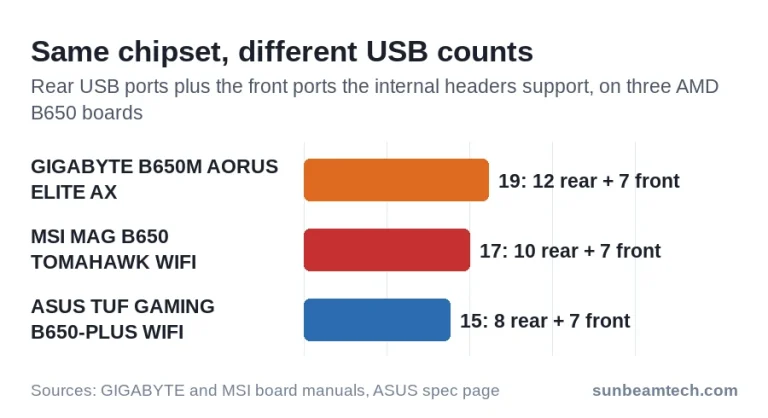
How many of each you get on the back depends on the board, not the chipset. Three B650 boards show the spread: the ASUS TUF GAMING B650-PLUS WIFI has 4 USB 2.0 ports and 4 faster ones, the MSI MAG B650 TOMAHAWK WIFI has 2 and 8, and the GIGABYTE B650M AORUS ELITE AX has 4 and 8. Your board’s spec page lists the exact split per port type.
The Low-Latency Argument for USB 2.0 in Gaming Peripherals
Some competitive gamers plug their mouse and keyboard into the black USB 2.0 ports on purpose, on the idea that USB 2.0 adds less overhead. The idea doesn’t hold up. A mouse or keyboard is a USB 2.0 device, and a blue USB 3.0 port keeps the four original USB 2.0 pins and adds five more for SuperSpeed. Your mouse uses those USB 2.0 pins on either port.
The polling rate doesn’t come from the port either. It’s set in the device’s firmware, and drivers can’t change it, per Microsoft’s USB documentation. A 1000 Hz mouse reports every 1 ms on a black port and on a blue one. If anything, the black ports can be the longer route: on the GIGABYTE B650M AORUS ELITE AX, the four rear USB 2.0 ports sit behind a hub chip. Plug into whichever port is free and keep the fast ones for drives.
Bandwidth Sharing on USB Controllers
This one catches builders off guard. Multiple USB 3.0 devices connected to the same USB host controller share that controller’s bandwidth. Connect two USB 3.0 external drives to adjacent rear ports on the same controller and you’ll split the available throughput between them, roughly halving effective speeds for each drive during simultaneous transfers.
The fix is spreading high-bandwidth devices across separate USB controllers. Your motherboard’s spec sheet will show which ports share a controller. Check it before setting up a multi-drive workflow.
The USB 3.0 Naming Mess, USB 3.1, 3.2, and SuperSpeed Explained
USB-IF has renamed USB 3.0 multiple times. This has created genuine confusion even among experienced builders. When you see “USB 3.0” on a product listing in 2025, it almost always means 5 Gbps. Here’s the full translation table:
| Old Name | Current Official Name | Max Speed | Marketing Name |
|---|---|---|---|
| USB 3.0 | USB 3.2 Gen 1×1 | 5 Gbps | SuperSpeed USB |
| USB 3.1 Gen 1 | USB 3.2 Gen 1×1 | 5 Gbps | SuperSpeed USB |
| USB 3.1 Gen 2 | USB 3.2 Gen 2×1 | 10 Gbps | SuperSpeed USB 10Gbps |
| USB 3.2 Gen 2×2 | USB 3.2 Gen 2×2 | 20 Gbps | SuperSpeed USB 20Gbps |
When comparing usb 2 vs usb 3, the 5 Gbps tier (USB 3.2 Gen 1) is the standard comparison point. That’s the version you’ll find on virtually every modern motherboard and peripheral marketed as “USB 3.0.” The official USB-IF specification archive has full documentation on each version’s technical requirements if you want to go deeper on the spec differences.
Which Should You Use? USB 2.0 vs 3.0 Decision Guide
| Device / Use Case | Recommended Port | Reason |
|---|---|---|
| Keyboard and Mouse | Any port (USB 2.0 is enough) | Needs under 1 Mbps; keeps the fast ports free |
| USB Flash Drive | USB 3.0 if drive supports it | Faster file transfers, even on modest 3.0 drives |
| External HDD (5400 RPM) | USB 3.0 | HDD max ~120 MB/s; USB 2.0 bottlenecks it |
| External SSD | USB 3.0 minimum | SSDs far exceed USB 2.0 ceiling |
| Webcam (1080p/30fps) | USB 2.0 sufficient | ~30 MB/s data stream fits within USB 2.0 |
| Webcam (4K/60fps) | USB 3.0 | Higher bandwidth requirement exceeds USB 2.0 |
| Smartphone Charging | USB 3.0 preferred | More current available (900 mA vs 500 mA) |
| Game Controller | USB 2.0 fine | Low bandwidth device |
| Capture Card | USB 3.0 required | High uncompressed data stream |
| MIDI Controller | USB 2.0 fine | Extremely low bandwidth |
The rule of thumb is straightforward: USB 3.0 for anything involving storage or sustained high data throughput; USB 2.0 for input devices and low-speed peripherals. Follow that and you’ll never make the wrong call.
Frequently Asked Questions
Can a USB 3.0 device work in a USB 2.0 port?
Yes. USB 3.0 is fully backward compatible with USB 2.0 ports. The device will function normally, but transfer speeds are capped at USB 2.0’s 480 Mbps ceiling, which translates to roughly 35 MB/s in real-world use. There’s no risk of damage to the device or port. You’re just leaving speed on the table. For storage-intensive use cases, it’s worth finding a USB 3.0 port.
Does USB 2.0 vs 3.0 matter for charging?
It can. USB 3.0 provides up to 900 mA vs USB 2.0’s 500 mA, giving you about 80% more charging current on a standard port. For basic overnight phone charging, either works. For faster charging, you’re looking at USB Battery Charging 1.2 (7.5W) or USB Power Delivery via USB-C, both of which operate independently from the USB 2.0 vs 3.0 distinction entirely. Don’t expect fast charging from either port type without USB-C PD.
Is USB 3.0 the same as USB 2?
No. They’re distinct generations with different speeds, different pin counts, and different power outputs. USB 2.0 maxes out at 480 Mbps (roughly 35 MB/s real-world). USB 3.0 hits 5 Gbps (roughly 350 MB/s real-world). They share the same rectangular Type-A connector shape, which causes the confusion, but they aren’t the same standard and don’t perform the same way.
Why does my USB 3.0 device show USB 2.0 speeds?
Several likely causes. First, check that the device is plugged directly into a blue USB 3.0 port and not through a USB 2.0 hub (a hub anywhere in the chain caps the entire connection at 2.0 speeds). Second, check the cable. A damaged or low-quality USB 3.0 cable will drop to 2.0 speeds. Third, verify in Windows Device Manager under “Universal Serial Bus controllers” that the port is recognized as a USB 3.0 or xHCI controller. If it shows EHCI, that port is USB 2.0. Finally, some budget USB 3.0 flash drives have slow NAND controllers and only hit 50 to 80 MB/s regardless of port speed.
Is USB 3.0 worth it for a PC build in 2025?
Without question. USB 3.0 ports are standard on every modern motherboard at this point, and the speed benefit for external storage is substantial enough that there’s no argument for intentionally routing drives to USB 2.0. There’s no latency reason to pick a USB 2.0 port for a mouse either, since it runs the same USB 2.0 protocol on a blue port. Use USB 3.0 wherever storage or high-speed devices are involved.
The Bottom Line
USB 3.0 wins clearly for anything involving data transfer. External drives, SSDs, capture cards, high-res webcams: plug them into the blue ports. USB 2.0 remains perfectly valid for keyboards, mice, game controllers, MIDI gear, and basic webcams. It’s not obsolete. It’s just right-sized for low-bandwidth peripherals.
For PC builders specifically: populate your USB 3.0 rear ports with storage and high-speed devices, keep USB 2.0 for your input peripherals, and spread high-bandwidth devices across separate USB host controllers to avoid sharing bandwidth. Don’t stress about accidentally mixing standards. The USB protocol handles negotiation automatically. Just make sure your external drives are going into blue ports and you’ll be fine.
If you’re shopping for a new motherboard and want to understand the full USB 3.2 specification in detail, USB-IF publishes the complete technical documentation. Dry reading, but authoritative.

Alex has been building and tweaking custom PCs for over 12 years. From budget builds to full custom water loops, he’s assembled more than 50 systems and helped hundreds of builders troubleshoot their rigs. When he’s not benchmarking the latest hardware, you’ll find him optimizing airflow setups or stress-testing overclocks.