X870 vs X870E: Which AMD Motherboard Chipset Should You Pick?
The AMD X870E and X870 are both AM5 chipsets for Ryzen 7000 and 9000 series CPUs, but the X870E doubles the chipset PCIe lanes, USB ports, and SATA connections of the standard X870.
Last updated: April 2026
Table of Contents
- What Is the AMD X870 Chipset?
- What Is the AMD X870E Chipset?
- X870 vs X870E Specs: Full Chipset Comparison Table
- Key Differences Between X870 and X870E Explained in Plain English
- PCIe Lane Differences
- USB4 and High-Speed USB Differences
- SATA Port Differences
- Chipset Die Configuration and Why X870E Runs Hotter
- X870 vs X870E Motherboard Examples: Real Boards Compared
- MSI MAG X870 Tomahawk vs MSI MAG X870E Tomahawk
- ASUS X870 vs X870E: ROG, TUF, and ProArt
- Gigabyte X870 vs X870E: Aorus Master and Aorus Elite
- X870 vs X870E vs B850: How Does the Mid-Range Fit In?
- X870 vs X870E vs X670E: Is It Worth Upgrading?
- Which One Should You Actually Buy?
- Casual Gaming, Single GPU, Light Peripherals: X870
- AMD Ryzen 9 9800X3D Gaming Builds: X870 (Usually)
- Content Creation, Streaming, Multi-Storage: X870E
- Workstation and Professional Use: X870E
- Budget-Conscious Builder: Consider B850
- Price-to-Value Analysis: Is the X870E Premium Worth It?
- FAQ: X870 vs X870E Common Questions
- What is the difference between AMD X870 and X870E?
- What does the “E” stand for in X870E?
- What is the difference between ASUS X870E and X870-F or X870-Plus?
- Is X870E worth it for gaming, including the Ryzen 9 9800X3D?
- Can I use a Ryzen 7000 CPU on an X870 or X870E motherboard?
- The Bottom Line
AMD’s naming makes this more confusing than it needs to be. Both chipsets look nearly identical on paper at first glance, support the same CPUs, and both mandate PCIe 5.0 for your GPU and primary M.2 slot. The real separation happens in connectivity: USB4 port count, PCIe lane totals, SATA availability, and what that means for your actual build. This guide covers every meaningful spec difference, breaks down real board comparisons from MSI, ASUS, and Gigabyte, and tells you exactly which chipset makes sense for your use case, including whether B850 is worth considering instead.
- 🟢 X870, Best for gaming builds, single GPU, 1–2 storage drives, 1x USB4 is enough
- 🟡 X870E, Worth the premium for content creators, streamers, multi-drive rigs, USB4 docking
- 🟢 B850, Solid budget pick if you don’t overclock and don’t need USB4
- 🔴 Avoid X670E now, 800 series boards cost the same and are strictly better
- 🟡 X870E + 9800X3D for gaming only, You’re paying for connectivity you won’t use
What Is the AMD X870 Chipset?
The X870 is AMD’s mainstream high-end chipset for the AM5 platform, part of the 800 series that replaced the 600 series (X670 and X670E) in late 2024. It supports Ryzen 7000, Ryzen 8000G, and Ryzen 9000 series CPUs without any architectural changes needed at the socket level.
What makes the X870 different from older high-end chipsets is that AMD actually enforces minimum connectivity standards for any board that carries the X870 badge. Every X870 motherboard must include a PCIe 5.0 x16 slot for your GPU, at least one PCIe 5.0 M.2 slot, and at least one USB4 40Gbps port. That last requirement is new. USB4 was optional on X670 boards, which meant you could buy a pricey X670 board and still not get USB4. That inconsistency is gone with X870.
AM5 is confirmed supported through at least 2027, and AMD’s track record with AM4 suggests the platform will likely extend further. That makes an X870 purchase a reasonable long-term investment even if you’re planning to upgrade CPUs later.
What Is the AMD X870E Chipset?
The “E” stands for Extreme. It’s AMD’s flagship tier within the 800 series, sitting above the standard X870 and targeting power users, workstation builders, and content creators who need maximum connectivity.
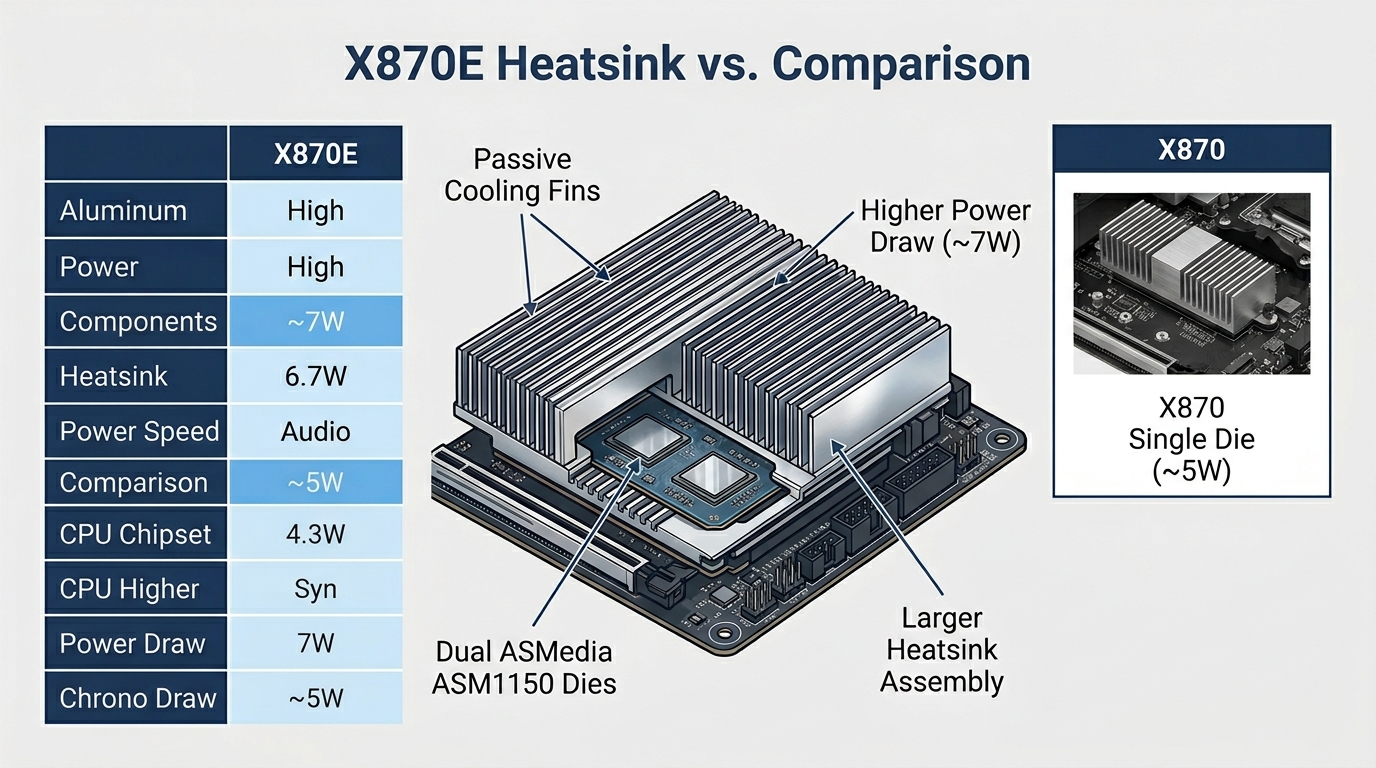
The core hardware difference: the X870E uses two ASMedia ASM1150 chipset dies on the board, while the X870 uses one. That dual-die configuration is what enables the doubled PCIe lane counts, additional USB ports, and extra SATA connections. It also means the X870E chipset draws slightly more power, around 7W versus approximately 5W on the X870, which is why X870E boards often have larger chipset heatsinks with passive cooling fins.
Both chipsets connect to the CPU via a PCIe 4.0 x4 link. That shared pipe between the CPU and chipset is the same on X870 and X870E, so the extra lanes on the E variant don’t translate into more raw bandwidth to the processor. What they do provide is more room to hang additional controllers, M.2 slots, USB chips, and network cards off the chipset without running out of lanes. You can read their full breakdown at GamersNexus: Zen 5 CPU Architecture Changes and Chipset Differences.
X870 vs X870E Specs: Full Chipset Comparison Table
Here’s the complete spec breakdown pulled from AMD’s official AM5 chipset documentation. This is what actually differs between the two chipsets at the silicon level, before individual board manufacturers add their own controllers.
| Spec | X870E | X870 |
|---|---|---|
| CPU PCIe Lanes (GPU) | 16x PCIe 5.0 | 16x PCIe 5.0 |
| CPU PCIe Lanes (M.2) | 4x PCIe 5.0 | 4x PCIe 5.0 |
| Chipset PCIe 5.0 Lanes | 4x | 4x |
| Chipset PCIe 4.0 Lanes | 12x | 8x |
| Chipset PCIe 3.0 Lanes | 8x | 4x |
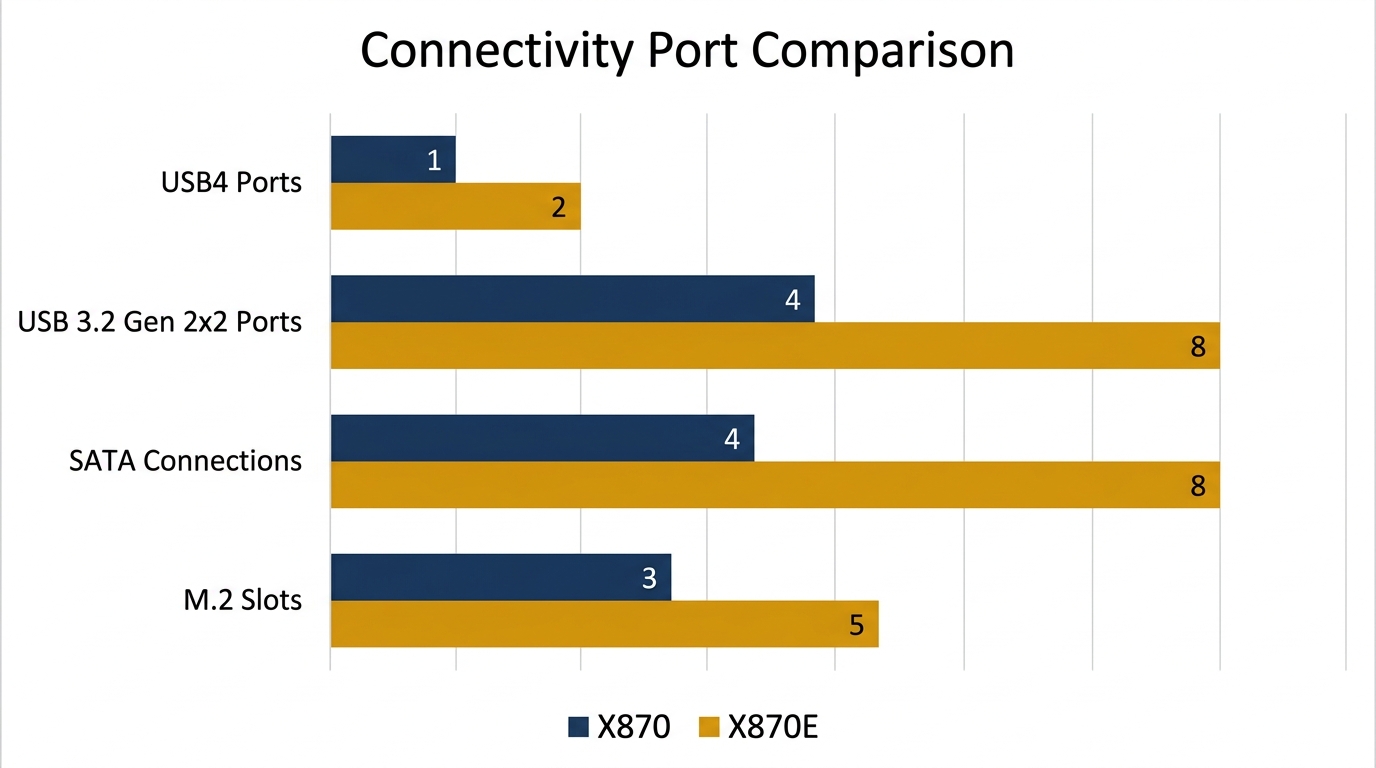
| USB4 (40 Gbps) Ports | 2 (dedicated lanes) | 1 (shared lanes) |
| USB 3.2 Gen 2×2 (20 Gbps) | 2 | 1 |
| USB 3.2 Gen 2 (10 Gbps) | 12 | 6 |
| USB 3.2 Gen 1 (5 Gbps) | 2 | 1 |
| USB 2.0 | 6 | 6 |
| SATA Ports | Up to 8 | Up to 4 |
| CPU Overclocking | Yes | Yes |
| RAM Overclocking / EXPO | Yes | Yes |
| PCIe 5.0 GPU Slot (Required) | Yes | Yes |
| PCIe 5.0 M.2 (Required) | Yes | Yes |
| Chipset TDP | ~7W (dual die) | ~5W (single die) |
| Typical Price Premium | +$50–$150 over X870 | Baseline |
The bottom line from this table: your GPU and primary M.2 slot get identical treatment on both chipsets. The differences are entirely in what hangs off the chipset, not what connects to your CPU. For most gaming builds, the extra lanes simply go unused.
Source: AMD AM5 Chipset Official Landing Page
Key Differences Between X870 and X870E Explained in Plain English
PCIe Lane Differences
Both chipsets give the CPU the same direct lane allocation: 16x PCIe 5.0 to your GPU and 4x PCIe 5.0 to your primary M.2 slot. That doesn’t change. What changes is how many chipset-side lanes you have left over for everything else.
The X870 provides 4x PCIe 5.0, 8x PCIe 4.0, and 4x PCIe 3.0 from the chipset. The X870E bumps that to 4x PCIe 5.0, 12x PCIe 4.0, and 8x PCIe 3.0. That’s an extra 4 PCIe 4.0 lanes and 4 PCIe 3.0 lanes on the E variant.
In practice, those extra lanes mean:
- More M.2 slots (X870E boards typically offer 5 vs. 3–4 on standard X870 boards)
- Room for additional USB controllers without sacrificing storage bandwidth
- Space for capture cards or Thunderbolt add-in cards alongside other expansion
- Dual LAN configurations (10GbE + 2.5GbE) without lane conflicts
- Wi-Fi 7 + 2.5G LAN running simultaneously without sharing bandwidth
One thing worth keeping in mind: both chipsets connect to the CPU through a PCIe 4.0 x4 link. That’s a shared pipe of about 8 GB/s. Adding more chipset-side lanes doesn’t widen that pipe, so you can hit bandwidth limits if you’re running a very demanding combination of devices simultaneously. For most users, that ceiling doesn’t matter. For workstation builds saturating multiple NVMe drives while running 10GbE networking under load, it’s something to be aware of.
USB4 and High-Speed USB Differences
This is the most practically significant difference for day-to-day use. The X870 gives you one USB4 40Gbps port, and those lanes are shared with other chipset functions. The X870E gives you two USB4 ports, each with dedicated PCIe lanes.
Dedicated lanes matter under load. When your USB4 port is saturating on an X870 board (think: external NVMe enclosure at full tilt), it’s competing with other chipset traffic for that shared bandwidth. On the X870E, your USB4 ports don’t fight for space.
As noted across multiple community discussions on Reddit’s r/AMD, if you need USB4 primarily, X870E is the better choice specifically because of those dedicated lanes versus the shared approach on the X870.
Real-world scenarios where this matters:
- External GPU enclosures (eGPU) running via Thunderbolt/USB4
- High-speed docking stations that saturate USB4 bandwidth
- Dual external NVMe drives via USB4 hubs
- Professional audio interfaces using USB4
SATA Port Differences
Not great for X870 if you’re building a storage-heavy system.
The X870E supports up to 8 native SATA ports from the chipset. The X870 caps at 4. For a standard gaming PC with one SSD and maybe one hard drive for game storage, four SATA ports is plenty. But if you’re building a content creation workstation, a home NAS, or a media server, that limit becomes real fast.
Some X870 board manufacturers work around this by adding a PCIe-to-SATA controller chip, which effectively creates more SATA ports using chipset PCIe lanes. That works, but it consumes PCIe lanes you might want for other things, and it adds a layer of controller latency that native SATA ports don’t have. On X870E, you get those ports natively without the trade-off.
Chipset Die Configuration and Why X870E Runs Hotter
Most articles skip this entirely. It’s worth understanding.
The X870E uses two ASMedia ASM1150 chipset dies soldered to the board. The X870 uses one. That’s why the X870E has double the chipset connectivity: it’s literally two chipsets wired together. The dual-die setup draws roughly 7W versus approximately 5W for the single X870 chipset. That’s not a dramatic difference, but it does mean X870E boards need slightly larger passive heatsinks over the chipset area, and in compact ITX or mATX designs, it can complicate thermal management.
You won’t notice this in regular use. But if you’re building in a small case with restricted airflow, an X870 board is a slightly friendlier option from a thermal standpoint.
X870 vs X870E Motherboard Examples: Real Boards Compared
MSI MAG X870 Tomahawk vs MSI MAG X870E Tomahawk
The Tomahawk lineup is the most direct comparison you can make because MSI builds both boards to nearly identical physical designs with different chipsets underneath.
| Feature | MAG X870 Tomahawk WiFi | MAG X870E Tomahawk WiFi |
|---|---|---|
| M.2 Slots | 4 | 5 |
| USB4 Ports (Rear) | 1 | 2 |
| USB 3.2 Gen2 (10 Gbps) | 4 | 6 |
| SATA Ports | 4 | 6 |
| VRM Configuration | 16+2+1 phase | 16+2+1 phase (higher-spec MOSFETs) |
| Approx. MSRP | $249–$279 | $329–$359 |
The X870 Tomahawk is the better value for gaming-focused builds. The extra $80 to get the X870E Tomahawk buys you one more M.2 slot, a second USB4 port, two more SATA ports, and slightly upgraded power delivery components. For a Ryzen 9 9700X or 9800X3D gaming build, you won’t use most of that. For a streaming or content creation build where you’re running capture hardware and external storage simultaneously, it’s the smarter choice.
ASUS X870 vs X870E: ROG, TUF, and ProArt
ASUS’s naming can be confusing if you’re cross-shopping. Here’s how it breaks down:
The ROG Crosshair X870E Hero sits at ASUS’s flagship tier, using the X870E chipset with 5 M.2 slots, 2 rear USB4 ports, and a 26-phase VRM that can handle anything AMD throws at AM5 through 2027 and beyond.
The TUF Gaming X870-Plus WiFi and boards labeled X870-F use the standard X870 chipset. Four to five M.2 slots, one rear USB4 port, and solid mid-range VRM configurations that are more than adequate for Ryzen 9000 series CPUs including the 9800X3D.
When you see an ASUS board labeled X870E, it uses the Extreme chipset regardless of product tier (TUF, ROG, or ProArt). When you see X870-F, X870-Plus, or X870-A, it’s on the standard chipset. The letter after the chipset designation in ASUS’s naming refers to board tier, not chipset class. Don’t confuse X870E (the chipset) with X870-E (which isn’t a real ASUS product line designation).
Typical ASUS X870 pricing: $219–$399. Typical ASUS X870E pricing: $299–$699 for the ROG Crosshair at the top.
Gigabyte X870 vs X870E: Aorus Master and Aorus Elite
Gigabyte’s lineup splits cleanly by chipset tier. The Gigabyte X870E Aorus Master is their flagship X870E offering, with 5 M.2 slots (including three PCIe 5.0), 2 USB4 rear ports, 8 SATA ports, and a 20+2+2 phase VRM. It’s a serious workstation board that competes directly with ASUS’s ROG Crosshair.
The Gigabyte X870 Aorus Elite WiFi is their mainstream X870 board, offering 4 M.2 slots (one PCIe 5.0), 1 USB4 port, 4 SATA ports, and a 16+2+2 phase VRM. Solid performer. Better value for most users.
The Aorus Master typically sells for $450–$500. The Aorus Elite lands around $249–$299. That $150–$200 gap is steep, and for most buyers, the Elite is the more sensible pick unless you genuinely need what the Master’s X870E chipset provides.
X870 vs X870E vs B850: How Does the Mid-Range Fit In?
| Feature | X870E | X870 | B850 |
|---|---|---|---|
| CPU Overclocking | Yes | Yes | No |
| PCIe 5.0 GPU Slot | Required | Required | Optional |
| PCIe 5.0 M.2 | Required | Required | Optional |
| USB4 Ports | 2x (dedicated) | 1x (shared) | 0 (not required) |
| SATA Ports | Up to 8 | Up to 4 | Up to 4 |
| Chipset PCIe 4.0 Lanes | 12x | 8x | 8x |
| EXPO / Memory OC | Yes | Yes | Yes |
| Typical Price Range | $250–$600+ | $200–$400 | $150–$250 |
B850 is legitimately good if you don’t need CPU overclocking and don’t have USB4 devices. It matches the X870’s chipset PCIe 4.0 lane count at 8x, supports EXPO for memory speed tuning, and still handles a PCIe 5.0 NVMe drive on most boards even without the mandatory requirement. You’re saving $50–$100 compared to entry X870 boards, and you give up CPU OC and guaranteed USB4. For a budget gaming build around a Ryzen 9 9700X or lower, that trade is often worth it.
Don’t drop to B850 if you plan to push a high-end CPU like the 9900X or 9950X through overclocking, or if you own USB4 peripherals you actually use. The savings aren’t worth the capability loss in those scenarios.
X870 vs X870E vs X670E: Is It Worth Upgrading?
| Feature | X870E | X870 | X670E | X670 |
|---|---|---|---|---|
| USB4 (Required) | Yes | Yes | No | No |
| PCIe 5.0 M.2 (Required) | Yes | Yes | Yes | No |
| CPU OC Support | Yes | Yes | Yes | Yes |
| Memory Trace Improvements | Yes (800 series) | Yes (800 series) | No | No |
| Typical Launch Pricing | $250–$600+ | $200–$400 | $250–$650 | $200–$400 |
The 800 series has two real advantages over 600 series boards at the same price points. First, USB4 is now guaranteed. If you bought an X670E board that happened to include USB4, you got lucky. If it didn’t, you have no way to add it without an add-in card. Every X870 and X870E board ships with at least one USB4 port, no guessing required.
Second, 800 series boards generally have improved memory trace layouts, which helps when pushing EXPO profiles at DDR5-6000 and above. The difference isn’t dramatic, but stability at high memory clocks is slightly better on average on 800 series platforms.
Should existing X670E owners upgrade? Probably not unless USB4 is a genuine gap in your current setup, or you’re adding a new CPU that benefits from EXPO headroom improvements. The performance delta on a like-for-like Ryzen 9000 vs. Ryzen 7000 swap doesn’t require a new board. New builders, on the other hand, should skip X670E entirely. The 800 series is the same price now, and there’s no good reason to start on an older platform.
Which One Should You Actually Buy?
Casual Gaming, Single GPU, Light Peripherals: X870
Your GPU plugs into the same PCIe 5.0 x16 slot on both chipsets. A single USB4 port handles a dock or external SSD without issue. Four SATA ports cover a boot NVMe plus one or two HDDs comfortably. You have zero reason to pay the X870E premium.
Good picks: MSI MAG X870 Tomahawk WiFi, ASUS TUF Gaming X870-Plus WiFi, Gigabyte X870 Aorus Elite WiFi.
AMD Ryzen 9 9800X3D Gaming Builds: X870 (Usually)
The 9800X3D is AMD’s gaming flagship, and it doesn’t benefit from X870E’s expanded connectivity in any measurable way for gaming workloads. AMD explicitly does not recommend overclocking the 3D V-Cache design, so the OC-enabling features present on both chipsets become largely irrelevant on this CPU anyway.
Save the $80–$150 X870E premium and put it toward a better cooler or a GPU upgrade. Exception: if you’re running a dual-PC streaming setup with capture cards and external interfaces in the same machine, the extra PCIe lanes on X870E start to matter.
Content Creation, Streaming, Multi-Storage: X870E
This is where the X870E earns its price. Two dedicated USB4 ports mean you can run a high-speed external SSD and a Thunderbolt audio interface simultaneously without contention. Five M.2 slots mean your footage drive, OS drive, cache drive, and project drive each get their own slot. Eight SATA ports cover a large spinning disk archive.
Recommended boards: ASUS ProArt X870E Creator WiFi (built for this exact use case), MSI MEG X870E ACE, Gigabyte X870E Aorus Master.
Workstation and Professional Use: X870E
If you’re running GPU plus NVMe RAID plus a 10GbE NIC plus a capture card, the X870’s chipset lane budget gets tight. The X870E gives you the PCIe headroom to run all of that without disabling slots or making trade-offs. Dedicated USB4 lanes also matter for Thunderbolt docking stations and eGPU enclosures under sustained load.
Maximum future-proofing on AM5 means X870E. The platform is confirmed through 2027, and having lane headroom for whatever new connectivity standards arrive before then has real value.
Budget-Conscious Builder: Consider B850
If CPU overclocking isn’t on your agenda and you don’t own or plan to buy USB4 devices, B850 saves real money. Entry B850 boards start around $150 versus $200+ for the cheapest X870 options. That’s $50 you can redirect to storage, cooling, or display hardware.
Price-to-Value Analysis: Is the X870E Premium Worth It?
Let’s put actual numbers to this. X870E boards typically cost $50–$150 more than the comparable X870 board from the same manufacturer. Here’s what that premium actually buys you:
- Extra USB4 port: A PCIe USB4 add-in card costs $50–$100, and it also consumes a chipset PCIe lane to work. The X870E’s second USB4 port is effectively free if you’d have bought that card anyway.
- Extra PCIe lanes: A PCIe lane expansion card (PLX-based) runs $40–$80 and adds latency. The native lanes on X870E are cleaner and faster.
- Extra SATA ports: A PCIe SATA expansion card is around $20–$30. Cheap, but again, it uses a chipset lane.
Add those up, and the X870E premium starts looking reasonable if you actually need those extras. If you’re paying $80 more for an X870E board but only need one USB4 port and four SATA connections, you’re leaving value on the table.
Rough price ranges across the market right now:
- Entry X870: approximately $199–$229
- Entry X870E: approximately $279–$329
- Mid-tier X870: approximately $259–$349
- Mid-tier X870E: approximately $329–$449
- Flagship X870: approximately $349–$399
- Flagship X870E: approximately $449–$700+
The X870E makes financial sense when you’d spend $50+ on add-in cards to replicate its native connectivity. It doesn’t make sense when you’re paying the premium for specs that sit idle.
FAQ: X870 vs X870E Common Questions
What is the difference between AMD X870 and X870E?
The X870E offers double the chipset PCIe lanes (12x PCIe 4.0 vs. 8x, plus more PCIe 3.0), two USB4 40Gbps ports with dedicated lanes versus one shared USB4 port, up to 8 SATA ports versus 4, and roughly double the USB port count overall. Both chipsets support the same CPUs, use identical PCIe 5.0 x16 GPU slots, require a PCIe 5.0 M.2 slot, and support full CPU and memory overclocking. The difference is entirely in connectivity and expansion capacity.
What does the “E” stand for in X870E?
“Extreme” is AMD’s designation for the highest connectivity tier within a chipset generation. The E variant consistently offers more PCIe lanes, more USB ports, and more SATA connections than the standard version. AMD has used this naming convention since the X570E era, though it wasn’t as commonly used until the X670 and X870 generations. The physical implementation involves two chipset dies instead of one on X870E boards.
What is the difference between ASUS X870E and X870-F or X870-Plus?
ASUS X870E boards (like the ROG Crosshair X870E Hero or ProArt X870E Creator) use AMD’s X870E chipset with dedicated USB4 lanes, more PCIe lanes, and additional M.2 slots. ASUS boards labeled X870-F, X870-Plus, or X870-A use the standard X870 chipset. The suffix letters in ASUS’s naming (F for Formula tier, Plus for mid-tier, A for entry) describe the board’s quality tier within the chipset family, not the chipset itself. Always look for the chipset designation (X870 vs. X870E) to know which silicon you’re getting.
Is X870E worth it for gaming, including the Ryzen 9 9800X3D?
No, not for pure gaming. The 9800X3D is AMD’s best gaming CPU, but its performance is GPU-bound and doesn’t change based on whether you have one or two USB4 ports, or 8 versus 12 chipset PCIe 4.0 lanes. AMD also advises against traditional overclocking on 3D V-Cache CPUs, which removes one of the X chipset advantages from the equation. Spend the premium on a better GPU, faster RAM, or improved cooling instead. The X870E only makes sense for the 9800X3D if you’re also running a capture card, external storage enclosures, or a Thunderbolt dock simultaneously in the same PC.
Can I use a Ryzen 7000 CPU on an X870 or X870E motherboard?
Yes, fully compatible. Both X870 and X870E use the AM5 socket and support Ryzen 7000 series, Ryzen 8000G APUs, and Ryzen 9000 series CPUs. You may need to update the BIOS on some boards before installing a Ryzen 7000 CPU, since 800 series boards shipped with Ryzen 9000 as the primary target. Check your board manufacturer’s BIOS update page for CPU compatibility requirements before buying. In most cases, the board will need a quick flash if it hasn’t been updated since leaving the factory.
The Bottom Line
If you’re building a gaming PC, even a high-end one with a beefy GPU and a top-tier Ryzen 9000 CPU, the standard X870 is the right call. You get everything that matters: PCIe 5.0 for your GPU, a fast M.2 slot, USB4, EXPO support, and CPU overclocking headroom. The X870E’s extras simply don’t translate to gaming performance gains.
Go X870E if you’re a content creator, streamer with complex capture setups, or workstation user who genuinely needs two USB4 ports, 8 SATA connections, or the PCIe lane headroom to run multiple expansion cards without conflicts. The premium pays off when you’d otherwise be buying add-in cards to replicate what the chipset already provides natively.
And if your budget is tight and CPU overclocking isn’t a priority? B850 is a legitimate third option that most buyers overlook. Same EXPO support, same AM5 compatibility, lower price. Know what you need before you spend the extra.

Alex has been building and tweaking custom PCs for over 12 years. From budget builds to full custom water loops, he’s assembled more than 50 systems and helped hundreds of builders troubleshoot their rigs. When he’s not benchmarking the latest hardware, you’ll find him optimizing airflow setups or stress-testing overclocks.