ARGB vs RGB: What Is the Difference and Which Should You Pick?
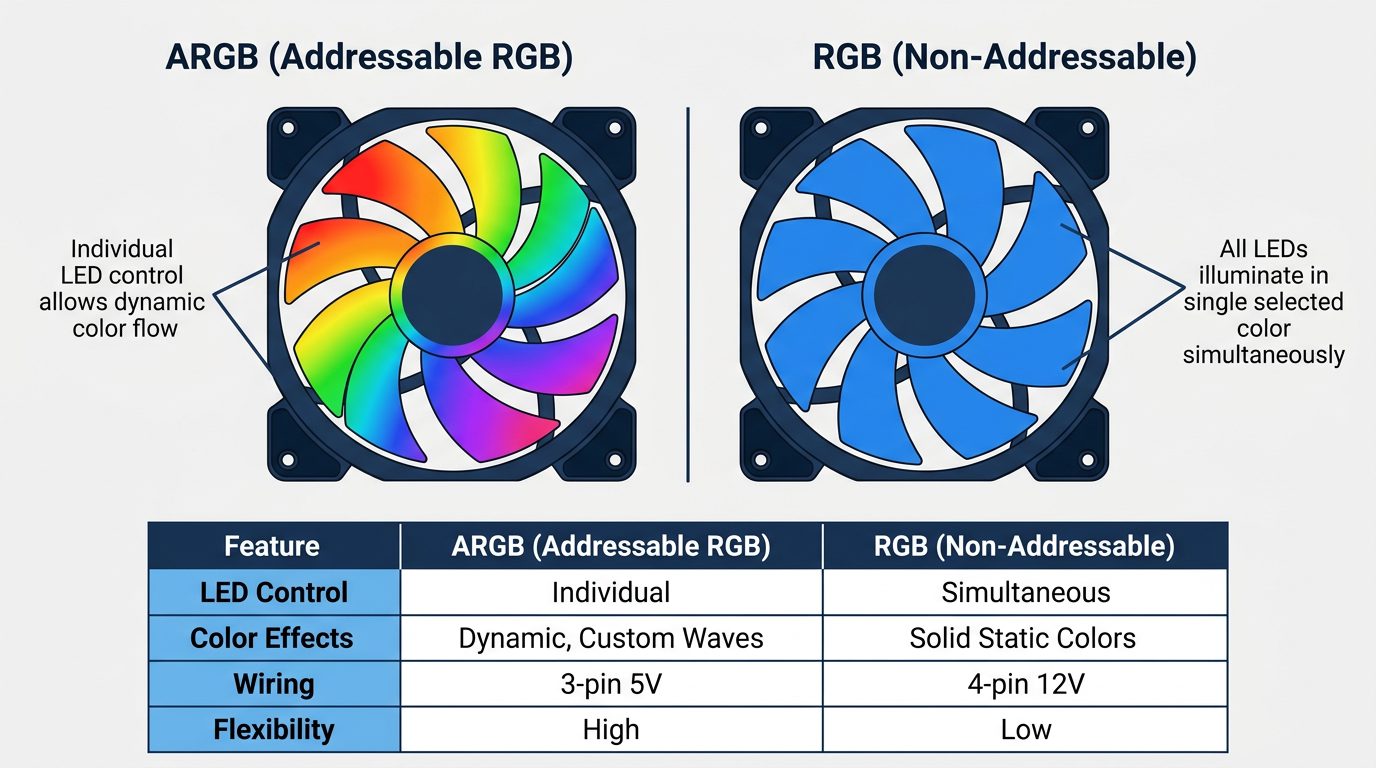
RGB uses red, green, and blue channels for color, while ARGB adds an alpha channel for transparency control.
Connector Shape, How to Tell Them Apart Physically
If you’ve already got a component in hand and want to identify it without looking up the model, the connector is your fastest answer. Count the pins.
Table of Contents
- Connector Shape, How to Tell Them Apart Physically
- How to Tell If Your Fans (or Components) Are RGB or ARGB
- Check the Connector Physically
- Check the Product Packaging or Model Number
- Check Your Motherboard Headers
- Can You Plug ARGB Into an RGB Header (And Vice Versa)?
- Direct Plugging, Why You Should Not Do It
- ARGB-to-RGB Adapters, What They Are and How They Work
- ARGB Controllers as an Alternative
- ARGB vs RGB, Which Should You Choose?
- Choose RGB If…
- Choose ARGB If…
- ARGB vs sRGB, A Quick Note (Don’t Confuse Them)
- Frequently Asked Questions
- Can I plug ARGB into an RGB header?
- Is ARGB 3-pin or 4-pin?
- How do I tell if my fans are RGB or ARGB?
- What is the difference between ARGB and JARGB / JRGB?
- Do I need software to use ARGB fans?
- The Bottom Line
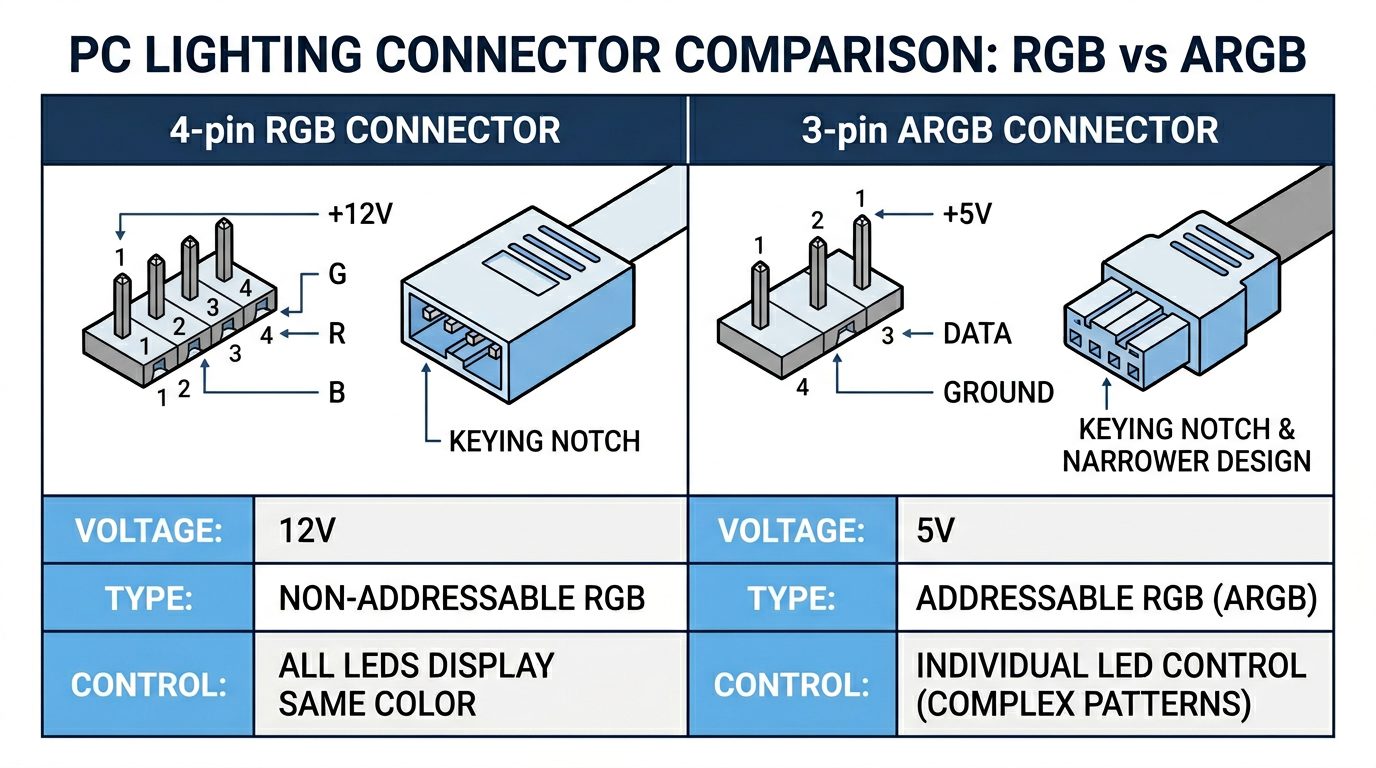
- 4 pins = RGB (12V non-addressable), The 4-pin RGB connector has a small notch or key gap between pins 3 and 4 to help prevent incorrect insertion. The pins carry +12V, R, G, and B signals.
- 3 pins = ARGB (5V addressable), The 3-pin ARGB connector is narrower and carries +5V, Data, and Ground. It also has a keying notch, though the physical key design varies between manufacturers.
Important caveat: the physical key prevents some incorrect connections, but not all. Keying is a guide, not a guarantee. A misaligned connector forced onto the wrong header can still make contact in damaging ways. Always read the label on the header itself, it takes three seconds and it’s the only method that’s completely reliable.
How to Tell If Your Fans (or Components) Are RGB or ARGB
Buying second-hand components, inheriting parts from an older build, or working with products where the packaging got tossed long ago, all of these situations require you to identify lighting type from the hardware itself. Here’s how to do it reliably.
Check the Connector Physically
The fastest method: look at the cable end that connects to the motherboard or controller. Count the pins in the housing.
- 3 pins, ARGB (5V addressable)
- 4 pins, RGB (12V non-addressable)
Some connectors also print voltage directly on the housing in small text. If you see “5V” printed on the plastic, it’s ARGB. “12V” means standard RGB. A magnifying glass or phone camera zoom helps here, the text is often tiny.
Check the Product Packaging or Model Number
Manufacturers have gotten much better about making this distinction explicit in product naming. Search the exact model number on the manufacturer’s website, virtually every product page now clearly states whether it’s ARGB or RGB in the specifications table.
Look for “ARGB” explicitly called out in the product name. For example, Corsair distinguishes between their “LL120 RGB” and separate ARGB-capable fans in their lineup. If the product name only says “RGB” without “A” in front, and the packaging doesn’t mention addressable lighting, it’s almost certainly non-addressable. When in doubt, pull the official product spec sheet from the manufacturer, searching “[model number] + spec sheet” usually surfaces it immediately.
Check Your Motherboard Headers
Knowing what your motherboard offers tells you what you can actually connect without adapters. Open your motherboard manual (or look up the board model online) and find the header locations. Common labels to look for:
- RGB_HEADER or JRGB / JRGB1, 4-pin, 12V, non-addressable RGB
- ARGB_HEADER, JARGB, ADD_GEN1, or ADD_GEN2, 3-pin, 5V, addressable ARGB
Can You Plug ARGB Into an RGB Header (And Vice Versa)?
Direct Plugging, Why You Should Not Do It
The short answer: no, not directly, and not safely.
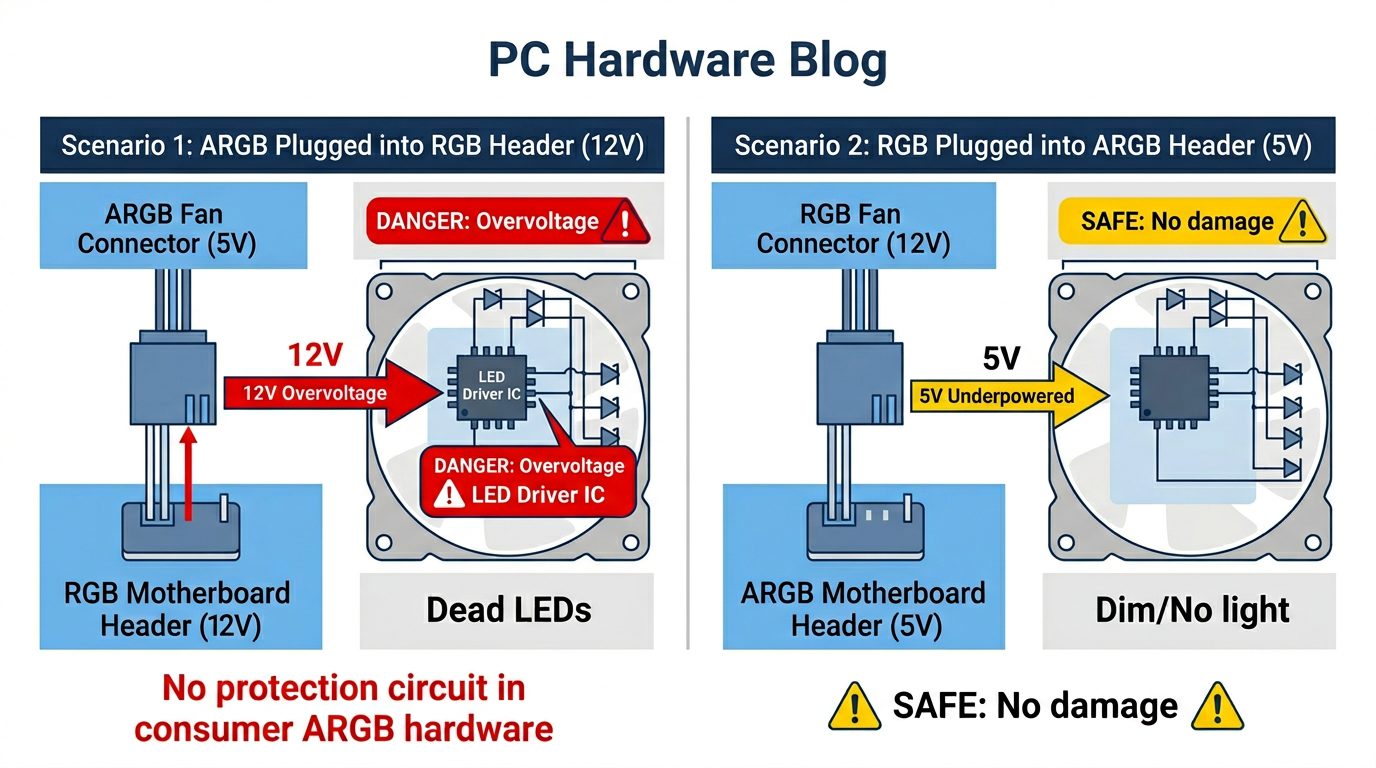
The 12V supplied by an RGB header will push more than double the rated operating voltage into your ARGB component’s LED driver ICs. In my experience testing mixed-header scenarios during builds on both X570 and B550 platforms, the result ranges from a dim and incorrect color output in best-case scenarios, to immediately dark (dead) LEDs after a single power-on. There’s no fuse or protection circuit in most consumer ARGB hardware to absorb that overvoltage hit.
Plugging an RGB (12V) device into an ARGB (5V) header is the safer mistake to make, your LEDs will underperform or not illuminate, but they’re unlikely to sustain permanent damage. As soon as you notice nothing is working, power down and disconnect.
ARGB-to-RGB Adapters, What They Are and How They Work
Voltage-regulated adapters do exist for bridging ARGB hardware to 12V RGB headers. These adapters include a small voltage regulator circuit that steps the 12V header supply down to 5V for the ARGB device. They allow the hardware to function on the wrong header type without damage.
The major trade-off: you lose all addressability. When running an ARGB device through one of these adapters on an RGB header, the device receives a single analog color signal like any other non-addressable device. Your rainbow wave effects are gone. Every LED shows the same color. You’ve paid for ARGB and are getting RGB behavior.
These adapters are a legitimate workaround if you’re stuck with a legacy motherboard that has only RGB headers, but they’re a workaround, not a solution. If you’re speccing a new build, match your components to your available headers from the start and skip the adapter entirely.
ARGB Controllers as an Alternative
If your motherboard has no ARGB header at all, some older boards and some budget mini-ITX boards ship without one, a standalone ARGB controller solves the problem cleanly. These devices plug into a USB header on the motherboard for power and control, bypassing the motherboard’s native header ecosystem entirely.
ARGB vs RGB, Which Should You Choose?
Choose RGB If…
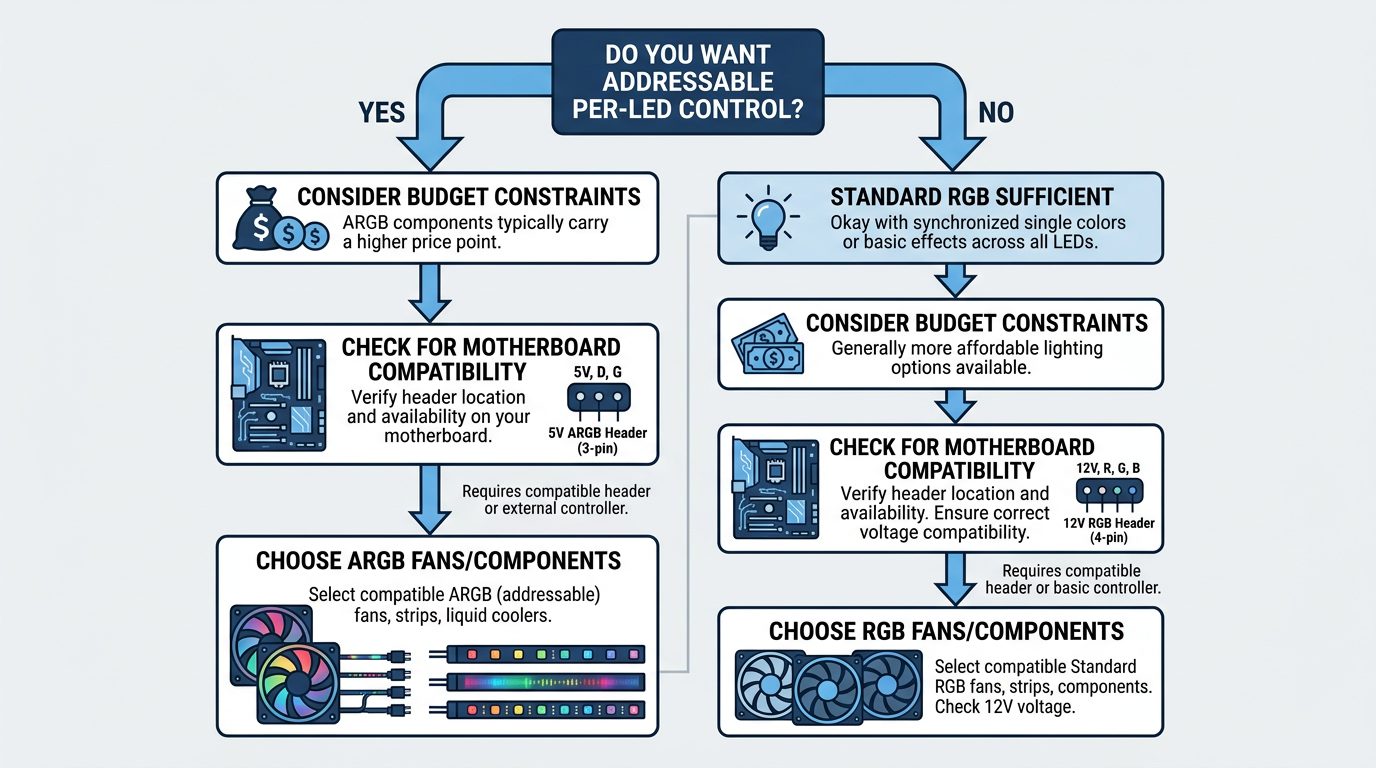
- You’re on a tight budget and basic aesthetic lighting is sufficient, solid colors and simple breathing effects still look good
- Your existing motherboard only has 4-pin 12V headers and you don’t want to deal with adapters or separate controllers
- You want completely software-free, set-it-and-forget-it lighting with a simple button controller
- You’re building a secondary rig, a server-adjacent system, or any build where lighting is a minor aesthetic afterthought rather than a feature
- You’re buying used components and non-addressable RGB hardware is significantly cheaper for your use case
Choose ARGB If…
- You want dynamic per-LED effects, rainbow waves, spinning gradients, audio-reactive patterns, anything that requires individual LED control
- Your motherboard has ARGB headers, virtually every mid-range and high-end board released since 2019 includes at least one 3-pin ARGB header, and many include two or more
- You plan to run any manufacturer lighting software (iCUE, Armoury Crate, MSI Mystic Light, Gigabyte RGB Fusion), these platforms are built around ARGB and deliver significantly diminished functionality with non-addressable hardware
- You want your build’s lighting to be expandable and consistent, adding components later is easier when everything speaks the same protocol
- You want your build to look premium, at current price points, ARGB fans and strips are available in the same ranges as their RGB counterparts, making the upgrade essentially free
ARGB vs sRGB, A Quick Note (Don’t Confuse Them)
If you’ve seen “ARGB vs sRGB” pop up in search results, the confusion is understandable, but these are completely unrelated technologies that share some letters.
sRGB (Standard RGB) is a color space standard used in monitors, cameras, and display hardware. It defines a specific range of colors that a display can reproduce, and it’s the default color profile for most web content and consumer displays. When a monitor spec sheet says “covers 100% sRGB,” it’s talking about color accuracy, nothing to do with PC lighting.
In the display and printing context, “ARGB” can also refer to an Alpha channel added to the RGB color model (A = transparency/alpha), used in image editing and software rendering. Again, completely unrelated to PC lighting hardware.
Frequently Asked Questions
Can I plug ARGB into an RGB header?
Not directly and not safely. ARGB hardware runs on 5V; a standard RGB header supplies 12V. Connecting an ARGB device to a 12V RGB header risks permanently burning out the LEDs, in some cases immediately on first power-on. If you need to bridge the two, use a voltage-regulated 3-pin to 4-pin adapter, but be aware that you will lose all per-LED addressability and your ARGB device will behave like basic non-addressable RGB hardware. For a new build, the better approach is to match your components to your available headers from the start.
Is ARGB 3-pin or 4-pin?
ARGB uses a 3-pin connector carrying +5V, Data, and Ground. Standard non-addressable RGB uses a 4-pin connector carrying +12V, R (red), G (green), and B (blue). Counting the pins on your cable or header is the fastest physical identification method. You can also check for voltage labeling printed directly on the connector housing, “5V” means ARGB, “12V” means standard RGB.
How do I tell if my fans are RGB or ARGB?
Three methods, in order of reliability: First, count the pins on the lighting connector (3 = ARGB, 4 = RGB). Second, check the product name and model number, most manufacturers explicitly include “ARGB” in the name if it’s addressable; if the product only says “RGB,” it’s almost always non-addressable. Third, look up the exact model number on the manufacturer’s spec page, which will list the connector type, voltage, and LED standard. If the product description mentions WS2812B or SK6812 LEDs, it’s ARGB.
What is the difference between ARGB and JARGB / JRGB?
JARGB (and JARGB1) are ASUS’s proprietary naming convention for their ARGB headers on ASUS, ROG, and TUF Gaming motherboards. Functionally, they operate identically to any standard 3-pin 5V ARGB header, the “J” prefix is simply ASUS’s internal header naming system. Similarly, JRGB is ASUS’s label for standard 4-pin 12V non-addressable RGB headers. You may also see ADD_GEN1 and ADD_GEN2 labels on ASUS boards, referring to first- and second-generation ASUS AURA SYNC addressable header standards. Both are electrically compatible with standard ARGB 3-pin devices.
Do I need software to use ARGB fans?
Not always. Many ARGB fans ship with a standalone button controller in the box that cycles through preset lighting effects without any software or motherboard involvement. This is useful for cases where you want simple dynamic effects without installing Armoury Crate or iCUE. However, to unlock full per-LED customization, cross-component synchronization, audio reactivity, and custom effect creation, you will need the motherboard manufacturer’s lighting platform, ASUS Armoury Crate, MSI Mystic Light, Gigabyte RGB Fusion, or the component manufacturer’s software (Corsair iCUE, NZXT CAM, etc.). The hardware capability is always there; the software just unlocks all of it.
The Bottom Line
ARGB and RGB are not interchangeable, they run on different voltages, use different connectors, and deliver fundamentally different experiences. RGB is simpler and still perfectly functional for builds where lighting plays a minor role or budgets are tight. ARGB is the modern standard: per-LED control, software ecosystem integration, and increasingly the same price. For any build you’re starting fresh in 2025, choose ARGB components and match them to ARGB headers on your board, you’ll have more flexibility, better effects, and a setup that’s easier to expand later.

Alex has been building and tweaking custom PCs for over 12 years. From budget builds to full custom water loops, he’s assembled more than 50 systems and helped hundreds of builders troubleshoot their rigs. When he’s not benchmarking the latest hardware, you’ll find him optimizing airflow setups or stress-testing overclocks.